Live Help is Currently Available
599CD.com 08/27: MAJOR Bug Fixed in Video Player   Collapse Menus
 
 
New Releases:  8/20: Active Server Pages,  7/22: PowerPoint         [dismiss]


What's New?

Courses  |   Demo  |   Tips  |   Blog  |   Search  |   Help  |   Order


Courses - Microsoft Access 101
Description: Introduction to Microsoft Access
Running Time: 99 minutes
Pre-Requisites: Windows 101 recommended, Windows 102 or Windows 110 recommended, Excel 101 recommended, Word 101 helpful
Versions:
We use Access XP in this course, but the lessons are valid for all versions of Access from 95 to 2003. There are cosmetic changes in Access 2007. Order before 8/30/2008 to get a FREE upgrade to our 2007 version when released!
 
Microsoft Access Training, Tutorials
Microsoft Access 101
Introduction to Microsoft Access

Create a customer table, queries, customer form, mailing labels, and more. 99 Minutes.

If you want to learn how to build databases with Microsoft Access, you've come to the right place. Our instructor, Richard Rost, is one of the most knowledgeable Access developers you'll find. When he's not teaching Access, he's building databases for our clients worldwide.

Access is one of the most powerful tools available today for building databases of all sizes. It can be used for personal databases, running an entire small business, or even managing data on an enterprise level using a back-end such as SQL Server. Access can do it all.

We'll begin our course by covering all of the basic database terminology. We'll talk about the different components of a database: tables, queries, forms, reports, macros, modules, and so on. We'll spend some time teaching you how to plan your database on paper before starting to build it on the computer. This step is very important for proper database design.
 

We'll get started by building a database from scratch. We avoid using a lot of the wizards - we want to teach you how to build databases, not just have databases built for you with some wizard. We'll show you how to create your database file. We'll show you the different parts of Access and walk you through the interface briefly.

Our goal is to build a small business database to track customers, contacts, orders, products, and so on. Eventually this database will be a full-fledged contact manager. We'll add more to it in future Access courses. In today's class we will begin by creating the customer table. We'll talk about what tables are and how they work. We'll talk about the different fields you'd use in your customer table.
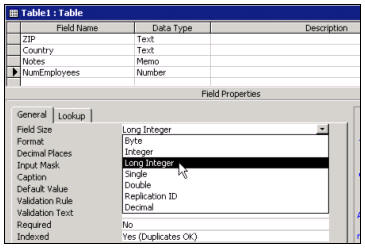
 

We'll talk about different data types (text, number, memo, etc.) We'll tell you why certain fields that are really numbers should be stored as text data types (like ZIP code). We'll learn about AutoNumbers and Primary Keys. We'll teach you how to save your tables with the right table name.


Next we'll add some sample data to our new customer table. We'll show you all of the right ways to enter data such as dates, notes, and so on.


When we're all done with tables we'll move on to building a customer Query. We'll show you how to construct Queries to limit your data based on certain criteria (such as, "show me a list of customers sorted by last name who are from New York.")


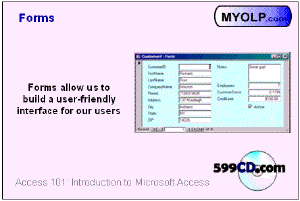
When we're done with Queries, we'll get into the fun stuff: building forms. Forms are a great way to build interactive windows-based databases that are easy for your end-users to work with.
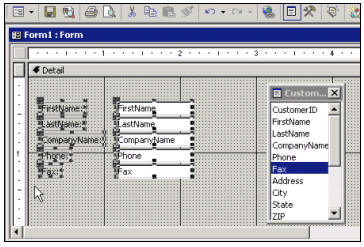
 

We'll spend time teaching you how to create great-looking forms. We'll talk about labels, text boxes, check boxes, and so on. We'll show you how to format your forms, change the colors, resize objects, and so on.
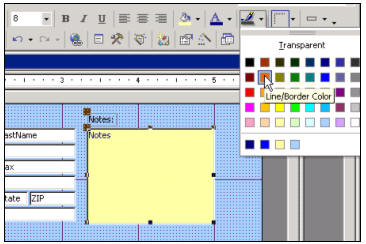
 

Our goal is to teach you the skills you need to make professional-quality forms!
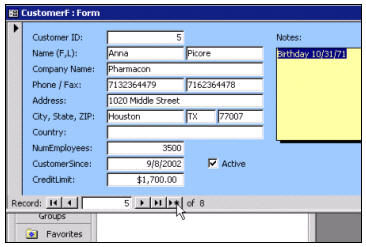
 

When we're done building our Customer form, we'll show you how to create mailing labels for your customers right in Access. Yes, for this we'll use the Label Wizard, but it's a good wizard (you don't want to lay labels out by hand).
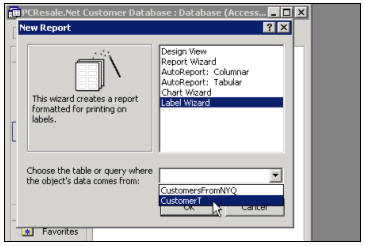
 

We'll use the wizard to create easy-to-use mailing labels that are based right off our table.
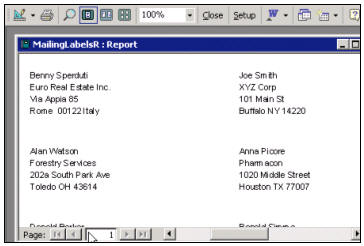
 

Again, if you're really looking to learn Access, this is the perfect course to start with. We'll cover all of the fundamentals from concept to completion. We'll show you how to build tables, store your data, generate queries, construct forms, and make mailing labels. This course will teach anyone how to build a database - no prior knowledge of databases is assumed. Even if you have been using Access for a while, this is still a great course for learning the fundamentals - and how a database should be built, properly.


  Microsoft Access Training, Tutorials

Access 101 Course Outline

1. Introduction
Welcome to Access 101
Important concepts

2. Terminology
What is a database
Database components (tables, queries, etc.)
Describe each component and it's function

3. Planning Your Database
Planning your database on paper
Plan for needed tables
Plan for needed fields in each table

4. Getting Started
Starting Access
Parts of the interface
Creating a blank new database

5. Customer Table, Part 1
Creating a customer table using design view
Creating the FirstName field

6. Customer Table, Part 2
Brief description of basic data types (text, memo, etc.)

7. Customer Table, Part 3
Adding additional fields to your table (phone, address. etc.)
Brief description of basic field sizes (long int, decimal)

8. Customer Table, Part 4
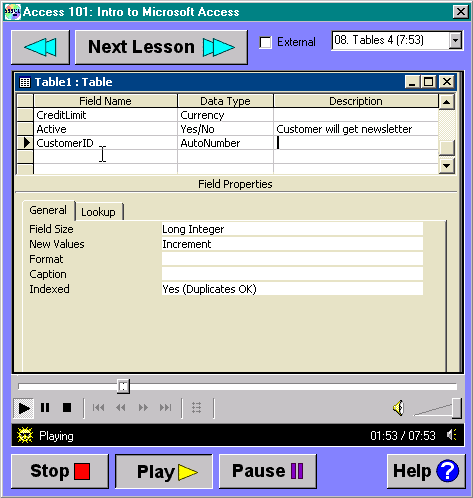
Creating a CustomerID Autonumber
Moving fields in order
Saving your table
Setting the primary key

9. Entering Data
Adding data to your table
Deleting records

10. Customer Query
Building a query in design view
Adding fields to your query
Sorting your query (LastName, FirstName)
Moving fields in your query
Using criteria (e.g. show all customers from NY)

11. Customer Form
Building a form using design view
Selecting a data source
Adding fields to your form using the field list
Lining up your controls
Switching to Form View and back to Design View
Using navigation buttons to navigate records
Moving controls with the Hand
Selecting a block of controls
Deleting controls
Trick to add all controls from the field list to the form
Saving your form

12. Form Formatting
Changing colors of your form and objects
Deleting a label, keeping the text box
Editing your label text
Resizing a text box
Moving a block of controls together
Moving a label independent of it's text box
Resizing your form
Object borders and special effects
Deleting a record from the form

13. Mailing Labels
Using the mailing label wizard
Desigining a prototype label
Report Print Preview
Zooming in and out


Try a FREE Demo Lesson


Huge Discounts Available
When you purchase multiple classes together - up to 50% off!
 

Student Interaction: Microsoft Access 101

Richard on 1/1/2007:  Getting started with Microsoft Access? This course covers all of the basics. Create a customer table, queries, a customer form, and customer mailing labels, printing, more.
Richard Rost on 10/12/2007: Sorry folks, my email address 'richard@myolp.com' is no longer valid. Spammers destroyed that one. If you need to contact me, post a message here, or use the contact form on the web site: www.599cd.com/contact. If you do need to email me, make sure to include [599CD] in the subject line (yes, include the brackets).
John on 10/17/2007: I took Access 101 and I finally got it! I want to make a database for a school of 190 students. I know I can do it after a few more lessons. However, I need to know if it is possible to make Access 2003 forms larger and the font larger. I think the clerical people at the school will have trouble using the small print. The resolution on the computer I am using is 1024 x 768. Do I have to change the resolution, or is there a better sol [more...]
Richard Rost on 10/17/2007: John, all you have to do is increase the dimensions of your form by dragging the borders out. You can then resize all of the elements on the form (text boxes, labels, etc.) and change their font sizes. We cover a lot more with formatting forms over the next couple of classes.
Eric Valencia on 10/23/2007: Hey I advertise on Craigslist and want to catalog all my competition's ads in access (including the html of the ads). Is this the right program to do this in? Access?
Richard Rost on 10/23/2007: Sure, you can catalog anything in Access, it just depends on what format you're getting the data in. I'm assuming you're typing it in yourself and then just copy-n-pasting the HTML?
Virgil DISSMEYER on 11/19/2007: Richard some time ago you told me how to enlarge the small screen used by Amicron player. I don't like the small window and lost your instructions.
Richard Rost on 11/21/2007: Virgil, just click on the "EXTERNAL" checkbox inside the player and it will force the videos to open in Windows Media Player. I'm working on a solution to allow you to resize the videos directly inside the player.
Carol Case on 11/30/2007: Excellent class. I plan to order more. Will a future class tell me how to password protect a database? I would like to create a db and publish it on a website so users in many locations could access and edit the data. I would like to password protect it and give the pw to a select group of users. I would also need to be able to change the pw if a user left the group.
Naveed Ahmad on 11/30/2007: I really like the course and most likely i loved the way he teahes the lessons.I have a question , is there any way i can buy the whole access bunddle and it will save me money as i would like to go for it rether than buy it seperatly. Thanks Naveed
Richard Rost on 12/9/2007: I cover real basic database security (setting a single db password and creating an MDE file) in Access 307. I have not yet covered REAL database security because it changes in every version. I'll probably make a single class coming up soon that will cover security for Access 2002, 2003, and 2007 databases. Now, as far as making an online database, I strongly reco [more...]
Richard Rost on 12/9/2007: If you select multiple courses, our shopping cart will automatically gift you a quantity discount starting with 2 items. The more you buy, the higher your discount. This is in place of (and actually better than) the "Combo" packages we used to have. Just select all the courses you need, and the more you buy at once, the more you'll save.
 IC on 1/20/2008: Have been trying to understand ms Access but there s still lots of confusing areas.what do I do or do you have a simplified example for me to follow? Thanx isaac
 Kamuste on 1/23/2008: Hi sir, Can i complete and master acess without taking visual basics and java courses
Richard Rost on 1/23/2008: Well, my Access 101 class is the perfect place to start. It's got step-by-step videos and a sample database for you to work with. You can't get any more basic than that. Of course, if you have specific Access questions, post them here and I'll do my best to help you.
Richard Rost on 1/23/2008: Yes, you can. Microsoft Access is a stand-alone program, and you don't NEED to know Visual Basic or Java (or any other programming language) to use it. In fact, after taking my Access 100-level series of courses (101-104) you'll be able to develop a perfect working database without ANY programming. Thru the 200-level series, I teach you more power-user techniques, but still you don't need programming. I'll begin touching on Visual Ba [more...]
Fran Raymond on 2/9/2008: Hi Richard, you strongly recommended that we not use spaces in the FieldName. I have a table in which i have used all kinds of spaces in the FieldName. (I did this befoe i took your course! ) This table is related to a number of other tables in my database. My question is this: Is there a way for me to safely eliminate all the spaces in my Field Names and not screw up all my relationships?
 dreamer on 2/14/2008: thanks richard..i had learn basic microsoft access through this tutorial.
JAMES STANZIONE on 2/26/2008: can I use a date as the primary key?
Richard Rost on 2/28/2008: There's nothing in Access to stop you from using a date as a primary key. Personally, I wouldn't do it because it's a bit sloppy, but you can if you want. Just be careful because different computers might be set to different regional date formats. Take 4/5/08 for example. You might see this as April 5th. Someone in Europe would see May 4th. If I were to use a date as a key field, I would make a custom format like this: YYYYMMDDHHNNSS [more...]
Richard Rost on 2/28/2008: In Access XP and higher, Access should automatically keep your relationships OK as long as you are certain to rename the fields in both tables to the same thing. MAKE SURE you BACKUP your database before trying it though. If you have GLOBAL relationships, Access might not let you change the fields until you remove the relationships, however.
Richard Rost on 2/28/2008: You're welcome.
 Terry on 3/4/2008: Great class Richard, I'm sure I'll be visiting your site again. I've always had Access questions and other tutorial information was extremely long. I really appreciate your help. I believe you've made my Jobs a bit easier. I actually have the 2007 version so finding some of the keys/buttons is difficult do you plan to show in '07 version too. Have a great one.
 Gonas on 3/5/2008: This microsoft access you can do programs with it. But if you want to make games what program should i use.If u know tell me something.
Richard Rost on 3/13/2008: Terry, I'll be working on Access 2007 upgrades very soon. First will be a seminar for people transitioning from Access 2000/2002/XP/2003 to 2007. The learning curve is HUGE even for me - everything's in a different place. Next will be a new series of beginner tutorials for NEW Access 2007 students.
Richard Rost on 3/13/2008: If you mean games involving GRAPHICS and things that move around on the screen, I would recommend learning Visual Basic first. See www.599cd.com/VB for a beginner VB course. Most professional games are developed in the C/C++ language. I used to teach C years ago, but I haven't had any demand for it lately.
 Rajneesh on 3/30/2008: It is recommeded in some other tutorials (e.g. Allen Browne) that the data should always be added through forms and never directly into tables. Is it just one of their styles or something else?
Richard Rost on 4/1/2008: I agree with that - mostly. The point is that you don't want your END USERS having direct access to your tables. For one thing, aside from real simple table-level data validation, you really have no control over what they do to your table. Unless you set up user-level security you can't, for example, prevent them from deleting bunches of records. So I would mostly agree that you should have your users always access data through FORMS. [more...]
 Derrick on 4/19/2008: I have designed a database for tracking marine personnel and generating specific forms, etc. I need some info on actually synchronizing a database on the ship with a master database ashore. Replication seems to be the way to go, but I need some better info than I can find in the manuals.
 paul casaclang on 4/21/2008: this is really GREAT stuff sir...thanks so much to people like you!!!
Richard Rost on 4/21/2008: A REPLICA is probably what you need in this situation. For everyone else, a REPLICA is when you make a copy of your Access database that you can take on the road with you, or send to a different location that doesn't have Internet access. Any changes made to the Replica can then be merged back into the main database when you are able to bring them together (copy on a CD, for example). If you're out on a ship and you need access to th [more...]
Richard Rost on 4/21/2008: Paul, thank you very much for your compliments.
Richard on 4/24/2008: No, you cannot change the BACKGROUND color of a checkbox. You can only change its border color, style, and "special effect." We'll talk about those more in future lessons.
1littlechickie on 5/9/2008: Regarding Access 101 lesson 9 time index 6:50... I have set up my customers in CustomersT with the customer number being the key and auto number. First record comes out number one, but when I put in the second record it comes up 5! I don't know what to do. Thanks, 1LC
Randy Sims on 5/20/2008: Deleting cut records? My table and forms have different "ID's",AutoNumber. I think it started when I cut a few records from the table.
Richard Rost on 5/24/2008: 1LC, this is a common question I get all the time with regards to AutoNumbers. You put one record in and it comes up "1" and then some time later you add another one and it's "5". Why is this? Well, somewhere along the line you inserted 2, 3, and 4, and then perhaps DELETED them. Access will NOT reassign them again. They're gone. That's why the next record is 5. You see, once an AutoNumber is used, it can NEVER* be reused. This i [more...]
Richard Rost on 5/24/2008: Randy, if your form is BOUND to a table, then it would be impossible to have different IDs than the table has... unless I'm not understanding your question properly. Could you please elaborate?
ted hayes on 5/28/2008: Access 97 used to let me package a db essentially as a separate program. I believe it was an .mde extension. User did not have to have a copy of Access. I got away from programming for a few years, and now we have .accdb's. Is there a way to package a current version db as a "stand alone" program?
Willis on 5/29/2008: I am trying to get two dates to calculate. I watched your video on date and time. That showed more about time. I am trying to use the current date function to calculate a date of birth 28 May 08 - 24 Jul 66 which at this time should be 41 years old. I hope that my question make sense.
 Wiley Redding on 5/29/2008: Would like to incorporate a self-generating confirmation number macro. How do I build such a macro.
shykh Ahmed on 6/7/2008: is this the same as Access 2007"
Richard Rost on 6/13/2008: Ted, an MDE is not a standalone program, but rather an Encrypted ("E") version of your Microsoft Database ("MD"). You can however download a tool from Microsoft's web site called the "Microsoft Access 2007 Developer Extensions" which will let you take your AC2007 database and distribute it. This tool is free, unlike previous versions. Here's the link.< [more...]
Richard Rost on 6/13/2008: Willis, the easiest way to calculate someone's AGE is to simply subtract the two dates (Now-DOB). Now, simply divide that result by 365 and you get a "close enough" age in years. If you need anything more accurate than that, it involves some programming (which I can cover in a future lesson if anyone REALLY needs to see it).
Richard Rost on 6/13/2008: Wiley, you could use an AUTONUMBER field and just set it to RANDOM instead of INCREMENT. That's the easiest way to generate a random number without bounds. Of course, then you can't use a standard AutoNumber for your ID field. Anything more is going to require some programming and the use of the Random function. Ask me about it when you get to the 300-level classes. :)
Richard Rost on 6/13/2008: Shykh, Access 2007 has changed a lot since 2003. The database itself works just about the same, but the interface has undergone a huge facelift. I will be covering the differences in an upcoming lesson.
Kelly Little on 6/26/2008: Why should I not put spaces when entering phone numbers? The problem with this is, when I pull the database into excel, then there are no dashes or spaces and makes the phone # difficult to read. Thanks!
Richard Rost on 7/1/2008: Kelly, I recommend NOT including dashes or spaces for various reasons (some of which I go over in the video) but mostly because it keeps your format STANDARD. You don't have some with dashs, some without, some with dots, etc. If you only allow DIGITS to be entered, it keeps the data homogenous. Now, if you're having problems READING the phone number on a form or report, remember you can always use a FORMAT to display the number, like  [more...]
 Tracey on 7/3/2008: If I've updated my customer list since the time the Mailing Labels report was created, do I need to update this report in some way, or does Access do this automatically?
Richard Rost on 7/22/2008: Tracey, if you've added any fields, you will need to also add them to your mailing label report. If you've just CHANGED the name of any of your fields, Access MIGHT have picked up the change for you automatically, but it's best to check.
Sri Nair on 8/3/2008: Richard, that was GREAT.


You may want to read these articles from the 599CD Blog:


Need
Help?

   
Do you have questions about Word, Excel, Access, Web Design, or computers in general? Just ask us anything you'd like.
 

Get Free Tips & Tricks
 

Join our mailing list today and get information on our Free Tips & Tricks Newsletter including free video tutorials, eBooks, live seminars, and more.

Email:
Name:
Type in the word to the left:
 
Your email will be kept 100% safe and will never be given to 3rd parties.


CLICK HERE for a FREE lesson


Order your first 599CD course now.
Your Satisfaction is Guaranteed!


 NEW:  Watch all of our courses online in the 599CD Theater
 

599CD Home   |   Learn More   |   What's New?   |   Contact Us   |   Free Demo   |   FAQs   |   Order Now   |   Become an Affiliate   |   TechHelp   |   MYOLP   |   Jobs   |   Chat   |   Downloads   |   Handbooks  (Text)   |    Mailing List   |   Lost Passwords   |   Referral Program   |   Online Poll   |   Troubleshooter   |   Corporate / Educational / Government / Non-Profit Sales   |   Message Forums   |   Testimonials   |   Privacy Policy   |   Tips & Tricks


What's New  |  Home  |  Courses  |  Demo  |  Learn More  |  Contact  |  Order