| |
| |
|
|
|
Excel Beginner Level
5
Beginner Microsoft
Excel Tutorial - 1 Hour 46 Minutes |
| |
|
|
| |
This tutorial
picks up where our
Excel Beginner 4 class left off. In this
tutorial, you will learn:
 |
- Insert Text, Hyperlinks, WordArt
- Text Boxes,
Symbols, Objects
- Headers & Footers
-
Freeze Panes, Split Sheet
- Borders & Gridlines
- Merge & Center, Format Painter
- Comments,
Research, Stock Quotes
- Office Online Templates |

Order Now |
If you would like a preview of what's covered in this class,
click here to watch the first lesson of
this course (free of charge), or scroll down for more information.


|
|
Excel Beginner Level 5 |
| Description: |
Excel
Beginner Level 5 |
| Versions: |
Recorded with Microsoft
Excel 2010. Valid for 2007 to 2021. |
| Pre-Requisites: |
Excel
Beginner Level 4 |
| Running Time: |
1
Hour 46 Minutes |
|
Cost: |
$5.99 |
|
|
|
This
course is for the
novice
user who has little or no experience with
Microsoft Excel except for my
Excel Beginner Level 1,
2,
3,
and
4 courses. Today's course covers a wide variety of topics
that didn't fit into any other lesson, but are important to learn.
We'll start by learning how to insert
hyperlinks, text boxes, signature lines, and
other objects into our sheets.

Next, we'll learn how to insert
symbols and other special characters into our sheets -
including foreign language letters. We'll also learn how to insert
WordArt.

You will learn how to work with
Headers & Footers. You'll see how to manually create a header,
enter in your own text, and use special codes to represent the page
number, total number of pages, date & time, and more. You'll also see
how to use the built-in Header & Footer templates.

Next we'll learn how to work with large
spreadsheets. You'll learn how to freeze panes (the top
row or the left column) so you can scroll around and still see the
headers in your sheet. You'll learn how to split your sheet
into two so you can work on two sections at once.

You'll learn how to work with
borders and gridlines. You'll learn how to change the visible
borders in your spreadsheets, and choose whether or not to print
gridlines.

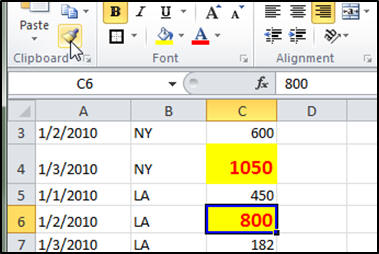
You'll learn how to merge cells
(merge and center, merge across, unmerge), change cell orientation,
rotate text, and use the Format Painter to quickly copy
cell formats.
We'll learn how to put comments
in our cells so you can store additional information in your
spreadsheets. We'll see how to edit, delete, and permanently show or
hide the comments.

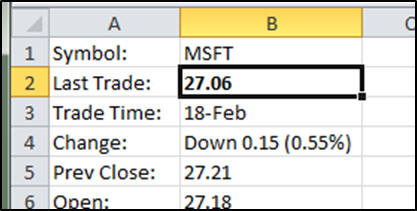
You'll learn how to use Excel's
research tools to spell check your sheet, use the thesaurus,
translate words, and even download real-time stock quotes
from the web and insert them into your sheets.
Finally, you'll learn how to download
spreadsheet template from Microsoft Office Online.
We'll download a calendar template, an invoice template, and a mortgage
calculator template. There are thousands of templates online that you
can choose from.

Again, this is the perfect class for
anyone who is new to Microsoft Excel and has finished
my
Excel Beginner Level 1,
2,
3,
and
4 courses. If you have little or no experience
with spreadsheets, or you just want to get familiar with how Excel
works, this class is for you.
Of
course, if you have any questions about whether or not this class is
for you, please contact me.
Complete Outline - Excel
Beginner 5
01. Insert Text 1 (9:45)
Insert > Text Group
Insert Hyperlink
Web Page Hyperlinks
Email Hyperlinks
Link to Customer Address
Link to Google Maps
02. Insert Text 2 (13:07)
Insert Text Box
Insert WordArt
Insert Signature Line
Insert Object
Insert Symbol
03. Header & Footer (12:55)
Insert Header & Footer
Three Sections
Header & Footer Elements
Entering Text in Header
&[Page] Code for Page Number
Page 1 of 2
Page Footer
Date Code
Insert Picture
Header & Footer Templates
Go To Footer, Header
04. View Window (12:25)
Working with Large Sheets
Create a Large Sheet of Data
Freeze Panes
Freeze Top Row
Freeze First column
Split the Window |
05. Borders (7:42)
Print Preview
Zoom to Page
Printing Gridlines
Changing Borders
Top, Left, Right, Bottom
Inside, Outside Borders
Thick Borders
06. Misc Format Tricks (9:22)
Merge and Center
Merge Across
Merge Cells
Unmerge Cells
Cell Orientation
Format Painter
Double-Click Trick
07. Comments (5:56)
Insert Comment
Edit Comment
Delete Comment
Show, Hide Comments
Previous, Next Comment
08. Research (10:00)
Spell Check
Thesaurus
Getting Stock Quotes
Translate
09. Office Online Templates (11:47)
How to Download Templates
Calendar Template
Invoice Template
Home Mortgage Template
10. Review (4:07) |
|
| |
| Keywords:
microsoft excel tutorial, microsoft excel tutorial, microsoft office excel tutorial, microsoft excel training, insert text, hyperlink, text box, textbox, wordart, signature line, insert object, symbol, header, footer, page code, page numbering, date code, freeze panes, freeze top row, freeze first column, split window, gridline, borders, merge and center, merge across, merge cells, unmerge, cell orientation, format painter, insert comment, spell check, thesaurus, research, stock quotes, translate, office online templates, calendar, invoice |
| |
|
|



