|
||||||

|
|
||||||
|
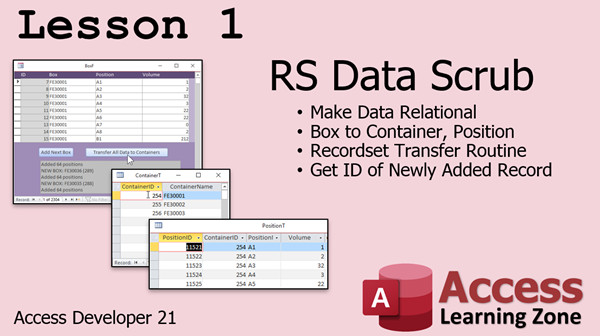
Access Developer 21WelcomeDeveloper 21 continues our study of Recordsets. We will learn how to scrub data, work with nested continuous subforms, side-by-side subforms, arrays, and create a breadcrumb trail of parent records. ResourcesTopics CoveredIn Lesson 1, we will learn how to use a recordset to connect to scrub some data. Back in Developer 20, we created that custom box form where each box has multiple positions, and then some data. That table wasn't necessarily relational; the box name repeated on each record. So in this lesson we're going to use a Recordset to make this data relational. We're going to loop through the box table and copy the data into two other tables: containers and positions. One important technique we'll learn in this lesson is how to get the ID (autonumber) of a newly inserted record which is very important for creating the related records. Note that even though I use a custom example (boxes and positions) the fields don't matter. This technique can be used any time you are given data that isn't relational and you want to separate it into two properly relational tables - like if you're given a spreadsheet with vendor info and products.
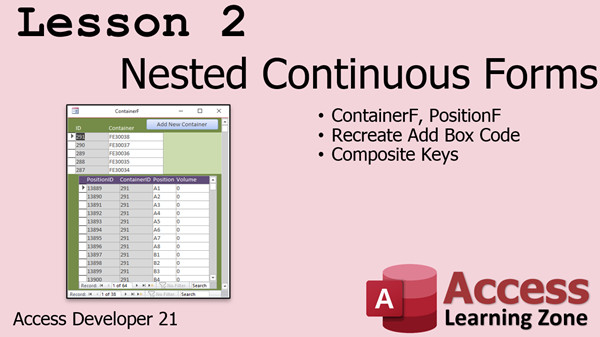
In Lesson 2, we will learn how to create nested continuous forms. We're going to build continuous forms for the containers and position data, then nest one as a subform inside the other. Access doesn't want to let you do this. It will throw up an error message, but in this lesson I'll teach you how to deal with that. We'll recreate the "add box" recordset code. We will also set up composite keys so that no position record is doubled for any container.
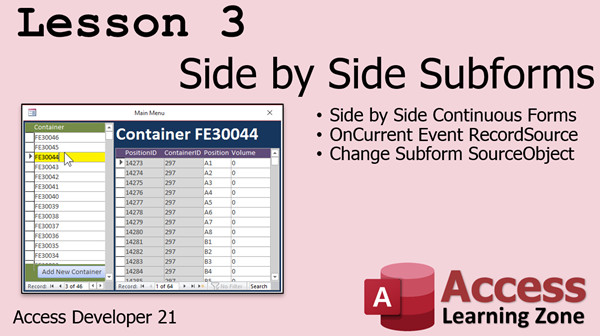
In Lesson 3, we will recreate the forms from lesson 2, however instead of working one on top of the other as a nested subform, we're going to put them side-by-side and have one subform control another one. We'll learn how to manipulate the other subform's RecordSource and SourceObject properties.
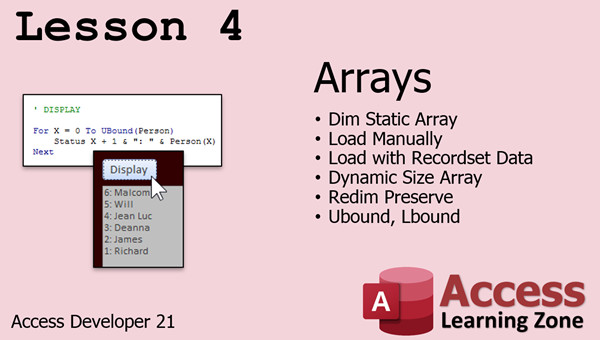
In Lesson 4, we will learn how to work with Arrays, which are variables you can use to store lists of information in the computer's memory.
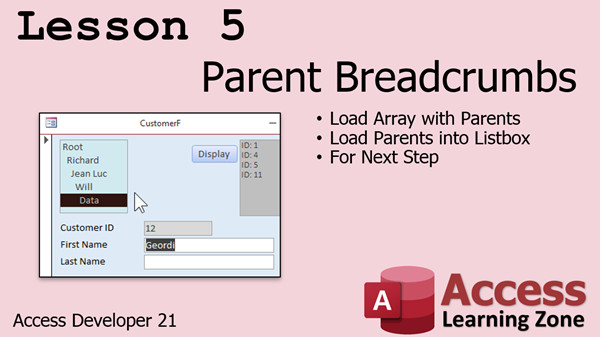
In Lesson 5, we will learn how to use those arrays from Lesson 4 and create a trail of breadcrumbs. In this case, a listbox showing parent records in a heirarchy. We will take an employee table and show parent supervisors all the way up the tree to the top, then load them in a listbox.
Enroll TodayEnroll now so that you can watch these lessons, learn with us, post questions, and more.
Questions?Please feel free to post your questions or comments below. If you are not sure as to whether or not this product will meet your needs, I'd rather help you before you buy it. Remember, all sales are final. Thank you.
More InformationTranscriptWelcome to Microsoft Access Developer Level 21 brought to you by AccessLearningZone.com. I am your instructor, Richard Rost. In today's class, we're going to learn how to scrub data given to us in whatever format. Sometimes you get a spreadsheet of information and you want to be able to clean up that data a little bit and then insert it into other tables. Maybe check the CIF records exist. Lots of different things. We're going to learn about nested subforms where you get a continuous form inside of another continuous form. Then, I'm going to show you how to do the same thing side by side. So you have a continuous form on the left, a continuous form on the right, and when you click on the parent on the left, for example, all the child records show up on the right. Then we're going to learn about arrays which we'll use to do parent breadcrumbs. You get a hierarchy of employees and you want to say this is this person's supervisor, and so on up the tree or after the root or the top of the president, CEO, or whatever. We'll use an array to load up the customer or employee records. You can do it with product records too with product subforms. It's basically thousands of folders. We'll do all that today in Developer 21. Let's review exactly what's covered in each lesson. In lesson one, we're going to use a record set to scrub some data. Back in Access Developer 20, we created that box form where we have a bunch of boxes and each box has multiple positions and then some data. Well, that table wasn't necessarily relational. The box record repeated every record. So in this lesson, we're going to use a record set to make this relational. We're going to copy box information into two new tables, container and position. I'll have to use a record set to loop through it, determine when we have a new box, add to the box table, then loop through all the other records, add the position table, and so on. One important technique in this lesson is I'm going to show you how to get the ID, the autonumber of a newly added record inside of adding it to a record set. Very important. In lesson two, we're going to learn about nested continuous forms. We're going to build a form, a continuous form for the container and for the position. Then we're going to make them both continuous forms. Then we're going to put the position form inside the container form as a subform. You're not supposed to be able to do that. Access actually throws up a warning message, but I'm going to show you how to get around it. Then we're going to recreate the add box code from Developer 20. This time we're going to add a container. We have to use two different tables again. Then I'm going to teach you about composite keys. That makes sure that we don't have two records that have both the same container and position. It's a key field based on multiple fields. Lesson three was inspired by lesson two. I think it looks a whole lot better to have these side by side than to have the continuous forms one over the other, where the one inside the child form is in the form footer of the parent form. We can do them side by side, but we have to use two continuous forms each as a subform inside a third unbound form. I know it sounds a little complicated, but I'll show you how to do it. We're going to set up side by side continuous forms. The on current event of the one, the container form, that parent basically will control the record source of the second form. Then I'll show you how to change the subform's source object. Then we'll put a nice little cool label up top there. All that in lesson three. In lesson four, we're going to learn about arrays. It's going to be a crash course to arrays. We're going to learn how to dim a static array, load an array manually with some data, load it with record set data by looping through a record set and then loading that up into the array, creating a dynamic size array. So if you don't know how many records go into it ahead of time, I'll show you how to do that with the redim and redim preserve commands. Then we'll learn about the Ubound and Lbound functions to tell how big your array is. In lesson five, we're going to take what we learn about arrays in lesson four and put them to use to put together parent breadcrumbs. Let's say in our employee database, every employee has a supervisor throughout the entire organization. I want to be able to see a breadcrumbs trail of this particular employee's supervisors all the way back up to the beginning, or all the way to this top of the root. You can see here, Jordy, for example, is below Data, Data is below Will, Will is below John Luke, who's below me, and I'm over the root off the root. So that's what a breadcrumbs trail is. You can use this for product categories, you can use it for all kinds of different things. I'm going to show you how to load an array with the parents. You have to start with Jordy and then go back through the parents until you get to the root. Then we can go forward with that list, which we're going to pull out of the array and use to fill our list box with the actual parents. We'll learn about For Next step in this lesson as well. I will be using Access 365, part of the Microsoft 365 program. This should work for 2019, 16, all the way back to maybe 2007. All this stuff is just fine for every version of Access since 2007, and probably even before that. Of course, I strongly recommend all my previous classes, but you should have at least taken Developer 16 and know how to cover record sets. Of course, if you have any problems, questions, thoughts, or concerns, feel free to post them in the Access forum on my website. Sit back, relax, get your thinking caps on, and let's enjoy Access Developer 21. IntroIn this lesson, you will learn advanced data scrubbing techniques in Microsoft Access, including how to use recordsets to make unstructured data relational, and how to obtain the autonumber ID from newly added records. We will cover building nested subforms with continuous forms both stacked and side by side, and explore how to use composite keys to prevent duplicate records. You will also get a practical introduction to arrays in VBA, using them to create breadcrumb trails for hierarchical data like supervisors or product categories. This is Access Developer Level 21. QuizQ1. What is the main purpose of data scrubbing in Microsoft Access as discussed in this class? A. To change the names of fields for aesthetics B. To clean and organize imported data for use in relational tables C. To secure the database with passwords D. To increase query processing speed Q2. What is a nested subform in Access? A. A single form containing no other forms B. A form displayed as a report only C. A continuous form embedded inside another continuous form D. A form containing only unbound controls Q3. Which layout is described as appearing visually more appealing for displaying parent and child data? A. Tabbed layout with hidden controls B. Stacked continuous forms one above another C. Side by side continuous forms with linked data D. Continuous form within a form header Q4. What technique is important when adding a new record to a table using a record set? A. Copying and pasting from Excel B. Using Append Queries only C. Retrieving the ID (autonumber) of the new record immediately after adding it D. Manually typing in the ID Q5. What is a composite key? A. A key created from a single AutoNumber field B. A key that combines multiple fields to ensure uniqueness C. A key used only for lookup fields D. A password to access the database Q6. Why are arrays introduced in this course? A. To replace all tables in Access B. To simplify entry of single records only C. To load hierarchical data like employee supervisors or product categories into memory for processing D. To enhance visual formatting of forms Q7. Which commands are used to manage dynamic arrays in VBA as discussed in the course? A. Static and Dim B. ReDim and ReDim Preserve C. Insert and Update D. Begin and End Q8. What do the Ubound and Lbound functions determine in arrays? A. The number of fields in a table B. The maximum length of a string C. The upper and lower index boundaries of the array D. The maximum number of open forms Q9. What is a breadcrumbs trail in the context of this course? A. A navigation menu on Access forms B. A sequence of related records showing hierarchical relationships from a given record up to the root C. A field that stores login history D. An audit log of database changes Q10. For which versions of Microsoft Access are the techniques taught in this class applicable according to the instructor? A. Only for Access 365 B. Only for Access 2016 and later C. For Access versions since 2007 and possibly before D. Only for Access 2019 Q11. What prior knowledge is recommended before taking this course? A. Basic Windows navigation B. Knowledge of record sets covered in Developer 16 C. PowerPoint presentation creation D. SQL Server administration Answers: 1-B; 2-C; 3-C; 4-C; 5-B; 6-C; 7-B; 8-C; 9-B; 10-C; 11-B DISCLAIMER: Quiz questions are AI generated. If you find any that are wrong, don't make sense, or aren't related to the video topic at hand, then please post a comment and let me know. Thanks. SummaryToday's video from Access Learning Zone covers Microsoft Access Developer Level 21. I'm Richard Rost, your instructor, and in this class we're going to look closely at scrubbing imported data, working with nested and side-by-side continuous forms, and exploring arrays to handle parent-child hierarchies such as breadcrumbs. It's common to receive data in different formats, often messy or not ready for use in a relational database. In this course, I will show how to clean up such data, possibly taken from a spreadsheet, so it's ready for use in your Access tables. We'll also cover ways to cross-check if certain records like CIF records already exist in your tables. A major topic in this class is working with nested subforms, specifically how to display a continuous form nested inside another continuous form. I'll also show you how to achieve a side-by-side layout, where one continuous form (say, a parent list) appears on the left and a related continuous form (such as child records) appears on the right. When you select a parent record, you'll see its children instantly, making data navigation far more intuitive. We'll also focus on arrays, a powerful tool for handling hierarchical data. If you have a structure where items (such as employees) have supervisors, or products belong to categories which may themselves have parent categories, arrays can help track and display these relationships effectively. Using arrays, you'll be able to load these parent-child links and display a clear, stepwise path from any item up to the top-level root in the hierarchy. This is especially useful to show an employee's entire chain of supervision or to identify a product's lineage in a category structure. Let's look at the specific lessons in this class. Lesson one deals with using record sets to clean imported data. We revisit a scenario from Developer 20 involving a box form containing boxes, positions, and additional data. The storage method was not fully relational, causing box information to be repeated with every record. Today, I will demonstrate how to use record sets in VBA to move this information into two new related tables: one for containers and one for positions. This will ensure data is stored efficiently, using relational principles. You will also learn how to retrieve the ID of a new autonumber record after adding it to a table using a record set, which is an essential skill when splitting data into multiple tables. In lesson two, we take the cleaned-up, relational data and display it using nested continuous forms. We'll create two continuous forms, one for containers and another for positions, then nest the position form within the container form. Access will warn you that nesting continuous forms in this way isn't normally allowed, but I'll demonstrate techniques to bypass that warning. In this section, we will also recreate the add box functionality from the previous class, adapting it to use our new two-table setup. I will also introduce composite keys, where multiple fields together ensure the uniqueness of each record, preventing duplicates based on combinations of container and position. Lesson three expands on form layout options. Inspired by the previous design, I believe that side-by-side continuous forms offer a clearer, more user-friendly interface. We'll set up two continuous forms as subforms within a third, unbound form, placing them side by side. The active (parent) form controls what appears in the related (child) form by adjusting its record source in response to user interaction. You'll also learn how to switch a subform's source object and customize your forms with descriptive labels. Lesson four is an introduction to arrays, a fundamental data structure in VBA. I'll show you how to declare static arrays and populate them with data, then move on to loading arrays dynamically using data pulled from record sets. This includes resizing arrays to fit any number of records at runtime using redim and redim preserve, as well as determining the size of an array using the Ubound and Lbound functions. Lesson five puts these array techniques to use for building breadcrumbs in hierarchical data. For example, in an employee management database, each employee is linked to a supervisor. You'll learn how to track the path from an employee all the way up the supervisory chain to the CEO or organization root. This array of supervisors becomes a list you can display, like breadcrumbs on a website, to make navigation and understanding of the hierarchy clearer. I'll show you how to load the chain of supervisors into an array and display it in a list box, walking through techniques like looping for Next steps to build the breadcrumb trail. You can use the same principle for displaying nested product categories or other hierarchical structures. Throughout this course, I'm using Access 365, but all features and code will work in versions back to Access 2007 and possibly earlier. It's highly recommended that you've already completed earlier classes, especially Developer 16, which covers record sets in detail. As always, if you have any questions or run into issues, you can reach out on the Access forum on my website. Get ready to expand your skills with Access Developer 21. You can find a complete video tutorial with step-by-step instructions on everything discussed here on my website at the link below. Live long and prosper, my friends. Topic ListScrubbing and cleaning spreadsheet data with recordsets Copying non-relational data into relational tables Using recordsets to loop and process data Retrieving autonumber ID of newly added records Creating nested continuous subforms in Access Bypassing Access limitations on nested continuous forms Recreating add record code for multiple related tables Implementing composite keys in Access tables Setting up side by side continuous forms Controlling subform record source with parent form events Changing a subform's source object dynamically Adding labels to Access forms for better UI Introduction to arrays in VBA Declaring and using static arrays in VBA Loading arrays manually with data Populating arrays from recordsets in VBA Creating and resizing dynamic arrays with redim Using Ubound and Lbound functions with arrays Building breadcrumb trails using arrays Traversing hierarchical parent–child relationships with arrays Filling list boxes with parent breadcrumb data Using For Next loops for array processing in VBA Primary Topicsdata scrubbing, recordsets, nested subforms, continuous forms, side by side forms, composite keys, arrays, parent breadcrumbs Secondary Topicslooping in VBA, record sources, list boxes, event handling, Access versions |
||
|
| |||
| Keywords: access developer 21 Recordset Data Scrub Making Data Relational Sample Data ContainerT PositionT Transfer Routine Nested Continuous Forms Composite Key Continuous Form Side by Side Subforms OnCurrent Event Change Subform SourceObject Arrays Static Array D Page Tag: whatsnew PermaLink Microsoft Access Developer 21 |