|
||||||
Table-Level ValidationBy Richard Rost
 5 years ago
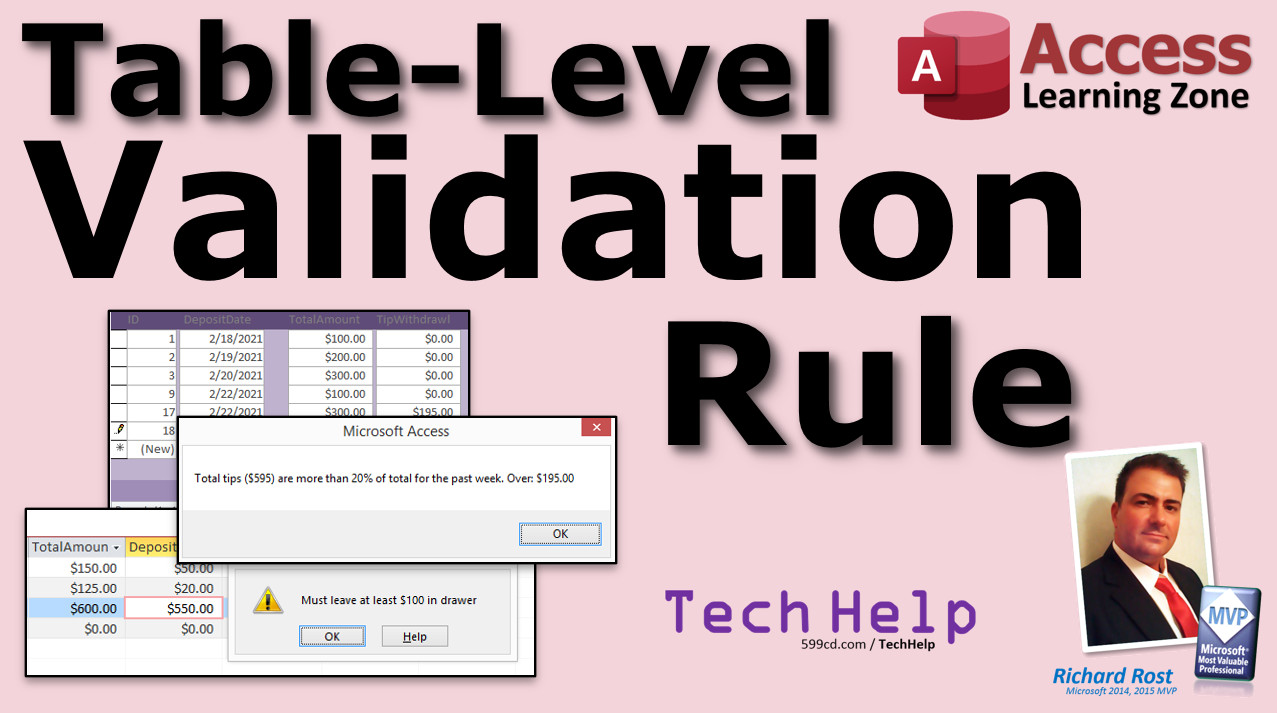
Table-Level Validation Rule, Check Multiple Fields In this video, I'll teach you how you can setup multiple-field validation rules in your Microsoft Access tables so that you can compare different field values before allowing a record to be saved. Natalie from Detroit, Michigan (a Gold Member) asks: When closing out my drawer at the end of each night, I like to enter the total amount of cash counted, and then the total amount taken out for the deposit. The deposit amount cannot be larger than the total count, of course, but once in a while someone types it in wrong and it messes everything up. Is there a way to have Access check this and not let them type in a value that would make the drawer go negative, or below $100, which is the amount I like to leave in the drawer for the next day? MembersMembers will learn how to use a BeforeUpdate event with Dlookup or Dsum functions in order to check values in other records, or even other tables altogether.
Silver Members and up get access to view Extended Cut videos, when available. Gold Members can download the files from class plus get access to the Code Vault. If you're not a member, Join Today!
CoursesTable-Level Validation Rules: https://599cd.com/ACX28 LinksSimple Validation Rules: https://599cd.com/Validation
More InformationTranscriptWelcome to another TechHelp video brought to you by AccessLearningZone.com. I am your instructor, Richard Rost. You may be familiar with validation rules where you can say this field has to have a value that's in this range. Total credit limit can't be more than $5,000 for example. That's a single field validation rule. What we are going to do in this video is I am going to show you how to do a table-level validation rule. What that means is you can compare multiple values in that record, for example. We have got a table where every night we put in the total amount that's in the drawer and the amount that's taken off for the deposit, and we have got to make sure that the amount that's left over is at least $100 in the drawer every night. So we are going to compare one field, subtract another field, and make sure that value is $100. You need a table-level validation rule to do that, and we are going to cover that in this video. The day's question comes from Natalie from Detroit, Michigan, one of my Gold members. Natalie says when closing out my drawer at the end of each night, I like to enter the total amount of cash counted and then the amount taken out for the deposit. The deposit amount cannot be larger than the total, of course, but once in a while someone types it in wrong and messes everything up. Is there a way to have Access check this and not let them type in a value that would make the drawer go negative or below $100, which is the amount I like to leave in the drawer for the next day? In order to do this, Natalie, you have to learn how to create something called a table-level validation rule. Let me show you what I am talking about. Here I am in my TechHelp free template. This is a free download from my website. If you would like to go grab a copy, you will find a link down below the video in the description section. Let's create a new table. Create, Table Design. An ID, AutoNumber. This will be for our drawer count every night. So the total amount will go here. The deposit amount will go next. And let's save this. We will call this my drawer table. Primary key defined. Yes, that's my ID field there. Now, if you want to check what is entered into one of these fields specifically, you can use a basic validation rule that is based on the field itself. For example, total amount. Let's say total amount has to be at least zero. Can't be less than zero. Can't have negative money in the drawer. So down here under Validation Rule, greater than or equal to zero. And the Validation Text would be must be at least zero. You can do the same thing with the deposit amount if you want. That is a basic validation rule. If you don't know much about validation rules, if you have never seen this before, I have got a separate video that covers basic validation rules. Go watch that right now. Pause this. There is a link down below in the links section. Go watch that basic validation rule video and then come back here. Let's save the table. Control-S. If I go and try to put some data in here and I put in something negative, like -2, it yells at me. Must be at least zero. No problem. Hit Escape. Come back out here. Now, if you want to make sure that the deposit amount is not greater than the total amount, which would put the drawer negative, then you have to use a table-level validation rule, not just a field validation rule. We find that up here under the Property Sheet. These are the table properties. There is a validation rule in here as well. This validation rule can use multiple fields. For example, here we would want to say total amount minus deposit amount is greater than or equal to zero. Or in this case, Natalie, you might want to say greater than or equal to 100 because you want to make sure you leave exactly $100 in the drawer, or at least $100. I know with pennies and coins and stuff, sometimes you end up leaving like $100.04 or something like that, but let's just make it round and say $100. Be careful here, because Access sometimes turns your field names into strings. Let me show you. The total amount minus deposit amount has to be greater than or equal to 100. Tab. Now, look what happened there. See? It put quotes around these. So that is not what we want. Be very careful about that. You have to put these in brackets - these field names. Usually, I tell you in my beginner classes, if you do not put spaces in your field names, usually you can get away without having to use these brackets. This is one of those instances where you do need them. So what I have just said there is a table-level validation rule which goes into effect when you try to save the record. It says total amount minus deposit amount has to be greater than or equal to zero, or you can make that 100 if you want to. And you can make the validation text 'must leave at least $100 in drawer.' Close this. Save it. It says existing data might violate the integrity of the validation rule. Just say yes, that is okay. Basically, that means that it went in here and some of the values in here break the rule that you already have set. That is okay. So let's say total amount is 150, deposit amount is 50. That lets us do it because the difference is 100. What if I say there is 125 in there and I am trying to deposit 75? Oh, I get yelled at. See? You can just leave $100 in the drawer. So now I can hit OK. Now I have to come back here and change this. If I change it to 20, it is allowed. If I put $1,000 in there and try to take out 300, it is allowed. If I put $1,000 in and try to take out $995, nope. Must have at least $100 in the drawer. So they cannot save that record unless they type in a valid value. That is how you can use a table-level validation rule to check multiple fields. Want to learn more? In the extended cut for Silver members and up, I show you how to extend validation to include multiple records. What we just did works great. Now we know how to do a validation rule for one field and for a whole record, for one record. You can do X minus Y equals Z, but that is only that record. What if you want to check more than that? What if you want to check multiple records in the same table or even values in a different table? For example, in the extended cut, we say, we have a total amount in the drawer that is taken in every day, and then we have the tip withdrawals. I want to say over the past week's worth of deposits, that tip withdrawal cannot be more than 20 percent. So we have to count up the total amount over the past week, the total tip amount over the past week, and then we are going to say if that value is more than 20 percent of the total deposit, then do not let them do it. We have to use VBA for this - a little bit of VBA, a couple of lines of code, not much. We are going to use a Before Update event because it can be canceled. We will use the DSum function to add up records in a table. That is all covered in the extended cut for members only. Silver members and up get access to all of my extended cut videos. Gold members can download the databases. How do you become a member? Click the Join button below the video. After you click the Join button, you will see a list of all the different types of membership levels that are available. Silver members and up will get access to all of the extended cut TechHelp videos, live video and chat sessions, and more. Gold members get access to a download folder containing all the sample databases that I build in my TechHelp videos, plus my code vault where I keep tons of different functions that I use. Platinum members get all the previous perks, plus access to my full beginner courses and some of my expert courses. These are the full-length courses found on my website and not just for Access. I also teach Word, Excel, Visual Basic, ASP, and lots more. But do not worry, these free TechHelp videos are going to keep coming. As long as you keep watching them, I will keep making more. If you liked this video, please give me a thumbs up and feel free to post any comments that you have. I do read them all. Make sure you subscribe to my channel, which is completely free, and click the bell icon and select All to receive notifications when new videos are posted. Click on the show more link below the video to find additional resources and links. You will see a list of other videos, additional information related to the current topic, free lessons, and lots more. YouTube no longer sends out email notifications when new videos are posted, so if you would like to get an email every time I post a new video, click on the link to join my mailing list. If you have not yet tried my free Access Level 1 course, check it out now. It covers all the basics of building databases with Access. It is over three hours long. You can find it on my website or on my YouTube channel. If you like Level 1, Level 2 is just one dollar. It is also free for all members of my YouTube channel at any level. Want to have your question answered in a video just like this one? Visit my TechHelp page and you can send me your question there. Click here to watch my free Access Beginner Level 1 course, more of my TechHelp videos, or to subscribe to my channel. Thanks for watching this video from AccessLearningZone.com. IntroIn this video, we will talk about how to create table-level validation rules in Microsoft Access. I will show you how to set up rules that compare multiple fields within the same record, such as making sure the cash drawer always maintains a minimum balance after a deposit is entered. We'll go through the differences between field-level and table-level validation, walk through the process step by step, and highlight important issues like referencing field names correctly in your rules. QuizQ1. What is a table-level validation rule in Microsoft Access? A. A rule applied to the entire table enabling you to compare values from multiple fields in the same record B. A rule that only applies to formatting a single field C. A macro that triggers when a table is opened D. A property that restricts data entry to one field only Q2. If you want to ensure that at least $100 remains in the drawer after a deposit, which Access feature would you use? A. Field-level validation rule B. Table-level validation rule C. Input mask D. Default value property Q3. In the example, what must you use around field names with spaces in them when writing table-level validation rules? A. Parentheses ( ) B. Double quotes " " C. Brackets [ ] D. Curly braces { } Q4. What happens if you try to save a record that violates a table-level validation rule? A. Access automatically corrects the value B. Access allows the record but marks it as invalid C. Access prevents the record from being saved and displays a validation message D. Access closes the table automatically Q5. What function is mentioned for summing up values across multiple records in VBA? A. DSum B. DSCount C. DLookup D. DAvg Q6. Which event is recommended when writing VBA to implement advanced validation before data is saved? A. On Click B. After Update C. Before Update D. On Open Q7. Field-level validation rules can check: A. The relationship between two different tables B. Values in a single field C. The sum of multiple fields in the same record D. Data in external applications Q8. What warning might you receive when adding a new table-level validation rule to an existing table? A. Data type mismatch B. Existing data might violate the integrity of the validation rule C. Permission denied D. Query too complex Q9. According to the video, what is the main limitation of table-level validation rules? A. They slow down the database B. They cannot check values across multiple tables or records C. They only work with numeric data D. They cannot display custom error messages Q10. Which membership level provides access to downloadable sample databases used in TechHelp videos? A. Silver member B. Bronze member C. Gold member D. Platinum member Q11. To allow notifications about new videos, which YouTube feature should you use? A. Like button B. Bell icon and select All C. Comment section D. Join button Q12. Where can someone submit their own questions to potentially be answered in a TechHelp video? A. In the YouTube comments only B. By sending a personal email C. Through the TechHelp page on AccessLearningZone.com D. By calling customer support Answers: 1-A; 2-B; 3-C; 4-C; 5-A; 6-C; 7-B; 8-B; 9-B; 10-C; 11-B; 12-C DISCLAIMER: Quiz questions are AI generated. If you find any that are wrong, don't make sense, or aren't related to the video topic at hand, then please post a comment and let me know. Thanks. SummaryToday's video from Access Learning Zone is about using table-level validation rules in Microsoft Access. Many people are familiar with basic validation rules, where you can ensure that a specific field falls within a certain range. For instance, setting a rule so that a credit limit cannot be more than $5,000 or making sure a value is not negative. These rules work for single fields and are quite straightforward. However, you might encounter situations where you need to compare multiple fields within the same record. That is where table-level validation rules come into play. In this tutorial, I explain how to set up a rule to verify that, after a deposit is removed from the cash drawer, there is still at least $100 left in the drawer each night. The question for this lesson comes from one of my students, Natalie, who runs into errors in her nightly cash drawer process. She records the total cash counted and the amount taken out for deposit, but sometimes mistakes are made and the numbers do not add up correctly. She wants Access to prevent anyone from entering values that leave less than $100 in the drawer, or even a negative number, which could throw off her records. To achieve this, you need to use something called a table-level validation rule. I start by building a new table for the drawer count, assigning an AutoNumber ID, and adding fields for the total amount and deposit amount. Field-level validation rules are easy to set up, like making sure the total or deposit amounts cannot be less than zero. You simply enter the validation rule and text to prompt users if they try to break the rule. If you are not familiar with basic validation rules, I recommend learning about them first. I have another video covering the basics, which can help you understand the foundation before tackling table-level rules. Now, when you want to enforce a rule where the deposit amount cannot exceed the total amount, a field-level rule is not enough. Enter table-level validation rules, which you set through the table's property sheet. Here, you can write an expression using values from multiple fields. For Natalie's case, we want to ensure that the total amount minus the deposit amount is at least $100, so there is always that much left in the drawer. It is important to write your field names correctly, using square brackets, especially if there are spaces in them. Access can sometimes treat field names as text strings if you do not do this, which will prevent your rule from working. Once the rule is set, Access will enforce it every time someone tries to save a record. If the number left in the drawer is less than $100, Access will prompt a message and require the user to fix it before saving. If the values fit the rule, the record saves as normal. This method is great for situations where you need to compare values across different fields in the same record. Table-level validation rules go beyond the basic single-field checks by allowing you to enforce logic that depends on relationships between fields. For those interested in taking things further, in the extended cut for Silver members and above, I walk through how to validate information across multiple records. For example, you might want to ensure that over the past week's deposits, the total tips withdrawn do not exceed 20 percent of the total deposited. Doing this kind of validation requires a bit of VBA and the DSum function to sum up values from different records. I demonstrate this approach, using the Before Update event, so you will learn how to enforce these more advanced rules. Silver membership gets you access to all my extended cut videos, live sessions, and more. Gold members get downloadable sample databases and access to my code vault containing many reusable functions. Platinum members receive all these perks, plus my complete beginner and expert course library, which also covers Word, Excel, Visual Basic, ASP, and more. Even if you choose to stick with the free content, I will continue putting out these TechHelp videos as long as there is interest. If you found this lesson useful, feel free to give it a thumbs up and leave a comment. I do read all of them. To stay updated on my latest tutorials, don't forget to subscribe to my channel and set notifications to All. If you want a complete list of resources, related topics, and free lessons, check out my website for more information. If you want email updates when I post new videos, you can join my mailing list. For those new to Microsoft Access, my Access Level 1 course is completely free and covers database fundamentals. If you enjoy it, Level 2 is available for just one dollar or is free with YouTube membership at any level. If you have a question you would like to see answered in a TechHelp video, head over to my website and submit your question there. You can find a complete video tutorial with step-by-step instructions on everything discussed here on my website at the link below. Live long and prosper, my friends. Topic ListCreating a drawer table in Access with Table Design Defining AutoNumber primary key for records Adding fields for total amount and deposit amount Applying field-level validation rules to ensure non-negative values Specifying validation text for invalid input Saving and testing the table with validation rules Understanding table-level validation rules in Access Using the Property Sheet for table-level validation Creating rules that compare multiple fields in a record Writing expressions with field brackets in validation rules Preventing data entry errors with table-level validation Customizing validation text messages for users Handling existing data that violates new validation rules Demonstrating table-level rule enforcement during data entry Primary TopicsAccess table-level validation rules, enforcing minimum values, comparing multiple fields in validation, data integrity, field vs table validation, user entry validation Secondary TopicsAccess Property Sheet, field naming conventions, error messages, extended validation with VBA, database best practices |
||||||||||||||||||||||||
|
| |||
| Keywords: TechHelp Access Validation rules for multiple fields, table level validation rule, another field, beforeupdate event, before update event, dsum function PermaLink Table-Level Validation in Microsoft Access |