|
||||||

|
|
||||||
|
TimesheetsBy Richard Rost
 5 years ago
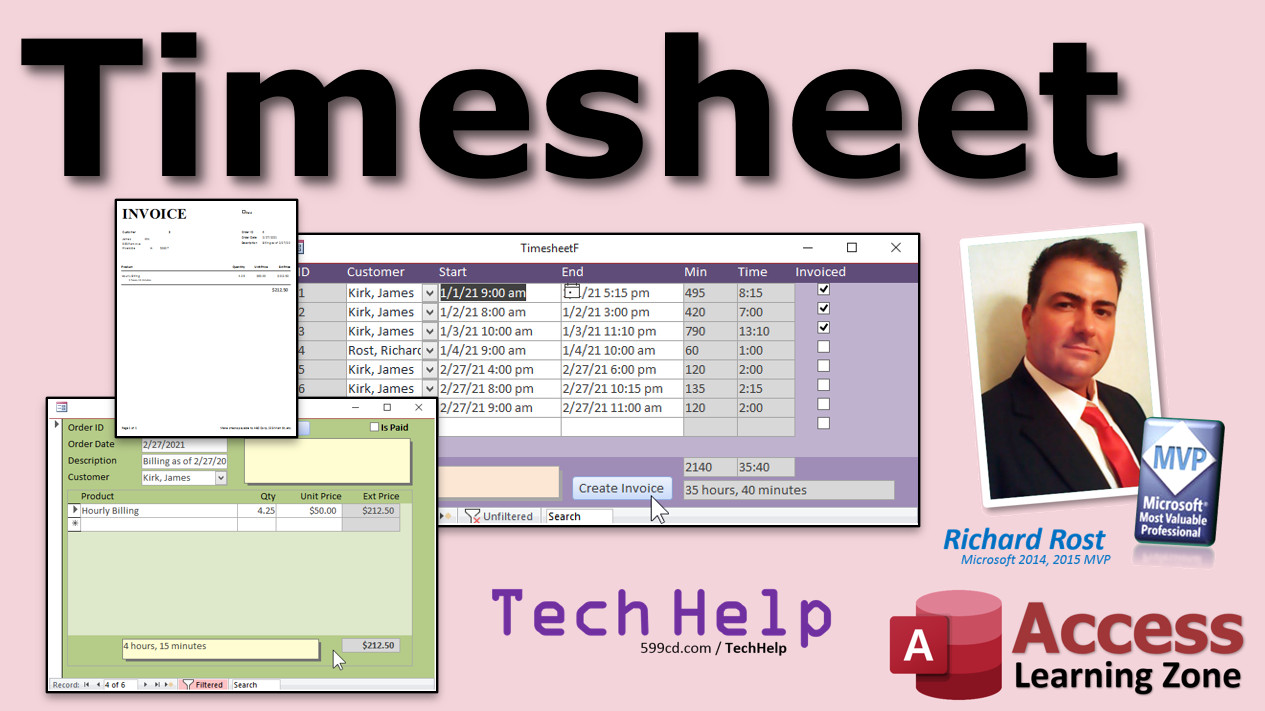
Calculating Total Hours for Employees, Billing, etc. Learn how to create a timesheet in Microsoft Access. We will calculate the total hours and minutes for each line item, then calculate the total time worked in the form footer total. Michelle from Dunedin, New Zealand (a Five Year Student) asks: I watched your video on calculating total time spent on a job, but how can I total that up in a form footer? I have a time sheet showing customers, a time in, and a time out. I'd like to calculate the total hours worked in the form footer. MembersMembers will learn how to track which customer each entry is for by adding a customer combo box. We will also add notes, and a field to track whether or not each item has been invoiced. We will then create a button to add a new order to the invoicing system with one click. All of the items in the timesheet that have not yet been invoiced will be added to the order, and mark as invoiced. You can then print an invoice.
Silver Members and up get access to view Extended Cut videos, when available. Gold Members can download the files from class plus get access to the Code Vault. If you're not a member, Join Today!
LinksTotal Time Spent: https://599cd.com/TimeSpent
More InformationTranscriptWelcome to another TechHelp video brought to you by AccessLearningZone.com. I am your instructor, Richard Rost. In today's video, we are going to build a timesheet, and I am going to show you how to calculate the total hours worked, whether it is for employees or you are billing customers, assigning them to jobs, or whatever, in your Microsoft Access databases. Today's question comes from Michelle from Dunedin, New Zealand. I hope I am pronouncing that correctly. She says, I watched your video on calculating total time spent on a job, but how can I total that up in a form footer? I have a timesheet showing customers a time in and a time out. I would like to calculate the total hours worked in the form footer. She is right. In the original video that I did, where I actually had to calculate the total time spent on a job, I only built the spreadsheet in a query, and then I showed you an aggregate query to add them all up. But we did not do it in the form footer. So let us put all these calculations in a form footer so you can see exactly how many hours were worked for the job. This will work whether you are doing employee timesheets, calculating job costing for a customer, or doing time in billing. It is all the same stuff. It is a time in, a time out, and total hours worked. You can go watch this one if you want to. This is my Total Time Spent video. I will put a link down in the link section, but I am going to recreate this real quick because the original video was recorded four months ago, before I started doing my cool TechHelp free template. So I am going to put this inside of that. Go download a copy of my TechHelp free template if you want to. It is a free download from my website. You will find a link down below. So let us create a table. We will call this our timesheet. So we have a timesheet ID. That is our autonumber. Now, you can put a customer ID in here. I will say we are billing customers for our time. This will be a number of type Long Integer. That is our foreign key. If you are not familiar with that, go watch my video on relationships. Again, this could be an employee ID or a job ID or whatever you want to relate this to. It does not really matter. We have got a start time, which will be a datetime field. It can be a date or a time or both. Preferably, you enter a full datetime, so January 1st at 3 pm. The calculations work best that way. And an end time, or you can call this clock in or clock out - whatever you want to call it, it does not matter. Let us save this: timesheetT, timesheet table. Primary key is our ID, of course. Close it, and let us put some data in it. Now, we can leave the customer ID zero for now. You can put a combo box in there so you can easily see that, but for now, it does not matter. So let us put in here 1/1 at 9 am to 1/1 at 5 pm. Calculations are going to go in a query. How about 1/2 at 8 am, 1/2 at 3 pm? And I will do one more: 1/3 at 10 am to 1/3 at 11 pm. That is a long day. At this point, the customer ID is meaningless. We will fill that in later. Close that. Save changes, yes. Now let us go create a query to do our calculations, just like the last video. Create - Query Design. We are going to bring in the timesheet table. You can optionally bring in the customer table if you want to see the customer details, but we do not need to. Let us bring down the stars: we have all the fields in here. Now, the first thing we are going to calculate is the minutes worked. It is best if you do your calculations based on minutes. Do not try to divide up into hours and stuff until you get there. We will take the minute difference using DateDiff, as I showed in the last video. Based on the minutes, you can easily derive the hours by dividing by 60. So we are going to say, MinutesWorked: DateDiff. If you have never used DateDiff before, go watch my DateDiff video. I will put a link down below. Stop right now, pause this, go watch DateDiff, and get familiar with DateDiff. For minutes, the property is "n" - not delimiter. "h" for hours, "y" for years, "yyyy" for years (four y's), "m" for months, so minutes is "n". Use "n" for minutes. Then we have the time in and the time out, so the start time and end time. Save this: timesheetQ. Let us take a look. There is the difference in minutes between that and that. Make sure it looks about right. If you want to test one, come down here. Do data entry: 1/4 at 9 am, 1/4 at 10 am should give you 60. If you change that to 10:30, it should go up to 90. Make sure that is working. Looks good. Now we have got our minutes worked. We can shrink that up a little bit. We do not need to see the whole thing. Now that we know the minutes worked, we can calculate the hours worked. This will be the hours as a fraction. You will see a decimal point. So HoursWorked: MinutesWorked divided by 60. It is that simple. There we go - eight hours, seven hours, 13 hours, 1.5 hours. If I come in here and make this 11:15, I will see a quarter hour on that one now. You might want to know how many whole hours that is, because if we know the whole hours, then we can derive the minutes that are left over. Back to the query. Shrink that up. We have got the hours worked. Now we are going to take the whole hours: WholeHoursWorked. We are just going to take that same calculation and run it through the Int function. Int(HoursWorked). Run that. There is the int. It just chops off the fractional component. If you change this to 11:45, it does not round up. Int just chops it off - that is what I want, the whole thing. Even if this is 11:55, most of an hour, you still get 13 there. Sometimes you will get very long numbers out of that one. You may want to round that value. This is one of the reasons why I do not like using MinutesWorked divided by 60 to calculate this, because you get those sometimes wacky little fractions in there. I do not rely on this number; this is just for display. I use MinutesWorked, but you can come in here for HoursWorked and round this guy to maybe two decimal places, and that will fix that. Now we have got the whole hours worked. Now we can figure out how many minutes are left over by multiplying that by 60. Makes sense? You have got the whole hours worked; multiply that by 60, and you get the minutes that are left over. A lot of this is just basic logic and math. There is not a lot of crazy database stuff going on here. MinutesLeft equals the total MinutesWorked minus WholeHoursWorked times 60. Basic math. That is eight even hours, so there are no minutes left. That is 55 extra minutes onto that hour - 13 hours, 55 minutes. See how that works? One more column. Let us display that as a duration so you do not see 0.25 hours; you see 15 minutes. A lot of times when you are doing billing, that is how you want to display it. Now, we are basically going to convert this into a text string. Duration is going to be WholeHoursWorked and a colon and MinutesLeft. That is just basic concatenation. If you have ever done string concatenation before, go watch my concatenation video. A lot of this stuff builds on other stuff. That is why, a lot of times, people have a certain thing they want to do that requires advanced stuff like VBA, and they try jumping right into the developer class or trying to write some VBA they found online. I get this a lot. People say, Oh, I found this code online. How do I do it? You do not have all the understanding that goes underneath it. I was just telling a customer this story yesterday. My daughter, when she was eight or nine years old, we went to see a movie. We were sitting there before the movie starts, and she has got her popcorn. She asks, Daddy, where does the moon come from? I am trying to explain it to an eight-year-old. I say, Well, four and a half billion years ago, there was a Mars-sized planetoid that struck the Earth, blew most of our mantle out into space, it orbited the planet for a while, and then it coalesced into the moon. She just looked at me and said OK, then went back to eat her popcorn. It is the same thing with Access. If you have basic knowledge and you are trying to do developer-level stuff, you have a whole lot of other stuff you need to understand first before you can just jump into it. I wish I had time to hold everyone's hand. I really do, but there are only so many hours in the day. I wish I had the time to point you to videos, or like this, I can try to explain it in the TechHelp video, but I can only do so many of these in a day too. I am trying, people, I am trying. So now we got that. Usually you want to see a two-digit minute. That is the convention: it would be eight hours and 00 minutes. So we will just format that to show two decimal points. Wrap this in the Format function: Format(MinutesLeft, "00"). Now you will see that duration looking like that. Make sure this works: hour and a half, 1.5 hours, 90 minutes. This is good. This is bulletproof. If you find a bug with this, let me know. I will give you a free year subscription to my website. Now let us put all of this into a form. We will use a continuous form. Save changes to that, yes. We already have a continuous form from our template. You can go watch how that was constructed by going to watch this video. We will call this our timesheetF. Find the timesheetF down here. Right-click, design view. Bind the timesheet to that new query. Use the query so you have your calculations in the query - you do not have to do many calculations in the form. The form records will have no calculations in them at all. They are all done in the query underneath. We will have some calculations in the form footer in a minute. We will add all of them up. Now, I am going to delete this guy and that label. Let us just delete that too. We will just bring everything in new. Add existing fields. You do not really need the timesheet ID, but I am going to bring it in anyway. The customer ID, sure, we will turn that into a combo box. We will probably do that in the extended cut. We do not need that for now, just for you to get the basic understanding of how this works. Start time, end time. Bring in MinutesWorked, although we do not need to see it - it is nice to have there. We do not need HoursWorked. We do not need WholeHoursWorked, we do not need MinutesLeft, because those are just needed for the calculation. So let us bring in Duration just for the appearance. Click and drag all these, drop in the detail section. I am going to get rid of those labels, delete. The ID, which we really do not need, put aside over there. I know there is the layout trick that we learn to do this, but I find it easier just to do it like this, to be honest. It only takes a second, folks. End time goes there. MinutesWorked - that can be smaller. Duration can be smaller too, unless you are working with gigantic times. Select all that, right-click, size to grid, make it all nice and even. Now, this, that, and that can all be gray. I like to gray these things out because it just tells the user you cannot change those. We are going to change this into a combo box in the extended cut. Let us drop some labels on top: Customer ID, Start Time, End Time, Minutes, and Duration. Slide these up here like that. Customer, Start, End, Minutes, and we will just call this Time. Line these guys up: Start, End, Time, Minutes. I am almost as fast as doing it with the layout trick. I have gotten good at it over the years. Let us save this, close it, and open it back up again to take a peek at what we have. Stuff needs to be formatted down a little bit. Let us adjust this stuff here. Design view, take all this stuff, left align everybody, and let us format these guys, right-click properties. Let us bring up the format in here: M/D/YY H:NN AMPM. One digit month, two if needed, same with the year, same with the hour, two-digit minute, two-digit year, and AMPM. That should fit in that space. Perfect. Again, these calculations should all be correct. Now we are going to add up stuff in the form footer. We are going to add up this total number of minutes. Ignore this - that is just for looks. This is the number that we want right here. It is the only number I care about. Do not use those fractional hours because they are not exact. I do not care about the whole hours and the minutes left. That was just to make this number for appearances. This is the only number that you are going to use in your math. Unless you have to do calculations to the second, I am assuming that everyone is billing by the minute. If you are doing more precise calculations where you need seconds, then you need to do your calculations based on seconds. But I think for 99.9 percent of the business world, we will use minutes. You bill to the nearest minute, if not in 15-minute increments. I have got a video on that too: How to make your billing to 15-minute increments. I will put a link to that down below, too, 15-minute increments. That is a free video as well. So, we want to take the sum of this guy. This is something called form footer totals. I have a video on form footer totals. You should go watch that too. I am going to put a link to that down below: form footer totals. I have so many videos that you need to know that are all free - go watch them before you try to comprehend this stuff. I am just going to take this field, copy and paste it down here in the form footer. Now, it is MinutesWorked, but I want the sum of all of the MinutesWorked on the form. So, change the control source to =Sum([MinutesWorked]). Now, I do not want to leave it Text15, so I call it SumMinutesWorked. Save it. Close the form. I always close the form and reopen it when I make design changes. That should be the total of all those. There is the total minutes worked up here. This is what you will use for the rest of your calculations. You do not have to display them, but you need them. So let us do the same stuff we did in the query, just down here in the form. Copy, paste. Slide you over here. Now, we do not need this guy, but I still want it, just to show you how this stuff works. We will do the HoursWorked. This will be that fractional one again. =SumMinutesWorked/60. There it is, it even pops up in a little help thing for you. You can click on that if you want to. SumMinutesWorked divided by 60. Again, if you want to round that guy to 2, so it does not look all crazy with a fraction, round that, comma, 2. If you are not familiar with the Round function, go watch my video on the Round function. Round the number to the nearest decimal place. Open it up. There you go - that is that number. That minutes is 30.42 hours. How many whole hours is that, you ask? Well, let us figure that out too. Copy this one. Copy, paste. Slide it up next to it. This will be WholeHoursWorked. What is that going to be? =Int(SumMinutesWorked/60). Chop off the fractional component. Save it, close it. Open it up. That is 30 whole hours. Beautiful. How many minutes are left over? We should know how to do this. Take this guy, right-click on it, copy, paste. Slide it over here. Again, we do not need it, but we need it for the calculations. MinutesLeft. We could do all this in one big monster calculation, by the way. I do not like doing that. I like breaking it up into smaller steps. It is much easier to read later on, too. This is SumMinutesWorked minus WholeHoursWorked times 60. That is how many minutes are left over. Open it up. 30 hours, 25 minutes left over. If my math is right: 30 hours would be 1800, so there are 25 minutes left. Makes sense. Now I can display that cool duration again. We will just copy any one of these, copy, paste. Slide that up over here, next to Duration, or under Duration, I should say. Now you cannot sum that out. That is technically a text field. It is just displayed a certain way. But we are going to call it SumDuration, and it is going to be WholeHoursWorked & ":" & Format(MinutesLeft, "00"). To make sure it is two digits. Save it, close it. Open it up again. There is my hours and minutes: 30 hours, 25 minutes. That makes sense - 1800 would be 30 hours, 25 minutes left over. Want to see it in English down here below that? We could do that too. Copy this, copy, paste. That is just adjusting what is in here. Let us call this DurationEnglish, and we will just change what is in here. Let me zoom in so you can see this better. Hours worked: WholeHoursWorked & " hour(s), " & MinutesLeft & " minute(s)". If you do it this way, you do not really need the format, because you can put one minute or minutes. You could do something where you only show "minute" or "minutes" with maybe an IIf function. Maybe I will show you that if I am feeling lucky. Open that up. There you go: 30 hours, 25 minutes. You could put this into your billing if you want to. Actually, this is probably better. That is just neat to show. I will show you the little IIf function trick. Watch this. I have another video called "If: The Immediate If (IIf)." Go watch that so you understand this. MinutesLeft - at the end here, I am going to say: & IIf(MinutesLeft=1,"","s"). So if it is 1, it just says minute; if it is 0, 2, or more, it will put an "s" at the end of minutes. You can do the same thing with hours right there: chop that off and say & IIf(WholeHoursWorked=1,"","s"). Then we have to close up the IIf, and then & ", " & to put our comma space there. See how that works with the little IIf? If you are confused by this, back up 30 seconds and stop watching because I am done. Go watch the IIf function. It is basically an if-then statement: If this, then do that, else do that. Save it. Open it back up again. This is the kind of cool stuff I usually reserve for the extended cut people. So for those of you who are thinking about becoming members, you want to see some neat stuff. Let us make this come out to one minute. Change this to 0, 1. That gives us 29 hours, 1 minute. See? I know what I am talking about. Change this to 0. There you go. You could even have this whole thing disappear if it is 0. I am not going to go that far. You can do nested IIf functions and all kinds of crazy stuff, which I do cover in my full classes, by the way. Does that answer your question? Now you have the times up here, you have the times all correct in the form footer. That is how you do it. Want to learn more about making timesheets? In the extended cut, 37 minutes long, we will add that combo box to the timesheet so you can pick who the customer is that you are billing and some notes down on the bottom. This is a phone consult, this is a warp drive overhaul, whatever you want to bill for. Then we will track whether or not it has been invoiced already. Then I can open up one customer's billing, hit create invoice, and then boom, it just puts the invoice together -puts in the hourly billing, figures out the total number of hours, puts in our unit price for our hourly rate, click another button, there is your printable invoice. That is all covered in the extended cut for members. Silver members and up get access to all of my extended cut videos. I will also include links down below to other videos on similar topics, like the original DateDiff video that covers how to calculate total time spent. This one just does not go into form footer totals. I have got my Advanced DateTime Seminar that covers all kinds of stuff having to do with dates and times, counting work days between two dates, a holiday exclusion table (so if you want to say this person started working on a Friday and a Tuesday, but that Monday plus the whole weekend, we do not count), all kinds of stuff: pop up notifications, recurring appointments, all kinds of stuff in here. How do you become a member? Click the join button below the video. After you click the join button, you will see a list of all the different types of membership levels that are available. Silver members and up will get access to all of the extended cut TechHelp videos, live video and chat sessions, and more. Gold members get access to a download folder containing all the sample databases that I build in my TechHelp videos, plus my code vault, where I keep tons of different functions that I use. Platinum members get all the previous perks, plus access to my full beginner courses and some of my expert courses. These are the full-length courses found on my website and not just for Access. I also teach Word, Excel, Visual Basic, ASP, and lots more. But do not worry, these free TechHelp videos are going to keep coming. As long as you keep watching them, I will keep making more. If you like this video, please give me a thumbs up and feel free to post any comments that you have. I do read them all. Make sure you subscribe to my channel, which is completely free, and click the bell icon and select all to receive notifications when new videos are posted. Click on the Show More link below the video to find additional resources and links. You will see a list of other videos, additional information related to the current topic, free lessons, and lots more. YouTube no longer sends out email notifications when new videos are posted. If you would like to get an email every time I post a new video, click on the link to join my mailing list. If you have not yet tried my free Access Level 1 course, check it out now. It covers all the basics of building databases with Access. It is over three hours long. You can find it on my website or on my YouTube channel. If you like Level 1, Level 2 is just one dollar, and it is also free for all members of my YouTube channel at any level. Want to have your question answered in a video just like this one? Visit my TechHelp page, and you can send me your question there. Click here to watch my free Access Beginner Level 1 course, more of my TechHelp videos, or to subscribe to my channel. Thanks for watching this video from AccessLearningZone.com. IntroIn this video, we will build a timesheet system in Microsoft Access and I will show you how to calculate total hours worked based on time in and time out entries. We will create the necessary tables and queries, perform time calculations using DateDiff, display durations in both fractional hours and hours-minutes format, and set up a continuous form with a footer to summarize total time worked. This tutorial is suitable whether you are tracking employee time, billing customers, or calculating job costs. QuizQ1. What is the primary goal of the video tutorial? A. To teach how to create lookup tables in Access B. To show how to build a timesheet and calculate total hours worked in Microsoft Access forms C. To design reports for invoice printing D. To convert Access databases to Excel Q2. What table is created to store timesheet data? A. Employees B. Jobs C. Timesheet D. Invoices Q3. What data type is recommended for storing the start and end time in the timesheet table? A. Text B. Currency C. DateTime D. Yes/No Q4. In the context of this tutorial, what is the preferred way to perform calculations for time worked? A. Divide hours directly in the form B. Perform calculations in a query first C. Use VBA macros only D. Calculate in a report Q5. What function is used to calculate the minutes between start and end time? A. DateAdd B. DateValue C. DateDiff D. DatePart Q6. What argument should you use with the DateDiff function to calculate minutes? A. "h" B. "n" C. "m" D. "s" Q7. How is the total number of hours worked (as a decimal) calculated in the query? A. Using DateAdd B. MinutesWorked divided by 24 C. MinutesWorked divided by 60 D. EndTime minus StartTime Q8. What function is used to display only the whole number of hours worked? A. Val B. Round C. Int D. Trunc Q9. How do you calculate the minutes left over after removing the whole hours? A. Int(MinutesWorked) B. MinutesWorked - (WholeHoursWorked * 60) C. Round(HoursWorked) D. EndTime - StartTime Q10. How is the Duration field displayed in the query for user-friendly billing? A. As a currency value B. As a number only C. As concatenated text "WholeHoursWorked:MinutesLeft" D. As a Boolean Q11. Why is the Format function used with MinutesLeft when displaying Duration? A. To add a currency symbol B. To display two decimal points for minutes C. To make the text uppercase D. To create a drop-down menu Q12. Where should calculations like MinutesWorked and HoursWorked be done for best practice in this tutorial? A. Directly in form controls B. In the form footer only C. In the underlying query, not the form D. In the customer table Q13. Which expression would you use in the form footer to total all minutes worked? A. =Average([MinutesWorked]) B. =Sum([MinutesWorked]) C. =Count([MinutesWorked]) D. =Min([MinutesWorked]) Q14. When calculating Hour and Minute totals in the form footer, what should you use for the number of whole hours? A. =Round(SumMinutesWorked 60) B. =SumMinutesWorked * 60 C. =Int(SumMinutesWorked 60) D. =Count(SumMinutesWorked) Q15. What is the main reason for breaking up calculations into multiple small expressions rather than one large formula? A. More difficult to debug B. Easier to read and maintain C. Makes the database slower D. Forces the use of macros Q16. How can the duration be displayed in plain English (e.g., "30 hours, 25 minutes")? A. By multiplying Hour and Minute together B. By concatenating values: WholeHoursWorked & " hour(s), " & MinutesLeft & " minute(s)" C. By using the DateDiff function D. By summing all the durations Q17. What is the purpose of using the IIf function when displaying "minute(s)" or "hour(s)"? A. To change field color B. To conditionally pluralize words based on value C. To import external data D. To perform currency conversion Q18. Why is it preferable to do time calculations based on minutes rather than on the decimal hour component? A. Minutes are less accurate B. Decimal fractions may not be exact for duration C. Access cannot sum decimals D. Queries cannot use minutes Q19. If calculations need to be done to the second, how should this be handled? A. Use DateDiff with "s" for seconds B. Use Text fields instead C. Only work with start time D. Use the Round function only Q20. What is recommended before trying advanced Access techniques or VBA code? A. Skip the basics B. Only watch the advanced video C. Ensure you understand foundational Access concepts first D. Only download sample databases Answers: 1-B; 2-C; 3-C; 4-B; 5-C; 6-B; 7-C; 8-C; 9-B; 10-C; 11-B; 12-C; 13-B; 14-C; 15-B; 16-B; 17-B; 18-B; 19-A; 20-C DISCLAIMER: Quiz questions are AI generated. If you find any that are wrong, don't make sense, or aren't related to the video topic at hand, then please post a comment and let me know. Thanks. SummaryToday's video from Access Learning Zone focuses on building a timesheet application in Microsoft Access and demonstrating how to calculate total hours worked, either for employees, customer billing, or job assignments. I will walk you through setting up the calculations you need both in a query and in the form footer, so that you can see a summary of the total hours worked directly on your form. The original question I received was about how to total up hours worked in a form footer, not just in a query or an aggregate query. In my previous videos, I showed how to get total time spent on a job within queries, but never covered getting that total into the form footer. Today, I will show you how to include those calculations right in the form, making it easy to see at a glance how much time has been recorded. We will start by creating a table for the timesheet, which will include an autonumber primary key, an optional customer ID (which could also serve as employee ID or job ID), as well as fields for start and end times. The best practice here is to use a full date and time value for each entry, since calculations tend to work most accurately that way. Once the table is built, I will demonstrate entering a few sample records to illustrate how the calculations will work. For now, the customer or employee ID can be left empty, but it can be made into a lookup or combo box for better usability later on. Next, we will build a query to handle the math. The most reliable approach is to calculate the number of minutes worked between each start and end time using the DateDiff function. Once you have the minutes, converting to hours is simply a matter of dividing by 60. For display purposes, you might want to show the number of whole hours along with any remaining minutes. This breakdown can be added to your query by using the Int function to get whole hours and then determining leftover minutes with a simple subtraction. For enhancing the presentation, you can format this information into a duration string - for example, "8:15" for eight hours and fifteen minutes - using concatenation and formatting functions. I encourage you to be familiar with string concatenation in Access, as well as with functions like Format, which let you control how numbers are displayed, particularly for ensuring you have two digits for the minutes. All of the complex calculations should be handled in the query, not in the form itself. This keeps your forms straightforward and avoids redundancy. When you move to building the actual form, I recommend using a continuous form that displays each time entry in detail. The form can be linked to your new query, so all of your math will be accurate and up to date. Once your form is set up and displaying duration correctly for each record, it is time to create totals in the form footer. The main field you need to sum is the total minutes worked. Using the Sum function in the form footer, you can display the total minutes for all records currently showing. From this sum, you can then calculate the total hours, the whole hours, any minutes left over, and display these both as time strings and in English (for example, "30 hours, 25 minutes"). You can even use the IIf function to handle pluralization, showing "minute" for one or "minutes" for anything else. If you prefer to bill in specific increments, such as rounding to the nearest 15 minutes, I have free tutorials that cover those techniques as well. In summary, the workflow I recommend is as follows: build and populate your table, create a query that handles all of the necessary calculations, build a continuous form based on this query, and then add summary fields in the form footer to display total times as minutes, hours, and formatted durations. This method is reliable, readable, and easy to expand or modify should your requirements grow over time. In the extended cut of this lesson, I will cover additional features, such as adding a combo box to the timesheet so you can select the billed customer, adding note fields for each entry, and implementing an invoicing process that brings together the time entries and automatically generates an invoice for a selected customer. I will also discuss more about invoicing tasks, billing rates, and integrating with your existing database systems. For those seeking to master other concepts like DateDiff, formatted billing increments, and managing more advanced date-time calculations, I include links to relevant tutorials as well as to my full Advanced DateTime Seminar. These resources explore how to count work days, exclude holidays, handle recurring appointments, and create pop-up notifications. Remember that more advanced features and in-depth techniques are available for members. Becoming a Silver member or above provides access to all extended cut videos as well as live sessions and downloads. Gold and Platinum members get even more benefits, such as complete sample databases, code snippets, and access to beginner and expert courses, not just for Access, but for Word, Excel, VB, ASP, and more. Even if you are not a member, there are many free TechHelp resources available. If you have questions you would like to see answered in a future video, visit the TechHelp page on my website to submit your question. For anyone new to Access, I recommend checking out my free Access Level 1 course, which covers all the essentials and is a great way to start learning about practical database design. You can find a complete video tutorial with step-by-step instructions on everything discussed here on my website at the link below. Live long and prosper, my friends. Topic ListCreating a timesheet table in Access Setting up fields for customer ID, start time, and end time Entering sample timesheet data Building a query to calculate minutes worked with DateDiff Calculating hours worked as minutes divided by 60 Calculating whole hours worked using the Int function Determining remaining minutes left after whole hours Formatting duration as hours and minutes in string format Displaying minutes as two-digit numbers with the Format function Creating a continuous form based on the query Configuring and arranging form fields for time entry Formatting start and end time fields for readability Adding a form footer to display total minutes worked Calculating the sum of minutes worked in the form footer Displaying total hours worked and rounding values Calculating and displaying whole hours in the footer Calculating and showing minutes left over in the footer Formatting a duration string for the total time worked Displaying total duration in English with singular/plural logic using IIf function Customizing footer calculations for proper time summary displays Primary TopicsMicrosoft Access, timesheet design, datetime calculations, DateDiff function, aggregate queries, form footer totals, formatting durations, basic math functions Secondary Topicsformatting forms, display conventions, best practices, function references, none |
||||||||||||||||||||||||||||||||||||||||||||||||
|
| |||
| Keywords: TechHelp Access timesheet, time sheet, employee time sheet, time and billing, datediff, timesheet template, hour tracking, time card, track employee hours, time tracking, time clock PermaLink Timesheets in Microsoft Access |