|
||||||
Open FormBy Richard Rost
 5 years ago
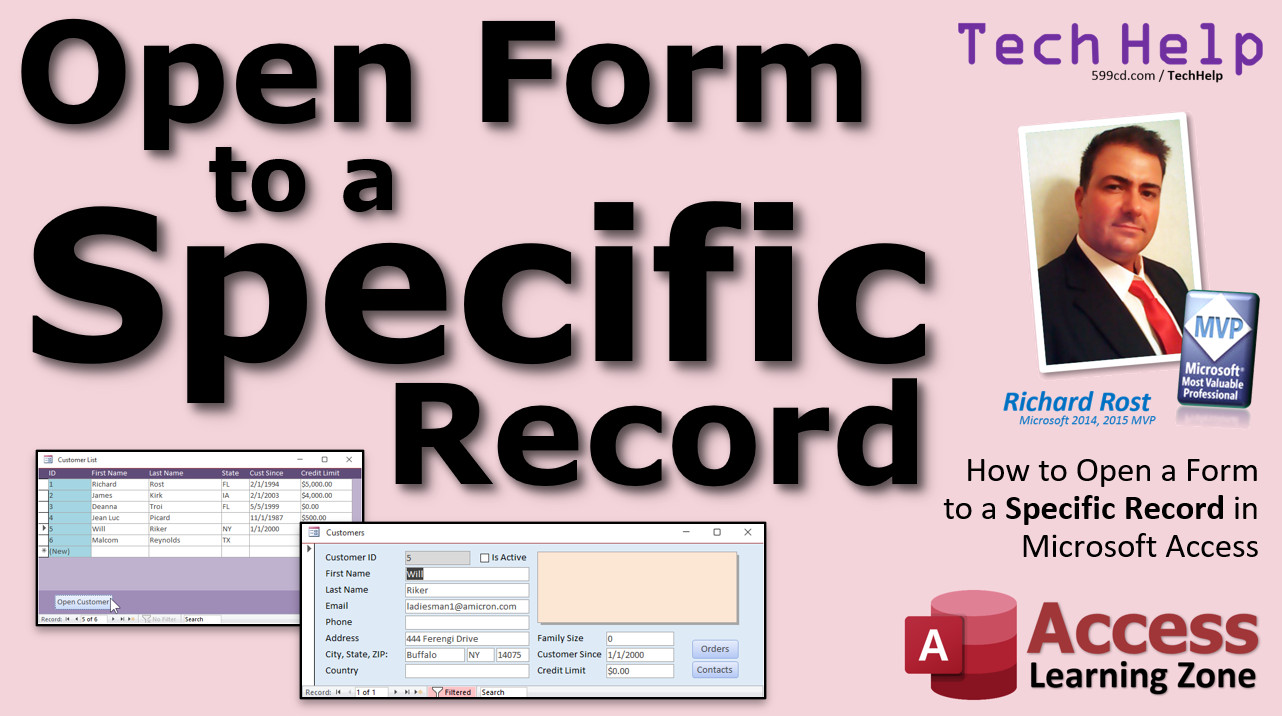
Open Form to a Specific Record in Microsoft Access In this video, I'll show you how to select a customer from a list and then click a button to open up that customer's full record in a different form. Chloe from Longview, Texas (a Platinum Member) asks: I have a form showing all of my customers. Is there a way I can make a button to open up a specific customer's record directly? MembersMembers will learn how to open a specific form, and also display a specific record in a subform of that parent form.
Silver Members and up get access to view Extended Cut videos, when available. Gold Members can download the files from class plus get access to the Code Vault. If you're not a member, Join Today!
Links
Keywordsmicrosoft access, ms access, ms access tutorial, #msaccess, #microsoftaccess, #help, #howto, #tutorial, #learn, #lesson, #training, #database, Open a form to display specific record, open a form and find specific data to display, Find records in an Access database, Open Form to Specific Record, Apply a filter when opening a form, open form find record in subform, find in subform, filter subform
More InformationTranscriptWelcome to another TechHelp video brought to you by AccessLearningZone.com. I am your instructor, Richard Rost. In today's video, I am going to show you how to open a form to a specific record in Microsoft Access. Today's question comes from Chloe in Longview, Texas, one of my platinum members. Chloe says, I have a form showing all of my customers. Is there a way that I can make a button to open up a specific customer's record directly? Well, Chloe, of course there is. Let me show you how to do it. This is actually something that I show how to do in detail in my blank database template video. I walk you through setting up a main menu, a customer form, a customer list form, and we build a button to open up a specific customer from the customer list. However, if you do not want to sit through that entire 20 minute video, let me show you how to do exactly what you need to do right now. This is the blank TechHelp free template video. You can download a copy on my website if you want to. It is a free database. In here, you will find a customer list. There is a list of all my customers. You can click on this button right here to open up the selected customer. If I select Jean-Luc by clicking on his record and then hit Open Customer, there is Jean-Luc's customer form. Want to switch to someone else? Go to Diana, click, and there she is. Now, how do I make this button? That is the question. Let's go to Design View. Right click, Design View. I am going to delete this button. Goodbye, get rid of it. Let's create it again. Up top under Form Design, pick Button. It is a command button. We will drop it right there. The wizard starts up. Put a form operations, open a form, next. Which form do you want to open? Customer F. Next, you want to open the form and show all the records, or find specific data to display - it is that first option. Next, now we are going to match up the fields that are equal on both forms. Over here we have a customer ID, so the customer ID on this form has to be equal to the customer ID on the customer form. Then click this button to make that join right there. It matches them up. Next, you want a picture or some text. I just put in here, Open Customer. Next, give it a meaningful name, OpenCustomerButton - no spaces. I usually abbreviate button as BTN, and then Finish. All right, so there is my Open Customer button. Now close that, save changes, open the customer list back up again, click on Will Riker, and hit Open Customer. There you go. It is that easy to make a button to open up another form to a specific record. In later videos, I show you some extra tricks on how you can make a double click event. You can click right here and double click, and it will do the same thing. That requires a little tiny bit of VBA programming, but not much. Now, what if the form you are opening is a subform and you want to display a specific record in here, too? Let's say this was customers and their contracts, or their jobs you have for them, or whatever - vendors and products. If you want to go to a specific product, if you want to control what is in that subform, again, that will require a little bit of programming and I will cover that in the extended cut for the members. If you want to learn more, in the extended cut for the members (15 minutes long), I will show you how to open up a form with a subform in it and go to a specific record in that subform. For example, I have a list here of all of the contacts in my system and who the customer is that belongs to that contact. If I pick one of the contacts like this one on 1018 Fought Romulans, I click this button, it opens up Jim Kirk's record and goes straight to that specific Fought Romulans record. Or I could go to Cayman for an interview with me. Click. Same. Richard Rost came in for an interview. We have to open up this form and then tell the subform which record to display. It involves one or two lines of VBA code. There are two different methods. I will show you both of them. This could be handy if you have a list of orders and you want to open up a customer who has an order subform, or a list of contracts, or a list of leases, or whatever. That is covered in the extended cut for the members, 15 minutes long. Silver members and up get access to all of my extended cut videos. Gold members can download these databases. How do you become a member? Click the Join button below the video. After you click the Join button, you will see a list of all the different types of membership levels that are available. Silver members and up will get access to all of the extended cut TechHelp videos, live video and chat sessions, and more. Gold members get access to a download folder containing all the sample databases that I build in my TechHelp videos, plus my code vault where I keep tons of different functions that I use. Platinum members get all the previous perks plus access to my full beginner courses and some of my expert courses. These are the full length courses found on my website and not just for Access. I also teach Word, Excel, Visual Basic, ASP, and lots more. These free TechHelp videos are going to keep coming. As long as you keep watching them, I will keep making more. If you liked this video, please give me a thumbs up and feel free to post any comments that you have. I do read them all. Make sure you subscribe to my channel, which is completely free, and click the bell icon and select All to receive notifications when new videos are posted. Click on the Show More link below the video to find additional resources and links. You will see a list of other videos, additional information related to the current topic, free lessons, and lots more. YouTube no longer sends out email notifications when new videos are posted, so if you would like to get an email every time I post a new video, click on the link to join my mailing list. If you have not yet tried my free Access Level 1 course, check it out now. It covers all the basics of building databases with Access. It is over three hours long. You can find it on my website or on my YouTube channel. If you like Level 1, Level 2 is just one dollar, and it is also free for all members of my YouTube channel at any level. Want to have your question answered in a video just like this one? Visit my TechHelp page and you can send me your question there. Click here to watch my free Access Beginner Level 1 course, more of my TechHelp videos, or to subscribe to my channel. Thanks for watching this video from AccessLearningZone.com. IntroIn this video, I will show you how to open a form to a specific record in Microsoft Access by creating a command button that allows you to jump directly from a customer list to an individual customer's record. We will walk through setting up the button using the Form Wizard, matching up the necessary fields, and customizing the button so users can quickly open the details for any selected customer. QuizQ1. What is the main topic of the video? A. How to open a form to a specific record in Microsoft Access B. How to create a new table in Access C. How to export data from Access to Excel D. How to create a report in Access Q2. What does the button created in the customer list form do? A. Deletes a selected customer record B. Opens a form displaying a specific customer's record C. Sorts the list of customers alphabetically D. Exports customer data to Word Q3. In the video, which tool is used to create the button on the form? A. Text Box B. Combo Box C. Command Button (Button under Form Design) D. Label Q4. When setting up the button to open a specific record, what field is typically used to match records between the two forms? A. Last Name B. Email Address C. Customer ID D. Phone Number Q5. If you want to open a form to a specific record using the button wizard, which option should you choose when prompted about displaying data? A. Show all records B. Find specific data to display C. Export data to Excel D. Refresh the form Q6. What should you do to name the button meaningfully? A. Use spaces in the name B. Use a name like OpenCustomerButton or abbreviate as BTN C. Use only numbers in the name D. Name it after the first customer in the list Q7. What additional technique does the instructor mention for opening a specific record, requiring a small amount of VBA programming? A. Triple click event B. Double click event C. Mouse hover event D. Right click event Q8. What is required if you want to open a form with a subform displaying a specific record in the subform? A. More database tables B. VBA programming C. A new database file D. Only using macros Q9. Which membership level allows users to access all extended cut TechHelp videos as well as live video and chat sessions? A. Bronze B. Silver and above C. Guest D. Basic Q10. How can viewers be notified of new free TechHelp videos? A. By subscribing to the channel and clicking the bell icon B. By joining the mailing list C. Both A and B D. By manually checking the website daily Answers: 1-A; 2-B; 3-C; 4-C; 5-B; 6-B; 7-B; 8-B; 9-B; 10-C DISCLAIMER: Quiz questions are AI generated. If you find any that are wrong, don't make sense, or aren't related to the video topic at hand, then please post a comment and let me know. Thanks. SummaryToday's video from Access Learning Zone focuses on showing you how to open a form directly to a specific record in Microsoft Access. I received a question about this from Chloe in Longview, Texas. She wanted to know how to set up a button that will open a particular customer's record on a form. This is a feature I cover thoroughly in my blank database template video, where I demonstrate setting up a main menu, a customer form, and a customer list, including creating a button for opening a selected customer directly from the list. For those who do not want to go through the entire template video, I will provide the essential steps right here. In the free TechHelp template available on my website, you can find a customer list form that shows all your customers. On this form, there is a button to open the selected customer's record. For example, if you select a customer such as Jean-Luc and activate the Open Customer button, the form for Jean-Luc will appear. You can do the same for any other customer by selecting their record and using the button. Now let us walk through how to recreate that button. Switch the customer list form to Design View and remove the existing button if necessary. Then, use the Command Button tool found under Form Design. When you add a button, the wizard will prompt you to select an action. Choose the option to open a form and select the customer form as the one you want to open. Next, you will match up the fields that are the same in both forms, usually the customer ID. This ensures that when you press the button, the correct customer's record appears. You can label the button with appropriate text such as Open Customer and assign it a logical name, like OpenCustomerBTN. After saving and closing, your customer list form will now include a button that opens the selected customer's information directly. If you would like to add a similar feature where a double-click on a record also opens the specific customer's form, you can do that with just a little bit of VBA programming. While this video does not go into the steps for double-click actions in detail, I do cover it in other lessons. Additionally, there may be situations where you work with forms containing subforms, such as customers and their contracts or jobs, and you wish to open a form and display a particular record in a subform. Handling this requires minimal VBA code, and I will show you exactly how to do this for cases like viewing a particular contract linked to a customer. I will demonstrate two different ways of managing this, which is especially useful if you are working with lists of orders, contracts, leases, or similar data. All of this is explained in detail in the extended cut of this lesson, available for members. Silver members and above have access to extended cut videos like this one, where advanced features and VBA programming techniques are explained. Gold members can also download the sample databases I use in my TechHelp videos and access my library of frequently used code functions. Platinum members receive all these benefits, plus access to my full beginner and some expert courses across Access, Word, Excel, Visual Basic, ASP, and more. I appreciate your support, and as long as you keep watching these free TechHelp videos, I will continue to create more content for you. If you find these lessons helpful, please leave a thumbs up and share your comments – I do read and appreciate all of them. Be sure to subscribe to my channel if you have not already, as it is free, and turn on notifications so you will know when I post new videos. You can find additional resources, links to related tutorials, and free lessons in the video's description on my website. Keep in mind that YouTube does not send email notifications for new uploads anymore, so you can join my mailing list if you would like to get an email each time I post something new. If you want to build a solid foundation with Access, check out my free Access Level 1 course. It covers all the basics and runs over three hours. Level 2 is only one dollar and free for all YouTube channel members, regardless of membership level. You are welcome to send in your own questions for possible inclusion in a future TechHelp video by visiting my TechHelp page. You will find a complete video tutorial with step-by-step instructions on everything discussed here on my website at the link below. Live long and prosper, my friends. Topic ListOpening a form to a specific record in Access Creating a button to open a selected record Using the Form Design View to add a command button Utilizing the command button wizard to open forms Matching records between forms using matching fields Naming conventions for command buttons Testing the Open Customer button functionality Primary TopicsMicrosoft Access, forms, form design, command button, opening specific records, customer lists Secondary Topicssubforms, VBA basics, membership perks |
||||||||||||||||||||||||||||||||||||||||
|
| |||
| Keywords: TechHelp Access Open a form to display specific record, open a form and find specific data to display, Find records in an Access database, Open Form to Specific Record, Apply a filter when opening a form, open form find record in subform, openform PermaLink Open Form in Microsoft Access |