|
|||
|
|||
Word Beginner 1Entering Text, Formatting, Clipboard, Saving, PrintWelcome to Word Beginner 1. In this course we will cover the basics of Microsoft Word, starting with the Word interface including the menus, ribbon, and Quick Access Toolbar. You will learn how to enter and edit text, use the clipboard for cut, copy, and paste, and manage saving and printing your documents. We will guide you through creating and editing a simple business letter, and provide recommendations for prerequisite knowledge along with details about other course levels. Lessons
ResourcesLesson SummaryWelcome! Edit, Format, Save & Print Docs - Welcome to Word Basic Level 1. In this course we will cover the basics of Microsoft Word, starting with an overview of the Word interface, including the menus, ribbon, and Quick Access Toolbar. We will discuss how to enter, edit, and format text, use the clipboard for cut, copy, and paste, and manage saving and printing documents. The lessons are designed for novice users and will guide you through creating and editing a simple business letter, with each section building on the previous one. Recommendations for prerequisite knowledge and details about other course levels are also provided.
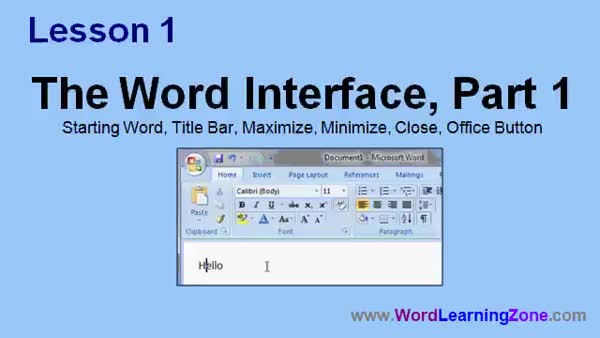
Lesson 1: Word Interface: Title, Ribbon, Button - In Lesson 1, we will begin learning about the Word Interface. I will show you how to start Microsoft Word, and we will walk through important parts of the interface including the title bar, the minimize, maximize, and close buttons, and the office button. We will discuss how the ribbon may appear differently depending on your window size, and review the functions of each button, such as minimizing to the taskbar or maximizing the window. We will also talk about how the office button replaces the old file menu for accessing commands like save, open, and print.
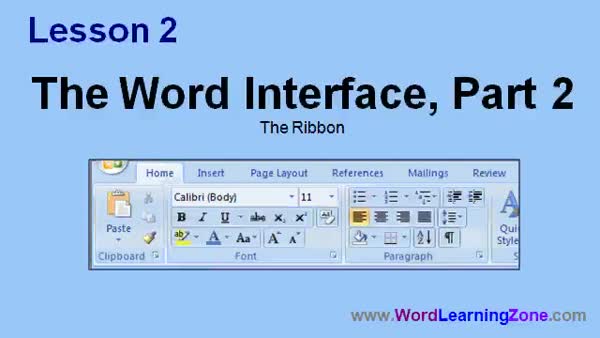
Lesson 2: Ribbon Tabs, Groups & Commands - In Lesson 2, we continue exploring the Word interface by taking a closer look at the ribbon. We will identify the different tabs, explain how commands are organized into groups, and discuss the types of buttons and menus you will find, such as command buttons, drop-down menus, command button groups, and galleries. We will also talk about the small dialog box launchers found on some groups, which open additional options related to that section. This lesson will help you better understand the arrangement and features of the Word ribbon as you work within the program.
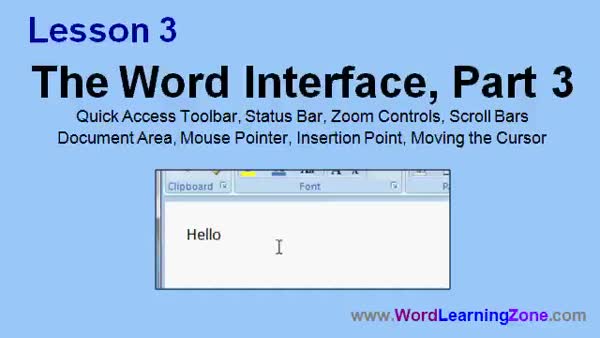
Lesson 3: Quick Access Toolbar & Status Bar Guide - In Lesson 3, we will finish learning about the Word interface by discussing the quick access toolbar, the status bar, zoom controls, scrollbars, the document area, the mouse pointer, and the insertion point. We will also explain how to move the cursor, and briefly mention customizing the quick access toolbar and status bar, as well as the different document view buttons. This lesson will provide a broad overview of these elements so you can better understand what you see on the Word interface before we discuss the specifics in future lessons.
Lesson 4: Text Entry, Spell Check, Wrap - In this lesson, we are going to learn how to enter text in Microsoft Word by typing a sample business letter. We will discuss how the spell check on the fly feature works and how to handle spelling errors or proper nouns with red squiggly lines, including using the Ignore option. I will also show you how Word Wrap functions so that text automatically moves to the next line, and explain why you should only press Enter at the end of paragraphs rather than at the end of every line.
Lesson 5: Indent, Fix Grammar & Use Keys - In Lesson 5, we will continue learning about entering text in Microsoft Word. We will walk through how to use the Tab key to indent paragraphs, discuss the wrong word form check and grammar check, and compare the Backspace and Delete keys. I will also show you the End key shortcut for moving the cursor to the end of a line.
Lesson 6: Split/Merge Paragraphs & Show Invisibles - In Lesson 6, we will walk through editing text by splitting large paragraphs, showing and hiding paragraph marks and non-printable characters, and understanding how hard returns and tabs work in Microsoft Word. I will show you how to break one paragraph into two, use the Show Paragraph Marks button to reveal hidden formatting, and how to combine two paragraphs back into one. We will also discuss the difference between indents and tab characters, and why viewing these hidden symbols can be helpful when editing text.
Lesson 7: Bulleted Lists & Custom Dictionary - In Lesson 7, we will continue editing text in Microsoft Word by walking through how to create a bulleted list, add a word to your custom spelling dictionary, and put a closing on a letter. We will demonstrate using the Bullets button to format a customer list, how to insert additional items into the list, and how to handle unrecognized words, including adding them to the custom dictionary for future use. Finally, we will discuss how to add a closing and signature to your document.
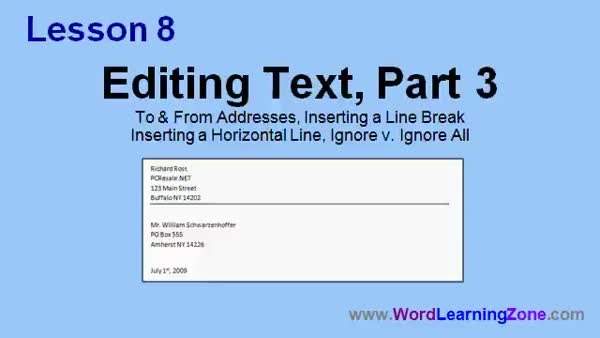
Lesson 8: Address Breaks & Spell Check - In Lesson 8, we will finish editing text by adding both the to and from addresses at the top of our letter, learning how to insert a line break instead of a paragraph break, and inserting a horizontal line in the document. I will show how to use Shift Enter for line breaks, how Word's AutoCorrect can turn hyphens into a horizontal line, and we will discuss the difference between Ignore and Ignore All when using spell check. We will also observe how Word handles dates and superscripts as part of editing text.
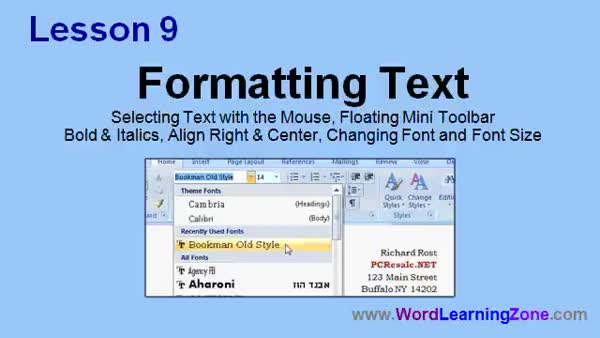
Lesson 9: Text Formatting, Font, Color - In Lesson 9, we will walk through the basics of formatting text in Microsoft Word. I will show you how to select text using your mouse, discuss the floating mini toolbar, and demonstrate how to apply bold and italics. We will also cover how to align text right or center it, how to change the font and font size, and how to adjust font color. We'll talk about the ribbon and the different formatting options available there to help your documents look more professional.
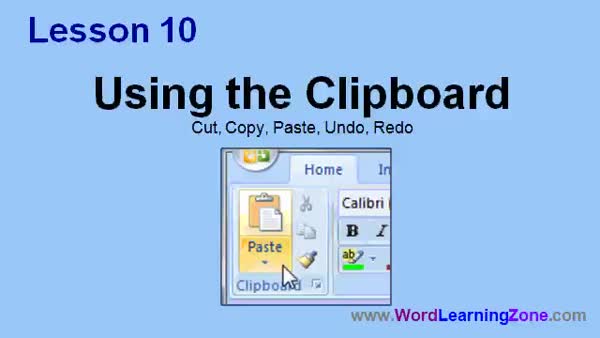
Lesson 10: Clipboard: Cut, Copy, Paste & Undo - In Lesson 10, we are going to learn how to use the clipboard, focusing on the Cut, Copy, and Paste commands in Microsoft Word. We will walk through copying text to the clipboard, pasting it into another part of the document, and the difference between Cut and Copy. I will also show you how to use Undo and Redo to reverse your actions. We will discuss where to find these clipboard commands on the ribbon, and briefly mention the Paste Special and Format Painter options, which we will cover in more detail later.
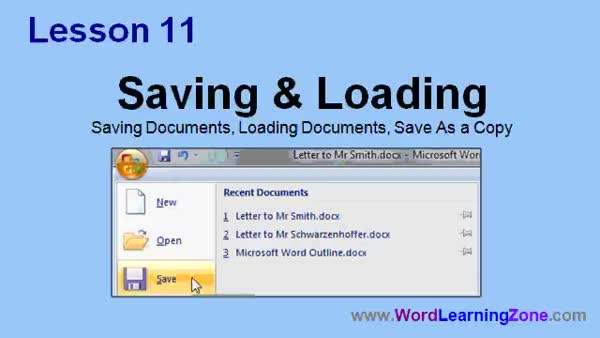
Lesson 11: Save, Open Recent, and Save As - In Lesson 11, we will walk through the basics of saving and loading documents in Microsoft Word. I will show you how to save your document to your hard drive, open it again later, and use the Save As feature to create a copy with changes, ensuring you do not overwrite your original file. We will also discuss file names, file extensions, and how to find and open recent or older documents through the Word interface and your Documents folder. We'll mention additional save formats to be covered in a future lesson.
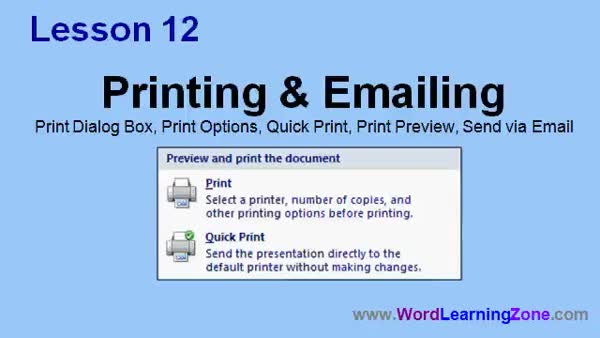
Lesson 12: Print, Preview, Quick Print & Email - In Lesson 12, we will cover how to print and email your documents in Microsoft Word. We will go over the Print dialog box, different print options, selecting printers, choosing pages and copies, collating, and using advanced print properties. I will show you how to use Quick Print and Print Preview to review your document before printing. Finally, I will demonstrate how to send your document as an email attachment using your default email program. We will discuss additional print options and document formats in future lessons.
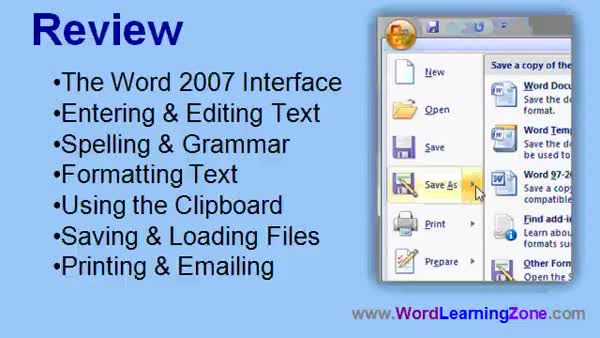
Lesson 13: Menus, Ribbon, Format & Print - In this course we learned about the Word interface, including menus, the ribbon, and the Quick Access Toolbar. We covered how to enter and edit text, Word's automatic spelling and grammar checks, and text formatting options like fonts, alignment, and color. We also discussed how to use the Clipboard for cutting, copying, and pasting, how to save and load documents, and how to use Save As to create copies. We walked through how to print documents or send them as email attachments with Microsoft Outlook. Additional resources and support options were also mentioned.
NavigationKeywordsWord interface, ribbon, quick access toolbar, title bar, office button, ribbon tabs, command buttons, status bar, zoom controls, document area, entering text, spell check, word wrap, edit text, bulleted lists, formatting text, clipboard, save, print
More InformationTranscriptWelcome to Word 2007 Basic Level 1, brought to you by WordLearningZone.com. I am your instructor, Richard Rost. Today's class is designed for the novice user to get you up to speed quickly in Microsoft Word. In today's class, we will learn about the Word 2007 interface, including the menus, the ribbon, and the Quick Access Toolbar. We will learn about entering and editing text, and we will see how Word will automatically check our spelling and grammar. We will learn how to format text, including changing fonts, alignment, and color. We will learn how to use the clipboard to cut, copy, and paste text in our documents. We will see how to save our documents to the hard drive and load them back up again. We will also see how to save copies of our documents with changes in them. Finally, we will learn how to print our documents or send them as an email attachment. This lesson uses Microsoft Office Word 2007, also just called Word 2007. If you are using Word 2003 or earlier, you should visit my website and look for my Word 101 tutorial that covers these older versions. Before taking this course, it is strongly recommended that you take my Windows Vista 101 course. In Windows Vista 101, you will learn the basics of using Windows, including how to log on, navigate using the mouse and keyboard, and launch programs on the Start menu. You will also learn about the parts of a window, how to move, resize, maximize, and minimize a window, and how to use the scroll bars. If you do not know how to do any of the things I just mentioned, you really should consider taking Windows Vista 101 before taking this course. This is the basic Level 1 course for Microsoft Word 2007. This is for the novice user who has little or no experience with Microsoft Word. We will cover the most basic features of Word and teach you just enough to create and edit simple documents effectively. Our goal for today is to get you up and running quickly with Microsoft Word. You will be able to write, edit, and format a simple business letter in about an hour. Basic courses are designed for novice users who are new to Microsoft Word and just need to learn basic functionality. You will learn one good method for accomplishing most tasks and we will save all the extraneous details for later. Our expert series is for users who are already comfortable with Word and want to learn more about the standard features and functions that most people use. We will cover a lot of options, alternatives, shortcuts, tips, and tricks, and really cover all the features of Word exhaustively. Our advanced series is designed to teach you all the lesser-known features of Word, such as recording macros and creating data forms. These are features that not everyone uses on a daily basis, but can really add power to your documents. Finally, our developer series is designed to teach you how to program in Visual Basic for Applications with Microsoft Word to develop Word-based programs for your users and integrate Word with other office applications. Each of our series is broken down into different levels. For example, the basic series starts with Level 1 (that is this class), followed by Level 2, then Level 3, and so on. Each level teaches you new and different topics in Microsoft Word, building on the lessons learned in the previous levels. Now let's take a more detailed look at what we are going to learn in today's class. In Lesson 1, we are going to begin learning about the Word interface. We are going to learn how to start the software. We will learn about the title bar, the maximize and minimize buttons, the close button, and the Office button. In Lesson 2, we are going to continue learning about the Word interface. In this lesson, we are going to take a closer look at the ribbon. In Lesson 3, we are going to finish learning about the Word interface. We will learn about the Quick Access Toolbar, the status bar, the zoom controls, the scroll bars, the document area, the mouse pointer, the insertion point, and moving the cursor. In this lesson, we are going to learn how to enter text in Microsoft Word. We will start by writing a business letter. We will learn about the "spell check on the fly" feature, and we will learn about WordRap. In Lesson 5, we are going to continue learning about entering text in Microsoft Word. We are going to learn how to use the tab key to indent your paragraphs. We will learn about the wrong word form check and the grammar check, the backspace versus delete keys, and the end key shortcut. In Lesson 6, we are going to learn about editing text. We are going to see how to split large paragraphs into two. We will show you how to show and hide the paragraph symbols and other non-printable characters. We will learn about hard returns and how to make two paragraphs into one. In Lesson 7, we are going to continue editing text. We are going to learn how to create a bulleted list, add a word to our custom spelling dictionary, and put a closing on our letter. In Lesson 8, we are going to finish talking about editing text. We will put to and from addresses at the top of our letter. I will show you how to insert a line break instead of a paragraph break. We will insert a horizontal line in our document, and we will learn the difference between Ignore and Ignore All when it comes to spell check. In Lesson 9, we are going to learn about formatting text. I will show you how to select text with the mouse. We will learn about the floating Mini Toolbar. We will learn about bold and italics, how to align text right and center it, and how to change the font and font size. In Lesson 10, we are going to learn how to use the clipboard. We are going to learn about cut, copy, and paste, and we are also going to learn about undo and redo. In Lesson 11, we are going to learn about saving and loading documents. I will show you how to save your document on your hard drive, load it back up again, and save a copy of it with some changes. In Lesson 12, we are going to learn how to print and email our documents. We will go over the Print dialog box, the different print options, Quick Print, Print Preview, and I will show you how to send a document as an email attachment. If you need help with Microsoft Word, you can post your questions in our student forums. If you are watching this course using our video player software or in our online theater, then you should see the student forum pop up next to each video. Here you will see all the comments and questions posted about each lesson in addition to my responses to them. You are free to join in the discussion and post your own thoughts. To get the most out of this course, I recommend you sit back, relax, and watch each lesson through once without touching your computer. Then watch the lesson a second time, following along with my examples. In today's class, we will be creating a sample business letter. Take the time to actually write the same letter that I do. You will get the most out of the lessons if you follow along with me. If you do not understand something, feel free to watch the lesson again or rewind to any point in the video. Most importantly, keep an open mind. New things are often confusing, and if there is something you do not understand at first, just be patient and it will come to you eventually. Try your best, and if you still have questions, post them in the student forum. IntroIn lesson 1 of Microsoft Word Beginner Level 1, you will learn how to get started with Microsoft Word 2007, including a detailed tour of the interface such as the ribbon, menus, and toolbars. We will cover basic skills like entering, editing, and formatting text, using the clipboard to cut, copy, and paste, saving and loading documents, and printing or emailing your work. This lesson is designed for new users and will guide you step-by-step through creating and formatting a simple business letter. QuizQ1. What is the primary focus of Word 2007 Basic Level 1? A. To learn advanced programming in Word B. To teach novice users the basics of Microsoft Word 2007 C. To design website layouts using Word D. To master every feature of Microsoft Word Q2. What major topics will be covered in this Word 2007 Basic Level 1 course? A. The mail merge wizard and Excel integration B. The Word 2007 interface, entering/editing text, formatting, cut/copy/paste, saving, and printing C. Creating Word macros and VBA scripts D. Installing Microsoft Word on your computer Q3. What feature does Word 2007 provide to help you avoid spelling and grammar mistakes? A. Manual proofreading only B. Automated spell and grammar check C. Third-party plugins for checking D. Only checks grammar, not spelling Q4. What is recommended before taking this Word 2007 course if you are not comfortable using Windows? A. Take the Windows Vista 101 course B. Skip to the expert Word series C. Start using Word 2003 first D. Use a different word processor Q5. What is the purpose of the Quick Access Toolbar in Word 2007? A. Display document statistics B. Provide shortcuts to frequently used commands C. Highlight spelling mistakes D. Show formatting options only Q6. How does the course suggest you get the most out of the training? A. Only read the transcript B. Watch once, then follow along with the examples during a second viewing C. Try to memorize each command D. Skip the video and just use practice files Q7. What type of document will be created as a practical example in this course? A. A resume B. A business letter C. An invoice D. A flyer Q8. What lesson is focused on learning to cut, copy, and paste text? A. Lesson 1 B. Lesson 3 C. Lesson 10 D. Lesson 12 Q9. What is covered in the advanced series of Word courses, according to the transcript? A. Only basic formatting B. Macros and creating data forms C. Printing and emailing documents D. Saving and loading files Q10. What is the best way to get help or ask questions regarding the course? A. Email the instructor directly B. Use the student forums associated with each lesson C. Search for answers on a search engine D. Call Microsoft technical support Q11. What is the main difference between the basic, expert, advanced, and developer series of courses? A. Each focuses on a different version of Windows B. Each is tailored to a progressively higher skill level, covering more advanced features C. Only the expert series teaches saving documents D. Only the basic series covers Microsoft Office 365 Q12. In which lessons do you learn about the Word 2007 interface, including the title bar, ribbon, and status bar? A. Lessons 1, 2, and 3 B. Lessons 7 and 8 C. Lessons 10 and 11 D. Lessons 4, 6, and 9 Answers: 1-B; 2-B; 3-B; 4-A; 5-B; 6-B; 7-B; 8-C; 9-B; 10-B; 11-B; 12-A DISCLAIMER: Quiz questions are AI generated. If you find any that are wrong, don't make sense, or aren't related to the video topic at hand, then please post a comment and let me know. Thanks. SummaryToday's video from WordLearningZone.com covers the basics of Microsoft Word 2007. My aim with this class is to help beginners become comfortable with the essentials of Word as quickly as possible. We will explore the interface, looking closely at menus, the ribbon, and the Quick Access Toolbar. I will show you how to enter and edit text, and we will see how Word can automatically check for spelling and grammar issues as you type. Formatting text will also be covered, including how to change fonts, adjust alignment, and modify text color. We will look at how the clipboard functions so you can cut, copy, and paste text efficiently. You will learn how to save your work to your computer, reopen documents, and save copies with any updates or changes you make. I will also explain how to print your documents and cover the steps needed to send them as email attachments. This course utilizes Microsoft Office Word 2007. If you are still using Word 2003 or an earlier version, I recommend visiting my website to find my Word 101 tutorial, which covers those versions in detail. If you have not already taken my Windows Vista 101 course, I strongly suggest doing so first. That class will teach you the fundamentals of using Windows, including logging in, using the mouse and keyboard, starting programs, and navigating different elements of a window such as resizing, maximizing, minimizing, and using scroll bars. Having these skills will make learning Word much easier, so if you do not feel comfortable with any of these tasks, I suggest starting there. This Level 1 class is designed specifically for users who are new to Microsoft Word. We will go step by step through the most basic features to give you just enough knowledge to begin creating and editing simple documents. By the end of this lesson, you should be able to compose, format, and finish a simple business letter, all within about an hour. Our basic courses are tailored for beginners. I focus on the most direct way to accomplish common tasks, saving the deeper details for later. For those with more experience, we offer expert series classes that explore features and functionality in much greater depth, including tips, shortcuts, and all the standard and advanced capabilities of Word. The advanced series takes things further, showing you lesser-known features such as automating tasks with macros and creating data forms. For those interested in programming, our developer series teaches you how to use Visual Basic for Applications to build programs within Word and integrate Word with other Office apps. Each series is organized into multiple levels, with each subsequent level building on the skills from prior lessons. For example, the basic series starts with this Level 1 course, then continues on to Level 2, Level 3, and so forth, with each level introducing new tools and techniques. Here is a breakdown of what we'll cover today: Lesson 1: We will start by learning about the Word interface, including starting Word, using the title bar, working with the maximize, minimize, and close buttons, and the Office button. Lesson 2: We will further explore the Word interface, with a focus on the ribbon. Lesson 3: We will complete our review of the interface. Topics include the Quick Access Toolbar, the status bar, zoom controls, scroll bars, the document area, understanding the mouse pointer, the insertion point, and moving the cursor. Lesson 4: You will learn how to enter text, beginning with writing a business letter. I will explain how Word checks spelling automatically as you type, and you will see how text wraps as you type. Lesson 5: We will continue with text entry, showing how to indent with the tab key, handle grammar and word form issues, use the backspace and delete keys, and use shortcuts like the End key. Lesson 6: We will move on to editing text, such as how to split a long paragraph into two parts, view and hide paragraph symbols and other formatting marks, understand the difference between hard returns, and merge two paragraphs into one. Lesson 7: Our editing lessons continue as we create a bulleted list, add words to a custom dictionary, and wrap up a letter with a closing. Lesson 8: We will finish talking about editing by placing to and from addresses at the top of the letter, adding line breaks without starting a new paragraph, inserting horizontal lines, and understanding how to use the Ignore and Ignore All features in spell check. Lesson 9: We will turn to formatting. I will demonstrate how to select text, introduce the floating Mini Toolbar, and show you how to apply bold and italics, align text right or center it, and change both the font and font size. Lesson 10: You will learn how to use the clipboard to cut, copy, and paste text, as well as how to undo and redo actions. Lesson 11: We will cover saving and loading documents, teaching you how to save to your hard drive, open existing files, and save copies with modifications. Lesson 12: We will finish with how to print and email your documents, looking at the Print dialog, different print options, Quick Print, Print Preview, and how to attach a document to an email. If you have questions about Word, you can post them in our student forums. If you are using our video player or online theater, the forum should appear alongside each video, where you can see questions from other students along with my replies. You are always welcome to join in or start a new topic. To get the most from this course, I suggest watching each lesson in its entirety at least once without following along at the computer, just to absorb the information. Then, watch again and follow my step-by-step instructions. Throughout class, we will be building a sample business letter together, so I encourage you to type along with me. If something is unclear, feel free to re-watch a lesson or review sections as needed. Keep an open mind and be patient with yourself as you learn. If you get stuck, reach out for help in the student forums. You can find a complete video tutorial with step-by-step instructions on everything discussed here on my website at the link below. Live long and prosper, my friends. Topic ListStarting Microsoft Word 2007 Understanding the title bar, maximize, minimize, and close buttons Using the Office button Navigating the ribbon interface Using the Quick Access Toolbar Viewing and using the status bar Adjusting zoom controls and scroll bars Working in the document area Understanding mouse pointer and insertion point Moving the cursor in a document Entering text and composing a business letter Using spell check on the fly Understanding and using WordRap Indenting paragraphs with the tab key Grammar check and wrong word form check Using backspace vs delete keys Using the end key shortcut Splitting large paragraphs Showing and hiding paragraph symbols and non-printable characters Using hard returns and merging paragraphs Creating a bulleted list Adding words to the custom spelling dictionary Adding a closing to a letter Adding to and from addresses in a letter Inserting a line break vs a paragraph break Inserting a horizontal line Using Ignore and Ignore All in spell check Selecting text with the mouse Using the floating Mini Toolbar Applying bold and italics Aligning text right and centering text Changing font and font size Using cut, copy, and paste with the clipboard Using undo and redo Saving documents to the hard drive Loading existing documents Saving a copy of a document with changes Printing documents and using the Print dialog box Exploring print options and Quick Print Using Print Preview Sending a document as an email attachment Primary TopicsWord 2007 interface, ribbon, Quick Access Toolbar, entering text, editing text, formatting text, clipboard functions, saving documents, printing documents Secondary Topicsspelling and grammar check, business letter example, sending documents by email |
||||||||||||||||||
|
| |||
| Keywords: Word interface, ribbon, quick access toolbar, title bar, office button, ribbon tabs, command buttons, status bar, zoom controls, document area, entering text, spell check, word wrap, edit text, bulleted lists, formatting text, clipboard, save, print PermaLink How To Use the Interface, Enter and Edit Text, and Format Documents in Microsoft Word 2007 Basics |