01. Manual (02:46)
02. XML (05:29)
Custom Ribbon in Microsoft Access
How to create a custom Ribbon in Microsoft Access
The aim of this tutorial is to learn how to create a custom Ribbon in Microsoft Access.
- Manually
- With Table and XML
TO DO: Create your own XML and have a callback VBA function?
Manually
This adds it to your Access and will show for every database.
File | Options | Customize Ribbon
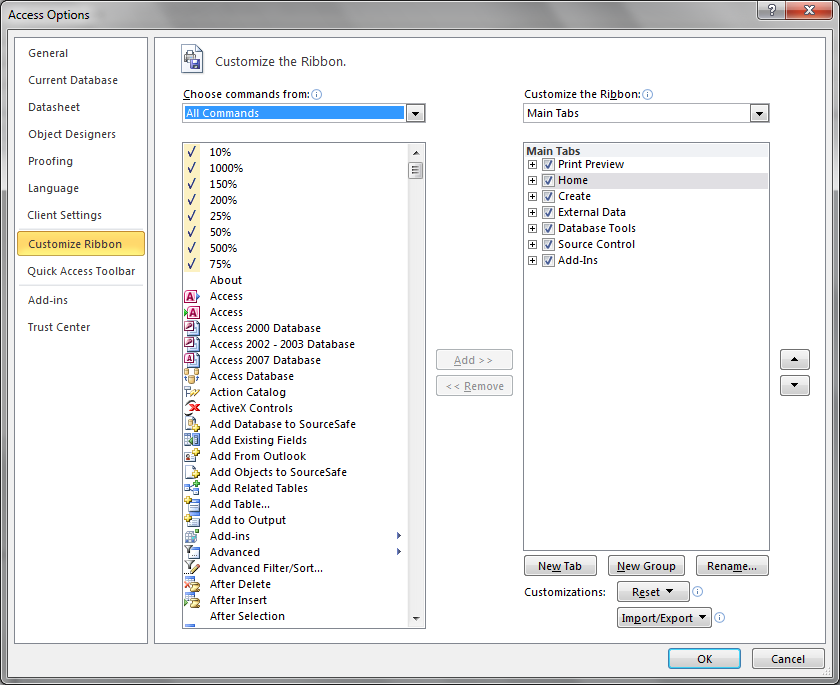
Click on New Tab then click on Rename.
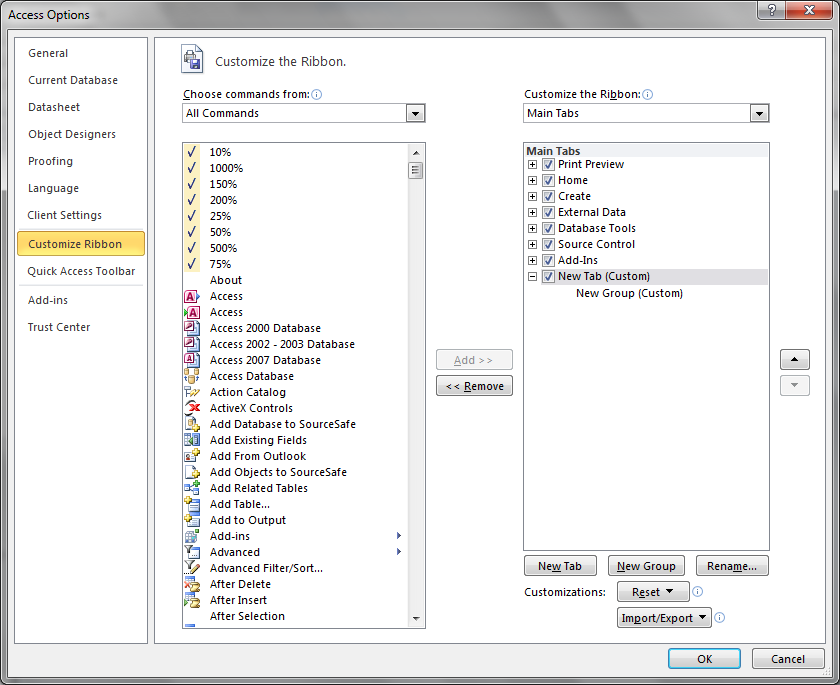
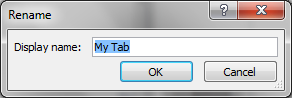
Click on the Tab and click "Rename" and give it a new name "My Tab".
Then give it a new name "My Group".
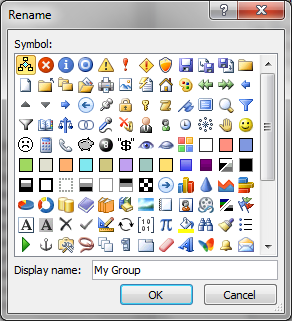
You can even add a Symbol.
Have a look at what you have created:
.png)
Now an empty Tab and Group isn't very useful... let's add some Controls.
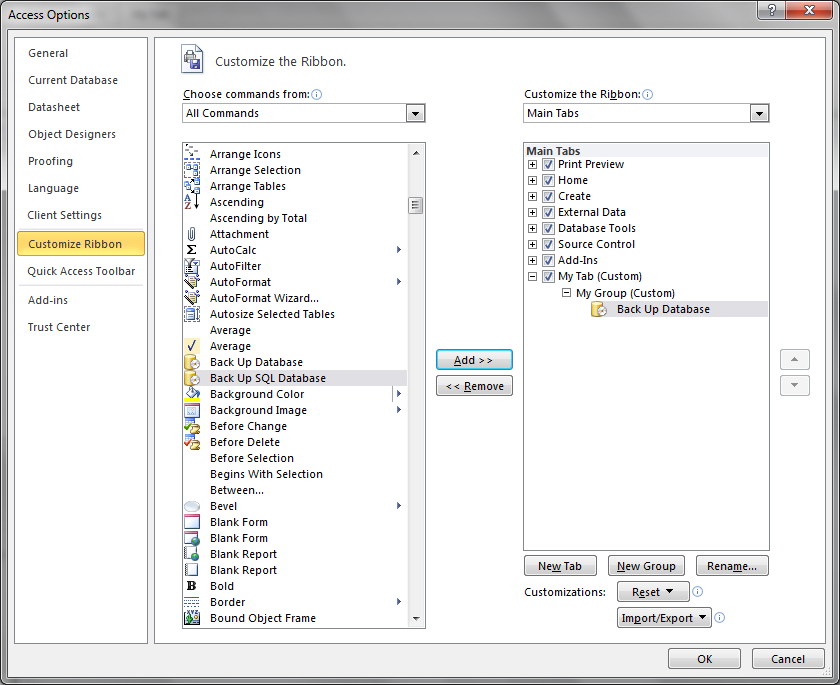
Select the Control from the left and click "Add >>" with the Group selected on the right.
And then you have your Control in your Tab and Group.
.png)
With code
If you want to do it for just this database.
I need a way to show these Objects in a Form to choose from so I can export.
There is a Table that is hidden called MSysObjects and to show this you need to go.
File | Options
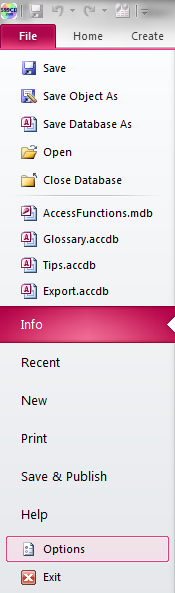
Now choose the 'Current Database' section.
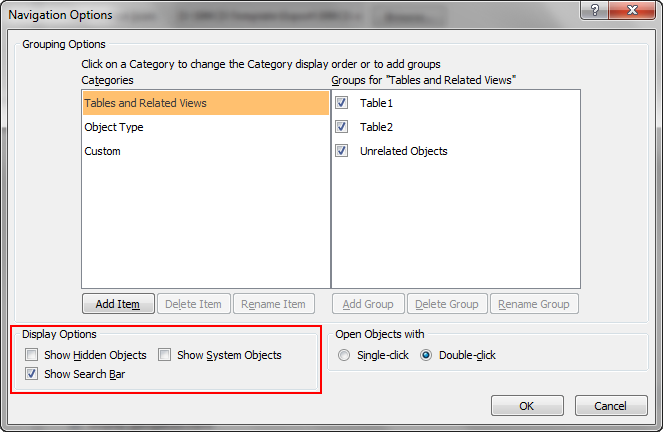
Scroll down to under the 'Navigation' Section click on the 'Navigation Options...' button.
.png)
Now tick the 'Show Hidden Objects' and 'Show System Objects' and click OK.
You may get the following message.

Now the hidden Tables will show.
.png)
Create a new Table called USysRibbons.
| ID |
RibbonName |
RibbonXML |
| 1 |
My Tab |
ADD XML HERE... |
An Empty Tab and Group.
Add a Control
<mso:tabs>
<mso:tab label=""My Tab"">
<mso:group id=""mso_c2.29527DA0"" label=""My Group"" autoScale=""true"">
<mso:control idQ=""mso:FileBackupDatabase"" size=""large"" visible=""true""/>
mso:group>
mso:tab>
mso:tabs>
Full Code
<mso:customUI xmlns:mso=""http://schemas.microsoft.com/office/2009/07/customui"">
<mso:ribbon startFromScratch=""true"">
<mso:qat>
<mso:sharedControls>
<mso:control idQ=""mso:FileNewDatabase"" visible=""false""/>
<mso:control idQ=""mso:FileOpenDatabase"" visible=""false""/>
<mso:control idQ=""mso:FileSave"" visible=""true""/>
<mso:control idQ=""mso:FileSendAsAttachment"" visible=""false""/>
<mso:control idQ=""mso:FilePrintQuick"" visible=""false""/>
<mso:control idQ=""mso:SpellingAccess"" visible=""false"" insertBeforeQ=""mso:FilePrintPreview""/>
<mso:control idQ=""mso:Undo"" visible=""true"" insertBeforeQ=""mso:FilePrintPreview""/>
<mso:control idQ=""mso:Redo"" visible=""true"" insertBeforeQ=""mso:FilePrintPreview""/>
<mso:control idQ=""mso:ViewsModeMenu"" visible=""false"" insertBeforeQ=""mso:FilePrintPreview""/>
<mso:control idQ=""mso:DataRefreshAll"" visible=""false"" insertBeforeQ=""mso:FilePrintPreview""/>
<mso:control idQ=""mso:Synchronize"" visible=""false"" insertBeforeQ=""mso:FilePrintPreview""/>
<mso:control idQ=""mso:FilePrintPreview"" visible=""true""/>
mso:sharedControls>
mso:qat>
<mso:tabs>
<mso:tab id=""mso_c1.29527DA0"" label=""My Tab"" insertBeforeQ=""mso:TabHomeAccess"">
<mso:group id=""mso_c2.29527DA0"" label=""Backup"" autoScale=""true"">
<mso:control idQ=""mso:FileBackupDatabase"" size=""large"" visible=""true""/>
mso:group>
<mso:group id=""mso_c5.29536215"" label=""Export"" autoScale=""true"">
<mso:control idQ=""mso:ExportExcel"" size=""large"" visible=""true""/>
<mso:control idQ=""mso:ExportWord"" size=""large"" visible=""true""/>
mso:group>
<mso:group id=""mso_c6.29541473"" label=""Preview"" autoScale=""true"">
<mso:control idQ=""mso:ViewsAdpDiagramPrintPreview"" size=""large"" visible=""true""/>
mso:group>
mso:tab>
mso:tabs>
mso:ribbon>
mso:customUI>
.png)
Finally we can set this new Ribbon for the Database.
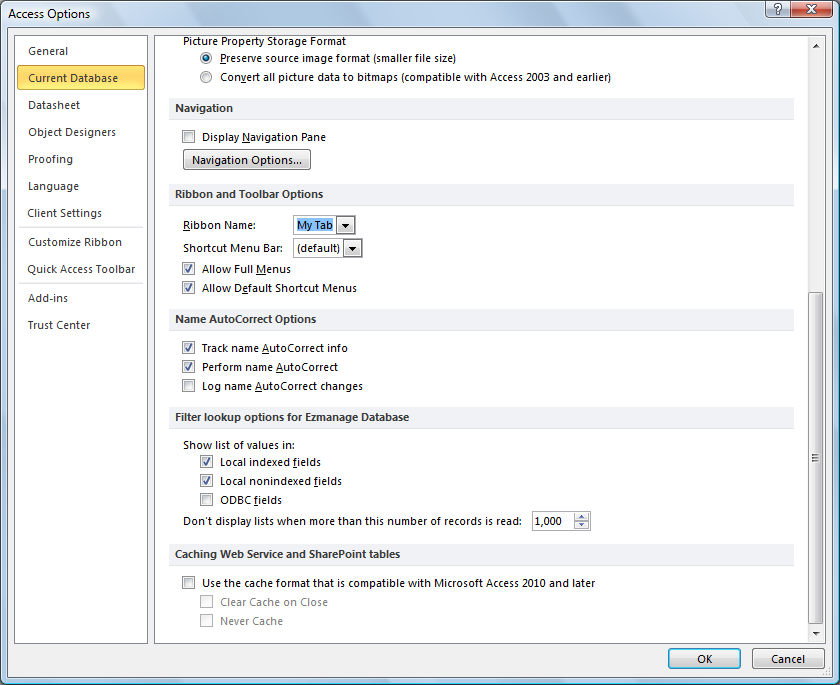
Now set the "Ribbon Name" to the name of your own Tab.

You can Show/Hide the Ribbon with the following code:
DoCmd.ShowToolbar "Ribbon", acToolbarYes 'Show Ribbon
DoCmd.ShowToolbar "Ribbon", acToolbarNo 'Hide Ribbon
Just add the following to buttons and the OnLoad Events.
Create your own XML and have a callback VBA function?
Sample

Ribbon (2010)
Maybe you don't want to write it yourself? There are programs out there to make it easier:



