Buttons on Reports
By Richard Rost

 3 years ago
Adding Clickable Buttons to Reports to Edit Records
In this Microsoft Access tutorial, I'm going to teach you how to put a button on a report. While it might seem like you should never need to do this, it has some surprisingly good uses. We'll use that button to open a form to go to the related record for the data shown on the report. I'll also show you how to use a hyperlink with an event instead of a button.
Noah from White Plains, New York (a Platinum Member) asks: I love the trick you showed in the Embedded Report video to display contacts on the customer form using a report instead of a subform, because it displays long contact notes and I can just read everything on the screen at once. Is there a way to make it so you can just click on the record there in the report to edit it, instead of having to switch to a data entry mode?
Prerequisites
Links
Up Next...
Recommended Courses
Keywords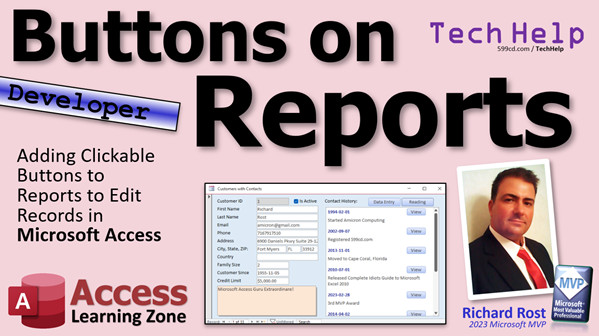
TechHelp Access 2016, Access 2019, Access 2021, Access 365, Microsoft Access, MS Access, MS Access Tutorial, #msaccess, #microsoftaccess, #help, #howto, #tutorial, #learn, #lesson, #training, #database, Adding Clickable Buttons to Reports, Button on Report, Open Form, Hyperlink with Event, Docmd.openform, Can't find the field referred to in your expression, transparent button, detail section on click event, hyperlink finger
More InformationTranscript Welcome to another TechHelp video brought to you by AccessLearningZone.com. I'm your instructor, Richard Rost.
Today, I'm going to show you how to put buttons on a report. A report - really, buttons on a report. Yeah, buttons on a report. They've got some surprisingly good uses.
Today's question comes from Noah in White Plains, New York, one of my Platinum members. Noah says, I love the trick you showed in the embedded report video to display contacts on the customer form using a report instead of a subform because it displays long contact notes and I can just read everything on the screen at once. Is there a way to make it so you can just click on the record there in the report to edit it instead of having to switch to a data entry mode?
Well, yes, Noah. There are a couple of ways we can do this. We can use some event programming or we can just drop a button on the report itself. Let me show you.
But first, for everyone else, if you have not yet watched the embedded report video, go watch it. Basically, instead of putting a subform here that looks like this, you can put a report here so that if you do have longer notes, they'll show right here and you can just scroll down and read everything instead of having to click on here or open up the zoom box or put it in a bigger text box below in the bottom. It's just nice and pretty, plus there are some formatting options you can get in reports that you just can't do with a form.
So go watch this video now if you have not yet watched it already. It's free. It's on my website. It's on my YouTube channel. Go watch that and come on back.
Now, while this video was an expert-level video and I showed you how to do this without any programming, today's video is a developer video. We're going to use a little tiny bit of VBA today. So if you have never programmed with VBA before, go watch this video. Again, it's free, and come on back.
I'm going to go to the website and grab my database from the embedded report video. If you're a Gold member, you can grab it too. If not, you'll just have to build it from this video. So I'm going to grab a copy. Yes, I happen to be a Gold member on my own website. That's a good thing.
Here's the video we built last time. In the Customer With Contacts form, we've got the subform with the contacts, and you can see if you've got any long ones in here, you could put a notes field down here where you'd have to shift up to zoom in to read whatever.
What we did was we made a subform that looks like this. You can just scroll down and it will display everything, and if you've got a really long item like this here, which one is that? It's going to be this guy.
You come in here and type in a bunch more stuff - blah blah blah blah blah blah blah really long contacts. You come back over here and you can see the really long contacts here.
This is a nice way to display information, but you can easily edit it here.
So what Noah would like to be able to do is to just from here edit this. Now, you can't edit this in the report itself unfortunately. Reports just don't allow that, but you can make a button for each of these guys or a click event or any number of different ways to where you can just go right to this record. Instead of having to switch to a data entry mode and find it, we can open up a second form, maybe over here or at the top of this one, and then you can edit it and then return back to this guy.
How do we do that?
Let's go find the report. First of all, it's right down here - where are you, the contact R? Design view.
Here's the report. Now, even though this is a report, we can drop buttons on here just like we would with our forms.
We're going to go to report design, open this up, find a command button, and drop it right there. Notice that the command button wizard does not start up. It doesn't work for reports. This is one of the reasons why I told you you need to know VBA to do this.
Let's change the caption on here to Open, or Edit, or View, or whatever you want to call it. We'll slide it up here in a corner.
Just like that. Let's open up its properties. Let's call this OpenRecordButton_Btn.
We'll need a little bit of VBA to open up the record for this contact. This is a contact record.
So, right-click, Build Event. That will open up your code editor.
Then do Command.OpenForm. What's the form you want to open up? Let's open up our ContactF for now, comma, comma, comma. The where condition is going to be where the ContactID on that form equals the ContactID for the current record.
If you've been following me for any amount of time, you know we've done this a bunch of times and it always works.
Debug, compile. Looks good. Close it. Close it. Close it.
Now you can open it up right from here if you want to.
There it is. This is what it will look like when you open it up inside the other form.
Now go ahead and click one of the buttons and - TechHelp Free Template - can't find the field ContactID referred to in your expression.
Debug. What's that mean? Well, it can't find this guy - ContactID.
If you watched my video last week on the internal field list in Microsoft Access, you know that a form doesn't necessarily have to have a field on it for you to use its value. We talked about this last week. You can refer to a field that's not on a form as long as it's in the underlying recordset, the underlying table or query.
Reports don't work that way. Unfortunately, it has to do with the way that the report is generated internally. In order to use a field's value, that field has to be on the report. There's no way around it.
This ContactID has to be on this report now. It doesn't have to be visible - you could put it on there and make it hidden, but it's got to be there.
I get asked this a lot from people because forms don't work this way. With forms, you don't have to have that field on there.
Let's stop this and come over here. We can close this. Let's go to design view.
We just have to add that field somewhere on this report. So we'll go to Add Existing Fields, find the ContactID, drop it on here. I'm going to delete the label. Take this guy, maybe shrink it into here.
I'm going to open up its properties. Go to Format and set Visible to No so you don't see it. Just for me, I like to make it so that any fields that I make hidden, I set their background color to red. It just tells me in design view this guy's there, but it's hidden.
Save it. Close it. Close it. Open it back up again.
Now click, and there's your form. See that? This is a continuous form. You could make a single form for it if you want to - that's what I'd recommend.
You can maybe come over here and take this ContactF, maybe copy and paste it. We'll call this ContactSingleF. Now you can take this and reformat this as a single form - maybe like this. We'll take the description, put it here, make it bigger, like so.
You've got your data above it.
You no longer need to put this stuff in a form footer. You could put it up here - follow up, etc. You get the point. I'm not going to take forever with this one, but now we'll just change this from a continuous form to a single form.
There you go. Save it. Close it. ContactSingleF now.
Back here, we'll open up ContactSingleF.
Now from our report, we go like this - boom - and there's that thing. Put it where you want it. Close it. Open that one - boom - there you go. Make this as big as you want.
That's the one nice thing about reports - the Can Grow and Can Shrink. This can get as big as it needs to be. With a form, you really can't do that.
That's it for today, folks. Lots more coming up in part two. Tune in tomorrow, same bat time, same bat channel, and we'll continue this lesson. Intro In this video, I will show you how to add temporary buttons to reports in Microsoft Access, allowing you to open and edit related records quickly. We will talk about the benefits of using reports to display long notes, why buttons do not work the same way in reports as in forms, and how to use a little VBA to make your report buttons functional. You'll also learn the important step of including key fields on your report to make the buttons work properly. Quiz Q1. What is the main benefit of using a report instead of a subform to display contacts with long notes on a customer form?
A. Reports allow for easier data entry than subforms.
B. Reports can display long notes in a scrollable, readable format.
C. Reports update data automatically when edited directly.
D. Reports require less VBA programming than subforms.
Q2. Why can you not edit the contact records directly on the report?
A. Reports only display data and do not allow direct editing.
B. Reports are read-only by default but can be made editable with settings.
C. Reports can only edit data if placed in datasheet view.
D. Reports require a macro to enable editing.
Q3. What is one way to allow users to edit a contact from a report?
A. Drag a text box onto the report for editing.
B. Add a button that opens a form for editing the specific record.
C. Use the report's default navigation to make fields editable.
D. Enable the "Allow Edits" property for the report.
Q4. Why does the command button wizard not start when placing a button on a report in Access?
A. The wizard is only for forms and not for reports.
B. The feature is disabled in all versions of Access.
C. Buttons cannot be used on reports at all.
D. The wizard must be manually enabled in settings.
Q5. What do you need to do in the button's On Click event to open the specific contact's record?
A. Use a macro to open the record.
B. Write VBA code to open the contact form with a where condition matching the ContactID.
C. Set the button's Control Source property to ContactID.
D. Bind the button to the notes field.
Q6. Why did the VBA code initially fail when trying to reference the ContactID in the report?
A. The ContactID was not in the report's underlying query.
B. The ContactID field was not physically present on the report.
C. The button was not named correctly.
D. VBA does not support referencing controls on reports.
Q7. When placing the ContactID field on the report to fix the reference issue, how can you keep it from displaying to users?
A. Set the Visible property to No in the field's properties.
B. Delete the field after referencing it in VBA.
C. Set its width to zero.
D. Set its font color to white.
Q8. What is a design tip suggested for managing hidden fields on reports in Access?
A. Set the background color to red for hidden fields.
B. Place hidden fields in the report footer.
C. Use a special label for all hidden fields.
D. Always display the field to ensure proper function.
Q9. What is the advantage of using a single form (instead of a continuous form) when editing a contact from a report?
A. Single forms automatically resize to fit all notes.
B. Single forms can be more easily formatted for editing individual records.
C. Single forms can display multiple records at once.
D. Single forms require no VBA for editing.
Q10. What property of reports allows fields like long notes to automatically adjust their size?
A. Auto Resize
B. Can Grow and Can Shrink
C. Scrollable Text
D. Flexible Layout
Answers: 1-B; 2-A; 3-B; 4-A; 5-B; 6-B; 7-A; 8-A; 9-B; 10-B
DISCLAIMER: Quiz questions are AI generated. If you find any that are wrong, don't make sense, or aren't related to the video topic at hand, then please post a comment and let me know. Thanks. Summary Today's TechHelp tutorial from Access Learning Zone is all about how to place buttons on reports in Microsoft Access. This topic may seem unusual at first because reports are normally used only for viewing information, but buttons on reports can actually be quite useful for enhancing the user's experience.
The question that inspired this lesson asks whether you can add interactive elements to a report that allow you to quickly edit a record, making data management easier. The scenario comes from someone who likes displaying contact records on a customer form using a report, instead of a subform, specifically to take advantage of the way reports handle long notes. The built-in Can Grow and Can Shrink features in reports allow you to see everything at once in a more readable format without constantly zooming in or enlarging text boxes.
If you're unfamiliar with using reports as embedded views, you should consider watching my embedded report tutorial first. It covers using a report in place of a subform to display detailed information in a clean way. Reports give you many more formatting options than forms, making them ideal for showing lengthy notes and text. The tutorial is available for free on my website and on YouTube.
In today's lesson, we take it a step further and add some interactivity by including buttons on the report. Unlike the previous embedded report video that required no programming, this time we will use a bit of VBA, so if you are new to VBA or Access programming, I recommend you watch my beginner VBA lesson first to get up to speed.
For this demonstration, I start by opening the sample database I built for the embedded report video. This showcases a form displaying customer records with an embedded report listing their contacts. The example illustrates how long notes can be displayed elegantly in the report. However, you cannot edit records directly in a report, which is where today's tip becomes useful.
The solution is to add a button to each record in the report, allowing you to open a form where you can edit just that specific contact. This can be done either by using event programming or simply by placing a button directly on the report for each record.
First, find and open the contact report in design view. Although it's a report, you can place a command button on it just like you would on a form. However, the button wizard does not work when adding buttons to reports, which is why some VBA is required.
After adding the button, set a suitable caption like "Open" or "Edit," and give it a meaningful name like OpenRecordButton_Btn. You'll need to write a short VBA procedure for its click event. The purpose of this code is to open a form for editing the contact related to the specific record where the button is located. You use the ContactID field to filter the opened form, ensuring you are taken directly to the right record.
While working through the steps, you may encounter an error message about Access not being able to find the field ContactID. This happens because, unlike forms, Access reports require that the field you use in code must actually be present on the report, even if it is hidden. On forms, as long as a field is part of the underlying record source, you can refer to it without it being visible. Reports do not work that way.
To solve this, add the ContactID field to the report from the field list. Delete the associated label, shrink the text box down, and then set its Visible property to No so that users will not see it on the report. For your own reference in design view, you might set its background color to red. After saving and closing the design view, the error goes away.
Now, clicking the button on any row in the report will open the specified contact form filtered to the correct record. If you prefer working with a single record at a time, you can create a copy of your standard contact form and modify it as a single form. Rearrange the fields, make larger text boxes for easier note editing, and change the default view from continuous to single form.
Now, when you use the button from the report, the updated single form displays just the contact you selected, allowing for easy editing of notes or any other information. The beauty of using reports in this way is that their Can Grow and Can Shrink properties make it much easier to read and display lengthy text fields than with standard forms.
That wraps up this lesson. For a full video tutorial with step-by-step instructions on everything discussed here, visit my website at the link below.
Live long and prosper, my friends. Topic List Adding command buttons to a report
Customizing button captions on reports
Naming report controls for clarity
Using VBA to open related forms from a report
Creating an event procedure for a report button
Passing the current record ID to a form using VBA
Placing hidden fields on reports for VBA reference
Setting control properties to hidden on a report
Copying and modifying a form to a single-record view
Switching a form from continuous to single form view
Adjusting form layouts for better data display
Opening a single record edit form from a report
Using Can Grow and Can Shrink for text display on reports Primary Topics Access reports, adding buttons, VBA programming, report design, opening forms from reports, editing records
Secondary Topics field visibility, report vs form behavior, form design customization
|





