DLookup Multiple Criteria
By Richard Rost

 2 years ago
DLookup with Multiple Criteria in Access In this Microsoft Access tutorial, we will learn how to use the DLookup function with multiple criteria to calculate discounts based on quantity and pricing tier. This video series will cover setting up tables, formulating complex DLookup statements, and addressing common issues with string concatenations and formatting issues. Elliot from Evanston, Illinois (a Platinum Member) asks: When my customers place an order, we have a chart where they look up the total quantity of items purchased, and then based on the customer's pricing tier, which is either A, B, or C, we assign them a discount. Here's what the discount matrix looks like. I can't figure out how to calculate the discount. I know it involves a dlookup of some kind, but can you help me out? MembersThere is no extended cut, but here is the database download: Silver Members and up get access to view Extended Cut videos, when available. Gold Members can download the files from class plus get access to the Code Vault. If you're not a member, Join Today!
PrerequisitesRecommended CoursesUp Next
Keywords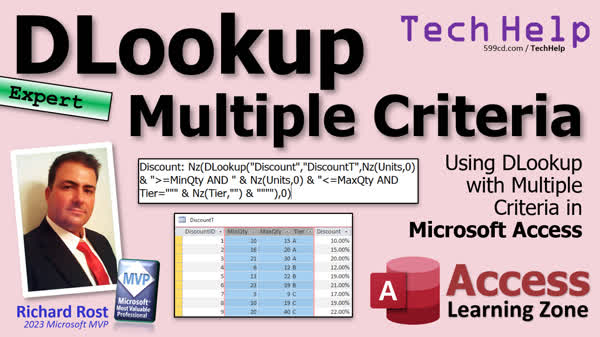 TechHelp Access, dlookup multiple criteria, dlookup quantity range, dlookup pricing tier, discount calculation access, complex dlookup, access table setup, access discount table, dlookup nz function, access string concatenation, access calculated fields, access formula tutorial, string criteria access, dlookup step-by-step
More InformationTranscript Today, we're going to talk about DLOOKUP with multiple criteria. By far, the number one question I get usually involves DLOOKUP of some kind, looking up values. Lots and lots of people need help with lookups that involve multiple criteria - numbers, dates, strings, strings especially get people all the time.
So let's take a look at one of the questions I got recently from a Platinum member, Elliot in Evanston, Illinois. He says, "When my customers place an order, we have a chart where they look up the total quantity of items purchased and then, based on the customer's pricing tier, which is either A, B, or C, we assign them a discount. Here's what the discount matrix looks like. I can't figure out how to calculate the discount. I know it involves a DLOOKUP of some kind, but can you help me out?"
Yes, of course, Elliot. Great question. I see stuff like this all the time. In fact, someone just posted a question like this in the forums a couple of days ago. This is going to involve one DLOOKUP statement that has three criteria in it.
First, you've got to check the quantity. The quantity has to be greater than or equal to that minimum quantity field you have. It also has to be less than or equal to the max quantity. Now, I'm assuming if it doesn't fall in those ranges, like if you have a tier A customer that only purchases five items, they don't get a discount. That's what I'm assuming. So you got to make sure your table is set up properly first of all.
Now after you check the quantity, we also have to check the tier and since the tier is a letter we have to properly put it inside of quotations inside of our string that is the DLOOKUP criteria string.
Once we have all that, we can then look up the discount. Now since formatting that criteria string is where a lot of people get tripped up, we're going to walk through it step-by-step very slowly. But first, let's talk about some prerequisites.
Now, this is going to be an expert-level video. What does expert mean? Well, it's beyond beginner. If you're an absolute beginner with Access, this might be a little bit too much for you. So I'm going to give you some prerequisite videos to go watch first. But this isn't a developer-level video. I sandwich expert between beginner and developer. If you're a developer, it involves VBA and all that stuff. We don't need VBA today. But it is going to be a relatively complicated DLOOKUP.
Here it is right here. You can see it. Lots of quotes and NZ functions. And I'm going to explain how I built this step by step in just a minute. OK? But we can always use more practice with DLOOKUP, even if you are an advanced developer student. I get a lot of people that have been programming for a long time, and they still miss a quote here and there.
All right, so here are some videos to go watch to make sure that we're all on the same page. First, calculated fields, very important. You can create calculated fields directly in forms and reports or in queries. Today we're going to work with a query calculated field, so go watch this first.
Concatenations, another big one. Concatenating is putting two strings together. We have to do that a lot inside of DLOOKUP strings. So that criteria string is going to be one big long string with different values and stuff substituted into it. So make sure you've got a good grasp on concatenation.
And make sure you go watch my double double quotes video too. It's another concatenation video. But it's when to use single quotes, double quotes, double double quotes. A lot of times taking string criteria and putting those inside of another string, that trips people up too. And again, we're going to talk about it in just a few minutes.
And of course, the granddaddy, the grandpappy of all lookup functions, DLOOKUP. Go watch this. If you haven't watched all these videos, go watch them now and then come on back.
All right, so the first thing we're going to do is set up a table. We're going to take this guy and put it over into Access. This looks like a number. These are long integers. That's a string value. And that looks like a double formatted as a percentage. OK, so let's set that up real quick.
I am going to create a table. We'll have a discount ID. That'll be my auto number. We've got the min quantity. I can't type the min quantity. That'll be a number, a max quantity, also a number, the tier which is short text, and then the discount which is going to also be a number but this guy is going to be a double.
Remember there are two number types you're going to use, long integer and double, that's it. Unless you're super advanced and you understand the difference between double and decimal and single and all that, don't worry about all those number types. All you should care about for 90% of your Access career is going to be long integer and double, that's it.
All right, we can format that as a percentage. When you do that, 10% is actually 0.1. Okay, internally in Access, it's stored as 0.1. You'll see it as 10%. Let's save this as my discount table, discount T, and I'll put some data in here. I'm not going to make you watch me type all this in. I'll just put a couple of rows in, 10 and then 15, and that's tier A, and it gets a 10% discount.
I'm just taking this off of his little chart here. I'm just going to copy this and put it over into the Access table and I'll be right back. Actually, let me show you what I just did because now if you're using ChatGPT at all, you could take a screenshot of this data and have ChatGPT OCR it and format it for you so that you can just copy and paste it into Access.
Watch this. I use my screen capture tool. I use HyperSnap, but you can use anything you want. You can screen capture it with Windows Snip and Sketch, whatever screen capture tool you use. All right, then I pasted that in the ChatGPT. Oh, you can see my OCR still running. Turn that off. And there are the rest of the rows.
I said, "Can you format the attached picture of a spreadsheet for me so I can copy and paste the text in my Access database?" Here it is. It OCRed it. It pulled all the data out. Now just copy this.
Now back in Access, here's the key. You can't just click here and hit paste. You see how it tries to paste it all inside that field? No, you don't want that. And you can't select the row because it's all, it's different because you got a discount ID here and you don't have that over here. So here's how you do this.
Watch this. You got four fields over here. Just make sure they match up and in your table what you're going to do is you're going to move your cursor right to the border there. So you get like the Excel plus sign. You're going to select those four cells. We'll call them cells. I know they're fields. We'll call them cells. It looks like Excel.
Now that you got those guys selected and you made sure they match up, now hit paste. And, oh, hold on. Hold on a second. All right, that was my fault. I didn't tell ChatGPT to tab delimit it. You gotta make sure you tab delimit it. There are spaces between these. If you look closely at this data here, see the spaces? You need them tab delimited. There's a tab between each one, see that? There's a tab character there. There's not just one space; it's a tab character. Once you've got them tab delimited, then you can do what I just showed you. Now we can come in here, select these four cells, and now paste, and there you go. There's your data.
And there were a bunch of deletions. That's why my auto number jacked up. See that cool little trick? You've got to just make sure the data is tab delimited. But ChatGPT can do the OCR, it can copy the data, it can figure it out for you, format it whenever you need it formatted for you. So I didn't have to sit here and type all that in. And yes, that took me longer than just typing it all in, but I was teaching you something new. I've done this before a million times. And that's one of the great things. ChatGPT is replacing a lot of other software.
OK, so now we've got this stuff in here. Now we need some way of indicating for our orders. I've got an order table. But we need some way to indicate the units and the tier that the customer purchased. Ignore the order detail table for now. Let's just pretend this is the user's table. So I'll add some fields in here.
All right, we need a number of units purchased, so I'll just call it units, and that'll be a number. And what is their pricing tier, and that'll be a short text field. OK, so we're going to add that in here. So let's say I've got this order, the guy purchased twelve units and he's tier A. Let's say on this one he purchased 18 units he's also tier A. This guy purchased 6 units he's tier B and this guy purchased 11 units and he's in tier C. Of course, every one of these orders you put some stuff in there we'll deal with null values in a little bit.
So now we're all set. Now we've got our data in here, we've got our discount table set up, we've got our order table that has the information in it that we have to look up, and essentially we're going to say, "OK, take this number of units, look it up in this table. I'm going to DLOOKUP the discount from the discount table where 12 is greater than this, greater than or equal to this, and less than or equal to that, right and our tier this guy is equal to that. So that's going to be our DLOOKUP statement and we're going to walk through that tomorrow in part 2.
So tune in tomorrow, same bat time, same bat channel, or if you're a member you can watch it right now because I'm going to record it in just a few minutes. But that is going to be your TechHelp video for today. I hope you learned something. Live long and prosper, my friends. I'll see you tomorrow for part 2.
TOPICS:
DLOOKUP with multiple criteria
Setting up a discount matrix
Using DLOOKUP for discount calculation
Formatting DLOOKUP criteria strings
Creating a discount table in Access
Using AutoNumber for table IDs
Formatting number fields as percentage
Data entry into Access tables
Using ChatGPT for OCR and data formatting
Adding fields to an order table in Access
Populating an order table with sample data
COMMERCIAL:
In today's video from Access Learning Zone, I will show you how to use DLOOKUP with multiple criteria to handle customer order discounts. First, we'll set up a discount table based on an example from Elliot in Evanston, Illinois. We'll configure text and number fields, including minimum and maximum quantities, and customer tiers. Then, we’ll create a query using a DLOOKUP function to determine the discount based on units ordered and customer tier. By the end, you’ll be equipped to manage complicated lookup scenarios in Microsoft Access. You'll find the complete video on my YouTube channel and on my website at the link shown. Live long and prosper, my friends. Intro In this video, we'll talk about how to use the DLOOKUP function with multiple criteria in Microsoft Access, focusing on a real-world example of calculating customer discounts based on a discount matrix that includes minimum and maximum quantities and customer tiers. I'll walk you through setting up the discount table, configuring number and text fields, formatting fields as percentages, and entering sample data. You'll also see how to assemble a proper DLOOKUP criteria string for multi-field lookups and a quick tip using ChatGPT to OCR and format table data for Access. This is a TechHelp video. Quiz Q1. What is the main focus of the video tutorial?
A. Nested IF statements in Excel
B. Using DLOOKUP with multiple criteria in Access
C. Creating charts in PowerPoint
D. VLOOKUP function in Excel
Q2. What type of customer information is being used for the DLOOKUP example?
A. Customer's email and phone number
B. Customer's address and name
C. Quantity of items purchased and pricing tier
D. Customer's age and gender
Q3. How many criteria are applied in the DLOOKUP statement demonstrated in the video?
A. One
B. Two
C. Three
D. Four
Q4. When creating the table in Access, what format is used for the discount field?
A. Short text
B. Integer
C. Long integer
D. Double formatted as a percentage
Q5. What is the primary purpose of the prerequisite videos mentioned in the tutorial?
A. Basic database design
B. Introduction to VBA
C. Understanding calculated fields, concatenations, and DLOOKUP
D. Creating forms and reports
Q6. What is the significance of properly formatting the DLOOKUP criteria string?
A. To ensure correct syntax for numerical operations
B. To handle errors during runtime
C. To prevent mismatches in data types
D. To correctly form the criteria for exact lookup, especially for string values
Q7. Which tool does the instructor use to capture data for OCR purposes?
A. Adobe Photoshop
B. Windows Snip & Sketch
C. HyperSnap
D. Paint
Q8. Why is it important to ensure data is tab delimited when pasting into Access?
A. To maintain text formatting
B. To ensure each field gets the correct value
C. To simplify the pasting process
D. To match the data with the corresponding Excel sheet
Q9. What are the primary number types mentioned for use in Access for most cases?
A. Single and Decimal
B. Integer and Float
C. Long Integer and Double
D. Short Integer and Long Integer
Q10. In the tutorial, what is the purpose of the 'units' and 'tier' fields added to the order table?
A. To store the customer's contact details
B. To store the number of units purchased and the pricing tier for DLOOKUP purposes
C. To track the sales representative
D. To calculate shipping costs
Answers: 1-B; 2-C; 3-C; 4-D; 5-C; 6-D; 7-C; 8-B; 9-C; 10-B
DISCLAIMER: Quiz questions are AI generated. If you find any that are wrong, don't make sense, or aren't related to the video topic at hand, then please post a comment and let me know. Thanks. Summary Today's TechHelp tutorial from Access Learning Zone will focus on handling DLOOKUP with multiple criteria, one of the most common challenges people encounter when managing lookup values in Microsoft Access. I frequently receive questions about DLOOKUP, especially when it comes to searching using more than one field, such as numbers, dates, or strings. Strings, in particular, tend to cause people problems.
Let me outline a recent scenario to show you how to approach this. One of our Platinum members wanted help with an order discount process. The business uses a chart that determines the discount based on both the total quantity of items purchased and a pricing tier for each customer, which is labeled as A, B, or C. Depending on those two pieces of information, a discount is assigned by consulting a matrix. The member was unsure how to use DLOOKUP to calculate the discount when more than one piece of information was needed.
This problem is quite typical. When you have to look up a value based on more than one criteria, such as a minimum and maximum quantity along with a customer tier, you will need a DLOOKUP statement that takes all three into account. Specifically, you check that the quantity is at least the minimum and at most the maximum for that row, and then confirm that the tier matches. If an order does not meet those criteria, like a tier A customer only buying five items, they might not receive a discount. Make sure your table structure reflects your business logic correctly.
String criteria, like the tier letter, often trip people up because you need to build the proper criteria string within DLOOKUP, including the necessary use of quotation marks. Many people find formatting these strings to be the hardest part, so I will break that down for you in detail.
Before we dive into building this lookup, I want to emphasize that this lesson is at the expert level. If you are just starting out with Access, some of these concepts might seem a little advanced, and I recommend watching some prerequisite lessons first. This is not developer-level where VBA is required, but we are going beyond the basics.
I recommend reviewing topics like calculated fields since you will be making a calculated field in a query today. Understanding concatenation, which is how you build strings from different pieces, is also essential. You will need to put together an expression that includes quotes in the right place, which leads me to another important topic: knowing when and how to use single, double, and double double quotes inside your expressions. Of course, if you are not familiar with how DLOOKUP itself works, you should cover that as well. Once you have reviewed those skills, come back and continue with this lesson.
Our first step is to create the table for our discount matrix in Access. You need a DiscountID as an AutoNumber, a minimum and maximum quantity as number fields, a tier as text, and a discount, which should be a number formatted as a double for holding percentages. The distinction between long integer and double number types is important here. Unless you have a specialized need for another type, stick with these two for almost all Access work.
Remember that when you set a number to percentage formatting, a value like 10% is represented internally as 0.1 in Access. Once the table is built and saved, you can enter your sample discount tiers and values. To make the process of transferring data easier, you can use OCR tools to extract the table from a chart or spreadsheet image and format it for direct pasting into Access. Tools like ChatGPT can handle OCR these days and can even output data as tab-delimited text, which Access can accept smoothly if you select the right number of fields in your table before pasting.
With the discount matrix table ready, you next need to make sure your orders have fields that record both the number of units purchased and the customer's pricing tier. Add those fields to your order table, then enter some sample data, making sure to cover enough variety to match your discount matrix for testing.
When everything is in place, the main lookup process involves taking the number of units purchased from an order, using it to search between the Min and Max Quantity from the discount table, and matching the tier as well. The DLOOKUP should return the discount from the matrix for orders that meet the criteria.
We will continue with the exact steps to write this DLOOKUP in the next session. For now, be sure to set up your tables and sample data as described. This will put you in great shape for writing and understanding complex DLOOKUP criteria.
You can find a complete video tutorial with step-by-step instructions on everything discussed here on my website at the link below. Live long and prosper, my friends. Topic List DLOOKUP with multiple criteria
Setting up a discount matrix
Using DLOOKUP for discount calculation
Formatting DLOOKUP criteria strings
Creating a discount table in Access
Using AutoNumber for table IDs
Formatting number fields as percentage
Data entry into Access tables
Using ChatGPT for OCR and data formatting
Adding fields to an order table in Access
Populating an order table with sample data Primary Topics Access DLOOKUP, multiple criteria lookup, discount matrix, criteria string formatting, Access table setup, data types, OCR for data import Secondary Topics using ChatGPT for OCR, field formatting, prerequisite skills |






