Up To Midnight
By Richard Rost

 2 years ago
Query Records by Date Before Midnight in MS Access
In this Microsoft Access tutorial, we'll tackle the challenge of querying records up to 11:59:59 PM with specific criteria tailored for a meticulous request. You'll learn how to adjust query criteria, use date functions like DateAdd, and implement VBA for seamless form integration.
Dylan from Newton, Iowa (a Gold Member) asks: Using a technique similar to your "Value From a Form" video, I have two text boxes on my main menu to specify a start date/time and an end date/time for a query that shows orders within that time range. I want the default to be all orders from yesterday because we check it daily. I had it set to >=Date()-1 and <Date() for the criteria, but my stubborn boss insists that the end date/time in the query criteria should explicitly be 11:59:59 PM instead of using simpler logic like <. How can I handle this requirement?
Members
There is no extended cut, but here is the file download:
Silver Members and up get access to view Extended Cut videos, when available. Gold Members can download the files from class plus get access to the Code Vault. If you're not a member, Join Today!
Prerequisites
Links
Recommended Courses
Keywords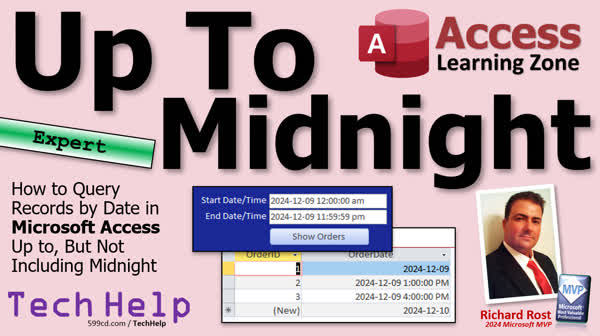
TechHelp Access, query records by date, excluding midnight, 11:59:59 PM criteria, date add function, subtracting one second, custom date format, VBA button creation, Access query setup, non-VBA alternative, TechHelp tutorial
 Subscribe to Up To Midnight
Get notifications when this page is updated
More InformationTranscript In today's video, we're going to see how to query records by date up to but not including midnight. I know this one seems weird, but yes, we've got a requirement where it's got to be up to and including 11:59:59 p.m. We can't just say less than tomorrow midnight. You'll see why in just a minute.
Today's question comes from Dylan in Newton, Iowa, one of my gold members. Dylan says, I'm using a technique similar to your value from a form video. I have two text boxes on my main menu to specify a start date time and an end date time for a query that shows orders within that time range. I want the default to be all orders from yesterday because we check it daily. So I had it set to greater than or equal to date minus one, that's yesterday at midnight, and less than date, which is today at midnight.
Early this morning for the criteria, my stubborn boss insists that the end date time in the query criteria should explicitly be 11:59:59 p.m. instead of using simpler logic like less than today's date. How can I handle this requirement? Oh, it's the stubborn boss. I love this. You don't know how many times in my 20 plus year consulting career that I had to deal with clients that were like, well, no, we wanted to look this way just because that's how we want it. Or this is how, my favorite one, this is how we've always done it. So we have to have our new database do it that way too, even though it's wildly inefficient. I also love that one.
All right, but let's take a look at how I would set this up and then we'll fix it for your picky boss. Okay, just don't let your boss see this video that we're making fun of him. Okay, maybe I should, you know what? I'll change your name there. Now we won't know it's you.
Okay, anyways, before we get into it, this is going to be an expert level video. It's a little bit beyond the beginner stuff. We are going to use a couple functions in here, some query criteria. We're not going to need any VB programming, although I am going to use one line of programming to make this button where it shows the orders. It just opens up a query. You can use the command button wizard for that. You don't have to use VBA, but we're going to sneak some VBA in anyways. I'll show you how to do it both ways. Don't worry. But you should definitely know how to use access query criteria, how to get a value from an open form.
All right, so you can use this value here as your criteria for this query. And to do it Dylan, or to do what not Dylan wants to do, we're going to use the date add function. So go watch these if you haven't seen any of these before. Go watch them and then come back.
All right, so here's a copy of my TechHelp free template. This is a free database. You can grab a copy from my website if you want to. Here's my main menu. I've already got a date field on here. We'll adjust this in just a minute. And I've got orders in my order table with dates on them. We'll adjust these so we get some times on these. A lot of people have their order dates that come in with times on them so that you can tell exactly what time of day the order was placed, which might be important for a retailer or even an online operation.
But let's say today is December 10th. So let's say we got a bunch of orders from yesterday. So 12/9, I'll just do one without a time on it, 12/9 at 8 a.m., 12/9 at 1 p.m., and then 12/9 at 11 p.m. And then we'll do one at 12/10, and then 12/10/1. All right, so we should see just these orders if we do it right.
All right, so let's close this up, save changes, sure. I'm going to come into my menu here. And let's move some stuff around here for just a minute. We'll make this our start date. Come here, sit nicely right there. Okay, start date. It'll be start date time. We're going to put a time on this. I'll make this longer. We can fit all of that in there. Now I'm going to name this instead of current date, we'll call it start date. And the control source is currently set to equals date, which means that this text box will always be the current date, and you can't change it with the control source. Control source says you are set to this value.
Okay, but I'm going to use default value instead. And I'm going to say this is going to be equal to date minus one. It'll be yesterday at midnight. If you're not familiar with how that works, go watch my date math video. You can add one to a date or subtract one from a date. That's one day.
All right, so I'm going to take start date. I'm going to copy and paste it. We're going to make this the end date. All right, now normally, let's change the name first, right, end date. Okay, now normally, I would make this today's date. Because if you want yesterday's records, you can say give me greater than or equal to start date and then less than end date, right, like this. Let's change this. There's our dates right there. Okay, that looks good. Now we make a query, right, create query design. We bring in the order table. Close that, close that. I'm going to say, let's say I just want to see the order ID, the customer ID, and the order date. That's what I get.
Now I put my criteria on right here in the criteria field. I'm going to shift F2 to zoom in so you can see that's going to be greater than or equal to forms main menu F start date. And now normally, I would have today at midnight. So it would just be less than forms main menu F end date. That would work properly, normally, right. Save it. Let's call this order criteria queue or whatever you want to call it. All right, now when I run this, there's the proper set of dates. Notice I'm not seeing any of the orders from today with 12/10 because it's less than that date. And this is how I normally would do it, right. But we're dealing with picky boss. And picky boss doesn't want to see that. Picky boss wants to see 12/9 at 11:59:59 p.m. How do we put that there?
Well, to do that, we're going to come back into here. And instead of equals date like that, we're going to use the date add function and subtract one second from that. There's a couple of ways you could do it if you want to subtract the second. Keeping in mind date math, right. You could say minus and then you could go one divided by 24. That's hours. Now you've got hours divided by 60. You got minutes divided by 60 again. You got seconds. So that is one second right there. This should work. Let's test it. Let's see what we get. Main menu. And I'm only seeing a short date there. But it's there. Why am I only seeing the short date? Let's check the format. Do you ever not see the date that you expect? Let's check the format. And oh, yeah, yeah, it's set to short date. Short date will chop off the time portion. So we got to change this back to a general date. General date. So let's go back in here and do it again. And there we go.
All right. So we've subtracted one second. That's one way to do it. As with date math, the other way is using the date add function. I know we want to subtract. And remember, subtraction is just adding a negative. Right? So let's come into data in here. So this is one way you can do it. This is certainly valid. Or you could say it's date add. What are we adding? A second. How many are we adding? Negative one. What are we adding it to? Date. Date function. That's today's date. Now also subtract one second from today. And now, boom, get the same thing. So there's two different ways to do it. OK? I don't know. I use them both all the time interchangeably. This makes more sense for someone else who's reading it. That might not understand what you're doing. If you go one divided by 24 divided by 60 divided by 60.
OK. Anyways. The problem that we have now, though, is that we have to change our criteria in our query. Because this now needs to also include that end date, that end date time. Because if you do have an order at 11:59:59, you got to include it. Fortunately, the access date time, the basic date time field, only goes to the seconds. So you don't have to worry about fractions of a second. Date time extended does. So this only works with the regular date time. The classic access date time field. OK? See you save that. And you close it. And you close it.
Now, if your picky boss also wants to see a time on that, the default is if it's at 12 midnight with general date, you won't see it. So if you want to force that on there, you'll have to use a custom format. A custom format, which in this case, you'd need to do. I'm using the ISO date format, which is yyyyy-mm-DD space HHNN for minutes, because M is month. So N is minutes unlike Excel, which is weird. SS for seconds, and then AM/PM, unless you want 24 hour. And just leave that off. There's your custom date format. Save it. Close it. Open it. There you go.
And hopefully, not Dylan, that will satisfy your picky boss. And it also still works. Oh, that's the hello world. Oh, I told you earlier, I was going to show you how to do this both ways to open that query. Because I was just opening the query over here, and that will work just fine. But if you want to make a button to do it, OK, I'll show you both ways real quick. Let's move hello world out of the way. First is you can use the wizard. So if you don't want to do any programming, that's fine. Just go to form design, grab a button, drop it down here. When the wizard starts up, did I just say, whoop, when the wizard starts up, go to miscellaneous, run query, next, what query do you want? The one we just created, next. Do it, do it. Right, that's a caption. Next, give it a meaningful name, the open order button. And then there it is. And save it. Close it, open it, boom, there's your query. That's the non-programming way.
The programming way is to, I'll just hijack this button. Just drop a button on here. Right click, build event. And instead of this status here, you say, do command, open query. Open query, if I get typed today. And then it's order criteria. Queue. See, once you know the programming, once you know the commands, it's even faster to do it this way than it was to do it with the button wizard. Save it, close it, close it, open it. This one works too. That's it, there you go.
So the trick here was knowing how to do that by subtracting a second from today's date. And the rest of it was all just to build up for that. So I hope you enjoyed, hope you learned something. And if you are VBA curious, if you want to learn this crazy thing called VBA programming, well, check it out. I got a video right here. It's free. It's 20 minutes long. Teach it to everything you need. Know to get started. And if not, if you don't want to be a programmer, but you still want to do cool stuff and access, I got this thing called the expert level, which is between beginner and developer. And I've got 32 of these and they cover all kinds of cool things and functions and different stuff that you can learn with access to different types of queries. You name it, all kinds of stuff that's cool that doesn't involve any programming.
There's 32 levels of this too. You do a little trick and we do all kinds of stuff. I cover all the functions, aggregate functions, daytime functions, math functions, string functions. You name it, I cover it. But that's gonna do it folks. That's your TechHelp video for today. I hope you learned something. Live long and prosper my friends. I'll see you next time.
TOPICS:
Querying records by date up to 11:59:59 p.m.
Using DateAdd function to subtract a second
Adjusting text boxes for start and end dates
Setting default values for date input fields
Creating a query with date criteria
Implementing custom date format in Access
Opening a query with a command button
Subtracting a second from today's date using DateAdd
Using the Access command button wizard
COMMERCIAL:
In today's video, we're tackling the challenge of querying records by date up to, but not including, midnight. We'll discuss handling difficult requirements like needing an end date time of 11:59:59 p.m., which can be tricky with picky bosses. I'll demonstrate using Access functions and simple VBA to solve this. Plus, we'll look at working with date add functions and explore both VBA and non-programming methods to create buttons that run queries. This is an expert-level video packed with practical tips and tricks to meet your needs. You'll find the complete video on my YouTube channel and on my website at the link shown. Live long and prosper my friends. Intro In this video, we will talk about how to query records by date in Microsoft Access up to, but not including, midnight, focusing on meeting requirements that call for an explicit end time of 11:59:59 p.m. instead of midnight. I'll show you how to set up start and end date text boxes, use the DateAdd function to subtract a second from the end date, set default values for input fields, create a query with accurate date criteria, apply custom date formats, and open queries using both the command button wizard and a simple line of VBA. Quiz Q1. According to the video, what is the specific requirement that Dylan's boss insists on for the end date time criteria?
A. Midnight of the next day
B. 11:59:59 p.m. of the current day
C. Noon of the current day
D. 10:59:59 p.m. of the current day
Q2. What function is suggested in the video to adjust the end date to 11:59:59 p.m.?
A. DateDiff
B. DateFormat
C. DateAdd
D. DatePart
Q3. What is the purpose of subtracting one second in the date criteria, as explained in the video?
A. To include dates from the next day
B. To ensure inclusion of orders up to 11:59:59 p.m.
C. To exclude the current day entirely
D. To adjust for daylight saving time
Q4. In the context of Access queries, what field is typically used in the criteria to hold the start date value?
A. CurrentDate
B. FinalDate
C. StartDate
D. QueryDate
Q5. In the video, why does the presenter mention changing the date format from "Short Date" to "General Date"?
A. To display dates only
B. To include hours, minutes, and seconds in the date display
C. To prevent truncation of the year
D. To display only the time
Q6. How does the presenter suggest implementing the button to run the query in Access without programming?
A. By editing the query properties directly
B. By using the command button wizard
C. By writing a macro from scratch
D. By importing a pre-made VBA script
Q7. What programming method does the presenter show for running the query with a custom button?
A. By using a macro
B. By manually integrating SQL commands
C. By using the 'DoCmd.OpenQuery' method in VBA
D. By setting it up in the Access Startup Options
Q8. What video does the presenter recommend for viewers who are VBA curious?
A. VBA Best Practices
B. Intro to VBA Programming
C. Advanced VBA Techniques
D. Beginner VBA Step-by-Step
Answers: 1-B; 2-C; 3-B; 4-C; 5-B; 6-B; 7-C; 8-B
DISCLAIMER: Quiz questions are AI generated. If you find any that are wrong, don't make sense, or aren't related to the video topic at hand, then please post a comment and let me know. Thanks. Summary Today's TechHelp tutorial from Access Learning Zone will guide you through querying records by date up to but not including midnight. We have a specific requirement here – the query needs to include records up until 11:59:59 p.m. This limitation means we can't simply set the criteria to be less than tomorrow's midnight. Let's explore why.
Our topic today is inspired by a practical scenario where one of my subscribers set up a query to retrieve orders within a specified time range using two text boxes for start and end date times. The default setting was to display all orders from the previous day. So, it was initially configured to be greater than or equal to yesterday's date and less than today's date, effectively capturing yesterday's records. However, a demand was made to explicitly set the end time to 11:59:59 p.m. instead of just less than today's date.
Throughout my consulting career, I've often dealt with clients having very specific requirements, sometimes based on habits, despite the potential inefficiencies. Nonetheless, let's adjust our approach to meet these specifications.
This tutorial will offer some advanced insights, including functions and query criteria, but don't worry – no VB programming is necessary, although we'll slip in some VBA for demonstration purposes. You'll gain knowledge on applying Access query criteria and retrieving values from an open form.
To achieve the desired result, we'll use the DateAdd function. My TechHelp database template offers a suitable foundation for this practice. On the main menu, there's already a date field recorded with order dates. We need to ensure our query correctly reflects records from the previous day using precise time stamps.
Suppose today is December 10th. Our orders from December 9th should appear without a timestamp, at 8 a.m., 1 p.m., and 11 p.m. We'll adjust the interface to include a start and end date, setting yesterday as the default for the start date. Initially, you would set the end date to today, extracting records for the full previous day. However, to accommodate the specific requirement, we adjust the end date to leverage the DateAdd function, subtracting one second to achieve an end time of 11:59:59 p.m.
Changing the format settings from short to general ensures the time is displayed accurately. In Access, dealing with seconds is straightforward since the basic date/time field does not account for fractions of a second. Tailoring a query to our specific requirements now means including the end date to ensure any records timestamped at 11:59:59 p.m. are captured.
You can also customize the date format using ISO standards or define your format to force certain time displays. If your preference leans towards VBA, you could opt for a more advanced solution to execute the query with custom commands.
Overall, the solution hinges on effectively applying DateAdd to adjust the time criteria. I hope you've gained useful insights through this tutorial. If you're keen on pursuing VBA for a deeper understanding, or just want to explore practical applications at an expert level without diving into full-scale programming, numerous resources are available for you.
You can find detailed video tutorials covering all steps discussed here on my website with the link provided below. Live long and prosper, my friends. Topic List Querying records by date up to 11:59:59 p.m.
Using DateAdd function to subtract a second
Adjusting text boxes for start and end dates
Setting default values for date input fields
Creating a query with date criteria
Implementing custom date format in Access
Opening a query with a command button
Subtracting a second from today's date using DateAdd
Using the Access command button wizard Primary Topics Access query criteria, date range filtering, DateAdd function, form value retrieval, default values for date fields, custom date formatting, command button setup Secondary Topics VBA query opening, end-of-day logic, design of form fields, criteria troubleshooting |




