DoEvents
By Richard Rost

 3 years ago
Use the DoEvents Command to Yield Execution
In this Microsoft Access tutorial I'm going to teach you how to use the DoEvents command inside of a loop to yield execution to the database so that it can do stuff like update the screen and show your user that the database is busy doing something and not necessarily locked up.
Notes
- I didn't think of adding this until after I finished recording and posting the video but a few people have asked me if they can use DoEvents to allow the user to continue working in the database while something runs in the background. While this is technically possible I don't recommend it. If you've got one loop running an Access I would just let it run and do its thing. If you try to do other work while that loop is running, especially if it's updating the screen, you may lose focus on an important field that you're typing in and other weird stuff can happen. Fortunately, Windows is really good at multitasking so what you could do is open a second database and work on that one while your first database does its thing. And of course you don't want to modify anything that has to do with the records that that loop is working on.
Prerequisites
Recommended Courses
Keywords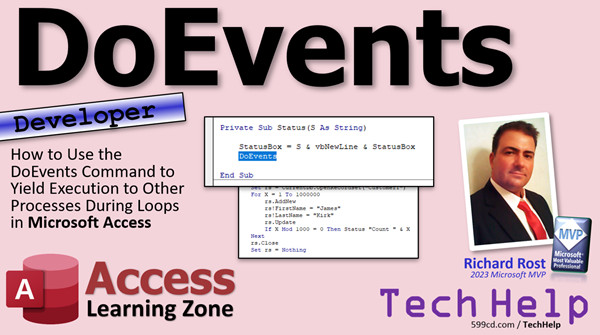
access 2016, access 2019, access 2021, access 365, microsoft access, ms access, ms access tutorial, #msaccess, #microsoftaccess, #help, #howto, #tutorial, #learn, #lesson, #training, #database, What is the DoEvents function, not responding, yield execution, mod, modulus, for next, if then, variables
 Subscribe to DoEvents
Get notifications when this page is updated
More InformationTranscript Welcome to another TechHelp video brought to you by AccessLearningZone.com. I'm your instructor, Richard Rost.
In today's video, we're going to talk about the DoEvents command. This allows you to yield execution to other processes and let the database do other stuff during your loops in Microsoft Access.
Now, this is obviously going to be a developer-level video, so you're going to have to know some VBA. If you've never done any VBA programming before, go watch this video. It's free and it's on my YouTube channel. It will teach you everything you need. You need to know about 20 minutes.
We're going to also use a For...Next loop. We're going to use the If...Then statement, and we're going to declare some variables. So if you're not familiar with any of these topics, go watch these videos. You'll find links down below.
I recently released this template called the Access Object Size Analyzer. You can use this to analyze the different sizes of objects inside your database. For example, what tables are what size, how big they are, how much space they are taking up on the disk, what forms are big, and what reports are big. This doesn't matter, but what I did do is with this, I released a tool, which is this guy, that I included a button so you can create a million records in your customer table. That would allow you to test to see. Once you take that table and add a million records to it, you can then use the other tool to see how big that is.
I had a million people ask me, they found this tool and they're looking at it and they're like, what does this DoEvents thing do? Because if you look in the code here, we have this command right there called DoEvents. What does that do?
DoEvents basically allows you to say, OK, I'm running a loop right now because I'm running a loop from one to a million. I'm going to walk you through this code in just a second. I'm running a loop from one to a million. If you just do this, and even if you write stuff on the screen, nothing might appear to happen unless you tell Access, hey, go ahead, you can do whatever you have to do. Screen updates, let other processes run, and so on.
It doesn't necessarily even have to be a loop. If you've got, let's say, 10 action queries that you're running in order, you have a delete query, an import query, an append query, and so on, a whole bunch of code, stuff that executes one after the other, if you don't allow the operating system, allow Access to take control for a second to update the screen and do stuff, your database might seem like it locks up.
Let me take you from the beginning. Let me close this database down. I'm going to use a fresh copy of my TechHelp template. There it is. Copy that there.
Now, this guy already has DoEvents built into it using this thing called a status function. Go into the Hello World button, and you'll see it says status and then Hello World. Then it has DoEvents right there.
What we're going to do right now is we're going to rem out that DoEvents just so you can see what happens.
Now I'm going to come down here. Here is status Hello World. Let's instead do a count from 1 to 1000. I'm going to say dim x as long. For x equals 1 to 1000 is my for loop. Next. And we'll say here x is and the value of x. I want to look from 1 to 1000.
Now this is without DoEvents in place. I'm going to save that, come back over here, and click the button. It goes pretty fast. Let's make that 10,000. Come back out here, change it to 10,000. Save it. Come back in here, click Go.
It paused for a second there. Let's make that 50,000. Trying to find a sweet spot here. Ready. Click. It's taking its time and the system seems locked. Nothing is updating. If you try to click somewhere else, look what happens. See, it goes to not responding. If I click on it again, see if you get that familiar white. The application is not responding. You've got to sit here. Your user thinks the database is frozen, even though it's working in the background.
Finally, when it's done, then it takes over and it displays it. Basically, this loop takes over the whole application. All of Access is frozen.
Now, if I put the DoEvents back into play, OK, now what happens? Click. You can see every step. Every iteration is running there.
The problem with this is that writing data to the screen is one of the slowest things you can do. It takes a lot of processing time to write to the screen. So you can see now I'm only on 3,000. I have to wait for 50,000 before this loop is finished. This will actually run faster if you don't display every record.
Let me abort this. Let me just close the form. What we're going to do is say, I don't want to see every record. Maybe put something on the screen every thousand records.
What I'm going to say here is I'm going to say if x mod 1000 equals zero, then do the status. What is mod? Mod is the remainder. It says remainder. It's the remainder after a division. For example, 10 mod 3 is 1 because 10 divided by 3 is 3 with 1 left over. What you're saying is if you want to check to see if it's any interval of a number, 1,000, 3, 50, 500, just mod that number. Mod your number by whatever interval you're looking for. If the remainder is zero, then you've got, in this case, an even thousand.
Save it. Back out here. Close it. Open it up. Click. Now you're only going to see it went by much, much faster. You're only going to see iterations of 3,000.
Additionally, you might have long processes. In the case from my last example, I did a million records. Let's see. That's 100,000. There's a million. It'll take a while to run if we click.
Not that long. It's actually pretty fast when you're only displaying every thousand one. In my loop, what I did was I used a recordset in here to add records to this table.
So let's make this 10 million. It's going to take a little while to run now. The only way to abort this is to close the form and get the error message.
I like to give my users a way to abort large loops like that as well. We can do that with a little field. I'll put a little checkbox on here. Let's grab a checkbox. I'll put it right there. We'll call this guy abort. Let's make it so we can actually see it. Let me go white. Give the name of the checkbox. We'll call the name of the checkbox abort. I'm going to make it visible no. So by default, you don't see that there.
When this form loads up, you will not see the abort box because it has no meaning at this point. Let me click on Hello World. Let me start that loop.
First thing we're going to do in here is we're going to say abort.visible equals true. Then when it's over, abort.visible equals false.
Now inside the loop here, we need a way to check to see if the user has clicked on abort. What we should do is when the loop starts, we should also set the value of abort. Abort itself equals false. That way, if they've clicked on it in a previous loop, you want to set it back to false again.
Right in here, we're going to say if abort. Remember the default is if abort equals true. We can just say if abort, then I want to exit out of my For loop. Exit For. That just jumps out of the For loop. If you're in multiple For loops, it jumps out of the innermost one.
Now save it. Save it. Close it. Open it. Ready. Click. There's my abort box. At any moment, I can go click to abort. Oh, I can't hide it. Control has focus. Debug that. When the user clicks on the abort button, the abort checkbox, that guy is going to be visible at that moment. You can't make a field that has the focus invisible, so we've got to jump the focus somewhere else.
Let's put it back on the abort button here. What's the name of that button? It's the Hello World button. We'll take this guy right before that. Come on. We'll go with this guy. Set focus.
Then we'll come in here, save it, go do it, and abort. Look at that. Pretty cool. Click and abort. This is all possible because of a DoEvents inside of our loop. The status is what writes this stuff out to that little box. All it does is it says take an s, put s in there with a new line character in the status box. I cover building this in more detail in my blank template video. I'll put a link to this down below as well so you can go watch it.
That's where DoEvents comes in, but I really don't explain DoEvents in great detail in that video, nor why you would need it. I'm trying to impress upon you why you would want this. If you have any sequence of events that runs one after the other, then you want to include a DoEvents in your loop somewhere or in your sequence of events where you can go like, run query one, DoEvents, run query two, DoEvents, and so on. This way the user doesn't think that your database froze up.
So that's DoEvents. If you like this kind of stuff, check out my Access Developer lessons. I have tons and tons. I have hours and hours. I think I'm on like 44 or 43, somewhere in that range. I try to release a new one every month. I teach you all you need to know about programming in VBA one step at a time. So Developer 1, Developer 2, and so on. By the end, you'll be as good as me. I make no guarantees about that. I've got 30 years of making lots and lots of mistakes. I've got very few hairs left since I pulled most of them out trying to solve problems in Access over the course of my life.
That is DoEvents, why you'd want to use it, when you should use it, what it's good for, and all that stuff. That's your TechHelp video for today, folks. I hope you learned something.
Live long and prosper, my friends. I'll see you next time. Intro In this video, we will talk about the DoEvents command in Microsoft Access VBA. I will show you how DoEvents allows your database to remain responsive during long-running processes or loops, why it's important for updating the screen and letting other tasks run, and demonstrate how to use it with For...Next loops, If...Then statements, and variables. I'll also show how to add an option to let users abort lengthy operations in your forms. If you work with VBA in Access, this video will help you understand where and when to use DoEvents to improve your applications. Quiz Q1. What is the primary purpose of the DoEvents command in Microsoft Access VBA?
A. To yield execution so the database can process other events during long operations
B. To increase the processing speed of all VBA code
C. To prevent users from interacting with forms
D. To automatically back up the database during queries
Q2. In the context of a long-running loop without DoEvents, what typically happens to the Microsoft Access interface?
A. It displays a real-time progress bar
B. It may appear frozen or become unresponsive
C. It speeds up the display of results
D. It prompts the user to continue after each iteration
Q3. What is an example of a scenario where you might want to use DoEvents?
A. When running several queries in a sequence
B. When opening a form with very few controls
C. When adding a new table to a database
D. When resizing the Access application window
Q4. What is the effect of displaying updates on the screen during every iteration of a large loop?
A. It makes the loop run faster
B. It has no impact on performance
C. It significantly slows down the execution of the loop
D. It allows only the first few iterations to complete
Q5. What does the Mod operator do in VBA, as explained in the video?
A. It multiplies two numbers together
B. It divides one number by another, returning the result as a decimal
C. It returns the remainder after dividing two numbers
D. It rounds a number to the nearest thousand
Q6. Why might you only display status updates every 1,000 iterations instead of every single one in a long loop?
A. To minimize screen updates and improve performance
B. To reduce the accuracy of the loop
C. To avoid crashing the operating system
D. To increase the number of records processed
Q7. Which method was shown in the video to allow users to abort a long-running loop?
A. Adding a visible command button labeled Abort
B. Closing the database from the task manager
C. Using a hidden checkbox named abort, made visible only during the loop
D. Pressing the Escape key during execution
Q8. Why do you need to set focus away from the abort checkbox before making it invisible?
A. Because Access does not allow controls with focus to be renamed
B. Because Access cannot make a control with the focus invisible
C. Because it would change the value of the checkbox automatically
D. Because it would corrupt the form data otherwise
Q9. Where is it especially useful to include DoEvents in your code?
A. At the start of each VBA module
B. Within loops or between sequential queries where the interface might freeze
C. During table design in Access
D. Only in VBA functions that do not use any loops
Q10. What does the status function (mentioned in the video) do in the provided examples?
A. It prints the current value of a variable to the debug window
B. It displays output in a status box for the user to see progress
C. It automatically aborts loops after a certain threshold
D. It saves the current database state to disk
Answers: 1-A; 2-B; 3-A; 4-C; 5-C; 6-A; 7-C; 8-B; 9-B; 10-B
DISCLAIMER: Quiz questions are AI generated. If you find any that are wrong, don't make sense, or aren't related to the video topic at hand, then please post a comment and let me know. Thanks. Summary Today's TechHelp tutorial from Access Learning Zone focuses on the DoEvents command in Microsoft Access VBA. This lesson is geared toward Access developers, so a basic understanding of VBA programming is required. If you are new to VBA, I recommend spending about 20 minutes with my beginner VBA tutorial available on my YouTube channel. For those who might need a refresher on concepts like For...Next loops, If...Then statements, or variable declarations, you will also find helpful links for those topics.
Recently, I introduced the Access Object Size Analyzer template, a tool designed to help you evaluate the size of various objects within your database, including tables, forms, and reports. An interesting feature I provided with the template allows users to insert one million records into a table for testing purposes, helping you see how different tables impact your database size. While many people tried this feature, a common question arose: What exactly does the DoEvents command do in the code?
The purpose of DoEvents is to yield execution back to the system while your code is running, especially within long loops or sequences of commands. For example, if you are running a loop from one to a million, or executing several action queries one after another, Access can appear to be unresponsive. Without DoEvents, screen updates and other background processes are blocked, resulting in the application seeming frozen to the user even as it continues working.
To demonstrate this, I set up an example in my TechHelp template. The Hello World button on the form runs some code, and inside that code is the DoEvents command, used along with a status function. By temporarily removing DoEvents from the code, and instructing the program to loop from 1 to 10,000, then 50,000, it becomes immediately clear that Access stalls and appears to lock up during the processing. The interface stops updating, the application stops responding to clicks, and the user is left thinking the database has crashed. Once the loop finishes, everything updates at once.
However, by reintroducing DoEvents inside the loop, Access is allowed to process screen updates and other events, so each iteration of the loop appears on the screen, and other parts of Access stay responsive. There is a tradeoff, though. Writing to the screen is slow, so updating the display every single iteration can actually make the loop run much slower. To strike a balance, I suggest only updating the status for every thousandth record. This technique uses the Mod function, which determines the remainder after division. In this context, if x Mod 1000 equals zero, you know you are at a multiple of 1,000 and can update the status accordingly. This makes the loop run significantly faster, and you are still able to track the progress in manageable increments.
When working with very large loops, such as one that adds 10 million records, it is courteous to include an option for users to abort the process if it is taking too long. To accomplish this, I added a hidden checkbox labeled 'abort' to the form. The checkbox becomes visible when the process is running, and the code checks its value during each iteration of the loop. If the user activates the abort option, the loop exits early. One important point here is that a control with focus cannot be hidden, so after triggering the abort, the focus should be moved to another control, such as the main button on the form. This technique gives your users a way to safely cancel large operations without having to forcibly close Access or wait until completion.
This example highlights how DoEvents enables your application to remain responsive during extended processing. The status box in this demonstration is a simple way of outputting progress messages, built using basic concepts covered in my blank template video, which I also recommend if you are interested in learning how to set up similar features.
In summary, DoEvents is essential for keeping Access responsive during time-intensive operations, whether you are running long loops or executing several queries in succession. By adding DoEvents at key points in your code, you allow users to see progress and even interrupt an operation if necessary, significantly improving the user experience.
If you are interested in more advanced topics like this, be sure to check out my series of Access Developer lessons. I cover VBA programming step by step, from the fundamentals to advanced skills, drawing on many years of experience working with Access.
For a complete video walkthrough with step-by-step instructions on everything discussed here, visit my website at the link below.
Live long and prosper, my friends. Topic List Introduction to the DoEvents command in Microsoft Access
How DoEvents yields control during loop execution
Effects of running a For Next loop without DoEvents
Demonstration of Access freezing without DoEvents
Adding DoEvents to allow interface updates
Performance implications of updating the screen in a loop
Optimizing screen updates using Mod to limit frequency
Explanation of the Mod operator in VBA
Using DoEvents to improve long-running processes
Building a user-interruptible loop with a checkbox
Showing and hiding a checkbox for aborting loops
Resetting the abort control at the start of a loop
Exiting a For loop early if abort is triggered
Handling focus issues when hiding a control with focus
Using DoEvents in sequences of action queries to prevent freezing Primary Topics DoEvents command, VBA loops, Microsoft Access, screen updates, process responsiveness, aborting loops, status updates, Access forms
Secondary Topics variable declaration, Mod operator, user experience, error handling
|




