Find Replace VBA
By Richard Rost

 2 years ago
Find and Replace VBA Code in Microsoft Access
In this Microsoft Access tutorial, I will show you how to effectively use the Find and Replace feature in the VBA editor, highlight important tips on managing global find and replace operations, and demonstrate tricks such as using search ranges and pattern matching.
Members
In the extended cut, we will cover how to insert a comment line at the top of every code block with a custom function I wrote in VBA that supports multi-line find and replace.
Silver Members and up get access to view Extended Cut videos, when available. Gold Members can download the files from class plus get access to the Code Vault. If you're not a member, Join Today!
Prerequisites
Links
Recommended Courses
Member Links
Keywords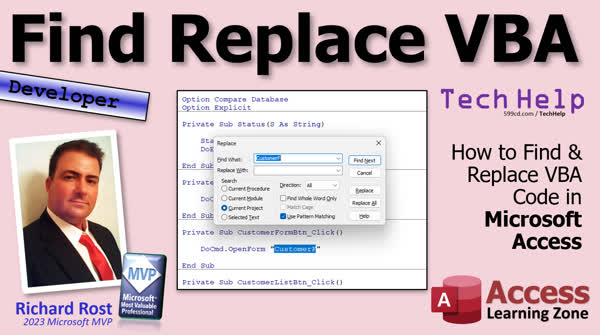
TechHelp Access, find and replace VBA, replace code VBA, searching code VBA, replace all VBA, search replace module VBA, control F VBA, control H VBA, replace form names VBA, VBA developer tips, VBA global search, search current project VBA, match case VBA, find whole word VBA, pattern matching VBA, wildcards VBA
More InformationTranscript Today we're going to talk about find and replace in VBA. Yeah, yeah, I know a lot of you probably know how to do find and replace in things like Word and Excel. But we're going to talk about some little differences with the VBA editor and how it handles find and replace, and some extra little tricks for you.
This is a developer-level video, but we're not doing any programming. It's for developers who use the VBA editor a lot. But if you want to become a developer, if you want to learn this stuff, go watch this video. It's about 20 minutes long. It teaches you everything you need to know to get started, and it's pretty cool.
All right, so let's say you change the name of a form. I'm not going to actually change the name of a form. You can just rename it right here. But now we've got to go in our VBA code, and we've got to find every instance of customer F, and we've got to replace it with whatever the new name is.
Now, a lot of the objects out here, queries and tables and all that, they're pretty good about recognizing that you renamed something. VBA, not quite so much. So you have to manually go through and check it all. Now you can do a find, or you can do a find and replace. I'm very wary of doing global find and replaces, so be careful of that because you might run into weird unintended consequences. I'll show you one in a minute.
So let's hit control F or it's of course under edit find. Edit find and there's find and replace. So control F. All right, now one of my pet peeves with the find and replace box is it never stays where you want it to be. Even when you do like a find next, it jumps down. Why? Why? Stay. Stay right there. Stay. Stay put. So you don't want to stay put. So I'm going to move my window down here. Let's see if this fixes it. Alright. Anyways. Let's see if I can bring this down. Stay put. You're going to sit. You're going to sit. Okay. Good.
All right. Now, usually when you have something selected like that and you hit control F, it's going to put that. Oh, see. Oh, I can't stand you. It's gonna put what you had selected in the find what. Okay, you can easily just change that and if you drop this down, you'll see the last couple things you had in here, like customer F, and then you hit find next. See, what are you doing?
Alright, now there's different search ranges down here. All right, selected text means I'm only going to search inside of whatever text you have selected. So if I do it now, it's gonna find, okay, search text is now found. It doesn't find a customer F anywhere in that text. Let me just double check it. Yeah, I don't see any either. OK. Now, current procedure means a subroutine or a function. One procedure. That is one procedure. A procedure is a general blanket term for either a sub or a function. OK? I use the terms interchangeably myself. I know technically subs don't return a value and functions do. I always never remember to call them procedures. I usually just call them functions because in C they're all functions.
Anyways, so that's what current procedure does. So if you've got a really long procedure, you've got a really long, you know, module, let's say. I don't think I have anything really big in this database. Let's say you've got something that's 500 characters long and you want to search within that, you use current procedure, okay?
Current module is whatever module you have open right now in the VBA editor. Right now I've got global mod open. All right, if I close this and go back to here, I'm in main menus, form module and it will only search in here. That's the default. If you have to search the entire database, you pick current project.
Okay, that is view project explorer. That is this. This is the current project. That's all of the forms, all of the reports, modules, and any system modules, any global modules you got down here. So that'll search the whole database. So let's say I'm looking for customer F. Control F, jumped up here again, and then I'll hit current project, and then I'll go, oh, real quick, direction, there's all up and down. I've never used up and down. Up goes up, down goes down. I just leave it on all. It just starts at the beginning and runs through. All right, so I hit find next and it found that one. Okay, it's a find next again. And okay, see that right there is why you have to be careful, especially when you're doing a global find and replace, which we'll talk about replace in a second.
But notice, that's not what you're looking for. Okay, so you got to be careful. It's that is what you're looking for. Now this is what find whole world, whole world, you want to find the whole world, find whole word only does. All right, this says it's got to be just that word. So if I hit find next, it finds that, finds that, it will not find anything that this is part of like that other guy. Where are you? That thing. Alright, turn that off for a second.
Match case is exactly what it says. It's case sensitive, upper lower case. And use pattern matching, which I just turned off. Usually this is off. I just had it on because I was playing with it earlier. Pattern matching allows you to search for wildcards. You know what the wildcard characters are. If not, I got a video on wildcards. I'll put a link to it down below. Basically, if I did something like this, cust star f, it will find stuff that looks like that. Let's see if it finds any other ones. Might not be. Let's do a c star f. How about that? c star f. So it'll find any word that starts with c and ends with f. See, right there. c and an f. c and an f. See? Okay? C and an F. And you can do find whole word to find just things that end in a whole word that's C to F.
Alright, so you can mix and match all these things. Okay? Are you with me so far? Pretty straightforward stuff. This gets a lot of beginners, this whole thing here, like knowing this will search the entire database, this just searches the module that you're in. Okay?
When we get to replace, which by the way, replace is control H. If you can't remember the shortcuts, they're right on here for you. Control H took me a few years to remember that, and I still never remember F3 for FindNext. I never really use it. I just opened up control H for replace, and there it is. Now you've got replace, and you've got replace all used with connection with FindNext, and you can do all the things you want to.
I recommend let's say for example you want to replace all your customer F's with new customer F's. So there's customer F there, you come down here you go new customer F, search in the project, find whole world, whole, I keep saying it ten times fast people, whole word, find whole word, find whole word only. I see I can't do it. Anyways, this is where, for something like this, I would definitely step through them. So I'm going to go find next, that will find the next one. Now I'm just going to hit replace, and that will replace this one and move to the next one. Replace, see, and that's it. There's just a couple of them. And now when you realize you goofed, we're going to go back to new customer F and replace that with just customer F. So I don't want to break my database. So find the next one. Okay, replace, replace. All right.
Now, when is replace all useful? Well, when you know that exactly what you're placing is going to be the same thing everywhere. For example, every year I change my copyright notice. This should appear at the top of every one of my modules. Okay. I don't want to just do 2023 and then do find and replace because that could be in the code somewhere else. It could be a number somewhere or a dollar amount. But if I take this whole thing like that. I'm gonna copy that, I'll put that in here. I'll also put it in the replace with and now I'll just simply change that to 2024. I'm pretty certain that that's not gonna appear anywhere else except up top here. Okay, and we'll turn off Find Whole World. All right, Current Project, I'll hit Replace All, and it made 13 replacements, which as you can see, are needed because I haven't updated it for this year yet. It's currently March of 2024.
That's the only time I would ever use that, is if it's something like this where it's a string of text we know it's not gonna be anywhere accidentally in the code. If you're not sure, step through it. Okay?
Now, this brings up a topic that one of our moderators, Sammy, posted in the forums on my website, is that he wants to be able to insert a comment line on top of every code block with a copyright statement, like I have in mine. Right? This thing up here. If you don't have this and you want to put one at the top of every module, how would you do that? Well, assuming that you have option compare database at the top of every one of your modules, which you should, it's a default setting, okay, you could do a find and replace.
So you can't do it with the built-in find and replace block. Cool. How can you do it? Well, we will cover that in the extended cut for the members. Silver members and up get access to all of my extended cut videos. Gold members can download my databases that I build in these videos and you have access to the code vault where this can be found. Yeah, it's a lot more than that. There's a bunch of it. And we'll go over this in the extended cut.
You can basically take any two bits of text and replace them whether there's multiple lines in it or whatever. Doesn't matter. I built some code that does the job. So check it out.
But that is going to be your TechHelp video for today. I hope you learned something. Live long and prosper my friends. I'll see you next time. And members, I'll see you in the Extended Cut.
TOPICS:
Find and replace in VBA editor
Renaming forms and updating VBA references
Manual searching versus global find and replace
Find and replace dialog box behavior
Search ranges: Selected Text, Current Procedure, Current Module, Entire Project
Using direction options in search
Using "Find Whole Word Only" option
Using "Match Case" option
Using "Use Pattern Matching" option with wildcards
Replacing text with "Find Next" and "Replace"
Using "Replace All" and its potential risks
Example of using replace all for yearly copyright updates
COMMERCIAL:
In today's video from Access Learning Zone, I'll show you how to master find and replace in the VBA editor. If you've ever renamed a form and needed to update your code, you're in the right place. We'll cover how to search within text, procedures, modules, and even your entire database. Learn the nuances of matching case, whole words, and pattern matching to make your searches more precise. Plus, I'll discuss when to use "Replace All" wisely to avoid unexpected issues. For the advanced part, members will get a special treat in the extended cut. You'll find the complete video on my YouTube channel and on my website at the link shown. Live long and prosper my friends.
Intro In this video, we will talk about using find and replace in the VBA editor, including how to update your code when renaming objects like forms in Microsoft Access. I'll cover the different search options available in the VBA editor, such as searching within selected text, current procedures, modules, or across the entire project. We'll look at settings like match case, find whole word only, and pattern matching with wildcards, and I'll discuss the advantages and risks of using replace versus replace all, with practical examples like updating copyright notices. Quiz Q1. What is the main topic of the video tutorial?
A. Basic programming in VBA
B. Advanced VBA Functions
C. Find and Replace in VBA
D. Creating Forms in VBA
Q2. Why should one be cautious while performing a global find and replace in VBA?
A. It might change the color settings
B. It could cause VBA projects to crash
C. It might lead to unintended consequences by replacing text you did not intend to
D. It is not compatible with the latest version of Excel
Q3. How do you open the Find and Replace dialog box in VBA?
A. Pressing Alt + F4
B. Pressing Ctrl + H
C. Pressing Ctrl + F
D. Pressing F3
Q4. Which search range option in VBA allows you to search within a single subroutine or function?
A. Current Project
B. Current Module
C. Selected Text
D. Current Procedure
Q5. What setting should be used if you want to ensure that the search only finds whole words?
A. Match Case
B. Find Whole World
C. Use Pattern Matching
D. Find Whole Word Only
Q6. In the context of search ranges, what does the "Current Project" option include?
A. Only the currently active module
B. All open databases
C. All forms, reports, modules, and system modules in the entire database
D. Only the form currently open in Design View
Q7. What does the Match Case option do in the Find and Replace dialog box?
A. Finds only uppercase instances of the search term
B. Ensures the search respects the capitalization of the search term
C. Matches any pattern in the search term
D. Only searches within comments
Q8. Why is 'pattern matching' useful in the Find and Replace function?
A. It allows the inclusion of text in lower case only
B. It helps in finding comments within code
C. It allows the use of wildcards like * to find text patterns
D. It restricts the search to the first line of each module
Q9. When is using "Replace All" recommended in the Find and Replace function?
A. Only when you are unsure about the number of occurrences
B. When exact replacement matches are guaranteed to not cause errors elsewhere
C. Anytime to speed up the process
D. When working in a simple text document
Q10. Which VBA editor search direction should be used to start from the beginning and run through the entire code?
A. Up
B. Down
C. All
D. Selected Text
Answers: 1-C; 2-C; 3-C; 4-D; 5-D; 6-C; 7-B; 8-C; 9-B; 10-C
DISCLAIMER: Quiz questions are AI generated. If you find any that are wrong, don't make sense, or aren't related to the video topic at hand, then please post a comment and let me know. Thanks. Summary Today's TechHelp tutorial from Access Learning Zone is all about using Find and Replace in the VBA editor. Now, if you've worked with Word or Excel, you may already be familiar with their Find and Replace features, but the VBA editor operates a bit differently and has some unique aspects you should know about. I'll share some helpful tricks and details that are especially useful if you spend a lot of time in the VBA editor.
This session is aimed at developers or those who are getting into using VBA regularly, but we are not doing any programming here. If you're just starting and want to learn more about programming in Access, I recommend checking out my beginner-level video, which covers the foundational topics in about 20 minutes.
Let's consider a common scenario: you've decided to change the name of a form in your database. Renaming the form itself is easy, but the next step is hunting down every instance of the old name in your VBA code so you can update it to the new one. While Access is smart enough to update references in queries and tables, VBA does not update things automatically, so you have to check and make the changes manually.
You have two primary tools for this: Find and Find and Replace, available through the Edit menu or by using keyboard shortcuts. Control+F brings up the Find dialog. A word of warning: I'm always a little cautious about doing a global Find and Replace, because if you're not careful, it can have unwanted results. It's important to step through each change and confirm it before replacing. I'll show you an example of this soon.
One annoyance with the VBA editor's Find and Replace window is that it never seems to stay where you put it. No matter how many times you try to position it, it likes to move around. It's a minor inconvenience, but something you should be aware of.
When you open the Find dialog, if you have something highlighted in your code, that selection will automatically populate the "Find what" field. If you check the dropdown list, you'll see recent searches. Once you're set, you can use the "Find Next" button to cycle through all the occurrences in your code.
Now, let's talk about the different search ranges. "Selected Text" will only search within the text you've currently highlighted. "Current Procedure" restricts the search to just one subroutine or function. In VBA terms, we call both subs and functions "procedures," though technically, a sub does not return a value and a function does. "Current Module" searches the complete module that's open in the editor, and "Current Project" will search all modules, forms, and reports within the whole database's VBA project.
When searching, you can also set the direction to "up" or "down", but I usually just keep it set to "all" so the search covers everything from start to finish.
You should also pay attention to some of the search options. "Find Whole Word Only" ensures you only find exact matches, not strings where your search term is part of a larger word. "Match Case" makes the search case sensitive. Pattern matching is another powerful tool, where you can use wildcards like the asterisk to search for variable parts of code. For example, you could search for everything starting with "c" and ending with "f" using "c*f".
Mixing and matching these options makes your search much more precise and helps you avoid accidental replacements.
Moving on to Replace, the shortcut for this is Control+H. If you want to replace all instances of a certain term, you can use Replace All, but again, be careful. It's safer to use "Find Next" and "Replace" step by step unless you are absolutely certain the text you are replacing is unique and won't have side effects elsewhere in your code.
A great example for using Replace All safely is when you are updating something like a copyright date in code comments at the top of each module. You can easily use Replace All if your search string is very specific and not likely to appear elsewhere. For instance, you can select the entire copyright line, search for the old year, and replace it with the new year throughout the project.
But if you're not sure that the string you're finding is unique, you should always step through and confirm each change individually.
A question came up recently about adding a comment line to the top of every module, such as a copyright statement. The built-in Find and Replace tool isn't well-suited for multi-line replacements. For more advanced tasks like this, I've developed some VBA code that handles it more efficiently. If you're interested in learning about that solution, I'll be covering it in detail in today's Extended Cut for members. Silver members and above get access to the Extended Cut videos, and Gold members can also download the databases and access the code vault.
To summarize, today's lesson covered how to effectively use Find and Replace in the VBA editor, the importance of using the search range options, the best practices for using Replace and Replace All, and some tips for using wildcards and matching options. Using these tools thoughtfully can save you a lot of time and help prevent mistakes in your code.
You can find a complete video tutorial with step-by-step instructions on everything discussed here on my website at the link below. Live long and prosper, my friends. Topic List Find and replace in the VBA editor
Renaming forms and updating code references
Manual searching versus global find and replace
Find and replace dialog box quirks
Search range: selected text
Search range: current procedure
Search range: current module
Search range: current project (entire database)
Search direction options (up down all)
Find Whole Word Only option
Match Case option
Use Pattern Matching option with wildcards
Replacing text using Find Next and Replace
Using Replace All and when to use it
Replacing copyright text across multiple modules Primary Topics VBA editor, find and replace, search ranges, renaming references, replace all safety, dialog behavior, text patterns, case sensitivity, wildcards
Secondary Topics copyright update automation, module organization
|







