Fitness 36
By Richard Rost

 13 months ago
Creating a Custom Function for Log Date Assignment
In this Microsoft Access tutorial I will show you how to fix issues with adding items to different days in your fitness tracking database by creating a reusable function to properly set the date and time for food log entries, discuss organizing meal items for better visual clarity, and explain calorie management tracking features. This is part 36.
Members
There is no extended cut, but here is the file download:
Silver Members and up get access to view Extended Cut videos, when available. Gold Members can download the files from class plus get access to the Code Vault. If you're not a member, Join Today!
Prerequisites
Recommended Courses
Up Next
Keywords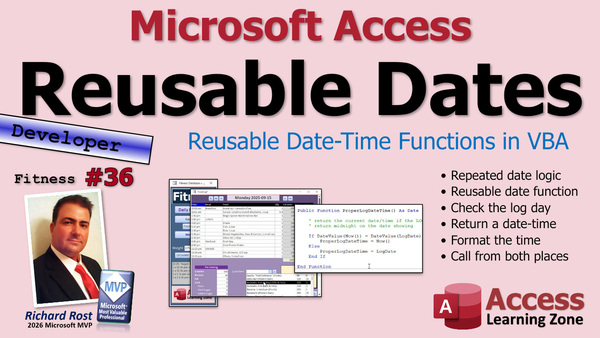
TechHelp Access, fitness database, meal section, calorie management, workout tracking, food log, add meal items, calories burned, BMR calculation, insert event, before insert event, proper log date time, public function, format food log time, debug compile, re-query, log food date time, date handling, add food at end of list
 Subscribe to Fitness 36
Get notifications when this page is updated
More InformationTranscript Today's part 36 of my fitness database series, and like I say every time, whether or not you're building a database for fitness, this fitness database is about building a database. Does that make sense? So it doesn't matter what your database is about; you can be collecting baseball cards, whatever. I'm showing you all kinds of cool tricks and tips that you can use in your database.
Alright, let's get to it.
Alrighty, folks, we are back, and once again, after having been using this database myself for the past few days, I just got some new things I've been doing. I really like having this meal section over here because it breaks it up. Alright, so just lunch, and then lunch starts here.
So what we're going to do is, when we add meal items (which we're going to get to very soon), I'm going to have the first item here be the name of the meal and then the items below it. Then we'll leave all these ones blank in the middle because you can tell what it was, and this just kind of visually breaks the day up.
Alright, let's go back. Like yesterday, I started my lunch here, and I put some items in. I've been putting in workouts. I don't know if I mentioned this previously. I put in my workouts and I estimate the amount of calories burned. It's not that I'm trying to give myself free calories, but I kind of want a closer measurement. So if my BMR, if what I need to survive every day is 2500 calories for a guy my size, and I burn 300 extra exercising, it kind of offsets my protein shake that I take after that.
So that's just calorie management, but that's how I'm using it to track. I think later on, when we get to the workout section, we're going to do that. We're going to add the workouts here.
Still, if you're trying to lose weight though, like I am, don't count on this. You're going to lose most of your weight by proper calorie management. For example, I burn 2500 calories a day just existing. You can work out for a half hour, 45 minutes, and still only burn 300 calories. That's nothing; it's a drop in the bucket. But the bonus with lifting weights is that the more muscle you have, the more calories you burn even at rest. So that's good to do. And with cardio, don't go run four hours thinking you're burning all these calories. You are, you're burning a lot, but that's good for heart health and lungs and stuff like that. But people get carried away sometimes. I know I used to.
Back to database stuff. Several people have called me out in both my forums on my website and in YouTube and the comments section and stuff, saying that you can't properly add items to other days if you don't use the box down here. Now we have it set so that if we're on a different day, like here I am on Sunday, I can just add items. It adds just fine because this code handles that. But if I come up here and try to type something in, look at this, it jumps forward to today. That's just how the code is written in the insert event. We have to fix that. Let's do that first.
I want to caution everybody. I want to let you guys know this database isn't finished until it's finished. I know we're in part, what, 30-something. Alright, what's today? 36. So there's going to be a lot more that I'm changing still. I can envision easily 50-some parts of this, but that's how we had all the workout stuff. So don't panic if something's not working. If something's not working, post a comment about it. Let me know about it so I can investigate. But there's going to be a lot of little things like this that even I won't come across. I love hearing from you guys, and I do want to get your feedback, but don't panic. We'll fix it.
Alright. So let's delete that item right there. Let's take a look at the code. Now, if you use this button to add stuff, let's bring this down here. Right here is where we add food item to log. Let's definition that jumps us to that. Right here is the code that determines what the date is. It says if the date value of now equals the date value of the log date, then food date time is now and then we format it. Otherwise, it sets the food date time equal to the log date and then formats it, so you get the log date at midnight. But this code is not in where we manually add stuff.
If we manually add something by typing it in here, what event handles that? Well, that's going to be the before insert event, which is this guy. All before insert does is this, and then it updates the food date time, which sets it to today's date. So that's why that doesn't work. We need to call that other code from in here, but I don't want to duplicate my code.
Alright. So let's go back where we just were. Control shift F2 will bring us back to the last spot, and then we'll go to the add food item to log again right here. Now we're going to isolate this stuff right here. We're going to make a function that's going to handle that, because we're going to basically have the same code running in two spots. So I don't want duplicated code. We're going to make our own new function. We're going to call it proper log date time, and that will look at, if we're on today's date or a previous date, and set it accordingly and then return that value.
So, I'm going to cut this out and put that on my notepad because we're going to do something else with it here. Here's my notepad, sticking it on notepad. So in here, we're going to say the RS log food date time equals our new function that's going to return it for us: proper log date time. Then we can format that using our format food log time function. So RS log food time text equals the code we already have, which I have on my clipboard over here, which is this guy, and we'll put that there. But we're now going to be formatting this thing.
Alright. So that simplifies this a little bit. We're going to set the food date time to whatever the proper time should be. If we're on today, it'll be right now, today's date and time. If we're on a different day, still make it that day, but make it that day at midnight or whatever the last day of the day is; we'll figure that out later. But this will handle knowing what day we're on. Once we know the proper date that goes in there, this will then get formatted as we have before and everything should work just fine.
Now, we can get rid of those spaces there because we know what we did. I like to just set that apart so you can see it. Now we got to write this function to get the proper log date time. We'll put it right up here. So we'll make it a public function. We probably only need this form; we'll use it, but you never know. Sometimes in the future, I like to call stuff from other forms. Let's call it proper log date time. Takes nothing in, but it's going to return a date value.
Let's spacing sometimes, by the way. When it's a function like this or a sub that does something that might not be self-explanatory, I like to put it in the comments. It's going to return the current date time if the log date shows today. Otherwise, it'll return midnight on the date showing. We might change it later to put it at the end of the date, because usually if you add stuff, you want to put it on the end. We'll figure that out later though.
So how's this going to work? Similarly to what we have on our notepad. Where's the notepad? Come back here, notepad. We're going to be looking at this stuff similarly. I'm going to paste this in here, but we don't need all of it. If the date value of now is the same as the date value of the log date, we're still on the form so we can look at the log date. That's that guy up top. Where are you? That's log date, right there; the date that we're on. If that's the case, now I don't want to be changing this stuff. What I want to do is I want to return that value. So in that case, return that. Get rid of the second line because we don't need to format it anymore. Otherwise, we're going to return log date. And that's it.
So what happens is, it comes into here, you're adding a food item. Here, it's going to say, OK, the food date time equals proper log date time. Come up to here. I think that I'm on equal to today's date. Yep. Return now. If it's not, you're going to return the log date, the date at the top at midnight. That'll get down here and saved in the table. Now we just have to make sure that we call this from the insert event too. So let's go find that insert event again. Where is it? It's a form event, before insert, right here. And see, it's only setting food time text and then setting that equal to the time value of now, and then updating the date based on what's in that box.
So instead of that, we're going to get rid of this. Here we're going to say the food date time equals the proper log date time, that function we just wrote. So as you insert an item, it's going to set that value. Save it. Debug, compile once in a while. Let's go back over here. Close it. Close it. You can get rid of that notepad stuff now.
Alright. Open it up. Now if I type in a value down here, it works. That's correct. It's currently about 6:10 pm. Let's delete that. Let's go to a previous day. Here I am, on Sunday. Test. Look at that. It put 12 am on that date in there. So now we're golden.
The only issue you might have is if you start typing in a time value and you start putting, like, a four in there, it'll flash that 12 am, but it still puts the 4 pm in there. So the date should still be in the field. Let's see, 4 pm. OK. It should have kept that value. Let's see. Let's re-query it. It did. OK. So it sets the date and then you can still change the time because the date's already in the field at that point.
I do kind of like the idea, though, when we add something, it comes in... Yeah. See? It's coming up top. Let's make it come in at the bottom. So we'll look and see what else is on that date and we'll add it at the end of it if it's not today's current date. We'll start there in tomorrow's video.
Alright. So that's going to do it for part 36. See you tomorrow for part 37. Hope you learned something. Live long and prosper, my friends. I'll see you next time.
TOPICS:
Creating a function to set proper log date and time
Refactoring duplicated date logic into a function
Updating the before insert event to use the new function
Ensuring food items added on previous days get correct timestamps
Testing manual entry of food items on different dates
Formatting and saving the date and time to the food log
Handling time value entry after default datetime is set
COMMERCIAL:
In today's video, we're continuing with part 36 of building our fitness database. I'll show you how to improve your daily meal and workout tracking forms by creating a function that assigns the correct date and time to new food log entries, whether you're working with today or any previous day. You'll see how to avoid duplicated code, set up the new function, update both your button and insert event, and test it all to make sure your tracking is accurate. You'll find the complete video on my YouTube channel and on my website at the link shown. Live long and prosper my friends. Intro In this video, I'll show you how to improve your fitness tracking forms in Microsoft Access by creating a function to properly set the log date and time for new food entries, whether you're adding them for today or previous days. We'll talk about refactoring duplicated code, updating the before insert event to use the new function, and making sure manual food item entries get the correct timestamps. You'll also see how the date and time are formatted and saved in the food log, and how the form handles editing time values after adding an entry. This is part 36. Quiz Q1. What is the main purpose of the "fitness database" series as described by the instructor?
A. To demonstrate concepts and tips that are useful for building any type of database
B. To provide fitness advice and workout routines
C. To show how to calculate calorie deficits for weight loss
D. To sell a pre-made fitness tracking product
Q2. What advantage does the instructor mention about separating meal items with a meal name?
A. It creates a visual break in the day's log, making it easier to read
B. It reduces the data storage needs of the database
C. It eliminates the need to keep track of individual food calories
D. It automatically calculates nutrient totals per meal
Q3. According to the instructor, what is the main factor in successful weight loss?
A. Proper calorie management
B. Daily cardiovascular workouts
C. Taking protein shakes
D. Tracking every meal in the database
Q4. What does the instructor caution viewers about the condition of the database at this stage?
A. The database is incomplete and will continue to change in future parts
B. The database is finished and bug-free
C. The database only works for fitness data, not other types
D. The database cannot be customized by users
Q5. What problem did several viewers identify concerning adding items to previous days in the log?
A. Items added to previous days defaulted to today's date
B. Items duplicated across multiple days in the log
C. Items could only be added to breakfast meals
D. Items cause a crash when added to Sundays
Q6. How does the instructor plan to solve the issue with food date assignment for previous days?
A. By creating a function that sets the proper date depending on the selected log day
B. By requiring users to re-enter the date each time
C. By disabling manual entry for previous days
D. By assigning random times to past entries
Q7. What is the purpose of the new function "proper log date time"?
A. To determine and return the correct date and time for each new food item entry
B. To format text for food time display only
C. To track which user is entering food items
D. To summarize the total nutritional value for each day
Q8. What does the "proper log date time" function return if the selected log day is today?
A. The current date and time
B. Yesterday's date at midnight
C. The first of the current month
D. Always noon of the current day
Q9. What does the "proper log date time" function return if the selected log day is NOT today?
A. The log date at midnight
B. The date and time when the data is entered
C. The last day of the year
D. The following day at noon
Q10. Why does the instructor want to avoid duplicating code and instead use a function for date assignment?
A. To maintain clean, manageable, and reusable code for both manual and automated entry
B. To speed up database performance
C. To allow users to write their own date functions
D. To ensure that only admins can add data
Q11. After implementing the new function, what is the expected behavior when entering a food item on a previous day?
A. The entry will be assigned midnight of that previous day unless the user changes the time
B. The entry always gets today's date and time
C. The entry will be rejected by the form
D. The entry will not be visible until re-loading the database
Q12. What benefit does the instructor mention regarding the order in which new items are added to previous days?
A. Displaying the new entry at the bottom of the list for that day
B. Ensuring all entries are sorted by calories
C. Automatically grouping items by meal type
D. Creating a printable summary for each day
Answers: 1-A; 2-A; 3-A; 4-A; 5-A; 6-A; 7-A; 8-A; 9-A; 10-A; 11-A; 12-A
DISCLAIMER: Quiz questions are AI generated. If you find any that are wrong, don't make sense, or aren't related to the video topic at hand, then please post a comment and let me know. Thanks. Summary Today's TechHelp tutorial from Access Learning Zone will walk you through the next step of building your own database, using my ongoing fitness database as an example. It does not matter what kind of database you are designing - whether it's tracking fitness, collecting baseball cards, or something else entirely - the concepts and techniques I share here can be applied to any sort of database.
Recently, as I have continued to use this fitness database personally, I've found myself improving its functionality to make it more useful. For instance, I appreciate breaking up each day into specific meal sections, like listing 'Lunch' and all its items together, which helps visually organize the day's entries. When adding meal entries, my approach is to have the meal's name as the first record, followed by individual items, with empty space in between for clarity.
Another feature I've implemented is tracking workouts. After finishing an exercise session, I estimate the calories burned and record them alongside my meals. This is not for "free calories," but more for a realistic measurement. For example, if my Basal Metabolic Rate (BMR) is about 2500 calories per day and I burn an additional 300 through exercise, it helps me factor in things like a post-workout protein shake. Ultimately, though, weight loss comes down to managing your calories properly. Exercise is helpful, especially since building muscle increases calories burned even at rest, but most of your progress will come from nutrition.
Let's get back to the database side of things. Some users have brought up an important issue both on my website forums and in YouTube comments. They pointed out that it's not possible to add food items to previous days just by entering them directly into the form, unless you use a specific entry box at the bottom. Right now, if you try to type a new item for a different day, the form unexpectedly jumps to the current day, due to how the event code is set up. This is something we need to fix.
I want to remind everyone that this database is still a work in progress. Even though we are already on part 36, there are many more improvements and fixes on the way. There may be well over 50 parts before the series is complete, especially as we expand to cover topics like workout logging. If you see something that isn't working or that could be improved, I encourage you to leave a comment and let me know. Sometimes I miss things during development, and your feedback helps catch those issues sooner.
Now, focusing on the specific problem, let's look at the code behind the form. Currently, the button that adds a food item to the log determines the correct date and time accurately, but if an item is manually typed in, the form uses the Before Insert event, which incorrectly defaults to today's date. To fix this, we need to make sure both methods call the same logic, instead of duplicating code.
The best approach here is to create a new function called something like proper log date time. This function will return the correct date and time: if you're on today's date, it returns the current timestamp; otherwise, it returns midnight of the day being viewed. By using a dedicated function, we avoid repeating code and simplify future maintenance.
Once this function is set up, we update both the button's code and the Before Insert event to call it. This change ensures that whether you add a food item using the button or by typing into the form directly, the proper date and time are assigned. With this update, when you add an entry for today, the current time is used, and for previous dates, the entry defaults to midnight of the selected day.
After making and testing these changes, the system behaves correctly: adding entries for previous days works as expected, and you can still adjust the time for each entry if needed.
There is still one detail I want to revisit in future lessons. Right now, when you add a new item, it appears at the top of the list for that date. I prefer to have new items appear at the bottom, matching the existing entries for that day. In the next lesson, we'll address this enhancement.
That's it for part 36 of the series. If you'd like to watch a full video walkthrough of everything I covered here, including step-by-step instructions, you can find it on my website at the link below.
Live long and prosper, my friends. Topic List Creating a function to set proper log date and time
Refactoring duplicated date logic into a function
Updating the before insert event to use the new function
Ensuring food items added on previous days get correct timestamps
Testing manual entry of food items on different dates
Formatting and saving the date and time to the food log
Handling time value entry after default datetime is set Article When working with any database that logs daily entries, such as a fitness tracker, one common problem is making sure new data entries get the correct timestamp, especially when adding items to dates other than today. Whether your database is for tracking fitness, collectibles, or something else, handling dates and times correctly ensures your data stays accurate and useful.
Let's say you have a form where you track meals and workouts. You want to add meal items not only for the current day, but also for past days if you forgot to enter something. By default, when you add a new item using your customized form, the system inserts today's date and current time. But if you're viewing a previous day and try to add something, you want the timestamp to be that day's date (usually midnight), not the current time. Otherwise, your records can get mixed up and become unreliable.
The first step in correcting this is to identify how your form is currently assigning dates to new entries. Often, you will have button code — perhaps "Add Meal" — that explicitly sets the date and time. For example, it might look like this:
If DateValue(Now) = DateValue(logDate) Then
foodDateTime = Now
Else
foodDateTime = logDate
End If
But you might also allow users to enter items directly into a datasheet or subform, which uses the form's BeforeInsert event. In that case, you may only set foodDateTime to Now, regardless of what date is currently selected. This inconsistency means items added to prior days get today's timestamp unless you add special handling.
To solve this problem and keep your code organized, you should move the date assignment logic into a separate function. This way, both your button event and the BeforeInsert event can use the same rule for setting the correct date and time, and you avoid duplicating the same logic in multiple places.
Here is how you can write such a function in VBA:
Public Function ProperLogDateTime() As Date
' Returns current date and time if log date shows today
' Otherwise returns midnight on the date being logged
If DateValue(Now) = DateValue(Me.logDate) Then
ProperLogDateTime = Now
Else
ProperLogDateTime = Me.logDate
End If
End Function
This function checks if the log date (the day currently being viewed in your form) matches today's date. If so, it returns the current date and time. If not, it returns that day's date at midnight (the default when you just use a Date type without a specific time).
Wherever you need to set the foodDateTime, instead of duplicating the comparison code, you simply call:
foodDateTime = ProperLogDateTime
This keeps your application flexible. If you later decide you want to use a different default time, or append items at the end of the day, you can just update the function in one place.
Next, update your button code (such as when adding a food item) and your BeforeInsert event to use this new function. For example, in the BeforeInsert event for your subform, you might have previously set something like:
Me.foodDateTime = Now
Instead, change this to:
Me.foodDateTime = ProperLogDateTime
Similarly, update any other routines that insert new items, so all date stamping is handled the same way.
Test your changes by adding new food entries on today's date and on previous dates. When you add an item for today, the timestamp should reflect the current date and time. When you add to a past day, the time defaults to midnight, but you can still manually adjust it if needed. If you type in a specific time for a previous date (for example, 4:00 pm), the date remains correct, and your custom time value will be reflected after edit.
With this approach, your logs stay accurate no matter how users add new records, and your code remains clean and easy to maintain. If you ever want to change whether previous-day entries use midnight or some other time, you only need to update your function. This practice of refactoring duplicated logic into a single function is good software design and will help you manage even more complex data entry rules as your application grows.
By applying these techniques, you ensure that your database entries retain consistency across different data entry scenarios, and you can confidently manage logs for any day, not just the current one. Primary Topics Access/VBA function creation, date and time handling, food log form events, code refactoring, user entry testing, database workflow improvement Secondary Topics calorie tracking logic, database usability advice, error prevention |




