Invoicing
By Richard Rost

 5 years ago
Order Entry System with Invoice Report Template
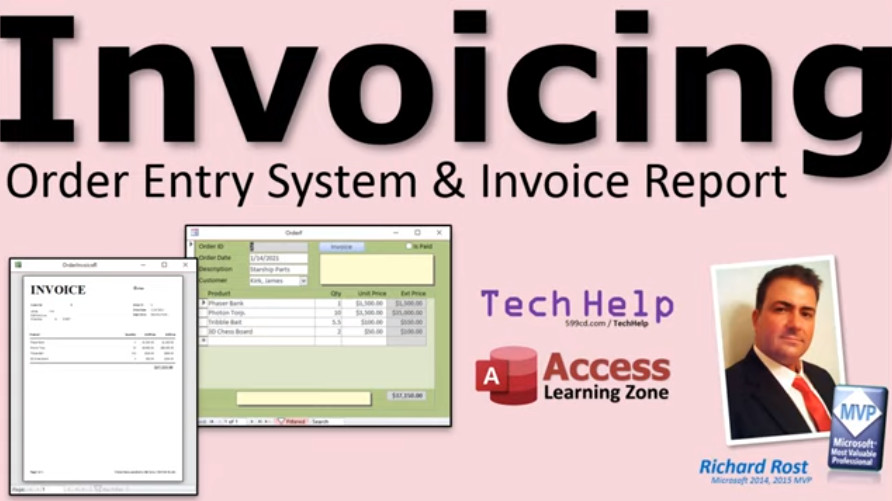
This is the TechHelp video a lot of you have been waiting for. In this one, I will show you how to create a basic order management system for Microsoft Access. We'll build an order entry form with the related tables and queries. We'll link it to our customer database. We'll create a fully printable invoice report. This one is over an hour long and PACKED with useful tips!
Scarlett from Atlanta, Georgia (a Platinum Member) asks: I know you have lots of lessons on creating an order entry system with invoices. I don't have time to learn all of that or watch 20 hours of video. Can you show me how to put together something quick and simple? I just need to be able to invoice my customers for a few products and my labor. That's it. I plan to watch all of those lessons eventually, but I'm doing my billing now with Word and Excel and it's getting cumbersome. Help.
Members
I'll show you how to create an order list so you can see all of your orders sorted by date and double-click on one to open it up. We'll copy the customer's address info to each order, so you know where the order was shipped or billed at the time it was placed. We'll also create a product list so you can pick a product and add it to the order with one click. This video alone is worth the cost of membership for a year!
Silver Members and up get access to view Extended Cut videos, when available. Gold Members can download the files from class plus get access to the Code Vault. If you're not a member, Join Today!
Free Download
Prerequisites
This video is based on the databases built in these other lessons. Watch these first if you haven't already:
Updates
- Set a default value for the customer combo box on the order form here: Value From a Form
- Create the Product Form and calculate markup, margin, sale price, etc.: Markup
- Switch from Quote to Invoice to Receipt: Quote, Invoice, Receipt
Watch This Next...
Links
Recommended Course
Feature Requests
So a bunch of people have so far asked me to make this into more of a full-featured Template, which I'm going to do. Yes, I cover more in-depth order entry in my full Expert classes, but a lot of people don't want to watch 20+ hours of lessons in different courses to add order entry to their databases. So, if you have an idea for what you'd like to see added to the Template, then post your comments below.
- Consecutive Order Numbers per Customer
- Obscured Customer IDs
- Developer students are getting Inventory tracking in their classes. I'll add it to this
- Sales tax by product / customer
- Accounts receivable
 Subscribe to Invoicing
Get notifications when this page is updated
More InformationTranscript Welcome to another TechHelp video brought to you by AccessLearningZone.com. I am your instructor, Richard Rost.
This is the big one. This is the one a lot of you have been waiting for. It's over an hour long. It's invoicing, building an order entry system, and an invoice report. It will also include a free template of everything that I build in the video, which you can download for free off my website. You'll find a link down below.
This video will show you how to build a complete order entry system where you can enter products, prices, send out invoices, and lots more. Today's question comes from Scarlett from Atlanta, Georgia, one of my platinum members. Scarlett says, I know you have lots of lessons on creating an order entry system with invoices. I don't have time to learn all of that or watch 20 hours of video. Can you show me how to put together something quick and simple? I just need to be able to invoice my customers for a few products and my labor. That's it. I'm going to watch all of those lessons eventually, but I'm doing my billing now with Word and Excel and it's getting cumbersome. Help.
I actually hear this a lot, Scarlett. In fact, a lot of people come to me and say that they just started a business, but now it's starting to get rolling. They've been using Word and Excel and it's just getting crazy. What can I do to put this in Access? That's one of the reasons I started teaching that in my Access Expert series. Lots of people want to learn how to do order entry and invoices in Access. It's not terribly hard, but it's not super easy either.
Now, you're right. In my full classes, I go over lots of stuff, all the different options: collecting sales tax, making quotations and invoices, inventory management, all that stuff. So if you don't want to take the time to learn all that right now, let me take a few minutes here and show you how to put together something simple that will look professional and get you started. You can always add features later - that's the benefit of building your own database with Access.
I've actually been wanting to put this in my free blank template that I have on the web so people can download that and start using it. So let's get started. Now I'm going to be using my blank customer template as a starting point. If you haven't watched the video on how I build this, go watch that now. I'll put a link down below in the links section.
Now, I'm going to be referring to some concepts that I've already covered in my other free TechHelp videos. So if you haven't watched them at the point where I mention it, then go watch that video. You're going to have to know some stuff like relationships, combo boxes, calculated queries, criteria, that kind of stuff. I'll show you everything you need step by step right here and you won't have to do any programming or VBA, but there are some other concepts you might have to go refresh yourself on if you aren't familiar with them. But don't worry, I'll put links to everything down below.
All right, let's open this guy up. The first thing we have to do is build a table to hold our order information. So let's go to table design. This will be our order T so we're going to start off with an order ID, that will be our auto number. We're going to put a customer ID in here, just for the customer number, that's a number, that's a related field. If you've never done table relationships, go watch the relationships video.
I should mention at this point, if you're going to be printing invoices, there are some numbers you may want to hide from your customers. You don't have to worry about that right now, but as a beginning business, if a customer sees that they have customer ID number six, they know you don't have that many other clients. Likewise, if you have sequential order numbers or you use auto numbers for your order numbers and you put those on your invoices, again, a customer gets invoice number 100 today and then 113 weeks from now, he knows you're not doing that much business. Now I've got videos that address those topics, they're a little more advanced. Again, I'll put links down below about sequential order numbers and hiding customer IDs. But for the basic simple database, you don't have to worry about that.
How about an order date? That'll be a date time field. Down here under default value, I want to put =Date() like that. That'll default the current date in the date field. If you want to put the time in there as well, you can use =Now(). It actually makes some of the calculations a little more difficult later on when you do things like accounting. You have to take into consideration that an order that comes in on December 31st at 5pm is greater than December 31st at midnight. So you have to be careful with your calculations. If you really care what time of day your orders come in, then put Now() there; if you don't, stick with Date(), it makes the accounting easier.
Now about is paid? Is this order paid? That'll be a yes/no value. Default to no, of course. And again, yes, in my full classes I cover taking partial payments toward invoices and all that crazy stuff. But for our simple template today, we just care about whether it's paid or not.
How about a description? That'll be a short text field. That's good to have on your order list. You can put like, four computers or basket of fruit or whatever, and then the actual line items will go on the order later. But this is like a brief description. If you want to use it, you don't have to.
And likewise, I like to always put notes as long text or memo field in there. So you can put delivery instructions or any kind of information that you have to put on the order itself.
Now at this point, you're probably thinking about what about bill to address, ship to address. Yes, that's all stuff you could definitely add to your order table, and I do recommend it for the long run. However, to keep things simple today, we're just going to use the customer's address on the customer table. It is better long run to save that information in the order table as well. And I know I talk in my beginner classes about not duplicating information, but one of the exceptions is history. If you want to save a history of your orders, for example, Joe Smith lives in New York, places an order today. Six months from now, he moves to Florida. If you update his customer record and you don't have his old address saved in the order, then it will change where it looks like the order went. So saving things like the customer's address, billing information in the order itself is important, and I cover this in my more advanced lessons. But for now, if you're just going to print off an invoice and not worry about it, you'll be okay.
You're probably also wondering about an order total. Don't worry about the order total. We're going to calculate the order total based on all the items in the order. We're going to add them all up and use a sum function. Sometimes for really, really big databases, you may calculate it and store it in the order table just to speed up your reporting, but we're not worried about that right now.
You can add any other fields in here that you think are relevant for the order as a whole: the due date, when the payment's due if you want to put that in there, what the terms are, tracking numbers, anything else that you want to put in here that has to do with the order. If you want to make a template simple, feel free to add whatever fields you want.
I want to save this as my order T, my order table, primary key, yes. There we go. That's the auto number. Okay. So now we have the order table saved, and that's information on the order as a whole. Now we need information on the details in that order.
So it's creating a table: table design. The details are basically the line items. I call them order details. Detail ID, that's my auto number. Order ID refers back to what order it's on. Do we need the customer ID here? No. Because these are line items on an order, the order table has the customer information. We can go back and figure out which customer this order belongs to because we are in the order detail table, which is related to the order table, which is related to the customer table. Those are all one to many relationships. Again, if you don't know that, go watch my relationships video. Very important stuff. I have a whole seminar on relationships.
Now, in a full featured database, we would have a product table where you can pick your products and add those to the order. We're not going to get that complicated. Since Scarlett says she has very simple needs right now, at this point, you're just going to have to type in the order information. If you only have a couple of products, you can type them in and their prices. In the extended cut for members, I will show you how to pick a product from a list. For now, we just have to type it in.
So we'll have a product name. That'll be short text. Then we'll have the quantity of that item purchased. That'll be a number. I'm going to make that number a double. And I'm going to make the default value one. Why a double? Well, what if you're selling things in fractions? What if you're selling a pound and a half of salmon, for example? Or what if you're billing for time and you're billing in 15 minute increments? You could bill for 1.25 hours. Double is my default go to for floating point numbers. I pretty much always use double. There's decimal and there's single. There's a bunch of other ones. I like to use long integer and double most of the time.
Now we've got the unit price. That'll be a currency value. You can default that if you want to. I'm going to leave it at zero.
Now you're thinking, what about the math there? What about multiplying the quantity times the unit price to get a line total? We're going to call it the extended price, and we're going to calculate that in a query. We don't need to save that value in the table if we can calculate it in a query.
Next, notes, long text, just whatever information you might want to put in there. If you're billing for time, for example, you can put labor one hour and then in the notes put what you did. You know, gave custom training session on Excel, for example.
Let's save this as order detail T. I like to keep all my table names singular, by the way, and all my field names if I can. It just saves headache later. If you don't, you know, as I remember, okay, was it order table, was it order T, or was it orders T? I just keep everything singular. It's one of those nuggets of wisdom from my 27 years of doing this.
Let's close that. Now I like to put sample data in my tables before I do too much work on other stuff. So let's take a look at the customer list. All right, so I'm customer one, James Kirk's customer two. Let's put a couple orders in the system here. So here's order T up there. And let's put order detail T down below. Now this is going to be a form with a subform when we get to building the forms. But for now, I just want to put some sample records in here.
All right, so the first order is going to be customer one. That's me. Today's date, description. Let's put in here training. No notes.
Now down here, order one product name: training hour and a half at $30 an hour. Okay. Now let's say order one. Also, let's say while I was there, I bought a mouse at $7. And I also got a cupcake from the little concession stand, and that was 3.50.
All right, next order comes in. Let's say it was customer two, James Kirk, and he needed Starship parts. So down here now, order two. What did he need? He needed a phaser bank, one of those at $1,500. He needed some photon torpedoes, I just abbreviate. He needed 10 of those at $3,500. And yes, when I'm doing sample orders like this, when I'm building a database, I like to put in ridiculous numbers sometimes. Really, really big stuff, because you never know. I built a database one time for a client and I was using sample numbers like 200, 300, that you would normally use in an order system. And they were having order totals come out in the millions. I didn't format the fields large enough on the forms and reports to display a number that was a million dollars or more, and I didn't catch that until after the database was built. They were like, hey, we can't see any values. So I had to redesign a bunch of stuff.
Okay, and he also needs some tribble bait. He needs 5.5 pounds of that at $30 a pound. See how we're going with this? See how the orders and the order details relate to each other? Order details, there's order one that relates to that order, which relates to customer one. This just so happens to be that customer one and customer two happen to also have order one and order two. The next order could be customer six.
Again, watch my relationships video if you're confused with this at all. You can always come back and finish this one.
Next, we're going to build an order detail query because our order detail table has great information, but I need to multiply that quantity times the unit price to get what I'm going to call an extended price. You don't save that in the table, and you could do the calculation in forms and in reports directly, but I prefer doing it in a query because when this gets more complicated later on, if you add things like sales tax and all kinds of other stuff, it's better to have the calculations in a query. Trust me.
So let's close this, create query design. We're going to bring in our order detail table. Close that, bring in all the fields. Then we're going to put in a calculated query column right here. If you've never done calculated query fields before, again, go watch the video on that. I'll put a link down below, calculated query fields. This is going to be a field called extended price, set it equal to the quantity times the unit price. If you want to, you can right click on that, go to properties, go to format and put in here currency so this looks like a currency value. Save it. This is going to be my order detail Q, order detail query. Now when I open this guy up, there you go. You can see the math is already done, 1.5 times 30, $45, and so on. Check and make sure these look good. They look good. Close that up.
Now we're going to make the order form, the parent form to hold the information about the order. If you've already watched the blank template video, you know I've got a continuous and single form right here. These are blanks. I'm going to copy the single form, copy, paste. This will be my order F. This is the whole reason I did this, so I don't have to keep reinventing the wheel. Design view.
All right, this is orders. So let's make this guy green. Let's go with money. Let's make this that color green, that looks good. Now let's bind this form to a table. The record source will be order T. Close that. Let's bring in all the fields from the order table. Click, shift, click, and then drag them all over here. Sometimes if you don't get it exactly right, it won't come over. So it's not you, it happens to me too. We can close that field list. Now I keep these guys around so I can use them to format paint. Watch this: click on that ID there, go to the home tab, use the format painter, click on order ID. See, now it's formatted. That's gray and that's black. Do the same thing with label here. Double click on the format painter, it stays down. Click, click, click, click. This guy we can do separately. In fact, I'm going to format paint. There we go. Now I can get rid of these, and let's just line these up, make them look pretty.
Now, a lot of people say that you take too much time making stuff look good. A lot of other people say, I like to watch you make stuff look good. So I'll try to keep it in the middle.
Now this we're going to replace with a combo box. So this guy's going to just slide over here for a minute. Order date can go there.
Personally, I find that making your forms look good makes the database easier to use. Not only for you, but for other people who might not know Access, if you've got a well-designed form, it's easier to work with.
Description can go there. Notes are going to go over to the side. Let's see, order ID. Now the order ID here is just for you. So I'm not worried about other people seeing it. Description. Actually, I'm going to go a little bit lighter on this background. Just a touch, let's go there. That's better. OK, order ID. Order date. Right there. And you can put spaces in your labels too. Description. Let's put the customer down here. That's gonna get replaced. Is paid can go anywhere you want. We can put that just paid if you want to. Then notes, I like to make my notes look like a little note field. I do that yellow. I don't like using theme colors, so you pick the yellow here and I'll wash it out more colors. That's better. Then I like to give it that shadow effect. Double click on it. Go to properties, go to format, find special effect, and go shadowed. Just like that. I'm going to make that black, or at least darker. There we go. I'm not going to spend a ton of time on formatting. I just like to show you a few things.
Now the customer ID, we're going to pick from a list. Now the problem with the customer information, if you look at it, is you got two fields here, Richard Rost. You might even have a company name field in here. So what you might want to do is put those together with a concatenated field so that it reads easier inside of your combo box. That's a more advanced trick. If you've never done string concatenation before, again, I got videos on that, go watch those. Here's how you do it.
Create query design. Literally for this box, all we need is in the customer table, we need the customer ID because that's the field that's getting saved in the order table, so we need that. Then we're going to make our own little field over here. We're going to call it LF, last name first. That's going to be last name and comma, space, and first name. Just like that. I'll zoom in so you can see it. Last name and a comma and a space and the first name. That's string concatenation.
I'm going to save this as my customer LFQ. Customer last name first, Q. It's literally just the ID and the last name first. You could sort these if you want to, but the combo box will do the sorting for you too.
Now we're going to make the combo box. Again, if you've never made combo boxes before, I got videos on this. This is called a relational combo box. I'll put a link down below. I want the values from another table or query. Next, pick queries, that customer LF that we just made, bring in both fields, next, sort it by the LF, next. That's what it's going to look like. Now, because this is based on a query, you don't get that checkbox here that says hide the key field. So you have to manually hide it. Just grab the width and make it zero. Just like that, it's all you have to do. Because you don't care to see that number, but I need it in the box to store the value. Next. Storing what value? What is the linked value? That customer ID. Next. We're going to store that in the customer ID field. We're going to bind it to customer ID. Next. What label would you like? Customer. And that's it.
Let's format paint it now. Just like that, let's save this, close it, and open it back up again. See, that's why I did that with the combo box, because now I've got last name, comma, first in there. That's a whole video on itself, by the way. Let's left justify this stuff, align left. That looks a little better, okay, good.
All right, so we've got the order information all set. This is the information about the order as a whole. Let's make that field a little bit bigger here too.
Now down below here is where the information is going to go about the order details. Let's make that next. Again, I got a continuous form blank template right here. Let's copy that guy, paste. This will be the order detail F. Let's design you.
Again, we got to fix the colors first. Let's make this color the same as the other color we just used. Let's do the same with this and this. But let's make the inside here a little bit brighter. Let's go more colors, and we'll make that just a little bit brighter like that. Now, with continuous forms, you got to change the alternate back color too. Save that. There's no way to turn that off in the template that I know of at least. If you guys figured it out, let me know.
Let's make these labels black. Let's go with that. Bind this now to our table or query. We're going to use that query that we designed earlier, the order detail Q, that way we've got that extended price calculation. Save it. Let's bring in the fields we need. Design, add existing fields. Here they are. I'm going to bring them all in for now, drop them down here in the form footer. We're going to do some work with them here.
We don't need any of these labels. Chop them off. Now, order detail ID and order ID, we don't need them. We don't need to see them. I'm going to leave them in the form though. I'm going to slide them over here like this. I'm going to make them hidden, and when I hide something, I like to make them red. That way, when I'm in design mode, I can see them. I know they're there. I'm going to go to their properties, right click properties, and I'm going to set visible equal to false. I don't need to see them. The detail ID is meaningless. The order ID is linked to the parent form, the order form, and the relationship between them, the subform relationship, will handle that linking of the fields. So we don't have to have it there, nor do we have to set a default value or any of that crazy stuff. That's the one nice benefit of using a subform: Access handles the relationship for you. I want to have them on the field though, in case I want to refer to them from some other form some other time. If I make more stuff on here that refers back to the order detail item, you might want to have it later. Right now, we don't need it.
So let's get rid of these here boxes there. Let's put product name first over here. Let's make it as wide as we think we're going to have to make it. Quantity can go next. Make that as wide as you have to. Unit price can go next. Make that as wide as it has to be. Extended price goes next. That's usually a little bigger than unit price. I like to make that gray, just a little light gray. That indicates to the user that's a calculated value. You can't change it.
Now notes can go down here. I want that same note format that I had in the order form. So I'm going to design view. Not going to redo all that work. Click on this guy. Go to the Home tab, format painter. Click on that guy. Sometimes format painter doesn't work across forms. There's an easy trick. What you got to do is just take this guy, copy it. Actually, you know what, we can copy and paste the whole thing. The field is called notes in both tables. So watch this. Get rid of him. Copy, paste. It's the same field with the same name in both tables. The trick I was going to show you is sometimes, if you had two different fields, sometimes format painter doesn't work across forms. You just copy this object over here, then you can format paint with it. It's a little bug in Access. Sometimes it works. Sometimes it doesn't.
And this doesn't necessarily have to be that big. We can make it look like that. Shrink this up. Shrink this up. Shrink that up. Let's fix our labels across the top. Quantity. This is the product or item, product service, whatever you want to call it. Copy, paste, paste. This is going to be the unit price. This will be the extended price. What's going to happen is I'm going to right align this stuff here. So let's go select all of these and right align the numbers like that. That should let me line them up a little better. Let's do this. Get those right on the grid. Slide that up. Extended price. Let's make this a little bit bigger. Extended price, unit price. I'm going to select all of these, right click, size to grid. I hate that stuff doesn't come in sized perfectly on the grid. The Microsoft team needs to fix that. When you bring in stuff off the add fields box, it should come in snapped on the grid in here.
Let's take a look at what we got here. Save changes. Yes. Open it up. There's our stuff. Now you're seeing all the details from all the orders that are in here because we have nothing to limit it. The form subform relationship will do the limiting. Let's put a total down here for our order total. That's just summing this guy up.
Design view. I'm going to copy this guy, copy, paste, slide it over here like so. Maybe bold it. Now we have to change this just slightly. The control source is going to be equals the sum of extended price. Again, if you've never used the sum function, I've got videos on that. I've also got a video called Form Footer Totals. Go watch that video too. This is the sum of the extended price. I like to put up here the name sum extended price. Give it a unique name in case you need to refer to it later. If you have to make this bigger, make it bigger, but we probably shouldn't have to.
Let's see. Looks good. There's our order total from that. Now it's time to put this inside of the order form. Are you ready? It's pretty easy to do. Design view on the order form. Make some room. Grab this guy. Click, drag, drop. That's it. Delete the label that comes in here. Slide this over like that. Make it tall like that. Close that up a little bit. Resize this stuff so everything fits nicely. Save it. Click on the subform, go to data, and just make sure these two fields are set. Link master field, link child field. This should be both order ID. Access does it for you automatically. Save it. Close it. Now open up the order form. Boom. There you go. Maybe make it a little bit taller so we can fit some more stuff in here. A little bit taller. There we go. Save it. Close it. Open it back up again. Looks good.
Now, I like to turn off this inside set of these navigation buttons down here because this just gets confusing. This is for the orders. This is for the order details. We don't need this. We're going to get a scroll bar over here if we get too many of them. If this is smaller (well, I can't do it here), but that's what this extra space is for - so you get a scroll bar. We don't need those. Let's turn those off.
Order detail form, design view, go to Properties. On the Format tab, the navigation buttons: turn those off. For scroll bars, we just need the vertical scroll bar. We do want the record selector, though, because you want to be able to pick a product over here, for example, if you need to delete the line item. Save it. Open it back up again. Looks a whole lot better. And again, you will get a scroll bar over here if you have to go up and down.
Perfect so far.
One thing to take note of is our tab order. Tab. OK, it's jumping over here. Tab, tab. Tab, OK, it's jumping around kind of weird. Down here, let's see what it looks like. OK, the inside form is fine. Let's fix the tab order out here.
Right click, design view. This guy, tab order. Auto order to start. I want to go order ID, order date is next, description is next, and this is the combo box, which will go after description, then is paid, then notes, then the order detail form. That's fine. Hit OK. Let's give this guy a name. Let's call this my customer combo. You can call it customer ID if you want to. I like to call combo boxes combo. I know that 99 times out of 100 that combo box is based on an ID value.
There we go. There's our order form. So the order entry is all pretty much set. Let's go pick another order here. Let's say James needs a 3D chess board for Spock's birthday. That was $75. There you go. You can see the calculations are updating down here just fine.
Another thing to take into consideration and note is if you change something up here, the order total on the bottom will not update until you leave that record. Just keep that in mind. Again, in my advanced classes, I actually have to get around that. You can actually put a recalculate event in each one of these, so as I type something in here, for example, and hit tab, it immediately updates down below. That's more advanced. I'll cover that in the extended cut for the members too. For everybody else, just remember you have to leave the line item for the calculations to update.
OK, time to make the printable invoice now. We're going to need another query so that we can bring together the order information, the order detail information, and the customer information, because we need the customer's name and address too on the invoice.
Create query design. We're going to need to bring in the order table, the order detail Q (so go to queries, bring in that order detail Q, because we want that extended price on each line item), then we need the customer information. Go back to tables and go to customer T. All three of these tables are related together.
Now we're going to set these relationships equal to outer joins. If you've never done outer joins before, go watch my video on outer joins. Basically, what that does is that says, I want to see all of the orders and the related information from these tables if it exists. If you don't do that, if you put an order in the system without a customer associated with it, you won't see it. If you put an order in the system without an order detail item, you won't see it. Generally, those things never happen, but they can. You might put an order in the system and forget to attach a customer to it, go to print an invoice, and it doesn't work. Which might happen. You might have a walk-in customer. If you have a bakery, and someone comes in and wants to buy (you know, doesn't answer whatever), you don't want to put a customer record in the system for them. So you just put an order in and get it going. I usually have a cash customer record, but sometimes you forget to pick it.
Double click on these lines, go to number two, include all records from order T and the records from customer T where the join fields are equal and you'll see an arrow. That says show me all of these and the related customer information if it exists. Double click on that, go to two.
Bring in all of the fields from the order table. From the order detail Q, I want the product name, the quantity, the unit price, the notes, and the extended price. I try not to bring in the star from multiple tables because then you get all these duplicated values. Like order ID exists in both of these tables. So now you're dealing with order T dot order ID and order detail Q dot order ID. It just gets confusing. We will have a duplicated value with notes because we've got notes in both of these tables. That's OK. I can deal with one of them.
From customer T, just bring in the customer stuff that you want on the invoice. So in this case, I've already got the customer ID. I want first name, last name. I don't need email. Bring in address, city, state, zip, and country so we can print that on the invoice. We don't need the rest of this stuff.
Save this as my invoice R, all right, my invoice report. Or if you want to keep all your order stuff together, let's do that. Let's keep all of our order stuff named the same. Let's call this order invoice. Right click, rename, order invoice.
All my order stuff stays together. If I type it in the search bar, order, I can see all my related order stuff together. I used to just call it invoice R, but I've since changed my ways. OK. Order invoice R. Oh, excuse me, that should be a Q. See, I'm talking to you guys and I messed up already. There we go.
So there's my order invoice Q. All the order information, the order date. Some of this stuff duplicates. You can see all the order information duplicates. That's fine; we'll deal with that at the invoice level, but I've got all my line item stuff, I've got all my order stuff, I've got all my customer stuff together in one spot.
Now we're ready to make the report. So let's go to create and then report design, blank report. I don't have any blank templates for the reports, but that's OK. I hardly make reports. I don't make a lot of them.
First things first, let's bind to the report. Open up the properties for the report. Go to record source. Drop that down. The order invoice Q that we just made. I'm going to save this before I forget about it. Order invoice R. That's my report right down there at the bottom. First one.
Now the first thing that I'm going to do is I'm going to turn on my report header and footer. I want a bunch of information to be at the top of the report and at the bottom of the report. The information is going to be stuff related to the order as a whole. The detail section is going to include the line items. So right click anywhere in here and turn on the report header and footer.
It comes in gray. I hate that. Change the color format. Back color right here. Just make it white. Standard color is white. Same thing here with the detail section. It's got that alternating background color. I can't stand it. Get rid of that.
The report header is going to get all the stuff that goes at the top of the invoice. Let's open up the field list. What goes up there? Well, the order ID, the customer ID, the order date, whether it's paid, description. Now I'll put the notes up there too. Then we'll put the customer information up there. So where's the customer stuff? Here we go: first name, last name, address, city, state, zip, country. All of this stuff is about the detail, the line item stuff: the product, the quantity, the unit price. This is notes for that line item: see, it's order detail Q notes versus order T notes. Once you've got all these guys selected, grab any one of them, drop them up here in the report header. The rest of that stuff's going in the detail section down here.
Don't worry about the page header and footer just yet. In fact, I'm going to shrink that up to nothing. We'll use them in a bit. That's the detail stuff that goes down there. That's how we're handling our grouping. You could do grouping levels, too. If you want to print out multiple invoices in a batch, you'd set up a sorting and grouping level. We're just doing one at a time, so this is actually easier. I cover sorting and grouping in a different lesson. I'll put a link down below to the sorting and grouping video. I warned you, I'd refer to lots of other videos in this video.
Order ID can go there. Let's put the customer information all over on the right over here. There's the customer information. There's the order date. I'm going to select everything real quick and go right click, size to grid. It's one of my pet peeves.
Is paid can go, I don't know, there. That's fine. Description. Notes. You can make it so that these fields can grow and shrink, by the way. By default, I believe can grow is on. That's fine. Can grow. Yeah, can grow is right here. So can grow and can shrink are on. It won't shrink though if it's got a label next to it, and you also have to make the section shrink. I got lessons on that too. That's a whole different topic. But this will get bigger if it needs to, vertically. That's the default behavior in any report.
Actually, let's move the order notes down to the report footer. Down here in the report footer. Let's put that down here. That way the notes are off the bottom.
Now the customer, let's make these labels all black, by the way. I don't like how they come in all gray like that. Black. Black. Black. That is going to go away, actually.
So this is the customer. Customer ID can go over here, right aligned. Let's bold that. Order ID. And again, we had that conversation about hiding this information if you don't want the customer to see it. That's up to you.
Let's left align this stuff. Customer ID is over here. The labels, we're just going to delete these labels. We're going to format this as an address block. So we're going to do first name, last name, address. Let's make this a little bigger. City or whatever address fields you have for your location, state, and zip.
If you want to print this out and you can format this so it fits in a window envelope, I had mine set so that I could print it out and fold it, tri-fold it, and then it would fit perfectly inside of a window envelope. That's just trial and error, folks. There's no, you just got to line it up where you want it. Usually it's over here on the left hand side, put that over here on the left. We can do that. Usually window envelopes are over on the left.
Let's hit the customer information, put over here. We'll put the order information all around the right like that. We'll put is paid down here, and then the customer information will be over here like this. It's just a matter of lining that up in the window.
One other thing I like to do up here, let me save this before I go too far. Let's slide all this stuff down like that. I'm going to take a label, just copy and paste a label. Put it up top here like this. Put the word INVOICE in the label. Bold it. Let's go really, really big, 28 point. Now bigger than that. Let's make it all caps too. Let's make it some font that looks demanding, like Times. There we go, 48 point. Yeah, so that looks like an invoice.
Let's save it. Let's take a peek at what we got so far here. Right click, print preview. Don't open it up normally. Just go to print preview always. That looks good. Let's get in there. Let's turn all the boxes off. It's another thing I hate is all the boxes that come in by default. Right click, design view. I'm going to select everything. Go to format, shape outline, transparent. It turns all those boxes off. Right click, print preview. Much better.
Let's see what the top is looking like. We're only done with the top so far. Customer one, Richard Rost, etc. You can use a concatenated field, by the way, if you want to put that together, Richard space Rost. That's up to you. I already showed you how to do it. Is paid looks kind of silly hanging out over there by itself. Design view. Let's put this up here next to invoice. In my full classes, I show how to put the word PAID or NOT PAID in red up here. That's again in my full classes. I cover lots and lots of stuff. This is the quick overview.
Now let's talk about the detail items. First things first, let's make room for the headers right here in the, actually let's put the headers in the page header. The page header will repeat on top of each page. The first page header comes in under the report header, which is kind of silly, but that's how they do it. Then on page two and beyond, you don't get the report header but you will get the page header on top of each page. So if you're making a really, really big invoice with multiple pages, then you gotta repeat this stuff.
So let's just cut these out, cut and paste them up here. Paste. We've got the product. I just put product, because it could be product, service, whatever. Quantity. Unit price. Extended price. The notes we don't need that label.
Let's bold these. Let's put a horizontal line underneath those. Go to design and find the line tool and draw a line right there. Looks good. Now just line these guys up underneath: product, quantity, unit price, actually we're going to right justify this stuff in a second too, get these lined up how I like them, like that maybe, quantity. Let's slide these over here. There's the little wizard-type things that make reports. Nothing is going to be as good as your taking the time to lay these out by hand. Trust me, I've been doing this for years. Nothing that they have ever come out with takes the place of just taking your time and just doing this and making everything look nice.
Now these notes, we're going to slide up underneath the product name like that. Let's leave a tiny bit of room there. You want to space your reports out a little bit more than your forms. These order notes down here in the bottom, put those over here like this. Maybe slide that across the whole bottom there. That will grow and get bigger if it needs to. So will this. Slide that up. Let's save it. Let's take a look at what we got. Right click, print preview. It's looking pretty good.
Now there's a lot of extra space here and that's because that order notes field is there but there's nothing in it for each line item. That's where that can shrink comes into play. Open up this guy's properties. There's can grow and can shrink. Now, the detail section itself has a can grow and a can shrink, but the can shrink is set to no. So the detail section will not get any smaller than you have it set there. Change that to yes. Close it down and then open it back up again, print preview and look at that. Notice all the extra space is gone.
Now, we didn't have anything in those fields. Let's put some stuff in there in order F. Let's say up here this is an order note. For training, let's say one hour of Excel, half hour of Access training. And then let's say the cupcake was delicious and chocolaty. Is chocolaty a word? Close that, come back here to order invoice, right click, print preview, you can see there they are. We want to move them in a little bit, maybe indent them just a hair, design view. Let's slide these over just a bit like that, maybe make them a little bit smaller. Let's go with maybe 9 point. Save it, close it. Let's see what this looks like. It's a little better.
Let's take care of our page margins and make sure that our invoice is using all this space over here that we're not using. Set the margins to narrow, which gives us a half an inch total. The left and right is both a quarter, so it's a half an inch. Now if I go to design view, that means I can come in here, let me turn off the property sheet, and I can come right out. Now this is an 8.5 by 11 sheet of paper. I don't care about the top and bottom, but right there is 8.5. That means I can come in just shy of 8. Don't go over that 8, because if you go over it or sometimes even just on it, you'll get that warning message that the page is too wide. So I'm going to go just shy of that 8, like one little dot shy of 8. So I can drag this stuff over to here now, like that. Bring over this stuff, let's bring over all of these guys, and I just moved it a little bit, not planning to. Let's fix that. That looks good. Unit price, extended price right there. Bring that line over like that, get that lined up. This stuff can come over more now like that. Maybe bring it just a touch back since I'm hitting smaller. Of course, the order notes can take up the whole bottom. Save it. Let's take a peek at what we got. Right click, print preview. Oh, look at that. Starting to look really good. Need a total down here. Put a total down the bottom underneath all that stuff. Right click, design view.
Where's that going to go? It's going to go in the report footer. Maybe slide these notes over like this and we'll put the extended price down here. Let's put another horizontal line, just put a line right across the whole bottom. Copy, paste, slide that in like there. Copy the extended price, paste it in the report footer, slide it over here. Bold it. You can make it bigger if you want to. I like to make these order totals huge. Not super huge, but big enough so the user is like, oh, OK, that's what I owe.
Now we've got to change this just slightly. Just like before: equals sum of extended price. Just like that. Sum EXT price. Save it. Close it. Preview it. And there we go. See that? With a full featured invoice, you'd have more stuff down here like the subtotal, the tax, shipping and handling, whatever else, but this is just a simple invoice. As you can see, this is the streamlined version. We've only been doing this less than an hour and we've already got, we've gone from an order entry system, order details, we got the queries built, we got the invoice pretty much done.
Maybe put something on the page footer down there. Design view. What do you want in the page footer? Now this is where the page footer displays in here above the report footer, but the report footer goes right after the detail section, the last detail section. The page footer's always on the very bottom of the page.
Here's one of my favorite things. I'll put a page numbering thing on the bottom here. Delete the label, take this guy, put it over on the left like that. Open this up. Let's go to format. Make sure it's black, double click on it. We'll call this PG num. The control source is equals quote page space quote and the word page end quote space of and pages. This is a special thing you can do to put the page one of three on the bottom down here. I'll zoom in so you can get a look at that: = "Page " & [Page] & " of " & [Pages]. Page and Pages are special reserved words. They'll put the page number and the total number of pages. That will go right there on the bottom of your page.
Let's take a peek at it real quick, close that up, print preview. There it is. Get this box again. Click, format, shape outline, transparent. Let's put something over here on the right on the bottom of the page like the subject to our terms and conditions or something like that. Or we accept, make checks payable to--that kind of stuff. Take a label, drop it down here on the bottom in the page footer right over here. Like that. Right align it, make checks payable to ABC Corp. 123 Main Street, etc. Put that on the bottom. Save it. Let's take a peek. There you go. Same, whatever information you want on the bottom of the page goes right down there.
Next, we have to limit this so we only see the information for the order that's up on the screen. Because right now, I'm seeing all of the detail items. It's looking like it's part of order one, but it's not. This is all of the items from both orders. But we only have the order section showing up once in the header and then all the detail items display. So we have to limit this a little bit.
How are we going to do that? Let's put a couple of buttons in so that we can see our orders for each customer from the customer form. If you want to see the orders, go to the customer form. Just like we have a contacts button here, we'll make one to open up their orders. Then from the order form, we can open it up to see each invoice.
Right click, design view. Let's drop a button down here. Command button, drop you right there. Form operations, open a form. Next, we're going to find order F. Next, find specific data to display. Again, this is another lesson I have, the open a specific record. Open a form and find specific data. Now we have to link together what fields are the same on both forms. Customer ID there, customer ID on the order form. Link them together right there. Again, I got a whole lesson on this. It's the open form specific record lesson. I'll put a link down in the link section down below. Next, text, orders. Next, what name do you want? Order button and finish.
Here's a button now to open up the orders for this customer. Save it. Close it. Now go to the customer form. Open up orders, and now you'll only see my orders. I've filtered. If I go to a different customer, if I go to, let's say, here's the customer list, if I go to James Kirk, and I open up his orders, there's his order. Maybe the order's over here. Like that. Save it. So there's James Kirk's. Now I need a button on here to print this invoice.
Right click, design view. Drop a button up here. Report operations, preview report. Next. Now there isn't an option in here to only print a specific invoice. There's no option in the wizard to open a report and find a specific record to display. So there are two things we can do. One involves some programming, basically one line of code. But I try to avoid programming in the beginner TechHelp videos. I do have a separate video on it. It's called open a report to a specific record. I'll put a link down in the link section below. For this lesson, we're going to use the second technique, and that is we're going to filter a query to only show the records for the current order.
So for now, we'll open up order invoice R. Next. Print invoice like that. Actually, I'm just going to put in here invoice. Because print invoice kind of tells me I'm sending it right to the printer. I don't like doing that. I like to bring it up in print preview mode and then give them the option to print it from there. Invoice button. Finish.
OK, here's my invoice button. Put that up top like that. That, when I click on that button, let's see what happens. Here's Starship Parts invoice. Again, I'm getting them all. So I have to limit my query somehow. How are we going to do that?
Go back to the invoice Q that we built, the order invoice Q. Right click, design view. In here, I need to say order ID, which I don't have separate in here. So I'll bring it in separate. Order ID. Bring it down. I avoid this initially, so we don't have a duplicated value. Bring it to the front of the list here. I'm going to turn off that show box so we don't see a duplicate value. But the criteria, again, if you've never done query criteria, I've got lessons on that too. I'll put something down in the link section for query criteria.
This has to be forms. And now as you get a little helper up there, it's going to be forms order F, order ID. You can pick from those lists or just type it in. This is forms, form name notation. Again, I got videos on that too. I'll put that down in the link section. I told you I was going to be referring to a lot of other videos, but they're all free. Go watch them. Go learn some stuff. That's what they're there for.
Now what this will do, this will say, only show the invoices where the order ID is equal to the forms order F, order ID, the current open order. So now your invoices are only going to work from that form. You can't just open the invoice, but that's what we want. We want to only show that one invoice.
Close that, save it. Now, Starship Parts, give me that invoice. Boom. There it is. There's just Starship Parts. If I go to somebody else, I go back to me, go to my orders, there's an order. You can have multiple orders, of course. When I add a new order, there you go. Print this one, there you go. There's my invoice.
That's it. That's really all you need. Now, something I normally don't do is make these TechHelp databases free downloads for everyone. But this one I'm going to, just like my blank database template, I'm going to be updating my blank template to now include this order stuff as well. So this, what you see right now, right in front of you, the database we just built in this video, is going to be a free download from my website. Find a link down below in the links section. You can go there and grab it and use that just as you want, and continue to modify it the way that you want to modify it. That's the beauty of using Access, so you can change the database yourself.
As you can see, we were able to put together a pretty good order entry system in just about an hour. That's not really that hard to do as long as you know what you're doing, and that's what these videos are for.
We are going to call this guy blank customer database version 1.4 now. What I usually like to do with these versions is change the colors up just slightly. So let's go to blue. We'll go dark blue on the menu too. There we go. Looks good. Save it, close it, open it back up, perfect. There's version 1.4.
Why not? Let's call this the Access Learning Zone customer database. There we go. Oh, look at that. I'm so proud.
Want to learn more? In the extended cut for members, we add an order list so you can see a list of all of your orders: the order date, the order total, whether it's paid or not. We will refresh the order total and all the calculations each time the quantity or the price is updated. A lot of people are used to Excel and they get confused if they type in a quantity and they hit tab and it doesn't update everything, so we'll do that. We'll copy the address info from the customer table to the order. So each time a customer places an order, we're storing where their addresses were at the time as if they move. Like I mentioned in the video, you don't want to have their new address as to where this order was shipped.
One of the most requested features is the product select box right down here, a combo box that'll have all your products in it. You pick one, you hit add, it adds it up to the invoice. Here we go for the members.
There's the order list. You can open up the customer from here, go to their orders from there, or you can open up the order directly from here. Much easier way to find your orders, and of course this is sorted by date, so the most recent ones will be up top. I added it so you can jump right to the customer's record by double clicking here - anywhere you see a blue field, you can double click. You can update a quantity now and hit tab and it refreshes everything or the price. A lot of users are used to Excel. They get confused because it doesn't update in Access until you move to a different record. Access is record-based, so we just changed that. We just added an event in here, so if I put in here nine now, it updates the price.
We copied the customer's address up here. Now, I just did one address, but if you want to do bill to and ship to, that's fine, just do the same thing twice. This way if Jim Kirk places an order for Starship Parts on January 14th and it's sent to that address, and then he moves next month, and then six months from now, we want to know where was that order shipped, you've got the history in the database. That will happen when you create a new order. Or if you change the customer for an order, if you drop this down and say, I want to change this to Jean-Luc Picard, and it'll ask you, are you sure you want to do this? Hit yes and it updates the address information for you. But we'll put that back to Jim Kirk. I don't think Picard ever had to buy tribble bait.
Then we'll do one of the most requested features right down here, a product combo box. We'll add a product table, a real simple one. Then you can pick what you want, you go phaser bank, hit add, boom, and it puts it right up here, it leaves you sitting on quantity so you can update it, and then tab to the next one. There you go, that's the extended cut for members. That's almost an hour long of additional material.
Remember, silver members and up get access to all my extended cut videos, and we are quickly approaching a hundred TechHelp videos, so there's tons of material.
How do you become a member? Click the join button below the video. After you click the join button, you'll see a list of all the different types of membership levels that are available. Silver members and up will get access to all of the extended cut TechHelp videos, live video and chat sessions, and more. Gold members get access to a download folder containing all the sample databases that I build in my TechHelp videos, plus my code vault, where I keep tons of different functions that I use. Platinum members get all the previous perks, plus access to my full beginner courses and some of my expert courses. These are the full length courses found on my website and not just for Access. I also teach Word, Excel, Visual Basic, ASP and lots more. But don't worry, these free TechHelp videos are going to keep coming. As long as you keep watching them, I'll keep making more.
If you liked this video, please give me a thumbs up and feel free to post any comments that you have. I do read them all.
Make sure you subscribe to my channel, which is completely free, and click the bell icon and select all to receive notifications when new videos are posted. Click on the show more link below the video to find additional resources and links. You'll see a list of other videos, additional information related to the current topic, free lessons, and lots more.
YouTube no longer sends out email notifications when new videos are posted, so if you'd like to get an email every time I post a new video, click on the link to join my mailing list.
If you have not yet tried my free Access Level 1 course, check it out now. It covers all the basics of building databases with Access. It's over three hours long. You can find it on my website or on my YouTube channel. If you like level one, level two is just $1, and it's also free for all members of my YouTube channel at any level.
Want to have your question answered in a video just like this one? Visit my TechHelp page and you can send me your question there.
Click here to watch my free Access Beginner Level 1 course, more of my TechHelp videos, or to subscribe to my channel.
Thanks for watching this video from AccessLearningZone.com. Intro In this video, you'll learn how to build a simple, functional invoicing and order entry system in Microsoft Access. I walk through the entire process step by step, starting with setting up tables for orders and order details, entering sample data, creating queries for calculating line totals, and designing forms with subforms for easy data entry. You'll also see how to format and arrange your invoice report to look professional, set up combo boxes for selecting customers, link reports to specific records, and add buttons for navigation and printing invoices. A free downloadable template is included so you can get started right away. Quiz Q1. What is the main objective of the video tutorial?
A. To create a complete accounting system with payroll
B. To build a simple order entry and invoicing system using Microsoft Access
C. To automate emails from Access to customers
D. To connect Access with Excel for data import
Q2. Which of the following is NOT needed when creating the order table (order T) in this tutorial?
A. Order ID as auto number
B. Customer ID as a related field
C. Description as short text
D. Product name as short text
Q3. Why is it recommended in the video to avoid showing sequential customer or order IDs on invoices?
A. They may interfere with form calculations
B. Customers may infer how much business you have
C. Auto numbers increase risk of data loss
D. It is technically impossible to hide them
Q4. For the "order date" field, which default value is recommended for easier accounting as per the video?
A. =Time()
B. =Date()
C. =Now()
D. =Today()
Q5. What is the purpose of the "notes" field in the order table?
A. To hold the product serial numbers
B. To summarize all previous orders for a customer
C. To provide additional order-related information, instructions, or comments
D. To calculate the total invoice amount
Q6. Why is it suggested to store part of the customer's address in the order table, especially for historical reasons?
A. To avoid duplicating data between tables
B. To keep table size minimal
C. To accurately reflect where the order was shipped, even if the customer moves later
D. To reduce the need for calculated fields
Q7. What is the main purpose of the order detail table (order detail T)?
A. To store overall order amounts
B. To hold each product or service line item associated with an order
C. To log customer payment history
D. To keep track of inventory only
Q8. Why is the quantity field in the order detail table set to "double" data type?
A. To save space in the database
B. To allow for fractional quantities or time-based billing
C. To make sorting items easier
D. Because "single" data type is unreliable
Q9. How does the tutorial recommend calculating the "extended price" (quantity × unit price) for line items?
A. By storing the calculated value in the table
B. By entering the extended price manually
C. By calculating it in a query instead of storing it
D. By calculating it only in reports
Q10. Why is it beneficial to put calculations like extensions and order totals in queries rather than directly in forms or reports?
A. Queries require fewer fields than forms
B. It allows for easier future modifications, like handling tax or discounts
C. Forms cannot display calculated values
D. Calculated fields are only available in queries
Q11. In creating the user interface for entering orders, what structure is used?
A. A single flat form with all fields together
B. A main order form with a subform for order details
C. Separate forms for each line item
D. Only datasheet views for data entry
Q12. What trick does Richard mention for combo boxes to make customer selection more user-friendly?
A. Use a lookup wizard only
B. Concatenate last and first names into a display field in a query
C. Only display customer IDs
D. Sort by address instead of name
Q13. What common visual adjustment does Richard make to fields that are calculated and not user-editable, such as "extended price"?
A. Colors them bright red
B. Formats them in italics
C. Gives them a light gray background to indicate they're calculated
D. Hides them from the form
Q14. What is the purpose of setting up the tab order in forms?
A. To prevent users from accessing certain fields
B. To ensure users can navigate fields in a logical, sequential manner using the Tab key
C. To lock certain fields for editing
D. To increase the form's load speed
Q15. How does the report design process start for the invoice?
A. By importing a pre-made template
B. By creating a blank report and binding it to a query that joins order, order detail, and customer data
C. By printing directly from the order form
D. By exporting data to Excel and formatting there
Q16. What feature does the "can grow" and "can shrink" property control in report design?
A. Whether new records can be added
B. Whether fields automatically adjust their height based on content
C. Field color when selected
D. Whether the page count is displayed
Q17. What is placed in the report footer of the invoice report for summarizing?
A. The customer ID
B. A sum of all extended prices to show the order total
C. The number of products ordered
D. The current system date
Q18. Why does Richard filter the invoice query using the order ID from the currently open order form?
A. To show a list of all open invoices
B. To print all orders for a customer at once
C. To ensure that only the currently selected order's invoice is printed
D. To generate a year-end sales summary
Q19. How does the video suggest handling "products" for quick and simple invoice entry requirements?
A. Enter product details into a dedicated product lookup table immediately
B. Ignore products entirely
C. Manually type the product name and price for each line item
D. Only use predefined labor descriptions
Q20. What happens if you update information in a line item on the subform but do not leave the record before checking the total?
A. The total updates instantly
B. Nothing changes
C. The form will display an error
D. The total is updated only after you leave the record
Q21. In the video, what version number is ultimately given to the updated customer database template?
A. 2.0
B. 1.0
C. 1.4
D. 1.2
Q22. What additional feature is discussed as being available for members in the extended cut?
A. Sending invoices via email
B. Auto-incrementing product codes
C. Product selection from a combo box and more advanced address management
D. Data encryption
Q23. What is the main reason to avoid excessive duplication of data across multiple tables, as covered in the video?
A. To reduce the database size as much as possible
B. To improve printing speed
C. To maintain data consistency, except when saving history
D. To make queries run faster
Q24. What is explained about navigation buttons for subforms in the forms interface?
A. They are necessary for entering data
B. They should be left visible for easier access
C. They often confuse users and are better turned off for subforms
D. They automatically summarize all order totals
Q25. Which Access feature is specifically recommended for printing only a specific invoice?
A. Direct printing from tables
B. Creating a macro for report selection
C. Adding query criteria based on the currently open form's order ID
D. Always using an append query
Answers: 1-B; 2-D; 3-B; 4-B; 5-C; 6-C; 7-B; 8-B; 9-C; 10-B; 11-B; 12-B; 13-C; 14-B; 15-B; 16-B; 17-B; 18-C; 19-C; 20-D; 21-C; 22-C; 23-C; 24-C; 25-C
DISCLAIMER: Quiz questions are AI generated. If you find any that are wrong, don't make sense, or aren't related to the video topic at hand, then please post a comment and let me know. Thanks. Summary Today's video from Access Learning Zone is a comprehensive TechHelp tutorial where I guide you through creating a complete invoicing and order entry system in Microsoft Access. Many users have asked for a streamlined solution to replace the manual process of handling invoices in Word or Excel, so in this lesson, I'll show you how to quickly set up a simple, efficient, and professional billing system. Throughout the video, I'm building a database from start to finish and sharing a free downloadable template for you to use and modify as your needs grow.
To begin, I start with my blank customer template as a foundation. If you're unfamiliar with how that template was created, I recommend reviewing that in advance, but you can still follow along as I explain each necessary step. Key Access concepts like table relationships, combo boxes, calculated queries, and criteria are discussed in context. While you won't need to do any programming or write VBA code, some familiarity with these Access basics will help you get the most out of this tutorial.
The process starts by creating an order table to store order information. This includes fields like order ID (set as an auto number for uniqueness), customer ID (to link to the customer), order date (defaulting to today), a paid flag (yes/no), description, and a notes field. While advanced systems might include billing and shipping addresses in the order to preserve historical accuracy, for this simple version, we'll use the existing customer information. I also address some business considerations, such as whether to hide order numbers or customer IDs on invoices for professionalism, though these details are left for more advanced classes.
I then build a second table for order details, which stores each line item on an invoice: what was sold, quantity, unit price, and item-specific notes. Here, I clarify why using types like "double" for quantities (to allow fractional amounts) is important, especially if you're charging for time or selling in partial units. No customer ID is needed on the detail table, since the main order record already connects the dots. Calculations, like the extended price for each line (quantity times price), are handled in a query instead of being saved in the table, following good database practices.
After entering some sample data to illustrate the relationships, I create a query to calculate the extended price for each order detail. This approach not only organizes your math in one place but also makes it easier to add complexity later, such as including sales tax or handling discounts.
Next, I move on to the forms where data gets entered. I create an order form for the main order information and an order details subform to manage individual items. These two forms are linked using Access's built-in parent-child form features, so entering line items for an order is seamless. I also show techniques to make the forms user-friendly and visually organized, including using format painter and color-coding calculated fields so users understand which values are automatic.
For selecting customers, I demonstrate creating a combo box that combines fields for a readable display (such as last name, first name), making it easier to pick the right customer from a list. If you haven't used string concatenation or relational combo boxes before, I point to additional TechHelp resources to help you learn those techniques.
Once the data entry experience is ready, I address tab order and navigation within the forms, ensuring the workflow is logical and efficient. I also mention tricks for handling forms with subforms, so users are not confused by multiple navigation controls. Throughout this process, the focus is on building something functional while leaving room to add more features later as your business grows.
With the order entry system in place, I turn to building a printable invoice. This involves pulling data from multiple related tables: orders, order details (with calculated prices), and customers. I discuss using outer joins in queries to ensure all your data appears—even if some orders don't have every possible relationship filled in yet. The main invoice query gathers what you need into a single place, avoiding problems with duplicate fields and confusion.
The invoice report is then constructed, split into logical sections for headers (such as order and customer information), details (the line items), and footers (totals, page numbers, or disclosures). I provide tips for formatting and spacing, ensuring the invoice looks good and uses the full printable area without creating confusing gaps or misalignments. Page headers are used so column headings repeat on new pages if an invoice is long, and calculated controls ensure totals clearly stand out.
To tie forms and reports together, I show you how to add command buttons for navigation: opening an order form to a specific customer's orders, or previewing a printable invoice for the current order. One method to filter the report to a single invoice uses query criteria linked to the open form, so only the correct details display when printing an invoice. Again, if you are unfamiliar with form-based criteria in queries, I recommend my related videos to get comfortable with those mechanics.
Once finished, you have a basic but powerful invoicing system that is easily expandable. The tutorial reviews using and revising sample data, changing field properties, and personalizing the template so it can fit your business branding and needs. I touch on the importance of maintaining version control and encourage you to save periodic backups as you make changes.
For those interested in going further, today's Extended Cut includes advanced topics such as adding an order list to review all orders and their total amounts, refreshing totals as soon as quantities and prices are changed, copying customer address data to each order for historical tracking, and implementing a product selection combo box for streamlined order entry. These features help users migrate from Excel's dynamic calculations to Access's record-based system, and add professional touches like storing addresses at the time of sale rather than just using current customer info, which helps maintain historical accuracy if your customers move.
Membership options are explained for those who want access to these extended lessons, downloadable sample databases, and the code vault, with higher tiers offering full course content in Access, Excel, Word, Visual Basic, and other topics.
I encourage everyone to subscribe to my channel and join my mailing list, since YouTube does not send email notifications by default anymore. If you're just starting with Microsoft Access, try my free Level 1 Beginner Course to quickly build confidence with the fundamentals. If you want your question featured in a future TechHelp video, you can submit it on my TechHelp page.
A full step-by-step video tutorial on everything discussed here is available on my website at the link below.
Live long and prosper, my friends. Topic List Building an order table for orders
Setting up auto number primary keys
Adding related customer IDs to orders
Adding order date with default value
Using Yes/No fields for payment status
Including description and notes fields
Discussion on storing address data in orders
Creating an order details table for line items
Using data types: double for quantity, currency for price
Creating calculated fields in queries
Constructing an order detail query with extended price
Designing an order form bound to orders
Formatting and arranging form controls
Building a combo box for customer selection
Concatenating first and last names in queries
Creating and formatting a continuous subform for order details
Setting up subform relationships with master and child fields
Hiding and formatting relational keys in forms
Adding and formatting calculated totals in form footers
Controlling user navigation and scrollbars on subforms
Adjusting and customizing tab order in forms
Building a query to combine order, detail, and customer info
Creating outer joins between tables in queries
Adding necessary fields from multiple tables to queries
Designing a report bound to the invoice query
Arranging data in report headers, details, and footers
Formatting and grouping customer address blocks on invoices
Customizing report appearance, colors, and fonts
Adding and formatting report labels and invoice titles
Placing and formatting column headers in page headers
Adding and formatting horizontal rule lines in reports
Handling detail section sizing with Can Grow and Can Shrink
Setting up report margins and maximizing printable area
Summing extended price to show invoice total
Inserting calculated controls in report footers
Adding page numbers and custom text to page footers
Filtering the invoice report to current order using form criteria
Using command buttons to navigate between forms and reports
Configuring query criteria to filter orders by form value
Providing a downloadable free Access invoicing template
Renaming and versioning the completed database file Primary Topics Access order entry, invoicing, relational database design, table setup, form creation, query calculation, report generation, subforms, combo boxes, sample data entry
Secondary Topics interface design, tab order, form and report formatting, data normalization, outer joins, print preview, aggregating totals, report footers, best practice tips
|




