Not Updateable
By Richard Rost

 5 years ago
Fix the This Recordset is Not Updateable Error
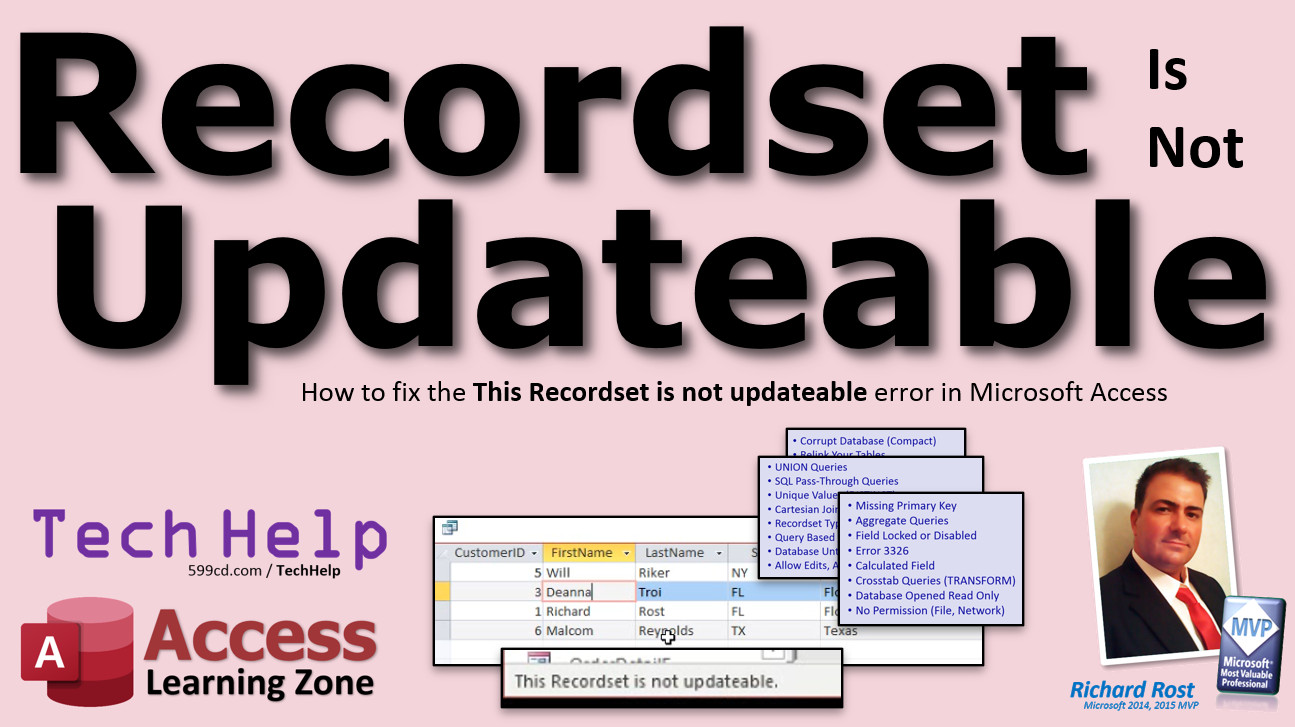
In this video I'm going to explain a few reasons why you might get the "this Recordset is not updateable" or "operation must use an updateable query" error message, and show you some solutions.
Ernesto from Arlington, Texas (a Platinum Member) asks: I wanted to add a StateT table to my database so that I could have the state abbreviation and the full state's name. This way in my forms and reports I could show the full state name even though only the abbreviation is entered into my CustomerT table. Once I do that and make the join, however, I get the error message that "this Recordset is not updateable" and I can't change anything in the form or the query. What did I do wrong?
Members
We will discuss a total of 18 different ways in which your recordsets might not be updateable. See the full checklist below!
Silver Members and up get access to view Extended Cut videos, when available. Gold Members can download the files from class plus get access to the Code Vault. If you're not a member, Join Today!
 Links Links
Relationships: https://599cd.com/Relationship
Relational Combo Box: https://599cd.com/RelationalCombo
Outer Joins: https://599cd.com/OuterJoin
Troubleshooter: https://599cd.com/Trouble
Full Checklist
- Missing Primary Key
- Aggregate Queries
- Field Locked or Disabled
- Error 3326
- Calculated Field
- Crosstab Queries (TRANSFORM)
- Database Opened Read Only
- No Permission (File, Network)
- UNION Queries
- SQL Pass-Through Queries
- Unique Values (DISTINCT)
- Cartesian Joins
- Recordset Type set to Snapshot
- Query Based on Another Read Only Query
- Database Untrusted Location
- Allow Edits, Additions
- Corrupt Database (Compact)
- Relink Your Tables
 Subscribe to Not Updateable
Get notifications when this page is updated
More InformationTranscript Welcome to another TechHelp video brought to you by AccessLearningZone.com. I am your instructor Richard Rost.
In today's video, we are going to try to answer the question and show you how to fix why you might get the error message saying, this recordset is not updatable. I see it all the time. It is a common error. You also might see variations of that, like "operation must use an updatable query." So in this video, we will try to figure out why that happens, and I will give you some tips for fixing it.
Today's question comes from Ernesto in Arlington, Texas, one of my Gold members. Ernesto says, "I wanted to add a state t table to my database so that I could have the state abbreviation and the full state's name. This way in my forms and reports, I could show the full state name even though the abbreviation is entered into my customer t table. Once I do that and make the join, however, I get the error message that this recordset is not updatable, and I can't change anything in the form or the query. What did I do wrong?"
Well, Ernesto, I get asked this all the time. Usually, unfortunately, it is from customers like you who did not learn how to build your databases from the ground up with me. You are one of my new customers. You just signed on as a Gold member. You sent me a copy of your database, which I was happy to look at. But you have got a couple of things in there that are wrong. One of them is you are not properly using primary keys in all of your tables.
Let me show everyone else what you did because I see this a lot.
Here I am in my TechHelp free template. You can download a copy of this from my website if you would like to. I am not going to show you Ernesto's database. That is private. I keep that stuff private. But basically, what Ernesto did was he added a state table. The state table has the abbreviation and then a full state name. He wants to be able to have New York or Florida spelled out in his forms and reports. I get it.
But those of you who are students of mine from the beginning, from Access Beginner 1, you will notice that something is missing. If you go into Design View here, notice there is no primary key in the database. He created state and state name and he did not turn the primary key on. Let us see what happens here if we use this table in a join.
Let us create query design. It is a simple join. We have customer and we have state. Notice first of all, Access did not make that relationship. We can make the relationship manually by going from state to state. That links up just fine. I am going to close that. Let us bring in customer ID, first name, last name, and then we will bring in state from over here. It does not matter. Then state from this side.
Let us save this as customer with state Q. If I run this query, it looks okay. It looks fine. Notice there is no new row on the bottom here. That is your first indication that your recordset is not updatable. You might hear me talk about programming recordsets, which you can use VBA to loop through the records in a table. That is different. It generically means the records under your table or query or form. This is the set of records or the recordset.
If I try to edit right now by clicking on any one of these and typing, it says this recordset is not updatable. That is the error message you are getting. You will get that in the query. You will get that if your form is based on this query.
How do we fix it? In this particular case, the easiest way to fix it is go into design view of your state table. You can make this your primary key. That is okay. I personally prefer autonumbers, but in this case, I will allow it. Just come over here and click on the primary key field. That turns out a little key symbol. That means that state is now indexed, no duplicates, which is what you want. You do not want two New Yorks in here.
Now save this, close it. Now if I go back into that query, notice now it is updatable. See, I can come in here and change this to William. Be careful, though, because you can update both sides of this. If someone types in Florida just like that, it updates that record in the table, so it is going to update all of Florida's. You might not want that side to be updatable.
I would also suggest, Ernesto, that you come in here and make this an outer join. Right now, if you notice, you are not seeing anybody who does not have a state that is in the state table. If you come in here and make this an outer join like this, now you will see everybody, whether or not they have a linked state, and you will see Iowa is missing from your state table.
Now, Jean-Luc Picard is in France, so he does not have a state at all. But if I come over here and type in Iowa, it also says, cannot enter value into blank field on one side of the outer join. You can edit it if it exists, but you cannot add new ones here. So you have to go back to the state table to put Iowa in.
If you want to see this in your form, you will have to just change what the form is bound to, bind it to this query instead. So go to design view, first of all, let us bring in all the fields from customer T, bring in that star, and then I will get rid of the other stuff so we do not have duplicates. I like to see this star on the left. I am going to slide it over to the left like that.
Now if I run this, I have got all the fields from the customer table and the state name from the state table. Save that. Now we just go into our customer form, design view, and if you want to see the state name in here, I will just do this. Let us just move country out of the way. And we will slide the code down here. You can make it pretty later if you want to. Then we will just add the state name field right there. Let us make city a little bit smaller. All right, state, and then go to - oh, we have to change what it is bound to. Double click here, change this from customer T to customer with state Q. Now I am getting my records from the query, which is fine, because now the query is updatable.
Go to add existing fields, find the state name, drag it over here, and drop it. I am going to get rid of that. Then we will put state name right there. Now save it, close it, open it back up again, and look, Florida pops up in there. If I were to change this to Texas, Texas shows up in there now. So that is kind of neat. That is kind of handy.
Or you could use a combo box to do the same thing. That is probably how I would do it, but this works. This is fine. This is how you have already built your database, so there is no need to redesign the whole thing. Personally, I would make it so that field is grayed out and not enabled, so they cannot change your whole state table.
What you could do is I like to do something like this - make this gray. Let us go with that color gray. So they know they cannot change it. Then go into its properties and under data set locked to yes, or enabled to no, either one. Now, if you come into this form, you cannot type in this field. It is locked. You can see it. You can come back in here and put that to Florida, and it will update, but you cannot change it, which is how I would want that.
So that by far is the number one reason why people get that message. I get access questions at least once a week. I see it in the forums all the time. I see it in different groups that I am in. Everyone is like, why cannot I update my query? Number one, they make queries that are way too complicated. They have ten different tables in the query and all these join lines ever. Once your query gets to a point where it is too complicated, then you cannot make it updatable anymore. Access just says, no, I am done.
If that is the case, like if you are doing orders and order details or customers and contacts or vendors and products, you really should be using a form with a subform. Do not try to put that together in one query and then try to make one form on that and update it. Use a form and a subform. I have got videos on making subforms. I will put a link down below. Go watch that.
Generally, if you have got one table with a little helper table to get a field like this, that is usually okay. I would not worry about that. But if you have got two big sets of data, like customers and orders, and you want to bring all this together? No. I mean, it might work, but you should not. You should have orders as a subform inside of customers. That is what subforms are for. Especially if this is a one-to-many relationship, one customer with many orders. If it is one-to-one, if it is like customers with extended information, like you have got a separate table to keep all the stuff that you do not normally collect, that is fine. But many-to-many relationships definitely should be in a subform.
But the big reason why it usually does not work and you get a non-updatable recordset is because people forget to make a primary key. When you design the table, it even asks you, do you want to make a primary key? Are you sure? It will make an autonumber for you. What I have seen happen in my classes a lot is people get it, think, I do not need that ID, they delete it. They do not recreate another primary key field, and now your relationships like this do not work.
Want to learn more? I have got 18 total reasons why your recordset might not be updatable, but by far the biggest one is that you are missing a primary key in your related table. That is the biggest reason why. That is probably why at least 90 percent of the cases that I see are involving that.
But there are other reasons too, like people using aggregate queries, union queries, cross-tab queries, your fields are locked, you are not running your database out of a trusted location. There are all kinds of reasons. In the extended cut for members, I will go over all of them. It is 15 minutes long. We will talk about all of them and how to figure out why your database is giving you an unupdatable recordset. That is in the extended cut for Silver Members. Of course, Gold Members can download my databases, and they get priority in the TechHelp question queue. So become a member today.
How do you become a member? Click the join button below the video. After you click the join button, you will see a list of all the different types of membership levels that are available. Silver Members will get access to all of the extended cut TechHelp videos, live video and chat sessions, and more. Gold Members get access to a download folder containing all the sample databases that I build in my TechHelp videos, plus my code vault where I keep tons of different functions that I use. Platinum Members get all the previous perks plus access to my full beginner courses and some of my expert courses. These are the full length courses found on my website and not just for Access. I also teach Word, Excel, Visual Basic, ASP, and lots more.
Do not worry, these free TechHelp videos are going to keep coming. As long as you keep watching them, I will keep making more. If you liked this video, please give me a thumbs up and feel free to post any comments that you have. I do read them all.
Make sure you subscribe to my channel, which is completely free, and click the bell icon and select all to receive notifications when new videos are posted. Click on the show more link below the video to find additional resources and links. You will see a list of other videos, additional information related to the current topic, free lessons, and lots more.
YouTube no longer sends out email notifications when new videos are posted, so if you would like to get an email every time I post a new video, click on the link to join my mailing list.
If you have not yet tried my free Access Level 1 course, check it out now. It covers all the basics of building databases with Access. It is over three hours long. You can find it on my website or on my YouTube channel. If you like Level 1, Level 2 is just one dollar. It is also free for all members of my YouTube channel at any level.
Want to have your question answered in a video just like this one? Visit my TechHelp page and you can send me your question there. Click here to watch my free Access Beginner Level 1 course, more of my TechHelp videos, or to subscribe to my channel.
Thanks for watching this video from AccessLearningZone.com. Intro In this video, we will talk about how to fix the "recordset is not updatable" error in Microsoft Access, a common issue that often occurs when a query or form cannot be edited. Using a question from a viewer as an example, I will show you why this error happens, typically because of missing primary keys in your tables, and how to resolve it. We will walk through joining tables, updating queries, adjusting form properties, and provide tips to ensure your Microsoft Access databases stay updatable. Quiz Q1. What is the most common reason for receiving the "this recordset is not updatable" error in Microsoft Access?
A. Missing a primary key in a related table
B. Using a field with duplicate values
C. Not including enough columns in a query
D. Running a report instead of a form
Q2. Which of the following is an indication in a query that the recordset is not updatable?
A. The form loads very slowly
B. There is no new row at the bottom of the datasheet
C. The query displays a warning about missing data
D. The table appears blank
Q3. How can you fix the issue if your table causing the error does not have a primary key?
A. Add or define a primary key in the table
B. Rename the table to start with an underscore
C. Delete all records from the table
D. Reinstall Microsoft Access
Q4. Why is it important to have a primary key in a table used in a join?
A. It uniquely identifies each record and enforces data integrity
B. It ensures the table loads faster
C. It allows aggregate functions to be used
D. It formats the table as read-only
Q5. What is the suggested way to handle displaying additional fields like the full state name from a related table?
A. Join the tables in a query and add the related field to the form
B. Manually type the full state name in each customer record
C. Use only the abbreviation and ignore the full name
D. Duplicate the state name in both tables
Q6. When you make the state field the primary key, what is one effect?
A. The state field will not allow duplicate values
B. All records must be sorted alphabetically by state
C. The table must be renamed to include "PK"
D. Only ten records can be entered
Q7. What does changing a join to an outer join in the query achieve?
A. It lets you see all customers, even those without a matching state
B. It prevents any records from being displayed
C. It hides all customers without a state
D. It duplicates each record
Q8. Why might you want to set a field as locked or disabled on a form?
A. To prevent users from accidentally changing lookup fields that should not be edited
B. To make the form open faster
C. To allow bulk editing of all related records
D. To make the field display in red text
Q9. If you have a one-to-many relationship like customers and orders, how should you ideally display/edit them?
A. Use a form for customers with a subform for orders
B. Place both tables together in a single query and form
C. Only display orders and ignore customers
D. Use a cross-tab query
Q10. What is a potential issue if you build a query with too many tables and joins?
A. The query may become non-updatable
B. The tables will be deleted
C. Access will automatically fix the relationships
D. Queries cannot include more than two tables
Q11. Why should you not delete the ID (autonumber) primary key field when designing tables in Access?
A. It is needed for relationships and record uniqueness
B. It takes up less space in the database
C. Queries will run faster
D. It's only required for reports
Q12. Which of the following is NOT usually a reason that a query becomes non-updatable?
A. Aggregate queries
B. Missing primary keys
C. Having a trusted location set
D. Union queries
Q13. If a user wants to add a value (like "Iowa") to the state list but gets an error in the query form, what is the correct procedure?
A. Go back to the state table and add "Iowa" directly
B. Right-click on the query and select "Refresh"
C. Double-click the blank field in the form
D. Close and reopen Access
Q14. What membership benefit do Gold members receive on AccessLearningZone.com that Silver members do not?
A. Access to a folder of downloadable sample databases
B. Access to extended cut videos only
C. Participation in live chat sessions only
D. Ability to take beginner courses for free
Q15. What does the instructor suggest for the field that shows the full state name to avoid users editing important lookup data?
A. Set the field as locked or disabled on the form
B. Hide the field completely
C. Allow full editing permissions for all users
D. Duplicate the field on another form
Answers: 1-A; 2-B; 3-A; 4-A; 5-A; 6-A; 7-A; 8-A; 9-A; 10-A; 11-A; 12-C; 13-A; 14-A; 15-A
DISCLAIMER: Quiz questions are AI generated. If you find any that are wrong, don't make sense, or aren't related to the video topic at hand, then please post a comment and let me know. Thanks. Summary Today's video from Access Learning Zone answers a very common question about Microsoft Access: why do you get the error message "this recordset is not updatable" or "operation must use an updatable query?" This error frustrates many users, but fortunately, there are some straightforward causes and solutions.
The question today came from someone who wanted to add a state table to their database to display the full state name alongside the two-letter abbreviation in forms and reports. After setting up the join between tables, however, they found themselves unable to update data in their form or query due to the "recordset is not updatable" error.
Based on the database submitted, the main problem was the lack of a primary key in the new state table. This is a very common issue. When you build tables in Access, every table should have a primary key. Not having one prevents Access from uniquely identifying each record, which disables updating in forms and queries involving that table.
To illustrate the fix, I recreated the situation using my free TechHelp template. I set up a state table with both state abbreviations and names, just like the original question described. However, I intentionally left out the primary key, which matches what many new users do when building tables on their own.
When you create a query joining the customer table to the state table (without a primary key), you will find that not only is the relationship not made automatically, but when you run the resulting query, you cannot add or edit records. This is a classic sign that your recordset is not updatable.
The solution is simple: open the state table in Design View and set the state field as the primary key. While I tend to prefer using autonumbers for primary keys, using the state abbreviation as the primary key in this case is acceptable because you do not want duplicate states. Once the field is set as the primary key, save the table and go back to your query. Now, you should find that it is updatable again. Changes made to the data will now update as expected.
It is also helpful to set your join correctly. By using an outer join, you ensure that all customers are listed, even those without a corresponding state record. If you want full state names to show up on your forms, change the data source for the form to this new query and add the state name field to your form layout.
One important tip is to ensure people cannot accidentally change values in the lookup table through your main form. You can set the properties for the state name field on the form so that it is locked or disabled and maybe gray it out to indicate that it is not intended to be edited there. This makes the interface safer and prevents accidental changes to your underlying data.
The number one cause of the "recordset is not updatable" message is missing primary keys. I see this question often and it is responsible for the majority of these errors. Other reasons include overly complicated queries, aggregate queries, union queries, cross-tab queries, locked fields, permission issues, and more. If your query includes too many tables or is especially complex, you might also lose the ability to update records. In those cases, consider using forms with subforms, especially with one-to-many or many-to-many relationships. Subforms are the proper way to handle these relationships in Access.
For a complete explanation of all the reasons and solutions behind non-updatable queries, check out the Extended Cut video available to Silver Members on my website. In that lesson, I break down the full list of causes and how to troubleshoot each of them.
If you want to become a member, visit my website and review the different membership levels and their benefits. Silver Members access all extended TechHelp videos and live sessions, Gold Members get downloadable sample databases and code, and Platinum Members receive full access to my Access and other Microsoft Office courses.
These free TechHelp videos will always be available, so keep watching and subscribing to my channel for updates. If you have not subscribed yet, please do so and enable notifications to stay updated on new content. To get email notifications, join my mailing list using the link on my site.
If you are new to Microsoft Access, try my free Access Level 1 course, which covers all the basics of database building and is available both on my website and on YouTube. Level 2 is just one dollar, or free with any level of channel membership.
If you would like your question answered in a future video, visit the TechHelp page on my website and submit your question there.
For a step-by-step walkthrough of everything discussed, you will find a complete video tutorial on my website at the link below.
Live long and prosper, my friends. Topic List Explaining the "This recordset is not updatable" error
Identifying causes of non-updatable queries in Access
Demonstrating the importance of primary keys in tables
Fixing missing primary key issues in lookup tables
Joining customer and state tables in a query
Manually creating table relationships in query design
Detecting updatability by checking for new row in queries
Updating data in joined queries after fixing primary key
Making joined queries updatable by setting a primary key
Converting inner joins to outer joins to display unmatched records
Binding a form to a query to show lookup data
Adding fields from joined tables to a bound form
Locking controls on a form to prevent unwanted data changes
Using design view to rearrange and add fields on a form
Different approaches to displaying lookup values on a form
Warning about complex queries leading to non-updatable recordsets
Recommending using subforms for related data entry tasks
Clarifying when join queries are appropriate versus subforms
Summarizing common reasons for non-updatable queries in Access Primary Topics Microsoft Access, updatable queries, primary keys, table relationships, query design, forms, state lookup tables, outer joins
Secondary Topics subforms, aggregate queries, union queries, trusted locations, membership tiers
|




