|
||||||

|
|
||||||
|
Access RuntimeBy Richard Rost
 5 years ago
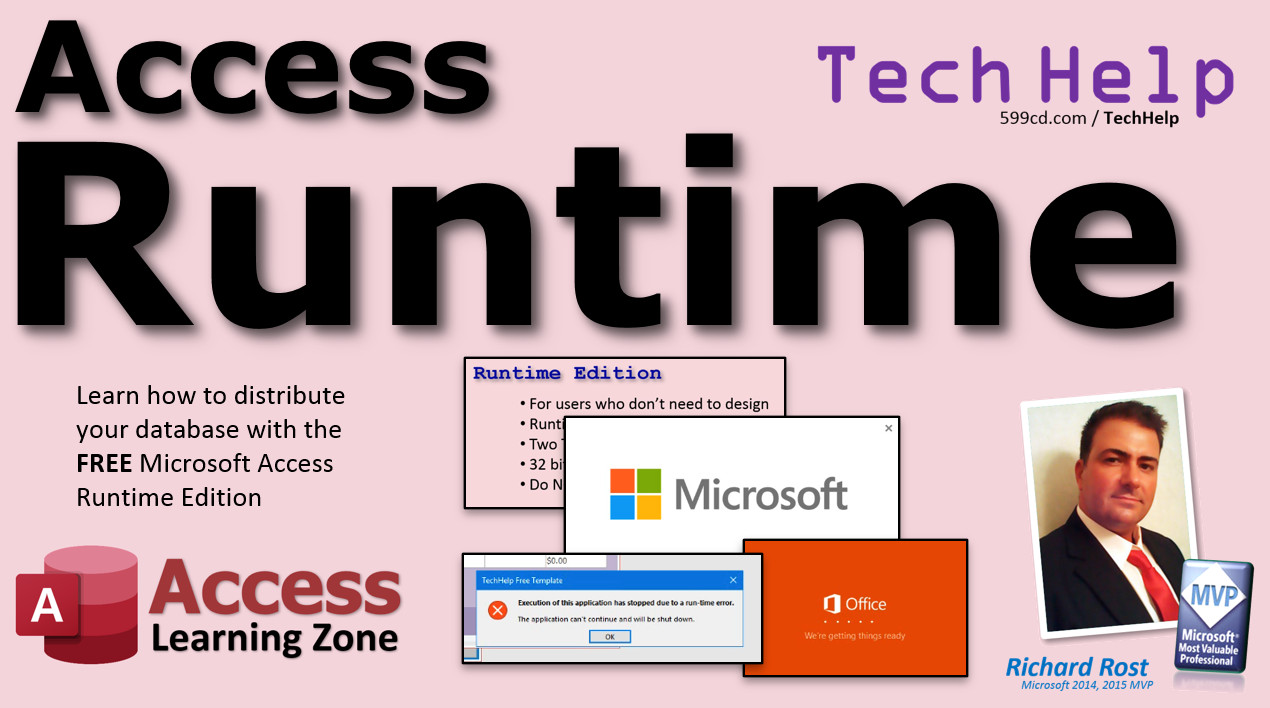
Distribute Your Database with Free Runtime Edition Learn how to use the Microsoft Access Runtime Edition to install a FREE version of your database for other people to use. As long as they don't need to make design changes, they can use the Runtime Edition. Daniel from Newark, New Jersey (a Gold Member) asks: I want to build a Microsoft Access database solution for my company. I've got 30 employees, about half of whom would need to use the database. I'm the only person who would be making design changes. I heard that there's something called the Runtime Edition that I can install so I don't have to pay for a copy of Office on each PC. How does that work? MembersMembers will learn how to take extra precautions to prevent against the database application crashing. We'll see how to compile our VBA code to check for syntax errors. We'll learn how to check for common Runtime errors which are harder to detect. And we'll see some basic error handling techniques to deal with those kinds of errors.
Silver Members and up get access to view Extended Cut videos, when available. Gold Members can download the files from class plus get access to the Code Vault. If you're not a member, Join Today!
Download & Install
Links
NotesI get asked this question all the time from people who split their databases and want to set them up for multi-user access: "if you give users read/write access to the folder on the server that holds the database, can't they just delete the file (either accidentally or intentionally?) Yep. That's a risk you take with Access. People need read/write privileges to the back-end folder. If they know what they're doing, they can open up your tables directly, or even delete the database file altogether. There's not much you can do about it. That's why you need good nightly backups, saved in a secure folder. You can also encrypt the data in the tables so if they steal the file, all they'll see is gibberish. But you really can't stop them from deleting the file. If you need that kind of security, then you'll have to upgrade the back-end to SQL Server. TopicsFor users who don't need to design Unavailable FeaturesSpecial keys: Ctrl-Break, SHIFT bypass ConsiderationsCompact & Repair
More InformationTranscriptWelcome to another TechHelp video brought to you by AccessLearningZone.com. I am your instructor, Richard Rost. In today's video, I'm going to show you how to distribute your database with the free Microsoft Access Runtime Edition. Yes, that's right. You can distribute your database absolutely free to people who do not have Access. All they have to do is install the free Runtime Edition. Today's question comes from Daniel in Newark, New Jersey, one of my Gold members. Daniel asks, I want to build a Microsoft Access Database solution for my company. I've got 30 employees, about half of whom would need to use the database. I'm the only person who would be making design changes. I heard that there's something called the Runtime Edition that I can install so I don't have to pay for a copy of Access on each PC. How does that work? Well, Daniel, you did hear correctly. Microsoft has something called the Access Runtime Edition. You can install it on computers for users who don't need design access to the database. If all they're going to be doing is looking up records, adding records, deleting records, that kind of stuff, printing out reports, and the things you've designed the database to do, then all they need is the Runtime Edition. It will save you some money. You'll still need one copy on your network for you to make design changes to the database, but you actually don't want other people getting in there and poking around on your database, so the Runtime Edition is just fine for them. One nice thing is that the Runtime Edition is now free for everybody, even the developer. Back when I started, back in the 1830s - just kidding, back in the 1990s actually - users had to buy something called the Access Developer Extensions. If memory serves, it cost like $300, and this is like 1994, so that's like $1,000 today. It was a special set of tools that we could use to take our Access MDB file, the database file, and package it up to deploy it either to our customers or send it out on CDs or whatever to give to people who don't have Access. Well, now Microsoft wants to encourage you to do this, so they make the Runtime free. You buy one copy of Access for yourself to build the database, and everyone who's going to use it, even people you don't know, you can give your database to people on the internet and all they need is the Runtime Edition to work with your database. Now, there are two kinds of ways that you can give your end user the Runtime Edition. There's the internet-based install and the old-school MSI install. The internet install basically means all you have to do is give them a link, and it will install Access, the Runtime Edition, right over the Internet. It's the same thing that you'd get if you had a Microsoft 365 subscription. A little tiny file downloads to your computer, you say install, and then it downloads in the background and installs without you having to do anything. The second version, the MSI install, is closer to the retail box edition. If you bought Office 2016 or 2019 or the older versions, you'd get the retail edition. Remember, they used to come on CDs. It's a big installation file that you can then give to your users and they can install it just like they were installing the retail version. Personally, I prefer the internet install and that's what I'm going to show you in today's video. Next, you have to pick which version of Office you want. There's 32-bit and 64-bit. If your users already have Microsoft Office installed, if they're using 64-bit or 32-bit, you've got to match the bit type. It doesn't matter, you just have to match what type your office is already running and you have to build your database for that bitness. So you can't be building it in 32-bit and then give your end users a 64-bit version if they've got 32-bit, for example. So you've got to match all that around your office. It's a bit of a pain, but this is kind of a transition period right now between 32-bit and 64-bit. Trust me, I'm still running 32-bit in my office and the default install now that Microsoft gives out with Access is 64-bit. So a lot of my stuff on my website is still in 32-bit too. I'm transitioning all my stuff over. It's a pain. I really don't like it, but you just have to deal with it. When in doubt, go with 64-bit. It's the new wave. That's what Microsoft is trying to make everybody do. Do not install the runtime if they've already got Access on their machine. You'll mess things up. If they've got 64-bit Access, don't try to install your 32-bit runtime. In fact, I don't even think it'll let you. There are some features of Access that are unavailable in the runtime. For example, there are some special keys like Control-Break that you can use to exit out of a loop in your VBA, or the Shift key to bypass the startup. Those things don't work on the runtime. The navigation pane doesn't exist, which isn't a bad thing. You don't want users poking around on your objects. So you have to provide your own menus. I cover this in my Access Beginner lessons. Make sure you set a startup form or an autoexec macro. I cover startup forms in my Access Beginner classes as well. The ribbon is not available, so make sure that your application doesn't rely on anything on the ribbon. You can create your own custom ribbon, and I've got classes on how to do that too, but the standard ribbon is not available in the runtime. Design view and layout view are not available. They can't design forms. They can't make changes to reports, which is a good thing. That's what you want. There's no help system. They can't hit F1 and get help, or click on the little question mark in the forms. I do have videos on how you can create your own help system. I'll put a link in the description down below the video. Filtering is not available: either Filter by Form, Filter by Selection, or Advanced Filter. You can't right-click on New York and filter by that. You have to set up your own filtering, which again, I've got videos on that too. There's no VBA editor. That's a big duh. They can't make any design changes, especially getting into your VBA code. You don't want them in there anyways. And there's no spell checking included unless they already have the full version of Word and Excel. If they've got Office already, either Word or Excel, then Access will use the spell checker from those. But if they just have this Runtime edition, it doesn't come with the spell checker. Some considerations before getting ready to distribute your application. Compact and repair. Always, always, always run through a compact and repair before you give your database to someone else. It'll correct any minor errors. It'll bring up any problems you might have, and it will make your database nice and small, in case you've got a bunch of wasted space in there. Make sure you go into the VBA editor and compile your code. If you don't know what that is, I'm going to show you in the extended cut. If your application generates any errors, there is no error handling in the Runtime edition. If your VBA code generates an error, usually the full version will give you a warning message - Oh, I got a syntax error - but no. In the Runtime edition, there's no error handling. So your application will just crash. So make sure you include your own error handling. Again, I'll cover a little bit of that in the extended cut. I've got lots of lessons on error handling in my developer courses. Make an ACCDE file - an encrypted file. This is a version of your database that you're going to give the end users for their front end. We're going to talk about splitting the database in a second. You don't want to distribute your ACCDB file because even though they've got the runtime on their machines, they could still copy your ACCDB file to a different computer that has the full version of Access and then they can get into your code. So make sure the only thing you distribute to your end users is the encrypted ACCDE file because they can't get into the design of the database even with a full version of Access installed. Again, I've got videos on how to do that. I'll put links down below. As a reminder, and I covered this in the other video too, back up your original ACCDB file because you will need it to make design changes moving forward. If you compile it into an ACCDE and get rid of the original, you're done. There's no way to go backwards. I get asked this all the time: Is there, I got an encrypted ACCDE file, is there any way to go backwards? I've seen some third-party tools online marketed toward being able to reverse engineer it and decompile your database. I've never tried one. I don't know if they work. I've read that they work, but I don't recommend it. Now you're going to want to split your database. You've got your ACCDE made. For the front end, you're going to have to split your database because your end users are going to get the ACCDE, and it's going to be connected to your back end file which will be on your server, SQL Server, or even a back end Microsoft Access database. I've got a whole big lesson - it's free - on my website and on YouTube on splitting your database. Go watch that. I'm not going to cover all that again here. You're going to split your database. You're going to point everybody to the same back end server, the same directory, whether it's Z drive or a server folder or whatever before you distribute it. When they install the runtime, all they have to do is you give them a copy of your front end file and it's already connected to the back end no matter where they are on the network. If you want an easy way to distribute updates to that front end file, I have a thing called the Access Updater. It's a template available on my website. I'll put a link to the Access Updater down below. Basically, every time you make a design change in the original ACCDB file, you're going to have to distribute that to all the front end computers because every computer gets their own copy of the front end. That can be quite time-consuming. So my Access Updater lets you do it in one click. Well, it's two clicks - one to run the Updater, another one to actually do the update - but still. Another thing I'm going to mention is my SharePoint seminar. Lots of people ask me, how can I have people that aren't in my office, especially with the pandemic right now, where I need a lot of people working at home, how can they get access to my Access database? You can use something like SharePoint or an online SQL server so they can connect to your data. I cover that in my SharePoint seminar. All you have to do then is have them install the runtime, give them the front end file, and your front end file is already connected to your SharePoint server. Then everybody's on the same network, the same database. Don't try to run your database over a WAN, a wide area network. They're slow and they corrupt databases all the time. Don't try to run over something like Dropbox or Google Drive. Access is not designed to work that way. You've got to connect to a database server if you want to run that way. Yes, I have an SQL Server seminar coming up. SharePoint is okay for real small groups and small teams. If you've got a bunch of people working with it, you want to use SQL Server, and that's coming up soon. Now what I'm going to show you is how you can have people in your office install the runtime, or you can run around to their desks and do it manually. If you want a professional installation package, you can use the Windows Installer, or there are some third-party programs you can buy that make it professional. I used to actually sell a database package called Certificate. It was a gift certificate software. I used to sell it online and distribute it, and I would want my customers to get a real software install package like you'd see from any normal software vendor. So you need separate software to make your Access database look like that - pretty and professional. What I'm going to show you today is just for in-house purposes, where you manually install the runtime and then give them the front end. The Windows Installer can package it all together and make it nice and pretty. We're not going to cover that today. I am going to make a future lesson on the Windows Installer. I'll put a link to it down below this video when it's finished, but that is something I get a lot of demand for. So when I get some time I'll throw it together. I will put a link down there right now to the Windows Installer on Microsoft's website, so if you want to read more about it you can. Now let's get to installing. Go to the link that you'll find down below to go to the Microsoft website and download and install Microsoft 365 Access Runtime. I'll give you links for both the internet installer and the MSI installer. I'm going to use the internet installer. Now you have to make sure you pick the same version of the Access installer as the version of Office that you're running. So if you've got Access 2019 or 2016 Box Edition, Retail Edition in your office, you have to use that version of the Access Runtime installer. I recommend the Microsoft 365 subscription personally. It's much easier to deal with. It's much easier to install. So that's what I'm going to be doing. Also, we've already talked about it. Make sure you pick the right bit version. Pick the right language that you need. I don't know why they put English so far down the list here. There it is. Then 32-bit or 64-bit. I'm going to go with the 64-bit download. OfficeSetup.exe save file. It's only a six meg file. It's tiny. Now this computer is using Firefox, which isn't my browser of choice, but it's not bad. With Firefox, I have to come up here and click on the downloads button, go to OfficeSetup, hit Run, and then it should start doing its thing. You want to allow it to make changes to the device. Yes. It's getting some stuff ready, downloading in the background, preparing your machine. You'll get this screen: Please stay online while Office downloads. Kind of hard to download something if you go offline. So just sit here and wait for a few minutes. It might be a good time to check your email on your phone, play a little "I'll Allow It" which is my game I wrote. When they say "just a moment" by the way, how long is a moment? It's more than a moment. According to the online dictionary, a moment means a very brief period of time. So Microsoft, you're lying, this is not a moment. It's taking a little bit longer than a moment. Well, it's moving right along. I'd play some Jeopardy music or something but I don't want to get in trouble for copyright violation. Okay, it's all done. You're all set. Office is now installed. Click Start to view your app. Let it close down Firefox. If you go to the Start button now, you will see there's Access right there. If you click on it, let's see what happens here. Microsoft Access Runtime is installed on this machine. You must start Microsoft Access by double clicking a Microsoft Access file or by running Microsoft Access from a command prompt with a specified database. In other words, it's useless by itself. So you have to give it a database file. Let's put a database file in here. I can't think of a better database than to go to my website, 599cd.com/blank. Let's get the blank template. Scroll down here. There's the blank template right there. Click on it. Let's save that. I keep forgetting it's up here. I use Chrome on my browser and you see it pop up on the bottom down here. So let's go to there. Blank templates. There's the blank TechHelp free template, that's the only one. Let's minimize this. All you have to do really is just send - these are usually very small files because there's not a lot of data in it. You'll set this up ahead of time to connect to your database, whatever your server drive is. Assuming this computer is connected to the server, just put that on there. We'll put that on the desktop and then open it up. There we go. Click on free template. Notice there's no ribbon up top here. You have to provide your own navigation. You can't right-click on anything in here. You can't use any filtering or sorting. You have to provide everything yourself in the design of your database. That's what I'm for, to teach you how to do all that stuff. Go watch my lessons. I have tons of stuff. But everything in the database should work just fine. It's fully runnable. You get some menus here, like the print preview menu. Some of them come up because you need that to be able to print. You can't right-click on this and go to print, so you need this guy. Some things pop up. They can't get to your navigation pane. Provided this computer is on your network and you all have the same shared drive like Z: or \\\\server\\sharedame, that's where you're going to connect your database to. As long as everyone's got that shared drive in the network, that's it. You install the runtime and then give them the front end. You can email it to them in a zip file. These are usually pretty tiny, like a megabyte or two. And that's it. That's how you run Access for free on every computer but yours. Or even if you are a developer, you can give everybody - if you have clients that want to run your database, they don't even have to buy Access at all. You can just install the runtime on all of their machines. You will have to have your laptop or whatever so you can make design changes yourself, but you can give them all Runtime editions. Unless they need to be able to make changes, they don't need the full version of Access. Save some money. Want to learn more about the Access runtime? Members will learn how to take extra precautions to prevent against database application crashing. I'll show you how to compile your VBA code to check for syntax errors. We'll learn how to check for common runtime errors, which are harder to detect than syntax errors, and we'll see some basic error handling techniques to deal with both kinds of errors. That's all covered in the extended cut for members only. Silver members and up get access to all of my extended cut videos. How do you become a member? Click the Join button below the video. After you click the Join button, you'll see a list of all the different types of membership levels that are available. Silver members and up will get access to all of the extended cut TechHelp videos, live video and chat sessions, and more. Gold members get access to a download folder containing all the sample databases that I build in my TechHelp videos, plus my Code Vault where I keep tons of different functions that I use. Platinum members get all the previous perks, plus access to my full beginner courses and some of my expert courses. These are the full length courses found on my website and not just for Access. I also teach Word, Excel, Visual Basic, ASP, and lots more. Don't worry, these free TechHelp videos are going to keep coming. As long as you keep watching them, I'll keep making more. If you liked this video, please give me a thumbs up and feel free to post any comments that you have. I do read them all. Make sure you subscribe to my channel, which is completely free, and click the bell icon and select All to receive notifications when new videos are posted. Click on the Show More link below the video to find additional resources and links. You'll see a list of other videos, additional information related to the current topic, free lessons, and lots more. YouTube no longer sends out email notifications when new videos are posted, so if you'd like to get an email every time I post a new video, click on the link to join my mailing list. If you have not yet tried my free Access Level 1 course, check it out now. It covers all the basics of building databases with Access. It's over three hours long. You can find it on my website or on my YouTube channel. If you like Level 1, Level 2 is just one dollar and it's also free for all members of my YouTube channel at any level. Want to have your question answered in a video just like this one? Visit my TechHelp page and you can send me your question there. Click here to watch my free Access Beginner Level 1 course, more of my TechHelp videos, or to subscribe to my channel. Thanks for watching this video from AccessLearningZone.com. IntroIn this video, I will show you how to distribute your Microsoft Access database using the free Access Runtime Edition. We will cover what the Access Runtime is, who should use it, how to install it using both the internet and MSI installers, and what limitations you should be aware of compared to the full version of Access. You will also learn the key steps to prepare your database for distribution, including file preparation, version compatibility, and why splitting your database is important for multi-user environments. QuizQ1. What is the primary benefit of the Microsoft Access Runtime Edition for most end users? A. It allows design changes in the database B. It enables users to work with databases without Access installed C. It comes with advanced reporting tools D. It is only available to developers Q2. What should you do if your users already have Office installed when distributing the Access Runtime? A. Install any available version of the runtime B. Match the bitness (32-bit or 64-bit) of the runtime to the installed Office version C. Use only 32-bit runtime regardless of their Office version D. Uninstall Office first Q3. Why is it important to distribute an ACCDE file instead of an ACCDB file to end users? A. ACCDE files support more users B. ACCDE files allow users to change VBA code C. ACCDE files prevent users from accessing design and code D. ACCDE files are easier to edit Q4. Which feature is NOT available in the Access Runtime Edition? A. Ribbon interface B. Printing reports C. Running pre-designed queries D. Using forms Q5. If an error occurs in VBA code while running under the Access Runtime, what happens? A. The error is shown in a popup with options to fix it B. The application just crashes with no error handling C. The error is automatically logged for later fixing D. The user can enter the VBA editor to fix the code Q6. What should you do before distributing your database to others? A. Only back up the ACCDE file B. Run compact and repair, compile VBA code, and make an ACCDE C. Distribute the database without checking for errors D. Remove all forms from the database Q7. What is a recommended method for distributing design updates to multiple front end users? A. Manually walk to each computer B. Use the Access Updater tool or similar approach C. Only update the back end D. Send emails with instructions for users to update themselves Q8. Which of these will NOT work with an Access database over a WAN or cloud sync service like Dropbox? A. Connecting via SQL Server B. Using a SharePoint back end for small teams C. Directly sharing the database file on Dropbox D. Using a shared server drive within a local network Q9. Which installer method is generally preferred for in-office deployment of Access Runtime by the instructor? A. Office DVD install B. Internet-based installer C. Microsoft Store app D. Windows 95 CD Q10. What must you ensure about the version and bitness when installing Access Runtime? A. It must always be 64-bit regardless of anything else B. It must match the version and bitness of installed Office C. It must be higher than everyone else's Office version D. Bitness does not matter in any scenario Q11. Which of these statements about splitting your Access database is CORRECT? A. The front end holds tables and is on the server B. The back end connects to each user's machine C. The front end (ACCDE) is distributed to users and connects to the shared back end D. There is no need to split the database for multi-user access Q12. What are some features missing in the Runtime that you should account for in your application's design? (Choose the most complete answer) A. Filter by Form, Shift to bypass startup, Navigation Pane, standard Ribbon, Design and Layout View, built-in help, spell checker (unless full Word/Excel installed) B. Only the ability to print reports C. Only navigation pane D. There are no missing features Q13. What happens if you try to install a 32-bit Access Runtime on a machine with 64-bit Access already installed? A. Both versions work side by side B. The installer will fail or cause conflicts C. The runtime will upgrade the existing Access D. Only the runtime will work, disabling the existing Access Q14. Why is it important to keep your original ACCDB file even after compiling an ACCDE for distribution? A. ACCDE files can always be changed back easily B. You will need the ACCDB to make future design changes C. ACCDE files are larger D. ACCDB files run faster Q15. What must users do to open a database using Access Runtime after installation? A. Start Access Runtime and browse for a database B. Double click on a database file or use command prompt with a database specified C. Open Access Runtime and click on File > Open D. They cannot open databases with the Runtime Answers: 1-B; 2-B; 3-C; 4-A; 5-B; 6-B; 7-B; 8-C; 9-B; 10-B; 11-C; 12-A; 13-B; 14-B; 15-B. DISCLAIMER: Quiz questions are AI generated. If you find any that are wrong, don't make sense, or aren't related to the video topic at hand, then please post a comment and let me know. Thanks. SummaryToday's video from Access Learning Zone covers how to distribute your Microsoft Access database using the free Runtime Edition. This is a great solution for sharing your database with others who do not have a full Access license. As long as your users have the Runtime Edition installed, they can use the database you've built without needing to purchase Access themselves. The question that came in is a common one: How can a business deploy an Access database to multiple employees without buying a copy of Access for everyone? With the Runtime Edition, the answer is straightforward. As the developer or the person responsible for making design changes, you'll need a full copy of Access. Everyone else, the users who simply enter, edit, or look up information and print reports, can get by perfectly with the free Runtime Edition. It is designed specifically for end users who should not be modifying the structure or design of your database. One of the best things about the Runtime Edition is its availability for free to anyone, including the developer. Years ago, distributing an Access solution meant purchasing the Access Developer Extensions, which were quite expensive. Now, Microsoft encourages you to distribute your databases by offering the Runtime for free. This means you only need one copy of Access for development and unlimited Runtime installations for your users. You can even allow people on the internet to use your application, provided they install the Runtime. There are two main distribution options for the Runtime Edition. The first, and my preferred method, is the internet-based installer. You simply provide your users with a link, and they can download and install Access Runtime directly from Microsoft. It functions just like a normal Office 365 installation - a small installer starts the process, then the rest of the files are downloaded and installed automatically. The second method is the MSI installer - this is the traditional, larger installation package that you might be familiar with if you've installed older versions of Office from physical media. Some people still like to use this method if they want a standalone installer. An important decision before installing is to match the correct bitness - either 32-bit or 64-bit - with your version of Office. If your users have 64-bit Office, you must use the 64-bit Runtime, and the same goes for 32-bit. Mismatching versions will cause problems, and Access may not even allow you to complete the install if the versions are incompatible. For now, Microsoft is pushing everyone toward 64-bit, but be sure to verify what is currently installed on your systems. A few features are not available in the Runtime Edition, which is usually a benefit in a managed deployment. Users cannot bypass startup or access the navigation pane, and the ribbon is not present unless you build a custom one. Design and layout views are unavailable, so users can't accidentally alter objects. The VBA editor is missing, so your code stays secure, and there is no Help system or spell checking unless Word or Excel is already installed on the user's computer. You will need to provide custom filtering, navigation, and menus, as built-in filtering and right-click context menus are disabled. Before you distribute your application, always compact and repair your database. This fixes minor errors and reduces file size. Next, compile all VBA code to avoid syntax errors. In the Runtime edition, there is no built-in error handling. If your code encounters an error, the application will simply crash. For this reason, proper error handling in your VBA is a must. Distribute your application as an ACCDE file, not as an ACCDB file. An ACCDE file is an encrypted version of your database with design changes locked down and VBA code compiled. Even if someone manages to open your file with a full copy of Access, they will not be able to modify forms, reports, or code. Always keep a backup of your original ACCDB, because once converted to ACCDE, you cannot reverse it. If you have not yet separated the back end (data tables) from the front end (queries, forms, reports, and code), now is the time to do so. Distributing a split database helps manage multi-user access and keeps everyone's interface separate from the shared data. Users get their own copy of the front end, linked to a shared back end on the network. To simplify front end updates, consider using a tool like my Access Updater. When you release a new version of your front end, the Updater lets users quickly and easily download and install the update, so everyone always has the latest version. For users working remotely, such as those needing access outside the office, you might want to host the back end in SharePoint or on an online SQL Server. With SharePoint, small teams can work together across different locations and still access the same data. For larger deployments, SQL Server is a better choice for stability and scalability. When installing the Runtime for your users, most situations only require downloading and running the installer from Microsoft's site, selecting the appropriate version and language. After installing, you must provide your users with the front end (the ACCDE file) connected to the correct back end location on your network. The Runtime cannot open itself; it opens only when you use it to open an Access database file. Once in place, your users open the database file, and your application should function as designed, with all custom navigation and forms running as intended. Most applications will work seamlessly for data entry, lookup, and printing. As the developer, always maintain your copy of the original ACCDB file for future development. Whenever you make changes and create a new ACCDE, distribute it to your users via your preferred method. In today's Extended Cut for members, I cover how to safeguard your application further against crashes, how to compile your VBA code for robust error detection, how to handle common runtime errors, and basic error handling techniques. If you want more in-depth instruction on these advanced topics, all of this is available for members on my website. If you are not yet a member, I encourage you to take a look at the different membership levels. Each tier gives you access to exclusive extended cut lessons, sample databases, bonus material, and more. Remember, you can always visit my TechHelp page to submit your own questions, or take my free Microsoft Access Level 1 course, which teaches all the basics for getting started with database development. For a full, step-by-step video tutorial covering everything discussed here, including practical demonstrations, visit my website at the link below. Live long and prosper, my friends. Topic ListWhat is the Microsoft Access Runtime Edition Differences between Runtime Edition and full Access Use cases for distributing Access with Runtime Cost and licensing of Access Runtime Internet installer vs MSI installer for Access Runtime Matching Runtime version with Office 32-bit or 64-bit Limitations of Access Runtime features Unavailable features: navigation pane, ribbon, design view Startup forms and autoexec macros in Runtime Providing custom navigation and menus Disabling or unavailable filtering in Runtime Spell checking in Runtime and Office integration Importance of compact and repair before distribution Creating and distributing ACCDE front end files Splitting a database: front end and back end Connecting Runtime front end to networked back end Distributing updates with an updater tool Using Access Runtime with SharePoint Requirements for professional software-style installs Step-by-step installing Access Runtime Internet Installer Opening and running a database with Runtime Confirming installed Runtime limitations for users Connecting Runtime front end to server shares General process to distribute database to multiple users Primary TopicsAccess Runtime Edition, database distribution, frontend-backend split, installation methods, bitness compatibility, runtime limitations, deployment best practices, error handling, ACCDE encryption Secondary TopicsOffice version matching, developer history, SharePoint/SQL Server options, Access Updater utility, professional installation packaging |
||||||||||||||||||||||||||||||||||||
|
| |||
| Keywords: TechHelp Access access runtime, runtime edition, standalone access, access to exe file, free access, access developer extensions, compile access to exe PermaLink Access Runtime in Microsoft Access |