|
||||||

|
|
||||||
|
Change CaseBy Richard Rost
 5 years ago
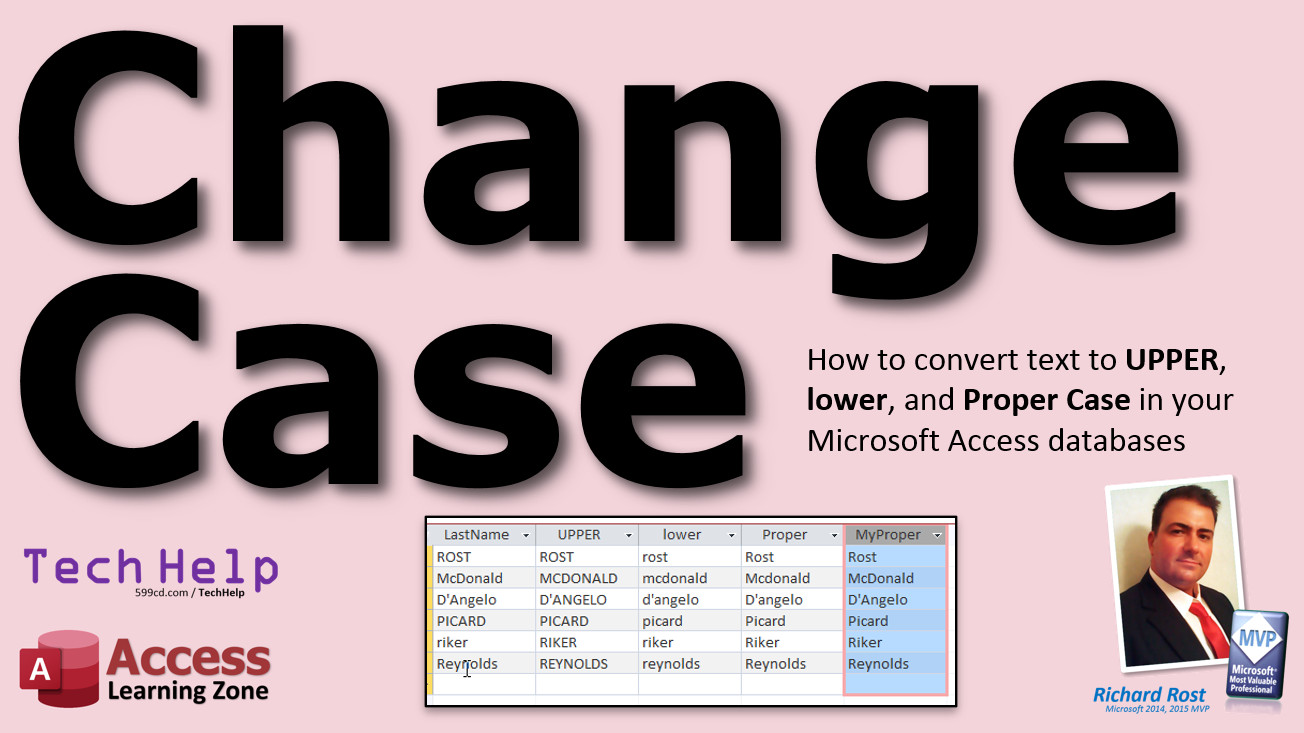
Change Between UPPER, lower, and Proper Case In this Microsoft Access tutorial, I will teach you how to convert strings (such as names) to UPPER CASE, lower case, and Proper Case. You will learn how to use the StrConv function in your queries. We'll create an update query to change all of the names in your customer table. Mira from Hamburg, Germany (a Gold Member) asks: My people are horrible at data entry. Half of them type in ALL CAPS and the other half don't know where the Shift key even is. I've got names of all kinds in my Customer table. How can I clean this up? MembersMembers will learn how to create a MyProperCase function which will convert names that have been typed in all caps or all lowercase, but will leave names that already have mixed case in them alone, such as McDonald or D'Angelo.
Silver Members and up get access to view Extended Cut videos, when available. Gold Members can download the files from class plus get access to the Code Vault. If you're not a member, Join Today!
Links
Proper Case
More InformationTranscriptWelcome to another TechHelp video brought to you by AccessLearningZone.com. I am your instructor, Richard Rost. In today's video, I'm going to show you how to convert between uppercase, lowercase, and propercase in your Microsoft Access databases. You're all familiar with uppercase and lowercase. Propercase is where you capitalize the first letter and then lowercase the rest of them. That's handy with names. Today's question comes from Mira in Hamburg, Germany, one of my Gold members. Mira says, my people are horrible at data entry. Half of them type in all caps and the other half don't know where the shift key even is. I've got names of all kinds in my customer table. How can I clean this up? Well, Mira, there's a hidden function in Microsoft Access that a lot of people don't know about. It's called string convert. You may be familiar with uppercase and lowercase, but there's string convert which can change it to propercase, which capitalizes the first letter and then lowercases the rest of them. Let me show you how to use all three. Here I am in my TechHelp free template. This is a free download off my website. You can go grab a copy if you want to. I'll put a link down below. In here, I've got a customer table. I was a good boy when I typed in all of my customers and I typed in propercase cases, but I know what you're going through. I used to do a lot of work with people who had technicians in the back room that had to enter in customer invoices and stuff, and they just left the shift key on the whole time. So you ended up with this. You want to make it nice and pretty if you're doing mailings or anything, even envelopes and labels, you want these to look nice. There's got to be a way to convert those over to what's called propercase. Let me put a couple in just lowercase here, and we'll put in a couple that are correct. Now let's go over to a query, and I'll show you how these functions work. I'll close that. Let's go create and then query design. Let's bring in our customer table. Now I'll just use this with last name, but you can use it with any field that you want to. Here's last name. Let's come over here. Let's use the uppercase function first. I just call this one UC, and we're going to say, UCase, and then last name, just like that. Let me zoom in so you can see that better. There it is. UC is the name of the field that I've chosen. I'm going to give it the name UC. It's called an alias. The UCase function converts whatever you send to it into uppercase. Make sure you have brackets around that. That indicates it's the last name field. You don't want quotes there because if you put quotes there, it's going to actually use the word last name and capitalize that. Hit OK. Now if I run this function, you can see there it is. There's the uppercase version of all of those. There's also lowercase. Let me shrink that back down here. Come over here. Let's do LC. Let me get lowercase LC, like that. We're going to do LCase last name. Same thing. Run it. There we go. There's lowercase. Now the third one is propercase. But they don't call the function propercase or even proper or even PCase. It's string convert. I know, it's a little weird. So go PC, that'll be propercase. Colon. And it's STRCONV. Why, I don't know. Then last name. Then you have to go comma 3. Why comma 3? Well, 1 is uppercase, 2 is lowercase, 3 is propercase. They should have made a good function out of that, but they didn't. In fact, in my VBA classes, I teach you how to make your own custom function, which you could make your own function called propercase if you want to. But for those of us who don't use our own custom functions, you just have to remember that. It's string convert, last name comma 3. Hit OK. Now we'll run that function. There you go. Those are converted over into propercase. If you want to fix all the names that are already in your database, you just have to turn this into an update query. I have a whole separate video on update queries. It explains them in a lot more detail. If you've never done an update query before, go watch that video now and then come back to this one. I'll show you how to change this into an update query. Let me save this query. Let's call this my customer cases. We'll call it just case, customer case, so you can see this if you want to take a look at it later. But let's make a new query. Create query design, bring in my customer team. I'm going to change this to an update query, bring in last name. You can do multiple fields if you want to do first name too. It doesn't matter because they're all good. Update to right here is going to be STRCONV, last name, comma, 3. Now be careful. See what happened right there? It put quotes around. That's why I say you have to be careful. Don't put quotes around there. Otherwise, you're going to get the actual word last name for all of your fields there. You don't want that. So make sure you fix that. That's one of my pet peeves of Access. I would do the same thing with first name. We're going to update to string convert, and then bracket, first name, comma, 3. Now when I run this query, you may get a warning message that says they're about to update six rows or whatever. I have those warning messages turned off in my database. But now if I go check my customer table, look, they're all fixed again. That's because they got run through the update query. That's all you have to do to fix your names. If you want to fix these on data entry, in other words, when the person types in their name, you have to do it in something called an after update event. That does involve a little programming. You could do a macro with it, but I prefer VBA myself. Go watch my after update video, and then you shouldn't have any problems applying it to this. One thing that this does not cover, and I'll save changes to this. This will be the customer update query. For my Gold members who can download this template, one thing that this does not cover is names like this: McDonald, Donald, or D'Angelo, like that. What happens to those names? Let's take a look. Let's run the query again. Customer update query, run. Take a look. Look at that. It just changed them to proper case, which is not necessarily always desired. If someone's got a name, it's got a second capital letter in it, you may want to leave that alone. That unfortunately does require some programming. I will show how to do that in the extended cut for members. Want to learn more about change case? In the extended cut for members, we will create our own pcase function instead of having to remember what string convert is. I'll show you how to create your own global function for it. Then we'll create a function called my proper case for mixed case uses, like I just mentioned. If someone types in all caps, it'll convert it. If someone types in all lowercase, it'll convert it. If someone types in a name with mixed case already in it like McDonald or D'Angelo, it'll leave it alone, assuming they've already typed it in correctly or they've edited it. That'll be covered in the extended cut for members. Silver members and up get access to all of my extended cut videos. How do you become a member? Click the join button below the video. After you click the join button, you'll see a list of all the different types of membership levels that are available. Silver members and up get access to all of the extended cut TechHelp videos, live video and chat sessions, and more. Gold members get access to a download folder containing all the sample databases that I've built in my TechHelp videos, plus my code vault, where I keep tons of different functions that I use. Platinum members get all the previous perks, plus access to my full beginner courses, and some of my expert courses. These are the full length courses found on my website and not just for Access. I also teach Word, Excel, Visual Basic, ASP, and lots more. But don't worry, these free TechHelp videos are going to keep coming. As long as you keep watching them, I'll keep making more. If you liked this video, please give me a thumbs up, and feel free to post any comments that you have. I do read them all. Make sure you subscribe to my channel, which is completely free, and click the bell icon and select all to receive notifications when new videos are posted. Click on the show more link below the video to find additional resources and links. You'll see a list of other videos, additional information related to the current topic, free lessons, and lots more. YouTube no longer sends out email notifications when new videos are posted. If you'd like to get an email every time I post a new video, click on the link to join my mailing list. If you have not yet tried my free Access Level 1 course, check it out now. It covers all the basics of building databases with Access. It's over three hours long. You can find it on my website or on my YouTube channel. If you like Level 1, Level 2 is just $1. It's also free for all members of my YouTube channel at any level. Want to have your question answered in a video just like this one? Visit my TechHelp page, and you can send me your question there. Click here to watch my free Access Beginner Level 1 course, more of my TechHelp videos, or to subscribe to my channel. Thanks for watching this video from AccessLearningZone.com. IntroIn this video, I will show you how to convert text between uppercase, lowercase, and propercase in Microsoft Access using built-in functions like UCase, LCase, and STRConv. You will learn how to clean up inconsistent data entry in your tables, run case conversion from a query, and use an update query to fix existing records. I will also discuss best practices to avoid common mistakes and give tips for handling real-world situations like formatting customer names. QuizQ1. What does the "propercase" function do when applied to names in Microsoft Access? A. Capitalizes the first letter and lowercases the rest of each word B. Converts all letters to uppercase C. Converts all letters to lowercase D. Leaves the text unchanged Q2. Which function is used to convert a field to uppercase in Microsoft Access queries? A. LCase B. UCase C. STRCONV with argument 2 D. PropCase Q3. What is the correct function and argument to convert text to propercase using STRCONV? A. STRCONV([FieldName], 1) B. STRCONV([FieldName], 2) C. STRCONV([FieldName], 3) D. STRCONV([FieldName], "Prop") Q4. What mistake should you avoid when referencing a field name in a function in Access queries? A. Using square brackets B. Using curly braces C. Using parentheses D. Using quotation marks Q5. If you want to update existing records in a table to propercase, what type of Access query should you use? A. Crosstab query B. Select query C. Update query D. Append query Q6. Which of the following is NOT a recommended use for propercase formatting in Access? A. Mailing labels B. Ensuring consistent data entry for names C. Converting numbers to text D. Cleaning up inconsistent capitalization Q7. What argument value does STRCONV need for converting text to lowercase? A. 1 B. 2 C. 3 D. 4 Q8. What may happen when using the propercase function on names like "McDonald" or "D'Angelo"? A. It will always correct the capitalization perfectly B. The names might be converted incorrectly with only the first letter capitalized C. The names will remain unchanged if already proper D. The function will cause an error Q9. Where can you apply case conversion functions in Access? A. In a table directly B. In a query C. Only in macros D. Only in reports Q10. When applying case conversion at the point of data entry, which Access event should you use? A. On Click B. On Load C. After Update D. Before Open Q11. If you want to automate more advanced name capitalization rules (such as handling "McDonald" properly), what do you need to do? A. Use only the built-in STRCONV function B. Write a custom VBA function C. Use an append query D. Change field properties Q12. What is an alias in an Access query? A. The table name B. An alternate name you assign to a calculated field C. The database password D. The field order in a table Q13. What is the main benefit of converting names to propercase in your database? A. Makes data look professional and consistent B. Encrypts sensitive information C. Performs spell-checking automatically D. Duplicate records are removed Q14. When converting case using a query, what symbol indicates that you are referencing a field name? A. Curly braces { } B. Parentheses ( ) C. Quotation marks " " D. Square brackets [ ] Q15. What is the free Access course mentioned in the video designed to teach? A. SQL Server integration B. Advanced VBA programming C. The basics of building databases with Access D. Web development using Access Answers: 1-A; 2-B; 3-C; 4-D; 5-C; 6-C; 7-B; 8-B; 9-B; 10-C; 11-B; 12-B; 13-A; 14-D; 15-C DISCLAIMER: Quiz questions are AI generated. If you find any that are wrong, don't make sense, or aren't related to the video topic at hand, then please post a comment and let me know. Thanks. SummaryToday's video from Access Learning Zone focuses on how to convert text between uppercase, lowercase, and propercase in Microsoft Access databases. Many people are already familiar with uppercase and lowercase text, but propercase is where just the first letter of each word is capitalized, while the rest are in lowercase. This is especially useful for names in customer tables. I received a question from a viewer who mentioned that their data entry is inconsistent. Some of their staff type everything in all caps, while others never use the shift key, resulting in inconsistent name formats. This is a common problem in databases, and having clean, properly formatted names is important for things like mailing labels and correspondence. Microsoft Access provides built-in functions for converting case. Most people know about the UCase and LCase functions, which convert text to uppercase and lowercase respectively. However, there is also a hidden gem: the StrConv function. This function allows you to convert text to propercase, even though it is not as obvious as the other two functions. To demonstrate, I used my free TechHelp template, which you can download from my website. In my example, I worked with a customer table and showed a few records containing names in both all caps, all lowercase, and properly capitalized formats. Using a query, I demonstrated how to use UCase for converting text to uppercase and LCase for converting to lowercase. You simply create a new field in your query and use these functions with your target field, like the last name. For propercase, the function you need is StrConv with a parameter of 3. In other words, you use StrConv with your field name, followed by a comma and the number 3. The number 1 represents uppercase, 2 stands for lowercase, and 3 is propercase. If you want to correct all the names already stored in your database, you can achieve this with an update query. I showed how to set up such a query to update the last name and first name fields by applying StrConv with the right parameters. You do need to be careful to use brackets around your field names rather than quotes. If you use quotes by mistake, Access will put the literal text "last name" into the table, which you do not want. Once the update query is run, it automatically fixes all the capitalization issues in your table. If you want to enforce proper capitalization during data entry, you need to use an After Update event for your form fields. This involves adding a small amount of VBA code, though you can use a macro as well. I personally prefer VBA. If you are not familiar with After Update events, I recommend watching my video on that topic for further instructions. There is one limitation with the built-in StrConv function. It does not handle special cases like names with multiple capital letters, such as McDonald or D'Angelo. StrConv simply capitalizes the first letter and lowercases the rest, which may not always be appropriate. Handling these special cases requires more advanced programming, and I show how to address this in the extended cut for members. In today's Extended Cut, I demonstrate how to create a custom pcase function so you do not have to remember the syntax for StrConv. I also show you how to write a function called my proper case that deals with mixed case names. This function will convert names that are in all caps or all lowercase, but will leave correctly entered mixed case names as they are. This is useful for names like McDonald or D'Angelo, where a second uppercase letter is intentional. All of this is covered in the extended cut for members. For those interested in more learning opportunities, Silver members and up can access all of my extended cut TechHelp videos, live sessions, and more. Gold members also get access to databases and a code vault filled with useful functions. Platinum members receive additional benefits, including my full beginner and some expert courses covering Access, Word, Excel, Visual Basic, ASP, and more. You are welcome to keep watching all my free TechHelp videos on YouTube. If you enjoy the content, please subscribe and enable notifications so you know when new videos are posted. To find extra resources, links, and other videos related to this topic, check the video description on YouTube or visit my website. If you would like email notifications for new videos, you can join my mailing list there as well. If you are new to Access, be sure to check out my free Access Level 1 course. It covers all the basics of database building and is over three hours long. Level 2 is just one dollar, or free for any channel member. If you have a question you'd like me to answer in a video, just head over to my TechHelp page to submit it. You can find a complete video tutorial with step-by-step instructions on everything discussed here on my website at the link below. Live long and prosper, my friends. Topic ListConverting text to uppercase using UCase in Access Converting text to lowercase using LCase in Access Converting text to propercase using StrConv in Access Using query aliases for calculated fields Creating a query to display different text cases Building an update query to fix existing name data Applying StrConv to multiple fields in an update query Correcting bracket and quote usage in Access expressions Discussion of after update events for data entry correction Limitations of StrConv with names like McDonald and D'Angelo Primary TopicsAccess text case conversion, UCase function, LCase function, StrConv function, propercase capitalization, update queries, converting name fields, Access queries Secondary Topicsafter update event, VBA custom functions, data entry cleaning, mixed-case names, Access field aliases |
||||||||||||||||||||||||||||||||
|
| |||
| Keywords: TechHelp Access uppercase, ucase, upper-case, upper case, lowercase, lcase, lower-case, lower case, propercase, pcase, proper-case, proper case, strconv, strcnv, mixed case, mixed-case, convert, string, function PermaLink Change Case in Microsoft Access |