|
||||||
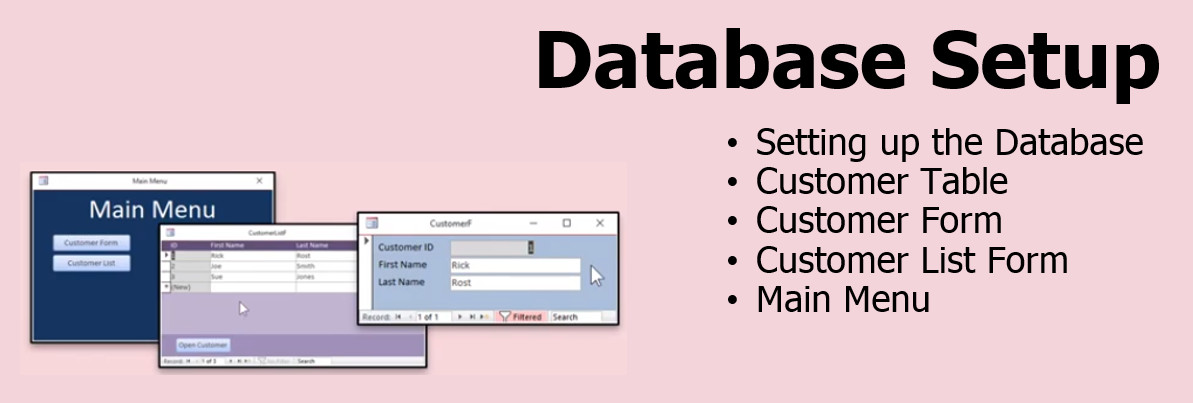
Access Barcode SeminarMicrosoft Access Barcode & Inventory Seminar WelcomeWelcome to the Microsoft Access Barcoding & Inventory Seminar. In this seminar you will learn everything you need to know about scanning and printing barcodes with Microsoft Access. You will also learn how to manage inventory with rentals, products, and individual unit serial numbers. ResourcesTopics CoveredWe will begin by setting up a new database, including many of the options that I prefer for my projects. Then I'll show you how create a simple customer table, customer form, and customer list form.
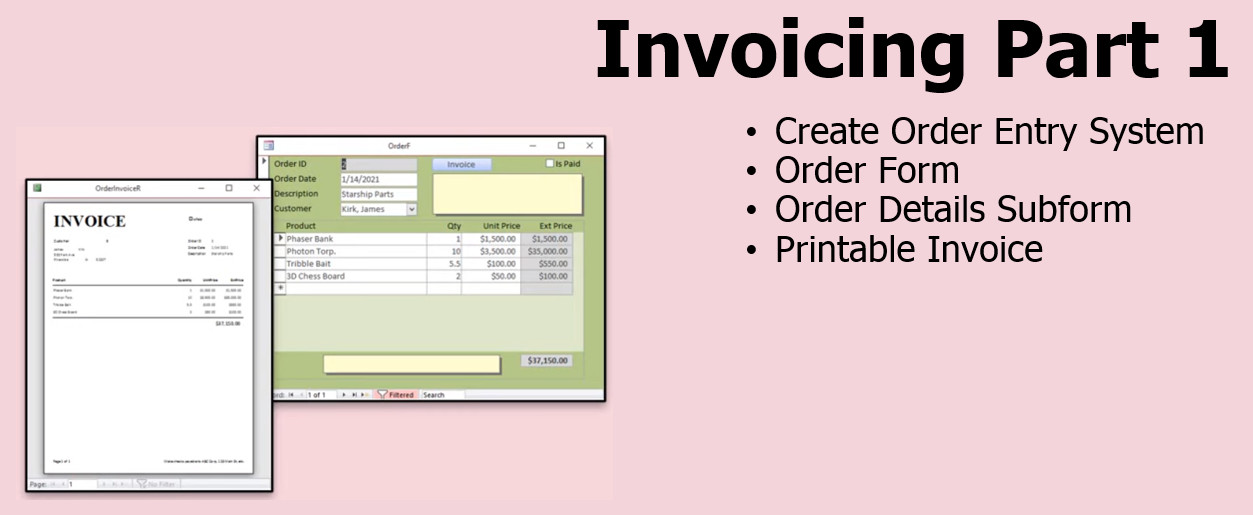
We'll build an order entry form with the related tables and queries. We'll link it to our customer tables. We'll create a fully printable invoice report. We’ll cover some of the advanced preferences that I use for all of my projects. I'll show you which of the Access Options I like to change including setting up a Trusted Location, confirming document deletions and action queries, and more.
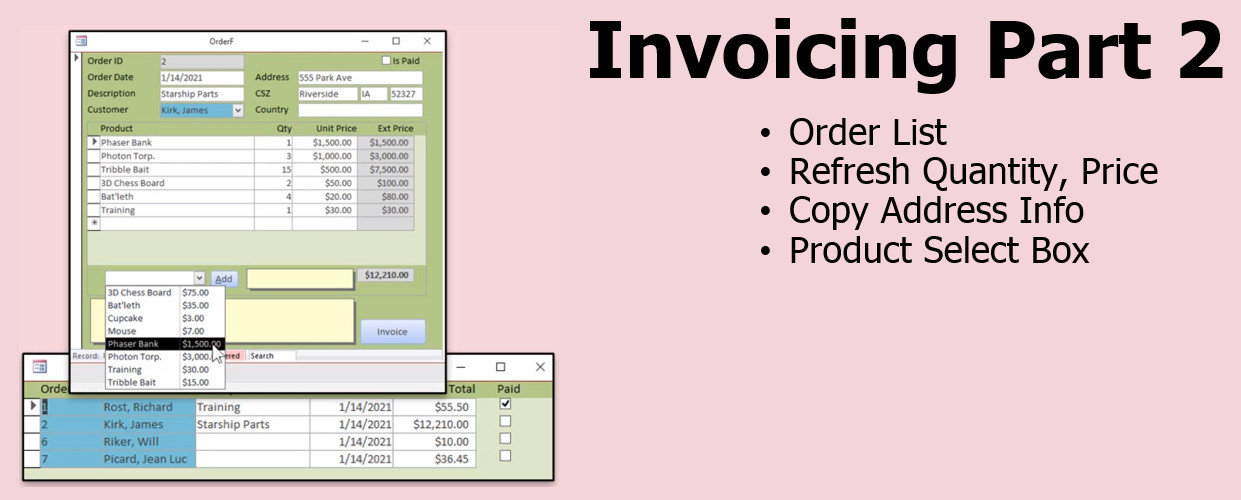
I'll show you how to create an order list so you can see all of your orders sorted by date and double-click on one to open it up. We'll copy the customer's address info to each order, so you know where the order was shipped or billed at the time it was placed. We'll also create a product list so you can pick a product and add it to the order with one click.
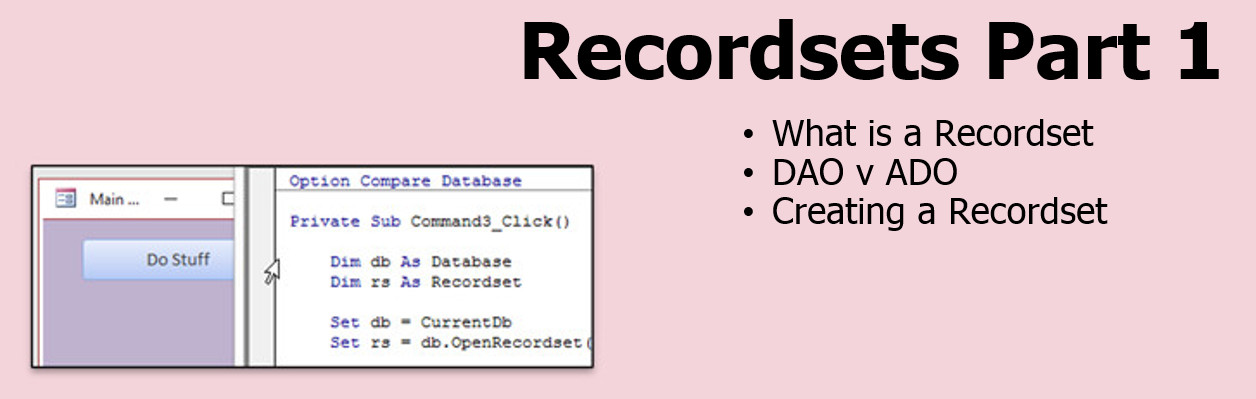
We are going to learn about a very powerful way to work with data directly in our tables using Recordsets. These are objects that we can use to read, write, add, delete, and manipulate data directly in VBA code without having to use SQL, which can be slow. We'll talk about what Recordsets are, why we want to use them, and we'll set up our first example. There’s really no way around it. In order to work with inventory, you really NEED to learn Recordsets. I tried to do this with just basic SQL, but the end results are clunky and not the best. Don’t worry, I’ll show you the basics and what you need to get started. We will learn how to loop through the records in a table using a recordset, displaying whatever fields we want. We will then add those items from the recordset to an unbound "value list" list box. We'll also see how to manually add and delete records from the list box.
We will learn how to track rental inventory items. Say you have a store or library that tracks items that get rented (or borrowed) and need to be checked in and out. You can assign them to a customer, track their rental history, know when they're late, and so on. This will give us a foundation on how to track products and manage them going into and out of inventory. We will add product codes to each item in our inventory. These can be UPC codes, product IDs, serial numbers, or whatever other type of data you wish to track each specific item with. You can pull up an item by typing in the code. We will also create a big text box so you can type in a bunch of items at once and have Access analyze the list and scan all of those items in with one batch. Great for book returns and you don't want to take the time to pull up each book. Just enter in the whole lot. This will become very useful when we learn how to scan in barcodes. Just scan in the returns one after the other and analyze them all at once.
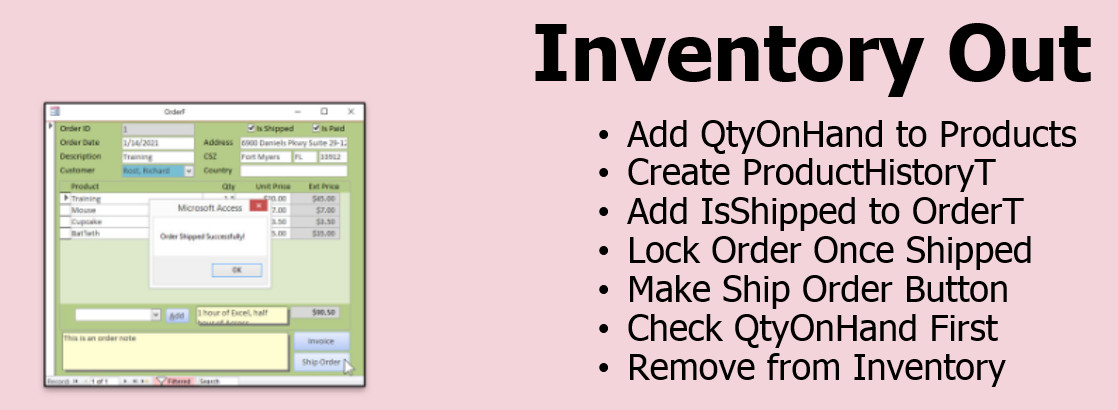
Moving back to our order entry form, we will add QtyOnHand to our product table and create a product history table so we can audit transactions. We will add IsShipped to our order table to track whether or not an order has been shipped. If so, the order can no longer be edited (we'll lock it down). When the order is ready to be shipped, we'll click on a "Ship Order" button. The inventory will be checked to make sure we have enough product to ship the entire order. If so, we'll then remove the products from inventory.
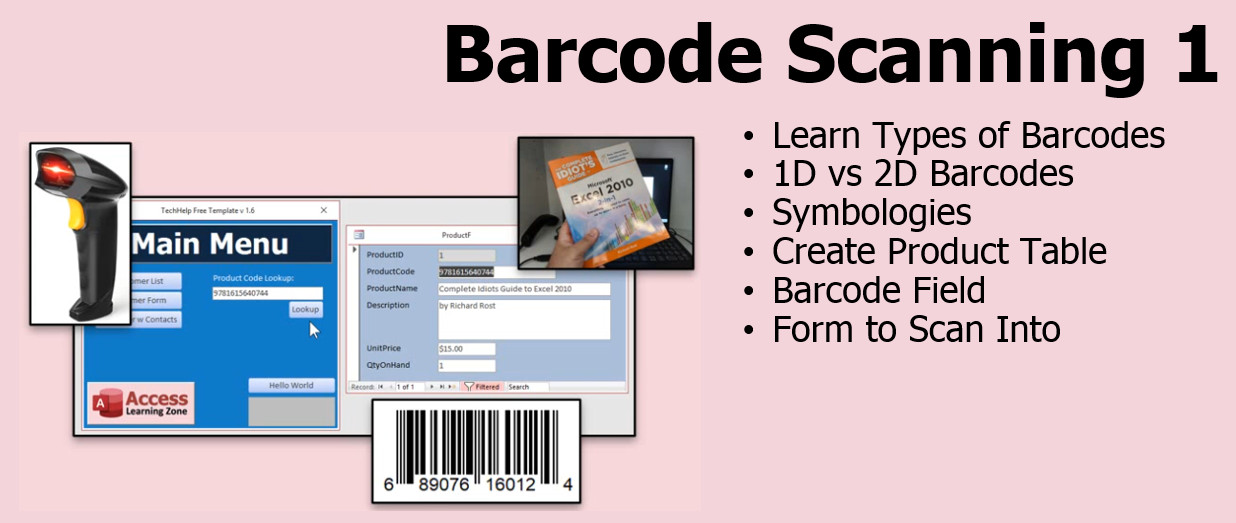
We'll discuss the types of barcode scanners, the different types of barcodes, 1D and 2D barcode symbologies, using your cell phone as a barcode reader, creating a product table with a barcode field, creating a form to scan a barcode and look up a product.
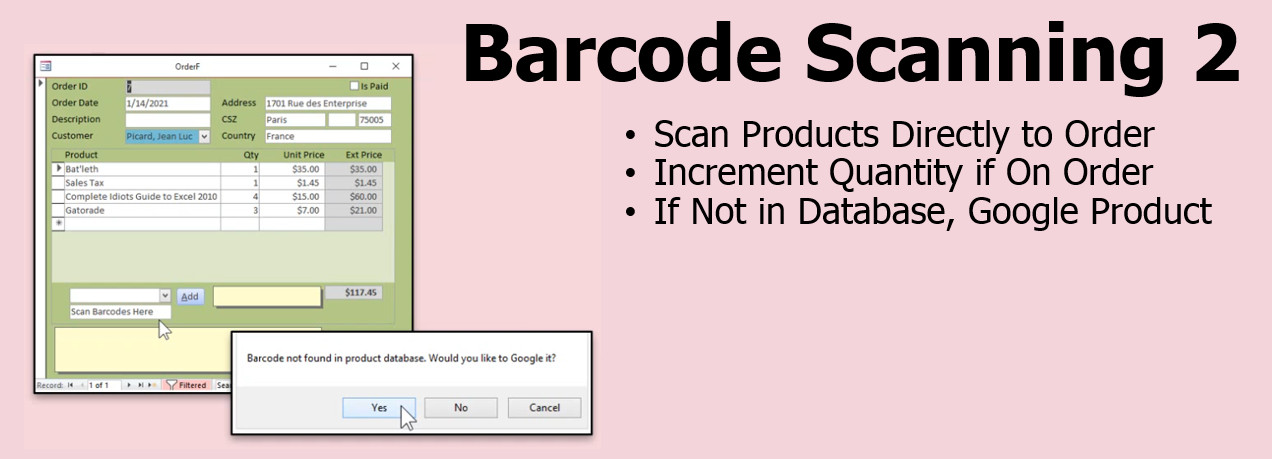
We’ll learn how to scan a product and have it automatically added to an invoice. We'll also check to see if the product is already on the order, and if so, increment the value by one instead of adding lots of line items. We will also learn how to scan a product and perform a Google search on it to display details. Great for books or any product with a UPC barcode.
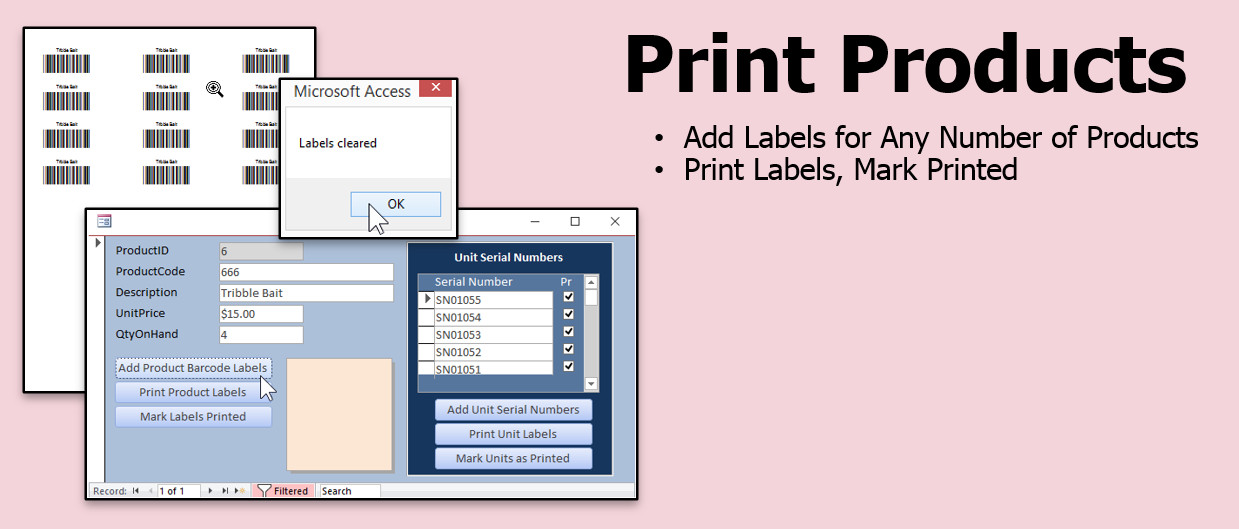
Learn how to print barcode labels from Microsoft Access. We'll talk about the Code39 barcode and why I prefer it for Access databases. I'll show you how to install a FREE Code39 barcode font. Then we'll see how to create custom barcode labels for our products and print them out from Access.
Learn how to print multiple labels for the same product, so if you want to print out 10 copies of the same label, it's easy to do. We'll create a button on our Product Form to create individual labels, and then a button to clear the table once we've printed.
I will show you how to use the Google Charts API and the WebBrowser Control to display QR Codes (2D barcodes) in your forms. QR Codes are great for detailed product info, employee name badges, whole web page URLs, or any time you want to display an image for someone to scan with their phone to get detailed information. Learn how to download the QR code from the web and save it as a local file on their hard drive, in a folder under the current database folder. Then, you will see how to display that file as an image in a report so we can print employee name badges.
We'll create a method to manually adjust inventory. This is useful when you receive product shipments from your vendors. Just scan the items in. We'll create a combo box where we can select either a lookup scan, remove from inventory, or add to inventory action. We'll change the quantity on hand of the product scanned. We'll include logic to prevent negative inventory.
We'll add tracking individual unit serial numbers. We'll create a unit subform under the product form. This way you can track each of the ndividual items you have in stock, what their serial numbers are, and to whom they were sold. We'll create a barcode report for serial number labels, and a button to mark them printed when finished.
We'll add the ability to scan barcodes from products or serial numbers to our order form. If it's a serial number then we cannot increment the quantity, we have to add a new line item with the unique barcode. We'll check to see if this unit is already on another order and generate a warning if so. We'll put barcodes on the printed invoices.
We'll add the printed barcode labels from the products that we designed earlier. We'll add the ability to print as many labels as we want in a loop, and mark the labels printed when we're done.
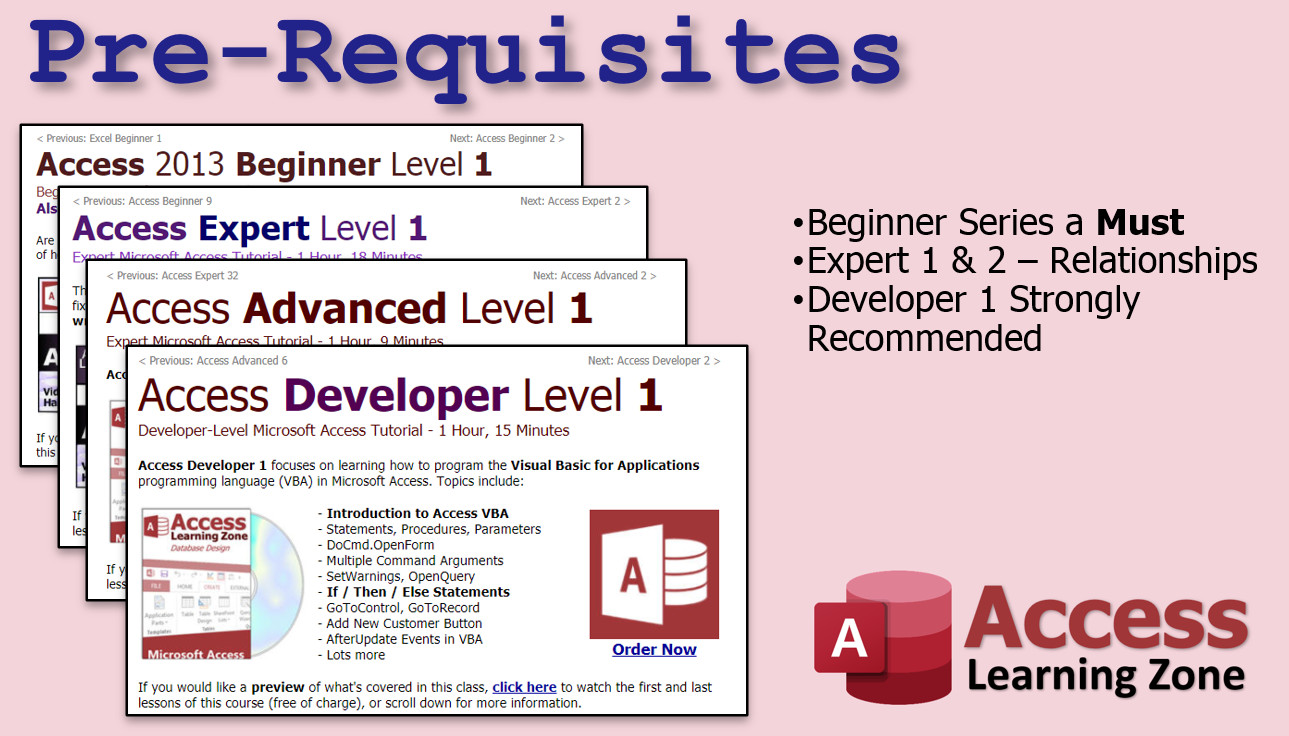
Pre-RequisitesIt is strongly recommended that you have completed my entire Access Beginner and Expert series (at least Expert 1 and 2). My Developer 1 class is highly recommended. If not, at least watch my free Intro to VBA video to make sure you understand the basic concepts of VBA programming.
VersionI am using Microsoft 365, roughly the equivalent of Access 2016 or 2019. Everything in this seminar should work with every version of Access back to 2007 with the exception of the lessons on the QR Codes. Those require the new WebBrowser control added to Access 2016.
Current StudentsIf you are a current Access Developer student of mine and have taken Developer 1 through 27, please contact me before you purchase this seminar. Several of the lessons here were taken from existing Developer courses and I will be happy to give you a discount based on which other classes you've already taken. No need for you to pay full price to receive duplicate lessons. Enroll TodayEnroll now so that you can watch these lessons, learn with us, post questions, and more.
DisclaimerWhile this database is fully functional and capable of supporting your business operations right out of the box, it is primarily intended as an educational tool. It has been designed to serve as a template that teaches you the intricacies of database management, rather than acting as a finalized product. Therefore, prospective purchasers should bear in mind that the database is best viewed as a foundation upon which to build and tailor to your specific needs. Although it has been utilized by hundreds of students and is fully operational, I make no assertions that it is a flawless or complete solution. Questions?Please feel free to post your questions or comments below. If you are not sure as to whether or not this product will meet your needs, I'd rather help you before you buy it. Remember, all sales are final. Thank you.
More InformationTranscriptDo you want to learn how to scan and print barcodes and QR codes in Microsoft Access? Would you like to learn how to create orders, invoices, and track inventory in and out? Introducing the Microsoft Access Barcoding and Inventory Seminar brought to you by accesslearningzone.com. I am your instructor, Richard Rost. In this seminar, you will learn everything you need to know about scanning and printing barcodes with Microsoft Access. You will also learn how to manage inventory with rentals, products, and individual unit serial numbers. We will cover basic customer management, order entry and invoicing, record set programming, managing rental inventory, scanning most barcodes, printing Code 39 and QR code barcodes, tracking product inventory in and out, managing units with serial numbers, printing product and unit barcodes, and using a demo label maker. We will begin by setting up a new database, including many of the options that I prefer for my projects. Then I'll show you how to create a simple customer table, customer form, and customer list form. Next, we'll cover some of the advanced preferences that I use for all of my projects. I'll show you which of the Access options I like to change, including setting up a trusted location, confirming document deletions and action queries, and more. We will build an order entry form with the related tables and queries. We'll link it to our customer tables, then we'll create a fully printable invoice report. I'll show you how to create an order list so you can see all of your orders sorted by date and double-click on one to open it up. We'll copy the customer's address info to each order so you know where the order was shipped or billed at the time it was placed. We'll also create a product list so you can pick a product and add it to the order with one click. We are going to learn about a very powerful way to work with data directly in our tables using record sets. These are programming objects that we can use to read, write, add, delete, and manipulate data directly in VBA code without having to use SQL. We'll talk about what record sets are, why we want to use them, and we'll set up our first example. There is really no way around it. In order to work with inventory, you really need to learn record sets. I tried to build this database with just basic SQL, but the end results are clunky, slow, and not the best. Don't worry, I'll show you the basics and exactly what you need to get started. We will learn how to loop through the records in a table using a record set, displaying whatever fields we want. This will be invaluable when we get to inventory. We will then add those items from the record set to an unbound value list list box. I'll also show you how to manually add and delete records from the list box as well. We will learn how to track rental inventory items. Let's say you have a store or a library that tracks items to be rented or borrowed and need to be checked in and out. You can assign them to a customer, track their rental history, know when they are late, and so on. This will give us a foundation on how to track products and manage them going into and out of inventory. We will add product codes to each item in our inventory. These can be UPC codes, product IDs, serial numbers, or whatever other type of data you wish to track each specific item with. You can pull up an item by typing in the code. We'll also create a big text box so you can type in a bunch of items at once and have Access analyze the list and scan all of those items in one batch. This is great for book returns when you don't want to take the time to pull up each book. Just enter in the whole list. This will become very useful when we learn how to scan in barcodes. Just scan in the returns one after the other, and then analyze them all at once. Moving back to our order entry form, we will add quantity on hand to our product table and create a product history table so we can audit transactions. We will add "Is Shipped" to our order table to track whether or not an order has been shipped. If so, the order can no longer be edited, and we will lock it down. When the order is ready to be shipped, we will click on the ship order button. The inventory will be checked to make sure we have enough product to ship the entire order. If so, we will then remove the products from the inventory. Next, we'll get to barcode scanning. We'll discuss the types of barcode scanners, the different types of barcodes, 1D and 2D barcode symbologies, using your cell phone as a barcode reader, creating a product table with a barcode field, and creating a form to scan a barcode and look up a product. We'll learn how to scan a product and have it automatically added to our invoice. We'll also check to see if the product is already on the order, and if so, increment the value by 1 instead of adding lots of line items. We'll also learn how to scan a product and perform a Google search on it to display details. This is great for books or any product with a UPC barcode. Next, we'll learn how to print barcode labels. We'll talk about the Code 39 barcode and why I prefer that for Microsoft Access databases. I'll show you how to install a free Code 39 barcode font. Then we'll see how to create custom barcode labels for our products and print them out. We'll learn how to print multiple labels for the same product, so if you want to print 10 copies of the same label, it is easy to do. We'll create a button on our product form to create individual labels and then a button to clear the table once we've printed. Next, we'll learn how to use the Google Charts API and the web browser control to display QR codes. QR codes are great for detailed product info, employee name badges, web page URLs, or any time you want to display an image for someone to scan. They can even use their cell phones to get detailed information. We will learn how to download the QR code from the web and save it as a local file on our hard drives. This way the information is stored with the database and you can print the image in a report. This way we can print employee name badges. We'll create a method to manually adjust inventory. This is useful when you receive product shipments from your vendors. Just scan the items in. We'll create a combo box where we can select either a lookup scan, remove from inventory, or add to inventory. We will then change the quantity on hand of the product scanned. We'll include logic to prevent negative inventory. We'll add tracking of individual unit serial numbers. We'll create a unit subform under the product form. This way you can track each of the individual items you have in stock, what their serial numbers are, and to whom they were sold. We'll create a barcode report for serial number labels and a button to mark them printed when finished. We'll add the ability to scan barcodes from products or serial numbers to our order form. If it's a serial number, then we cannot increment the quantities, so we'll have to add a new line item with the unique barcode. We'll check to see if this unit is already on another order and generate a warning if so. Then we'll put the barcodes on the printed invoices. That is all included in the Access Barcoding and Inventory Seminar. If you don't need the video instruction, you can also purchase the database by itself as a standalone template. You can find links and more information below and if you have any questions, please feel free to contact me. Thanks and keep learning. IntroIn this video, you will learn how to scan and print barcodes and QR codes in Microsoft Access, manage inventory including rentals and serial numbers, and set up a complete customer and order management database. I'll show you how to use record set programming for inventory tracking, build order entry and invoicing tools, scan products into invoices, print custom barcode and QR labels, and track inventory transactions. You'll also see how to set up barcoding with various types of codes, work with label printing, and maintain detailed product and unit records right inside Microsoft Access. QuizQ1. What is one of the primary purposes of the Microsoft Access Barcoding and Inventory Seminar? A. To learn how to design web pages in Access B. To learn how to scan and print barcodes and QR codes in Access C. To use Access for payroll processing D. To build Access forms for customer support chats Q2. What inventory management features are covered in the seminar? A. Only in-stock product management B. Managing rentals, products, and individual unit serial numbers C. Cryptocurrency tracking D. Automatic reordering from suppliers only Q3. What is a record set in Microsoft Access? A. A table's field B. A programming object to work with data in VBA C. A barcode scanning device D. A type of form control Q4. Why are record sets emphasized in this seminar for inventory management? A. They are unnecessary but included for completeness B. They make working with inventory data more efficient than basic SQL alone C. They are required by all barcode scanners D. They only work for customer management Q5. What is one benefit of using record sets with value list list boxes? A. They prevent any data manipulation B. They allow you to read, add, and delete records programmatically C. They are only useful for reports D. They work only with check box controls Q6. How are product codes used in the inventory system described? A. Only for generating employee name badges B. As unique identifiers like UPC codes, product IDs, or serial numbers for each item C. For encrypting database tables D. Exclusively for order table linking Q7. What feature makes scanning multiple items convenient for book returns or bulk processing? A. Printing individual invoices for each item B. Entering all item codes in a big text box for batch processing C. Only scanning one item at a time D. Not recording item details Q8. What happens in the order process when an order is marked as "Shipped"? A. The order can be edited at any time B. Inventory is increased by the order quantities C. The order becomes locked for editing D. The customer is deleted Q9. What barcode symbology is recommended for use in Microsoft Access databases? A. PDF417 B. Datamatrix C. Code 39 D. Maxicode Q10. What is the Google Charts API used for in this seminar? A. Printing invoices B. Generating and displaying QR codes in forms or reports C. Sending emails to customers D. Scanning Code 39 barcodes Q11. How are QR codes used in the database? A. Only to track vendor communications B. Displaying detailed information for products or employee badges C. Preventing database access D. Encrypting order forms Q12. What inventory adjustment methods are demonstrated? A. Only adding inventory counts B. Selecting from a combo box to look up, remove, or add inventory quantities C. Editing inventory tables manually in SQL only D. Deleting products from all forms Q13. What additional tracking does the seminar show for units with serial numbers? A. Only tracking vendor information B. Tracking each unit's serial number, stock status, and buyer C. Hiding serial numbers from reports D. Encrypting serial numbers Q14. What is the process when scanning a serial number as part of an order? A. Increment the quantity on the same order line B. Add a new line item for each unique serial number and check for duplicates C. Ignore the serial number D. Only record the date Q15. What happens if a scanned serial number is already on another order? A. The database will automatically delete it B. A warning is generated to prevent duplication C. It prints two barcodes for the same unit D. It overwrites the existing order Answers: 1-B; 2-B; 3-B; 4-B; 5-B; 6-B; 7-B; 8-C; 9-C; 10-B; 11-B; 12-B; 13-B; 14-B; 15-B DISCLAIMER: Quiz questions are AI generated. If you find any that are wrong, don't make sense, or aren't related to the video topic at hand, then please post a comment and let me know. Thanks. SummaryToday's video from Access Learning Zone is an introduction to the Microsoft Access Barcoding and Inventory Seminar. My goal in this seminar is to teach you how to scan and print both barcodes and QR codes within Microsoft Access, as well as how to build a powerful system for managing orders, creating invoices, and tracking inventory movement. We start off by building our database from scratch, paying close attention to configuration options that I personally recommend for a smooth workflow. Early on, we will set up essential components such as the customer table, a customer data entry form, and a form to display the list of customers. Along the way, I will go through my preferred Access settings that help with efficiency and security, such as setting up trusted locations and confirmation prompts. From here, we'll establish the order management system, including tables and forms for order entry, linking each order to the appropriate customer, and creating printable invoices. You will also see the creation of an order list to efficiently sort and access previous orders. To ensure your order records remain historically accurate, I'll show you how to copy customer address information into each order, capturing shipment and billing addresses as they were at the time of purchase. We will also build a product list, making it easy to add products to orders with a single click. A key component of this seminar is learning how to use record sets in VBA. Record sets allow you to directly access and manipulate table data programmatically, including reading, writing, adding, and deleting records. I will explain the advantages of record set usage and show you how to implement them, as well as the basics of looping through table records and using unbound list boxes for dynamic data display. When it comes to inventory, we will cover tracking both products for sale and items for rent, making this system ideal for stores, libraries, or any business with rental needs. You'll learn how to assign inventory to customers, monitor rental history, identify overdue returns, and manage in and out movement. Part of robust inventory management is being able to track each unit individually. That means adding unique codes such as UPCs, product IDs, or serial numbers to inventory items. With batch data entry features, I will also show how to process multiple scanned items efficiently, which is especially handy for tasks like bulk book returns. Next, we will add important inventory tracking fields to our database, such as quantity on hand and inventory transaction history. We'll develop logic so that orders cannot be shipped if there is insufficient stock, and ensure that shipped orders become locked for accuracy. We extensively cover barcode scanning, including the different types of barcodes and barcode scanners, scanning products directly into the system, and using mobile devices as scanners. You will learn to integrate a barcode field into your products and forms to quickly look up and add products by scanning. To help with product research, we also cover how to scan a product and initiate a Google search for instant information lookup. This feature is particularly useful for merchants dealing with books or merchandise with standard barcodes. When it comes to printing, we discuss the Code 39 barcode format and how to work with a free Code 39 font in Access. I demonstrate how to make and print custom barcode labels for products and walk through generating multiple copies when necessary, as well as managing label print lists with dedicated form buttons. QR code generation is included as well. Using the Google Charts API and Access's web browser control, we can produce QR codes for products, employees, or web links. I'll show you how to download and locally store these QR codes so they can be included in printable reports, like employee badges. There are also lessons on manually adjusting inventory during tasks such as receiving shipments. You will learn how to scan items in and update inventory quantities, as well as how to prevent stock levels from going negative. For businesses that need to track serial numbers, I'll show you how to set up a subform to track individual units, record their sales, and print unique serial number barcode labels. Logic is included to ensure that when scanning barcodes to fill orders, serial-numbered items are managed correctly and flagged if already assigned elsewhere. Everything described is included in the Access Barcoding and Inventory Seminar. If you only need the database, a standalone template is available as well. For a complete video tutorial with step-by-step instructions on all these topics, visit my website at the link below. Live long and prosper, my friends. Topic ListSetting up a new Microsoft Access database Creating a customer table and forms Customizing Access interface options Setting up trusted locations in Access Configuring document deletion and action query confirmations Building an order entry form with related tables Creating a printable invoice report Generating an order list with sorting and navigation Copying customer address info to order records Creating a product list and adding products to orders Introduction to record sets in Access VBA Using record sets to loop through table data Populating unbound list boxes with record set data Manually adding and deleting list box items Tracking rental inventory items and history Assigning and tracking product codes and serial numbers Batch processing items using a multiline text box Scanning barcodes for batch item entry Adding quantity on hand to product tables Creating a product history audit table Adding "Is Shipped" status to orders Implementing order shipping logic Checking and updating inventory stock when shipping Overview of barcode scanner types and usage 1D vs 2D barcode symbologies in Access Using a cell phone as a barcode reader Building a product table with barcode fields Creating a barcode scanning form to look up products Scanning products to auto-add to invoices Incrementing quantity for duplicate scanned products Performing Google searches via barcode scan Printing Code 39 barcode labels Installing a free Code 39 barcode font Creating and printing custom barcode labels Printing multiple copies of barcode labels Managing barcode label print queues and clearing after print Using Google Charts API to generate QR codes Displaying QR codes in a web browser control Downloading QR codes for local use and printing Printing QR codes on reports and name badges Manually adjusting inventory quantities Adding or removing products from inventory via scanning Creating logic to prevent negative inventory Tracking individual unit serial numbers Adding unit subforms for serial number tracking Printing barcode labels for serial numbers Marking serial number labels as printed Scanning product and serial number barcodes on order forms Handling unique serial number line items in orders Checking for duplicate serial numbers in orders Printing barcodes on invoice reports Primary Topicsbarcode scanning, barcode printing, QR code generation, inventory management, order entry, invoicing, record set programming, rental tracking, serial number management, Microsoft Access database setup Secondary Topicscustomer management, Access preferences, product history, inventory adjustments, negative inventory prevention, Google Charts integration, label printing, shipping logic |
||||||||||||||||||||||||||||||
|
| |||
| Keywords: access seminar barcode seminar inventory access barcode and inventory seminar barcode inventory seminar Page Tag: whatsnew PermaLink Microsoft Access Barcode Seminar |