|
||||||
DLookupBy Richard Rost
 5 years ago
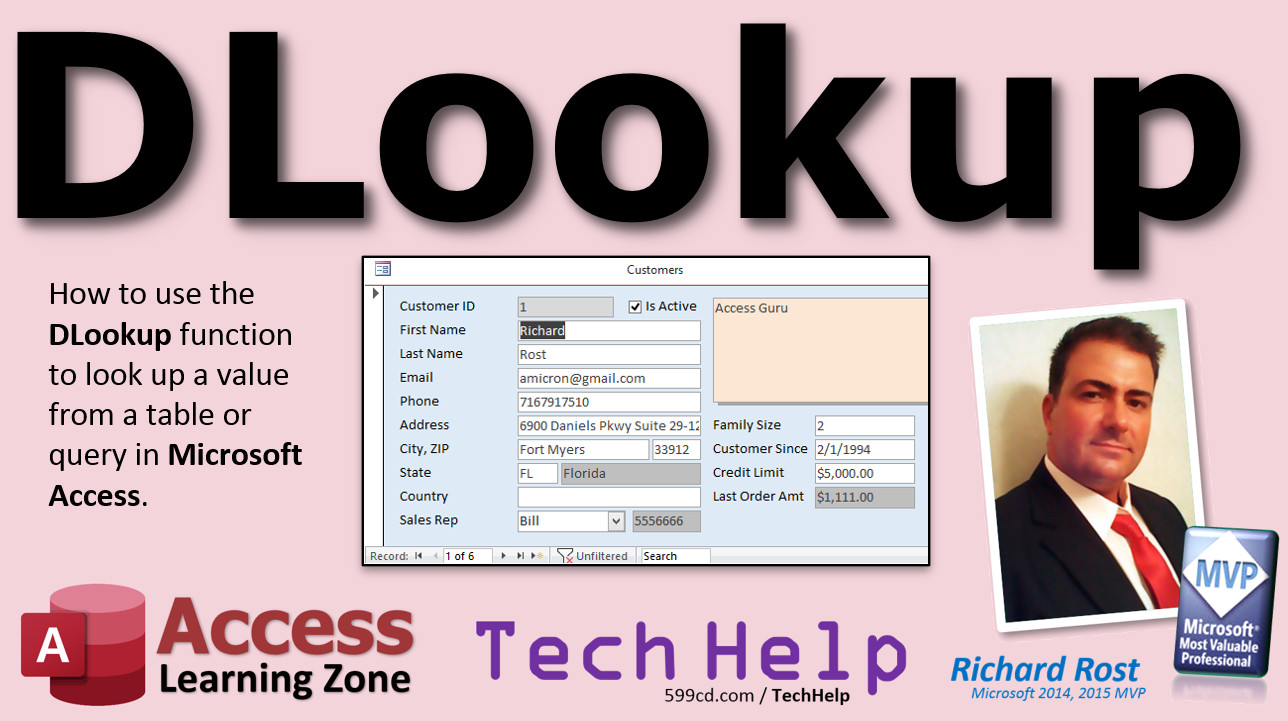
Use DLookup to Look Up a Value from a Table In this video, I'll show you how to use the DLookup function to look up a value from a table or query. We will look up a sales rep's phone number based on his ID. Mitchell from Akron, Ohio (a Gold Member) asks: Each of my customers have an assigned sales rep. I've got the rep's name displayed in a combo box on the customer form. Is there a way that I could have his phone number appear next to it so I don't have to keep clicking and loading different forms? I tried making the phone number the second column in the sales rep combo box, but people still have to click to open it up to see it, and sometimes people accidentally change the rep. I just want the phone number to appear next to his name in a text box. Common Formats
MembersMembers will learn how to handle DLookup criteria involving text strings and dates and use NZ to deal with NULL values. We will learn about AND/OR conditions in criteria. We will see how to use DLookup with DMax and DSum to get the date and amount of a customer's most recent order.
Silver Members and up get access to view Extended Cut videos, when available. Gold Members can download the files from class plus get access to the Code Vault. If you're not a member, Join Today!
Links
Keywordsmicrosoft access, ms access, #msaccess, #microsoftaccess, #help, #howto, #tutorial, #instruction, #learn, #lesson, #training, #database, dlookup, dlookup function, dsum, dmax, return a value, look up a value, lookup value, criteria, what is dlookup, argument, getting a value from a table or query, dlookup multiple criteria, dlookup multiple values, dlookup criteria from another table, dlookup query, dlookup error, dlookup with string criteria, dlookup with date
More InformationTranscriptWelcome to another TechHelp video brought to you by AccessLearningZone.com. I am your instructor, Richard Rost. In today's video, we are going to learn about a very powerful function called DLookup. We are going to use DLookup to look up a value from a table or query in Microsoft Access. Today's question comes from Mitchell from Akron, Ohio, one of my Gold members. Mitchell says each of my customers has an assigned sales rep. I have the rep's name displayed in a combo box on the customer form. Is there a way that I could have his phone number appear next to it so I do not have to keep clicking and loading different forms? I understand that you do not want to open up the sales reps form to see what his phone number is. I tried making the phone number the second column in the sales rep combo box, but people still have to click it to open it up to see it. Sometimes people accidentally change the rep. I just want the phone number to appear next to his name in a text box. Well, Mitchell, there are a couple of different ways you could do this. Personally, I like using the DLookup function. It lets you look up a value from another table or query. So if you are in the customer form and you want to look at information from the sales rep table, you can easily do that with DLookup. Let me show you how. Here I am in the TechHelp free template. It is a free download. You can go grab it off my website if you want. You will find a link down below in the description. In here we have a simple customer table with a customer form. Now, Mitchell has a sales rep assigned to each customer. So let's create a quick sales rep table. Create table design. Do not need the property sheet. Let's make a sales rep ID. That will be the AutoNumber. We will just go with first name and a phone number. All right, that is all Mitchell needs right now. So let's save this as SalesRepT. Primary key yes. And let's put some sample data in here. Okay, I have Joe, I have Sue, maybe one more. I will put Bill in here. And I do not know, maybe Doug. Okay, so there are our four sales reps and each of their phone numbers. Now, on the customer table, we are going to store just the sales rep ID. Since we know the ID, we can then look up the first name or the phone number using DLookup. So let's go back to the customer table design view, and let's put a place in here to store that sales rep ID. SalesRepID. That is going to be a number of type long integer. Okay, save it. All right, now let's go to our customer form. Let's go to design view. Let's put a combo box on here so that we can pick the sales rep. If you have never done this before, there are two videos you should go watch first. My video on relationships and my video on relational combo boxes. You will find those down in the links section below in the description. Now, since we know how to make relational combo boxes, come up here, find combo boxes, drop it down here somewhere. Look up the values from a table or query. What table has our list of values? SalesRepT that we just created. What do you want to see in the box? You can bring over all three fields if you want. You will see SalesRepID, first name, and phone number. This is the first column, the hidden column, column zero, that has our actual value in it. First name will be visible, and then phone number will be in there when you drop the box down, but you will not normally see it. That is what Mitchell wants. He wants to see it. Yes, you could use some concatenation and put these together in a query and make one field out of it, but that is kind of cheesy. Next, what do you want to sort by? Let's sort by first name. Next. This is what the box will look like when it is open. Next, we are going to store that value in the SalesRepID field in the customer table. Next, what label would you like? Sales Rep. Like that. Finish. Okay, little format paint. Slide you up here. Looks good. So there is my sales rep. Let's give this combo box a name because it comes in as Combo30. I am going to call this SalesRepCombo. All right, close that. Save it. Close it and open it up again. Okay, it is blank because we have not put any sales reps in. Drop it down and put Bill in there. Now notice you just see Bill. What Mitchell wants is when he opens up the customer form he wants to see the phone number here too. Like I said, you could make a concatenated field and do that in a query and then make the combo box based on that, but this technique you will use for more than just this. This is a real simple example. Once you learn DLookup, you are going to be using it everywhere. Trust me. This is just a real simple example so I can show you how it works. Let's go to design view. Let's drop another text box right here. Get a text box out of the control panel up there. Drop it down here. You can delete the label that comes in with it. Slide this right up here. Now, we are going to be looking up the phone number from the sales rep table. First thing I am going to do is format it. I am going to make it gray. This just signals to the user they cannot adjust or change that value. It is just for display purposes. Open this up. Let's give it a name. Let's call this SalesRepPhone. That is just the name of that box. Now in the Control Source is where we are going to put our DLookup function. It is going to be =DLookup and then some stuff. What is that stuff? It is expression, domain, criteria. Let me explain what these three things are. It is DLookup domain, expression, and criteria. Forget that. It is basically field, table or query, and then criteria. For example, look up the first name field from the CustomerT table where the CustomerID equals 3. Some number. It is basically what are you looking up, where you are getting it from, and the how. How do you want it? What record do you want to pull back? This says give me customer 3's first name. The example we want is look up the phone number from the SalesRepT where the SalesRepID equals - I just put the number 5 in there, but what number is that going to be? That number is whatever is currently in the SalesRepCombo. So instead of a 5, we are going to use a little string concatenation and put the SalesRepCombo field in here. Concatenate that onto this. These are all treated as strings, by the way. They have to be inside of quotes. This will then change to SalesRepID equals 2 or whatever happens to be in that combo box. If you do not know string concatenation, go watch that video. I have a whole video on concatenation and how to put strings together like this. Back over here, the Control Source for this text box is going to be - let me zoom in so you can see it clearly. DLookup. What am I looking up? The Phone field from, what table? SalesRepT. And yes, you can use queries for that too. Where the SalesRepID equals SalesRepCombo. That is the combo box we just created. That is your basic DLookup right there. Hit OK, save it, close it, open it back up again, and there you go. Now it looks at the SalesRepCombo, goes to the sales rep table, finds whatever number Bill is - 2, and brings back the phone number. That is your basic DLookup. It says here is a number, go look it up in this table and bring me back whatever other value I want, whatever field I want. You could have first name, last name, address, sales rep commission, all kinds of stuff in that table. You could bring back any value that you want. Now some of you might be thinking, you could make a query that joins together customers and sales reps. I have lots of other videos showing you how to do relational queries to bring together multiple tables. Yes, that is definitely possible, and in this case, it would probably work. However, the problem is when you start getting really, really complicated queries, eventually you may hit the point where your recordset becomes uneditable. I have other videos on that too. Your query can become too complex. If you have six tables together joined into one query, and then you use that query to base out on a form, your form becomes uneditable sometimes. Using DLookups assures that you only have the information in the underlying table or query that you absolutely need. I generally do not build forms off of queries. I try to build my forms off of a single table. If I want to edit related records, then I use a subform with another table, like orders and order details, or customers and contacts like this one. This is a table, this is a table. With the DLookup and its related functions, DMax, DSum, that lets you get data from other tables to display. If you only want to display that information, just DLookup it. I do not like building forms off of multiple tables. Lots of people send me databases and say, I have three tables joined together in this query, and the form is based on the query, and it is not editing this. Well, do not do that. Base your forms on a single table. Trust me. Now, one thing you might run into is if you go to a record that has a null value in here, you will get that #Error. Remember, in our customer table, we have our sales reps. We added this as a new field, so any existing records have null values. New ones will get a zero, and that is fine. If it goes to look up a zero in the sales rep table and it does not exist, it just will not display anything. To fix that, you have to put zeros in here, and then go through and actually put in the right sales reps - Joe, then Bill, then Doug. If you go to a new blank one, that value is zero, so it shows up blank. But you will get #Error for any existing missing data. You could use NZ, the NZ function, to fix that. I have a whole separate video on how to use NZ. That changes a null value into a zero. I will put a link to that video down below too. If you want to learn a lot more about DLookup, I cover it in my Access Expert Level 10 class where I cover lots of stuff. Nested IF functions, DLookup, DLookup criteria, all kinds of different stuff. One of the things I show you how to set up in this class is a system value table. These are the system values for my company: my local sales tax rate, the company name and address, the logo file. This all gets saved in a table, and you can DLookup it from anywhere else in the database if you want to put your return address on an invoice or look up the sales tax rate for the order table, all that stuff. There is a lot more you can do with DLookup. The example that I showed you used a numeric criteria. If this is just a number like the SalesRepID, you do not have to do anything special to it. If your criteria involves a text string, these are the two most common problems that I see people have with DLookup. They send me an email and say, my DLookup is not working. Let's say you are looking up a state, the full state name in a table, where you have the abbreviation in a field called State, so this is just NY, and this looks up New York. NY is a text string, so you have to include double double quotes in here. I have videos on this too. Watch my double double quote video to explain what this is in more detail. I will also show this example in the extended cut for the members. If you are also looking up a date value in your criteria, you have to make sure you put it inside those pound symbols for dates. Look up an OrderID from the OrderT table where the OrderDate equals, and you are sending it some date value, you have to encapsulate it inside of these octothorpes, hashtag marks, pound symbols, whatever you want to call them. Again, I will talk about this a little bit more in the extended cut. In the extended cut for members, I will show you how to use the NZ function to deal with that error message involving null values. We will see how to use text and date criteria for the criteria section. For example, here we have Florida, and we can look up Florida, the full word, in a state table. We will see how to handle multiple criteria with AND and OR conditions. We will talk about the DMax and DSum functions, which are very similar to DLookup. DMax will let you look up the largest value. DSum lets you add up a bunch of values, and we will calculate the last order amount from the highest or most recent order that this customer has placed and bring back his order total. That is all covered in the extended cut, 20 minutes long. Silver members and up get access to all of my extended cut videos, and Gold members can download the TechHelp templates. How do you become a member? Click the Join button below the video. After you click the Join button, you will see a list of all the different types of membership levels that are available. Silver members and up will get access to all of the extended cut TechHelp videos, live video and chat sessions, and more. Gold members get access to a download folder containing all the sample databases that I build in my TechHelp videos, plus my code vault, where I keep tons of different functions that I use. Platinum members get all the previous perks, plus access to my full beginner courses and some of my expert courses. These are the full length courses found on my website and not just for Access. I also teach Word, Excel, Visual Basic, ASP, and lots more. But do not worry, these free TechHelp videos are going to keep coming. As long as you keep watching them, I will keep making more. If you liked this video, please give me a thumbs up, and feel free to post any comments that you have. I do read them all. Make sure you subscribe to my channel, which is completely free, and click the bell icon and select All to receive notifications when new videos are posted. Click on the Show More link below the video to find additional resources and links. You will see a list of other videos, additional information related to the current topic, free lessons, and lots more. YouTube no longer sends out email notifications when new videos are posted, so if you would like to get an email every time I post a new video, click on the link to join my mailing list. If you have not yet tried my free Access Level 1 course, check it out now. It covers all the basics of building databases with Access. It is over three hours long. You can find it on my website or on my YouTube channel. If you like Level 1, Level 2 is just one dollar. It is also free for all members of my YouTube channel at any level. Want to have your question answered in a video just like this one? Visit my TechHelp page and you can send me your question there. Click here to watch my free Access Beginner Level 1 course, more of my TechHelp videos, or to subscribe to my channel. Thanks for watching this video from AccessLearningZone.com. IntroIn this video, I will show you how to use the DLookup function in Microsoft Access to display related information from another table on your forms. We will work through an example of showing a sales rep's phone number next to their name on a customer form using a combo box and a text box, and I will explain how DLookup can help you pull values from other tables or queries based on criteria. You'll also learn about setting up tables, combo boxes, and the basics of using DLookup to keep your forms simple and effective. QuizQ1. What is the main purpose of the DLookup function in Microsoft Access? A. To look up a value from another table or query B. To add new records to a table C. To sort records alphabetically D. To format fields in a report Q2. In the video, what was Mitchell trying to achieve on his customer form? A. Hide the sales rep information from users B. Display the sales rep's phone number next to the sales rep's name C. Allow users to edit the sales rep's personal information directly D. Automatically assign sales reps to new customers Q3. Why was Mitchell advised against including the phone number as a visible column in the combo box? A. Users might accidentally change the sales rep by clicking the combo box B. The phone number could not be displayed in Access C. Combo boxes can only display numeric data D. Combo boxes are only for selecting values, not displaying information Q4. What field type is used for the SalesRepID in the customer table? A. Text B. Short Text C. Date/Time D. Number (Long Integer) Q5. Where is the DLookup function entered to display the phone number on the customer form? A. In the form's caption property B. As the Control Source of a text box C. In the combo box's Row Source D. In the table design Q6. What are the three arguments that DLookup requires? A. Table, Record, Form B. Expression, Domain, Criteria C. Field, Format, Value D. Column, Table, Row Q7. In the DLookup example to find a phone number, what is used as the criteria part of the function? A. SalesRepT.Phone = ComboBox.Text B. SalesRepID equals the value selected in the SalesRepCombo box C. Phone equals SalesRepID from CustomerT D. CustomerID equals current user Q8. Why does the instructor prefer to base forms on a single table instead of a complex query? A. Simple forms are more visually appealing B. Queries using multiple tables can sometimes become uneditable C. Single tables use less computer memory D. Queries are not supported in forms Q9. What function can be used alongside DLookup to handle null values and avoid errors in the text box? A. ISNULL B. DEFAULT C. NZ D. SUM Q10. If you want to use DLookup with text string criteria, what must you remember to do? A. Place the criteria in square brackets B. Include extra double quotes to handle the text string C. Leave the criteria blank D. Only use numeric IDs Q11. What symbols are required around date values when using DLookup criteria for dates? A. Single quotes B. Parentheses C. Hashtags or pound symbols (#) D. Curly braces Q12. Which additional functions similar to DLookup does the video mention? A. DMin and DCount B. DMax and DSum C. DConcat and DAvg D. DFilter and DSearch Q13. What is one advantage of using DLookup for simply displaying related data on a form? A. It prevents all table edits B. It retrieves data without making the recordset uneditable C. It can only be used with yes/no fields D. It always speeds up data entry Q14. What will happen if the DLookup criteria references a null or zero SalesRepID not found in SalesRepT? A. The phone number of the first sales rep is displayed B. The text box will display #Error or remain blank C. Access will crash D. The form will automatically assign a new sales rep Answers: 1-A; 2-B; 3-A; 4-D; 5-B; 6-B; 7-B; 8-B; 9-C; 10-B; 11-C; 12-B; 13-B; 14-B DISCLAIMER: Quiz questions are AI generated. If you find any that are wrong, don't make sense, or aren't related to the video topic at hand, then please post a comment and let me know. Thanks. SummaryToday's video from Access Learning Zone explores how to use the DLookup function in Microsoft Access to retrieve values from other tables or queries. This lesson revolves around a question from one of my Gold members who wants to display a sales rep's phone number on a customer form, appearing right next to the rep's name, without making the user open separate forms or risk accidentally changing the sales rep. The scenario involves a customer form where each customer is assigned a sales rep. The rep's name appears in a combo box, and the challenge is to also display that sales rep's phone number in a simple, user-friendly way. There are a few strategies for accomplishing this, but I recommend using the DLookup function. DLookup allows you to fetch a value from any table or query. For example, in the customer form you can look up the phone number associated with the selected sales rep by referencing the sales rep's ID with DLookup. This makes it easy to present related details without needing additional forms or risking unwanted data changes. To walk through this example, I use my free TechHelp template, which you can download from my website. I start by setting up a simple SalesRepT table with fields for a unique ID, first name, and phone number. After entering a few sample sales reps, I add a SalesRepID field to the customer table to store which rep is assigned to each customer. Next, I modify the customer form, placing a combo box that lists the sales reps so that you can choose one for each customer. While you can configure the combo box to display multiple columns, including the phone number, the phone number only appears when you open the dropdown. Since the request is to have the phone number visible at all times next to the sales rep's name, I add a text box to the form. Now, to automatically display the phone number when a sales rep is selected, I use the DLookup function as the control source for this new text box. The DLookup function has three parameters: what field you want to look up, where you're looking for it (which table or query), and the criteria for finding the correct record. In this example, you look up the phone number from the SalesRepT table where the SalesRepID matches the value picked in the combo box. There are some details to pay attention to, such as concatenating strings for the criteria, which I cover in detail. After configuring the text box, whenever a user picks a sales rep from the combo box, the associated phone number automatically fills in the text box beside it. This approach can be used wherever you want to display related values from other tables, not just for sales reps and phone numbers. It's worth mentioning that although joining tables in queries can also achieve this result, using complex queries can sometimes make your forms uneditable. My general advice is to keep forms based on a single table and use DLookup (and related functions like DMax and DSum) to display extra information from other sources. This practice keeps your forms simple and your data manageable. A common issue you may encounter is the appearance of error messages if the SalesRepID is null or doesn't exist for certain records, especially after adding the field to existing tables. To address this, consider using the NZ function to treat nulls as zeros or default values. I have a separate video covering the NZ function for those interested in handling these situations. I also cover variations on DLookup, such as using text criteria or date values, which require special handling like double quotes for strings or pound signs for dates. Details on this, including examples, are also included in today's Extended Cut. In this members-only section, I demonstrate how to use NZ for handling null values, work with text and date criteria, manage multiple criteria with AND/OR conditions, and introduce DMax and DSum. One especially useful demonstration includes calculating the last order amount for a customer using DMax. Silver members and higher have access to all my Extended Cut TechHelp videos, while Gold members can download all my sample databases and access my code vault. Platinum members also gain access to my full-length courses, covering not just Access but also Word, Excel, Visual Basic, and more. For anyone new to Access or wanting a refresher, I offer a free Access Level 1 course that thoroughly covers database basics and is available on my YouTube channel or website. Level 2 is affordably priced and free to YouTube members of any level. To get your database questions answered in a future video, head over to my TechHelp page. For more free resources, links to related videos, and to join my mailing list for updates, visit my website. You can find a complete video tutorial with step-by-step instructions on everything discussed here on my website at the link below. Live long and prosper, my friends. Topic ListIntroduction to DLookup in Microsoft Access Creating a SalesRep table with sample data Adding SalesRepID field to the Customer table Building a combo box to select Sales Rep on the Customer form Using DLookup to display related values from another table Setting up a text box to show Sales Rep phone number Writing DLookup expressions in the Control Source String concatenation in DLookup criteria Explanation of DLookup parameters: expression, domain, criteria Reasons to use DLookup instead of complex queries Preventing accidental editing of displayed lookup values Common pitfalls with DLookup and null values Overview of using NZ() to handle nulls (with video reference) Using numeric criteria in DLookup Tips for text string and date criteria in DLookup (with video reference) Best practices for form design with DLookup versus queries Primary TopicsDLookup function, Access forms, relational combo boxes, displaying related data, SalesRep table, Control Source expressions, string concatenation in VBA Secondary Topicshandling null values, NZ function, joining tables vs. DLookup, DMax function, DSum function |
||||||||||||||||||||||||||||||||||||||||||||||||||||||||||||||||||||
|
| |||
| Keywords: TechHelp Access dlookup function dsum dmax return a value look up a value lookup value criteria, what is dlookup argument getting a value from a table or query dlookup multiple criteria dlookup multiple values dlookup query dlookup error dlookup string PermaLink DLookup in Microsoft Access |