|
||||||

|
|
||||||
|
Send EmailBy Richard Rost
 5 years ago
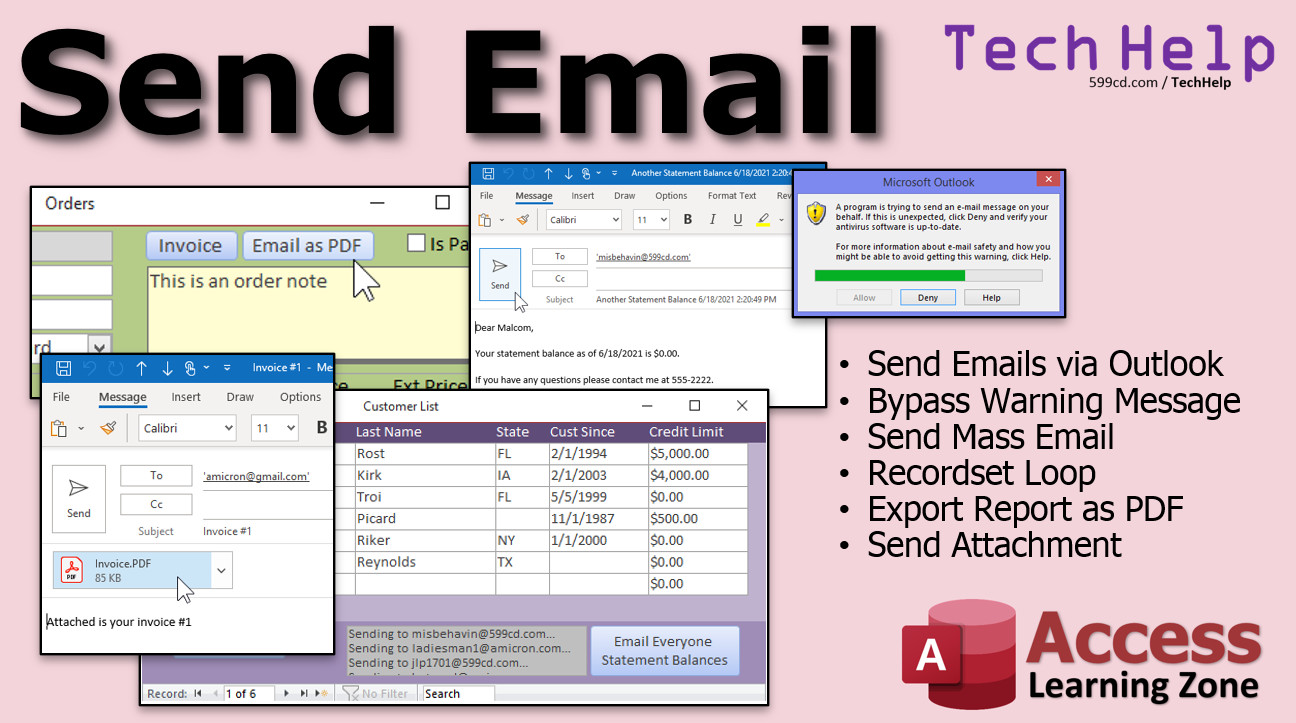
Send Email from Access using Microsoft Outlook In this video, I will show you how to send emails from your Microsoft Access database using Microsoft Outlook. We will also see how to bypass the annoying security warning popup that Outlook produces. Brent from Tracy, California (a Gold Member) asks: How can I send emails from Microsoft Access to Outlook? I would like to be able to send individual emails to customers, and also mass emails to all of the people related to a specific project. MembersMembers will learn how to send a mass email to multiple contacts using a recordset loop. We will also learn how to export an invoice as a PDF attachment and email invoices.
Silver Members and up get access to view Extended Cut videos, when available. Gold Members can download the files from class plus get access to the Code Vault. If you're not a member, Join Today!
Links
Updates
Keywordsmicrosoft access, ms access, #msaccess, #microsoftaccess, #help, #howto, #tutorial, #instruction, #learn, #lesson, #training, #database, send email, sendemail, outlook email, bypass security warning, How to use Automation to send a Microsoft Outlook message, emailing from Access, Send email from MS Access using VBA, how do i send a mass email from access, setup recurring emails, how to send email from a database, send email from access via outlook, can you send email from microsoft access, how do i send an email from an access form, sendobject, outlook.application, outlook.mailitem, htmlbody, export report as pdf, outputto, attachment
More InformationTranscriptWelcome to another TechHelp video brought to you by AccessLearningZone.com. I am your instructor, Richard Rost. In today's video, I am going to show you how to send email from Microsoft Access using Microsoft Outlook. I will also show you how to bypass that annoying security warning that pops up as well. Today's question comes from Brent from Tracy, California, one of my longtime gold members. It says, how can I send emails from Microsoft Access to Outlook? I would like to be able to send individual emails to customers and also mass emails to all of the people related to a specific project. Well Brent, there are several ways to do this. Personally, I prefer using Gmail, but I know a lot of people, including Brent because I have talked to him in an email, have Outlook set up as their standard email program in their offices. So yes, you can automate email sending from Access to Outlook for either single emails or for mass emails. Let me show you how I prefer to do it. Now this method that I am going to show you does require some VBA programming. It is not scary. Do not be afraid of it. Go watch my Intro to Access VBA video if you have never done any VBA programming before. Do not worry, I am going to show you everything you need to know. We need about maybe 10 to 15 lines of code, that is it. This is the best way to send an email from Access using Outlook. Before we get started, I am assuming you have got Outlook set up and you know how to use it and you have got it running in the background. You do not have to have it running in the background, but this will work better if Outlook is open and running in the background. Just open it up and then minimize it. Keep it running in the background. I am going to use my TechHelp free template. It is a free database. You can download a copy off my website if you want to. You can find a link down below in the links section. So let's go ahead and go to the customer form. The first thing I am going to teach you how to do is to send a single email to one customer at a time. Then in the extended cut for members, I will show you how to send a mass email to a group of customers. Yes, you can set up the email address as a hyperlink field. Then when you click on it, it will load up your default email program like Outlook. If you want to send any kind of automated message, like "Your statement balance is blank as of this date" and then hit one button, then it just goes out. Optionally, even attach a document. You can do that nice and simple using a couple of lines of code. So let's pretend that credit limit here actually is referring to the balance due. We want to click one button, send an email to this person, nicely addressed to them by name, and say "As of today's date, your statement balance is this amount here." Hit one button and it just formats the email for us, and it is all ready to go out. How do we do that? Let's go to Design View. Let's make this form a little bit bigger. Drop a button down here on the bottom. Go up to Design, grab a command button, and drop it right there. I am going to cancel the wizard. There is a macro that you can use, but it is nowhere near as flexible and powerful. Change the caption here to Send Statement, or Send Statement Balance, or whatever you want to put in there. Send Statement Balance, Email is good enough. Right-click, go to Build Event. That brings up our code builder, and this is where we are going to put the code to send this email. Before you can actually send email using Outlook, you have to add a reference to the Outlook Library. I am going to put a reminder in the code here: Remember to add reference to Microsoft Outlook Object Library. Because if you do not do that, this will not work. How do you add that reference? Come up to Tools and then References right there. That will bring up a big long list of all of the different object libraries that Access has available to it. Scroll down to find Microsoft Outlook. Where are you? They are all alphabetical here. Microsoft Outlook Object Library, put the check box right there. The number might be different depending on what version of Microsoft Office is installed on your machine. You might see 13 or 14 or some newer number if you are doing this in the future. Hit OK. Now if you go back and look, it should be up toward the top here. There it is right there. Now we can actually use Microsoft Outlook and Outlook's objects in our Access code. Basically, it gives us access to everything that Outlook can do as well. Instead of putting all of those commands and all of that stuff right into Access, they make it an external library because you do not necessarily need all that code to bloat every database if you are not planning on using Outlook. It keeps Access smaller. Now we have to dim a couple of objects. So, dim o as Outlook.Application. Now if you do not see the IntelliSense pop up there and give you those options, then something is not set up right. Your object library did not link properly. Close your database and restart it. You should see that pop up and it should give you the IntelliSense there. Dim m as an Outlook.MailItem. So we have got two object variables set up: an Outlook application and an Outlook.MailItem. Now we are going to set o = new Outlook.Application and set m = o.CreateItem(olMailItem). You should be able to pick from the final list too. What exactly does this mean? Do not worry about it. I go over this in detail in my other classes, but for now, just type that in. We have declared a couple of object variables, and we just set what they are. o is an Outlook application. m is a MailItem of type Outlook application. That is all you need to worry about. Whenever we set variables, we always set to destroy them when we are done. So set m = Nothing and set o = Nothing. That just frees up that memory. Normally Access does it by itself, but we want to force those object variables to be cleared. Now we have this thing called m. m is a MailItem, and we can do stuff with m. So with m ... end with. What are we doing with m? First, we are going to tell Outlook what kind of format we want for our body. There is text and there is HTML. I am going to use HTML. Back in the old days, I used to always stick to text and give everybody plain text emails. I actually still use text in most of my business emails because I programmed it years ago, back when not everybody had an HTML email reader that could read colors and tables and fonts and pictures and stuff. But nowadays, I think pretty much everybody can read HTML format in emails, so I like to make that the standard in my new classes. So we are going to say .BodyFormat = olFormatHTML. You can see there is rich text and unspecified. Just pick HTML. We are going to be setting HTML format in emails. If you do not know how to write HTML, that is OK. You can still just type it in as plain text. Next, we are going to specify what we want to put in the emails. So, we are going to say .HTMLBody = and then the message we are going to send inside quotes. Here we can format this. You know what, we are going to format the message differently. Let's come up top here. I am going to say dim Msg as String. And I am going to say Msg = "Dear," and then we are inside of a form, the customer form, so I can say "Dear" & FirstName & "," and then a new paragraph. That is the HTML paragraph mark. Then let's continue the line. We will say "Your statement balance as of" and today's date is "..." and then we are going to put in here the CreditLimit field as the statement balance. So we are just putting in here CreditLimit. That is good enough for now. That is a simple message. So now I will come down here and just replace this with Msg, like that. This is called string concatenation. If you have never done this before, I have got videos on it. I will put a link down in the link section down below. If you were using olFormatText, you would say .Body = whatever. Your text message here. I am going to rem this out, but I will leave it in the code for you other members, you gold members who can download this template. I will leave that in there for you. If you use olFormatText, I think it is text. Let me see. Equals olFormat... ah, see, it is not going to come up unless I start back at the beginning. Equals olFormatPlain or Rich Text, so olFormatPlain. Now we are going to specify who we are sending it to. So, .To =, and you put your email address here. We have the email address already on the form. It is Email, right there. So I will put in here = Email. You can specify a CC and a BCC as well. So you can go like .CC = and then a list of other email addresses. Like you could put [email protected], semicolon, [email protected], and so on. You could put a long list of them in there if you want to. Again, I will rem this out just to leave it in there as an option for you. You can also put a .BCC = [email protected] or whatever. We are not going to use BCC right now; we are just sending an individual email. Your subject line: .Subject = "Statement Balance" and then I like to put now on there, so it puts a date and time in the subject. At this point, there are two different things you can do. You can either display the email, which will show the actual email as it is formatted and ready to go out in your Outlook email viewer. You can make changes to it if you want to manually type a note in or attach something else. Or you can just send it instantly and automatically, which is usually preferred if you are sending a mass email. But for this one, I am going to use .Display. That will show the message on the screen and I can make changes if I want to. If you want to just automatically send it, you would use .Send. I will put that in the code and rem it out so that is in there as well for you. If you do not want to see it, you just want to send it out. That is pretty much it. That is the basics. Yes, you can add attachments in code too. I will show you that in the extended cut. But that right there is the basics of what you need to send an email. It is not that much; see? Like I said, we could really get away with like what, 10 to 15 lines of code. It is not that bad. Nice and simple. So let's see it in action. Save it. Come back out here. Let's close the customer form. Open it back up again. Now I have got Outlook running down below. I am going to click on Send Statement Balance. There it is. It pops up: "Dear Richard, paragraph. Your statement balance as of 16 is 5,000." I want to format that as a currency. So let's close this. Do you want to save your changes? No. I am not going to send it. Let's do a little formatting. We will take the statement balance as of right here. I will put a format on there: comma currency. And then you could go and period, paragraph, "If you have any questions, please contact me at 555-222." Or email, or whatever. Save it. Let's try it again. Ready? And go. There you go. There is your format. Your extra line. The "to" is already in there. You can add attachments or whatever manually you want to do, and then hit Send. If I check out my Outlook offline (because I do not use Outlook personally, I just use it for messing around in classes and stuff), go to your Outbox. There it is right there. You can see some tests I was doing earlier and yesterday. Now, a lot of you, probably most of you, will be getting this guy popping up when you try to send email. This is the Microsoft Outlook warning message that some other application is attempting to send email on your behalf. It is designed to prevent viruses from getting on your system and then hijacking Outlook and sending emails to tons and tons of people. That is one of the ways spammers take over people's computers to use them to send meaningless spam emails. Back in the day, there was no easy or good way to circumvent this. Yes, there were some third-party apps you could install that attempted to do it. You could try using send keys to wait for that time period to go over and then hit space bar, which would click the allow button. There were all kinds of tricks you could try to play, and none of them were very good at circumventing this error message. In fact, this is one of the reasons why I stopped using Outlook to send my emails, and I looked for another solution that led me to Gmail. Now I wrote code, which I cover in my email seminar, that you can use to send messages from Access directly to an SMTP server like Gmail, bypassing your email program. Recently, I was doing some research and I found a nice, easy, simple way to bypass this message. All you have to do is update Windows Defender. Everybody has an antivirus program on their computer that comes with Windows. It is called Windows Defender. It has been coming with every version of Windows since, I think, Windows 7. I am running Windows 8 on this machine. I have got Windows 10 on another machine. All you have to do is update the virus definitions in Windows Defender, and once you are up to date, this warning message will not show up anymore. Microsoft added that fairly recently. Just come down to your Start button. I have got it right here because I recently ran it, but just come down here and type in Defender. There is Windows Defender right there. Now I recently updated mine, which is why I did not get the message. You can see it is running here. Go to Update and click on Update Definitions. Mine are current, so I am not going to click on it again. Once you do that and you see you have got a green check mark here and your virus and spyware definitions are up to date, that Outlook message goes away, and you can send an email from Access to Outlook without getting that annoying pop-up. I do not know if this works with third-party virus scanners. If you are wasting money on a third-party virus scanner, by the way, do not. They are all worthless. Windows Defender is all you need. It is good enough. If you have McAfee or any other ones, get rid of them. That is my opinion, but I think they are just a waste of money. You do not need them. Once you do that, now you have got a nice simple email tool where you can open up any one of these, click on the button, and there you go. Nice and simple. Members, I am going to show you in the extended cut how to use a loop to send a mass email to a bunch of people at the same time. Instead of these individual emails, you will be able to just click a button, and send everyone their statements in one shot. Once a month, click the button, they all go out. I will also show you how to export an invoice, this invoice here, as a PDF and email that automatically, too, as an attachment. That is all coming up in the extended cut for members. If you want to learn more, the extended cut for members covers a lot more. I will show you how to send mass email. On the customer list form, click one button and it will send each customer their statement balances automatically, one after the other. I will teach you how to program something called a recordset loop. Not hard. Again, a couple lines of code, and you can loop through any group of records that you want. Then I will show you how to export a report as a PDF. In the invoice or order form, you click one button, it will export a PDF of their invoice, attach it to an email, and then open it up, ready to send. You could also use the same looping technique if you want to send out all the unpaid invoices in your database. Same thing. That is all in the extended cut for members, 26 minutes long. Silver members and up get access to all of the extended cut videos, and I think we are approaching 200 now. Lots of stuff to watch. Gold members can download this database. If you really want to learn a lot more about sending email from Access, I have a whole email seminar on my website. I will put a link down below in the link section. You can check it out. I show you how to do colorful HTML emails right inside your database, how to format newsletters, include images. We build an email server so you can send out thousands of emails automatically and pace them out. All kinds of stuff. That is my Access Email Seminar. How do you become a member? Click the Join button below the video. After you click the Join button, you will see a list of all the different types of membership levels that are available. Silver members and up will get access to all of the extended cut TechHelp videos, live video and chat sessions, and more. Gold members get access to a download folder containing all the sample databases that I build in my TechHelp videos, plus my code vault where I keep tons of different functions that I use. Platinum members get all the previous perks plus access to my full beginner courses and some of my expert courses. These are the full-length courses found on my website, and not just for Access. I also teach Word, Excel, Visual Basic, ASP, and lots more. Do not worry, these free TechHelp videos are going to keep coming. As long as you keep watching them, I will keep making more. If you liked this video, please give me a thumbs up and feel free to post any comments that you have. I do read them all. Make sure you subscribe to my channel, which is completely free, and click the bell icon and select All to receive notifications when new videos are posted. Click on the Show More link below the video to find additional resources and links. You will see a list of other videos, additional information related to the current topic, free lessons, and lots more. YouTube no longer sends out email notifications when new videos are posted, so if you would like to get an email every time I post a new video, click on the link to join my mailing list. If you have not yet tried my free Access Level 1 course, check it out now. It covers all the basics of building databases with Access. It is over three hours long. You can find it on my website or on my YouTube channel. And if you like Level 1, Level 2 is just one dollar and it is also free for all members of my YouTube channel at any level. Want to have your question answered in a video just like this one? Visit my TechHelp page and you can send me your question there. Click here to watch my free Access Beginner Level 1 course, more of my TechHelp videos, or to subscribe to my channel. Thanks for watching this video from AccessLearningZone.com. IntroIn this video, I will show you how to send email from Microsoft Access using Microsoft Outlook. We will cover how to use VBA to automate sending a single email to a customer from an Access form and discuss how to avoid the common Outlook security warning by updating Windows Defender. I will walk you through setting up the Outlook library reference, writing the necessary VBA code to generate and format the email, and customizing the message with customer-specific information. QuizQ1. What must you do before you can send email from Access using Outlook via VBA? A. Add a reference to the Microsoft Outlook Object Library B. Uninstall your antivirus software C. Change the default email program to Gmail D. Install a third-party macro tool Q2. Why is it recommended to have Outlook running in the background before sending emails from Access? A. It allows Access to interact more reliably with Outlook's objects B. It disables security warnings by default C. It makes the process twice as fast D. It is required; otherwise, email sending will fail Q3. In the video, which control is added to the Access form to trigger sending an email? A. A combo box B. A list box C. A command button D. A label control Q4. Which field type in Access can be used to manually trigger an email using a user's default email program? A. Text field with hyperlinks enabled B. Number field with formatting C. Date/Time field D. OLE Object field Q5. Which VBA objects are used to create and send an email through Outlook? A. Outlook.Application and Outlook.MailItem B. Excel.Application and Excel.MailItem C. Word.Document and Word.MailItem D. Access.Application and Access.MailItem Q6. What is the advantage of using the Outlook Object Library as an external reference? A. It keeps Access databases smaller for those not using Outlook automation B. It allows Access to work offline C. It speeds up the Access runtime for all databases D. It prevents security warnings in Outlook Q7. What format does the instructor recommend for the email body in the sample code? A. HTML format B. Plain text format C. CSV format D. XML format Q8. If you want to preview and edit each email before sending, which VBA method should you use? A. .Display B. .Send C. .Preview D. .Edit Q9. To send an email instantly and automatically from the code, which line should you include? A. .Send B. .Display C. .Post D. .Open Q10. What causes the Microsoft Outlook security warning that pops up when sending emails from Access? A. Outlook detects another application is trying to send email on your behalf B. Antivirus definitions are outdated C. The Outlook Object Library reference is missing D. VBA code is too long Q11. According to the video, how can you bypass the Outlook security warning when sending emails via Access? A. Update Windows Defender's virus definitions to current B. Use send keys to automate the warning C. Install a third-party macro tool D. Disable all antivirus software Q12. What VBA technique is suggested for sending mass emails to a group of customers in Access? A. Using a loop, such as a recordset loop B. Copying and pasting email addresses manually C. Building a macro for each customer D. Using input boxes for recipient entry Q13. Which Access class covers sending HTML emails, managing newsletters, and auto-sending thousands of emails? A. The Access Email Seminar B. The SQL Seminar C. The Access Forms Seminar D. The VBA Macro Seminar Q14. What benefit do Gold members receive, according to the video? A. Access to downloadable sample databases and the code vault B. Access to all YouTube videos C. Free technical support D. Unlimited Microsoft Office licenses Q15. If you want to add an attachment when sending an email from Access using Outlook, when is this demonstrated? A. In the extended cut for members B. In the main free video C. In the Access Level 1 course D. Using a built-in Access macro Answers: 1-A; 2-A; 3-C; 4-A; 5-A; 6-A; 7-A; 8-A; 9-A; 10-A; 11-A; 12-A; 13-A; 14-A; 15-A DISCLAIMER: Quiz questions are AI generated. If you find any that are wrong, don't make sense, or aren't related to the video topic at hand, then please post a comment and let me know. Thanks. SummaryToday's video from Access Learning Zone is about sending email from Microsoft Access using Microsoft Outlook, and I will also discuss how to bypass the security warning that sometimes pops up when automating this kind of email. The question came in about how to send emails directly from Microsoft Access to Outlook, both for individual recipients and for mass email distributions to all customers involved in a specific project. While I typically use Gmail myself, I know many users, especially in office environments, rely on Outlook as their primary email client. The good news is that it is entirely possible to automate emails from Access through Outlook, regardless of whether you are targeting a single customer or an entire group. This approach does require a little VBA programming, but do not worry if you are new to code. I encourage you to watch my introductory video on Access VBA if you are unfamiliar with it. The method I will show you requires no more than about 10 to 15 lines of code, and I will guide you through each step. First, make sure you have Microsoft Outlook set up and at least ready to go. While Outlook does not necessarily need to be running for this to work, things tend to go more smoothly if it is open and running in the background. Just start it and minimize it. I will be using my TechHelp free template in this demonstration. This template is openly available for download from my website. We will start by learning how to send a single email to one customer at a time. For those interested in mass emailing groups, I will cover that later in the extended cut for members. It is possible to set up an email field as a hyperlink so that clicking it launches your default email client, but if you want to send automated emails that contain information like a statement balance and go out with a single click, you will need to use VBA. Suppose we want to email a customer their balance. We will place a button on the customer form, and clicking that button will create a personalized email to the customer, addressing them by name and reporting their statement balance for today. To do this, first open your customer form in Design View and add a Command Button to the form. Name it something like "Send Statement Balance." Skip using the macro wizard for now. Instead, right-click to build the event in VBA code. To access Outlook through VBA, add a reference to the Microsoft Outlook Object Library. You will do this by opening the Tools menu, choosing References, and then selecting the appropriate version of the Outlook Object Library from the list. The version number varies based on your installation, but once you have checked it, you will be able to use Outlook objects within Access. Once the reference is set, you can declare variables in your code for the Outlook application and your mail item. If you do not see suggestions popping up while typing, close and restart Access to refresh your references. Assign your variables so you have an Outlook application and a specific MailItem. When you are finished with them, be sure to clear these variables, releasing the memory they use. Access generally handles this itself, but it is a good habit to be explicit. Now you have a mail item object you can use to compose the message. Specify the email body format, and although plain text is still viable, these days HTML format is universal and allows your emails to include formatting, colors, tables, and images. Construct the email message using string variables, incorporating specific field values from the form, like the customer's first name and account balance. Assign the recipient by referencing the email address field in your form. Optionally, you can add carbon copies or blind carbon copies using the respective fields. Then set the subject line to something like "Statement Balance" and include a date or timestamp if you wish. At this point, you have two options: you can choose to display the email so you can review or edit it before sending, or you can send it automatically. If you want to preview the message before sending, use the display method; if sending fully automated, use the send method instead. These are the essentials for sending a simple Outlook email from Access using VBA. There is not much code needed and it is straightforward once you get it set up. After saving your code and re-opening the customer form, clicking the button will compose a personalized email for your customer with all the relevant information automatically filled in. You will see the recipient and message body are all set, and you can make further manual adjustments or simply send the email. If you would like to format fields like the statement balance as currency, you can adjust your string formatting accordingly in the code. Some users may see a security warning from Outlook when other applications (like Access) try to send email on your behalf. This warning is a security measure to prevent malicious software from hijacking your Outlook for spam. In the past, there were only cumbersome or unreliable workarounds for this. Nowadays, the best way to resolve this warning is simply to update Windows Defender, which is the built-in antivirus in recent versions of Windows. Once your virus definitions are up to date, this warning will stop appearing for legitimate Access-to-Outlook mail operations. Just launch Windows Defender, check for updates to definitions, and ensure you have the latest updates. There is no need to use third-party antivirus software, as Windows Defender is sufficient for most users. After updating, you should find the email feature working smoothly with no interruptions. You can send individual messages quickly and efficiently. In the extended cut for members, I will demonstrate how to use a loop to send mass emails to a group of customers at once. This automates monthly statement sending so that with a single click, individual messages are created and sent to everyone who needs them. I will also show how to export an invoice as a PDF and attach it to an email automatically. These topics involve using recordset loops and other useful techniques to make your Access-based CRM or accounting system even more powerful. For those interested in more advanced automations or bulk email features, I have a complete email seminar available through my website. It covers everything from personalized HTML formatting and newsletters to managing mass email campaigns and throttling to avoid overloads. Membership options are available on my website, with silver level and above including access to all extended cut videos and other perks. Gold members can also download all sample databases and code snippets. Platinum members gain access to all full beginner and some expert courses I offer, not just for Access, but for Word, Excel, Visual Basic, ASP, and more. I will continue to make free TechHelp videos for everyone to enjoy. Please remember to subscribe to my channel, leave a thumbs up or comment, and click the bell icon to get notified when new content is posted. For additional links and resources, visit the description under the video, where you will find related videos, lessons, and more. If you want email notifications about new videos, sign up for my mailing list. Do not forget to check out my free Access Level 1 course, which covers the basics for beginners, and is available both on my website and my YouTube channel. If you have questions you want answered, submit them through my TechHelp page and I may address them in a future video. You can find a complete video tutorial with step-by-step instructions on everything discussed here on my website at the link below. Live long and prosper, my friends. Topic ListSending email from Access using Outlook via VBA Adding the Outlook reference in Access VBA Creating a command button to trigger email sending Writing VBA code to automate Outlook from Access Declaring Outlook object variables in VBA Setting up the email body using HTML format Using form field values in the email message Specifying recipient, CC, and BCC fields in code Displaying or sending the email automatically Formatting currency values in the email body Updating Windows Defender to bypass the Outlook warning Testing and troubleshooting the Access to Outlook email process Primary TopicsMicrosoft Access, Microsoft Outlook, VBA automation, sending email from Access, object library references, email formatting, security warning bypass Secondary TopicsHTML email body, string concatenation, attaching files, CC/BCC options, Windows Defender updates, Access forms |
||||||||||||||||||||||||||||||||||||||||||||||||||||||||||||||||||||||||||||||||||||||||
|
| |||
| Keywords: TechHelp Access send email, sendemail, outlook email, bypass security warning, How to use Automation to send a Microsoft Outlook message, emailing from Access, Send email from MS Access using VBA, how do i send a mass email from access, recurring emails PermaLink Send Email in Microsoft Access |