|
||||||

|
|
||||||
|
Import ExcelBy Richard Rost
 5 years ago
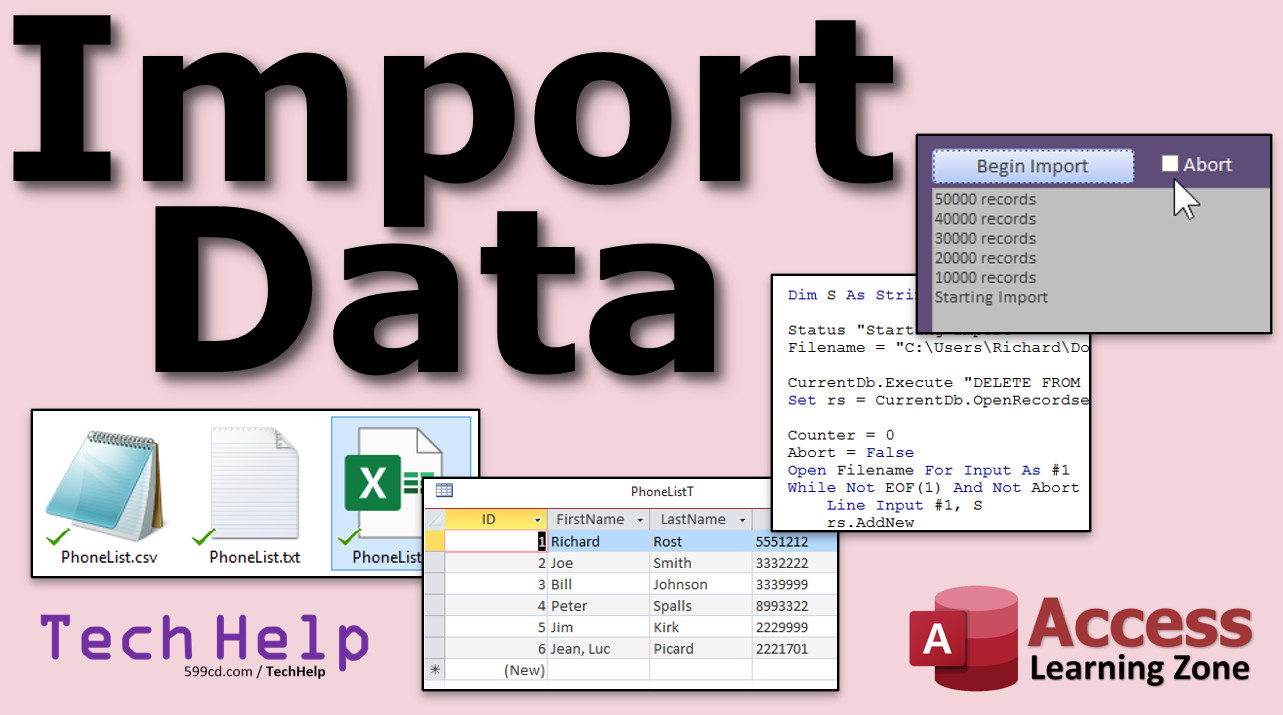
Import Data from Excel, CSV, Fixed-Width Text In this video, I will show you how to import data into Microsoft Access. We will see how to import Excel spreadsheets, CSV (Comma Separated Values) files, and fixed-width text files. John from Coppell, Texas (a Developer Student) asks: I need to import a very large file that I received from a client. It's a fixed-width text file. How can I get that data into Microsoft Access? MembersMembers will learn how to use VBA, recordsets, and file I/O (Input/Output) to directly import a large text file, line by line. This is sometimes necessary for very large fixed-width text files that may be over 2 GB in size.
Silver Members and up get access to view Extended Cut videos, when available. Gold Members can download the files from class plus get access to the Code Vault. If you're not a member, Join Today!
Links
Keywordsmicrosoft access, ms access, #msaccess, #microsoftaccess, #help, #howto, #tutorial, #instruction, #learn, #lesson, #training, #database, import, import excel to access, csv files, comma delimited files, fixed width files, automate import data from excel to access, open file vba, vba file i/o, input/output, recordset
More InformationTranscriptWelcome to another TechHelp video brought to you by AccessLearningZone.com. I am your instructor, Richard Rost. In today's video, I'm going to show you how to import data from Microsoft Excel, CSV files, and fixed width text files into your Microsoft Access database. Later on in the extended cut, I'm going to show you how to import text files that might be larger than two gigabytes. Today's question comes from John from Coppell, Texas, one of my five-year developer students. John says, I need to import a very large file that I received from a client. It's a fixed width text file. How can I get that data into Microsoft Access? Well, John, importing data into Microsoft Access is pretty straightforward. Let me show you how it's done. When it comes to importing data, there are three popular file formats that you're going to find. There are Excel files, CSV files (which are basically text files - CSV stands for comma-separated values), and then you've got basic text files. Usually you'll find them, if they're not comma-separated, they'll be fixed width. Let me show you what they look like. Here's a basic Excel sheet. You've all probably worked with Excel before. I put together a real simple sheet here: first name, last name, phone number. Here's a CSV file. There it is, simple text. You can see that each item is separated by a comma. I snuck a comma into Jean-Luc because I wanted to show you that if there's a comma in the data, in the text, it'll usually be surrounded by quotes. That's something that you usually don't have to worry about. Usually the program that does the exporting for you will do that. The last file type that you usually find when it comes to text is fixed width text. This is an older format, but surprisingly, a lot of places - especially government agencies - still use this. It's just a text file, and they tell you how many characters across each field goes. This one might be 15, this one might be 30, this one might be 8, whatever. You're usually going to be given a file specification that says first name is this many characters, last name is this many characters, and so on. John got a big fixed width text file, so we'll talk more about that in a few minutes. Let's see how we can import all three of these different types into our database. Here's a copy of my TechHelp free template. It's a free database. You can download a copy from my website if you want to, but you can do this with any database that you want. Go to the External Data tab, and over here under Import and Link, drop this down. There are all kinds of different file formats. We're going to pick Excel first. You're going to go to From File and then Excel. You've got a couple of options here. You can import the source data into a new table in the current database. You can append a copy of the records to a table. This is handy if you get regular updates from someone else. In fact, I have another video where I show you how to import data from your vendor and update pricing. That's a different video. I'll put a link down below in the link section. The third option is you can link to the data source and create a linked table. This is good if you've got a spreadsheet, for example, on your network that other people update, and you can link to it - then your Access database will just treat that as a table. I'll cover that in a future video. But for now, John just wants to get this data into his database. We'll just pick Import, hit Browse. There's my file on my desktop, phonelist.xlsx. Hit Open, now click OK. The Import Spreadsheet Wizard starts up. This is a good wizard. The first checkbox here says "First Row Contains Column Headings." Yep, this one does. Check it off. If you turn that off, it will import that as the first row, as the first record. Hit Next. Go down and specify each field that you want to import. If you want, you can change the field name. As you know, if you've taken my Access Beginner 1 class, I don't like spaces in my field names, so you can get rid of those right here. FirstName, data type: Short Text, Index: No. If you don't want to import this field - because sometimes there are going to be fields in here that you don't care about - you can turn that off and it won't import that field. But in this case, we do want that one. Go to the next field; click right here for LastName, then go to Phone. Now, it's going to try and import this as a double, because it sees a number here. But again, if you've taken my Access Beginner 1 class, phone numbers should be imported as text, so set it to Short Text. Hit Next. Do you want to let Access add a primary key? It'll just add an autonumber in the front. That's fine. If there's already some kind of a key in here, you can just specify the primary key field, but in this case, we don't have one. Next. Import to table: we'll call this PhoneListT and then click on Finish. Now this thing happens. If this is an import that you plan on doing on a regular basis, you can actually save the import steps so that you just have to click one thing to rerun an old import. In this case, we'll just click Close. I cover that in my full classes. So there's my PhoneListT right there. Open it up. There you go. There's your data. Right-click, Design View, and that's what it creates. Let's try the other two. Let's delete that phone list - right-click, and then Delete. Be sure you got it to go away. Let's try the fixed width text file. External Data, New Data Source, From File, Text File. Again, browse for the file. I've got two and we'll start with the CSV version. Hit Open, and then OK. This one's a little bit different. You've got Delimited or Fixed Width. This one is Delimited - there's delimiters, commas. Sometimes you'll see a tab-delimited file too. There are all kinds of advanced options down here. I cover these in my full class, but you can change the delimiter, the text qualifier, and all this kind of stuff. Next. Now this one kind of confused the import routine because remember, I put a comma inside Jean-Luc there. You might want to set the text qualifier to double quotes like that. Now it's going to ignore that comma because it's inside of double quotes. For this one, don't forget to click on "First Row Contains Field Names." Here you can also change the delimiter if you want to: semicolon, tab, space. Next. You can do the same thing here: FirstName, get rid of that; LastName, get rid of that. Again, we'll change Phone to Short Text. Next, Add a Primary Key, PhoneListT, Finish. Not going to save the import steps, and Close. It's the same thing. We've got one more to do. Let's delete this one. External Data, New Data Source, From File, Text. We're going to browse, pick our phonelist.txt file. This is the fixed width file. Hit OK. Now it comes like this; it gets fixed width correctly. The fields are aligned in columns with spaces between each field. Don't use tabs in here, by the way, if you're creating this file. You have to have space characters in there. Next. Access usually does a pretty good job of lining up where the columns start. If these are wrong, you can drag this little bar here and put it where you want it to be. That's good. Next. Do the same stuff here. Now here, it's got Field1, Field2, Field3 because this file didn't have the header information. I did that to specifically remove the headers from that file. So you've got to come up here now and put in FirstName. Next, LastName. Next, Phone. This time again, it sees Long Integer; let's change it back to Short Text. Next, Add a Primary Key. Next, PhoneListT, and Finish. And there we go. Yeah, take a look at this. Sometimes it goofs. It's not perfect. Text files are not perfect. Look at that. It put an extra space in there in front of my name, and it's missing the last digit of the phone number. You have to watch this stuff like a hawk. There's a reason why they don't really use text files anymore to store data: they're not reliable. I went back and double checked it. Let's see. Let's open up this file here. Right-click, Open with Notepad. The file looks fine. Sometimes you might get a tab character or something stuck in there, and it messes up the import. But now the file is fine. Access just messed up the import. It happens sometimes. That's why I personally don't like fixed width text files. They really haven't been used for modern stuff since the 80s. So that is how you do a simple import with Excel, with delimited text, and with fixed width text. Now, John's problem and the real reason he came to me is because he's got a gigantic fixed width text file that he got from his client. It's over three gigabytes in size, so we can't import it directly into Access because it's too large. We have to find a different way to import that. We're going to use some VBA code. We're going to read that file line by line and loop through it and add each record. Fortunately, John doesn't need all of the fields. He only needs a couple of them. The reason why this file is three gigabytes in size is because most of it is empty wasted space. If you reserve 70 characters in a fixed width file for the address and you only need on average, let's say, 20 of them, that's a ton of wasted space. I'm betting that at least 70 percent of this file is just empty space. So in the extended cut for the members, John, I'm going to show you how to use a VBA loop to import this file line by line. How do you become a member? Click the Join button below the video. After you click the Join button, you'll see a list of all the different types of membership levels that are available. Silver members and up will get access to all of the extended cut TechHelp videos, live video and chat sessions, and more. Gold members get access to a download folder containing all the sample databases that I build in my TechHelp videos, plus my Code Vault, where I keep tons of different functions that I use. Platinum members get all the previous perks plus access to my full beginner courses and some of my expert courses. These are the full-length courses found on my website and not just for Access. I also teach Word, Excel, Visual Basic, ASP, and lots more. Don't worry, these free TechHelp videos are going to keep coming. As long as you keep watching them, I'll keep making more. If you liked this video, please give me a thumbs up and feel free to post any comments that you have. I do read them all. Make sure you subscribe to my channel, which is completely free, and click the bell icon and select all to receive notifications when new videos are posted. Click on the Show More link below the video to find additional resources and links. You'll see a list of other videos, additional information related to the current topic, free lessons, and lots more. YouTube no longer sends out email notifications when new videos are posted, so if you'd like to get an email every time I post a new video, click on the link to join my mailing list. If you have not yet tried my free Access Level 1 course, check it out now. It covers all the basics of building databases with Access. It's over three hours long, and you can find it on my website or on my YouTube channel. If you like Level 1, Level 2 is just one dollar. It's also free for all members of my YouTube channel at any level. Want to have your question answered in a video just like this one? Visit my TechHelp page and you can send me your question there. Click here to watch my free Access Beginner Level 1 course, more of my TechHelp videos, or to subscribe to my channel. Thanks for watching this video from AccessLearningZone.com. IntroIn this video, I will show you how to import data from Microsoft Excel, CSV, and fixed width text files into your Microsoft Access database. We will walk through each process using the Access import tools, discuss the differences between these file formats, and highlight important settings you need to check during import. You'll also see how to handle common issues like field types, primary keys, and missing headers when importing your data. QuizQ1. What are the three main file formats commonly imported into Microsoft Access? A. Excel, CSV, and fixed width text files B. Word, PDF, and Excel C. Access, PowerPoint, and Image files D. HTML, PDF, and Video files Q2. What does CSV stand for? A. Comma Structured Values B. Character Segmented Values C. Column Separated Values D. Comma Separated Values Q3. In CSV files, how are values typically separated? A. With semicolons B. With commas C. With spaces D. With tabs Q4. Why might fields in a CSV file be surrounded by quotes? A. To highlight the text B. To include commas inside the field data C. To indicate primary keys D. To separate words within a field Q5. What distinguishes a fixed width text file from a CSV file? A. It uses tabs between values B. Each field has a set number of characters C. It is password protected D. It uses double quotes as delimiters Q6. What should you do if the first row of your imported file contains column headings? A. Ignore it during import B. Check the "First Row Contains Column Headings" box C. Rename it after import D. Add a new row for headings later Q7. What is a recommended data type for storing phone numbers in Access? A. Double B. Currency C. Short Text D. Integer Q8. What is the purpose of adding a primary key when importing data? A. To enable linking to other databases B. To uniquely identify each record C. To ensure all fields are imported D. To format the table for printing Q9. What step can be taken if you regularly import data using the same settings? A. Delete the import steps B. Change the file format each time C. Save the import steps for reuse D. Reinstall Microsoft Access Q10. When importing a fixed width file without headers, what should you do in the wizard? A. Skip the file import B. Add field names manually during the import process C. Select "Delimited" instead of "Fixed Width" D. Leave field names as Field1, Field2, etc. Q11. Why do some fixed width text files become very large in size? A. They use complex encryption B. They are compressed during export C. Large reserved spaces for fields that are mostly empty D. They contain images and charts Q12. Why might Access import data incorrectly from a fixed width text file? A. Access cannot handle text files at all B. Fixed width files are always perfectly imported C. Spaces, tabs, or alignment issues in the file D. Files must be less than 10 MB Q13. What approach is suggested for importing text files larger than 2GB in Access? A. Upgrade Access to the latest version B. Use VBA code to read the file line by line and add records C. Open the file in Excel first D. Compress the file before importing Q14. What is a potential disadvantage of using text files for data import? A. They are always faster than other formats B. They can lead to unreliable imports and wasted space C. They support unlimited data types natively D. They automatically set up relationships between tables Q15. What benefit do Gold-level members on AccessLearningZone.com receive? A. Access to live chat only B. Ability to join mailing lists C. Access to a download folder and the Code Vault D. Free computer hardware Answers: 1-A; 2-D; 3-B; 4-B; 5-B; 6-B; 7-C; 8-B; 9-C; 10-B; 11-C; 12-C; 13-B; 14-B; 15-C DISCLAIMER: Quiz questions are AI generated. If you find any that are wrong, don't make sense, or aren't related to the video topic at hand, then please post a comment and let me know. Thanks. SummaryToday's video from Access Learning Zone will show you how to import information from Microsoft Excel files, CSV files, and fixed-width text files into your Microsoft Access database. In the extended cut of today's lesson, I will also demonstrate how to import text files that are larger than two gigabytes in size. The question for today comes from a student who received a large fixed-width text file from a client and needs to bring that information into Access. Importing data into Access is a process you will use often, and I want to walk you through the most common formats you may encounter. The main file types you will usually see are Excel spreadsheets, CSV files (comma-separated values), and plain text files, which are often formatted using fixed-width fields. Excel files are straightforward, as most people have used them before. The CSV format is simply a plain text file where each field is divided by a comma. If a field contains a comma itself, such as in the name "Jean-Luc," the value is usually enclosed in quotation marks so the software can tell it is a single field. In most cases, the exporting software should handle this for you. Fixed-width text files, while a bit dated, are still used by many organizations, especially government agencies. In these files, each field is assigned a specific number of character spaces. For instance, the first name might be 15 characters, last name 30, and so forth. Usually, the provider will supply a file specification so you know exactly how wide each field should be. Now, let us go through how to import each of these into Access. I am using the TechHelp free template database for this demonstration, which you can download from my website if you would like, but these steps will work in any Access database. Start by heading to the External Data tab in Access. Under Import and Link, you will notice many different file format options. We will begin with importing from Excel. When importing from Excel, you can choose either to bring the data in as a new table, append the data to an existing table, or create a link to the Excel file (which means any updates to the spreadsheet will be reflected in Access). For our example, we will import the data as a new table. Select your file, then walk through the Import Spreadsheet Wizard. Make sure you indicate whether the first row contains column headings. At each step, you can rename fields (removing spaces if you prefer), change the data type (for example, importing phone numbers as text instead of numbers), and decide whether to add a primary key. At the end, Access lets you save the import steps if you plan on repeating this process in the future. After importing, you can open the new table to confirm everything looks good. If necessary, review the table in Design View. To import a CSV file, use the Text File option under New Data Source. Choose your file and indicate whether your data is delimited (like CSV) or fixed-width. For delimited files, Access can handle different delimiters such as commas, semicolons, and tabs. You may also need to select the correct text qualifier (usually double quotes) to handle values that contain commas within the data. Again, step through the wizard, make any necessary changes to field names or data types, and complete the import. The process for fixed-width text files is similar, but with a few additional steps. After selecting the fixed-width file, Access will display the data aligned in columns. Verify that Access has identified the field divisions correctly. If not, you can adjust them right on the preview. Because fixed-width files may not have field names in the first row, you must supply the field names yourself. As before, select the proper data type for each field and finalize the import. It is important to pay close attention to your results after importing fixed-width files. Errors can occur, such as extra spaces before text or missing data at the end of fields. These mistakes are not uncommon with plain text formats, which is one of the reasons why most modern systems have moved away from using fixed-width files for data storage. Returning to John's original problem, he needs to import a huge fixed-width text file that is over three gigabytes in size. Access cannot import files larger than two gigabytes directly. To address this, we use VBA code to process the file line by line and add the records one at a time. In John's case, he only needs a few fields from each record, which is fortunate because most of the file consists of empty space due to the nature of fixed-width formatting. In the extended cut available for members, I show step by step how to use VBA to import this large file, read each line, and extract just the fields you need. If you would like access to extended cut videos, live sessions, additional downloads, and my complete sample database files, you can become a member of my website or YouTube channel at different levels. Each level unlocks more content, from extra videos to code libraries and full beginner-to-expert courses. Free TechHelp videos will always be available, and I welcome your questions and feedback in the comments. If you found this lesson helpful, please remember to subscribe to my channel for free, enable notifications, and check out the extra links and resources listed below the video. For email notifications, you can join my mailing list through my website. If you are just starting out, be sure to try my free Access Level 1 course, which covers the basics of building Access databases and is available both on my website and YouTube. Access Level 2 is only one dollar or free for channel members. To have your own question answered in a future TechHelp video, just visit my TechHelp page and submit your question. You can find a complete video tutorial with step-by-step instructions on everything discussed here on my website at the link below. Live long and prosper, my friends. Topic ListImporting Excel files into Access Importing CSV files into Access Importing fixed width text files into Access Using the Import Spreadsheet Wizard Specifying field data types during import Managing field names during import Selecting fields to import Setting the primary key during import Deleting imported tables Importing delimited text files using the wizard Specifying text qualifiers and delimiters Handling missing headers in fixed width imports Manually aligning columns in fixed width imports Renaming fields in the import process Identifying and correcting import errors in text files Reviewing imported data in Datasheet and Design View Primary TopicsMicrosoft Access imports, Excel file import, CSV import, fixed width text file import, Import Wizard steps Secondary Topicsimport errors, data field types, primary keys, import options, import reliability |
||||||||||||||||
|
| |||
| Keywords: TechHelp Access import, import excel to access, csv files, comma delimited files, fixed width files, automate import data from excel to access, open file vba, vba file i/o, input/output, recordset, 2gb 2 gb PermaLink Import Excel Data in Microsoft Access |