|
||||||

|
|
||||||
|
String FunctionsBy Richard Rost
 5 years ago
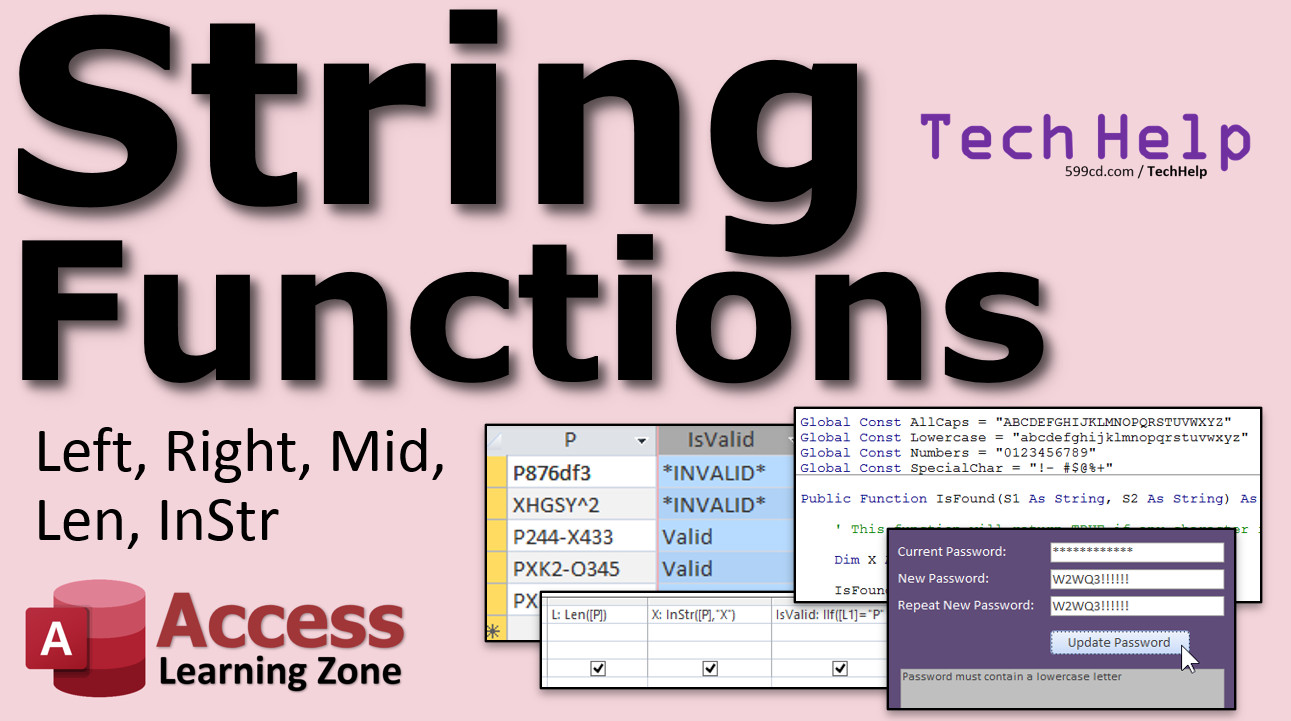
Access String Functions: Left, Right, Mid, Len, InStr In this video I will teach you how to use the string functions in Microsoft Access to make sure users are entering valid part numbers according to a set of rules. We will learn about the Left, Right, Mid, Len, and InStr functions. Zoe from Great Falls, Montana (a Platinum Member) asks: When placing an order with our primary supplier, we have to make sure the part number is valid. They have a gigantic database of parts, and it changes constantly, so looking up each part number isn't practical. They do, however have a specific format for all of their part numbers. If I could just make sure my users are typing the part numbers in the correct format, that would eliminate 99% of my problems. I import most of this data from Excel sheets, so I can't use an Input Mask. You wouldn't believe the junk I have to correct! Can you help me, please!? Part Number Rules: Has to start with the letter P. The right 3 characters have to be a number greater than 100. The 5th character has to be a hyphen. The whole string has to be exactly 9 characters long. The letter X must be included somewhere in the string. MembersMembers will learn how to use the string functions in VBA to make sure users are entering in valid passwords. We will learn how to do a binary search (to tell capital from lowercase letters) with Option Compare Binary or StrComp function, and to determine if a string contains ANY character from an allowed list. We'll write our own IsFound function - is any character from string 1 found inside of string 2. Leon from Bismark, North Dakota (a Gold Member) asks: I created a form allowing my employees to change their password. They must enter their current password and then create a new password, and verify the password by entering it twice. I check that the new password is not the same as the current password. I want to include all the parameters that strengthens the password. I appreciate your help. Password Rules: The first character has to be a capital letter. The password must contain both capital and lowercase letters, plus at least one numeric digit and one special character: !-_#$@%+
Silver Members and up get access to view Extended Cut videos, when available. Gold Members can download the files from class plus get access to the Code Vault. If you're not a member, Join Today!
Links
Keywordsmicrosoft access, ms access, #msaccess, #microsoftaccess, #help, #howto, #tutorial, #instruction, #learn, #lesson, #training, #database, left, right, mid, len, instr, strcomp, part numbers, change passwords, option compare binary, capital, lowercase, numeric, digits, one string found inside another, isfound, any character found in a string, allowed characters list
More InformationTranscriptWelcome to another TechHelp video brought to you by AccessLearningZone.com. I am your instructor, Richard Rost. In today's video, I'm going to show you how to use the string functions in Microsoft Access to validate part numbers. We're going to learn about the left, right, mid, length, and in-string functions. We're going to see how you can take a bunch of part numbers and determine if they're valid or not. Your vendor has a specific format for their part numbers, so this will let you check to see who gave you a list of bad part numbers. Of course, you can use these techniques for checking all kinds of strings, phone numbers, email addresses, or whatever. These are the basic string functions that you'll use all throughout Access. Let's take a look. Today's question comes from Zoe in Great Falls, Montana, one of my Platinum members. Zoe says, when placing an order with a primary supplier, we have to make sure the part number is valid. They have a gigantic database of parts and it changes constantly, so looking up each part number isn't practical. They do, however, have a specific format for all of their part numbers. If I could just make sure my users are typing in the part numbers in the correct format, that would eliminate 99 percent of my problems. I import most of this data from Excel sheets, so I can't use an input mask. You wouldn't believe the junk I have to correct. Could you help me please? In chatting with Zoe in email, sometimes she gets a text file, sometimes she gets stuff in Excel, sometimes people just email her a list of parts. She just wants to copy and paste them into Access and make sure they're all valid. If one out of 100 is not valid, she just wants to very easily see on her unique record or form or whatever that part number isn't in the right format. We're going to use the string functions - left, right, mid, length, and in-string - to make sure that all our part numbers are in the right format. This also gives us a chance to learn the string functions. Now, what's this format that all the part numbers have to be in? Well, the first character on the left has to be the letter P. Then, the right three characters of the part number have to be a number greater than 100. The whole string has to be exactly nine characters long. Now, these last two I added myself. Zoe didn't tell me this, but I added it for the lesson because it's cool. The fifth character has to be a hyphen, and there has to be a letter X somewhere in the part number. If all five of these conditions are met, we have a valid part number. Zoe, you can just ignore the last two. I know you need this for real work. The rest of us are just learning. So how do we do this? Let's just build a query and set up these conditions. Here I am in the TechHelp free template. This is a free download up on my website. You can go grab a copy if you want to - it's a link down below. But you can use any database you want for this. We're just going to build a table and a query. Let's go to Create and Table Design, and we just want to list the part numbers. It's that simple. I'm going to put in here ID, autonumber, and then P will be our part number. That's what we're going to be importing. Now, you don't even need an autonumber in this table if you really don't want one, but it's good practice. Let's put it in here. I'm going to save this as my PartNoT. It's my list of part numbers. Literally, all she wants to do is come in here. If she gets a list of them, just take them and paste in what the users give her. So we need a query to make sure that is a valid part number. So, let's go make a query. Save changes, sure. Create - Query Design. Here's my query. I'm going to bring in my PartNoT. If you've never made queries before, go watch my video on queries. Now, we are going to need one function called the Immediate If function, the If function. Let's just do an If Then inside of a query. If this is something, then set this other value to that. If you've never watched my If video, go watch that right now. There it is. My If function, Immediate If. Go watch it. Pause this, come back to it. Once you know how to do the If function, now come back and we'll learn some string functions. The first thing I'm going to do is bring P down. Why did I call it P, by the way? Just to keep my formulas small. It should be like PartNumber or whatever you want to call it. I just made it P so all my equations down here are nice and tiny. The first thing we have to do - what's our list of stuff here? Our list says the first character has to be a P. So let's isolate each part of this string into its various parts. I'm going to get the left first character, the left character number one from that string. How do I do that? I'll create a field down here. I'll call it L1. That's the name of this field - it's going to be Left(P, 1). The left first character of P, which is this guy. If I run it now, there's the left first character, P. If I come down here and type in, for example, I get an X. If I type in something else, I get a W. That's the left first character. None of these are valid so far. Back to Design View. Now, what's the next rule? The next rule says the right three characters have to be a number greater than 100. So let's isolate the right three characters. R3 will be the name of that variable. These are calculated query fields. If you've never done that, go watch the Calculated Query Fields video. There's a link down below too. This is going to be Right(P, 3). Let's run it now. There's the right three characters of that string. According to the rules, the right three characters have to be a number greater than 100. So let's convert this over to a number. Now, none of these right now except this one here are valid numbers, so the others should come up with either error or something else. Let's see what happens here. Let's convert these over to a number. Let's call this field R3N (for number). We'll make this the Value (VAL) of R3. Run that. We got zeros for those. Sometimes you'll get an error from some of the functions. Another function you could use is CLNG, which is convert to long. Can we convert to long integer? If you run that, you'll get an error if it's not a valid long. But if you use VAL, the value of a text string, you'll come back with 0, which is fine for this example. You could also use IsNumeric to see if it's numeric first. But since we're checking for a number greater than 100, this is fine. We can get away with this because 0 is invalid anyway. What's next? The next rule says the fifth character has to be a hyphen. So let's isolate the fifth character. Let's call this one M5. M5 is going to be Mid(P, 5, 1). That says give me the fifth character, and go one character long. If I wanted the fifth, sixth, and seventh characters, I'd say 5, 3 - characters 5, 6, and 7. Start at 5 and go three across. That's how that one works. So give me that. Now, there is "d" and "2" for example. You can see those as the fifth character. If you go 5, 2, you'll get two characters there. But for this example, we just want one character. This is one of the bogus rules that I added, but that's fine. I'm trying to teach you new stuff. Sometimes I alter questions just a little bit. What else do we have to do? The whole string has to be nine characters long exactly. We'll use the Length function to get the length of a string. So L is going to be Len(P). What's that going to return? Run it. Those are all seven characters long. None of those are valid because we need something that's at least nine. I'll put two more characters in there. There you go. We're working on one being valid. Let's start with the P, and we need a hyphen in character 5. Let's put a dash there. This one looks good so far. Last rule - there has to be an X somewhere in the part number. Well, to see if a character or a substring exists inside of the string, we use the InStr function. This one's going to be X. We're looking for an X. It's going to be InStr(P, "X"). I'll zoom in. That one's a little harder to see - X = InStr(P, "X"). I'm looking for an X inside of P somewhere. Access is being nice by putting little brackets around P. Of course, we don't need the brackets because we don't have spaces in our field names. That's Access Beginner 1 - go watch it. Four hours long, it's free. InStr will return a zero if that character is not found. We don't have an X in some, but we do in others. It returns the position. If I have an X, for example, now it returns a 6. We have to make sure that X is not zero - it's going to be greater than zero. Now we have all the components of this string broken down into their various pieces. We have the left one, the value of the right three, M5 for that hyphen, the whole length of the string, and we know if there is an X because this will be greater than zero. Now we just have to put all this together using the If function to check all our conditions. This is going to be a little bit longer, so I'm going to come over here and Shift-F2 to zoom in. I'll move this up so we can see everything. We're going to call this field "IsValid," and we're going to put either the word "VALID" or "INVALID" in all caps here so we can very easily see that it's not valid. So we're going to say: IF (L1 = "P" AND R3N > 100 AND M5 = "-" AND L = 9 AND X > 0, "VALID", "INVALID"). That's not the actual syntax - you have to use IIF in Access - but you get the idea. If all of those conditions are met, put "VALID." If it's not true, put "INVALID" with stars around it so you can quickly and easily see that it's not valid. Hit OK, and now run it. There we go, looks like it's working. You've got two invalid ones and one valid one on the bottom. Let's put another good one in here - P X K 2 - 0 3 4 5 - and that one's valid. But if you put something else in, for example, it starts off with a T, and the rest is good - T X K 2 - J 1 1 1 - that one's still not valid because it started off with a T. Change that to a P, and now it's valid. Now you can copy and paste in your big block of part numbers, wherever you've got them. Just look down this column here and you'll see all the "INVALID"s. If you want, you can embellish this a little bit. You could put this in a form, use some conditional formatting, make all the valid green and the invalid show up as red. I have videos on how to do that - conditional formatting. I'll put a link down below; go watch that. That's free too. I'll save this as my PartNoQ, and now you can see whether or not your part numbers are valid. Zoe, I hope that answers your question. Members, in the extended cut, we are going to do password verification. We're going to learn some new, cool stuff. We have our users with their passwords. They have a current password, and they want to change it to something new. We're going to make them enter it a second time to make sure those are the same, and make sure the new password is not the same as the old password, and that it's at least eight characters long. The first character has to be a capital letter this time, not just a letter. We're going to do a binary string comparison where I teach you how to check whether something's capital or lowercase. Then, we're going to say the password has to contain at least one lowercase letter, at least one number, and at least one special character from a list. You can see them there on the screen right now - exclamation point, pound sign, dollar sign. We're going to write our own function called IsFound, and that's going to say: does any character from string one appear anywhere in string two? That's going to contain two loops. We'll do a For loop, try to convert that into a While loop. There's some debugging in this because a bug crept into the code somewhere. I'm going to teach you how to find it with some debugging - setting watch points, break points, that kind of stuff. Lots of cool stuff. 48 minutes in this extended cut video. Silver members and up get access to all of my extended cut videos. Gold members can download these databases. If you have any questions, feel free to post in the comments. If you really want to learn a lot more about string functions in Access, I've got a comprehensive guide to Access functions. I go through all the string functions, logical functions, currency functions, financial functions - you name it. Expert Level 25 covers all the string functions - all the ones we covered today and more. InStr, Reverse, LCase, UCase, Trim, Replace, string comparison, logical functions, IsDate, IsNumeric, all kinds of stuff. I'll put a link down below. Tons of examples in that class too. All you have to do is become a Silver member and you can watch all the extended cut videos which have a lot more great stuff in them. I have my full courses and then I have the TechHelp Extended series. So whichever one you want, I have something for everybody. How do you become a member? Click the Join button below the video. After you click the Join button, you'll see a list of all the different types of membership levels that are available. Silver members and up get access to all of the extended cut TechHelp videos, live video and chat sessions, and more. Gold members get access to a download folder containing all the sample databases that I build in my TechHelp videos, plus my Code Vault where I keep tons of different functions that I use. Platinum members get all the previous perks plus access to my full beginner courses and some of my expert courses. These are the full length courses found on my website and not just for Access. I also teach Word, Excel, Visual Basic, ASP, and lots more. These free TechHelp videos are going to keep coming. As long as you keep watching them, I'll keep making more. If you liked this video, please give me a thumbs up and feel free to post any comments that you have. I do read them all. Make sure you subscribe to my channel, which is completely free, and click the bell icon and select All to receive notifications when new videos are posted. Click on the Show More link below the video to find additional resources and links. You'll see a list of other videos, additional information related to the current topic, free lessons, and lots more. YouTube no longer sends out email notifications when new videos are posted, so if you'd like to get an email every time I post a new video, click on the link to join my mailing list. If you have not yet tried my free Access Level 1 course, check it out now. It covers all the basics of building databases with Access. It's over three hours long. You can find it on my website or on my YouTube channel. If you like Level 1, Level 2 is just one dollar, and it's also free for all members of my YouTube channel at any level. Want to have your question answered in a video just like this one? Visit my TechHelp page and you can send me your question there. Click here to watch my free Access Beginner Level 1 course, more of my TechHelp videos, or to subscribe to my channel. Thanks for watching this video from AccessLearningZone.com. IntroIn this video, I will show you how to use string functions in Microsoft Access to validate part numbers based on custom formatting rules. We will learn about the Left, Right, Mid, Len, and InStr functions, and how to use them in a query to check whether part numbers meet specific criteria, such as starting with a certain letter, containing a specific character, and having a set length. I will also demonstrate how to set up a simple table and query to quickly identify invalid part numbers, making data import and validation much easier. QuizQ1. Which of the following is NOT a string function discussed in the video for part number validation in Access? A. Right B. Len C. Trim D. Mid Q2. What does the Left function do in Access? A. Returns the rightmost characters of a string B. Returns the leftmost characters of a string C. Returns the length of the string D. Returns a substring from the middle of a string Q3. What is the required first character in the part number format described in the video? A. X B. T C. P D. K Q4. According to the rules added in the video, what must the fifth character of a valid part number be? A. X B. P C. 0 D. Hyphen (-) Q5. Which function is used to find if a specific substring exists within a string in Access? A. InStr B. Len C. Left D. Mid Q6. What is the purpose of the VAL function in the example? A. To validate if the string contains only letters B. To convert a string to a numerical value C. To find the value of a variable D. To check the length of the string Q7. In the validation process, what must the rightmost three characters of the part number represent? A. Any three letters B. Any three numbers C. A number greater than 100 D. A number less than 100 Q8. Which condition invalidates a part number, based on the rules in the video? A. The part number is less than nine characters long B. The part number starts with 'P' C. The part number has a hyphen as the fifth character D. The part number includes the letter X Q9. What does the query return if all validation conditions are met? A. INVALID B. VALID C. ERROR D. BLANK Q10. Which Access function allows you to check multiple logical conditions for validation in a query? A. Switch B. IIF C. Choose D. Round Q11. Why can't Zoe use an input mask for part number validation in her workflow? A. She doesn't know how to use masks B. She uses Excel data imports instead of direct entry C. Input masks aren't available in Access D. She only works with text files Q12. What is the key benefit of breaking the part number string into components using string functions? A. It makes queries more complex B. It allows for easier validation of format requirements C. It decreases performance D. It prevents users from entering data Q13. What will InStr(P, "X") return if there is no 'X' in the part number? A. -1 B. Null C. 0 D. An error Q14. When using the IIF function in a query for validation, what do you provide for the true and false conditions? A. Only the true value B. Only the false value C. Both the true and false values D. No values are required Q15. What does conditional formatting allow for in the context described in the video? A. Data import B. Coloring valid and invalid part numbers for visibility C. Changing table names D. Deleting invalid records Answers: 1-C; 2-B; 3-C; 4-D; 5-A; 6-B; 7-C; 8-A; 9-B; 10-B; 11-B; 12-B; 13-C; 14-C; 15-B DISCLAIMER: Quiz questions are AI generated. If you find any that are wrong, don't make sense, or aren't related to the video topic at hand, then please post a comment and let me know. Thanks. SummaryToday's video from Access Learning Zone focuses on using string functions in Microsoft Access to validate part numbers. If you have ever needed to check whether a list of part numbers adheres to a specific format, you'll find this particularly useful. These techniques are valuable not only for part numbers, but also for other types of strings such as phone numbers and email addresses. The core Access string functions we will discuss—Left, Right, Mid, Len, and InStr—are foundational tools you will use repeatedly throughout your time working with Access. Our question today comes from a student whose company relies on a vendor with a distinct part number format. Keeping the data accurate is challenging since the vendor's database is very large and changes frequently, making it impractical to look up every part number individually. The goal is to quickly check whether users are entering valid part numbers, regardless of whether the data comes from a text file, an Excel sheet, or simply pasted from an email. By validating the format immediately, we can catch most errors before they cause bigger issues. Let's talk about the specific format we need to check. The vendor's rules are as follows: 1. The first character must be 'P'. 2. The rightmost three characters must be a numeric value greater than 100. 3. The string must be exactly nine characters long. 4. The fifth character must be a hyphen. 5. The part number must include the letter 'X' somewhere within it. While the last two rules are additional examples I included for teaching purposes, the process remains the same. To set this up in Access, begin by building a table that stores your part numbers—an ID field with autonumber can help keep things organized, though it is optional. Once your data is imported into this table, the next step is to create a query where we break down each number and check it against your rules. Start by extracting the leftmost character to verify that it's 'P'. Also, pull out the rightmost three characters and convert them to a number to confirm that they exceed 100. For this, you can use the VAL function to convert text to a number. This function will return zero if the value isn't numeric, which suits our needs because zero is not valid in our context. If needed, you could also use IsNumeric to verify that the value is indeed a number, but for our purposes, checking that it's over 100 is sufficient. To check the fifth character in the string, use the Mid function. With Mid, you can grab a specific character—so you'd use Mid with a starting position of 5, and a length of 1, to assess whether that character is a hyphen. The total string length is calculated using the Len function. This allows you to instantly weed out any entries that are not the required nine characters in length. Finally, check for the letter 'X' anywhere in the string using InStr. This function scans for a substring and gives you the position if it's found or zero if it's not. As long as InStr returns a value greater than zero, the 'X' is present. Once you have these discrete checks in place, combine them using the IIF function to provide a single result: if all five conditions are satisfied, declare the part number valid; otherwise, mark it as invalid. For clarity, set your output to display 'VALID' or 'INVALID' so users can quickly scan the list. You can further enhance this process by adding conditional formatting in a form to highlight valid and invalid entries in green and red for even faster review. At this point, users can simply paste their list of part numbers into the database and run the query to identify which entries meet the required format. This saves considerable time and effort compared to checking each part number individually. For those interested in a more advanced take, in the Extended Cut of today's lesson I demonstrate password verification logic. We take a closer look at setting additional password requirements, such as ensuring the user re-enters the new password, confirming it's not the same as the old password, checking for a minimum length, and imposing requirements for uppercase and lowercase letters, numbers, and special characters. I'll also create a custom function to check if any character from one string exists in another, demonstrate various string comparison methods, and walk through debugging techniques like watch points and break points. There's plenty to learn here, and members at the Silver level and higher can access these extended cuts. Gold level members also have the option to download example databases, and Platinum members gain access to full-length courses across several Microsoft Office applications. If you want an even deeper overview of Access string functions, check out Access Expert Level 25, where I cover all the key functions and provide plenty of practical examples. To keep up with more free Access training, be sure to subscribe to the channel and check out my comprehensive Access Level 1 beginner course on my website. For those interested in ongoing updates, joining my mailing list is the best way to be informed when new lessons go live, as YouTube no longer sends out email notifications. If you have a question you'd like answered in a future TechHelp video, visit the TechHelp page of my site to submit your query. And remember, you can always find the complete video tutorial with detailed step-by-step walkthroughs of everything discussed here on my website at the link below. Live long and prosper, my friends. Topic ListUsing string functions in Access to validate part numbers Applying the Left function to extract first character Using the Right function to extract final three characters Converting string segments to numeric values with VAL Using the Mid function to extract fifth character Checking string length with Len function Locating characters with the InStr function Building calculated fields in Access queries Combining multiple conditions with IIF for validation Displaying "VALID" or "INVALID" based on query logic Designing a table and query for part number validation Primary TopicsAccess string functions, part number validation, query design, calculated query fields, Immediate If function, input data quality Secondary Topicsconditional formatting, importing data, IsNumeric, user input |
||||||||||||||||||||||||||||
|
| |||
| Keywords: TechHelp Access left, right, mid, len, instr, strcomp, part numbers, change passwords, option compare binary, capital, lowercase, numeric, digits, one string found inside another, isfound, strcmp, strncmp, case sensitive PermaLink String Functions in Microsoft Access |