|
||||||

|
|
||||||
|
Command ButtonsBy Richard Rost
 5 years ago
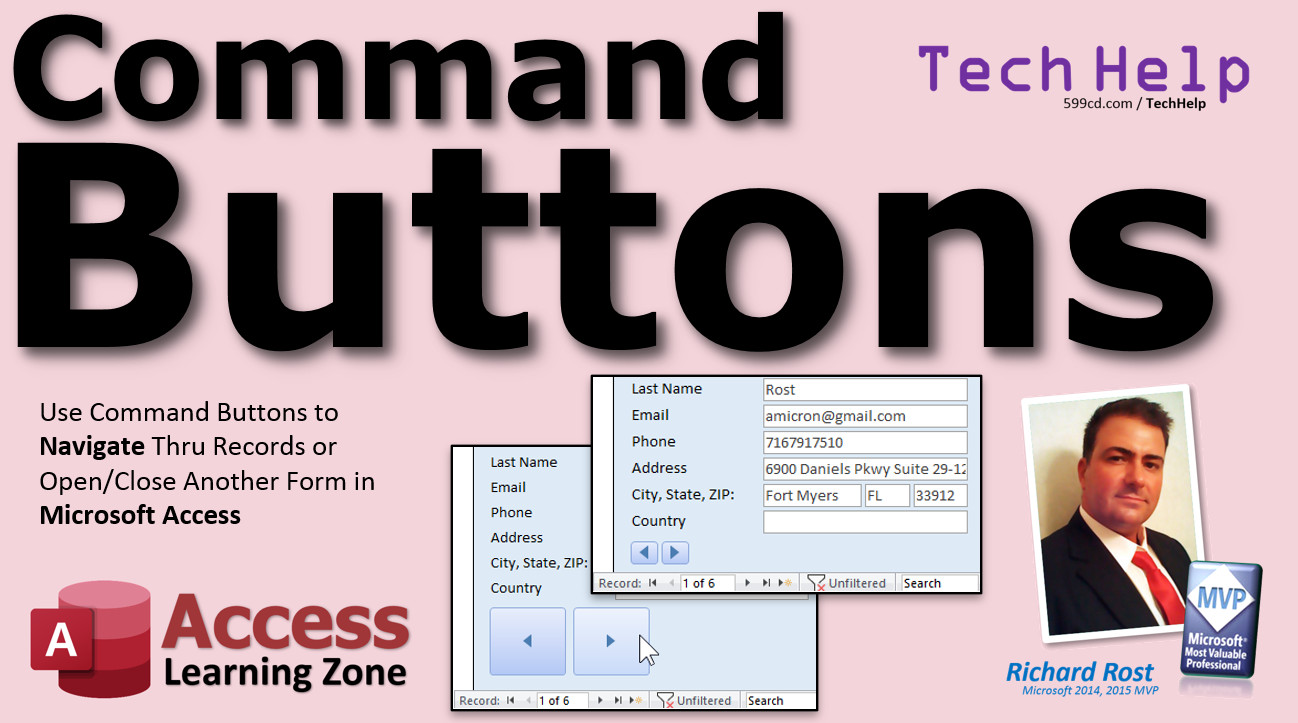
Use Command Buttons to Navigate Thru Records In this video, I'm going to show you how to use Command Buttons to navigate through the records, close a form, or open another form in your Microsoft Access database. We'll also run through the different options in the Command Button Wizard to see what else is available. Asa from Brownsville, Texas (a Gold Member) asks: Is there any way to make the navigation buttons on the bottom of a Microsoft Access form larger? I've got a couple of people working for me who are older and aren't the best with a mouse. Sometimes clicking on those tiny buttons can be a challenge. I've made the labels and text boxes larger for them, but I can't seem to do anything about the navigation buttons. Can I make those buttons nice and big for them? MembersMembers will learn how to move the buttons around on the form and change their size dynamically in code, as well as resize the form. This is handy if you have users who don't necessarily need the "big button" look.
Silver Members and up get access to view Extended Cut videos, when available. Gold Members can download the files from class plus get access to the Code Vault. If you're not a member, Join Today!
Links
Keywordsmicrosoft access, ms access, #msaccess, #microsoftaccess, #help, #howto, #tutorial, #instruction, #learn, #lesson, #training, #database, comand button, command button wizard, record navigation, go to first record, go to last record, go to next record, how to create a button in microsoft access, what are buttons in ms access, how do you use buttons in access, working with buttons in access, how to add command buttons on forms, command button wizard does not appear, resize objects dynamically, resize command buttons, change button position, height, width, top, left
More InformationTranscriptWelcome to another TechHelp video brought to you by AccessLearningZone.com. I am your instructor, Richard Rost. In this video, I am going to show you how to use command buttons to navigate through records, close a form, or even open another form in your Microsoft Access database. We will also run through the different options that are available on the command button wizard to see what else is in there. A little bit later on, for the members in the extended cut, I will show you how to resize buttons in your form, change button captions, and all kinds of other good stuff. Today's question comes from ASA from Brownsville, Texas, one of my Gold members. ASA asks, is there any way to make navigation buttons on the bottom of a Microsoft Access form larger? I have a couple of people working for me who are older and are not the best with a mouse. Sometimes clicking on those tiny buttons can be a challenge. I have made the labels and text boxes larger for them, but I cannot seem to do anything about the navigation buttons. Can I make those buttons nice and big for them? Well ASA, the bad news is you really cannot control the size of the default built-in navigation buttons on the bottom of a form. But it is very easy to replace them with your own. Let me show you how. Here I am in my TechHelp Free template. This is a free download. It is on my website. You can grab a copy if you want to. I will put a link down in the link section below in the description. If you visit the customer form here, for example, right down here on the bottom, these are the navigation buttons. I cover these in my Access Beginner 1 class. If you have not watched it yet, go watch it. It is four hours long. We recorded it for 2021, and I cover all the different ways to move through the records, including the navigation buttons down here. The buttons are tiny, and I understand what you mean. I taught my grandma how to use the computer years ago, and she had pretty bad arthritis in her mousing hand, so she would have a very difficult time sometimes getting the mouse right on that button. It would be nicer if you could make big buttons. Plus, you have some people that are a little hard of sight. I know myself, I am blind in one eye, so sometimes I have to kind of squint if I do not have the right glasses on. So it is nice to make those text boxes larger, the font larger, the buttons larger. Now if you go watch the video where I create this blank template, and I strongly suggest you do, I will put a link down below in the link section. Go watch this. I show you how to make these buttons to open a form. Those are called command buttons. You can make buttons to close forms and do all kinds of stuff. Let me show you real quick how to make a command button. Then I will show you how to replace the navigation buttons. Here I am on the main menu. The customer form, in case you did not watch that, you just go to the command button up here, click on that, drop it down here, click. The command button wizard will start. Now if it does not start, let me cancel this real quick. One of the questions I get all the time is the wizard is not starting. Drop this down, and right here it says control wizards. Sometimes people accidentally turn that off. In fact, in my developer class, I usually do turn it off because I want to make buttons without having to always cancel the wizard. But for beginners, we want that wizard on, so click that on. We have a button, drop it here, and the command button wizard has a big menu of options. We will go through this in a little bit. I will show you some of the different options that are in here. But the one I want to open a form is form operations - Open a Form. Pick the form you want to open, like the customer form. Next, you can open the form and find specific data to display. I cover this in that blank template where I show you how to open up the context or other related records to the customers. But for now, just show all the records. Next, you can put text in there or a picture. I will put a picture in this one. Next, give it a meaningful name, open cost. I think the other button is called open customer, so I will just call this one open cost and then finish. There is my little button. Close the form, save changes, open it back up again. Now I have a button. It is my own button. I can make it as big or as small as I want to, and that is the benefit of making your own buttons. Now I have a giant customer button, right there. Now, how do we do this to replace the navigation buttons? In the customer form here, we have these teeny little guys down here: previous, first record, next, last, and new. There are command buttons to replace all of these. So let us see where those are. Right click, design view. You can turn off that little navigation bar on the bottom if you want to. If you go to format, navigation buttons, turn that off. Then close and reopen the form. Notice it is gone now. If you turn off the horizontal scroll bar, then that bar goes away too. Watch this. Go to properties, scroll bars, for this form we actually need neither, so just set it to neither. Now when I open it, look, that is gone. It is nice and clean. You do not see the little one of six down there because I have six records. Personally, I do not really care because I have my customer list form over here where I can see how many records there are. But if you want to see that, then I would recommend just to leave the navigation bar on. It does not hurt to have both the navigation buttons and your new ones. You can leave that there too. But let us drop some of our own custom buttons down here. Let us make this bigger. Make the detail section taller like that. Grab the bottom of that form. Or you could put it in the form footer if you want to, right click up here, turn on the form header and footer if you want to see those. I do not often use this unless I am putting footer totals down here. I am going to turn that back off. The detail section is fine. Grab a button. Drop it down here. Record navigation. Here are your buttons: Find Next, Find Record. You can use those to find records. I have separate videos on that. I will put links down below. Go to First, Go to Next, Go to Last, Go to Previous. I will do two of them. You can easily do the rest. I am going to do Go to Previous and Go to Next. Previous, Next. Do you want the picture or do you want text in it? I am going to use a picture for these. Next. Go to name, Previous Record or Prev, whatever you want to call it. That is just a name for the button itself. Then Finish. There is your button. Now you can make this as big or as small as you want to for your people who do not click buttons well. Trust me, I have worked with those people before. I will be there soon myself. I have really nasty carpal tunnel starting in my right hand from being a computer nerd since I was eight years old and I am 48 years old. That is a lot of mousing. I know what it is like. Even if I try to switch my mouse to my left hand, which I have done - on those days when I used to do consulting, for example, I used to spend 14 hour days behind the computer easily. Your hands start hurting after all that clicking and scrolling and moving. So I would try a trackball for my left hand. That did not work because you get frustrated because you know how fast you can do things with your right hand. Using my left hand, you try to move the mouse around and you are just not as accurate without practice. I know I could practice it and eventually get good with it, but it is just a habit. You are used to it. But making the button bigger makes it easier to find and click on. Let us do another one. Button, drop it here. Record navigation, go to next record. Little picture. Next. Let us call this next rec and finish, or next rec button, or whatever you want to call it. Slide it up over here. Make it like that. If you want to make sure these are exactly the same size, what I usually do is highlight these and go right click and then size to widest. There are all those tricks. I just move it over to this one and just size it appropriately and then slide it back. That is all. If you want to see if it is the same width or the same height, that is all you have to do. There are all kinds of tricks for making these things bigger and smaller, but I just do it by eye most of the time. But there are my nice big giant buttons. Now let us close this and then open it back up again. There you go. Next, previous. If you are on the first record and you hit the left, you cannot go to the previous record. That is fine. Then navigate through the record just like these guys do. One more button I always like to make is the close form button. Put it over here. Go to form operations, close form. Next, you have the exit doorway or the stop icon here to pick from. This, to me, tells me cancel, but exit doorway is good. There used to be a stop sign in older versions of Access. I used to look at the stop sign. You could put your own pictures in here if you want to with the browse button. I am not going to cover it today; maybe I will cover it in a future lesson if you want to see how. They have to be bitmaps, though. Windows bitmaps, you have to save them as a BMP file. You want to size them to be like this big beforehand. Next, let us call this close form. There is a little button. You can put that right next to the other one like this. See that? Size it over that guy. It is a little bit too wide. We will make it a little bit smaller. Put it right there. Look at that. Close it. Save it. Open it back up again. Close it. See how easy these big buttons are? That is it. Now, let us take a look through the command button wizard. I cover most of these buttons in my beginner classes. My Access Beginner 7 class, for example, goes over a lot of this stuff. But let us just take a quick peek and take a rundown. Sometimes, when I am learning something new, I like to just get a brief overview first of what is available, then dig deeper into it. That is how I teach my classes. I give you a basic overview of tables, then a little bit about queries, and a little bit about forms. I do not teach you everything about tables first and then everything about queries. That is how most books are written, and I learned from books. If you buy a book off the shelf, most books are like, okay, this section is all on tables. Everything possible about tables before we even talk about queries. I like the breadth versus the depth first approach to learning. Let me give you a brief overview of what is in here, and in future videos, we will talk about more of this stuff. Record navigation: I talked about Go to First, Last, Next, Previous. Here are the find buttons you can use. You can use the find button. It is the same as if you launch the find off of the toolbar up top on the ribbon. These buttons are usually designed for when you want to build a database and secure it. This is on securing your database too - on how to make it so that the users do not have access to this stuff. You do not want them coming in here and poking around your objects or having full access to the ribbon. So you lock your database down and then make your own buttons for this stuff. Record operations: Add a new record. That is the one missing from the navigation set down there. Add a new record goes to a blank new record, delete, duplicate a record. I have a whole video on this. I will put a link down below on how to duplicate a record. It is handy if you have someone, maybe a spouse pair, but they each have their separate record, but you want to copy the address and phone number and all that other stuff. Print a record. Save the record. Saving the record just means as you type in data into a form, you see a little pencil there to indicate that it is dirty. It is not actually saved to the table until you move off of the record or refresh it somehow. That is what the save button does. Then there is undo, which cancels all that you just did. Hit escape on the keyboard or make yourself an undo button. Then we have form operations: Apply a filter. I have lessons on filtering. Close a form. We just did open a form. You can open it and find specific records - talked about that briefly. Print a form. Usually, I do not print forms. Reports are for printing. Once in a while you might want to just quickly print something that is on the screen, but usually you want to print reports. Print the current form. Trash the form data. Report operations: Mail a report. Take a report and send it by mail as an attachment. Then you have open a report, which opens it in report view, and then you have preview report that opens it in print preview. Print report sends it straight to the default printer, so each of these buttons does something slightly different. Or you can send it to a file. Quit application: This shuts Access down. That is why I do not like using this guy for closing a form. Then some other stuff. Autodialer goes back. This takes me back to Access 95 when you used to have a modem in your computer. I actually used to use this for making sales calls. I would bring up the customer's record, hit the autodialer, and if you had a modem in your computer, then it would actually dial the phone. I am surprised this button is still in Access. I kind of want to see what happens if I click on it. Before I do, you have print a table, which again I almost never do. Run a macro, which I have classes on. But if you want to program a macro, there you go. You can launch it with these buttons here. Then of course open or run a query. This is good for action queries, like append queries or something that changes things. But I kind of want to try something with you. I have not used this autodialer feature in years. I just want to see what happens. Phone. Finish. I want to see what happens when I click on that button. Autodialer. Okay. So number. Let me put just a random number. What is it going to do? Phone dialer was unable to find a telephone device or a modem to use the phone. Control panel. Okay. So you have to install a modem. Honestly, I have not used a regular phone aside from my cell phone in probably ten years. I do not have a house phone. I just have a cell phone. I have one and my girlfriend has one. I use Google Voice if I am sitting at my computer because it just goes right through your computer. But I would be surprised if this works through a voicemail system if you have that. I do not know. I have not used this. I used to use it heavily in the 90s. Have not used it since. So that is the case. Let us delete that button, and that is just as easy as clicking on it and hitting delete. Then save it and close it and open it back up, and let us get rid of this little button out here. We do not need you. Goodbye. Save. Close. Open it up. Customer form. There are our big giant buttons. Usually, I cover this kind of stuff in the extended cuts. The extended cut is going to be fun for this one. I am going to teach you how to resize these buttons. Not everybody wants these gigantic buttons down here. I will show you how to make them shrink up, or you can even make them invisible if you want to. If you have people that prefer these, we could shrink these buttons up and then shrink up the form. In design view, let us take a look at what goes into this button real quick. If you right click on that button and go to build event, which is off the top of the screen right now, let me slide this down here. Right click, build event. See that? That takes you into this thing. The command button wizard creates what are called embedded macros. Personally, I do not like macros. I prefer programming in VBA. If you have watched any of my other videos, you know this. I do not really care for macros. The nice thing about macros is they are portable. If you use the "safe actions," which opening a form is, things that are only inside of Access, you cannot really affect other files on the computer, are generally considered safe actions. You can see what all of the actions are by clicking on this. You can distribute your database to other people without them having to worry about security warnings if you stick to all the safe actions in the macros. I do have classes on macros for that purpose, to teach people how to use these things. You can see the commands here. On error, it gives you an error message, go to record. If macro, it is this message box, that. So that is basically what the wizard builds for you. It is a little macro. Just wanted to give you a little preview. Right click, build event. You can see what is in there. That is just close window, the close window command. That is how you use these buttons to navigate through your records in your form. Now in the extended cut, I am going to show you how to resize these buttons with another button. Watch this. Click, makes them small, and it shrunk the form up. Click again, make it big, small, big and small. Also, watch this text box right here. Make it big, bigger text, bigger box, big and small. Watch this notepad right here. Click and it gets bigger, click off of it and it gets smaller. I was not exact with all the sizes; we were just playing around but I am showing you how to do all this stuff. Big and small. If you have user logon set up, like if you follow my security video and set it up so that when people log on you know who they are, then you can set these preferences automatically when they open up the database. In the extended cut, I show you how to do all this here, resize these buttons, move around, change the form size, change the font size here, change this box. It is all in the extended cut. Silver members and up get access to all my extended cut videos. There are lots of them now, so check it out. How do you become a member? Click the join button below the video. After you click the join button, you will see a list of all the different types of membership levels that are available. Silver members and up will get access to all of the extended cut TechHelp videos, live video and chat sessions, and more. Gold members get access to a download folder containing all the sample databases that I build in my TechHelp videos, plus my code vault where I keep tons of different functions that I use. Platinum members get all the previous perks, plus access to my full beginner courses and some of my expert courses. These are the full length courses found on my website and not just for Access. I also teach Word, Excel, Visual Basic, ASP, and lots more. But do not worry, these free TechHelp videos are going to keep coming. As long as you keep watching them, I will keep making more. If you liked this video, please give me a thumbs up and feel free to post any comments that you have. I do read them all. Make sure you subscribe to my channel, which is completely free, and click the bell icon and select all to receive notifications when new videos are posted. Click on the show more link below the video to find additional resources and links. You will see a list of other videos, additional information related to the current topic, free lessons, and lots more. YouTube no longer sends out email notifications when new videos are posted, so if you would like to get an email every time I post a new video, click on the link to join my mailing list. If you have not yet tried my free Access Level 1 course, check it out now. It covers all the basics of building databases with Access. It is over three hours long. You can find it on my website or on my YouTube channel. If you like Level 1, Level 2 is just 1 dollar. It is also free for all members of my YouTube channel at any level. Want to have your question answered in a video just like this one? Visit my TechHelp page and you can send me your question there. Click here to watch my free Access Beginner Level 1 course, more of my TechHelp videos, or to subscribe to my channel. Thanks for watching this video from AccessLearningZone.com. IntroIn this video, I will show you how to use command buttons in Microsoft Access to navigate through records, open or close forms, and customize your forms for easier use. We will walk through replacing the default navigation buttons with larger, more accessible command buttons and go over the different options available with the command button wizard. You will also learn how to turn navigation bars on or off, add buttons for key actions like moving between records and closing forms, and get a quick overview of the types of tasks you can automate with command buttons. QuizQ1. Why might someone want to create their own navigation buttons in Microsoft Access rather than using the built-in ones? A. Built-in navigation buttons cannot be resized and may be difficult for some users to click on B. Built-in buttons are too slow to use C. Custom buttons automatically improve database security D. Custom buttons can only be used by advanced users Q2. How do you begin adding a command button to a form in Access? A. Use the Insert - Object menu B. Drag the command button from the toolbox and drop it onto the form C. Click the File menu and select Add Command Button D. Type a command in the form's property sheet Q3. What should you do if the Command Button Wizard does not start automatically when you add a button? A. Click Restart Wizard on the form ribbon B. Enable Control Wizards from the toolbar before adding the button C. Close and restart Microsoft Access D. Reinstall the Access application Q4. Which of the following is NOT an action available for command buttons by default in the wizard? A. Record navigation (Next, Previous, First, Last) B. Export to PDF C. Open or close a form D. Print a report Q5. If you want to remove the default navigation bar from the bottom of an Access form, what should you do? A. Set Navigation Buttons property to No in the form properties B. Change the form type to Report C. Delete all fields from the form D. Lock the form's controls Q6. What is an important benefit of creating your own navigation or operation buttons on a form? A. You can control their size, appearance, and placement B. They can only be used on reports C. Only VBA code can be triggered, not macros D. They automatically update the database structure Q7. In which section of a form can you place custom buttons for navigation? A. Only in the form header B. Only in the detail section C. In the detail section or the form footer/header as desired D. Only outside of the form on the navigation pane Q8. What is the result of turning off scroll bars in form properties? A. The form becomes locked B. The horizontal bar below the records is removed C. All fields disappear from the form D. The form filters records automatically Q9. What is typically used for the "Close Form" command button graphic in Access? A. Stop sign or exit doorway icon B. Pie chart icon C. Save floppy disk icon D. Print icon Q10. What does the embedded macro generated by the Command Button Wizard do? A. Runs a series of safe actions defined by the user, like navigating records or closing the form B. Automatically updates your Access version C. Encrypts your form data D. Runs external exe files on your computer Q11. According to the video, what is a preferred method for quickly ensuring several buttons are the same size? A. Highlight the buttons, right click, and use the "Size to Widest" or similar options B. Change the database theme C. Drag and double-click them one at a time D. Use an external image editor Q12. Why might you want to replace built-in navigation with custom buttons if you're designing for older or visually impaired users? A. Custom buttons can be made larger and more visible for easier use B. Built-in buttons cannot execute any navigation C. Older users cannot use Access with built-in buttons D. Custom buttons make the form load faster Q13. What is a limitation of the "Autodialer" feature in Access mentioned in the video? A. It requires a physical modem installed on the computer B. It only works over Wi-Fi C. It is only available in Access for Mac D. It automatically sends emails instead of dialing Q14. What does saving a record with a command button actually do in Access? A. Writes any unsaved changes from the form to the underlying table B. Deletes the record C. Opens the record in another program D. Encrypts the data Q15. What is a "safe action" in the context of Access macros? A. An action that only affects the database itself and does not perform insecure tasks with external files B. Any action that encrypts data C. Only actions that require administrator access D. An action that closes Access immediately Q16. What is the benefit of using embedded macros created by the wizard for distribution? A. They avoid typical security warnings if only "safe actions" are used B. They auto-generate VBA for all actions C. They require every user to enable full trust settings manually D. They only work on developer versions of Access Q17. Which of these form operations is NOT generally performed using a command button? A. Close a form B. Filter records C. Change the color of the Access theme automatically D. Print a form Q18. Which menu or property do you use to add or remove a form's header and footer? A. Right click and select Form Header/Footer from the shortcut menu B. Use the File menu C. Type HEADER: TRUE in the property sheet D. Go to the query designer Q19. According to the video, which is generally better for printing - forms or reports? A. Reports, as they are designed for printing layouts B. Forms, since they show live data C. Either, as they are identical D. Neither, Access cannot print Q20. How can you delete a command button from a form? A. Click on the button and press the Delete key B. Go to Control Panel C. Remove Access from your computer D. You cannot delete command buttons Answers: 1-A; 2-B; 3-B; 4-B; 5-A; 6-A; 7-C; 8-B; 9-A; 10-A; 11-A; 12-A; 13-A; 14-A; 15-A; 16-A; 17-C; 18-A; 19-A; 20-A DISCLAIMER: Quiz questions are AI generated. If you find any that are wrong, don't make sense, or aren't related to the video topic at hand, then please post a comment and let me know. Thanks. SummaryToday's video from Access Learning Zone focuses on using command buttons to control navigation in Microsoft Access forms. I will walk you through how to use these buttons to move through records, close a form, and open other forms in your database. I will also review the various options available in the command button wizard. If you are a member, you will find even more content in the extended cut, where I explain how to resize buttons, customize captions, and other useful enhancements. The question for today is about making navigation buttons larger in Access forms. The request comes from someone looking to help older users or those who are less precise with a mouse. Increasing the size of labels and text boxes is easy, but the built-in navigation buttons at the bottom of a form cannot be resized. However, it is very straightforward to replace them with your own custom command buttons, which you can make any size you like. Using the TechHelp Free template, which is available as a free download on my website, I demonstrate where these built-in navigation buttons appear at the bottom of a form. If you have not already seen my Access Beginner 1 class, I recommend starting with that as I provide a thorough overview of form navigation. Smaller navigation buttons can be difficult for some users to click accurately, especially if they have limited dexterity or vision. Making custom buttons larger not only helps with ease of clicking, but also improves visibility. If you want to add your own buttons, it is simple. First, ensure the command button wizard is enabled, which you can do by checking that "Control Wizards" is active. Adding a command button brings up the wizard where you can pick from a variety of actions, such as opening a form or performing a record navigation. The wizard lets you set the appearance and size of the button, and you can assign it any meaningful name. To replace the default navigation bar, you can turn it off in the form properties under the "Format" tab. Removing the horizontal scroll bar cleans up the bottom of the form as well. You are free to leave the navigation bar visible if you want users to have multiple ways to move through records, but many people find it neater to rely only on custom buttons. Custom buttons are added in design view wherever you like on your form, often at the bottom or in the form's footer. The command button wizard offers options such as Go to First, Go to Previous, Go to Next, Go to Last, and even New Record. Each button can use a picture or text as its label, and you can resize them just by dragging their edges. You should consider making the buttons large for users who struggle with a standard mouse. Drawing on personal experience, I know how much easier it is to work with big, accessible controls, especially after spending long hours at the computer. Arranging your own navigation buttons is easy. For example, you might add a "Previous" and "Next" button by choosing those actions from the "Record Navigation" section of the wizard. Give each button a name so you recognize it in the form. You can quickly ensure the buttons are the same size using the sizing tools in the right-click menu or just by using your eye. Adding a "Close Form" button is just as simple. Select "Close Form" from the wizard, choose an appropriate image (like an exit doorway), and resize it as needed. These large buttons let users interact with your database comfortably. Once your custom buttons are in place, closing and reopening the form allows you to test their operation. They provide the same navigation functionality as the tiny built-in buttons, but are far easier to use for those who need larger targets. Reviewing the command button wizard, you will find options beyond just navigation. There are actions for adding, deleting, or duplicating records; saving or undoing changes; applying filters; opening or closing forms and reports; running macros and queries; and even a legacy autodialer feature from earlier versions of Access. Most of these are useful when building a professionally tailored interface for your users. For database security and user convenience, it is often better to use custom buttons and restrict user access to underlying objects or the Access ribbon. Briefly, the wizard builds embedded macros behind your buttons. These macros are generally safe if you keep to standard Access actions. While I personally prefer using VBA for most programming, macros serve well for quick and safe user interface customizations. In the extended cut for today's video, I explore how to add a button to dynamically resize the navigation controls and form—making buttons and text boxes grow or shrink at the click of a button. This includes adjusting font sizes, form sizes, and even responding to user preferences based on their login information. If you have users with specific accessibility needs, these tricks can help your forms adapt automatically. Members at the Silver level and above get access to all extended cut videos, which now number in the hundreds. Gold members can download all sample databases and access my code vault, while Platinum members receive everything plus my complete beginner and some expert courses. I will continue to release free TechHelp videos as long as there is interest. Please consider subscribing to my channel and leaving feedback in the comments section. You can also join my mailing list for email notifications, since YouTube no longer sends out emails when new content is posted. If you are new to Access, try my free Level 1 course, which covers all the basics and is available both on my website and YouTube. Level 2 is just one dollar and is free for all channel members. If you have your own Access question, submit it on the TechHelp page and you might get an answer in an upcoming video. You can find a complete video tutorial with step-by-step instructions on everything discussed here on my website at the link below. Live long and prosper, my friends. Topic ListCreating custom navigation buttons in Access forms Using the Command Button Wizard Enabling and disabling the command button wizard Replacing built-in navigation buttons with custom ones Turning off form navigation bars in Access Adjusting scroll bar settings on a form Adding buttons for record navigation (first, next, previous, last) Sizing and aligning command buttons Adding a custom Close Form button Selecting button images or text labels Overview of Command Button Wizard options Using command buttons for record operations (add, delete, save, duplicate) Using form operation buttons (open, close, apply filter, print form) Using report operation buttons (mail, open, preview, print, send to file) Adding a Quit Application button Launching the AutoDialer feature with a button Deleting unused command buttons Viewing and understanding embedded macros created by the wizard Using safe macro actions in distributed databases Primary TopicsAccess command button wizard, form navigation buttons, customizing button size, replacing default navigation bar, Access form design, command button actions Secondary Topicsmacros vs VBA in Access, UI accessibility in forms, embedding macros, non-printing forms, form user preferences |
||||||||||||||||||||||||||||||||
|
| |||
| Keywords: TechHelp Access comand button, command button wizard, record navigation, go to first record, go to last record, go to next record, how to create a button in microsoft access, what are buttons in ms access, how do you use buttons custom navigation buttons PermaLink Command Buttons in Microsoft Access |