|
||||||

|
|
||||||
|
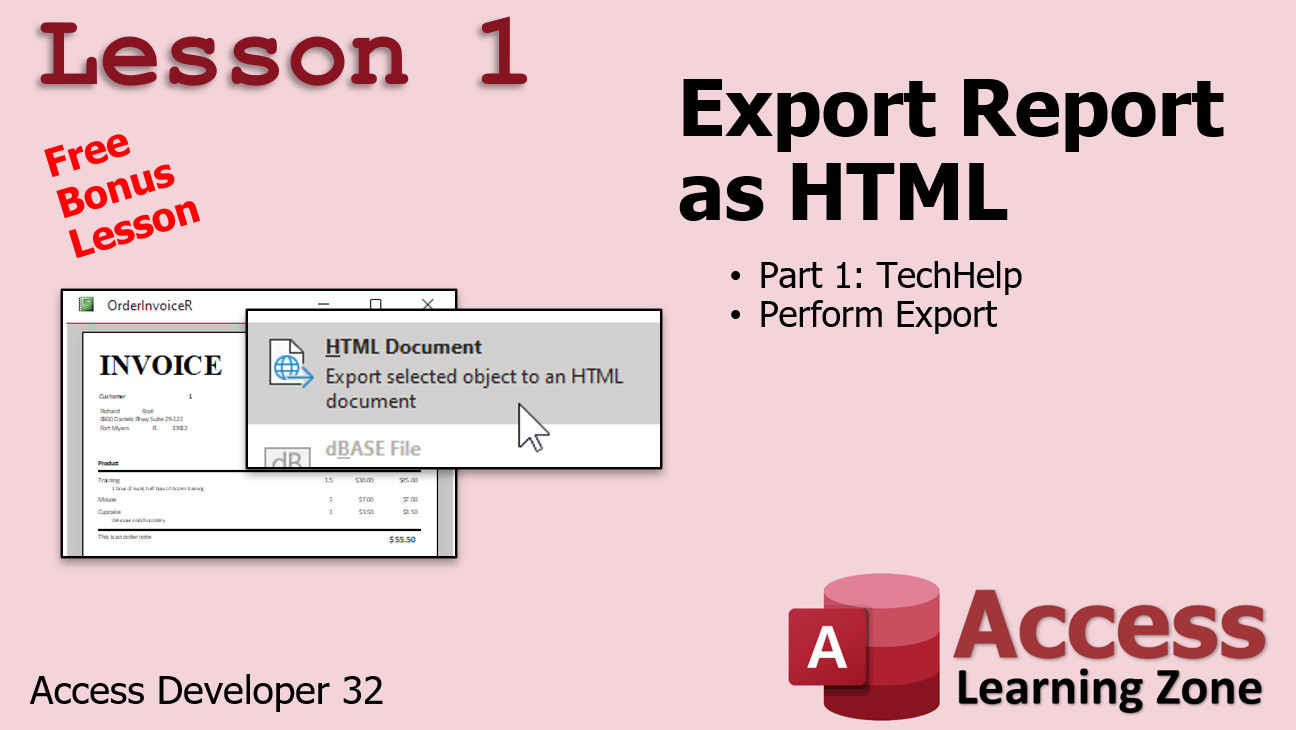
Access Developer 32FTP Files, Value from Web APIs, Group Search WelcomeIn today's class we will learn how to FTP files up to a web server with one click. This is great if you have information you want to share on your web site, such as a calendar or a product list. We'll make a button to have Access export a report and then FTP it automatically up to your web server. Next we'll see how to get data from a Web API using just VB and without using the Web Browser control. We'll build a currency conversion utility and we'll have our database go out to the web to get the current up-to-the-minute exchange rates. We'll put customers into various groups and we'll build a form to search for customers that are in ANY selected group, or in ALL selected groups. We'll learn how to properly use the On Delete event, and how to give friendly error messages when a user attempts to add a duplicate value in an indexed field. ResourcesTopics CoveredIn Lesson 1, we will learn how to export a Microsoft Access report as an HTML document so it can be viewed in a web browser.
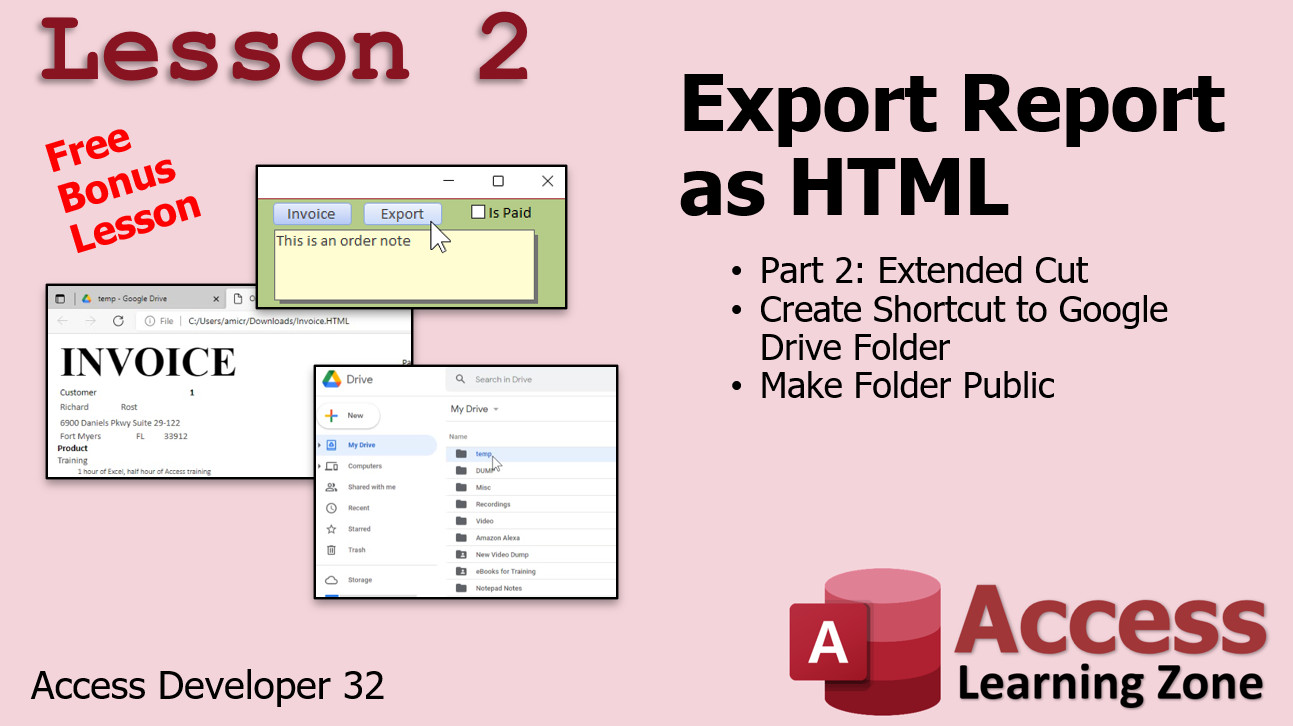
In Lesson 2, we will learn how to run that export with just one line of VBA code. We will also see how to connect to a Google Drive folder. This way it's a simple click and drag to update your web site, or a public folder, with your report.
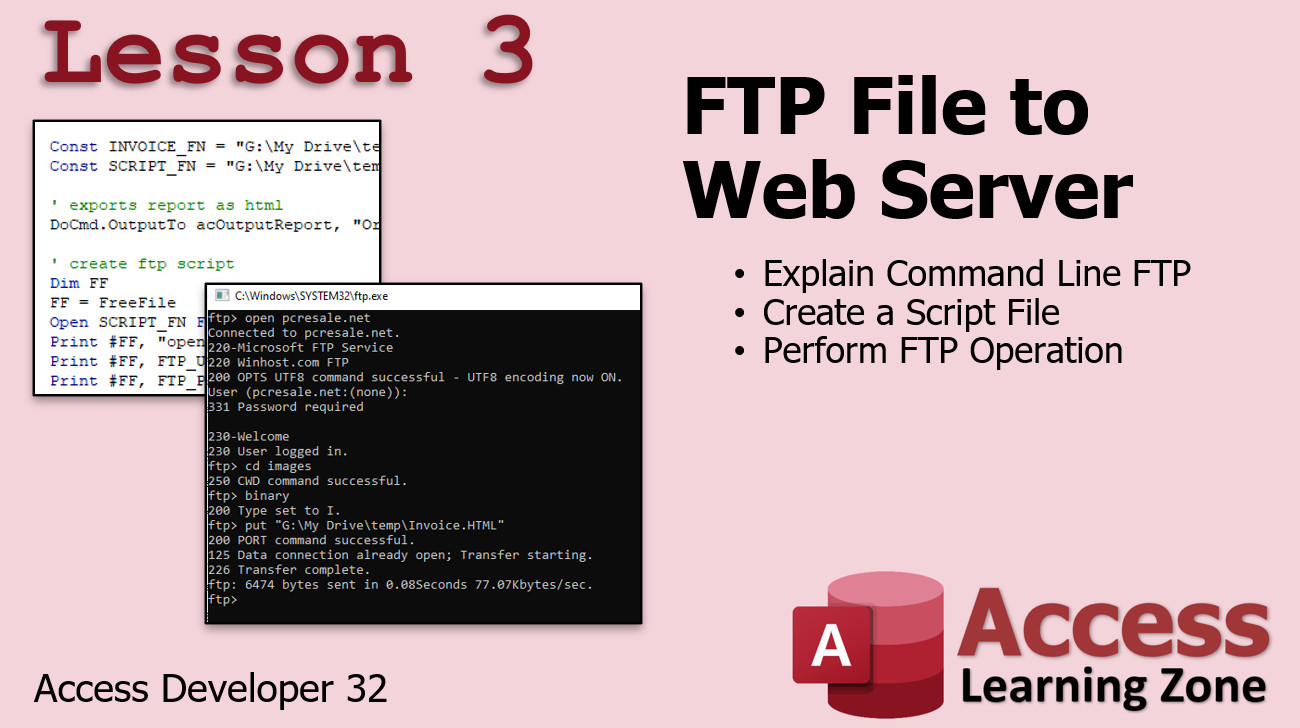
In Lesson 3, we will learn how to FTP into a web server using the command line. We will then write a script file using VB I/O routines. We will launch that FTP script to upload the HTML file to our web server. We will then launch our web browser to view that the file was successfully uploaded. One click FTP from Access to the Web.
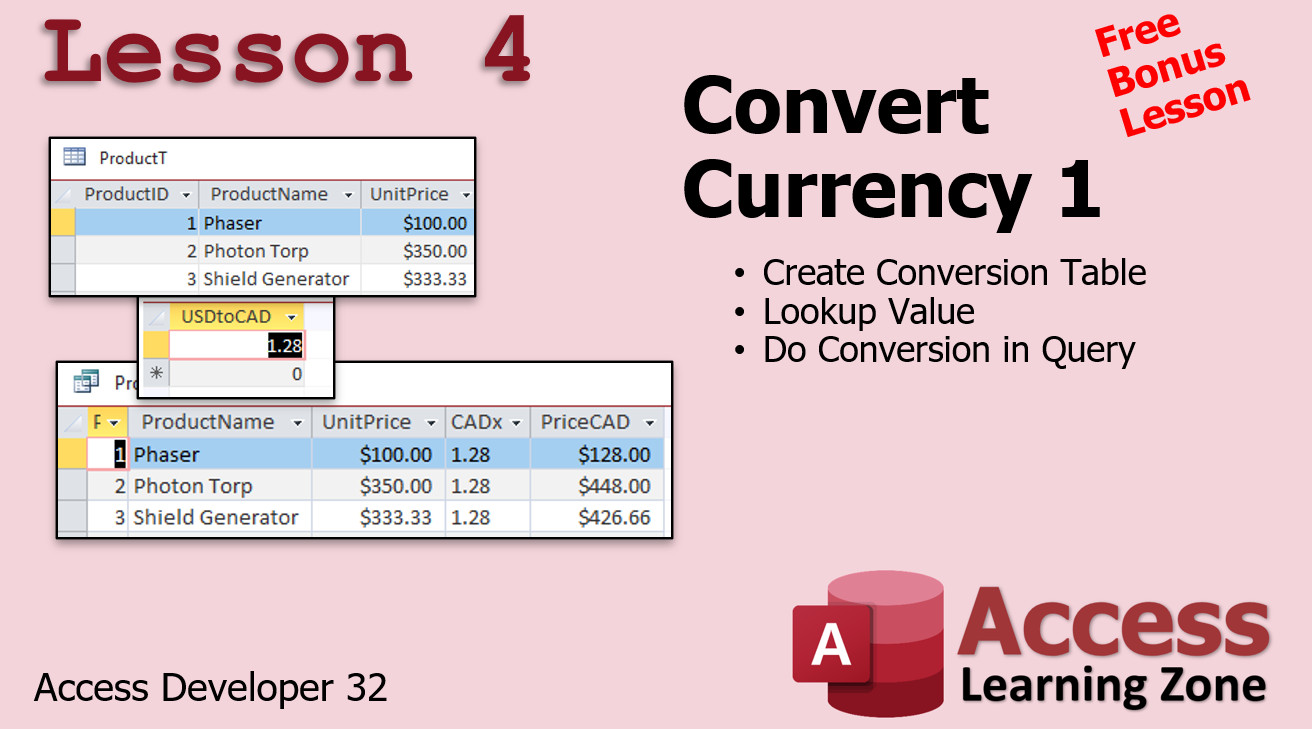
In Lesson 4, we will learn how to convert between multiple currencies in your Microsoft Access database
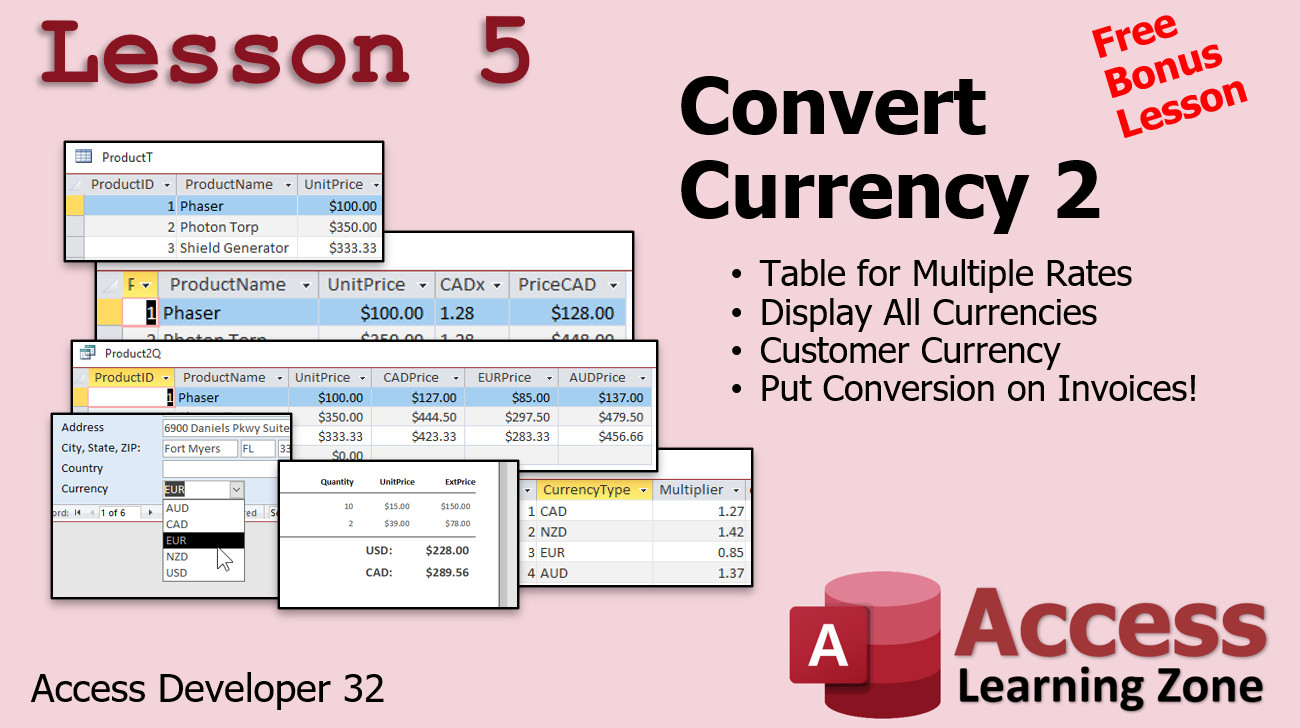
In Lesson 5, we will learn how to create a currency conversion table so you can easily switch between multiple types of currency, and display more than one currency on your forms, reports, etc.
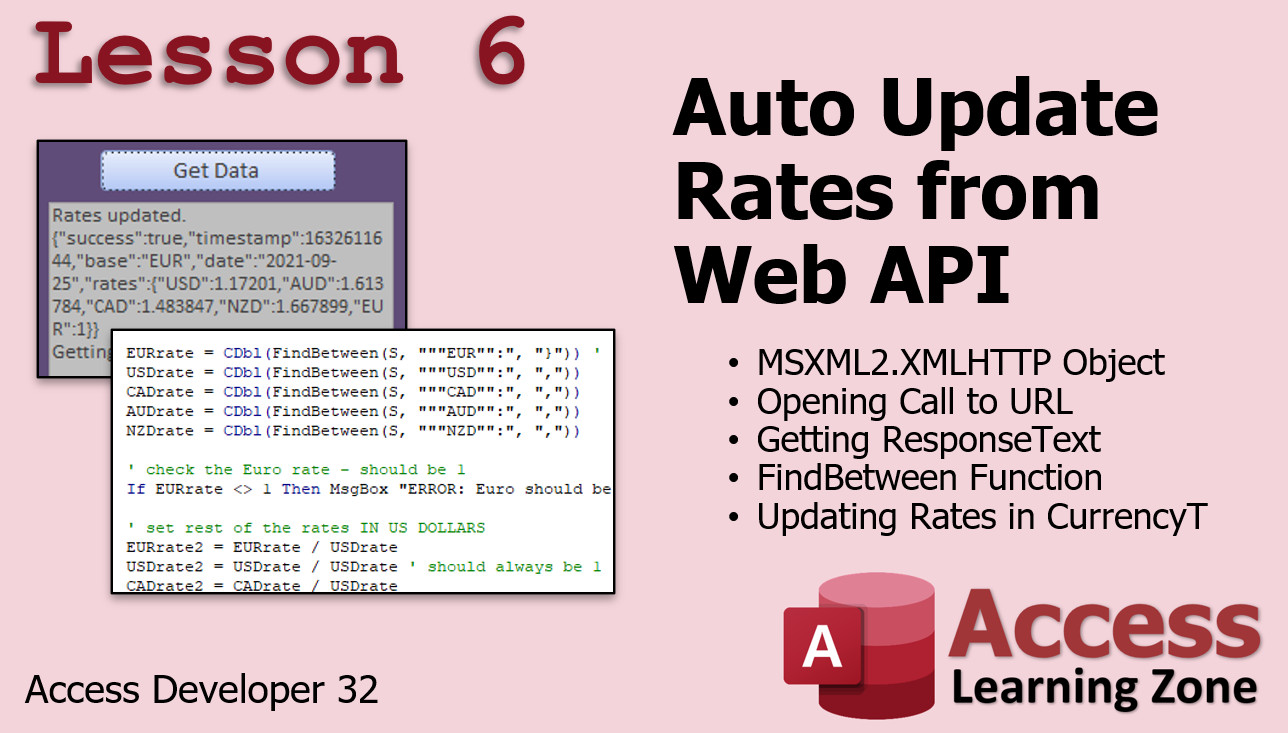
In Lesson 6, we will learn how to use the XMLHTTP object to call a Web API and pull the current currency conversion rates from the Internet. We will use my FindBetween function to parse the string that's returned and then save the updated data in our table.
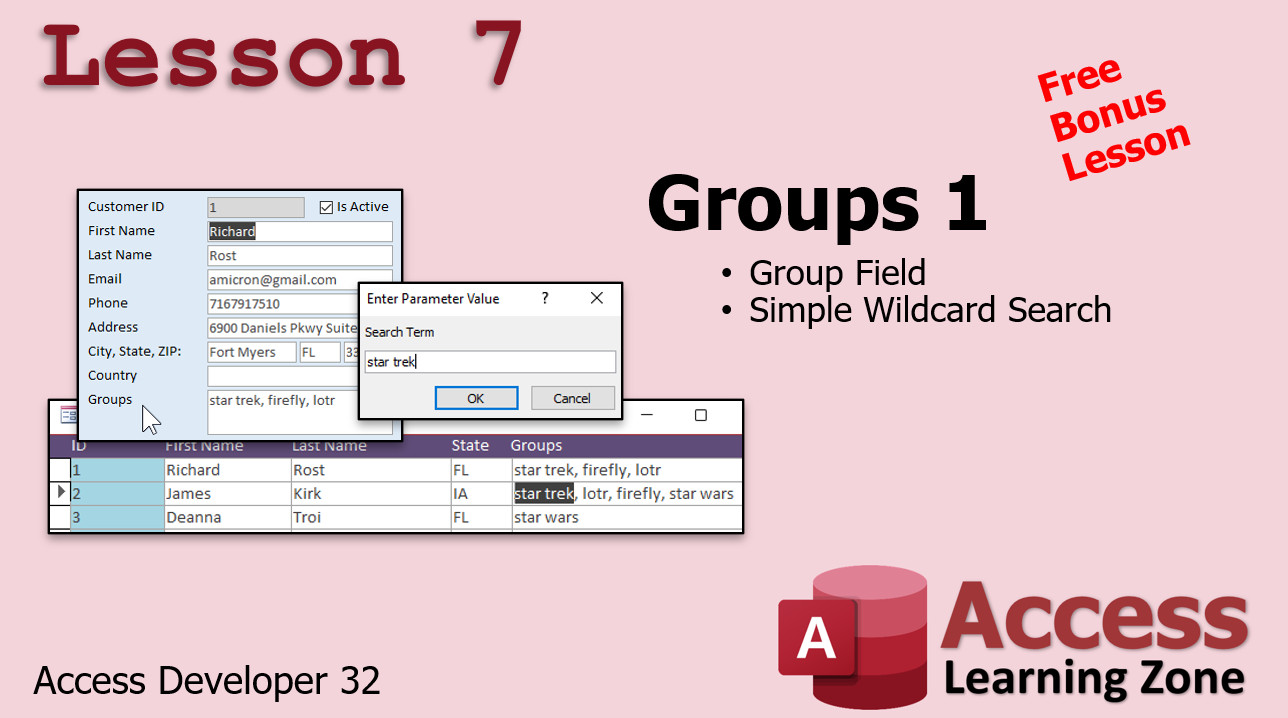
In Lesson 7, we're going to be dealing with customer groups. We're going to be putting customers in various groups based on certain tags. Then we will build a parameter query to do a simple wildcard search on them.
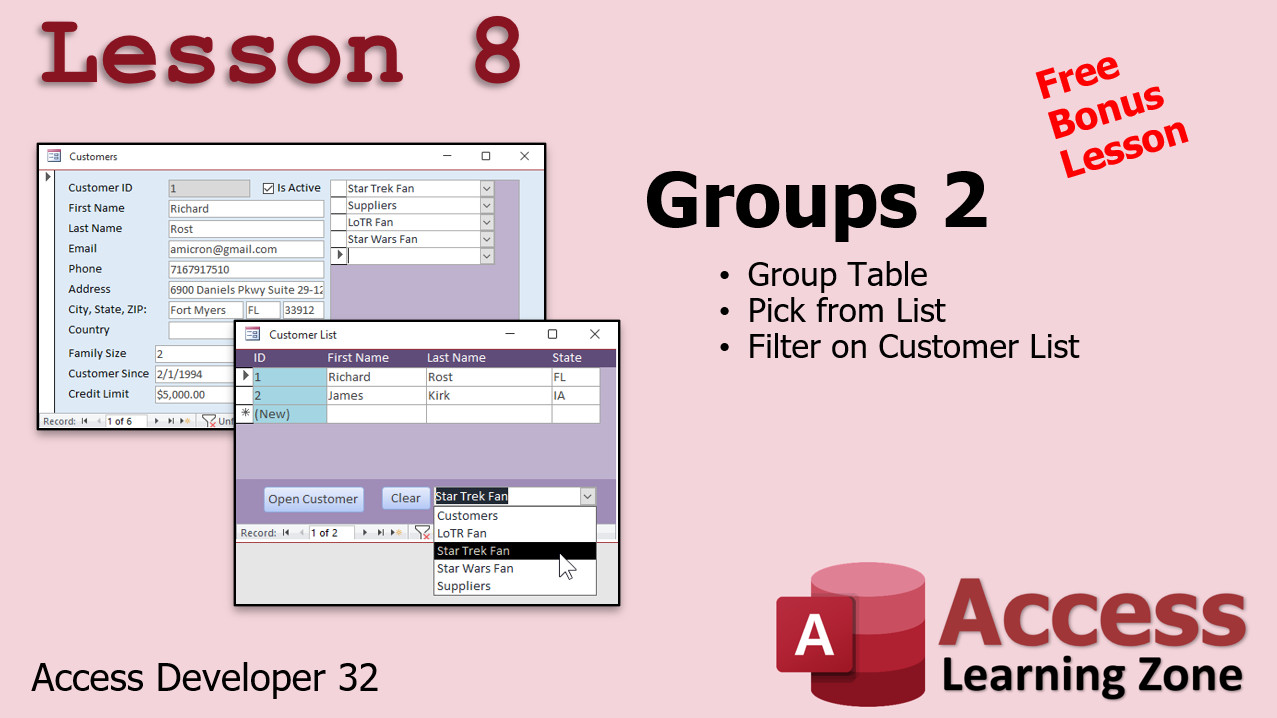
In Lesson 8, we're going to create an actual group tabl so we can pick a group from a list of groups. This way each customer can be in multiple groups. We'll use a many-to-many relationship with a junction table. Then on the customer list form we will set up a combo box so we can filter the results to show just customers from the chosen group. We'll make a button to clear the filter.
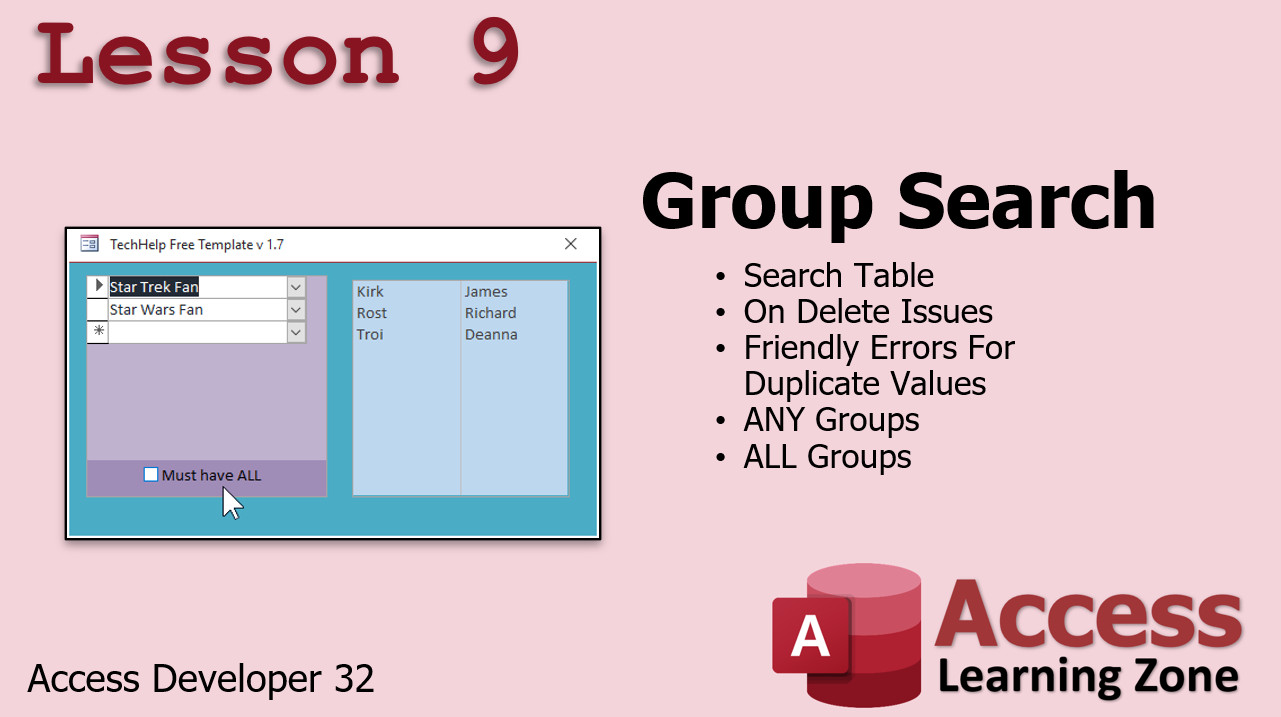
In Lesson 9, we're going to set up a complex search form for our groups. We'll set up a search table. We'll learn about the proper way to use the On Delete event. We'll learn how to display friendly error messages when someone tries to add a duplicate value to an indexed field. We will learn how to show customers who are in ANY of the groups listed, or are in ALL of the groups listed (AND vs. OR conditions). It's not as easy as you might think!
Enroll TodayEnroll now so that you can watch these lessons, learn with us, post questions, and more.
Questions?Please feel free to post your questions or comments below. If you are not sure as to whether or not this product will meet your needs, I'd rather help you before you buy it. Remember, all sales are final. Thank you.
More InformationTranscriptWelcome to Access Developer Level 32, brought to you by AccessLearningZone.com. I am your instructor, Richard Rost. In today's class, we will learn how to FTP files up to a web server with one click. This is great if you have information that you want to share on your website, such as a calendar or a product list. I will teach you how to click one button and then have Access export the report or whatever other data that you want, and then automatically FTP it up to your website. Then we will see how to get values from a web API using just VB and without using the web browser control. We will build a little currency conversion utility where we can convert from, let's say, US dollars to Euros or to Canadian dollars. We will have up-to-the-minute currency conversion rates. We will click one button, get data, and it will go out to the web, grab the conversion rates, and bring them into our database. Then finally, we will do a group search. We put customers into groups in previous classes back in the expert series. Now I am going to show you how to build a search form where you can say, here is a list of groups, I want to see all the customers that are in any of those groups, or I might want to see all of the customers who are in all of those groups. That is a tricky situation to pull off, and we will cover that in today's class. Plus, we will learn a whole lot more. We will learn how to properly use the on delete event, which is something that I have kind of avoided because I don't like it, but I will show you how to do it in this class. We will also see how to pop up friendly error messages instead of the default system error message when the user does something like try to add a duplicate value to a field that is indexed with no duplicates. All that is coming up in this class. Of course, this is the 32nd level of the Access Developer Series. First comes beginner, expert, advanced, and then, of course, developer 1 through 31. I recommend you take all those classes before taking this one. I strongly recommend you do not skip levels. There is lots of stuff that is covered in those extra levels, even if you think you do not need them. So I have a whole page on not skipping levels. Go read this. I will be using Access 365. It is currently October of 2021, so it is roughly equivalent to Microsoft Access 2019. Of course, I strongly recommend the Access 365 subscription because you have always got the most up-to-date version of Access available. If you have any questions about the material covered in today's class, just scroll down to the bottom of the page and post your question there. If you have general Access questions, you can post them in the Access forum. Do not forget to check out my kind of almost daily podcast about Microsoft Access. It's absolutely free. Visit the TechHelp page. Let's take a look at exactly what is covered in today's class. Lesson 1 today is a free bonus lesson. We are going to be taking it from my TechHelp videos. We are going to learn how to export a report as an HTML document. Lesson 2 is another free bonus lesson today. We will cover part 2, the extended cut of my TechHelp 2 export reports as HTML. In this lesson, we will make a shortcut to a Google Drive folder where you can make it public and share it with anybody. In lesson 3, I am going to show you how to automatically FTP any file up to a web server with one click. We will create a command line FTP script, and we will perform the FTP operation inside of Visual Basic. With one click, you will be able to export a report as an HTML document, FTP it up to your web server, and we will launch the page after that to make sure it works. Lesson 4 is another free bonus lesson taken from one of my TechHelp videos. I will show you how to convert currency from one type to another, whether it is US dollars, Canadian dollars, Euros, or whatever. We will create a lookup table and we will do the conversion in a query. Lesson 5 is from the convert currency TechHelp extended cut. We will learn how to create a table for multiple conversion rates. We can then display all the currencies or just one currency at a time. We will put a currency selector on the customer form so we can pick that customer's preferred currency and then display both US dollars and their currency on their invoice. That is all covered in lesson 5. In lesson 6, we are going to learn how to update our currency conversion rates from the web. We are going to go out and use the XML HTTP object to connect to a web API over the internet. We are going to get the response text from that service, which will have all the currency rates in it. We will use the find between function, which is the function I wrote, to pull out that information from the string that gets returned. Then we will update the rates in our currency table. All that is covered in lesson 6. In lesson 7, we are going to be dealing with customer groups. We are going to put customers in groups based on certain tags. Then we will build a parameter query to do a simple wildcard search on them. In lesson 8, we are going to create an actual group table. Pick a group from a list of groups. We can have customers in multiple groups. Then on the customer list form, we will make a combo box where we can filter based on the group selected and clear that filter. In lesson 9, we are going to set up a search form for our groups. We will set up a search table. Then we will deal with some on delete issues that we have never talked about before. I will show you how to make some friendly error messages if you put duplicate values in. Then the top part, we will see how to show customers that are in any group listed and show any customer that is in all of the groups that are listed. That is the top part. We will get to that in this lesson. Thanks for watching. IntroIn this lesson, you will learn how to use Microsoft Access to automate uploading files to a web server with FTP, retrieve values from a web API for real-time currency conversion, and perform advanced group searches for customers based on multiple criteria. Additional topics include exporting reports as HTML, managing multiple currency conversion rates, updating rates automatically from the web, working with customer groups, building filterable search forms, handling the on delete event, and displaying user-friendly error messages. This is Access Developer Level 32. QuizQ1. What is the main focus of the Access Developer Level 32 class? A. Working with images in Access forms B. FTP file transfer, web API integration, group search, on delete events, and custom error handling C. Advanced SQL queries only D. Macros and automation in Excel Q2. What task will you be able to automate with just one button click after this class? A. Importing new tables from Excel B. FTP a file up to a web server directly from Access C. Print multiple forms as PDF D. Merge tables automatically Q3. How will Access retrieve up-to-the-minute currency conversion rates in this course? A. By manually entering them from a printout B. Using the web browser control to visit a site C. Using VB code and the XML HTTP object to contact a web API D. Downloading an Excel file from a website Q4. What is one key topic related to error handling discussed in this class? A. Preventing users from saving records B. Showing friendly error messages instead of the default system ones C. Locking all fields in a form D. Disabling Access system prompts Q5. What tool is NOT recommended for fetching web API data in this course? A. The XML HTTP object B. Visual Basic code C. The web browser control D. A command line FTP script Q6. What can you do with the customer group features described in this class? A. Assign customers to only one group at a time B. Delete customers based on group membership with no warning C. Search for customers in any or all selected groups using parameter queries and a search form D. Automatically email customers in a group Q7. Which lesson covers exporting a report as an HTML document? A. Lesson 3 B. Lesson 7 C. Lesson 1 D. Lesson 5 Q8. What is created in lesson 3 apart from the FTP script? A. A macro to print all reports B. Launching the webpage after FTP to verify success C. Sending emails via Outlook D. Charting sales by customer Q9. What important recommendation does the instructor make regarding course progression? A. Skip beginner levels if you know databases B. Take levels in order and do not skip, as earlier material is foundational C. Start from the developer series only D. Take only the advanced and developer levels Q10. In lesson 6, what function is used to extract currency rate information from the API response? A. Find and Replace B. LookupBetween C. Find Between D. SplitString Q11. What Access version is the instructor using for this course? A. Access 2007 B. Access 2016 C. Access 365 D. Access XP Q12. How can you filter customers by group on the customer list form as taught in the course? A. Using a toggle button B. With a combo box that filters and clears the filter C. With a static filter query in design view D. Only by writing SQL directly Answers: 1-B; 2-B; 3-C; 4-B; 5-C; 6-C; 7-C; 8-B; 9-B; 10-C; 11-C; 12-B DISCLAIMER: Quiz questions are AI generated. If you find any that are wrong, don't make sense, or aren't related to the video topic at hand, then please post a comment and let me know. Thanks. SummaryToday's video from Access Learning Zone focuses on some advanced Microsoft Access topics that will help you automate the process of sharing and working with data online, as well as managing customer groups more effectively. One of the main skills covered in this lesson is how to upload files to a web server using FTP with a single click. This is incredibly useful if you need to keep information such as a calendar or a product list updated on your website. I will show you how to set up a button in Access that, when clicked, will export your report or any other data you need and upload it to your website through FTP, all automatically. We will also be looking at how to retrieve information from a web API using Visual Basic, without needing to use the web browser control. As an example, we will build a simple currency conversion tool, allowing you to convert between US dollars, Euros, Canadian dollars, or any other currency, and get the latest live exchange rates directly from the web. With just one click, your database will reach out for the latest rates and bring that data right into Access for you to use. Another important skill addressed in today's video is group searching. If you have watched previous classes, you will remember we discussed how to place customers into groups. Now, we will go a step further and build a search form that allows you to find all customers belonging to any of a list of groups, or only those in all of the specified groups. This type of search can be challenging to set up, but I will guide you through the process so you can master it. Additionally, I will cover how to use the On Delete event correctly. This is a technique I usually avoid, but I will demonstrate the right way to handle it in Access so you see where it might be helpful. I will also show you how you can replace the standard system error messages with more user-friendly messages, for instance, when someone tries to add a duplicate value into a unique field. This lesson is part of the Access Developer Series, specifically level 32. Please remember that there is a recommended order for these classes: start with the Beginner, then move to Expert, Advanced, and finally Developer levels one through thirty-one before reaching this material. It is best not to skip any levels since each one builds on the previous, and skipping ahead might leave you with gaps in your understanding. I have detailed my thoughts on why you shouldn't skip levels on a page that I highly recommend you read. Throughout this class, I am working with Access 365 as of October 2021. This version is nearly the same as Access 2019, but I always recommend a subscription to Access 365 to make sure you have the latest updates and features. If you have any questions about what we cover today, you are welcome to scroll down to the bottom of the page and ask in the comment section. For more general Access questions, I encourage you to use the Access forum. Do not forget to check out my free Microsoft Access podcast, which I update almost daily. You can find that on the TechHelp page. Here is a breakdown of what we will cover in this class: In lesson 1, we have a free bonus segment taken from my TechHelp series where you will learn to export an Access report as an HTML document. For lesson 2, you will get another free bonus, this time an extended segment of a TechHelp video on exporting reports to HTML. Here, you will learn how to create a shortcut to a Google Drive folder, making it public so you can share it with anyone you like. Lesson 3 focuses on automating the FTP upload process. I will walk you through creating a command-line FTP script and show you how to execute that operation from within Visual Basic. This means you can export a report and upload it to your website with one click, all within Access. Lesson 4 is another bonus from my TechHelp videos, teaching you how to create a currency conversion feature in Access. We will set up a lookup table to convert between different currencies using queries. Lesson 5 expands on currency conversion from the TechHelp extended cut. Here, we will store multiple currency rates in a table, display either all currencies or one specific choice, add a currency selector to the customer form, and display both US dollars and the customer's preferred currency on their invoices. In lesson 6, you will learn to update your currency rates directly from the internet. We will connect to a web API using the XML HTTP object, collect the data that contains the exchange rates, use custom functions to extract those rates, and update your currency table automatically. Lesson 7 introduces customer groups, assigning customers to different groups using tags, and building parameter queries for easy searching. Lesson 8 sees us creating an actual group table. You will learn to assign customers to multiple groups and use a combo box on the customer list form to filter and clear filters by group. Lesson 9 covers building a search form for groups, creating a search table, managing On Delete event issues, and providing user-friendly error messages for duplicate entries. On top of that, you will learn how to display customers who are in any selected group as well as those in all the selected groups. You can find a complete video tutorial with step-by-step instructions on everything discussed here on my website at the link below. Live long and prosper, my friends. Topic ListExporting a report as an HTML document Automatically FTPing files to a web server with VBA Creating a command line FTP script for file transfer Launching a web page after FTP upload Building a currency conversion utility in Access Setting up a lookup table for currency conversion Performing currency conversions in a query Updating currency rates from a web API using XMLHTTP Parsing API responses to extract currency rates Updating a currency table with web-sourced rates Tagging customers with group identifiers Creating and using a group table for customers Filtering customer lists by selected group via combo box Building a parameter query for wildcard group searches Setting up a search form for group-based customer search Handling on delete event for group search table Displaying friendly error messages on duplicate values Showing customers in any selected group Showing customers in all selected groups Primary TopicsFTP automation, report export to HTML, web API integration with VBA, currency conversion tables, updating data from web, group and tag searches, parameter queries, advanced error handling Secondary TopicsXML HTTP object, Google Drive sharing, combo box filtering, index error messaging |
||
|
| |||
| Keywords: access developer 32 FTP File to Web Server, Get Value from Web APIs, Group Search ANY or ALL, on delete event, friendly error messages Export Report HTML Perform Export Create Shortcut Google Drive Public Folder FTP Command Line Script File Currency Conve Page Tag: whatsnew PermaLink Microsoft Access Developer 32 |