|
||||||

|
|
||||||
|
Loan PaymentsBy Richard Rost
 5 years ago
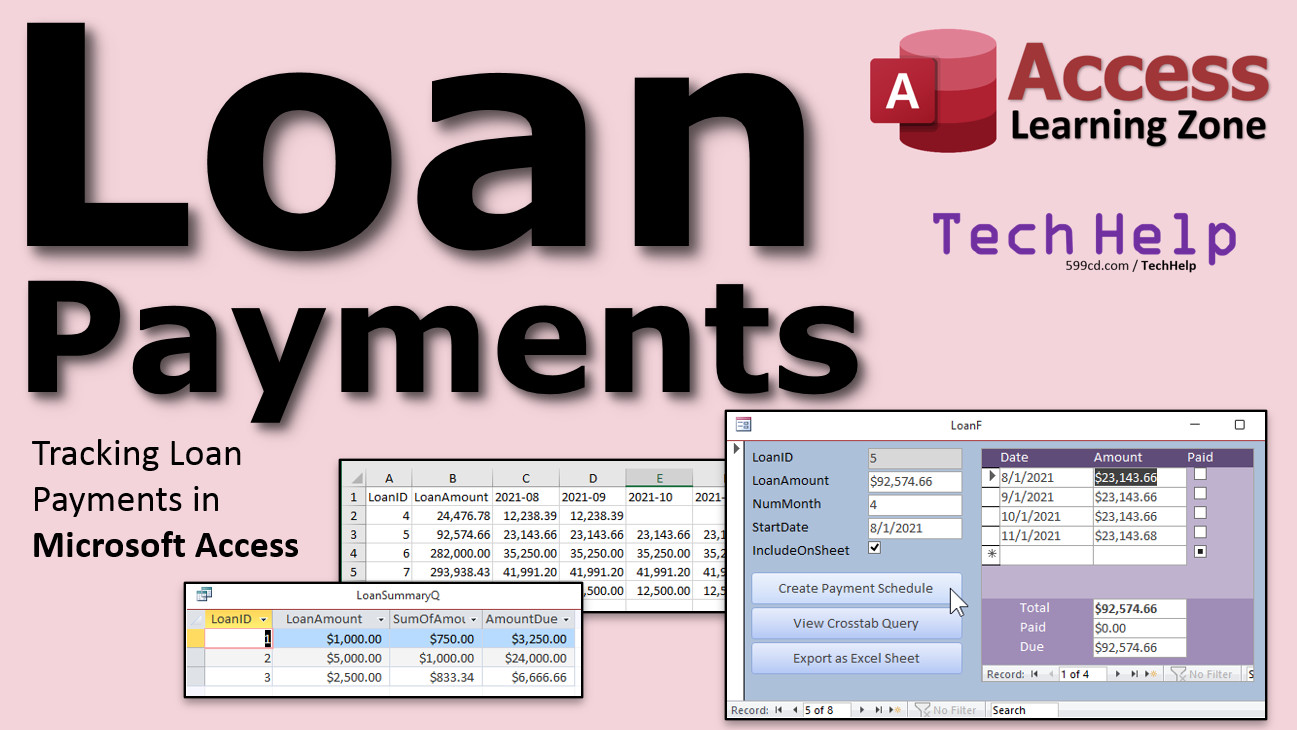
Tracking Loan Payments in Microsoft Access. In this video, I'm going to show you how to track loan payments in Microsoft Access. We will calculate the amount paid and the amount due for each loan. Bryce from Chula Vista, California (a Gold Member) asks: I need to track payments for loans that my company services. I have the loan amount, the start date of the loan, and the number of months. I don't need full loan amortization as that's already been figured out. I just need to generate a list of the monthly payments (amount divided by number of months) and track whether each payment has been made. How would I store this in Access? MembersMembers will learn how to create the payment schedule automatically using a VBA loop. We will also see how to create a crosstab query to display the total payments due for all loans for each month, and how to export that query to Excel to share with others. We will also be very careful about rounding errors, and how to make sure the final loan payment includes and missing pennies. No Superman III issues here - or Office Space, depending on your preference. LOL.
Silver Members and up get access to view Extended Cut videos, when available. Gold Members can download the files from class plus get access to the Code Vault. If you're not a member, Join Today!
Links
UpdateThere was a small error in the original version of this video. It has been fixed. New stuff at time index 16:23. Keywordsmicrosoft access, ms access, #msaccess, #microsoftaccess, #help, #howto, #tutorial, #instruction, #learn, #lesson, #training, #database, loan payments, compute loans, track loans, pmt, loan tracking, loan management system, loan database template, loan database, automatic payment, amortization, rounding errors, missing a few cents, crosstab query
More InformationTranscriptWelcome to another TechHelp video brought to you by AccessLearningZone.com. I am your instructor Richard Rost. In today's video, I'm going to show you how to track loan payments in Microsoft Access. Today's question comes from Bryce in Chula Vista, California, one of my gold members. Bryce says, I need to track payments for loans that my company services. I have the loan amount, start date to the loan, and the number of months. I don't need full loan amortization as that's already been figured out. I just need to generate a list of the monthly payments, the amount divided by the number of months, and track whether each payment has been made. How would I store this in Access? Well Bryce, your job is actually pretty easy since the amortization has already been done for you. I guess the loan company will tell you the total amount of the loan, how much the monthly payments are, and all that's already figured out for you. For everybody else, if you need loan amortization, I do have other videos on that. Amortization is where you put the total loan amount in, the interest rate, and the number of payments, and then Access or Excel will calculate what that monthly payment is for you. But Bryce already has that information. He just has the loan payments and wants to keep track of what's been paid and how much is left. So we're going to put together something like this: the loan amount, the total number of months, and then each payment in here. When a payment's been made, check it off. We'll calculate the amount paid and what's left. All right, let's put this together. A couple of prerequisites first. If you don't know how to work with subforms, the if function, immediate if, or form footer totals, go watch these three videos first. I'll put links down below in the description in the links section. Go watch those first, and then come back. Okay, if you're still here, then you've watched these three videos. Let's get started. Here I am at my TechHelp free template. This is a free download from my website. Go grab a copy if you'd like to. We're going to need two tables: one for the loan and one for the individual payments, two related tables. I guess relationships should have been a prerequisite too. But if you're working with subforms, then you know relationships. Let's create table design. We'll start off with a loan ID. That's our auto number. We're going to have a loan amount. That's currency, of course. We're going to have the number of months. I'm going to go num month. I like to keep everything singular. It's another one of my tricks. That way, when I'm working later on with code or whatever, I don't think to myself, was it num month or num months or number of months, just num month. Just stay consistent. You can put any other information in here you want that's related to this loan, the customer ID if you want to link them back to a customer table. Maybe the start date of the loan itself, whatever else you want to put in, or your notes, whatever. Save this, loan t. All right, primary key, yes. Now, create table design. This is for the loan payments. Loan payment ID, that's the primary key for this field. It's going to be related back to a loan ID. That's a number of type long integer. That's the foreign key. It links it back to the loan table. The payment date, this is for the individual payments now. So this will be a date, the payment amount. That'll be currency. And then is paid. Is this paid yet or not? Yes, no. Make sure that defaults to no. Save this as my loan payment t. All right, so we got loans, we got loan payments. Let's put some data in here. Open up the loan t. Let's just put a couple of loans in here. Let's put a loan in here for $1,000. Get it to be paid back over four months. Start on, let's say, 7-1. How about a $5,000 loan being paid back over five months? That'll be $1,000 a payment. You see how this works. Let's say there's a $2,500 loan. Let's say this is being paid back over three months. Oh, we forgot my start dates. Go 7-15 on that one. Maybe 8-5 for that one. So we got a couple of loans in here. Save changes, sure. Let's set up our forms. I got a single form and a continuous form down here that I use as templates. Start with the single form. I'm going to rename that to my loan F. Design view. If you didn't watch the video where I build this, go watch it, the blank video. If you watched the other videos, that means that they had prerequisites of this, so I know you watched this one too. Bind this form to the loan T. Add existing fields. Bring these guys all in, drop them down there. The only reason to keep these ones around is for this, for the format painter, like this one, see? Paint, paint, paint, that's all. Now I can delete these. I like to have a gray one for the ID. It just signals to the user, you can't change that. Then, use the white one for everything else. Slide this stuff up over here. Maybe align left. Save that, close it. Open it back up again. Looks good. Those are my loans. Now, the loan payments are going to go over here in a subform. Let's do the subform. That's going to be a continuous form. I'll use this guy. Right click, rename. This will be my payment or loan payment F. Before we set this up, let's make a query real quick. In the query, that's where we're going to determine whether or not stuff has been paid. Create query design. Bring in the loan payment T. Bring in all the fields. Then, make one more field over here. That's going to be called amount paid. If, let me zoom in so you can see this better. Shift F2. If is paid, payment amount, zero. All this says is show me the amount that's been paid. So if this item is paid, put the payment amount here. Otherwise, put a zero there. It hasn't been paid yet. This will allow us to easily sum up whether stuff has been paid or not. I know the amount that's been paid, and I can calculate the amount that's still due. Save this as my loan payment paid q. If you run that right now, would I have any payments in here? You got to do it. Let's put some payments in when we get our form done. I want to make the query first so we don't have to go and reinvent the wheel. Loan payment F, right click, design view. Bind this guy to that query that we just made. So record source is going to be the loan payment paid q. Add existing fields. We don't need either IDs in here because as a subform, the relationship is going to be made by the subform control itself, the link child fields, link master fields. Bring in these three fields right here: payment date, payment amount, and is paid. Don't worry about amount paid. Drop those right there. We can get rid of these. Chop off these labels. Slide the payment date over there. Slide the payment amount right there. Put the checkbox there for whether it's paid or not. Play with the labels a little bit. We got the payment date and the amount and paid. Close that up. Shrink that up. Shrink that up. Close that. Save it. Let's take a look over here. Looks pretty good. I like the left align stuff. That's just my thing. Here we go. Left align. Save it. Close it. Now, I don't like the date picker in here. Let's get rid of the date picker. How do you turn that off? Double click. Under format, turn the show date picker off because we're just going to type in dates. Loan F, we're going to put this subform right here. Design view. Grab the subform, click, drag, drop. See that? Delete that guy. We did all this in the subform video, remember that? Open that up. Give that a little bit more room. Save it. Close it. Open it back up again. There we go. Now we can put in our payments. Here's Loan 1. We got $1,000 over four months. That's 250 a month. On 7-1, that's going to be 250. Let's say that's paid. 8-1 was the next one. Another 250. That should be paid. 9-1, 250. Not paid. 10-1, 250. Now let's put our totals down here on the bottom. Go back over to the subform again. It's easier to do design view with it in subform view inside the other one. I don't like doing that. Come over here, we're going to copy this guy, copy, click on the form footer and paste. There you go. There's the total. I'm going to bold that one. Format tab, format bold. Come over here, go to the all tab. This is going to be equals the sum of payment amount. Sum payment amount. Let's see what that looks like. Save it, close it, open it back up. There's the sum. When this is a subform, you'll only see the payments for the loan that you're on. Now, how do I calculate what's paid? Remember that query column that we made. We just add up amount paid. See, two of them are paid. Now look what's going to happen here. That if function makes those zero because that's not paid yet, watch this, click. See, that's how that changes that value there with that if function. I want you to watch the if function first. This is the form footer total down here. Let's do this guy, copy, paste. I'm going to unbold it now because I don't want that one bold. Are these all on the grid? Let's see. Right click, size to grid. I like everything being on the grid. Yeah, OK. Much better. You, what is it, amount paid? Sum of amount paid. Sum amount paid. Save it, close it. Open it back up again. Look at that. Sum amount paid is 500. Now we can very easily calculate what's due. Copy this guy, copy, paste. It's just a difference of these two. It's sum payment amount minus sum amount paid. Equals sum payment amount minus sum amount paid. This will be sum due. Save it. Let's put some labels out here. Copy, paste. Slide this over. Total. Copy, paste. Slide you right over there, paid. The reason why I'm going copy and then clicking on that one, going paste, is it attaches it to that text box. That becomes an attached label now. And then due. OK, save it, close it. Open it back up inside the loan form. Look at that. You see, mark that guy paid. Notice that's still dirty. You have to leave that record and then it updates the calculations on the bottom. Yes, you can put an event in there so as soon as you click on it, it recalculates that. It requires one line of code. Let's put another loan in now. Go to the next loan. $5,000 over five months, starting on 7-15. OK, $1,000 a month, paid. 8-8. That one is not paid yet. 9-15, 10-15, 11-15. I goofed up. I hit 10 too far. That's why I have $1,000. This one, what they tell you for the payments, comes out to $833.33 with a remainder. On 8-5, you got $833.33. Usually they do $3, $4 in the first month. Let's say that one's paid. 9-5, $833.33, and then 10-5, $833.33. Let's see if that adds up. Yep, that's good. Sometimes they put that extra penny in the last payment. I've seen them usually put it in the first payment, though. You have to be careful about that. Members, what we're going to do in the extended cut is make a button right here. Click the button, it's going to fill all those payments in. If you only got $3,000 or $5,000, it's not a big deal. If you're doing a 30-year mortgage, and you've got 12 times 30 payments to put in here, you don't want to put them all in by hand. We're going to do it with a loop in the extended cut. But for the rest of us, be careful. Make sure that your total down here equals that total up here. Here's a little bonus for you. Let's say now you've got these different loans in here. You want to get a quick summary of all of your loans. How much the total loan amount is, and how much is still due to be paid on them? For that, we can use an aggregate query. I didn't put this in the prerequisites because I wasn't planning on doing it, but let's do it real quick. Create query design. If you have never done an aggregate query, let me add it to the list. There you go. It's on the list. Pause this video and watch the aggregate queries video. Come back. All we have to do is bring in the loan T, bring in that loan payment paid q, so we have the amount that's paid for each loan. I'm going to change this guy to a left join. That way, all of my loans show up. Because even if they don't have any payments, they won't show up in this query. You want to still see those. Bring in the loan ID, the loan amount, whatever other information you want out of here. Bring in the amount paid. If you run it like this, you get that, but we don't want that. So when I aggregate this, we want to group these together and sum these up. Turn on the totals over here, and then we're going to sum this column up like that. Now you can see each loan and how much has been paid. We can change this guy, instead of amount paid. Well, yeah, we'll leave it amount paid. It'll say sum of amount paid. That's fine. You want to add over here the amount due. Amount due is going to be the loan amount minus the amount paid, just like that. Make sure you change this also to a sum. Run it. There you go. It's the amount due for each loan. You can put the customer's information and whatever else you want in here so you can see it. Nice little summary chart. I'll save this as my loan summary q. There you go. Save changes, yes. Open that up. Perfect. Now we've got the loans, all in the system, all the payments are in there. Track whether they're paid or not, and a nice little summary query right there. Stop the press. Hold on. I posted a copy of this video and immediately I got a bunch of emails and posts in my forums that that is definitely a wrong answer. Sometimes when I'm recording these videos, I get all caught up in what's going on and talking to you guys and I didn't even look at the numbers here. Yeah, of course. This amount here is definitely wrong. So let's fix it. Now, unfortunately, we're going to need another query because at this point here, see the problem here, I'm adding up this difference, which gets pretty big and it adds it up for each line item. Since this is an aggregate query, we cannot put it in here. So delete that. Save it. Now you've got just this. Now we can use this sum of amount paid and subtract that from this, but we need another query. So, loan summary 2 q. Save changes to that, yes. Create another query, queries loan summary. Now we can bring in the loan ID, the loan amount. I'm going to change this to say just amount paid. Now, amount due is going to be loan amount minus amount paid. This hopefully should look a lot better. That's how much you have to. People in the forums are giving me a hard time. I will save this as, let's call this loan summary 2 q. As you can see, when I'm wrong, I admit it. Sometimes I get caught up in the video and talking to you guys and presenting, I don't even take a close look at the numbers. I've done this stuff a million times. I just goofed. I messed up. I always, at least, tell you guys in the comments. Always check the comments, by the way, for all my videos, just in case, because I don't always go back and record another video to mention it. There have been a couple of other videos where there are minor little mistakes. I make them. I'm not perfect. Well, most of the time I am. Enjoy. Want to learn more? In the extended cut for the members, we're going to make a button to automatically add that list of payments for you. Not too bad to type in four of them, but if you got 40 of them, or a 36-month loan you're paying back, I don't want to sit here typing in 36 times. We'll make one button, click on it, boom, it'll put all the payments in for you. You have to watch the rounding errors. Superman 3, Office Space. There's a little two cents extra on that last one. Gotta be careful about that. We'll make a cross tab query to summarize the months so you can see each month and all of your loans and what payments should be coming in, so you can track your income. Then we'll export that sheet to Excel. Take this one button, click right here, boom, send it out to Excel. That's all covered in the extended cut for the members, 26 minutes long. Silver members and up get access to all of my extended cut videos. Not just this one, all of them. There are getting close to 200 of them now. There's lots and lots of stuff to watch. Gold members can download these databases that I build in the TechHelp videos. How do you become a member? Click the join button below the video. After you click the join button, you'll see a list of all the different types of membership levels that are available. Silver members and up will get access to all of the extended cut TechHelp videos, live video and chat sessions and more. Gold members get access to a download folder containing all the sample databases that I've built in my TechHelp videos, plus my code vault where I keep tons of different functions that I use. Platinum members get all the previous perks plus access to my full beginner courses and some of my expert courses. These are the full length courses found on my website and not just for Access. I also teach Word, Excel, Visual Basic, ASP, and lots more. Don't worry, these free TechHelp videos are going to keep coming. As long as you keep watching them, I'll keep making more. If you liked this video, please give me a thumbs up and feel free to post any comments that you have. I do read them all. Make sure you subscribe to my channel, which is completely free. Click the bell icon and select all to receive notifications when new videos are posted. Click on the show more link below the video to find additional resources and links. You'll see a list of other videos, additional information related to the current topic, free lessons, and lots more. YouTube no longer sends out email notifications when new videos are posted, so if you'd like to get an email every time I post a new video, click on the link to join my mailing list. If you have not yet tried my free Access Level 1 course, check it out now. It covers all the basics of building databases with Access. It's over three hours long. You can find it on my website or on my YouTube channel. If you like Level 1, Level 2 is just one dollar. It's also free for all members of my YouTube channel at any level. Want to have your question answered in a video just like this one? Visit my TechHelp page and you can send me your question there. Click here to watch my free Access Beginner Level 1 course, more of my TechHelp videos, or to subscribe to my channel. Thanks for watching this video from AccessLearningZone.com. IntroIn this video, I will show you how to track loan payments in Microsoft Access without full amortization calculations. You will learn how to set up loan and payment tables, create related forms and subforms, design queries to calculate paid and due amounts, and build a summary query to see totals for all your loans. I will walk you through entering and organizing loan payment data, tracking payment status, and correcting common mistakes with aggregate queries to keep your records accurate. QuizQ1. What was the main goal of the video tutorial? A. To fully amortize loans in Access B. To track loan payments and their status in Microsoft Access C. To calculate loan interest rates in Access D. To automate loan application processing Q2. What information does Bryce already have for each loan? A. Interest rate and balance only B. Just the monthly payment amount C. Loan amount, start date, number of months, and monthly payment amount D. Borrower's credit score Q3. Which of the following is NOT a prerequisite listed for this lesson? A. Working with subforms B. The if/immediate if function C. Understanding relationships D. Creating macros Q4. In the tutorial, how many main tables are created for tracking loans and payments? A. One B. Two C. Three D. Four Q5. What is the purpose of the "loan payment T" table? A. To store customer contact information B. To log each individual loan payment and its status C. To calculate loan amortization D. To store only the total amount of loans Q6. How is the relationship between loans and loan payments implemented? A. By copying data between tables B. Using a foreign key from loan payment to loans C. With a lookup wizard D. By using Excel integration Q7. What is the "is paid" field in the loan payment table used for? A. To indicate if the full loan is paid off B. To indicate if a specific payment has been made C. To track late fees D. To calculate interest Q8. Why is a query created that uses the "amount paid" calculated field? A. To calculate interest due B. To show the amount that has been paid per payment record based on the "is paid" checkbox C. To group customers by city D. To create a report for loan officers Q9. When setting up the forms, which type of form is used for the main loan record? A. Continuous form B. Split form C. Single (main) form D. Datasheet form Q10. How are payment records associated with their respective loans on the form? A. Through subforms with linked master and child fields B. By manually copying the loan ID into every payment C. By using Excel import D. There's no association Q11. What technique is used to calculate totals (such as total payment amount or paid amount) on the forms? A. Aggregate queries only B. Form footer totals using SUM functions C. Hardcoded values D. Creating new tables for totals Q12. What happens to the total calculations if a payment is marked as paid or not paid? A. The total calculations update after leaving the record B. They never update C. They must be recalculated manually D. Only update after reopening the form Q13. What is an aggregate query used for in this tutorial? A. To summarize all loans and amounts due/paid across all loans B. To encrypt loan information C. To change payment dates in bulk D. To delete old loan records Q14. Why was an additional query created at the end of the aggregate query section? A. Because the previous calculation summed differences per payment record, leading to incorrect totals B. To import data from Excel C. To add more fields to the table D. To generate invoices Q15. In the extended cut of the lesson (for members), what automation is demonstrated? A. Automatically filling in all payment records for a loan B. Sending monthly reminders to customers C. Printing loan contracts D. Importing bank statements Q16. According to Richard, what should you always check on his videos for corrections or updates? A. The beginning introduction B. The description and comments below the video C. His Twitter feed D. The AccessLearningZone homepage Answers: 1-B; 2-C; 3-D; 4-B; 5-B; 6-B; 7-B; 8-B; 9-C; 10-A; 11-B; 12-A; 13-A; 14-A; 15-A; 16-B DISCLAIMER: Quiz questions are AI generated. If you find any that are wrong, don't make sense, or aren't related to the video topic at hand, then please post a comment and let me know. Thanks. SummaryToday's video from Access Learning Zone covers how to track loan payments in Microsoft Access. I am Richard Rost, and this lesson comes from a question about the best way to record loan payments when you already know the loan amount, start date, monthly payment, and total number of payments. There's no need to calculate amortization here, so we'll focus entirely on properly storing and tracking whether scheduled payments have been made. If you do need help with computing amortization (figuring out loan payments based on amount, interest rate, and number of payments), I have separate lessons about that. But in this example, we're strictly interested in logging payments as they're received and seeing what's left on each loan. To achieve this, we're building a small Access database with two tables: one for the loan information and another for the individual loan payments. The loan table contains details like the amount, start date, and total number of months. I like to use singular names for fields to keep everything consistent—this makes working with code easier later. In the loan payments table, each record represents a single scheduled payment. We'll store the related loan ID (which connects each payment record to its corresponding loan), the payment date, the amount due for that payment, and a yes/no field indicating whether that payment has been made. Next, we design basic forms: a main form for each loan and a subform for the payments on that loan. If you're unfamiliar with subforms, the Immediate If (IIf) function, or adding totals to form footers, I suggest getting comfortable with those skills first. Establishing a proper relationship between the loans and payments tables is important, too. After setting up the tables and designing the forms, you'll be able to enter loans and their scheduled payments. The payment amount, if already provided to you, is entered directly with each payment record. If the payment plan involves amounts not dividing evenly—for example, a small remainder in the last payment—just adjust accordingly so all totals add up. To keep track of paid and unpaid items, I recommend creating a query that uses the IIf function to return the payment amount if it has been marked as paid, or zero otherwise. This makes it simple to sum the total amount paid so far and what remains due for each loan. Place totals in the subform footer for easy reference. On the main loan form, you can now see all the details of each loan along with a list of its payments. As you track which payments have been made by checking off the 'is paid' field, the totals at the bottom will update to reflect amounts paid and due. Sometimes you'll notice that data does not refresh immediately—if you want the calculations to update as soon as you mark a payment as paid, you can trigger that update with a line of code in the appropriate event. For users who have many months of payments to enter (such as a 30-year mortgage), entering each record by hand is not practical. In the Extended Cut, I will show you how to automate the addition of scheduled payments with a button and a loop, so you don't have to do all that manual data entry. We'll also address common issues, such as rounding errors that can result in tiny discrepancies over the schedule. As a bonus, I'll demonstrate how to create an aggregate query that summarizes all your loans. This aggregate query lets you see the total for each loan, how much has been paid, and how much is still due. You'll use grouping and joining techniques to ensure that all loans are included in the report, even if they have no payments yet. Be careful when calculating totals–it's easy to accidentally over-count due to how aggregate queries sum fields! I'll walk you through correcting such errors by breaking calculations into multiple queries. I make mistakes sometimes, too. Occasionally, I get focused on explaining the process and overlook an error in a sum or calculation. When that happens, I always post corrections in the video comments, so always check there for updates. In the Extended Cut for members, I will cover how to automatically populate the payment schedule, create a cross-tab query to summarize monthly expected payments for all loans (which is great for forecasting your incoming cash flow), and export those summaries to Excel for further analysis. If you're interested in accessing Extended Cut content (like automating payment creation or advanced reporting), Silver and above members of my site get full access to all those lessons. Gold members can download all the sample databases used in my TechHelp videos and access my code vault, and Platinum members can also take my full-length Access and other courses. These TechHelp videos will always remain free for everyone, and I appreciate every like, comment, and subscription. If you want to be notified of new content, subscribe to my channel. If you want email alerts, join my mailing list since YouTube no longer sends email notifications. Don't forget, if you have not tried my free Access Level 1 course, it's available on my website and YouTube channel, and it covers all the essentials for beginners. If you have a question you'd like featured in a future video, send it in via the TechHelp page on my website. You can find a complete video tutorial with step-by-step instructions on everything discussed here on my website at the link below. Live long and prosper, my friends. Topic ListCreating loan and payment tables in Access Setting up a relationship between loans and payments Entering sample loan data Designing a loan entry form Creating a subform for loan payments Building a query to calculate amount paid per payment Binding the subform to a query for payment tracking Customizing subform fields and layout Disabling date picker in the payment subform Linking the payment subform to the main loan form Inputting and managing loan payment records Adding totals in the subform footer for payment summary Calculating total paid and amount due with queries and subform footers Using conditional logic (immediate if) in payment calculations Formatting and labeling summary fields in subforms Reviewing and adjusting calculated totals Creating an aggregate query for loan summaries Summing payments and calculating outstanding loan amounts Joining loan and payment queries for summary reporting Correcting calculation errors in aggregate queries Building a final summary query to report amount due per loan Primary TopicsMicrosoft Access, loan tracking, table design, form design, subforms, query creation, payment status tracking, aggregate queries, database relationships Secondary Topicsquery troubleshooting, data entry best practices |
||||||||||||||||||||||||||||||||||||
|
| |||
| Keywords: TechHelp Access loan payments, compute loans, track loans, pmt, loan tracking, loan management system, loan database template, loan database, automatic payment, amortization, rounding errors, missing a few cents, crosstab query PermaLink Loan Payments in Microsoft Access |