|
||||||

|
|
||||||
|
Vehicle MaintenanceBy Richard Rost
 5 years ago
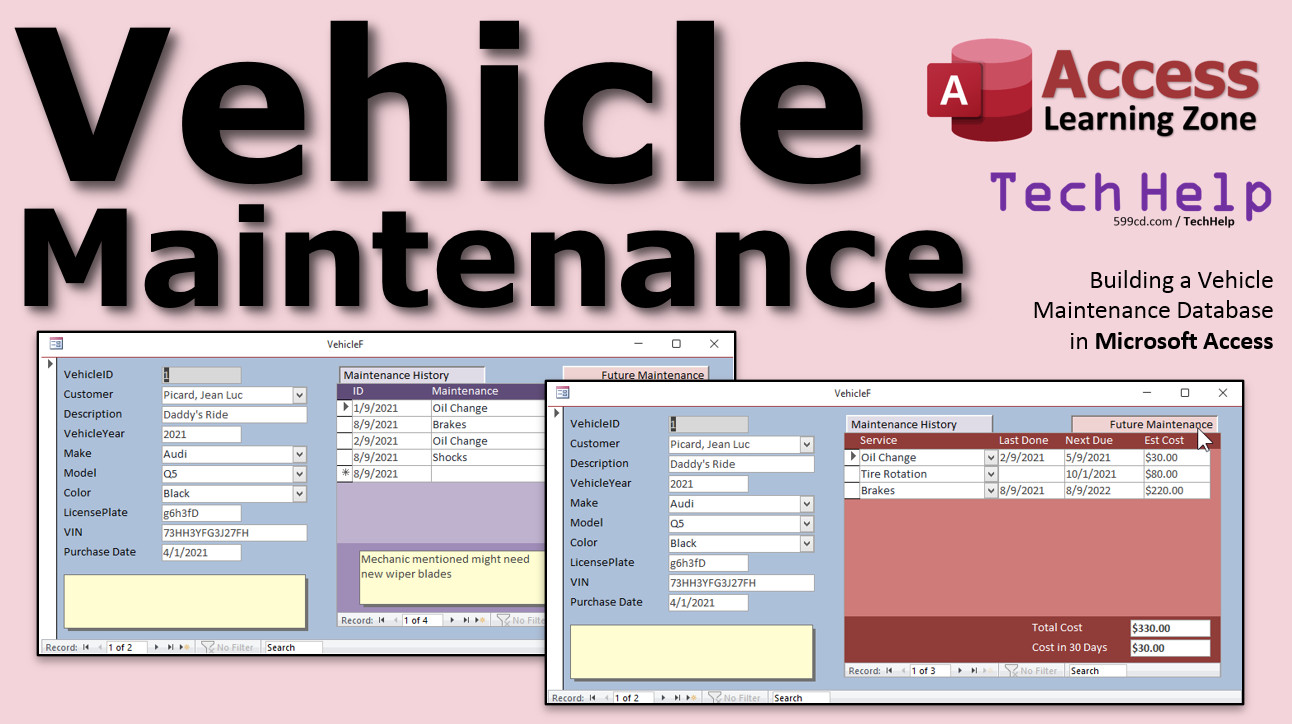
Vehicle Maintenance Database. Log Service, Costs. In this video, I'm going to show you how to set up a database for tracking the maintenance on your vehicles: cars, trucks, whatever. Actually, this database would work for tracking maintenance of any kind of equipment. Marlon from Akron, Ohio (a Platinum Member) asks: I'm trying to build a database in Microsoft Access to track my company's auto fleet and the associated maintenance for each vehicle. How do you recommend I get started? I'm having a hard time picturing the tables and relationships. I love what you did with yesterday's videos about the Cascading Combo Boxes. Could I do the same thing for car make and model? MembersMembers are going to see how to add a regular maintenance table and track upcoming maintenance items and costs. We'll learn how to change the contents of a subform dynamically to swap between the maintenance history and upcoming items.
Silver Members and up get access to view Extended Cut videos, when available. Gold Members can download the files from class plus get access to the Code Vault. If you're not a member, Join Today!
Links
Keywordsmicrosoft access, ms access, #msaccess, #microsoftaccess, #help, #howto, #tutorial, #instruction, #learn, #lesson, #training, #database, car maintenance, fleet maintenance, truck maintenance, equipment maintenance, log tracking, maintenance forms, validation rule, default value, upcoming maintenance, subform sourceobject, costs next 30 days, vehicle maintenance template, preventative maintenance, plant maintenance
More InformationTranscriptWelcome to another TechHelp video brought to you by AccessLearningZone.com. I am your instructor, Richard Rost. In today's video, I'm going to show you how to set up a database for tracking the maintenance on your vehicles, cars, trucks, whatever. Actually, this database would work fine for tracking maintenance on any kind of equipment. I'll show you how to set up the vehicle tables, all the related information, the service maintenance table, and we'll do make and model. We'll make that a cascading combo box. Maybe you pick the make and then you'll see just the models for that make of car. Today's question comes from Marlin from Akron, Ohio, one of my platinum members. Marlin says, I'm trying to build a database in Microsoft Access to track my company's auto fleet and the associated maintenance for each vehicle. How do you recommend I get started? I'm having a hard time picturing the tables and relationships. I love what you did with yesterday's videos about the cascading combo boxes. Could I do the same thing for car, make, and model? Of course. Marlin, if you're having a hard time setting up the database, sometimes putting together a map of the tables and the fields for each table and the relationships between them, that's the most difficult part of getting a database started. I know sometimes I make it look easy in my videos because I've been doing this for 30 years. But sometimes, if I'm building a complicated database, I'll even sit down ahead of time, paper and pencil, or I'll usually use Excel, and I'll put together what tables I want, what fields I want in each table, and so on. Watch my Access Beginner One class. In Beginner One, I take a lot of time going through how to set up your tables and fields. I spend a good amount of time on planning your database, figuring out what tables you need, what fields go in each table, and then, of course, planning out your forms and other things. Go watch Beginner One first if you haven't watched that already. So for vehicle maintenance, let's start with Excel. Let's just map out what we want the database to look like. I need a vehicle table, a vehicle T. What fields are going to go inside this table? We got the vehicle ID. That's my auto number. A customer ID. If you want to link this to a customer, if these are all vehicles just for your fleet, then you might not want a customer ID. Or maybe a driver ID. However you want to link it to a person. Maybe a description of the vehicle. The vehicle year. Don't use just the word year. Remember, year is a reserved word. Then we've got the make. Now, the make is going to be from another table because you want to do where you pull the make in from a list of makes like Ford, Tesla, Chevy, whatever. And then the models will show up only for that particular make. So this will be from another table. So the make ID and model ID. Those are both the IDs. We'll make another table for those. Color. We'll make that where you can pick from a list and type it in. I'll show you how to do that too. That's really easy. And then a license plate number, maybe. Maybe a VIN. Notes. Maybe a picture. Whatever else you want about this particular vehicle. I'll do something like this. Let me format this. We'll make the vehicle table blue. Now, make and model. I'll bold these because I'll also go to a different table. Those go to a different table too. That's the primary key. Customer ID. We already got a customer table set up in my TechHelp template, which we'll use. What about the make? We'll make a make T. This table is pretty straightforward. We just got a make ID, and then maybe we'll call it the make name. That's our second table. We'll make that one green. Then we got the model. Model T. Get it? Not the Model T car. Now, the model will have a model ID. It's going to have a make ID. That's my foreign key that goes back to the make table, and then a model name. See how this works? We'll make this table yellow. Just lay out your tables this way. What else do we need? We'll need a service table to track our service, our maintenance items as they happen. So, a service T. This will have a service ID. That'll be the instance of service. A vehicle ID so we can tie it back to the vehicle. Then a description, maybe what was done, oil change, whatever. A service date. Maybe the mileage of the vehicle at the time the service was done. The cost if you're taking it to a shop, and then other notes. This will be our service table. We'll make this orange. See how this all relates together? Now, this guy. Make ID relates to this. Sometimes I'll get fancy and do something like this. We'll make this blue. Watch. We'll go, which blue did I use? That one? No, that's not the right color. We'll do this one. I'll actually go like this. And then maybe over here like this and then up. There we go. Like that. And then format paint over the "ackeye." I'll get funny sometimes like this. See. But that's just me. You can do whatever you want. So that's just how I like to lay out my tables if I got a complicated database. Let's take this. Let's translate this over into Access. Set this aside. Print it out. Put it on your other screen. Whatever you have to do. Here I am in my TechHelp free template. This is a free download from my website. It's a good place to get started from. Let's create those tables that we just set up over in the Excel spreadsheet. Create table design. We'll set up our vehicle table first. So vehicle ID. That's our auto number. The customer ID. I'm going to link these in this database to customers. You don't have to if you don't want to. Description of the vehicle. Short text. Vehicle year. I'm going to make this a number. I'm going to set the default value equal to the year of today's date. So it's 2021 right now. So the default that will come in here will be 2021. If you want to prevent people from typing in something, like you want all your, let's say, 2015, you don't want them to just type in 15. You might get a 1985 if you have older, like, classic cars and stuff. So I'm going to make the validation rule be greater than or equal to, what do you think the earliest year you're going to have? I'll say 1950. Greater than or equal to 1950 and less than or equal to the year of today's date plus 1. You can't type anything more than 2022. Sometimes at the end of 2021, you can get the 2022 models, but you're not going to have a 2024. Then you can put in your validation text: must be between 1950 and next year. See how that works? That's validation rules. That's neat stuff. Let's do the make ID. That'll be a number of type long integer. That's my foreign key, or it's going to point over to the make table. Model ID, again, another number of type long integer. The color. Now the color I'm going to put in as short text because I'm going to give the user a list of options to pick from, like red, yellow, blue, black, gray, the standard stuff. But sometimes you might get, like, I used one on a Jeep and it was called gunmetal gray. So you might want to type that in, or just be vague and type in gray, whatever you want. That's why you build a database yourself, so you can do whatever you want. How about the license plate? I like to leave it "license plate." I don't like calling things number that aren't always numbers, like the next one. VIN, vehicle identification number, it's not a number. There is text in it. I don't know who started calling it a vehicle identification number with letters in it. That always drives me nuts. And then, of course, notes. That'll be long text, formerly known as memo. Let's save this as the vehicle. Can I ever spell vehicle? Vehicle T. OK, vehicle. Gotcha. Primary key, yes, that'll turn our auto number into the primary key. There we go. Let's close that. Let's set up our other supporting tables. Let's make the make T. Make ID, auto number. Make name, short text. Save it, make T. We can put some sample data in this one. I'll just put a few in: Audi, Ford, Chevy, and Jeep. You can put whatever other ones you want in here. Let's do the Model T. Create table design. Model ID, auto number. Make ID. That's a number. That's our foreign key. And then the model name. Save Model T. Primary key, yes. Now here's what we're going to do. We're going to open this up, and we're going to put some sample data in. But I want to see the make T as well, so I can see what these are. We'll make a form/subform for this. You won't have to do this. This is just for some sample data up front. So we've got, we'll start with Audi: Audi A3 and maybe a Q5. Then for Ford: Mustang, and maybe an F-150 and a Ranger. How about an Explorer? For Chevy: Camaro and a Malibu. Then for Jeep: Grand Cherokee. That's a nice drive. So there's our make and model list. Now, I'm going to make a table for colors. But I'm going to break my rule. I'm not going to make an ID field as the primary key. I'm just going to put the color in as short text. That's it. I'm going to index it with no duplicates too. I'll explain why in a little bit. But this is just going to be color name, short text. Then I'm going to click on the primary key field, save it, color T. That's it. The primary key is just so it can't have any duplicates. Basically, the reason why is because it's just going to be a simple list of colors. I don't want it duplicated. I might use this in multiple places. I hate doing value list combo boxes where you put the list of items in the combo box on the form, because then if you want to modify it, you have to modify it in multiple places if you're using that on different forms. If you put it in a table, or even a real simple table, we can utilize that same list. If I want to add a color, delete a color, it takes effect everywhere. Plus, when I go to make a combo box out of it, I don't have to worry about that ID getting in there. Because I also want to be able to save that text as text in the vehicle table. But I want the user to also be able to just type in whatever they want. So it's much easier to do it this way. So just put a list of colors in here. We got red, black, blue, white, gray, silver, whatever. That's it. And it's indexed, so you can't put two reds in. There are some, I know I say I put an auto number in every table, and that's 99.9 percent true. Sometimes I make an exception, especially if it's for a little simple helper table like this. Not very complicated. It's usually one field of some stuff that I might use in multiple places. Let's set up the vehicle form next. So, create. Actually, let's go down here. If you're using my template file, I've got a single and a continuous form that I use for new stuff down here. Let's use the single form. I'm going to copy, paste, control c, control v. This will be my vehicle F, my vehicle form. We're going to go right down here, design view. I'm going to open up the properties, double click here, slide over to record source. Let's bind this to the vehicle table. Now I can add existing fields. Just bring all of them in. Click on the first one, shift click on the last one. Click and drag, drop them all over here. Now, I just keep these guys around for Format Painter. Watch. Click, Format Painter, click. I like to have the ID in gray. That tells the users you can't change that. Then this one, double click. Now we can get rid of these two guys. We can slide all of you guys up like that. I like to select them all, right click, size to grid, and maybe we'll squeeze them all together a little bit more like this. Just a tiny bit. Get them all nice and close to each other. Now let's make some combo boxes. Let's save this. Close this. Now, the customer ID is going to be a combo box where I can pick the customer. I've already got one built. It happens to be on my order form. If you went through and built this database with me, go to the customers, go to orders. I'm going to steal this combo box right there where I can pick a customer. Right click, design view, copy. I can close this, close that, click here, and then paste. Now I got a customer combo box right there. Now I can get rid of this. The fields are named the same, so I can slide it right in there. That's why I like making interchangeable parts. And there is customer. Description is the description of the vehicle. Let's make this a little bit bigger so it can fit stuff in here. Vehicle year is fine. Now, make and model are going to be combo boxes. Make is the easy one that comes from the make T by itself. I'm going to delete that guy, go to form design, find combo boxes. This is why I wanted you to watch the cascading combo boxes video before this one, because I'm going to make cascading combo boxes now. If you haven't watched that video yet, go watch it and then come back. Now, since you're back, I assume you've watched it. So I want the values from another table or query. Make T. Bring these both over. Sort by make name. That's what's going to look like. The key column is hidden. That's good. Next, store that value in the make ID. We're picking a make and we're storing it in the make ID. What label do you want? Make. Put you in your place right there. A little format painter action. Maybe make this bigger like that. Let's see what we got so far. I'm going to slide this bottom up like that. Let's close this guy down. Save changes. Open it up. We got the customer, description (e.g., Daddy's ride, whatever), the vehicle year defaults to this year, and then the make. Now we're on model. Model is going to be based on what's in this make. So we're going to make a query that picks this guy. Remember, we did this in the last video. So, query design. We're going to bring in Model T. We want the model ID, the model name, and the make ID. But we don't want to see the make ID. But it's got to be equal to forms, vehicle F. Oh, we didn't give the combo a name. Let's back up. Cancel. Just move this out of the way. I forgot to name my combo box. This is one of my pet peeves. I wish that it would ask me in the wizard for a name for this combo box, and I'm leaving this in the video because you guys will do this too. So I want you to see that I do it almost every time. I forget to give this combo box a name. I don't want to call it combo 14. That's silly. So this is going to be my make combo. That's important because now in my queries I don't have to call it combo 14. What's combo 14? I don't know. Let's go back over to the query that we started: equals forms!vehicleF!makecombo. There it is. If I run this real quick, do I have anything in here? Nope. Switch to design view. Come back over here. Design view. Let's close this. Reopen it again. I got Chevy in this box, so when I run this, I see the Chevys. That's exactly what we did in the Cascading Combo Box video. Save this. This will be my model Q. Let's call it model current Q. The current model that is shown for the current make that's on the vehicle form. Now I can make the model combo box, design view. Delete you. Get a combo, drop it down here. Same thing. Next, we're going to base this one off a query: model current Q. Bring these both over. Next, sort them by model name. Next. Now, if you remember from the last video, this query can't get values because this guy is in design view. So we have to just simply shrink that column up to nothing. Model name is fine. Storing the ID in model ID. Next, label, model. While we're in here, let's not forget to give this guy a nice name. Double click, model combo. Format paint. That should be good. If you remember, there's one more thing we have to do, which we covered in the Cascading Combo Boxes. Go to Make ID, Event After Update, dot dot dot. Slide over here. The code builder comes up. Remember, one line of code: modelcombo.requery. Remember, after the make changes, we have to requery the model list. That also has to go in the On Current event for the form. Again, this is why I told you it's important to go watch that video. modelcombo.requery. We need that list to requery when we move from record to record and when I change the make. Save changes. Open it up. Chevy. Camaro. I got nobody caught that. You guys have to raise your hand and tell me when I typed something in wrong. Camaro. Now, that should update because that is a related table. There we go. Chevy Camaro. If I change this to Audi, I can see the list of Audis. If I go to a new record, put something else in here. I'll put Will Riker in there, and he's driving a 1945. Oh, can't do that. Remember our validation rule. OK, fine. A 2020. What's he driving? Jeep. Grand Cherokee. All right. Looking good so far. Let's do color. Now color is that field where I want to give the user the ability to type something in that they want, like sunshine yellow. But I also want them to be able to pick from a list of options. So design view. Let's get rid of color. Let's add a combo box. But it'll be a different combo box. Drop that in there. Get the value from some table or query. That's fine. Where are we getting it from? Color T. That's fine. Color Name. Sort it by color. That's good. Now, there's only one column in here. If I had a color ID, no matter what you do, the wizard is always going to put the ID in there, and that's not what I want. I don't want to store the color ID in the table because I want to give the user the ability to type in whatever they want, and that defeats the purpose. This will work just fine. It'll still give them this list to pick from. Store that value in color. Next. What label? Color. We'll do a little slide that over, slide you over here, and some format painter. Now, one thing you have to do, well, two things: give this a nice name, color combo, and under data, make sure Limit to List is set to No. It should be, because since there's no ID in there, these guys are set to Yes, because you have to pick from that list. Limit to list No means the user can freely type in whatever they want. That's one of the major benefits of a combo box if you do it this way. It can be freely edited text like a text box or you get to pick from a list like a list box. That's why they call it a combo box. It's a combination of a list box and a text box. If you took my other classes, you'd know that. So what does this look like now? Save it. Close it. Let's open it back up again. There's sunshine yellow that I typed in before, but you can drop this down and you can pick a little bit red. But I can also type in Fireball Fuchsia. Whoops. I hit tab. Tab order. This is the last control that I added on the form, so it's going to be last in the tab order. Don't forget, go to design view, tab order, auto order. See, that'll order all nice up and down like that, and then save. And while we're in here, let's do a little formatting. Let's highlight everybody, format to the left. Save it. Sometimes it doesn't. Sometimes I select everybody, but sometimes these number fields still don't go over like that. I think it's a bug in Access. I've complained about it before. No one seems to care. There we go. That vehicle ID still didn't go to the left. I selected it. You watched me. I don't know why it does that, but it does. Sometimes you have to do them individually, which is a real pain. So now we got that. We got the color, black, license plate, then whatever. That should be a bigger field. That could be pretty long. Actually, let's slide these over like this because we're going to put our service maintenance items over here. Save what you got. Close it. I'm going to put a button on the main menu for it. Copy, paste, right down here, vehicle maintenance. Right click, build event. DoCmd.OpenForm "vehicle" (I know I'm pronouncing it weird, vehicle). My son when he was three years old used to pronounce it like that: vehicle. In the Cascading Combo Boxes video, I made a form to edit the make and the model. Basically, make is a parent form, models are a subform inside of make, and I made the list item edit so you can edit this list and it pops up that other form. Go watch that video again if you want to learn how to do that. I'm not going to make separate forms for making a model. Next, it's time for our service maintenance items. We're going to make a subform to go right here, so every time I open up a vehicle, I can see all of the service that's been done to it. But first, we need to set up our table for that. We didn't make the service table yet. Create table design. Go back to your spreadsheet if you want to see the list. Service ID: that's our primary key, auto number. Vehicle ID, number. That links it back to the vehicle. Description of the service that was done, e.g., oil change, rotate tires, whatever. By the way, you don't have to do vehicles with this. You could easily change these fields around and do just equipment maintenance if you're doing the machines in your shop, or if you run the AV club at your high school, and you're supposed to perform maintenance on the overhead projectors. I'm old. Service date: let's default that to today's date. You could put now in there if you want to the minute, to the second. Mileage: if you want the mileage reading, that'll be a number. Cost: currency. Then notes: long text. Save that. Service T. It's late in the day, and I've got my plenty of caffeine, goofy streak going on right now, so I'm having fun. Let's close this. Let's make a form for this now. Next, let's set up the service form. Use the continuous form right here. Copy, paste. This will be my service F. Click design view. This is my continuous form. Let's go into properties, record source will be the service table. Now we can go into add existing fields. We don't need either one of the IDs. Since this is going to be a subform, the subform object when I put it in here will handle the relationships, and I really don't care to see the service ID on this one. So I just want description down through notes. Click, shift-click, then click and drag, and drop right there. We can get rid of these guys. We can get rid of these. I'm going to slide the description over here. Let's put the date first, then the description of what was done, then the mileage. That doesn't need to be that big. The cost and the notes can actually go down in the footer. You can take notes and put them in the form footer. Then every time you click to a different record, the notes down here will update for that record. If you haven't seen my subform video, go watch that. So there's notes down there. I like to do with my notes, I didn't do it on the other form, let's go through this real quick. Actually, let's delete this one, watch. I like to make my notes this one too. If you look at my customer form, see this thing here, actually there's a better one on the order form. Let's grab this one. Right click, design. I like to give my notes fields this yellow sticky note piece of paper look. Copy. If you keep your fields all named the same thing, paste. You can just paste it in there. Everybody that uses your database will know, this yellow sticky note piece of paper looking thing is for notes. There's a big notes field right there. Save that. Come over here. Click paste. There's a notes field. Keep consistent in your database. Doesn't matter what you do, just keep everything looking the same. Let's change our labels. For those of you who watched my other videos, if I want the user to be able to double click on something, I make it like a light blue. That way they know with a little bit of training, training is important, they know that if they double click on a blue field, it does something. It could be a search function, it could open up another form. So there we go. Everybody looks good. Save it. Close it. Now, I'm going to open up the vehicle form, design view, and drop that other form right in here as a subform. Ready? Here's the service form: drag, drop, boom. Get rid of that label that comes in with it. Slide this over to the left. Maybe bring this down a little bit like that. How's that looking so far? Good. Maybe we must put a label up top. Let's put a label up here that says "Maintenance History." Save it. Close it. Vehicle maintenance. Here's my vehicles. Here's my maintenance. I don't think we did the tab order in here. Let's go to tab order real quick. It's the little things I think about. Let's highlight everybody, format, align left, go to design, tab order, auto, yep. Flip those around. I want to be able to tab through these. Save it. Close it. Open it back up again. OK. Daddy's ride. Oil change at 3,000 miles. Cost was 35 bucks. Maybe then we get a tire rotation at 5,000 and it was 80 bucks. Want to put a total down here so you can see the total cost to maintain each vehicle? Form footer totals. If you don't know how to do form footer totals, go watch my video on, guess what it's called, form footer totals. I'll put a link down in the link section. Yep, I got it down there for you already. Copy this guy. Copy, paste. Slide it right under here. Come here. Sit. Open up the properties, go to all. Instead of cost, it's going to be equals the sum of cost. I'll call it sum cost like that. Maybe bold it too. Format, bold. Save it, open it up. Now you can see the total of each vehicle's cost to maintain it. Next guy. Will Riker. He did, I don't know what he got, a brake job. At 6,000 miles. Cost him 325, whatever. Save. Now you got a complete history for each vehicle and all their maintenance items. If you need to put extra notes down here, for example, mechanic mentioned might need new wiper blades, you can see as I move from record to record, that stays in that record. You can do all kinds of things. You can attach an image to this. Don't attach an image. Save it like I show in my images video, where you save it in a folder. If you want to save your receipts. Or if you're the one that does the maintenance, maybe take a picture of it (if you do auto detailing, take a picture of it). I love it when I have a lawn service—I'm in Florida, I'm not cutting my own lawn, I'm sorry, it's too hot in August—but every time he cuts the lawn, he takes a picture and sends it email. Just like one of those food delivery services where they take a picture when they leave your food by your door so you can't call them up and say you never got it. Want to make a button on the customer form to go right to that customer's vehicles? Let's go to the customer form. Let's move these buttons up here so it will work just like the other ones. Watch. Copy, paste. Vehicles. Right click, build event. I'm going to copy, maybe I copy one of these—the work's already been done for you. Copy, paste. We're going to change the form name: vehicle F. Open the vehicle form where the customer ID equals the current customer. That's it. That's all I have to do. See how easy this programming stuff is? Once you've got someone like me to show you the little bits and pieces you have to do, it's not hard. This is how my developer classes are too. I start you off nice and slow. Time for a quick ad, then I'll get back to the cool stuff. Developer lessons: you want to learn how to develop? You want to learn VBA? Your access databases go to a whole other level once you learn how to write VBA code. And, of course, I have lots and lots of expert lessons below those. If you don't want to get into programming, I have 32 levels of expert classes, too. Come check them out. I have to sneak ads in once in a while. They are just little teeny tiny ads. Any video that's over 20 minutes, you can watch a 15-second ad. Anyways, go to the customer list. I want Jean-Luc Picard's cars. Double click here. See, it's a blue field. I cover this in the video where I build this kind of blank form. Open it up, and now hit vehicles. Boom. There's Jean-Luc, there's Daddy's ride. You can see it's filtered. Will Riker's cars aren't on here. See how nice that is? Or you can just go to the vehicle maintenance button, and you can see all of them. Yes, you can make another list form. I have the customer list right here. You can do the same kind of list form for your vehicle maintenance and show a list of all the vehicles. Double click on that and open up this. It's all however you want to build it. I can't show everything in every video. If you want to learn how I did this, go watch the blank template video and you'll learn how to make this kind of a form, which is basically the same thing we did here with a little double click event to open up the specific vehicle. Do you want to learn more? In the extended cut for members, 35 minutes long, we'll set up a specific service types table, so you have to pick from a list of the approved service types: oil change, tire rotation, and so on. Now, having a list of approved service types like this allows us to say, OK, an oil change has to be done every three months. When was the last time you had one done? We have it in our maintenance history. Now, we can generate a list of future maintenance items—what has to be done and when? We can calculate our costs—what are we going to have to pay in the next, let's say, 30 days for maintenance. Then I'll show you how to switch between both subforms. See that? Here's our maintenance history. Then we can click and switch to future maintenance—what's coming up? Here's the date it was last done, when is it next due, what's our estimated cost, and how much of that are we going to have to pay in the next 30 days? Switch back over here to maintenance history. That's a cool trick. I love that trick. And no, this is not a tab control; we're changing out subforms. All of that is covered in the extended cut for members. Remember, as an up, get access to all of my extended cut videos. Gold members can download these databases. How do you become a member? Click the join button below the video. After you click the join button, you'll see a list of all the different types of membership levels that are available. Silver members and up will get access to all of the extended cut TechHelp videos, live video and chat sessions, and more. Gold members get access to a download folder containing all the sample databases that I build in my TechHelp videos, plus my code vault where I keep tons of different functions that I use. Platinum members get all the previous perks plus access to my full beginner courses and some of my expert courses. These are the full-length courses found on my website and not just for Access. I also teach Word, Excel, Visual Basic, ASP, and lots more. But don't worry, these free TechHelp videos are going to keep coming. As long as you keep watching them, I'll keep making more. If you liked this video, please give me a thumbs up and feel free to post any comments that you have. I do read them all. Make sure you subscribe to my channel, which is completely free, and click the bell icon and select all to receive notifications when new videos are posted. Click on the Show More link below the video to find additional resources and links. You'll see a list of other videos, additional information related to the current topic, free lessons, and lots more. YouTube no longer sends out email notifications when new videos are posted, so if you'd like to get an email every time I post a new video, click on the link to join my mailing list. If you have not yet tried my free Access Level One course, check it out now. It covers all the basics of building databases with Access. It's over three hours long. You can find it on my website or on my YouTube channel. And if you like Level One, Level Two is just one dollar, and it's also free for all members of my YouTube channel at any level. Want to have your question answered in a video just like this one? Visit my TechHelp page and you can send me your question there. Click here to watch my free Access Beginner Level One course, more of my TechHelp videos, or to subscribe to my channel. Thanks for watching this video from AccessLearningZone.com. IntroIn this video, I will show you how to create a Microsoft Access database to track maintenance for your vehicles. We will design tables for vehicles, makes, models, colors, and maintenance services, and I will walk you through setting up relationships between them. You'll learn how to build cascading combo boxes for make and model selection, design forms for easy data entry, create subforms to display service history, and set up validation rules for key fields. Whether you want to manage cars, trucks, or other equipment, this walkthrough will help you build a functional maintenance tracker in Access. QuizQ1. What is the primary purpose of the database designed in this video? A. To track vehicle maintenance and service history B. To manage employee payroll C. To monitor software licenses D. To organize customer email lists Q2. Which item is recommended for planning tables, relationships, and fields before starting in Access? A. Using paper and pencil or Excel B. Building forms first C. Writing VBA code immediately D. Designing reports first Q3. Why is it important not to use reserved words like "year" for field names in Access? A. It can cause errors or conflicts in queries and code B. It improves search engine optimization C. It makes the database run faster D. It is only required for VBA code Q4. Which fields are foreign keys in the vehicle table? A. Make ID and Model ID B. Description and Color C. Vehicle Year and VIN D. Notes and License Plate Q5. Why does the color table "ColorT" not use an auto number as a primary key? A. It is a simple list with a single unique text field B. To make it compatible with Excel C. Because colors should be stored as numbers D. To improve database performance Q6. What is the benefit of storing color options in a separate table instead of a value list combo box? A. It allows consistent editing and updating of color options across multiple forms B. It makes reports look better C. It ensures faster record retrieval D. It prevents the use of combo boxes Q7. What is a cascading combo box as used in this video? A. A combo box whose available options depend on the selection of another combo box B. A combo box that can only show colors C. A combo box used for password input D. A combo box that automatically updates Access Q8. Why should "Limit to List" be set to No for the color combo box? A. Users can type in colors not present in the predefined list B. It forces users to pick only from the list C. It locks the field to admin users D. It hides the color field from users Q9. What type of form is used for displaying and entering maintenance records for each vehicle? A. Subform displayed as a continuous form B. Modal pop-up dialog C. Navigation form D. Switchboard form Q10. In which property events should the model combo box be requeried after updating the make selection? A. After Update event of the Make combo and On Current event of the form B. On Click event of the Model combo and On Close event of the form C. After Update event of the Vehicle Year and On Open event of the form D. On Load event of the main form only Q11. Which type of field is used for entering descriptive, potentially lengthy notes about a vehicle or service? A. Long Text (Memo) B. Number C. AutoNumber D. Currency Q12. What does the form footer totals feature allow you to calculate on the maintenance (service) subform? A. The total cost to maintain each vehicle B. The total number of vehicles C. The number of maintenance types D. The total years of service Q13. What is a best practice when creating combo boxes, as discussed in the video? A. Give each combo box a meaningful name in properties B. Always leave the name as "Combo14" C. Use combo boxes only for text fields D. Avoid using combo boxes for data entry Q14. According to the video, why is setting validation rules for Vehicle Year important? A. It prevents users from entering years outside a valid range B. It blocks all data entry for that field C. It ensures vehicles match certain models D. It ties the field directly to customer records Q15. What is the purpose of making the notes field look like a yellow sticky note? A. To visually cue users that it is a notes field B. To increase security C. To indicate admin-only access D. To activate advanced formatting Q16. The extended cut for members adds which main new feature? A. A service types table and future maintenance scheduling B. Payroll management C. Barcode scanning for vehicles D. Integration with weather data Q17. Which approach does Richard recommend for creating organized database layouts before implementing them in Access? A. Creating a map of tables and relationships in Excel or on paper B. Building queries from the start C. Designing forms first and filling in tables later D. Designing reports to guide table structure Q18. Why is it beneficial to use helper tables, such as for colors or make/model, instead of value lists in combo boxes? A. Helper tables are easier to update and keep consistent across forms B. Value lists process data faster C. Helper tables are only for advanced users D. Value lists improve table relationships Q19. What Access field property should be adjusted to allow for both picking from a list and manually entering a value? A. Limit to List set to No B. Required set to Yes C. Indexed set to Duplicates OK D. Caption set to "Pick or Type" Q20. What is a key advantage of using subforms in Access as demonstrated in this video? A. They display related records (such as maintenance history) for the main form's current record B. They replace tables entirely C. They are only available for summary information D. They prevent users from seeing underlying records Answers: 1-A; 2-A; 3-A; 4-A; 5-A; 6-A; 7-A; 8-A; 9-A; 10-A; 11-A; 12-A; 13-A; 14-A; 15-A; 16-A; 17-A; 18-A; 19-A; 20-A DISCLAIMER: Quiz questions are AI generated. If you find any that are wrong, don't make sense, or aren't related to the video topic at hand, then please post a comment and let me know. Thanks. SummaryToday's video from Access Learning Zone focuses on building a Microsoft Access database to track vehicle maintenance. This system can be used for any type of vehicle or even for other types of equipment. My goal is to walk you through designing the core tables—vehicles, makes, models, and maintenance—then setting up cascading combo boxes so that selecting a make automatically filters the models list. The topic was inspired by a question from a student wanting to manage their company's vehicle fleet and associated maintenance. It's common to feel uncertain about how to lay out tables and define relationships when starting a new database. Even with my decades of experience, I sometimes sketch things out in Excel or on paper to help visualize the structure before I start building in Access. If you're new to Access, I highly recommend watching my Access Beginner One class, where I spend a significant amount of time on database planning, including table and field selection. For this project, I began by outlining the tables and fields in Excel. The vehicle table will include fields like Vehicle ID (as the auto number primary key), Customer ID (if you want to link vehicles to people), Description, Vehicle Year, Make ID, Model ID, Color, License Plate, VIN, Notes, and potentially a picture or other details. Remember, some fields like Make and Model should link to separate tables so that you can pull from defined lists. Next, I set up the tables in Access. Start with the vehicle table. Assign appropriate data types to each field. For Vehicle Year, use a number type and set a validation rule that restricts years to sensible values—for example, between 1950 and the current year plus one. The Make ID and Model ID fields are used to connect the vehicle to their respective tables. Color will be set up so the user can either pick from a list or type a custom name. The Make table is straightforward with Make ID and Make Name. The Model table contains Model ID, Make ID (to tie it back to the Make), and Model Name. Enter sample data for both make and model so you have options to work with as you set up forms and combo boxes. For color, create a simple color table but keep it as a single-field table with color names and no auto number. Index this field to avoid duplicates. This table allows for consistency and easy updating across forms. Once the tables are ready, move on to form design. I use a starter single form template from my free TechHelp template, which is available on my website. Bind this form to the vehicle table and add all fields to your layout. Tidy up the layout for usability. The Customer, Make, and Model fields should be combo boxes. Set up the Make combo box to draw from the Make table and the Model combo box to dynamically show only the models matching the selected make. This is handled through a query—be sure to name your combo boxes clearly (e.g., MakeCombo, ModelCombo) so your queries can reference them easily. The color combo box allows users to pick from a list or enter a custom value. Make sure the Limit to List property is set to No for flexibility. Now, create the service table to track maintenance history. This table includes Service ID, Vehicle ID, Description, Service Date, Mileage, Cost, and Notes. Set reasonable defaults like the current date for new service entries. Design a continuous subform for maintenance records and add it as a subform to the vehicle form. Arrange the controls so the workflow makes sense—for example, showing the date, description, mileage, cost, and then notes. Consistency in layout and appearance helps users learn your system quickly. To calculate the total maintenance cost per vehicle, add a calculated control in the form footer of the subform. This allows you to see cumulative costs at a glance. You can further improve navigation by adding buttons on the customer form to open the related vehicles for that customer. This involves simple programming to open the vehicle form filtered by Customer ID. By establishing reusable parts, like combo boxes and notes fields styled similarly across forms, you make your database easier to develop and maintain. In today's extended cut for members, we take this database further by adding a table for predefined service types, allowing for standardization (oil change, tire rotation, etc.), tracking when each maintenance is due, and even estimating future costs. You will also see how to switch between viewing past maintenance and upcoming service requirements, all through dynamic subforms rather than tab controls, giving you a powerful tool for vehicle upkeep planning. All these concepts are covered with step-by-step examples in a complete video tutorial you can find on my website at the link below. Live long and prosper, my friends. Topic ListPlanning a vehicle maintenance database structure in Excel Creating vehicle table with appropriate fields Setting up make and model tables with relationships Building a table for vehicle colors Designing the service maintenance table Entering sample data for makes and models Configuring data validation rules for vehicle year Indexing the color table to prevent duplicates Creating the vehicle form to enter vehicle details Building and configuring cascading combo boxes for make and model Implementing a flexible color combo box with free text entry Setting tab order and formatting fields in forms Designing a service (maintenance) form as a continuous subform Adding a maintenance history subform to the vehicle form Summing maintenance costs in the form footer Adding navigation buttons from customer form to vehicle form Linking vehicles to customers and filtering by customer Using combo boxes to select customers, makes, and models Using notes fields and consistent formatting in forms Applying form design best practices for layouts and navigation Primary TopicsAccess database design, vehicle maintenance tracking, table relationships, cascading combo boxes, form/subform creation, validation rules, lookup tables Secondary Topicsdata entry forms, combo box best practices, continuous forms, tab order, formatting tips, helper tables, linking to customers |
||||||||||||||||||||||||||||||||||||
|
| |||
| Keywords: TechHelp Access car maintenance, fleet maintenance, truck maintenance, equipment maintenance, log tracking, maintenance forms, validation rule, default value, upcoming maintenance, sourceobject, costs next 30 days, vehicle maintenance source object PermaLink Vehicle Maintenance in Microsoft Access |