|
||||||

|
|
||||||
|
Prevent DeletionBy Richard Rost
 5 years ago
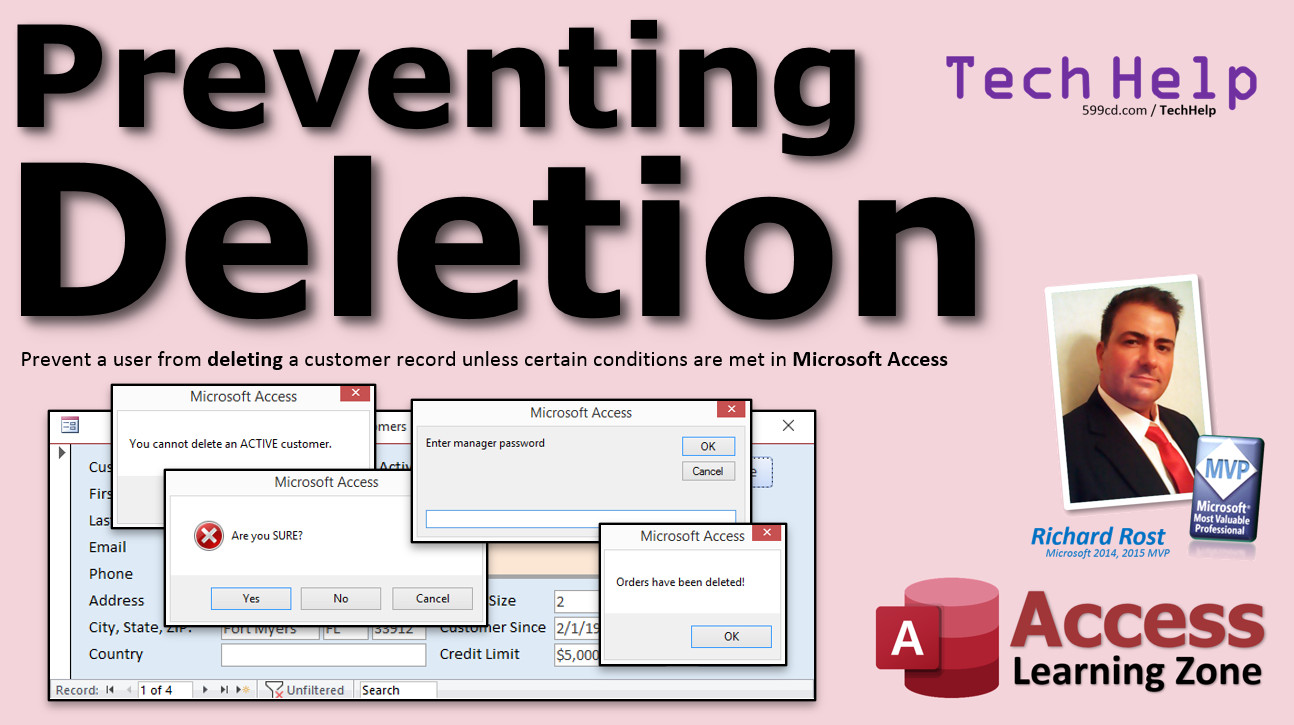
Preventing Record Deletion in Microsoft Access In this video, I will show you how to prevent a user from deleting a customer record unless certain conditions are met, for example, the customer has to be marked inactive. If they are still active, they cannot be deleted. Anderson from North Hempstead, New York (a Platinum Member) asks: We have customers who, for one reason or another, will no longer be customers anymore. They might die, retire, move out of our area, etc. I want to allow my users to delete a customer but only once he's been marked inactive. I feel like this is an extra check preventing them from deleting a customer too easily. What do you recommend? MembersMembers will learn how to handle deleting records that may have related child records in multiple linked back-end tables where you can't rely on referential integrity and cascade deletes. I'll also show you how to require a password to delete a record.
Silver Members and up get access to view Extended Cut videos, when available. Gold Members can download the files from class plus get access to the Code Vault. If you're not a member, Join Today!
Links
Keywordsmicrosoft access, ms access, ms access tutorial, #msaccess, #microsoftaccess, #help, #howto, #tutorial, #learn, #lesson, #training, #database, soft delete, dont delete, mark inactive, prevent deletion, allow deletions, allow deletes, die, retire, move out of area, referential integrity, cascade deletes, vba, on delete, delete button, me.allowdeletions, inputbox, password, delete child records, delete orders
More InformationTranscriptWelcome to another TechHelp video brought to you by AccessLearningZone.com. I am your instructor, Richard Rost. In today's video, I am going to show you how to prevent a user from deleting a customer record, or any other type of record unless certain conditions are met. For example, we will check to see if the customer is marked active or not. If they are active, we cannot delete them. If they are inactive, then we will say, are you sure, and ask the user if they are really sure they want to delete this record before actually deleting it. Today's question comes from Anderson in North Hempstead, New York, one of my Platinum members. Anderson says, we have customers who, for one reason or another, will no longer be customers anymore. They might die, retire, move out of our area, etc. I want to allow my user to delete a customer, but only once they have been marked inactive. I feel like this is an extra check preventing them from deleting a customer too easily. What do you recommend? Well, Anderson, first, I strongly recommend against deleting customers. I like to do what is called a soft delete, where you leave them in your database and just mark them inactive. I get it. You do not want to necessarily see them in all your combo boxes, queries, and list boxes, but you still want to keep that information for historical purposes. So, reconsider allowing your users to actually delete a customer and just make a checkbox that says active or inactive. In fact, I have an entire video where I talk about this whole process. Go watch that. I will put this down in the links section below in the description. Go watch my Don't Delete Data video. However, there may be some circumstances where you want to allow your users to delete records. I understand. If they have no orders in the system, if they have no contacts, they are just a customer, maybe it was a mistake. You set up the customer record by accident. Sure, we can allow users to delete customers under certain circumstances. So, how would we handle that? What I like to do is create my own delete button that will do some checks to make sure, for example, that the customer is indeed marked inactive, or you could use it to do any other kinds of checks that you want. Let me show you how. Before we get started, what I am going to show you requires a tiny bit of VBA. Just a couple of lines of code. Do not panic. But, if you have never done any programming in Access before, go watch my Intro to VBA video. It is absolutely free. It is on my website. It will get you up and running and show you all the basics of how to use it, if-then statements, all that kind of stuff. So, go watch this first. Do not be scared. VBA is really easy, and I will walk you through it step by step. I also want you to go watch my Message Box video. Again, a little tiny bit of VBA. It allows you to ask the user, are you sure? If you are going to delete a record, you want to ask the user, are you sure you want to do this? We use a Message Box for that. So, go watch this video too. Watch Intro to VBA first, then watch the Message Box video. Once you are done, come back here and I will walk you through the deletion. Here I am inside my TechHelp free template. This is a free download from my website. If you watched those other two videos, you know all about it, where to get it, and how I built it. I have a customer list. I have a customer form. Right here, I have an IsActive checkbox. I do not want my users to be able to just come over here, click the record selector, and press Delete on the keyboard, and the record is gone. I have delete confirmation turned off in this database, so that is even worse. See, now she is gone. How do we prevent that? If you look in the customer form events, Design View, open up the properties, go to Events, there is an On Delete event right here, and there is Before Delete Confirm and After Delete Confirm. I am telling you with my 30 years of Access experience, programming On Delete is a pain in the behind. I do not like it. I do not like using it. It is quirky. I prefer to turn off the ability to delete records with the normal method, and then create my own delete button that I can do some stuff with. Go to Data, find Allow Deletions, and set that to No. Now the user cannot delete this record from this form. If I close this, save it, go back into the customer form and try to delete myself, click Delete, nothing happens. That is exactly what I want. Now I am going to make my own delete button. In Design View, if you go up to the form design toolbar on the command button wizard, there is an option to delete the current record. I do not like it because it just creates a macro that does the same thing as normally deleting the record would do. I want to check to make sure that it is okay to delete this person first. We are going to check to make sure that the record is marked inactive. If it is still active, you have to tell the user, sorry, you have to at least mark this user inactive first. You can even do something where you ask for a password if you want to. Members, I will show you how to do that in the extended cut, how to require a password. For the rest of us, let us just create my own button. I will slide this notes field over here. I will take one of my other buttons that I have down here, like Orders, and just copy it and paste it. Slide this up here and put in here "Delete" since we are going to delete the customer. Let us give the button a good name. Instead of Command30, let us call it DeleteBTN. I like to end my buttons in BTN. Right-click and go to Build Event. First thing we are going to do is check to see if the user is active. If they are active, you cannot delete them. So, if IsActive (that is the name of my field), then MessageBox "You cannot delete an active customer." Then, exit. Do not let them do it. It is that simple. A little if-then, which we covered in the Intro to VBA, a little MessageBox. This one just displays a message, "You cannot delete an active customer." Save it, come back out here, close it, open it back up again, and try to delete me. I am active. Oh, "cannot delete an active customer." Mark me inactive now, then hit delete. Nothing happened. That is fine. I did not get the MessageBox. The sub would have continued after that point. What is next? Next, we are going to ask the user if it is okay, are you sure you want to delete this customer? But first, a quick commercial break from our sponsor, that is me. Real quick break. Access Developer 1, if you are liking this VBA stuff, take my Access Developer 1 class. It is really good. I will cover all the basics, a lot more than I covered in Intro to VBA. You will learn all kinds of stuff. You will take your Access databases to the next level. That is it. I have to sneak the commercials in, because if I put them at the end of the class, no one watches them. Now we are going to ask the user if they are sure it is okay to delete this record. If MessageBox is being treated as a function now, we have to put it inside parentheses. That is the difference between this one and the earlier MessageBox. MessageBox can be both a sub and a function - a function returns a value. We are going to get a value. If MessageBox "Are you sure?", and you can even put "Delete Customer - Are you sure?" like that. I will just put "Are you sure" though. I am going to keep it small so it fits in the window. "Are you sure?" Come on. We are going to ask for vbYesNoCancel. I am going to show the Yes, No, Cancel buttons, and in addition I am going to go vbCritical. That gives a little warning icon. That is how you add multiple options. Close that up. Now MessageBox is going to return a value. If what they answer is anything other than vbYes, then Exit Sub. Ask them, "Are you sure" with the Yes, No, Cancel and Critical buttons. If they respond with either No or Cancel - anything other than vbYes - then Exit Sub. I will just put MessageBox "Deleting it." We have not actually done the deletion yet, I just want to show you it is getting to that point. Save it. Come back out here. Click Delete. First, it checked to see if they are active. They were not, so we went to the next step. "Are you sure?" If I say Yes, "Deleting it." If I do it again and say No or Cancel - I like to include Cancel because people sometimes are not sure and do not feel like thinking about it for Yes or No, so they just cancel out. That is why I like to include Yes, No, and Cancel. No and Cancel are basically the same thing in this case. If IsActive is On, it says you cannot delete an active customer and never gets to that point. Back to our code window. Now we are actually going to put the code in here that deletes the record. Are you ready for it? It is DoCmd.RunCommand acCmdDelete. Be careful though, it is not Delete; it is DeleteRecord. It is right there - DeleteRecord. Save it, come back over here and let's delete... I do not want to delete me. Let's go find someone else to delete. Let's delete Will Riker. Will is already inactive. Ready? Delete. "Are you sure?" Yes. And what happened here? The command or action DeleteRecord is not available now. What does this mean? Let's debug and see. So, it is telling me I cannot issue a DeleteRecord command. Oh, yeah, that is right, because this form does not allow deletions. So, that is not going to work by itself. Let's hit the stop button. Now we control that form's properties. All we have to do right here is turn Allow Deletions on, delete the record, and then turn Allow Deletions right back off again, so the user cannot do it. So, Me.AllowDeletions = True. Deletions are now allowed. "Me" means it is a property of the form we are currently on. That is what "Me" is. Then we can do the delete, and then we are going to turn Allow Deletions right back off again. Do it immediately. Set it to False, so the user cannot then go around deleting stuff. Make sure they are inactive, ask the user if they are sure, turn deletions on so you can delete them, do the deletion, then set deletions back to False again. Are you ready? Here we go. Will Riker, are you active? Delete. Are you sure? Yes. And you will see here he is no longer in the table. That is how you do it. Save changes. Yes. There you go. Now, you also have to be careful to make sure you are not deleting a customer that has related child records. For example, me - I have orders in the system. If you delete me, you might mess up all your accounting. Your orders might not show up in your accounts, for example, or your sales history. In my Relationships video in the extended cut, I talk about something called referential integrity, and that is where you can prevent a user from deleting a record if they have related child records. That is important. I also cover that in my Access Expert classes. Access Expert Level 1 is all about relationships; Level 2 covers referential integrity, which is very important. You can also do something called cascade deletes, which is dangerous. That says if I delete the customer, it will automatically delete all of the related child records. I almost never use it, only for temporary stuff if I have some temporary tables. We will also talk a little bit more about referential integrity in the extended cut for this video. Members, I will show you how to deal with a database that has linked tables. As you might or might not know, you lose the ability to use referential integrity with multiple linked tables. If you have multiple backend database files, and you have customers in one ACCDB file and orders in another one, you cannot use referential integrity between two different database files. I will show you how to deal with that in the extended cut for the members. Want to learn more? In the extended cut for members, I will show you how to ask for and require a manager password before you can delete a customer. I will show you how to delete child records in any linked backend database files. If you have your database split on a network and have multiple backend files, you cannot use referential integrity. If you delete a customer and want to delete all of their orders or their contacts, you cannot rely on Access to do it; you have to do it yourself. In the extended cut for members, I will show you how to do both of those things, 13 minutes long. Silver members and up get access to all of my extended cut videos, and gold members can download these databases. How do you become a member? Click the Join button below the video. After you click the Join button, you will see a list of all the different types of membership levels that are available. Silver members and up will get access to all of the extended cut TechHelp videos, live video and chat sessions, and more. Gold members get access to a download folder containing all the sample databases that I build in my TechHelp videos, plus my Code Vault where I keep tons of different functions that I use. Platinum members get all of the previous perks plus access to my full beginner courses and some of my expert courses. These are the full length courses found on my website and not just for Access. I also teach Word, Excel, Visual Basic, ASP, and lots more. Do not worry, these free TechHelp videos are going to keep coming. As long as you keep watching them, I will keep making more. If you liked this video, please give me a thumbs up and feel free to post any comments that you have. I do read them all. Make sure you subscribe to my channel, which is completely free, and click the bell icon and select all to receive notifications when new videos are posted. Click on the Show More link below the video to find additional resources and links. You will see a list of other videos, additional information related to the current topic, free lessons, and lots more. YouTube no longer sends out email notifications when new videos are posted, so if you would like to get an email every time I post a new video, click on the link to join my mailing list. If you have not yet tried my free Access Level 1 course, check it out now. It covers all the basics of building databases with Access. It is over three hours long. You can find it on my website or on my YouTube channel. If you like Level 1, Level 2 is just one dollar. It is also free for all members of my YouTube channel at any level. Want to have your question answered in a video just like this one? Visit my TechHelp page and you can send me your question there. Click here to watch my free Access Beginner Level 1 course, more of my TechHelp videos, or to subscribe to my channel. Thanks for watching this video from AccessLearningZone.com. IntroIn this video, I will show you how to prevent users from deleting records in Microsoft Access unless certain conditions are met, such as ensuring a customer is marked inactive before allowing deletion. We will discuss how to set up your own delete button with VBA to check record status, prompt users for confirmation, and control form settings to restrict deletions. I'll also talk about best practices like using soft deletes, and explain how to handle situations where deleting records could affect related data. QuizQ1. What is the main purpose of creating a custom delete button in an Access customer form? A. To prevent users from deleting records too quickly and to perform checks before allowing deletion B. To make it easier to delete multiple records at once C. To automatically delete related orders D. To log user deletions automatically Q2. What is Richard's recommended approach for handling customers who are no longer active? A. Delete the customer record immediately B. Mark the customer as inactive (soft delete) instead of deleting the record C. Move the customer record to a separate archive database D. Export customer data to Excel before deleting Q3. Why does Richard dislike using the On Delete event for handling record deletions in Access forms? A. It is not available in most versions of Access B. It only works with macros, not VBA C. It is quirky and unreliable in handling delete operations D. It cannot be used for customer forms Q4. What property should be set to No on the form to prevent users from deleting a record using the default method? A. Allow Additions B. Allow Edits C. Allow Deletions D. Allow Filters Q5. When marking a customer as inactive, what is the first condition the custom delete button should check before attempting to delete? A. Whether the customer has pending orders B. Whether the customer is marked as inactive C. Whether the user is an administrator D. Whether the database is split Q6. What VBA statement is used to display a prompt asking the user to confirm if they are sure about deleting a record? A. InputBox B. MsgBox with vbYesNoCancel buttons C. Debug.Print D. Application.Echo Q7. What should happen if the user clicks No or Cancel on the delete confirmation message box? A. The customer record is archived B. The deletion proceeds anyway C. No deletion occurs and the procedure exits D. The record is marked as pending deletion Q8. Why is it necessary to temporarily set Allow Deletions to True in the custom delete process? A. Because deletion is not allowed by default due to Allow Deletions being set to No B. To allow all users to delete any record C. So that the form can add new records D. To enable record editing Q9. After the record is deleted using the custom button, what should be done next regarding the Allow Deletions property? A. Leave Allow Deletions set to True for future deletions B. Set Allow Deletions back to No to prevent further deletions via the form C. Remove the property entirely D. Set Allow Additions to False Q10. What could happen if you delete a customer who has related child records like orders? A. The related records may be orphaned or cause data integrity issues B. Nothing happens; Access automatically handles it C. Only the customer record will be deleted, not the related records D. Customers cannot have related records Q11. What is referential integrity in the context of Access databases? A. Allowing users to create unlimited tables B. Preventing deletion or modification of records that have related child records C. Automatically compressing the database D. Managing form layout properties Q12. What happens to referential integrity if tables are split across different backend database files? A. It works as usual B. It cannot be enforced across separate backend files C. It becomes stronger D. It can only be enforced with macros Q13. What Access feature will automatically delete all related child records when a parent is deleted, and why is it considered risky? A. Data macros; they are slow B. Cascade delete; it may remove important historical data C. Allow Edits; it can lead to data corruption D. Validation rules; they do not work with relationships Q14. What technique does Richard suggest for verifying if a user is permitted to delete a record (shown in the extended cut)? A. Requiring a manager password before deletion B. Sending an email confirmation C. Logging deletion attempts in a separate table D. None of the above Q15. What should you do before trying to use VBA for form deletion, according to Richard? A. Watch his free Intro to VBA video B. Export all data first C. Upgrade your version of Access D. Create a data backup using Excel Answers: 1-A; 2-B; 3-C; 4-C; 5-B; 6-B; 7-C; 8-A; 9-B; 10-A; 11-B; 12-B; 13-B; 14-A; 15-A DISCLAIMER: Quiz questions are AI generated. If you find any that are wrong, don't make sense, or aren't related to the video topic at hand, then please post a comment and let me know. Thanks. SummaryToday's video from Access Learning Zone focuses on how to control when a user can delete records in an Access database, using a customer as an example. Specifically, I'll explain how you can prevent users from deleting a customer unless that customer is marked as inactive. We'll also cover how to add an extra confirmation step before a record is deleted. This topic was prompted by a question from a member who wanted a safeguard in place: users should only be able to delete a customer after they are marked inactive, which serves as an additional precaution. My first recommendation is always to avoid deleting customers outright. Instead, I prefer implementing a "soft delete" system. This means the customer stays in your database but is marked inactive, helping to preserve historical data while keeping inactive customers out of your everyday tools like queries or combo boxes. If you're interested in this method, I have a separate lesson dedicated to not deleting data directly, which you can find linked on my website. Of course, there are scenarios where deleting a customer is necessary, such as removing records that were created by mistake and have no associated data. In these cases, deleting might be appropriate if the customer has no related orders, contacts, or other child records. To implement these rules, I suggest creating your own delete button on the form, instead of relying on the default record deletion options provided by Access. This allows you to run checks, such as verifying whether the customer is inactive, before proceeding with the deletion. Before starting, the solution I'll show requires a small amount of VBA code. If you're unfamiliar with VBA, don't worry; I have a free introductory video on my website that teaches all the basics, including how to write simple If-Then checks and display messages to the user. You'll also find a separate lesson about using message boxes in VBA, which is helpful for asking "Are you sure?" before a delete. Watch those tutorials first if this is new to you, then return for this procedure. Within the Access free template provided on my website, I have a customer form which includes an IsActive checkbox. Our goal is to stop users from simply deleting records using standard methods such as selecting a record and pressing the Delete key. To help with this, I recommend disabling the default "Allow Deletions" property on your customer form, which prevents users from deleting records through the form interface. Instead, you'll set up your own delete button. Don't use the default delete record button from the wizard, as it does not offer any special checks or confirmations. Instead, create a new command button, name it appropriately (for example, DeleteBTN), and attach VBA code to it. The first step in the button's VBA code is to check if the customer is active. If the IsActive field is set to True, a message box notifies the user that they cannot delete an active customer, and the deletion process stops. If the customer is inactive, the process moves to the next stage: asking the user for confirmation. This confirmation uses a message box with Yes, No, and Cancel buttons, along with a critical warning icon. If the user doesn't choose Yes, the process is cancelled. Only if the user confirms with Yes does the code proceed. The key point is that the form's Allow Deletions property must be temporarily enabled just long enough to execute the deletion, and then immediately disabled afterward. This prevents users from bypassing your checks and deleting records directly. After the deletion, the form's Allow Deletions property is set back to False. Another critical issue is the possibility of deleting a customer that has related child records, like orders. If a customer has related records, deleting them can compromise your database integrity. Access can safeguard against this using referential integrity and relationships. I discuss these topics in more detail in my extended cut videos and in my Access Expert classes. Topics like cascade deletes are included, and I emphasize that they're rarely appropriate except in temporary or test scenarios. In the extended cut of today's lesson, I will go beyond the basics. I'll show members how to require a manager password before deleting a customer and how to delete related child records in linked backend database files, which is essential if you have a split database that spans multiple Access files. When your database is split and you use multiple backend files, Access cannot enforce referential integrity across them. In the extended cut, I cover how to handle these limitations and maintain control over record deletion. If you're interested in extended lessons, Silver members and up get access to all extended cut TechHelp videos and live sessions. Gold members can also download all the sample databases and access the Code Vault containing my personal collection of useful functions. Platinum members have complete access to my full-length beginner and expert courses, covering not just Access, but also Word, Excel, Visual Basic, and more. These free TechHelp videos will continue to be available for everyone. If you found this video helpful, please give it a thumbs up and leave a comment with your thoughts or questions. Subscribe to my channel for free and turn on notifications to be alerted when new lessons are posted. Additional resources, related videos, and links are available in the video description on my website. If you'd like email notifications for new videos, sign up for my mailing list through the link on my site. Also, don't forget to try my free Access Level 1 course, which covers all the basics and runs over three hours. Level 2 is available for just one dollar or free for all channel members. If you want to submit a question to be answered in a future TechHelp video, visit the TechHelp page on my website. You can find a full video tutorial with step-by-step instructions for everything discussed here on my website at the link below. Live long and prosper, my friends. Topic ListPreventing deletion of records using Allow Deletions property Creating a custom delete button on an Access form Using VBA to check record status before deletion Displaying a message box when deletion is not allowed Prompting the user with Yes No Cancel options before deletion Enabling and disabling Allow Deletions property in VBA Executing record deletion with DoCmd.RunCommand acCmdDelete Handling form properties and events for safe deletion Checking the IsActive field before allowing deletion Explaining Me keyword for referencing the current form in VBA Primary TopicsAccess forms, deleting records, user permissions, VBA event handling, conditional UI controls, soft deletes Secondary Topicsreferential integrity, Access relationships, cascade deletes, password protection, handling linked tables |
||||||||||||||||||||
|
| |||
| Keywords: TechHelp Access soft delete, dont delete, mark inactive, prevent deletion, allow deletions, allow deletes, die, retire, move out of area, referential integrity, cascade deletes, vba, on delete, delete button, me.allowdeletions, inputbox, password, delete PermaLink Prevent Deletion in Microsoft Access |