|
||||||

|
|
||||||
|
Benefits of AccessBy Richard Rost
 5 years ago
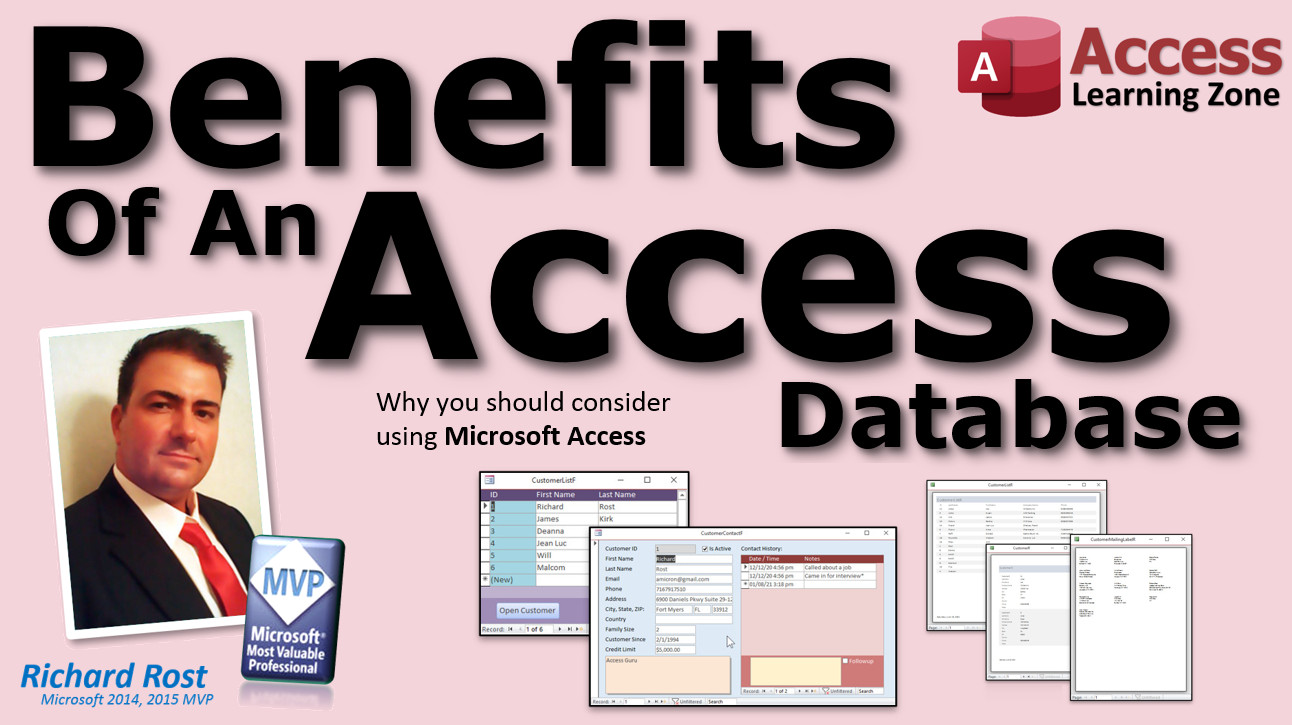
Key Benefits of a Microsoft Access Database This video is for all of the small- and mid-sized businesspeople who have decided that they've outgrown Excel and are thinking about moving up to a full-fledged database application but can't decide what to do. It's also for the person who is working for a larger company and is trying to convince his boss to use Microsoft Access, but the boss (who usually isn't a computer expert) was told by some "consultant" they need something more "large scale" when they really don't. Of course, a lot of consultants love to push expensive, over-priced systems. Or, perhaps you're a student, small business owner, hobbyist, or other non-computer-type person who wants to learn what Microsoft Access is all about and how it can benefit you. In any case, I'm going to tell you why Access is a fantastic choice for pretty much all of your database needs, what its key benefits are, and why you should consider using it for your next project. Storing Data. First, Access is much better than storing your data in Excel, especially if you're sharing that data with other people. I've got a whole video dedicated to when you should use Access vs. Excel. I love Excel, but it's better at analyzing small amounts of data. Once your sheets get up over a couple hundred rows, it's time for Access. https://599cd.com/AccessVExcel Cost Effective. Access is inexpensive to get up and running. At the time I'm recording this video, September of 2021, A Microsoft 365 subscription is $12.50 per month and that includes Word, Excel, PowerPoint, and the rest of the Office suite. Plus, you only need to buy one copy of the software for the developer. Everyone else can use the free Runtime version. https://599cd.com/Runtime I just saw an ad on Google when searching for Access stuff, and it said, "is Microsoft Access holding you back?" so I clicked on the ad just to see what it's about. I won't mention the product, but the lowest tier of service was over $500 per month. So, yeah, most small businesses can't afford that for a database. Easy to Learn. While it may not be as easy to learn as Excel, Access is a whole lot easier to learn than SQL Server, Oracle, or some other, high-end database platforms. Access has a user interface that is very similar to other Microsoft Office applications. If you already know Word and Excel, you'll be very comfortable with Access from the start. Familiar keystrokes, like Ctrl-Z to Undo, are the same in all applications. Plus, you can get started learning for free with my free 4-hour Access Beginner Level 1 course. https://599cd.com/ACB1 User-Friendly Interface. Access also allows you to create very user-friendly interfaces for the databases you build. You can design forms and reports however you see fit. Want to put nice little search buttons on your forms next to fields? No problem. Do you have users with poor eyesight? Not an issue. Make forms designed for them with nice big fields and fonts. You're in charge! And again, if your users already know Word and Excel, they'll be comfortable with your database. Lots of Templates Available. While I personally don't use other people's templates - I prefer to build databases myself from scratch - there are hundreds of templates available from Microsoft and other sources. Many of these templates are free. Some cost a very small amount. Plus, I've got lots of templates available on my web site too. https://599cd.com/Templates Relationships. Access allows you to create relationships very easily. This is when you have customers with orders, or vendors with products. That information should go into separate tables. This is difficult to do with some other database programs, and pretty much impossible to do with just an Excel workbook. https://599cd.com/Relationships Rapid Application Development. Once you've learned the basics, you can put together a new database in a very small amount of time. In fact, you can be up and running with a simple customer database, complete with contact history, order entry, and invoicing, in less than a day! I've got free videos to show you how to do all of that in just a couple of hours. https://599cd.com/Blank Ease of Integration. Since Access is part of Microsoft Office, it integrates well with Word, Excel, Outlook. It's very easy to import/export Excel data, for example. You can use your Access database as a data source for a mail merge with Word. You can send email using Outlook with minimal effort. https://599cd.com/EmailSeminar Cost of Development & Maintenance. It's much cheaper to design and build a database in Access than it is in Oracle, SQL Server, or other industry-level database management systems. Not only are these databases more difficult to setup and build, but they're costly to maintain. You don't need a dedicated employee on staff to manage an Access database (although it doesn't hurt. LOL) Wizards. Access has a lot of wizards built in to help you with tasks that may be difficult for beginner developers, such as creating combo boxes (drop down lists) or command buttons. Powerful Reporting. It's super easy to create professional-looking printable reports in Access. You don't need third-party reporting tools to create invoices, financial statements, charts, mailing labels, or even producing written correspondence either as individual letters or bulk mail. Plus, you can easily export your reports as PDF files. I get asked all the time about integrating Access with 3rd party programs like Crystal Reports. My response is always, "why?" I have yet to come across a report I couldn't generate with Access alone. https://599cd.com/LetterWriter Flexible and Adaptable. With Access it's easy to add or change things around with minimal effort. Need to add a few fields to your order table? No problem. Access will even automatically rename objects for you most of the time. Want to add a few new reports to the accounting system? Very quick and easy to do. You don't need to schedule three meetings and take two weeks to add a couple new fields to your order table and form. ODBC Compliant. Access is fully compliant with the Open Database Connectivity standards. You can easily connect to other database servers: SQL server, MySQL, PostgreSQL, etc. even over the Internet. If you currently have an SQL Server database that your organization is using, you can connect your Access database to it for reporting, data entry, etc. Easy to Share Data. If you've got multiple people who need to use the database, Access makes sharing easy. All you have to do is split the database, put the tables on one computer (a server or even just a workstation on your network) and put the front-end file on everyone else's computer that needs to use it. https://599cd.com/Split I've even got a tool available that helps you to update everyone's front-end files with a single click. It's called the Access Updater. https://599cd.com/Updater Allow Remote Users. You can also easily integrate with an online database such as SQL Server or SharePoint to share your data over the internet, which is handy if you have remote workers. https://599cd.com/AccessSQL Connect From Phone. Remote users can even connect to your Access database using their Android, iPhone, tablet, or any other similar device. They can connect on the road, from home, or anywhere they have an internet connection. https://599cd.com/AccessOnAPhone Practically Unlimited Data Storage. One of the complaints I see online from people who don't know Access is that the maximum size of an Access database is only 2 GB. While a single Access file can only hold 2 GB of data, you can link multiple Access files together to store virtually unlimited amounts of data. Plus, there are lots of tricks and optimizations you can perform, including archiving old data, splitting off fields into separate tables, and more. Scalability. If your data needs are growing, and you've gone from 5 people using the database to 50, it's very easy to upsize the backend data storage and processing to SQL Server while still maintaining the front-end Access database you've spent a lot of hard work and time building. You don't lose your initial investment. You just move the data. https://599cd.com/SQLOnline Power Under the Hood. A lot of "so-called" database experts consider Access to be an amateur's database. However, it does pack a lot of power under the hood. You've got the full VBA programming language that lets you do pretty much anything you can think of as far as application programming. Plus, once you connect Access to SQL Server, you'll be hard pressed to find a better database solution available! Watch my Intro to VBA video for a quick introduction to this powerful programming language. https://599cd.com/IntroVBA Security and Permissions. Once you know a little VBA programming, it's possible for you to set up proper security for your database and assign permissions to users and groups. https://599cd.com/SecuritySeminar Need even more security? Upscale to SQL Server and your data is locked down like Fort Knox, while you can continue to develop in Access. https://599cd.com/SQLOnline Longevity. Now this is a big one. I get asked this a couple times a week. Is Access going away? The answer is an emphatic NO. Access has been around since 1992. I started working with it in 1994. It's one of the most popular database applications available today. And contrary to what you may have read online, Microsoft has NO plans to retire Access any time soon. It will be here for the foreseeable future. https://599cd.com/AccessGoingAway Easy to Get Support. Since Access is so popular, there is no shortage of Access consultants out there to get help from. My advanced Developer students love to help out other users in my Access Forums. Some are even available for one-on-one consulting for a fee. Plus, there are many other very active online communities for Access developers and users. https://599cd.com/AF Conclusion. While there may be other high-end database platforms out there, Microsoft Access is easy to learn and inexpensive, but is also very capable of growing with you. It's extremely customizable and scalable, so as your business grows, your database can grow too. Learn More. Want to learn more? Visit my web site using one of the many links provided on the topics discussed in this video, and of course if you have any questions, please feel free to contact me or post them in the comments section below this video. Free Training. Also, be sure to watch my free 4-hour long Access Beginner Level 1 course. It will teach you all of the basics of getting up and running in Microsoft Access. https://599cd.com/ACB1 I hope you enjoyed the Benefits of an Access Database brought to you by Access Learning Zone. My name is Richard Rost. Thanks for watching.
Links
Keywordsmicrosoft access, ms access, ms access tutorial, #msaccess, #microsoftaccess, #help, #howto, #tutorial, #learn, #lesson, #training, #database, what are the benefits of microsoft access, Key Benefits of Microsoft Access Database, benefits of using microsoft access, advantages of microsoft access, pros and cons of microsoft access, disadvantages
More InformationTranscriptWhat are the key benefits of a Microsoft Access database? Why should you consider using Microsoft Access? This video is for all the small and mid-sized business people who have decided that they've outgrown Excel and are thinking about moving up to a full-fledged database application but can't decide what to do. It's also for the person who's working for a larger company and is trying to convince the boss to use Microsoft Access, but the boss, who usually isn't a computer expert, was told by some consultant that they need something more large-scale when they really don't. Of course, a lot of consultants love to push expensive, overpriced systems. Or perhaps you're a student, small business owner, hobbyist, or other non-computer-type person who just wants to learn what Microsoft Access is and how it can benefit you. In any case, in this video, I'm going to tell you why Access is a fantastic choice for pretty much all of your database needs, what its key benefits are, and why you should consider using it for your next project. First, Access is much better than storing your data in Excel, especially if you're sharing that data with other people. I've got a whole video dedicated to when you should use Access versus Excel. I love Excel, but it's better at analyzing small amounts of data. Once your sheets get up over a couple of hundred rows, it's time for Access. Access is inexpensive to get up and running. At the time I'm recording this video, September of 2021, a Microsoft 365 subscription is 12.50 per month, and that includes Word, Excel, PowerPoint, and the rest of the Office suite. Plus, you only need to buy one copy of the software for the developer - you. Everyone else can use the free runtime version. I just saw an ad on Google while searching for Access stuff and the caption said, is Microsoft Access holding you back? So I clicked on the ad just to see what it's about. I won't mention the product, but their lowest tier of service was $500 per month. So yeah, most small businesses can't afford that for a database. While Access may not be as easy to learn as Excel, Access is a whole lot easier to learn than SQL Server, Oracle, or some other high-end database platforms. Access has a user interface that's very similar to the other Microsoft Office applications. If you already know Word and Excel, you'll be very comfortable with Access from the start. Familiar keystrokes like Control Z to Undo are the same in all the applications. Not only is Access easy to learn, but you can get started learning for free with my 4-hour beginner Access Level 1 course. Access allows you to create very user-friendly interfaces for the databases you build. You can design forms and reports however you see fit. Want to put nice little search buttons on your forms next to fields? No problem. Do you have users with poor eyesight? Not an issue. Make forms designed for them with nice big fields and fonts. You are in charge. And again, if your users already know Word and Excel, they'll be comfortable with your database interface. Now, while I personally don't use other people's templates - I prefer to build databases myself from scratch - there are hundreds of templates available from Microsoft and other sources. Many of these templates are free. Some cost a very small amount. Plus, I've got tons of templates available on my website too. Access allows you to create relationships very easily. This is when you have customers with orders, vendors with products, cars with drivers, and so on. That information should go into separate tables. This is difficult to do with some other database programs and pretty much impossible to do with just Excel spreadsheets. Once you've learned the basics, you can put together a new database in a very small amount of time. In fact, you can be up and running with a simple customer database, complete with contact history, order entry, invoicing, and more, in less than a day. I've got free videos to show you how to do all of that in just a couple of hours. Since Access is a part of Microsoft's Office, it integrates well with Word, Excel, and Outlook. It's very easy to import or export Excel data. You can use your Access database as a data source for a mail merge with Word. You can send emails directly from Access to Outlook with minimal effort. It's much cheaper to design and build a database in Access than it is in Oracle, SQL Server, or other industry-level database management systems. Not only are these databases more difficult to set up and build, they're more costly to maintain. You don't need a dedicated IT employee on staff to manage an Access database, although it doesn't hurt. Access has lots of wizards built into it to help you with tasks that might be difficult for beginner developers, such as creating combo boxes, drop-down lists, or command buttons. It's super easy to create professional looking printable reports in Access. You don't need third-party reporting tools to create invoices, financial statements, charts, mailing labels, or even producing written correspondence, either as individual letters or bulk mail. Plus, you can easily export your reports as PDF files. I get asked all the time about integrating Access with third-party programs like Crystal Reports. My response is always, why? I have yet to come across a report that I can't generate with Access alone. With Access, it's easy to add or change things around with minimal effort. Need to add a few fields to your order table? No problem. Access will even automatically rename objects for you most of the time. Want to add a few new reports to the accounting system? Very quick and easy to do. You don't need to schedule three meetings and take two weeks to add a couple of fields to your order table and form. Access is fully compliant with the open database connectivity standards. You can easily connect to other database servers, SQL Server, MySQL, and more, even over the internet. If you currently have an SQL Server database that your organization is using, you can connect Access to it for reporting, data entry, and so on. If you've got multiple people who need to use the database, Access makes sharing very easy. All you have to do is split the database, put the tables on one computer, a server, or even just another workstation on your network, and put a front-end file on everyone else's computer that needs to use it. I've even got a tool available that helps you to update everyone's front-end files with a single click. It's called the Access Updater. You can easily integrate with an online database such as SQL Server or SharePoint to share your data over the internet, which is handy if you have remote workers. Remote users can even connect to your Access database using their Android, iPhone, tablet, or other similar device. They can connect on the road, from home, or anywhere they have an internet connection. One of the complaints I see online from people who don't know Access is that the maximum size of an Access database is only two gigabytes. While a single Access file can only hold two gigabytes of data, you can link multiple Access files together to store virtually unlimited amounts of data because there are lots of tricks and optimizations you can perform, including archiving old data, splitting off fields into separate tables, and more. If your data needs are growing, and you've gone from five people using the database to 50, it's very easy to upsize the back-end data storage and processing to SQL Server while still maintaining the front-end Access database you've spent a lot of time and hard work building. You don't lose your initial investment, you just move the data. A lot of so-called database experts consider Access to be an amateur's database. However, it does pack a lot of power under the hood. You've got the full Visual Basic for Applications programming language that lets you do pretty much anything you can think of as far as application programming. Plus, once you connect to SQL Server, you'll be hard pressed to find a better database solution available. Watch my Intro to VBA video for a quick introduction to this powerful programming language. Once you know a little VBA programming, it's possible to set up proper security for your database and assign permissions to users and groups. Need even more security? Upgrade to SQL Server and your data is locked down like Fort Knox while you can continue to develop in Microsoft Access. Now this is a big one. I get asked this at least a couple times a week: is Access going away? The answer is an emphatic NO. Access has been around since 1992. I started working with it in 1994. It's one of the most popular database applications available today. Contrary to what you may have read online, Microsoft has no plans to retire Access anytime soon. It'll be here for the foreseeable future. Since Access is so popular, there is no shortage of Access consultants out there to get help from. My advanced developer students love to help out other users in my Access forums. Some are even available for one-on-one consulting for a small fee. Plus, there are many other active online communities for Access developers and users around the internet. In conclusion, while there may be other high-end database platforms out there, Microsoft Access is easy to learn and inexpensive, but it's also very capable of growing with you. It's extremely customizable and scalable, so as your business grows, your database can grow too. Want to learn more? Visit my website using one of the many links provided on any of the topics discussed in this video, and of course, if you have any questions, please feel free to contact me or post them in the comments section below this video. Also, be sure to watch my free 4-hour long Access beginner level 1 course. It will teach you all of the basics of getting up and running in Microsoft Access. I hope you enjoyed the benefits of an Access database brought to you by AccessLearningZone.com. My name is Richard Rost. Thanks for watching. IntroIn this video, we will talk about the key benefits of using Microsoft Access for your database needs. Whether you are a small business owner outgrowing Excel, someone trying to convince your company to use Access, or just curious about what Access offers, we will cover why Microsoft Access is a great choice. Topics include affordability, ease of use compared to other database platforms, user-friendly design tools, templates, integration with other Microsoft Office applications, scalability, sharing and collaboration features, and common misconceptions about Access. QuizQ1. What is a primary reason small or mid-sized businesses might consider moving from Excel to Microsoft Access? A. Access is better at analyzing small data sets B. Excel is easier to use with large complex data C. Access can manage larger data sets and is better for multi-user environments D. Excel includes built-in database relationship tools Q2. What is one of the key advantages of Access in terms of cost? A. You must purchase an expensive site license for every user B. Only the developer needs the full version, others can use a free runtime version C. Monthly subscription is hundreds of dollars D. You cannot use Access for free at any stage Q3. How does the user interface of Microsoft Access compare with other Microsoft Office applications? A. It is completely different and harder to learn B. It is the same only as PowerPoint C. It is similar to Word and Excel, making it familiar to new users D. It uses command line only Q4. Why is Access considered easier to learn than platforms like SQL Server or Oracle? A. It has fewer features B. It does not support relational databases C. It has a user-friendly interface and wizards that help beginners D. It requires programming knowledge to get started Q5. What feature does Access offer to make databases user-friendly for people with varying needs? A. Only allows text-based interfaces B. Forms and reports can be fully customized, including font sizes and search buttons C. Requires programming knowledge for any customization D. Limits customization to pre-designed templates Q6. What makes creating and managing relationships between tables easy in Access? A. Relationships cannot be created in Access B. Relationships require third-party add-ons C. Access has simple built-in tools for defining relationships between tables D. You must use Excel alongside Access for relationships Q7. In what way does Access support integration with Microsoft Office applications? A. Access cannot interact with other Office programs B. Data can only be exported manually C. Access integrates well with Word, Excel, and Outlook for import, export, and mail merge D. Only templates can be shared, not data Q8. What type of reports can you create directly in Access without third-party tools? A. Only basic text reports B. No reports at all C. Professional-looking printable reports, invoices, charts, and mailing labels D. Only charts Q9. Which statement about sharing a database with multiple users is TRUE regarding Access? A. Only one user at a time can use the database B. Every user must work on a single copy of the database file C. The database can be split, with front-end files on each user's computer for multi-user access D. Sharing is impossible without SQL Server Q10. If you need to upsize your database as your business grows, what transition does Access support? A. Requires starting from scratch in a new system B. Only migration to Oracle is supported C. You can move the back-end to SQL Server while keeping your Access front-end D. You must abandon Access entirely Q11. How does Access handle the file size limitation of 2GB? A. There is no workaround for this limitation B. You can link multiple Access files and use optimizations to handle more data C. Access automatically increases file size when needed D. Only small databases are supported Q12. What programming language is built into Access for creating custom functions and automation? A. JavaScript B. Python C. Visual Basic for Applications (VBA) D. C++ Q13. Is Microsoft planning to retire Access soon? A. Yes, it will end support next year B. Uncertain, Microsoft has not made any announcements C. No, Microsoft has stated there are no plans to retire Access D. Access is already retired Q14. What is a significant benefit to Access being widely used? A. Limited community support B. Few online resources C. Many online communities and consultants are available for help D. No one provides consulting for Access Q15. As your organization's data needs grow, what makes Access a scalable choice? A. It cannot grow beyond a few users B. It becomes less customizable C. It can integrate with SQL Server or SharePoint and expand functionality for remote access D. You must switch to Excel for more users Answers: 1-C; 2-B; 3-C; 4-C; 5-B; 6-C; 7-C; 8-C; 9-C; 10-C; 11-B; 12-C; 13-C; 14-C; 15-C DISCLAIMER: Quiz questions are AI generated. If you find any that are wrong, don't make sense, or aren't related to the video topic at hand, then please post a comment and let me know. Thanks. SummaryToday's video from Access Learning Zone focuses on the key benefits of using Microsoft Access for your database needs and offers guidance on why Access should be considered as an alternative to Excel or more complex systems. For those in small or mid-sized businesses who find that Excel is no longer sufficient for managing their growing amount of data, Microsoft Access is an ideal next step. Even individuals in larger companies who need to persuade decision makers that Access is suitable, despite advice from consultants in favor of more expensive solutions, will benefit from what Access has to offer. Consultants often recommend overpriced systems, but in most cases, especially for small businesses, Access is all you need. Even if you are a student, a small business owner, a hobbyist, or simply someone interested in understanding what Access is, learning about its advantages can be very helpful. To start, Access outperforms Excel when it comes to storing and sharing data among multiple users. Excel is a great tool for analyzing small datasets, but once your data grows past a few hundred rows, Access becomes the better choice. There is a dedicated video on my site covering when to use Access versus Excel for different needs. Cost is another significant advantage. At the time this video was recorded, a Microsoft 365 subscription costs about $12.50 per month, which includes Access as well as the rest of the Office suite. Only one paid version is necessary for the main developer; anyone else needing to use the finished database can do so with the free runtime version. Access is considerably more affordable than many alternatives, some of which can run into the hundreds of dollars per month. Most small businesses cannot justify such high ongoing costs for a database. When it comes to learning, Access has the benefit of a familiar user interface that is consistent with other Microsoft Office applications. If you already know how to use Word or Excel, you'll find the controls, keystrokes, and general experience with Access very similar. While it can be more complex than Excel at first, it is much easier than navigating SQL Server, Oracle, or other high-end databases. A wide range of learning resources is available for Access, including my free four-hour Access Level 1 course, which covers all the basics you'll need to get started. Access enables you to create attractive, easy-to-use interfaces for your databases. You can design forms and reports exactly how you want. For example, you can add helpful search buttons or create accessible layouts for users with limited eyesight. If your users already have some familiarity with Office software, adapting to an Access database will be straightforward. Even though I personally like to build my databases from scratch, there are also dozens of premade templates offered by Microsoft and various online sources, some free and some inexpensive. I also provide many templates on my website for those looking to jumpstart their projects. In terms of organizing your information, Access makes it simple to create relationships between different sets of data. This is essential for things like customers and their orders, vendors and products, or cars and drivers, where information is best stored in separate tables. Access handles this much more efficiently than Excel or even many other database applications. Once you have the basics, you'll find that you can construct a useful database rapidly. For instance, it's possible to set up a customer database capable of managing contact histories, sales orders, invoices, and more in just a few hours. I provide guidance on how to do this in my free video series. Because Access is fully integrated into Microsoft Office, it works smoothly with Word, Excel, and Outlook. You can move data between Access and Excel with minimum hassle, use Access databases for mail merges with Word, and send emails directly from Access through Outlook. Another strong point is cost efficiency. Building a solution in Access is much less expensive than working with platforms like Oracle or SQL Server, both in terms of setup and maintenance. You don't need a full-time IT specialist to manage most Access databases, although having one for your organization can be helpful. Access includes several wizards to make setting up combo boxes, dropdowns, or command buttons much easier for beginners. Creating polished, professional reports such as invoices, financial statements, charts, and mailing labels is straightforward and does not require third-party reporting tools. Access also lets you export reports easily to PDF. People often ask whether they need to integrate Access with outside tools like Crystal Reports. My answer is generally no, since Access has all the functionality most people require for reporting. Changing your database structure in Access is quite simple. If you need to add fields to a table or new reports to your system, it can usually be done quickly without lengthy meetings or delays. Access can even rename objects automatically as you make changes. Access follows the open database connectivity standards, which means it can connect to other databases like SQL Server or MySQL. If your organization uses SQL Server for its main database, Access can act as a front end for reporting and data entry. If your database needs to be used by multiple people, Access makes sharing straightforward. By splitting your database, you can keep your tables on a shared server and distribute a front-end file to each user. I even have a tool called Access Updater to help streamline updating these front-end files for everyone. For organizations with remote staff, Access can connect to online databases such as SQL Server or SharePoint, making data sharing over the Internet easy. Users can connect using their mobile devices from anywhere with an Internet connection. Some critics argue that Access's two gigabyte file size limit is a serious drawback. However, it is possible to combine multiple Access databases and use techniques like archiving and splitting off data into separate tables to overcome these limitations. As your organization grows, you can easily upgrade your data storage to SQL Server while still keeping your familiar Access front end. This allows you to keep benefitting from the time you've spent developing your system. Many so-called database experts underestimate Access, viewing it as unprofessional. In reality, Access offers a powerful platform with its Visual Basic for Applications programming language, allowing for advanced automation and custom function development. Once connected to something like SQL Server, Access becomes extremely robust for a wide array of professional needs. If you're interested, check out my introduction to VBA for more details. With basic VBA skills, you can set up security and user permissions within Access. For heightened security, you have the option to upgrade to back-end systems like SQL Server, which offer enterprise-level protection while still leveraging your Access front end. A common question is whether Access will soon be discontinued. The answer is no. Access has been in use since 1992 and remains one of the most widely used desktop database solutions available. Microsoft continues to support it, so you can count on it being here for years to come. Finally, Access enjoys a large and active user base, with plenty of online forums and consultants willing to help. My own forums are a great place for you to ask questions, and many experienced users are available for one-on-one assistance if you need it. In summary, Microsoft Access is not only affordable and easy to learn, but also highly versatile and scalable. It is well suited to grow with you as your business develops and your database needs expand. If you'd like to explore any of the topics discussed here in greater detail, you can find a complete step-by-step video tutorial on my website at the link below. Live long and prosper, my friends. Topic ListSwitching from Excel to Access for larger datasets Cost-effectiveness of Microsoft Access Ease of learning compared to other database systems User-friendly interface similar to other Office apps Creating custom forms and reports Availability of free and paid database templates Building table relationships easily Quick database setup and deployment Office integration with Word, Excel, and Outlook Affordable development and maintenance Built-in wizards for forms, reports, and controls Generating professional printable reports Simple updates and modifications to databases Support for open database connectivity (ODBC) Database sharing and splitting for multiple users Connecting Access to SQL Server or SharePoint Remote access via web or mobile devices Database size management and optimization Seamless database upscaling to SQL Server Advanced automation with VBA programming Implementing security and user permissions Large community and support resources Long-term stability and continued Microsoft support Customizability and scalability as your business grows Primary TopicsMicrosoft Access benefits, comparison to Excel, ease of use, integration with Office, cost-effectiveness, scalability, sharing and collaboration, templates, reporting, database relationships Secondary TopicsAccess vs high-end databases, VBA programming, database security, community support, connectivity to SQL Server and SharePoint |
||||
|
| |||
| Keywords: FastTips Access what are the benefits of microsoft access, Key Benefits of Microsoft Access Database, benefits of using microsoft access, advantages of microsoft access, pros and cons of microsoft access, disadvantages PermaLink Benefits of Microsoft Access |