|
||||
|
||||
Webcam TemplateBy Richard Rost
 5 years ago
Howdy folks. A few people have asked me if there's a way to get Access to utilize a PC's webcam to take pictures. You can do this for taking employee or customer pics, or even a quick scan of a document. Most laptops nowdays have webcams built into them. In any case, I've put together a simple Access database that uses the built-in webcam. I can get it to work fine on 2 of my 3 laptops. My oldest one doesn't seem to like it. So before I make this available as an official "Template" I'm putting it up here for ya'll to try it to see if it works for you. This is just an ACCDE file, so you can't edit it at all, but this should at least tell me if most people can use it or not. You can download it here. Note that it requires 64-bit Office 2013 or later.
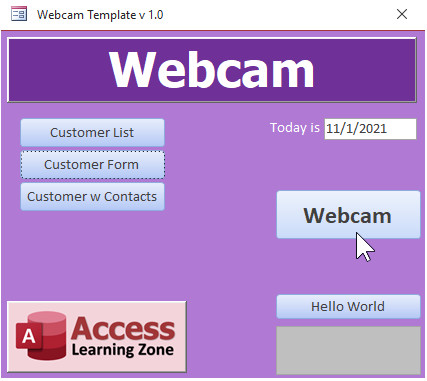
I'd apprecate it if you could drop me a comment below and let me know whether or not it worked for you. Thanks! InstructionsThere are two ways to use the Webcam. The first option is to just open the webcam form from the main menu.
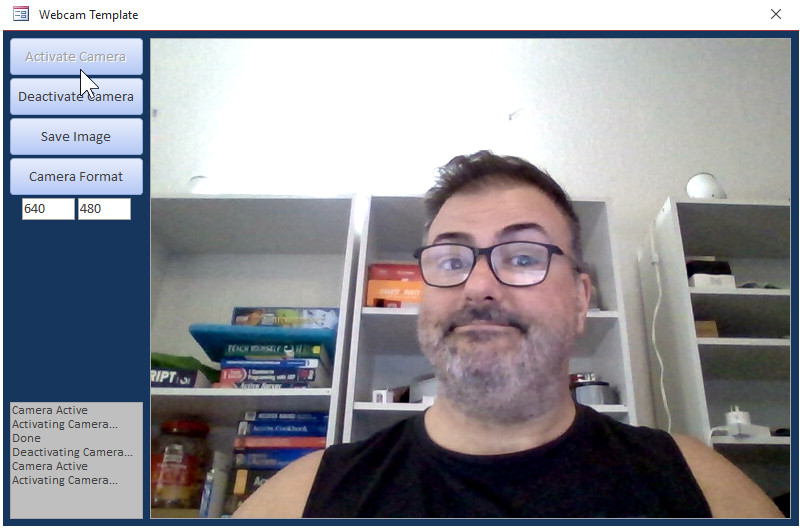
Then click the Activate Camera button. You should appear. Of course this entails that your webcam is indeed working and configured. Use your Windows Camera app to make sure.
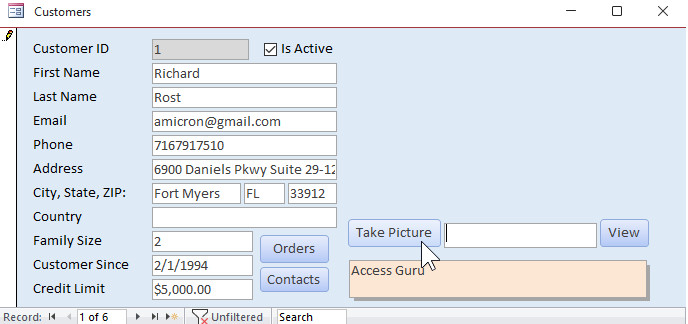
At this point, you can deactivate the camera, save the image, or change the camera format. And yeah, I haven't shaved in a week. Leave me alone. :) The other way you can use the webcam is go to to the Customer Form. Click on Take Picture.
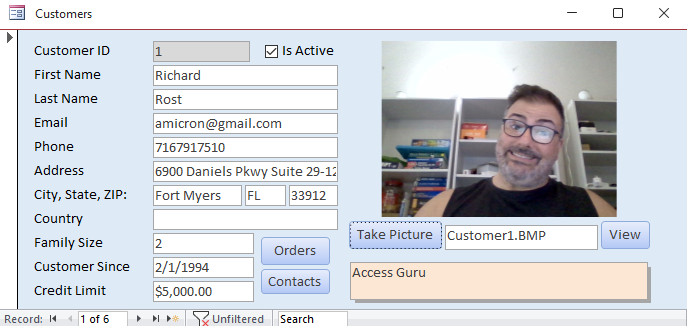
The same webcam form will open, activate the camera automatically, and give you an option to take the picture and save, or cancel. Take the picture, it will be saved to a Pictures folder (under your current DB folder) and then it will be linked to the customer record.
There ya go. Pretty straightforward. I just need to know if it works for other people before I release it. Your help is greatly appreciated.
|
||||||||||||||||||||||||||||||||||||||||||
|
| |||