|
||||||

|
|
||||||
|
Currency SymbolsBy Richard Rost
 5 years ago
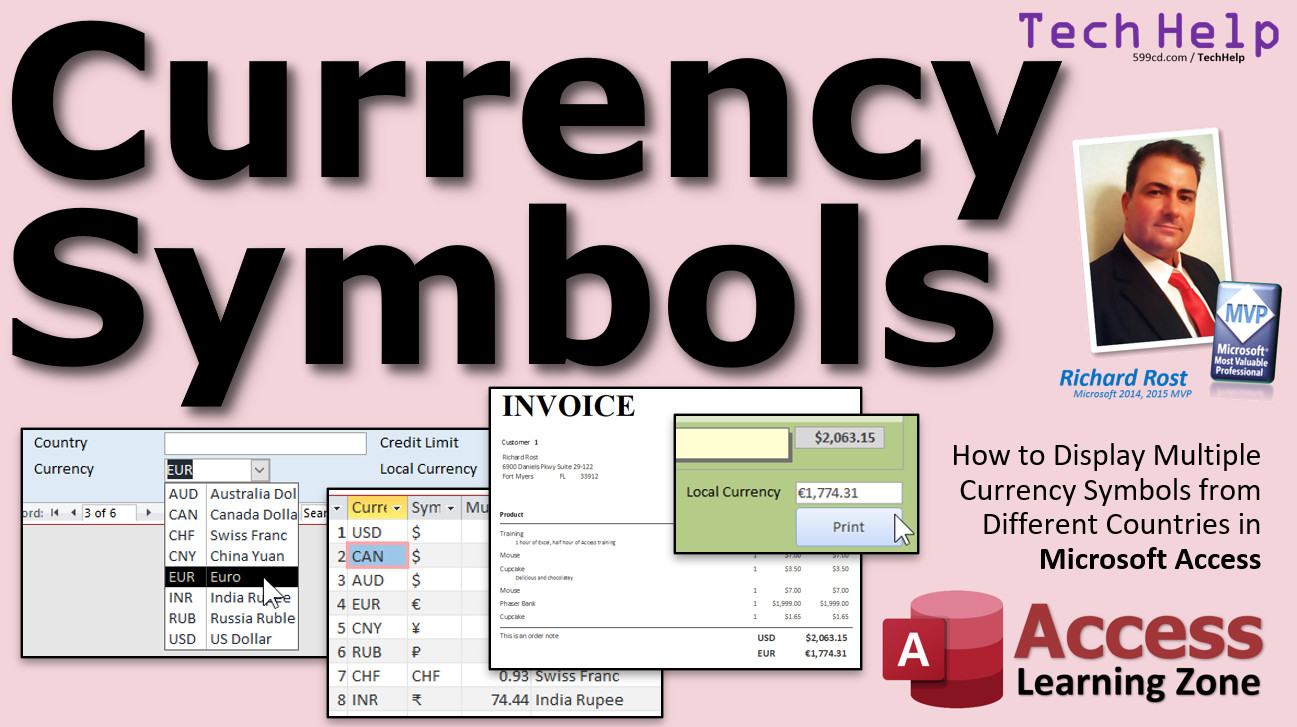
Multiple Currency Symbols: $ € ¥ £ ¢ ﷼ ₽ etc. In this video, I'll show you how to use different currency symbols from around the world to display proper monetary values in your Microsoft Access databases. Despina from Glyfada, Greece (a Platinum Member) asks: I have to issue invoices in three currencies: US dollars, Euros, and Swiss Francs. How can I change the currency symbols on the invoices to reflect the customer's currency type? MembersMembers will see how to add currency symbols to the Invoicing database we created in the original Currency Conversion TechHelp Extended Cut video.
Silver Members and up get access to view Extended Cut videos, when available. Gold Members can download the files from class plus get access to the Code Vault. If you're not a member, Join Today!
Links
Keywordsmicrosoft access, ms access, ms access tutorial, #msaccess, #microsoftaccess, #help, #howto, #tutorial, #learn, #lesson, #training, #database, currency symbols, yen, yuan, peso, ruble, change currency, custom currency signs, multiple currencies, change currency symbol
More InformationTranscriptWelcome to another TechHelp video brought to you by AccessLearningZone.com. I am your instructor, Richard Rost. In today's video, I'm going to show you how you can use different currency symbols from around the world to display proper monetary values in your Microsoft Access databases. Today's question comes from Despina in Gleefada, Greece, one of my platinum members. Despina says: I have to issue invoices in three currencies: US dollars, Euros, and Swiss francs. How can I change the currency symbols on the invoices to reflect the customer's currency type? That's a very good question. In my previous video, I showed you how to convert currency amounts. So if you had to go from US dollars to Canadian dollars, Australian dollars, or even Euros, it will show you the value. There you can see the value will change, but it still uses the dollar sign. Despina wants to know how to change that actual dollar sign to appear like the Euro symbol or the British pound symbol and so on. First, a couple prerequisites. You're going to need to know how to make calculated query fields, how to use the DLookup function, which is important. Go watch my original convert currency video. That's got a lot of other good stuff in it too. Go watch those and then come back here. I'll put links down below in the description below the video. You can go click on those. It'll take you right to them and then come on back here for the rest. Now, for just your system, if you want to just change the way currency appears on your system, then on your start button, type in currency. See where it says change the way currency is displayed? Click on that. You get this guy up, the regional settings. If you go to additional settings and then click on currency, you can change your symbol and all that here. Here's a whole bunch of different symbols. But this is for your system. This is assuming you're in England or you're in some other country with a different symbol. This does not change the other records in your Access databases. For that, we have to get creative. Here's a copy of my TechHelp free template. You can grab a copy of this off my website if you want to. It's a free download. Now, members, in a few minutes, when we get to the extended cut, we're going to be working with the database that I built in that class. In the extended cut of that class, I'm going to show everybody else a few techniques right now that we kind of talked about last time. What we're going to do is set up a currency conversion table where I can have the currency type, the multiplier (how I multiply US dollars to get to that currency), and we'll put the symbol in there too. Let's create table design. We need a currency ID - that's my auto number. The currency type, which would be the short text, like the three character code abbreviation for it. We'll need a multiplier. That's going to be a number of type double because that's going to be a fractional number, for example, 1.42. Now we're going to add in here the full name, like Great British Pounds, whatever. Then we're going to put in here the symbol, which will also be short text. Save that. This will be my currency table, CurrencyT. All right, primary key, yes. There we go. Save it. Let's go over to datasheet view now. Currency type - we'll start off with US dollars. Multiplier is going to be 1. Multiply US dollars by 1 to get to US dollars. US dollar. The symbol is just the dollar sign on the keyboard. Canadian dollar. Same thing. Now, multipliers - we'll get in a minute. I'll show you where to get the multipliers in just a minute. Canadian dollar, or we just put Canada dollar, and that's also the dollar sign. We'll do one more - the Australian dollar, AUD. A lot of countries use the dollar sign. How about the Euro? EUR. Where do I get that symbol from? The easiest way to do this is to go to any website that shows currency conversions. Most of them will have the little symbols there in a chart for you. A quick Google search for this brought me to this site, xe.com. I'll put a link down below in the link section. They've got a chart with all the different currency symbols on it. See them there? Every country. Every symbol type. So let's find Euro. I'm going to Ctrl-F, EUR. Go down a little bit. There we go. Euro member countries. Now, here's the Euro symbol. There are two different fonts there. If it displays in your browser, chances are it should work fine in Access. I like to use the first one there. Just copy that text, Ctrl-C, flip back over to your database, and just paste it in there: Ctrl-V. Boom. There's the Euro symbol. Let's do a couple more. How about the CNY? That's the Chinese yuan (or yen). Again, come on over here. Let's look for the Chinese yuan. There it is. OK, here's the symbol. Copy that symbol. Back to the database and paste. There you go. How about Russia's rubles? It's RUB. Russia ruble. A little search. There it is, ruble. Copy it. Back to the database and paste it in. One more: the Swiss franc, which is just CHF. CHF together like that, so it's just three characters. Just copy that and we'll put it over here. So it's CHF, Swiss franc, and that's just that. Actually, there's one more I want to show you also, and that's the Indian rupee. For some reason, it doesn't show up here, but if I click on the Indian rupee and scroll down a little bit, you'll see it does show up here. There's the symbol for it right there. It's weird why it doesn't show up on that first page. Copy. Back over here. INR, Indian rupee, and then paste it in. All right. Let's get these multipliers in here now. What number do we have to multiply to get to Canadian dollars? Well, we've got to find out what the current exchange rate is. I show this in the other video. I'm just going to show you one or two of them. Let's go to the converter. So we've got US dollar to Euros here. Let's just hit convert. So $1 is worth 0.89 Euros. For a Euro here, I'd put in 0.89. Let's do Canadian dollars. Change this to Canadian dollars right there. $1.28 Canadian dollars, so put that in here. I'll go through real quick and do the rest of them. There's the rest of them as of today. It's November 22, 2021, so these numbers will obviously be different in the future. Once again, in the extended cut from my original convert currency video, I show you how to put a currency selector on the customer's form using a combo box. Then, on their invoice, I show you how to display both dollar amounts there. That's in the extended cut for the original currency conversion video. In my Access Developer Level 32 class, I show you how to auto-update these rates from the web. So you click on one button, it'll go out to a website, get all the conversion rates for you, and fill them into that table. So every day all you have to do is click that button once and you get updated conversion rates. You don't have to type all these in. That's Access Developer 32. I'll put a link down below in the link section. But now I've got this currency conversion set up. How do I display a dollar amount converted over to the correct currency type and then shown with the proper symbol? Let's take a look at another table that has a dollar amount in it. Let's go to the customer table. The customer table has a credit limit right there. That's that customer's credit limit. Let's say we wanted to display that credit limit in whatever their currency is. So let's add a currency ID to each customer. Currency ID. That'll be a number. Remember, that's going to point to the currency ID in the currency table. We're going to make a relational combo box now. Let's go to the customer form. Right-click. Design view. Drop this guy down. Let's go to the form design. In the toolbox here, we're going to find a combo box. We're going to drop that right down here. We're going to look up the value of another table or query. We're looking them up from the currency table. Let's bring over the currency ID, the currency type, and the full name. Next, we're going to sort this by currency type. Next, this is what it's going to look like in the box. Next, we're going to store that value in that currency ID field in the customer table. Next, what label would you like? Currency and finish. There it is right there. I'm going to format paint that guy so it's black. This is called a relational combo box. It's a combo box that gets a value from another table and stores it in this table. If you've never made one of those before, I'll add it to the prerequisite list. You should go watch this video. I'll put it in the link section down below if you want to learn more about making relational combo boxes. I honestly wasn't planning on including this when I first put this outline together. That's why I didn't put it in the prerequisite screen, but now we got it. Save it and close it. So, here's the currency. I will be US dollars. Jim Kirk will be Euros. Deanna Troi can be... well, she can be Euros. Let's see. We'll go Swiss francs on this one. We'll go Russian rubles on that one, and try to use the yen on that one. Now, how do I get it to display the credit limit with their symbol? There are two ways we can do it. We can do it with a query and join them together, or we can do it with DLookup. I'm going to show you both of them. To do it with a query, let's go to Create > Query Design. We're going to need the customer table, and we're going to need that currency table. Close that down. Now, from here, let's find first name and last name. Let's bring in their currency ID, their symbol, and their credit limit. Run that, see what you get. There's each person, their symbol, and their credit limit. But I don't want the credit limit as a currency. I want to format that just as a number. So, we're going to use that in a little string concatenation. Concatenation is putting two strings together. Right-click, go back to design view. Over here, we're going to make a new field. I'm going to zoom in for you (Shift-F2). We're going to make a new field. We'll call it CL (credit limit). This is going to be a combination of two different things. We're going to use the symbol and the credit limit, concatenated. I just want to show you what I've got so far. Run that, and that's what it looks like. It's not perfect. You might want to see cents after there. For example, if you got 50 in here, it'll just show 0.5. So let's do a little more formatting. I'm going to zoom back in (Shift-F2). We're going to format this: comma 0.00, make it look like that. Access will probably change it. Yep, it changes it to fixed. That's okay. Now save it. Let's call this CurrencyQ. Take a look, and there you go. Now, be careful, because that's just displaying this value with that format. It's not doing the currency conversion though, so maybe we should bring that in now. Let's bring in the multiplier. We need to multiply this. Shift-F2, let's go: credit limit times the multiplier. Don't forget the multiplier, because we're going to store every value internally in the database in US dollars, we're just going to display it that way. Save it. Run it. And there you go. Now it's converted. Jim Kirk has $133 US dollars, which is $118 Euros. $4 is 25 yen, roughly. $500, $465 Swiss francs. Now, how do you display this on their customer form? For that, we are going to use a little DLookup statement. Now I've got their currency ID over here. It's called Combo30 right now. Let's just rename that. You can either call it currency combo or currency ID. That's fine. So, that's going to be a number. We have to go look up that number in the currency table, whatever that is. That'll bring back what the multiplier is and their symbol. I'm going to do this in two different steps. Let's bring back their multiplier and their symbol and put them in little hidden fields on here. Instead of making one big crazy formula, we could do it all in one text box, but I don't recommend it. Let me do copy, paste, paste. We're going to hide these boxes in a second. So right here, we're going to put the multiplier. Name is going to be "Multiplier." The control source is going to be: =DLookup("Multiplier","CurrencyT","CurrencyID=" & [CurrencyID]) I'll zoom in for you. That's why I want you to watch the DLookup video. Copy this whole thing now. Next one: the symbol. We'll call this one "Symbol," and you are going to be equal to that whole thing again, but look up the symbol from the currency table where the currency ID equals currency ID. Now we've got our multiplier and our symbol right there. Let's see what it looks like. Save it. Close it. Open it up. There's our multiplier and our symbol. We don't have to format that as currency. Let's change that: design view, change these formats, get rid of the currency format. We're going to hide these in a minute, so don't worry about those. We can call this, instead of "Converting," let's call this "LocalCurrency." This guy is just going to be that and that. So we'll call this "LocalCurrency," and the control source is equal to the symbol and the credit limit times the multiplier. Credit limit times multiplier. The format for that is going to be fixed. No, we've got a symbol in front of it. We can't make it fixed. Just get rid of the format. Save it. Let's see what we got. Looks good. Looks good. We might have to do some rounding here, but it looks good. Let's do a little formatting: design view, come in here, bring up the properties. We're going to format that comma as fixed. Save it. Close it. And there we go. Looks good. Looks good. Beautiful. Beautiful. Looks good. Everyone's working here. Now these we don't need. So I'm going to hide these: right-click, properties, Visible: No. This can't be edited. I don't want the user to think they can type something in there. We're just going to format that and make it a little bit like background gray like that. Someone's at my doorbell. Close that and take a peek. And there we go. Look at that. There you go. Now you can put that on whatever you need to, on their invoices and all that stuff. If you want to learn more about how to do this stuff, we're going to set it up in the extended cut for members. We're going to add this stuff to the invoices. Here's how it's going to work. When we make an invoice, we're still going to store the dollar values in US dollars for your accounting. But when you go to print the invoice, it's going to ask you if you want to make the currency conversion for their local currency. When the order is printed, the conversion will happen, and it will save that value in your table so you can see in the future. In the future, your currency conversions are going to change, so you want to see what the conversion rate was at the time the invoice was printed. We'll put that on the invoice down here in both formats, and that's going to be pretty cool. That's all covered in the extended cut for the members. Silver members and up get access to all the extended cut videos - there are lots now, over 200. Gold members can download these databases. And, of course, platinum members get everything. How do you become a member? Click on the Join button below the video. After you click the Join button, you'll see a list of all the different membership levels that are available, each with its own special perks. Silver members and up get access to all of my extended cut TechHelp videos, one free beginner class each month, and more. Gold members get access to download all of the sample databases that I build in my TechHelp videos plus my code vault, where I keep tons of different functions that I use. You'll also get a higher priority if you decide to submit any TechHelp questions to me, and you'll get one free expert class each month after you finish the beginner series. Platinum members get all the previous perks, plus even higher priority for TechHelp questions, access to all of my full beginner courses for every subject, and one free developer class each month after you finish the expert classes. These are the full length courses found on my website, not just for Access too. I also teach Word, Excel, Visual Basic, and lots more. You can now become a diamond sponsor and have your name or company name listed on a sponsors page. You'll be shown in each video as long as you're a sponsor. You'll get a shout out in the video and a link to your website or product in the text below the video and on my website. But don't worry, these free TechHelp videos are going to keep coming. As long as you keep watching them, I'll keep making more, and they'll always be free. IntroIn this video, I will show you how to display different currency symbols for various international currencies in your Microsoft Access databases. We will talk about managing multiple currencies, storing currency type and exchange rates, setting up a currency table with symbols, and using lookup fields and queries to format values correctly on forms and reports. I will also demonstrate how to update and display customer data with their appropriate local currency symbols and make use of string concatenation and query calculations for formatted results. QuizQ1. What is the main goal of the tutorial in this video? A. To teach how to create currency conversion rates between databases B. To show how to display different currency symbols for monetary values in Access databases C. To explain how to calculate sales tax for different regions D. To illustrate the use of Access macros in forms Q2. When adjusting your computer's currency symbol using Windows regional settings, what is a limitation of this method according to the video? A. It only affects dates, not numbers B. It changes the symbol for all users on the network C. It affects only your local system, not individual records in Access databases D. It cannot display any currency symbol except the dollar sign Q3. In designing the CurrencyT table, which field is used to store the currency symbol (such as $, €, £)? A. Multiplier B. CurrencyID C. Symbol D. FullName Q4. What datatype is used for the multiplier field in the CurrencyT table? A. Short Text B. AutoNumber C. Currency D. Double Q5. Where can users get accurate exchange rates and symbols for their currency conversion table? A. By updating Windows manually B. From the xe.com currency converter website C. From Microsoft Access help files D. By running a VBA macro Q6. Where are all dollar values stored internally according to the tutorial's recommendation? A. In the customer's table in local currency B. In the employee table as numbers C. In US dollars D. Using the current Windows region format Q7. What method is demonstrated to allow users to select a customer's currency type in an Access form? A. Input box B. Relational combo box C. Hyperlink field D. Checkbox list Q8. Which Access function is used to lookup the symbol or multiplier for a given currency in code or calculated controls? A. DMax B. DSum C. DLookup D. DCount Q9. What issue might arise when concatenating a symbol and value (e.g. "$123.45") directly in a query, as discussed in the video? A. The query will return errors if there are decimals B. The value will not be properly formatted (e.g. missing cents or decimal places) C. The symbol will not display at all D. The multiplier cannot be included Q10. According to the video, what is the purpose of hiding the multiplier and symbol text boxes on the customer form? A. To prevent database errors B. To make the form look cleaner while still allowing calculations to use those values C. To improve the database performance D. To stop users from changing the currency type Q11. Why is it important to store the currency conversion rate used at the time an invoice is printed? A. Because exchange rates do not change over time B. For future audit and reference, since conversion rates change C. To prevent duplicate invoices D. To ensure the symbol is always up to date Q12. What is a benefit of using a join in a query over DLookup for displaying currency values? A. DLookup is more accurate B. Joins allow for easier sorting and more efficient queries C. Joins cannot show currency symbols D. DLookup does not require relationships Q13. Which Access class is mentioned as providing automated currency conversion table updates from the web? A. Access Developer Level 10 B. Access Developer Level 32 C. Access Beginner Level 1 D. Access Reporting Level 5 Q14. What is typically shown on invoices as recommended in the extended cut? A. Only the original USD value B. Only the converted value C. Both the original and local currency values D. The exchange rate only Answers: 1-B; 2-C; 3-C; 4-D; 5-B; 6-C; 7-B; 8-C; 9-B; 10-B; 11-B; 12-B; 13-B; 14-C DISCLAIMER: Quiz questions are AI generated. If you find any that are wrong, don't make sense, or aren't related to the video topic at hand, then please post a comment and let me know. Thanks. SummaryToday's video from Access Learning Zone will show you how to use various international currency symbols in Microsoft Access to accurately display monetary values for customers in different countries. I recently received a question from a student who needs to issue invoices in US dollars, Euros, and Swiss francs, and wants to know how to make the right currency symbol appear for each customer on their invoices. This is a common scenario for businesses dealing with international clients. Previously, I discussed how to convert currency amounts between different types, such as US dollars to euros or Canadian dollars. However, that process still displayed all currencies with the dollar sign. The new challenge is to make the appropriate currency symbol, such as the euro or pound symbol, show up next to the correct monetary amount. Before you proceed, you should be familiar with creating calculated query fields and using DLookup to retrieve data from other tables. If you're not comfortable with these topics, I strongly suggest watching my earlier tutorials on currency conversion and DLookup. Those lessons will give you a good foundation for what we will cover here. Changing your system's currency symbol in Windows is a quick fix if you just want to alter how currencies show up for your own use. You can do this by going to your system's regional settings and selecting your preferred symbol for all of Windows. However, this method will not update symbols on other records within your Access database. To customize currency symbols for each customer, you need a different approach. To solve this, we will create a currency table in Access. This table will store the currency type (like USD, EUR, CHF), the multiplier (the current exchange rate relative to US dollars), the full currency name, and the corresponding currency symbol. When designing this table, add an AutoNumber field as the CurrencyID, a short text field for the currency type (such as USD or EUR), a double field for the multiplier (to handle values like 1.42), a field for the full currency name, and another short text field for the currency symbol. Once the table is saved and open in datasheet view, you can enter records for each currency you use. For example, US dollars might have a multiplier of 1.0 and use the $ symbol. Canadian and Australian dollars also use the $ symbol, but their multipliers depend on the current exchange rates. For other currencies like euros (EUR), you can find the euro symbol on currency conversion websites such as xe.com, and simply copy and paste it into your table. The same process works for symbols like the Chinese yuan, Russian rubles, Swiss franc, and Indian rupee. Filling in the multipliers requires looking up the current exchange rates. These change daily, so you will need to update them regularly. In my Access Developer Level 32 class, I explain how to update these rates automatically by connecting to a currency conversion website, so you can refresh all your rates with a single click. Now that we have the currency information stored, we need to display the correct amount and symbol for each customer. In your customer table, add a CurrencyID field to associate each customer with the appropriate currency. On your customer form, add a combo box that lists all available currencies from your currency table. When you select a currency for a customer, their CurrencyID will be stored, linking them to the right symbol and exchange rate. If you are unfamiliar with creating relational combo boxes, I have a video on that as well, which is worth watching first. Next, let's look at how to display the customer's credit limit using their chosen currency symbol. There are a couple of ways to achieve this. You could build a query that joins the customer and currency tables, then format the output to display the symbol alongside the converted amount. Use string concatenation to put the symbol in front of the number, and apply formatting for decimals as needed. Make sure to use the multiplier from the currency table when calculating the displayed value, so the amount matches the correct currency's value. Alternatively, you can use DLookup directly on your forms to fetch the multiplier and symbol for the selected currency. It's often easier and clearer to use separate hidden fields to store the multiplier and symbol values, rather than combining all calculations into one complex control. This also makes it simpler to maintain and debug. Once you have these fields, create another calculated control to display the local currency amount for the customer by multiplying their credit limit by the multiplier and prefixing it with the appropriate symbol. You can hide the intermediary controls and format the display field so users only see the result, not the underlying data. Using these techniques, you can ensure that invoices, reports, and other forms in your database will show amounts with the correct currency symbols for each customer. In the extended cut of this video, members can watch how to set up the system so that when you print an invoice, it not only shows the proper symbol and calculation, but also stores the exchange rate at the time the invoice is created. This ensures accurate historical data even as currency values fluctuate in the future. We also cover how to print both the original and converted amounts on invoices. If you're interested in more advanced features, such as automatically updating exchange rates or downloading sample databases, you can learn about the different membership levels and their benefits on my site. A complete video tutorial, with step-by-step instructions for everything discussed here, is available on my website at the link below. Live long and prosper, my friends. Topic ListChanging system currency symbol in Windows regional settings Creating a currency conversion table in Access Defining fields for currency ID, type, multiplier, name, and symbol Populating the currency conversion table with global currencies Obtaining currency symbols from xe.com and similar sites Adding multipliers based on current exchange rates Adding currency selection to customer records using a combo box Building a relational combo box for currency selection Assigning specific currencies to customer records Creating a query to join customer and currency tables Concatenating currency symbols with formatted amounts Applying currency conversion using multipliers in a query Displaying converted values with appropriate symbols Using DLookup to retrieve multiplier and symbol dynamically Displaying converted currency values on forms Hiding and formatting calculated fields on forms Storing all monetary values in base currency and displaying local currency Primary Topicsmultiple currency symbols, Access currency formatting, currency table design, relational combo box, DLookup usage, currency conversion, form query concatenation Secondary Topicsquery design, customer forms, exchange rate multipliers, Access form formatting |
||||||||||||||||
|
| |||
| Keywords: TechHelp Access currency symbols, yen, euro, yuan, peso, ruble, change currency, custom currency signs, multiple currencies, change currency symbol PermaLink Currency Symbols in Microsoft Access |