|
||||||

|
|
||||||
|
Hangman!By Richard Rost
 5 years ago
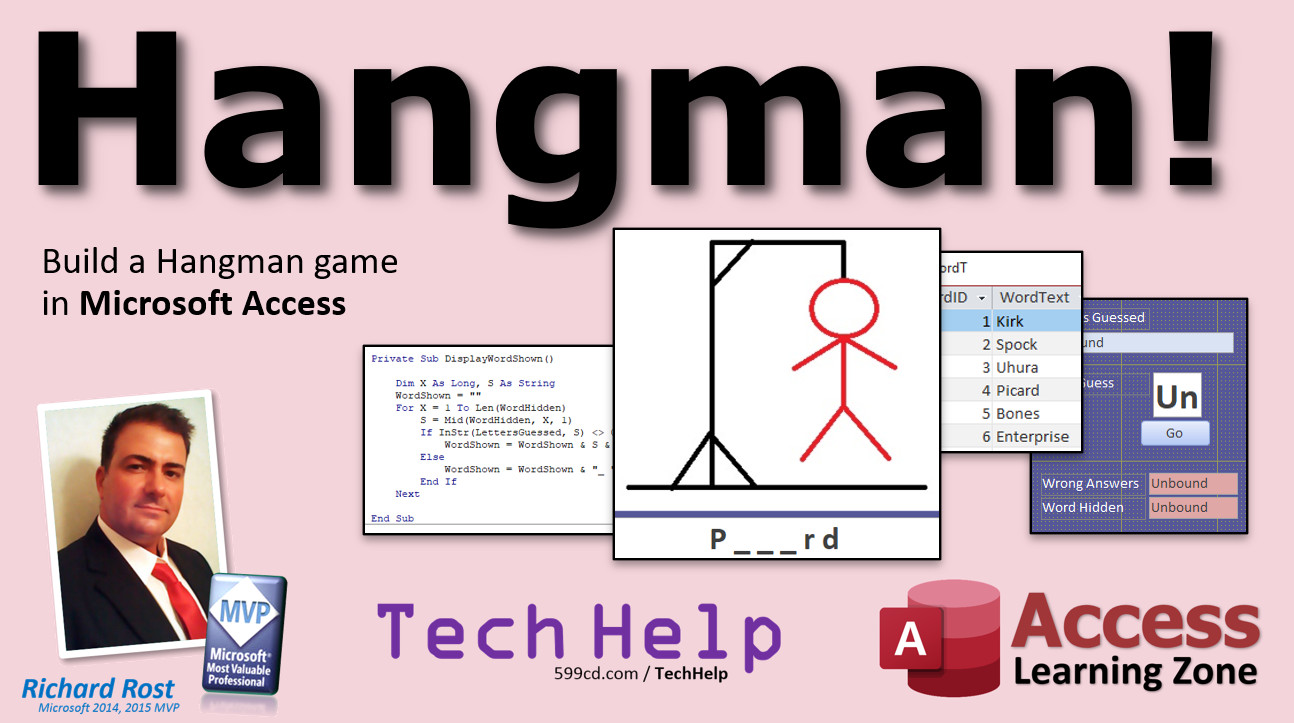
Hangman! A Fun Way To Learn VBA Programming! In this video, I will show you how to create a Hangman game in Microsoft Access, complete with images to show the gallows and the stages of the hangman being drawn. Adam from Fort Dodge, Iowa (Site Moderator, Access Veteran) asks: Have you ever thought of showcasing some of the weirder stuff that Access can do such as games? I think this kind of stuff would be really interesting to some people. MembersThere is no Extended Cut for this video.
Silver Members and up get access to view Extended Cut videos, when available. Gold Members can download the files from class plus get access to the Code Vault. If you're not a member, Join Today!
Links
Keywordsmicrosoft access, ms access, ms access tutorial, #msaccess, #microsoftaccess, #help, #howto, #tutorial, #learn, #lesson, #training, #database, Hangman VBA, Hangman Microsoft Access, hangman vba, hangman visual basic, hangman program free, computer programming games
More InformationTranscriptWelcome to another TechHelp video brought to you by Access Learning Zone. I am your instructor, Richard Rost. In today's video, we're going to have some fun. We're going to build a Hangman game in Microsoft Access. Today's question comes from Adam in Fort Dodge, Iowa, one of the moderators on my website and one of my Access Veterans. Adam said to me, Have you ever thought of showcasing some of the weirder stuff that Access can do such as games? I think this kind of stuff would be really interesting to some people. And of course, I told Adam that back in the day when I used to teach in the classroom, when I taught Introduction to Visual Basic Programming, one of the things I did was make a dice roll - that was the first thing we did - then we did a little Hangman game. The concepts are all the same, and you can apply them to Microsoft Access VBA of course. So I thought that would be fun. Sure, let's do a little game using Microsoft Access. Adam sent me over a database with a couple of little cool games that he built in it, just having fun one night. It's pretty cool. I put it up on my website. If you want to go grab a copy, check it out. I'll put a link in the link section down below. Here's his cool little database he sent me. He's got a moving around game, a quick math game, some animation, and of course his little Hangman game. So check it out at the time of my website, go grab a copy. It's free. There's the link right there. You'll find it down in the link section below the video too. Before we get started with today's video, I want you to go watch three other videos. First, my images video. We're going to have to use images to put the little Hangman guy in there, this little guy. So go watch how to deal with images in Microsoft Access. We're not going to store the images in the database. We're going to store them as files in the same folder that the database is stored in. Go watch that first. Then go watch my random numbers video. We're going to make a table with a bunch of words in it and the system is going to pick one word at random when you start a new game. So you're going to have to learn how to generate random numbers and pick a random record. And then finally, if you haven't yet, go watch my Intro to VBA video. It's absolutely free. It's on my website. Today is the perfect example of how if you don't know a lot about VBA, or even if you know a little and you want to learn more, building a game like this is the best way I think to have fun and learn how to program. When I was a kid, I was like eight years old. I got my first computer. It was a Tandy Radio Shack TRS-80 color computer. I loved that thing. One of the first things I did was learn how to program games on it. Little tic-tac-toe, little D&D character generator, that kind of stuff. So take some time off and put work aside today. It's the weekend. What is it, Saturday today? Let's have some fun. That's right, a game using Microsoft Access and VBA. First things first, I got a copy of my TechHelp free template. You can use any database that you want for this. You don't have to use mine. We're going to start from scratch pretty much anyways. But since we're going to be building a database that relies on pictures and image files, I'm going to make a folder to put my database in. So create a new folder. I'll call this Hangman. Now I'm going to put my database file inside that folder. Then we'll open that folder up. I'll call this my Hangman database. The images are going to go right in here. You can make a subfolder under here to put your images in if you want to, that's up to you. Let's open it up. So I got my main menu here. We're going to fix some of this stuff here. We don't need a lot of this stuff. I don't need this, I don't need this stuff. We'll change this to say Hangman and we'll slide it over here in the corner. We'll move this over here for now. Let's close the property sheet. We're going to make this a little bit bigger. We're going to put our gallows and our images right here. So we need to make images for all of the different stages of the game. You've got the empty gallows by itself, then you got just the head, then the head and the body, then you add the arms, then you add the legs. However many, what do you get, that's six guesses. One, two, three, four, five, six. Yeah, then you're dead. So we have to go draw those. I'm just going to use Paint. I think this is fine. It comes with Windows. There's Paint. I'm just going to resize my canvas as big as you want your gallows to be. That's probably good right about there. I'm going to go to shapes. I'll pick the line shape. Make sure your color is set to black. Your thickness is about right there. We'll draw the base down here like this. If you hold the shift key down, it makes the line stay straight like that. Then we'll draw this thing going up here, then we'll draw this one going across. I'm no artist, by the way. If you want to take your time and make this nice and pretty, that's up to you. I'm just going to make this nice and quick. There, maybe this crossbar there like that, and then this guy hangs down right there. Okay, that's not too bad. So let's save this. I got my desktop. There's my Hangman folder right there. Desktop Hangman. We're going to call this, I don't save it as a PNG file; you can, but I prefer using JPEGs with Access. I know they work much better. I'm going to call this h0.jpeg. The file name is important. H0. Save that. Now let's draw the head. I'm going to switch my color to red. I'm going to use the circle tool, which is right there, and just draw the circle right there. Once you draw it, you can then move it if you want to. That's good. There's the head. Now, don't hit save because it'll overwrite the other one. So Save As, file Save As. This one's going to be h1.jpeg. See where I'm going with this? Each one's going to be successively different. Then, as we're playing the game, when the user messes up, we'll add another piece. We'll just swap the image out. Next shape, we'll go back to the line tool and we'll draw the body right there. File Save As, h2. Give me an arm. File Save As, h3. Give me another arm. Right there. File Save As, h4. And some legs, leg number one. File Save As, what do we got, h5, and last but not least, h6. File Save As, h6. All done with the images. Now I can close Paint. We're back here. Now we're going to add the empty gallows as our background image on this form. So we'll go up to form design, insert an image and browse for it. Where is it? My desktop. I got it right here. There's Hangman. So on my desktop. Grab h0. Yeah. I got Hangman, Hangman, and Rick. I played around with it earlier. I just like to run through this stuff once real quick just to make sure that there are no surprises. I haven't done this in years, I'll be honest with you. It's been a long time. I used to teach this in my VB6 classes back in the 90s. So there's our empty gallows. Let's name this guy. Let's call this the gallows pic. All right, gallows pic. That's the name of that object. Now let me show you how we'll swap this image out. The gallows pic has a picture property to it. We can adjust that with VBA. So let's just take our hello world button here. I'll just put just whatever in there. Just right click build event. This brings us into our code builder. And again, if you've never done VBA before, go watch Intro to VBA, seriously. Go watch it, people. It's good. We can get rid of a lot of this stuff in here. I want to delete a lot of this because I deleted those buttons. We just need this stuff here. So instead of status hello world, let's change that picture. So it's gallows pic.picture, it's the picture property of the gallows image equals. Now we want to say that file, that h1.jpeg. But we can't just go h1.jpeg because we have to know what folder it's in. Sometimes you can get away with this, sometimes you can't. Let me test it. It might work, it might not. Let me see. Okay, it did work in this case. Because the image is in the same folder as the database, it works. If it doesn't, we can force it to go there. It's currentproject.path and then a backslash. It's going to be c:\\whatever your user folder is, desktop, and so on. So currentproject.path is just where the database is sitting. If you message box that here, I'll message box currentproject.path. You'll see where that is. I'll save that, hit the button. C:\\users\\theamacron\\desktop\\hangman. That's where the database is. So that is how we're going to change this picture as we go along. You want to do the next one, after the user messes up again, now we make it h2. I'll throw that. Here we go. Ready? Hit the button. There's h2. See? So now we know how the mechanics of the image are going to work. We need some words to work with. Let's create a word table. Table design. That's going to be wordID as an autonumber. Do you need it? No, but why not? Every table pretty much should have an autonumber. WordText. Don't just use the word "text." Don't just use the word "word." I hate using simple words like that because you never know if they're reserved words. I always get in trouble with them. That's a short text. We'll save this as MyWordT for word table. Primary key. There we go. If you don't know what all that stuff is, go watch my Intro to Microsoft Access Beginner Level 1. Let's put some words in here. Now that I'm doing Star Trek trivia, my words are going to be things like Kirk, Spock, Picard, Uhura, Bones, we've got Riker, Data, Geordi, right? You can have word limits on how many letters you have to have. That's all up to you, what you want with your word list. I just went on Google and looked for "Hangman word lists." I found hundreds of thousands of them. If you want to go download a gigantic database full of words, knock yourself out. Enterprise, photon, whatever you want to put in there. All right, so I got my word list. Save changes. Sure. Now I need a way to generate a random word for each game. We're going to do that with a query. Now you should have gone and watched my random record prerequisite video that I gave you earlier. Go watch that if you haven't. So we're going to create a query: Create Query Design, bring in the word table, close that now, wordID, wordText. I'm going to make a random number over here, which we'll call x. It doesn't matter. This is going to be a random number, which is going to be wordID times the timer function times negative one. That will give us a nice random number every time for each one of these records. See that? Random numbers. Run it again, random numbers. So now all we do is we sort this. So we always have either the highest or the lowest. It doesn't matter. We only want to return one record. Return one. So now each time I run this, I get a unique value. That one's Geordi, third. Every time it runs. Yeah. It's the pseudo-random numbers that I talked about in the other video. It's good enough for a Hangman game. We're not doing cryptocurrency here. Save this as MyWordQ. So every time you run WordQ, you'll get a random number. That's the easiest way to get a random record or three random records, ten random records, whatever you need. Now we need to add some more fields on our game form here. Make this a little bit bigger, maybe a tiny bit smaller, just so you can see it on the screen. Good enough. This will be our Begin New Game button. We'll put that there. We need to know what letters were guessed. So this box will become LettersGuessed. I'm going to add that and slide it up next to it. Make it as big as you want. Let's change this guy so the name of it is LettersGuessed. I'm going to get rid of that control source, so it's unbound. Get rid of that format. It's not a short date; it's just plain text. So just plain text box there. I'm going to lock it so the user can't type things in there, because we are going to use this to keep track of what letters they've picked. So let's find under Data, find the locked property, and set that to Yes. They can't change that guy. If you want to, usually when I lock something, I make it gray, gray it out a little bit so they know they can't type in there. We need to display the word down here underneath it. The word itself will be displayed down here. Let's put another text box down there. Form Design, just grab a text box, drop it down here. Get rid of the label on this, so we don't need that label. Now this is going to be nice and big. Put a nice big font in there too. Let's call this guy, I'm going to make this bigger here, see it? Let's call this guy, whoops, go to the All tab, slide all the way to the top, find the Name property, there it is. This will be WordShown. We're going to have WordShown and WordHidden. WordHidden is what the actual word is. WordShown is what will display on the screen so the user can see the word with the dashes underneath, with the underscores, with the letters they haven't guessed yet. We'll see how to do that in just a minute. Let's make this guy bigger. Let's do 28-point, place it big, bold it, center right there. Looks good. And of course, let's lock this guy too so the user can't come in here and edit that. Now we need to store the word but hide it. So we're going to make another field called WordHidden. Copy and paste that one. Let's say this is WordHidden. The user won't see this. Actually, I'll just delete the label. I like to make my hidden fields red. I leave them visible while I'm developing them here. I'll make it pinkish red so you can go read it while we're playing. This is where the actual word itself will go. When we're done developing, we'll hide this field, but for now, we just want to see it while we're working. We'll call this one WordHidden. Eventually, we'll go into the visible property and make it not visible at the front, but I'll leave it there for now. We also need the score. So I'm going to copy and paste that field. We'll put the score above it. We'll hide this one too. This one we're going to call WrongAnswers. WrongAnswers. Start it off at zero, and every time they answer wrong, we'll increment that. That's how we'll know what file to display for the picture: h1, h2, h3, and so on. We're going to need a big box where they can type in their guess (the letter that they're guessing). Again, I'm going to copy this one, copy and paste, and we'll put this right there. I'm going to unlock it because I have to be able to type in it. So Data - Locked is going to be No, and the name of this one will be YourGuess. Now, I only want the user to type in a single letter: no numbers, no weird characters. So I'm going to use an input mask, and the input mask to use is L. L says it has to be a letter and there can only be one of them. That's how you can prevent them from typing in multiple letters, numbers, funny characters, whatever. Let's put a label next to it, call this Your Guess. Underneath it, let's make a button so they can type in the letter and hit the button. I'm just going to copy this button, copy and paste down here. That'll be the Go button underneath it. Now, what I'm going to do with this button: let's name it the GoButton first of all. Let's change this guy up here. This is going to be NewGame. That will reset everything and put all the variables back to the default states and all that stuff. So that'll be NewGame. Put this over here maybe. So that's NewGame. YourGuess will be here. The Go button, let's name that the GoButton. I'm going to start off with the Go button not visible. So Format - Visible - No, because you don't want to hit the Go button before you start a new game. The new game is going to set everything up. We'll make that start not visible. I'm going to set this as the Default button. That's under Other, and it's the Default setting right here. There are two special buttons you can have on a form: the Default button and the Cancel button. The Default button is pressed whenever you hit Enter on the keyboard, so the user is going to type in a letter and hit Enter, and it's going to push this button. That's what the Default setting does. Set that to Yes. The Cancel button runs when they hit Escape on the keyboard. I cover these in my classes too. So what we're going to do is we're going to put the focus here, they're going to type in a letter, hit Enter or click the Go button, whichever they want, and then it'll push that Go button. Now it's time to get to some programming. We got all the fields and everything all lined up. Everything looks good. Let's close this. Save changes, yes. Let's open it back up again. Everything looks good. The game is nice and set. What we're going to do is click the New Game button and then have everything get set up ready and the game starts. So let's go back to Design View. Right click, Build Event. We are going to start it with this, but we're going to default it to h0 to start with. We're going to reset it to the initial gallows. LettersGuessed is blank. We're going to erase those. YourGuess is blank. We're going to set the score WrongAnswers = 0. Notice how I'm typing, I'm not capitalizing anything because Access will automatically capitalize those letters for me if it finds that field. If you don't see these capitalize, that means it didn't find that field, so you got something spelled wrong. Ninety percent of all the problems people email me about that they can't figure out are because something is spelled wrong. Like this for example, let's make the GoButton visible. So GoButton.Visible = True. It didn't capitalize GoButton. Why not? Check the name of it: it's GoBtn. See how it capitalized itself. Very important, always, always, always double-check your spelling. Next, we need to pick a random word from the word query. We're going to get that random word from the word query. Let's call it PickRandomWord. Now, we haven't written this yet. We're going to write a subroutine. I'm going to copy this up here. Then we're going to PickRandomWord. Then we're going to display the word. So DisplayWordShown. That's where we're going to display the word with the little underlines in it. Another subroutine. It's easy to break these things off into subroutines: Private Sub, that, so we can break the job up into discrete little pieces. Then at the very end here, we're going to say YourGuess.SetFocus. In other words, when the user clicks NewGame, it's going to put the focus here in this box so they can just start typing their letters. First up is let's pick a random word. So here's PickRandomWord. I forgot to put something on the prerequisite list. If you don't know how to use the DLookup function, go watch this video too. We're going to use DLookup right now to get that random word from the word query. Go watch DLookup, pause this, and come back if you don't know how to use DLookup. PickRandomWord: we're going to say WordHidden = DLookup. What are we looking up? We're looking up WordText from the WordQ. That's it. Because the WordQ is designed to always return just one record and it's the random record, the highest or the lowest random number that you pick. So it's always going to be randomized. Just in case there are no words in the WordQ, it will return a null value, which will cause an error message if you didn't put any words in the word table. So you might want to check for that. To do that, we're going to have to wrap this in the NZ function. NZ just turns a value that's null into something else, like an empty string, so it won't error out. Again, I got a video on NZ. Go watch that too, I'll put it down in the link section. NZ, I should have probably put this up on the prerequisite screen before but I forgot to. If WordHidden = blank, then we're going to say MsgBox, There are no words, and then Exit Sub. Can't do anything. But that's basically how you pick a random word. Now, once this happens, WordHidden will be equal to whatever the word is that was in the WordQ, and that will go right here. Let me save this. Let's test it out. Go. Look at that. Bones. Picard. Geordi. Bones. Photon. See? Now, we have to display that word here with the blanks. This gets a little trickier now. We're going to need a couple variables: Dim x As Long and s As String. WordShown = blank. We're going to start it off blank. Now we're going to loop down every letter in WordHidden and see if it's up in the LettersGuessed box. Here's how this looks: For x = 1 To Len(WordHidden). So WordHidden, like right now it's "Uhura," so that'll be one to five. U, H, U, R, A. What this does, x goes from one to the length of WordHidden. s = Mid(WordHidden, x, 1). That says get the middle of the WordHidden string, x character, one long. So the first one is U. Then it's going to loop and get the second character, and so on. That's how we get each letter. Now, just check to see if that letter is in the LettersGuessed string, and we can use the InStr function for that. So If InStr(LettersGuessed, s) <> 0 Then, then that letter is in the LettersGuessed. It returns the position of it. We really don't need the position of it; we just need to see if it's zero or not. InStr will return a zero if this string is not found inside that string. So this means it is. So now WordShown = WordShown & s & " " (I'll put a space after each letter, so display that character), else WordShown = WordShown & "_ " which means that letter has not been picked. Next, loop through that. We're going to loop down this guy and check to see if each of these letters is in the LettersGuessed. If it is, show the letter; if not, show an underscore and a space. I'm going to save it and run it. Ready? Go. Look at that, Photon, six letters. P H O T O N, none of them were found in the LettersGuessed box, so I got all of those underscore spaces. That works. If a P was up here in this LettersGuessed, we'd have "P _ _ _ _ _". That's what this loop does. It just displays the WordShown. A lot of functions in here, and I cover all these in my Visual Basic classes. Len, Mid, InStr, those are all string functions. In fact, you don't even have to take my Visual Basic classes to learn these. I have a TechHelp on the string functions. If you want to go watch that, I'll put it in the link section down below: all the string functions, Left, Right, Mid, Len, InStr, etc. I cover these all in Access Expert 25: you get the full treatment of all the different string and logical functions. Here comes the big one: the Go button. This has a lot of work to do. So let's go into the Go button. So Design, right click, Build Event. Here's the Go button. We need a variable: Dim s As String. First, we're going to check to see if they've already guessed that letter. Check to see if already guessed: If InStr(LettersGuessed, YourGuess) <> 0 Then MsgBox "Already guessed " & YourGuess. One thing I like to do too is to set YourGuess = UCase(YourGuess), that uppercases it. So if they type in a lowercase a, it becomes an uppercase A. It doesn't matter; it's just for display. I like the way this looks with all uppercase letters. If they already guessed it, we're going to set YourGuess = blank, in other words, empty the box. YourGuess.SetFocus to go back to it in case they push the button, and then Exit Sub. End If. Now, at this point they haven't guessed it, so add to string: LettersGuessed = LettersGuessed & YourGuess. We've added to the string. Now, check to see if it's in the word: Is that letter that they picked in the word? If InStr(WordHidden, YourGuess) <> 0 Then It's in the word. So we're going to DisplayWordShown, because we've already added it to the LettersGuessed, so we're going to update the WordShown so it shows the letter. Here we have to check for victory to see if they're done. We're going to do this in just a minute. For now, let's just update this. Else, letter is not in the word. What are we going to do? WrongAnswers = WrongAnswers + 1. We have to update the gallows picture: GallowsPic.Picture = CurrentProject.Path & "\\h" & WrongAnswers & ".jpeg". That's why I wanted to number those files one through six, or zero through six, because now we just say what the wrong answer is. So they're at stage one, stage two, stage three, and so on. If WrongAnswers = 6 Then MsgBox "You're dead." YourGuess.SetFocus GoButton.Visible = False End If After each guess, let's blank it and set focus: YourGuess = "" YourGuess.SetFocus Because the only thing we have to do still is check for victory, which we'll do in a second. Let's make sure the rest of this works first. Check to see if the letter's already guessed. If it's not guessed, add it to the string and then we'll check to see if it's in the word. Save. Come back out here. Close and reopen it. New Game. Here we go. The word is bones, but the user doesn't know that, so I'll put an A in here. A, Enter. I got my little head showing up. Look at that, letter guessed, the head, and it's not down here. I'll put an E. The E pops up in the word, see that? It added it to LettersGuessed, displayed the word, and it didn't add the body. How about an R? Well, look at that, we got the little body here, added it here, checked to see if it's in the word; didn't show up. S. There's my S. P. Let's intentionally die here. How about Z? W. Y. Boop. You're dead. OK? Now the user has no choice and we hid the button, so they can't do any more except start a new game. Now let's check that victory condition. The problem with the victory condition is our string down here for the actual word. We just want to make sure we want to see if this is the same as that, but we've got to take out these spaces though, that's all. Because I'm adding spaces to display this, otherwise it doesn't look right. So right here in our check for victory, we're going to say s = Replace(WordShown, " ", ""), that just says in variable s, I want you to take the WordShown and just replace all the spaces with nothing. It'll remove all the spaces. So now I can check to see if s is the same as WordHidden. If WordHidden = s Then MsgBox "Congratulations! You survived." YourGuess.SetFocus GoButton.Visible = False End If The reason why I do this is because I want to hide the Go button to indicate that the game is over, but you can't hide a button or any control that has the focus, so you have to move somewhere else before you can make this guy invisible. Save it. Start a new game. Let's do Q. I think I put Q in as one of the words. Guess one letter, Q. W. No. E. No. R. Uh-huh. Getting there. I. And a K. Yeah! I survived. Now if you try putting something else, there's no button. Once you hide that button, it no longer activates. Game. OK. W. O. R. F. No. Worf. Come on. There's all kinds of enhancements you could add to this. For example, you could add something in the word table where it puts the last date that each word was picked, and then you could avoid random words that had been picked recently. There's a million things you could do. The point I'm trying to make here is to have some fun, to show you some VB stuff and ways that Access can be fun. It's fun learning how to program doing this kind of stuff - making these little projects. I had a good time building this today. I want you guys to enjoy it. Don't always think of Access as work. If you can equate it with something that you enjoy, like a hobby... I used to collect baseball cards, I used to collect coins, and I used to make little databases to track that stuff, with a little image of the baseball card or coin. Don't always relate it to work. Try to have some fun with it. You will learn better if you aren't equating this with having to do it for work. Like me, I used to not enjoy recording my videos for a while there. I got kind of burned out on it because I was trying to be... If you watch some of my older videos, I used to be really proper. And if I made a mistake in my speech, I would restart all day long. About five years ago, I decided that I'm just going to have fun. I'm going to enjoy recording this. It's going to be fun for me, and from the feedback I've gotten, it's more fun for you guys. I'm just having fun now. I'm not going to try to be all prim and proper. If you don't like my style, there are millions of other people you can go learn from, but I have a good time doing this and I want you guys to have a good time with me. I appreciate your feedback, and I love to hear from you guys. If there's anything else you want to learn, send me an email or post it in the comments. Members, I tried to think of something to show in the extended cut for this. I was going to show you how to do this with just line objects instead of using images, but it's pretty much the same thing. You just make your gallows, you put your images on here as lines. There is no way to draw a circle in an Access form; there's no circle object. Unlike Excel and Word and all those, which have different objects, but you can't do it in Access. You have to make an actual circle with something else and use it as an image. That kind of ruined that. I thought maybe I'd teach you how to draw actual lines in here, but in order to do that, you have to switch to Design mode. You really can't do it on the fly. You could take lines and move them around, but that's just kind of silly. I really couldn't think of anything else extended-cut worthy, so I figured we'd just have fun. For the rest of you, this is the point at which I would say there's lots of other stuff I'm going to show in the extended cut, but I've got no extended cut today. Obviously, at this point, you're going to want to hide these fields, so you just go into here and set these guys: right-click Properties, Format - Visible, and then when you open it up, you don't see those. New game. I don't even know what the word is. It's blank. S. O. Obviously, you need more letters, more words, but there you go. There's your TechHelp for today. No extended cut. I'm going to let the class out early today since it's the weekend. You all have fun, and I'll see you in a day or two. Oh, gold members: of course, this database will be available on my website if you want to go grab a copy of it. But as far as an extended cut video, there won't be one today. How do you become a member? Click on the Join button below the video. After you click the Join button, you'll see a list of all the different membership levels that are available, each with its own special perks. Silver members and up will get access to all of my extended cut TechHelp videos, one free beginner class each month, and more. Gold members get access to download all of the sample databases that I build in my TechHelp videos, plus my Code Vault where I keep tons of different functions that I use. You'll also get higher priority if you decide to submit any TechHelp questions to me, and you'll get one free expert class each month after you finish the beginner series. Platinum members get all the previous perks plus even higher priority for TechHelp questions, access to all of my full beginner courses for every subject, and one free developer class each month after you finish the expert classes. These are the full-length courses found on my website, not just for Access too. I also teach Word, Excel, Visual Basic, and lots more. You can now become a Diamond Sponsor and have your name or company name listed on a sponsors page. You'll be shown in each video as long as you're a sponsor. You'll get a shout-out in the video and a link to your website or product in the text below the video and on my website. But don't worry, these free TechHelp videos are going to keep coming. As long as you keep watching them, I'll keep making more, and they'll always be free. IntroIn this video, we build a Hangman game using Microsoft Access and VBA. I'll show you how to create and manage image stages for the gallows, set up a word table, use queries to pick a random word, and design the interactive game form. We'll go through adding user input, tracking guessed letters, updating displayed word progress, and handling win or lose scenarios, all while demonstrating useful Access functions and VBA programming techniques to make the game work from start to finish. QuizQ1. What is the main purpose of the video tutorial? A. To teach Microsoft Access by building a Hangman game using VBA and images B. To create a payroll system in Access C. To teach SQL Server integration in Access D. To create a Microsoft Word mail merge Q2. Why did Richard recommend watching the "Images" video before this tutorial? A. To learn how to store images as OLE objects inside the database B. To learn how to draw better Hangman graphics C. To learn how to manage external image files used in the Hangman game D. To use GIF animations in Access Q3. What format of image does Richard recommend for use in Access for the Hangman stages? A. PNG B. GIF C. BMP D. JPEG Q4. Where are the image files for the Hangman game stored according to the tutorial? A. Embedded directly in the database B. In the Access installation directory C. In the same folder as the database file D. In a subfolder in My Documents Q5. How does Richard suggest you should name the image files for each Hangman stage? A. Using the word for the stage (e.g., "gallows", "head") B. Numbered sequentially as h0, h1, h2, etc. C. Using the letter guessed D. Randomly generated names Q6. What property of the image control is used in VBA to update the Hangman picture? A. Name B. Source C. Picture D. Background Q7. Which function is used to get the path where the database file is stored? A. Application.Path B. ThisDatabase.Path C. CurrentProject.Path D. FileSystem.Path Q8. What is the purpose of the "MyWordT" table in this tutorial? A. It holds user accounts for the game B. It stores the list of possible words for Hangman C. It logs every game played D. It keeps score for each user Q9. Which Access feature is used to select a random word from the table? A. An update query with ORDER BY B. A DLookup on ordered records by a random number field C. Using a form filter D. A VBA array shuffle Q10. Why does Richard wrap his DLookup in the NZ function? A. To ensure uppercase results B. To replace null values with an empty string and avoid errors C. To convert the word to a number D. To format the result in bold Q11. What string function is used to go through each letter of the hidden word? A. Left B. Right C. Mid D. Replace Q12. Why are the "LettersGuessed" and "WordShown" text boxes locked? A. To make sure users can only type numbers B. To make them read-only and prevent user edits C. To make it easier to export results D. To prevent them from appearing on the form Q13. How does the code check if the player has already guessed a letter? A. By comparing the letter to the last guess only B. By searching for the letter in "LettersGuessed" using InStr C. By storing each guess in a separate table D. Using a boolean variable Q14. What happens when the number of wrong answers reaches 6? A. The game restarts B. The picture resets to h0 C. A "You're dead" message appears and the Go button is hidden D. The user gets another try Q15. What input mask is used on the "YourGuess" text box to ensure only a single letter is typed? A. 9 B. L C. ? D. AAA Q16. After each correct or incorrect guess, what action is taken with the "YourGuess" control? A. It is made invisible B. It is set to blank and focus is set back to it C. It is disabled permanently D. It displays the game over message Q17. How does the program check for a "win" condition? A. By counting the number of correct guesses and comparing to word length B. By seeing if "WordShown" (with spaces removed) matches "WordHidden" C. By checking for zero wrong answers D. By verifying all letters A-Z were guessed Q18. Why does the tutorial recommend having fun and building non-work related projects in Access? A. Because Access is not suitable for business applications B. Because fun projects help deepen learning and make programming more enjoyable C. To increase website traffic only D. To create software for sale Q19. What is one way suggested for further improving the Hangman game? A. Using more advanced graphics engines B. Keeping track of recently used words to avoid repetition C. Adding a high-score leaderboard table D. Adding multiplayer functionality Q20. Why is there no "extended cut" for members for this particular video? A. The topic was too advanced B. The tutorial already covered all major aspects, and there was no additional content to warrant an extended cut C. There was no database to share D. The video was too short Answers: 1-A; 2-C; 3-D; 4-C; 5-B; 6-C; 7-C; 8-B; 9-B; 10-B; 11-C; 12-B; 13-B; 14-C; 15-B; 16-B; 17-B; 18-B; 19-B; 20-B DISCLAIMER: Quiz questions are AI generated. If you find any that are wrong, don't make sense, or aren't related to the video topic at hand, then please post a comment and let me know. Thanks. SummaryToday's video from Access Learning Zone is all about building a Hangman game using Microsoft Access. I'm Richard Rost, your instructor, and this lesson is a bit of a departure from the typical business applications. Today we are going to have some fun and look at how Access can be used for something a little different: creating a game. The inspiration for this project came from Adam, a moderator and one of our Access Veterans. He suggested that I showcase some of the less conventional things that Access can do, such as building games. It reminded me of my days teaching Visual Basic in the classroom, where I used to start students off with a dice roll and then a simple Hangman game. All the core programming concepts are the same and translate well to Access with VBA, making it a fun way to learn. Adam also shared a database with several small games he'd created, including a Hangman, a simple math game, and some animations. If you'd like to download his sample database, you can find it free on my website. Check the link section below for that download. Before starting this Hangman project, it's important to have a few foundational skills. First, I recommend you brush up on working with images in Access since we need graphics for the Hangman drawing. We'll be storing image files in the same folder as the database, not embedded within it. Second, understand how to generate random numbers and select random records from a table, which is essential for picking a mystery word for the game. Finally, make sure you are comfortable with at least introductory VBA – building games is a great practical way to get better at programming. If you're new or rusty in these areas, I have related free video lessons on my website you should watch before tackling this build. A little background: I got into programming as a kid. My first computer was a Tandy Radio Shack TRS-80 Color Computer, and before I ever thought about business databases, I was making small games and character generators. Building games keeps learning fun, and that's the spirit I want to promote today. For the project, I started with a fresh copy of my TechHelp free template, though you can use any database you want. Because we are working with images, I created a dedicated folder called Hangman to keep the database and image files organized. Now, for the graphics: We need a series of images that represent the different stages of Hangman – from the empty gallows, to just the head, then the body, arms, and finally the legs, corresponding to the number of incorrect guesses allowed. To keep it simple, I used Microsoft Paint to draw these stages. Each stage was saved as a separate JPEG file (h0.jpeg, h1.jpeg, up to h6.jpeg). The JPEG format tends to work better with Access, in my experience. After preparing the images, I set up the main menu form in Access, stripped out unnecessary elements, and resized it to make space for our gallows and game controls. The initial gallows image was inserted as a picture on the form and named appropriately, for example as gallows pic. To swap images during the game (as the player makes mistakes), I took advantage of the image control's Picture property, which can be set using VBA. If your images are in the same folder as the database, you can just reference the filename. If not, you'll need to build the full path by combining CurrentProject.Path with the filename. This method allows us to display the correct hangman stage as the game progresses. With the images sorted, the next step was creating a table to hold our word list. I designed a table called MyWordT with an autonumber primary key (WordID) and a text field (WordText) for each possible mystery word. For demonstration, I added some Star Trek-themed words, but you can populate this table with any words you like. There are plenty of Hangman word lists online if you want something more extensive. To randomly pick a word for each new game, I built a query that sorts the records using a formula involving the Timer function and multiplies this with WordID. Each time you run the query, it selects a different record in random order. Limiting the query to return a single record gives us a "random" word suitable for our purposes. This approach is simple and effective for a game scenario. On the form, I added controls for the game's interface: a button to start a new game, a textbox to show which letters have already been guessed, another (locked) textbox to display the current state of the word (using underscores for unguessed letters and revealing correct guesses), and hidden textboxes for storing the actual word and the count of wrong answers. I also created an unlocked textbox for the user to enter their current guess, set with an input mask so that only one letter can be entered at a time. There is also a "Go" button to submit guesses. I set this button as the form's default button, so pressing Enter will run it. The "Go" button is made initially invisible and activated when a new game starts. Moving on to the VBA programming: Clicking "New Game" resets the image to the empty gallows, blanks out guessed letters, clears any previous guess, resets the wrong answer counter, and shows the Go button. Then, it uses DLookup on the random word query to pull a new mystery word, handled inside a PickRandomWord subroutine. If no word is found, a message is displayed and the routine ends. After choosing the word, another subroutine is called to display the current game word with blanks (underscores) for each letter, except for correctly-guessed letters. To display the word's current status, code loops through each letter of the mystery word and checks if it has been guessed, using string functions like Mid and InStr. If the player has guessed the letter, that letter is displayed; otherwise, an underscore is shown. If you're unfamiliar with these functions, I cover them in my string functions video lessons as well as in my Access Expert 25 course. The logic for processing a guess in the Go button's event does several things. It first checks if the letter has already been guessed and, if so, warns the player and resets the guess entry. If not, it uppercases the guess, adds it to the letters guessed string, and then checks if the letter is part of the mystery word. If it is, the display is updated. If not, the wrong answer count is increased and the gallows image is updated to the appropriate stage. If the player reaches six wrong guesses, a message appears showing that the game is over, and the Go button is hidden. After each guess, the code clears the guess box and moves the focus back so the player can enter the next letter. The win condition is checked by removing spaces from the displayed word and comparing it to the mystery word string. If all letters have been revealed, the player is congratulated, and the Go button is again hidden. There's plenty of opportunity for enhancements, such as tracking when a word was last used and avoiding recent repeats. This project is a great way to practice your Access and VBA skills outside typical business applications. I strongly encourage you to experiment and make it your own, whether by changing the graphics, expanding the word list, or adding new features. As you finalize your own version, be sure to hide the development fields like the mystery word so that only the essential pieces show for gameplay. There is no extended cut for this lesson today. I considered some options, such as building the gallows using line controls instead of images, but Access lacks a circle shape control, making true hangman graphics impractical without external image files. So I decided just to have fun with today's build and keep it simple. For gold members, you can download a copy of the database on my website. There is no extended cut video for this one, but if you're interested in member perks, there's information on my site about the different levels and their benefits. Silver members get access to all my extended TechHelp videos, free monthly beginner courses, and more. Gold members can download all my sample databases and access my Code Vault. Platinum members have even greater access, including my full-length courses in Access, Word, Excel, and more. Even if you stick with the free TechHelp videos, rest assured I'll keep making them as long as you find them useful and keep watching. If you have questions or ideas for future topics, please reach out or leave a comment. You can find a complete video tutorial with step-by-step instructions on everything discussed here on my website at the link below. Live long and prosper, my friends. Topic ListCreating a folder to store the database and image files Designing gallows and Hangman stage images in Paint Saving images as sequentially numbered JPEG files Inserting images into an Access form Naming and referencing image controls in forms Switching form images based on wrong answers Using CurrentProject.Path to reference image locations Creating a Word table to store Hangman words Populating the Word table with sample words Building a query to select a random record Generating random numbers in an Access query Sorting and returning a single random record Setting up form controls for tracking game state Locking and unlocking text box controls Using input masks to restrict input to single letters Configuring default and cancel buttons on a form Initializing a new game with VBA Setting and resetting form fields with code Creating subroutines for modular code organization Using DLookup to select a random word from a query Using the NZ function to handle null values Displaying the masked word using string functions Looping through letters to reveal guesses Using Mid and InStr to manipulate and check strings Updating display after each guess Preventing duplicate guesses Adding guessed letters to tracking variable Updating wrong answer count and image display Disabling controls after win or loss Checking for game victory and defeat conditions Replacing spaces in strings to compare answers Locking out user input when the game is over Basic tips for hiding developer fields after testing Primary TopicsMicrosoft Access, VBA programming, game development, forms design, image handling, random record selection, event-driven programming, string manipulation, user input validation Secondary Topicsprerequisite video recommendations, debugging tips, member perks, personalization of learning, none |
||||||||||||||||||||
|
| |||
| Keywords: TechHelp Access Hangman VBA, Hangman Microsoft Access, hangman vba, hangman visual basic, hangman program free, computer programming games PermaLink Hangman! in Microsoft Access |