|
||||||
Access Beginner 3Field Sizes, Input Masks, Captions, Validation RulesWelcome to Access Beginner 3. In this course you will learn the fundamentals of good table design in Microsoft Access, with a focus on important field properties such as field size, format, input mask, caption, description, default value, validation rule, validation text, and required fields. We will discuss how these properties affect your tables, when to use them, and build on concepts from previous levels. Guidance on the course structure, how to follow along, and accessing additional resources and support will also be provided. Lessons
Resources
Links
Lesson SummaryWelcome! Field Size, Format & Validation - Welcome to Access Beginner Level 3. In this course we will focus on the fundamentals of good table design, with an emphasis on important field properties such as field size, format, input mask, caption, description, default value, validation rule, validation text, and required fields. We will discuss how these properties affect your tables and when to use them, building on topics from Levels 1 and 2. The course structure and recommended approach for following along will be explained, along with information about additional resources, forums, and how to get help during your studies.
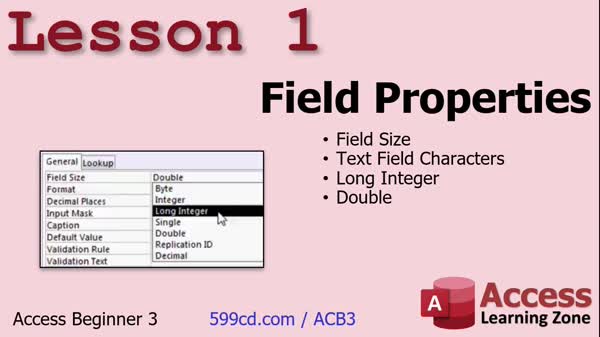
Lesson 1: Text & Number Field Properties - In Lesson 1, we will explore field properties in Microsoft Access, starting with the field size property. We will walk through how to set appropriate field sizes for text and number fields, discuss how different data types - such as long integer and double - use field size, and explain the impact of these settings on your database performance and data entry. We will also cover when and why to adjust field sizes, mention the role of compacting your database, and touch on the differences between old and new versions of Access regarding field size optimization.
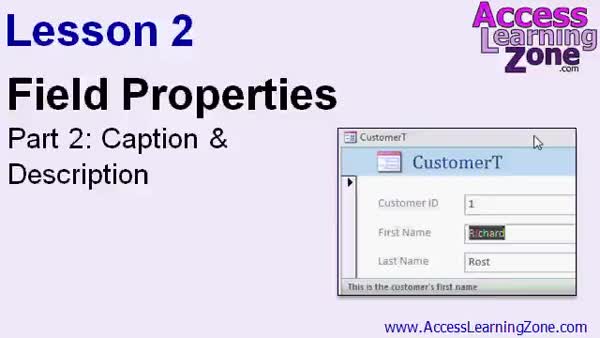
Lesson 2: Using Caption & Description Properties - In Lesson 2, we will discuss the caption and description field properties in Access. We will walk through how to set the caption property so that your forms and tables display user-friendly labels, and I will show you how the description property lets you add helpful status bar text to clarify fields for users. We will see the difference between these properties and when you might want to use each one to make your database more understandable and user-friendly.
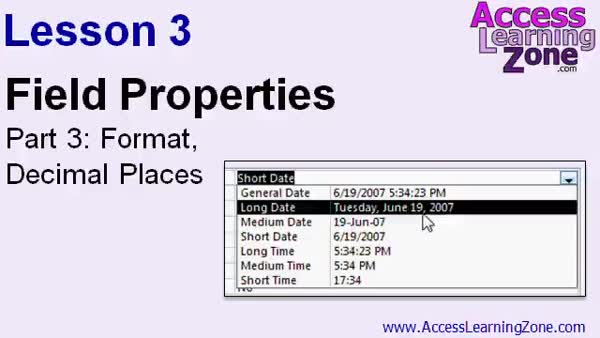
Lesson 3: Format & Decimal Fields Tips - In Lesson 3, we are going to explore the format and decimal places properties for different field types in Access. We will walk through formatting numbers - including general number, currency, fixed, standard, percent, and scientific - noting how the format affects how data displays but not how it is stored. I will also show how to control decimal places, demonstrate several date and time format options including custom codes, and discuss the format property for text, currency, and yes/no fields. We will briefly mention using input masks and note that different formats can be applied in tables, forms, or reports.
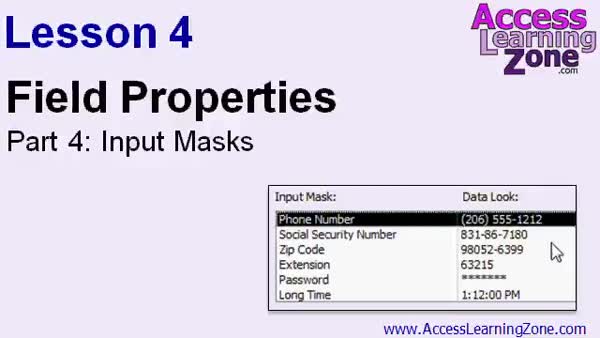
Lesson 4: Input Masks for Phones & Dates - In Lesson 4, we will focus on field properties by learning about input masks and how they help format data entry, using a phone number field as an example. I will show you how to use the input mask wizard to set up an input mask, explain the basic options, and demonstrate the difference between formats and input masks. We will discuss how input masks work for text and date/time fields, look at using custom input masks for numbers and currency, and review the various mask characters available. Custom input masks will be covered further in expert lessons.
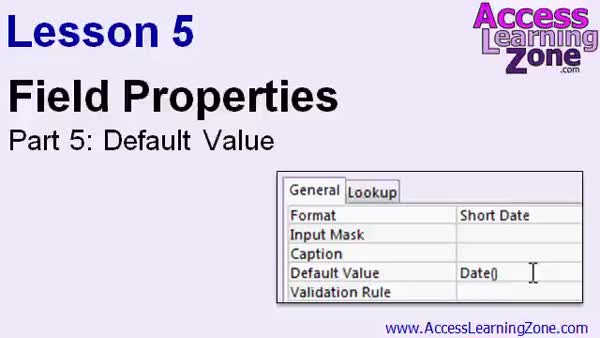
Lesson 5: Default Values & Field Properties - In Lesson 5, we will learn about the default value property in Access field properties. I will explain how default values automatically populate fields when new records are created, and walk through several examples including setting default values for text, number, and date/time fields. We will also discuss situations where it makes sense to use a default value, common pitfalls, how to set up date and time defaults using functions, and considerations for fields like discount rates and mailing list status. Existing records are not affected, and we will mention using an update query to modify them in future lessons.
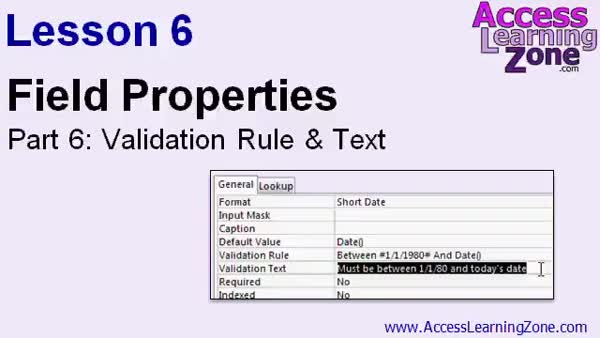
Lesson 6: Validation Rule & Text Field Use - In Lesson 6, we will explore the Field Properties Validation Rule and Validation Text in Access. I will show you how to control the valid range of values for fields, such as setting maximum and minimum values or using the BETWEEN keyword, and walk through handling errors that occur when existing data does not meet new rules. In this lesson, we will also discuss how to write clear error messages with Validation Text and cover special cases like date fields using functions such as Date(). We will touch on best practices, like setting a default value to avoid nulls.
Lesson 7: Field Properties: Size, Mask, Caption, Default - In this course we learned about key properties for fields in our tables, including field size, format property, input masks, captions and descriptions and how they differ, setting default values, validation rules and validation text, and using the required property appropriately. We also discussed how to find more lessons, where to post questions in the forums, options for technical support, and ways to follow updates or contact customer service. Feedback on the course and requests for future topics were encouraged. Guidance was given on older and newer Access lesson compatibility, as well as licensing and usage rights for this course.
NavigationKeywordsfield properties, field size, format property, input mask, caption property, description property, default value, validation rule, validation text, required fields, compact database, data types, decimal places, input mask wizard, update query, date format
More InformationTranscriptWelcome to Access 2010 Beginner Level 3, brought to you by AccessLearningZone.com. I am your instructor, Richard Rost. Today's class focuses on one of the fundamentals of Access Database Development: good table design. Specifically, we will cover most of the important properties for the fields in your tables. Today, we will learn about most of the important field properties, including field size, format, input mask, caption and description, default value, validation rule and validation text, the required property, and lots more. This course follows Access 2010 Beginner Level 2. I strongly recommend that you watch both Levels 1 and 2 before proceeding with today's lessons. Level 2 covers many important fundamentals, including form design, adding fields to your forms, manipulating form objects, formatting your form, themes, and using layout view. For more information on Level 2, please visit my website at accesslearningzone.com. This course is designed to be used with Microsoft Access 2010. If you are using Access 2007, you should not have any problems following along as the two versions are very similar, and most of the material in this class is also valid for Access 2007. If you are using Access 2003 or earlier, you should either upgrade your version of Access or visit my website and look for the Access 2003 Tutorials. My courses are broken up into four groups: Beginner, Expert, Advanced, and Developer. My beginner courses are for novice users who have little or no experience with Microsoft Access. They are designed to give you an overview of the basic features of Access and cover just what you need to know to be productive. The Expert series is designed for more experienced users who are already comfortable with Access. Expert classes go into a lot more depth about each topic than the beginner classes do and will cover more functions, features, tips, and techniques for power users. When you have mastered the Expert classes, move up to the Advanced Lessons. You will learn how to work with macros, automation, and many more advanced features that really add enhanced functionality and professionalism to your databases. Finally, my developer level courses are designed to teach you how to program in Visual Basic for Microsoft Access. This will allow you to create the most advanced databases possible and unlock the full potential of Microsoft Access. Each of my series is broken down into different numbered levels, starting with Level 1. Each subsequent level teaches you new and different topics in Microsoft Access, building on the lessons learned in the previous classes. When you finish all the beginner classes, move up to the Expert series, then the Advanced, and finally the Developer lessons. In addition to my normal Access classes, I also have special seminars designed to teach specific topics. Some of my seminars include building web-based databases, creating forms and reports that look like calendars, securing your database, working with images and attachments, writing work orders, tracking accounts payable, learning the SQL programming language, and lots more. You can find details on all of these seminars and more on my website at accesslearningzone.com. If you have questions about the topics covered in today's lessons, please feel free to post them in our interactive student forums. If you are watching this course using our custom video player software or online in the web theater, you should see the student forum for each lesson appear in a small window next to the class videos, as long as you have an active internet connection. Here you will see all of the questions that other students have asked, as well as my responses to them and comments that other students have made. I encourage you to read through these questions and answers as you start each lesson and feel free to post your own questions and comments as well. If you are not watching your lessons online, you can still visit the student forums later by going to accesslearningzone.com/forums. Here you can also subscribe to the forum updates and receive a notification any time anyone posts a question or comment. To get the most out of this course, I recommend you sit back, relax, and watch each lesson completely through once without trying to do anything on your computer. Then, replay the lesson from the beginning and follow along with my examples. Actually, create the same database that I make in the video, step by step. Do not try to apply what you are learning right now to other projects until you have mastered the sample database from this class. If you get stuck or do not understand something, watch the video again from the beginning or tell me what is wrong in the student forum. I will do my best to try and help you. Most importantly, keep an open mind. Access might seem intimidating at first, but once you get the hang of it, you will see that it is really easy to use. While I encourage you to actually build the database that I build in today's class, if you would like to download a sample copy of my database file, you can find it at accesslearningzone.com/databases. Now, let's take a closer look at exactly what is covered in today's class. In lesson 1, we are going to begin looking at field properties. We will start with field size. In lesson 2, we will talk about the caption field property and the description of a field. In lesson 3, we are going to learn about the format and decimal places properties. In lesson 4, we are going to learn about input masks. In lesson 5, we will learn about the default value property. In lesson 6, we are going to learn about the validation rule and validation text properties. IntroIn lesson 3 you will learn how to work with field properties in Microsoft Access 2010, focusing on topics such as field size, format, input mask, caption, description, default value, validation rule, and validation text. We will go through each property step by step so you can understand how to set up good table design and make your databases more efficient and reliable. This lesson is part of the Microsoft Access Beginner series and builds on the basics covered in the first two lessons. QuizQ1. What is the primary focus of Access 2010 Beginner Level 3? A. Learning how to create queries in Access B. Understanding good table design and field properties C. Designing complex reports in Access D. Programming with Visual Basic for Applications Q2. Which of the following field properties is NOT mentioned as part of today's lessons? A. Field Size B. Format C. Sort Order D. Input Mask Q3. What is recommended before starting Access 2010 Beginner Level 3? A. Watching only Level 1 B. Starting with advanced Access courses C. Watching both Levels 1 and 2 D. Skipping directly to Expert-level courses Q4. If you are using Access 2007, what should you expect when following this course? A. The content will be completely different B. The material will still be valid and similar C. You cannot use the course content D. You must install additional software Q5. What should users of Access 2003 or earlier do according to the instructor? A. Ignore these lessons B. Upgrade their version or seek 2003-specific tutorials C. Downgrade to Access 2000 D. Skip to expert courses Q6. What is the best way to use this course for maximum benefit? A. Play the lessons at double speed B. Only read the lesson transcripts C. Watch each lesson first, then replay and follow along step by step D. Apply new concepts to all of your current projects immediately Q7. What is the purpose of the Student Forums mentioned in the video? A. A place to download Access templates B. For students to ask questions and interact with others including the instructor C. For submitting assignments D. A portal for buying Access software Q8. What is the advice if you find Access intimidating or if you get stuck? A. Stop using Access B. Contact Microsoft support C. Rewatch the lesson and/or post in the Student Forum for help D. Skip the lesson and move on Q9. If you want to download the sample database used in class, where should you go? A. accesslearningzone.com databases B. Microsoft.com Access downloads C. AccessLearningZone Facebook page D. You cannot download the sample database Q10. Which of these field properties are introduced in the lessons of this course? A. Table Relationships B. Format and Decimal Places C. Macro Automation D. SQL Programming Answers: 1-B; 2-C; 3-C; 4-B; 5-B; 6-C; 7-B; 8-C; 9-A; 10-B DISCLAIMER: Quiz questions are AI generated. If you find any that are wrong, don't make sense, or aren't related to the video topic at hand, then please post a comment and let me know. Thanks. SummaryToday's video from Access Learning Zone focuses on one of the most important building blocks of Access Database Development: solid table design. In this lesson, I guide you through the essential properties for the fields in your tables. We will spend time exploring key field properties such as field size, format, input mask, caption and description, default value, validation rule and validation text, the required property, and much more. This course is the next step after Access 2010 Beginner Level 2, so I highly suggest that you complete Levels 1 and 2 before working through today's material. In Level 2, I cover many foundational elements like form design, adding and managing fields on your forms, modifying form controls, changing formatting, working with themes, and using layout view. If you need more information about Level 2, you can find those details on my website. The class is designed for Access 2010, but if you are working with Access 2007, you should have little trouble since the material is almost identical for those two versions. If you are still on Access 2003 or earlier, I recommend upgrading your software or visiting my site for Access 2003-specific tutorials. I have designed my courses in four groups: Beginner, Expert, Advanced, and Developer. The beginner courses are aimed at new users who want to become comfortable with Access. You will learn just what you need to get started and become productive with the basics. Once you have a firm grasp of those fundamentals, the Expert series is a deep dive for users who already know their way around Access and want to go further, learning more detailed features, functions, and productivity tips. When you are ready, the Advanced series explores techniques like working with macros, automating tasks, and adding polish and greater function to your databases. Beyond that, there are Developer level modules. These will introduce you to programming in Visual Basic within Access, so you can create the most sophisticated solutions possible and fully tap into the power of Access. Each category—Beginner, Expert, Advanced, and Developer—is further broken down into numbered levels. You always start with Level 1 and advance through each lesson, building on what you have learned in earlier classes. After you complete the Beginner modules, move on to Expert, then Advanced, and finally, the Developer series. Alongside my standard courses, I also offer special seminars that focus on specific topics such as making web-based databases, designing custom calendar-style forms and reports, locking down your database for security, using attachments and images, creating work orders, managing accounts payable, learning SQL, and dozens of other areas. There are overviews of these seminars on my website. If you have any questions as you go through the lessons, you are welcome to post them in the interactive student forums. For those using the online video player or web theater, you will notice the forum appears right next to the lesson videos, provided you have an internet connection. Here, you can browse questions asked by fellow students, see my responses, and read other comments as well. It is a great resource as you go through each lesson, and I encourage active participation. If you are watching offline, you may still visit the forums later by heading to the Access Learning Zone website. You can also subscribe to updates, so you are notified whenever new questions or comments are posted. To get the most from this course, I recommend first watching each lesson all the way through without using your computer. Afterward, go back and follow step-by-step with the video, recreating the database exactly as shown. Wait until you have mastered this sample database before applying these ideas on your own projects. If you find yourself stuck or confused, try watching the video again or post your problem in the student forum. I will do my best to assist you and get you back on track. Remember to keep an open mind—Access may seem complex at first, but with practice, it becomes much easier to handle. Although I strongly suggest building the database yourself as we progress, you can also download a copy of my database file from my website if that is helpful. Here is what is included in today's class: In lesson 1, we will begin working with field properties, starting with field size. Lesson 2 covers the caption property and writing field descriptions. Lesson 3 introduces the format and decimal places properties. Lesson 4 is about applying input masks. Lesson 5 covers setting a default value for your fields. Lesson 6 details how to use validation rules and validation text. For a complete video tutorial with clear step-by-step instructions on everything discussed here, visit my website at the link below. Live long and prosper, my friends. Topic ListField size property Caption property Description property Format property Decimal places property Input mask property Default value property Validation rule property Validation text property Primary Topicsfield properties, table design, field size, caption, description, format, decimal places, input mask, default value, validation rule, validation text Secondary TopicsAccess version compatibility, course structure, learning recommendations |
||||||||||||||||||||||||||||||||||||||||||||||||||||||||||||||||||||||||||||||||||||||||||
|
| |||
| Keywords: field properties, field size, format property, input mask, caption property, description property, default value, validation rule, validation text, required fields, compact database, data types, decimal places, input mask wizard, update query, date format PermaLink Microsoft Access Beginner 3 |