|
||||||
Access Expert 1Relational Tables, Keys, Joins, Combo BoxesWelcome to Access Expert 1. In this course you will learn key relational database concepts, including what relational databases are, why relationships between tables are important, and how to set up primary and foreign keys in your tables. We'll discuss defining relationships between tables, different join types in queries, and how to create combo boxes that allow you to select values from one table and store them in another. You will also get an overview of the course structure and tips for getting the most out of this series. Lessons
Resources
Lesson SummaryWelcome! Databases: Keys & Relationships - Welcome to Microsoft Access Expert Level 1. In this course we will cover relational database concepts, including what relational databases are, why they are important, and how to set up tables with primary and foreign keys. We will discuss defining relationships between tables, different join types in queries, and creating relational combo boxes for selecting values from one table to store in another. This course builds on Beginner Level 9 and is intended for those familiar with basic Access features. We will also review the structure of my Access courses and how to get the most out of them.
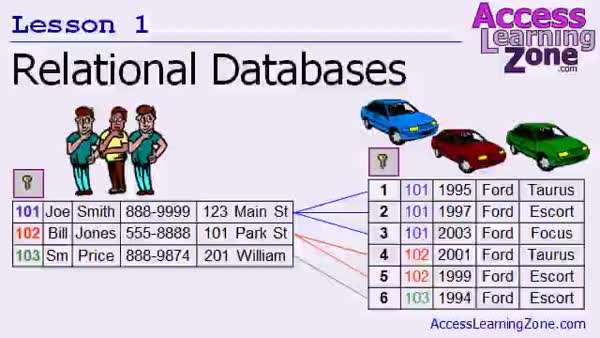
Lesson 1: Relational DB Concepts & Tables - In Lesson 1, we will introduce the basics of relational database concepts, including what a relational database is, why relationships between tables are important, and how they help eliminate duplicate data and increase efficiency. We will discuss the differences between flat file and relational databases, the roles of primary keys and foreign keys in setting up relationships, and look at the three main types of table relationships: one to one, one to many, and many to many. We will also briefly mention database integrity and talk about how we will build our first relational setup in the next lesson.
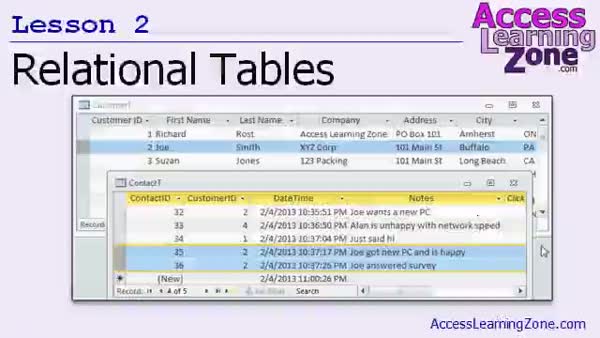
Lesson 2: Relational Tables: Keys Guide - In Lesson 2, we will walk through how to add the proper key fields to several tables to make relational tables in a database. I will show you how to set up a customer-to-contact relationship by removing duplicate data and adding foreign keys, as well as how to restructure the lead source and shipping method tables with appropriate ID fields. We will discuss maintaining your existing data while creating these relationships and touch on updating data with queries and the importance of database backups. Finally, we will review how these changes affect connected forms, which we will fix in later lessons.
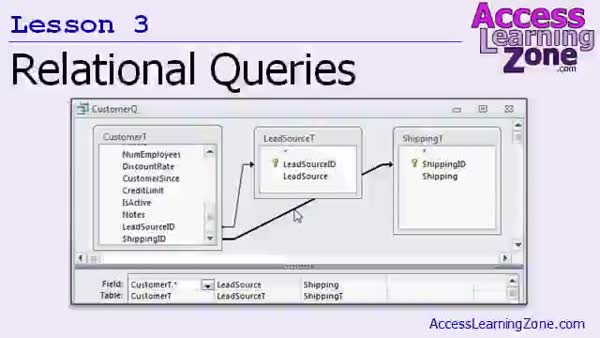
Lesson 3: Relational Queries & Joins - In Lesson 3, we will walk through how to set up relational queries to connect information from different tables using primary and foreign keys, discuss join types, and demonstrate how to add tables to queries in Access. I will show you how to relate customers and contacts, handle missing data with join properties, and adjust queries to ensure all necessary information appears in your results. We will also discuss the difference between inner and outer joins and how join types affect which records you see in your relational queries.
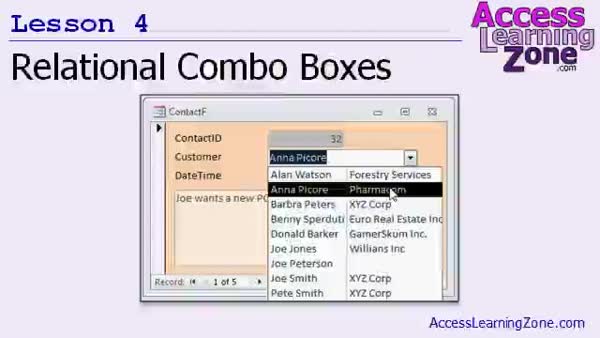
Lesson 4: Linked Combo Boxes & Tables - In Lesson 4, we will walk through how to set up relational combo boxes in Microsoft Access, allowing you to select values from one table and store them in a related field in another table. Using the example of assigning a customer to each contact, I will show you how to fix broken forms, connect combo boxes to tables or queries, hide key fields, and customize what information is displayed. We will also cover making a customer query with concatenated fields for better clarity and set up additional relational combo boxes for lead source and shipping on the customer form.
Lesson 5: Relational DB Concepts & Steps - In this course we learned about key relational database concepts, including how to add primary and foreign key fields to tables to establish relationships, as well as how to set up relationships in queries using left joins. We also discussed creating relational combo boxes on forms to select customers and store their IDs appropriately. Additional resources, upcoming courses, and support options were explained, along with guidance for continuing your learning. We also reviewed ways to get help, give feedback, and stay connected with Access Learning Zone for future updates and courses.
NavigationKeywordsrelational databases, table relationships, primary key, foreign key, one to many, many to many, database integrity, relational queries, join types, inner join, outer join, left join, relational combo box, cascading combo boxes
More InformationTranscriptWelcome to Microsoft Access 2010 Expert Level 1, brought to you by AccessLearningZone.com. I am your instructor, Richard Rost. Today's lessons are going to focus on relational databases. We are going to learn about relational database concepts, what a relational database is, and why they are important. We will learn how to set up relational tables by adding key fields, primary keys, and foreign keys to our tables. We will learn how to relate our tables together using relationships inside of queries. We will talk about different join types in queries. We will learn how to set up relational combo boxes where you can pick a value from one table to store in a second table, for example, picking a customer to store in the contact table. This class follows Microsoft Access 2010 Beginner Level 9. I consider Beginner Level 9 to be a prerequisite for today's class because in my beginner series, I focused on non-relational database techniques. The database that we built in the beginner series did not relate multiple tables together, like you should. So in Beginner Level 9, I showed you bad database techniques. I showed you how to set up the contact management system wrong, using flat file tables where the contact and customer information was together in the same table. In today's class, we fix the database that we built in Beginner Level 9. So if you have not watched Beginner Level 9 yet, I strongly recommend you watch that one first before taking this class, and of course the entire beginner series if you have not already. This class uses Microsoft Access 2010, but all the techniques shown today should work just fine in Access 2007. Everything is also pretty much the same in Access 2013. I have been using the beta version, which is available right now on Microsoft's website, and so far everything looks pretty similar. If you are using Access 2003 and earlier, the lessons in today's class are roughly the same, but the combo box wizards are a little different. This class is roughly equivalent to my old Access 201 class for Access 2003. You would be better off watching that lesson than this one. I strongly encourage you to build the database that I build in today's class, but if you have not taken the previous classes, you can download a copy of my database. You will find it on the website accesslearningzone.com/databases. My courses are broken up into four groups: Beginner, Expert, Advanced, and Developer. My beginner courses are for novice users who have little or no experience with Microsoft Access. They are designed to give you an overview of the basic features of Access and cover just what you need to know to be productive. The expert classes are designed for more experienced users who are already comfortable with Access. Expert classes go into a lot more depth about each topic than the beginner classes do and will cover more functions, features, tips, and techniques for power users. Once you have mastered the expert classes, move up to the Advanced lessons. You will learn how to work with macros, automation, and many more advanced features that really add enhanced functionality and professionalism to your databases. Finally, my developer level courses are designed to teach you how to program in Visual Basic for Microsoft Access. This will allow you to create the most advanced databases possible and unlock the true potential of Microsoft Access. Each series is broken down into different numbered levels starting with level one. Each subsequent level teaches you new and different topics in Microsoft Access, building on the lessons learned in the previous classes. Once you have finished all the beginner classes, move up to the expert series, then the advanced, and finally the developer lessons. In addition to my normal Access classes, I also have seminars designed to teach specific topics. Some of my seminars include building web-based databases, creating forms and reports that look like calendars, securing your database, working with images and attachments, writing work orders, tracking accounts payable, learning the SQL programming language, and lots more. You can find complete details on all these seminars and more on my website at accesslearningzone.com. If you have questions about the topics covered in today's lessons, please feel free to post them in my student forums. If you are watching this course using my custom video player software or the online theater on my website, you should see the student forum for each lesson appear in a small window next to the class videos, as long as you have an active internet connection. Here, you will see all of the questions that other students have asked, as well as my responses to them and comments that other students may have made. I encourage you to read through these questions and answers as you start each lesson and feel free to post your own questions and comments as well. If you are not watching the lessons online, you can still visit the student forums later by visiting accesslearningzone.com/forums. To get the most out of this course, I recommend that you sit back, relax, and watch each lesson completely through once without trying to do anything on your computer. Then, replay the lesson from the beginning and follow along with my examples. Actually, create the same database that I make in the video, step by step. Do not try to apply what you are learning right now to other projects until you master the sample database from this class. If you get stuck or do not understand something, watch the video again from the beginning or tell me what is wrong in the student forum. Most importantly, keep an open mind. Access might seem intimidating at first, but once you get the hang of it, you will see that it is really easy to use. Now let us take a closer look at exactly what is covered in today's class. In lesson one, we are going to learn about the basics of relational databases, what relational databases are, why they are important, and the different types of relationships between tables. In lesson two, we are going to learn how to add the proper key fields to several different tables to make them relational. We will set up a customer-to-contact relationship. We will also fix our lead source table and our shipping method table. In lesson three, we are going to set up relational queries to relate the information in the different tables together, and we will talk about some different join types. In lesson four, we are going to learn how to make relational combo boxes where we can pick a value from one table and store that in a field on a second table. For example, pick a customer for each contact. IntroIn lesson 1 of Microsoft Access 2010 Expert Level, we will learn about relational databases, including what they are, why they are important, and how to set them up properly in Microsoft Access. Topics include adding key fields, primary keys, and foreign keys to your tables, building relationships between tables in queries, understanding join types, and creating relational combo boxes such as picking a customer to store in a contact table. This lesson builds on concepts from Beginner Level 9 and is designed to help you transition from flat databases to properly structured relational databases. QuizQ1. What is the primary focus of Microsoft Access 2010 Expert Level 1? A. Building a database from scratch without using tables B. Using relational database concepts and setting up relational tables C. Creating web-based forms for data entry D. Designing database user interfaces Q2. Why are relational databases important according to the video? A. They allow for colorful user interfaces B. They let you store all data in a single flat file C. They help organize data efficiently by relating multiple tables together D. They restrict data entry to only one table Q3. What are key fields, primary keys, and foreign keys used for in Access? A. Generating reports automatically B. Relating tables together and maintaining data integrity C. Formatting field values automatically D. Designing custom macros Q4. What kind of database model was used in the Beginner Level 9 class, which is to be corrected in this Expert Level 1 course? A. Fully normalized relational model B. Flat file tables with contact and customer information together C. Non-database spreadsheet model D. Hierarchical data model Q5. What is recommended before taking this Expert Level 1 course? A. Taking only developer-level courses B. Completing Beginner Level 9 and the beginner series C. Building a database from scratch with no prior knowledge D. Skipping straight to advanced courses Q6. What tool is mentioned for relating tables together inside of queries? A. Page setup wizard B. Join types C. Relationship tool D. Design view Q7. How can relational combo boxes be used, as described in the video? A. To write custom VBA code B. To select a value from one table and store it in a second table C. To generate random field values D. To sort records alphabetically Q8. What does the instructor suggest you do to get the most out of the course? A. Memorize every lesson before starting B. Sit back and watch each lesson fully once, then replay and follow along step by step C. Build a web-based app while watching D. Skip to the developer series Q9. What is a benefit of using the student forums according to the video? A. Receiving automated feedback only B. Viewing pre-recorded answers but not asking questions C. Seeing questions from other students and responses, plus posting your own D. Getting direct phone support Q10. If you are using Microsoft Access 2003 and earlier, what does the instructor recommend? A. Continue with the 2010 lessons regardless B. Use the old Access 201 class designed for Access 2003 C. Upgrade to Access 2019 first D. Only use the SQL programming language Q11. Which of the following is NOT one of the four groups of courses offered? A. Beginner B. Expert C. Advanced D. Executive Q12. What should you do if you do not understand something during the course? A. Ignore it and move on B. Re-watch the lesson or ask for help in the student forum C. Immediately email Microsoft support D. Download a new version of Access Q13. What is covered in the first lesson of this Expert Level 1 class? A. Designing reports B. Basics of relational databases and types of table relationships C. Creating custom VBA modules D. Converting Access databases to Excel Q14. In which lesson do you learn to set up relational queries and discuss join types? A. Lesson one B. Lesson two C. Lesson three D. Lesson four Q15. What example is given for using a relational combo box? A. Entering shipping rates B. Picking a customer to store in the contact table C. Generating passwords D. Printing invoices Answers: 1-B; 2-C; 3-B; 4-B; 5-B; 6-B; 7-B; 8-B; 9-C; 10-B; 11-D; 12-B; 13-B; 14-C; 15-B DISCLAIMER: Quiz questions are AI generated. If you find any that are wrong, don't make sense, or aren't related to the video topic at hand, then please post a comment and let me know. Thanks. SummaryToday's video from Access Learning Zone focuses on Microsoft Access 2010 at the Expert Level 1 stage. I'm going to guide you through the concepts of relational databases, explain what they are, and discuss their importance in building powerful database solutions. We will begin by looking at how to create relational tables. I will show you how to set up key fields, primary keys, and foreign keys within your tables. You'll learn how to establish table relationships inside queries and examine different join types that you will encounter when connecting tables. In addition, I will introduce relational combo boxes, which allow you to select a value from one table to store in another, such as choosing a customer to be associated with a particular contact. This class is a direct continuation of Microsoft Access 2010 Beginner Level 9. That session is important as a prerequisite because earlier in the beginner series, I covered mostly non-relational techniques. In Beginner Level 9, I purposely showed you poor design practices, such as storing all contact and customer information in a single flat table, which is not ideal for a well-designed database. In this expert class, we will correct the database built in Beginner Level 9 to follow proper relational methods. If you have not taken Beginner Level 9 yet, I would advise watching that first, as well as completing the entire beginner series if you are new to Access. Although I use Microsoft Access 2010 in these lessons, you should be able to follow along just fine if you are using Access 2007 or Access 2013, since the features we cover are very similar. Access 2013, in particular, works much the same way as 2010 for what we are doing. If you are working with Access 2003 or earlier, most of the concepts still apply, but some tools such as the combo box wizards may look or function a bit differently. For those using Access 2003, my previous Access 201 course might be a better fit. I strongly encourage you to actually build the database step by step as I do in the class. However, if you have not completed the earlier courses, you can also download a copy of my database from my website at accesslearningzone.com under the databases section. All of my courses are separated into four main groups: Beginner, Expert, Advanced, and Developer. The Beginner classes are for those just starting with Access and provide a solid overview of the basics, giving you everything you need to be productive. The Expert level is intended for those who are already comfortable with Access and want a deeper understanding of the software's capabilities, covering more advanced functions, features, and tips. Advanced lessons go even further, introducing automation, macros, and techniques for enhancing your database professionally. Finally, Developer level courses teach you how to program using Visual Basic for Access, unlocking the full potential of the platform for the most complex and powerful database solutions. Each series is organized into numbered levels, with each level building on skills and knowledge gained in the one before it. You should go through each level in sequence before moving up to the next track. Besides the regular Access classes, I also offer topic-specific seminars. These seminars cover specialized tasks such as building web-based databases, designing calendar-style forms and reports, adding security, handling images and file attachments, managing work orders, processing accounts payable, learning SQL, and many other topics. You can find information about all of these seminars on my website. If you have questions about the course material, you are welcome to post them in my student forums. If you are using my custom video player or the online theater on the Access Learning Zone website, you can view the student forum for each lesson right next to the class videos, provided you have an active internet connection. This is a place to see questions and comments from other students, my replies, and further discussions. I suggest reading through these as you begin each session and participate by adding your own questions or feedback. If you are not watching online, you can still access the student forums later by visiting accesslearningzone.com and navigating to the forums section. For the best learning experience, I recommend first watching each lesson all the way through without trying to follow along on your computer. After that, watch it again and build the example database step by step as shown in the video. It is a good idea to work through the exact examples before trying to apply these techniques to your own projects, as this will help solidify your understanding. If you get stuck or need clarification on any part of the lesson, try reviewing the video again, or describe your issue in the student forum where I or other students can assist you. Remember that while Access may seem challenging at first, once you understand the basics, you will find it much more approachable. Let me give you an overview of what we will cover in today's lesson: In the first lesson, I will introduce the fundamentals of relational databases, including what they are, why they are valuable, and the different kinds of relationships that can exist between tables. In the second lesson, we will go step by step in adding appropriate key fields to several tables to make them relational. You will see how to set up a relationship between customers and contacts, and we will improve the design of our lead source and shipping method tables. Lesson three focuses on creating relational queries that bring together data from different tables, and we will examine some variations in join types used in these queries. Finally, in lesson four, you will learn how to create relational combo boxes that let you select values from one table and store them in another field, such as assigning a customer to a contact. You can find a complete video tutorial with step-by-step instructions on everything discussed here on my website at the link below. Live long and prosper, my friends. Topic ListRelational database concepts and importance Types of relationships between tables Adding key fields to tables Setting up primary keys and foreign keys Creating customer-to-contact relationships Fixing lead source and shipping method tables Building relational queries Understanding different join types in queries Creating relational combo boxes Storing values from one table in another via combo boxes Primary Topicsrelational database concepts, table relationships, primary keys, foreign keys, join types, relational queries, relational combo boxes Secondary Topicsbest practices vs flat file design, migrating from non-relational to relational, course structure, Access version compatibility |
||||||||||||||||||||||||||||||||||||||||||||||||||||||||||||||||||||||||||||||||||||||||||
|
| |||
| Keywords: relational databases, table relationships, primary key, foreign key, one to many, many to many, database integrity, relational queries, join types, inner join, outer join, left join, relational combo box, cascading combo boxes PermaLink Microsoft Access Expert 1 |