|
||||||
Access Expert 2Normalization, Relationships, Cascade ActionsWelcome to Access Expert 2. In this course you will learn the fundamentals of normalizing tables, how to set up and enforce explicit relationships with referential integrity, and how to use cascade update and delete options for managing related data. We will also cover how to set values across forms, such as opening related forms and setting default values based on values from other forms, and discuss best practices for designing and maintaining your database structure. Lessons
Resources
Learn More
Lesson SummaryWelcome! Normalize Tables & Set Relationships - Welcome to Microsoft Access Expert Level 2. In this course we will start by learning about database normalization to ensure your tables and relationships are set up correctly. We will discuss defining explicit relationships, setting up referential integrity, and handling cascade updates and deletes. I will show you how to set values across multiple forms, such as opening a contact form from a customer form and setting the customer ID automatically. This course builds on concepts from Level 1, and is designed for Access 2010 but is also suitable for Access 2007 and 2013 users.
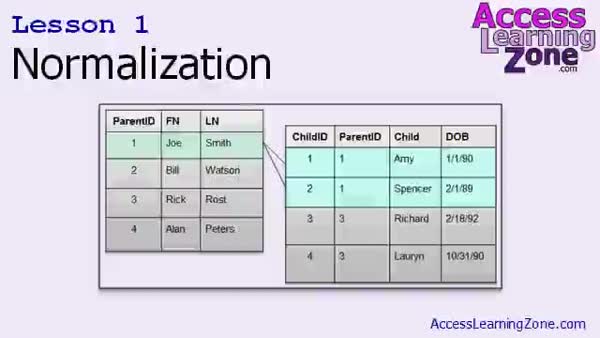
Lesson 1: Normalize Tables: 1NF, 2NF, 3NF - In Lesson 1, we will cover the fundamentals of normalization, an essential process for designing efficient databases. We will discuss why breaking large tables into smaller related ones reduces redundancy and improves data management. You will learn about first, second, and third normal forms, including their rules and practical examples, as well as the concept of denormalization and when breaking the rules might make sense. We will also talk about common database design mistakes and introduce key terms like decomposition and update anomalies to help you better structure your tables for effective data storage and retrieval.
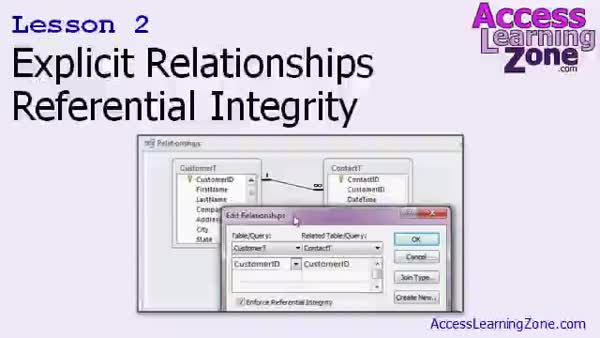
Lesson 2: Table Relationships & Integrity - In Lesson 2, we will walk through how to define explicit relationships in your database and set up referential integrity. We will review the difference between ad hoc relationships created in queries and explicit, global relationships defined at the database level using the Relationships window. I will show you how to create and enforce one-to-many relationships, explain the importance of referential integrity to prevent orphaned records, and discuss rules and features that come with setting up explicit relationships, such as cascade updates and deletes. We will also briefly mention best practices and things to watch out for when using these features.
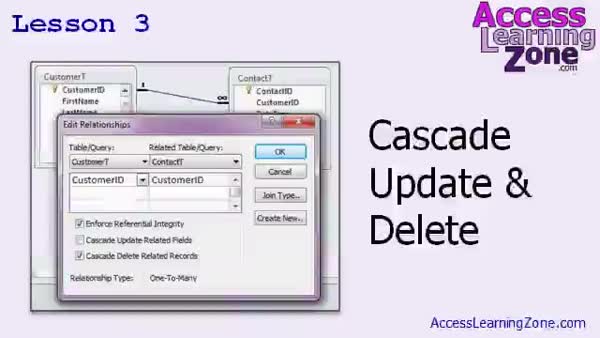
Lesson 3: Cascade Update & Delete Guide - In Lesson 3, we will explore Cascade Update and Delete in Access database relationships. We will review how referential integrity prevents deleting parent records with related child records and discuss situations where you may want to set up Cascade Delete to automatically remove child records when a parent is deleted. We will walk through enabling these settings, explain the potential risks, and discuss managing relationships and subdatasheet properties. We will also look at handling table dependencies and provide tips for troubleshooting, such as what to do when you need to re-import tables.
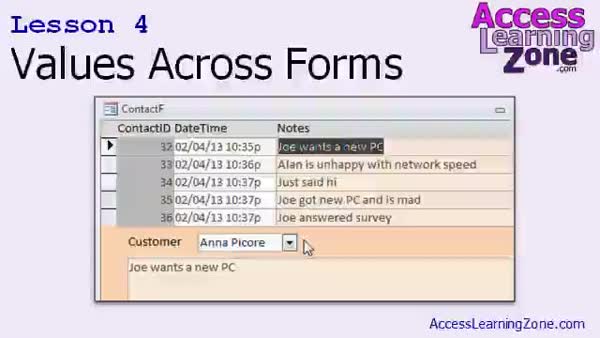
Lesson 4: Open Related Forms & Set Defaults - In Lesson 4, we will walk through how to add a button to your customer form that opens the contact form and displays only the contacts for the current customer, making it easier to manage related records. We will cover how to default the customer combo box on the contact form to the selected customer by getting values across forms, discuss setting default values using cross-form expressions, and briefly talk about handling dirty records and the use of Expression Builder. We will also demonstrate formatting continuous forms and previewing notes, as well as mention working with subforms, which we will cover in the next lesson.
Lesson 5: Normalization & Relationships Guide - In this course we learned about normalization, including first, second, and third normal forms, and why they are important for database design. We also discussed denormalization for cases like storing historic data or improving performance. We covered explicit versus ad hoc relationships, setting up referential integrity, and using cascade updates and deletes. We looked at how to open forms from buttons and set values automatically, and how to work with table subdatasheets. Finally, we reviewed available resources and support options for continuing your studies, including information on course upgrades and student forums.
NavigationKeywordsnormalization, table relationships, referential integrity, cascade update, cascade delete, first normal form, second normal form, third normal form, update anomalies, denormalization, decomposition, parent child records, subdatasheet, default values, Expr
More InformationTranscriptIn today's class, we are going to start out by learning more about database normalization. This is the process of making sure your tables and the relationships between them are set up properly. Next, you will learn how to define explicit relationships in your database, and we will learn how to set up something called referential integrity. We will learn about cascade updates and deletes. Cascade deletions are handy if you want to delete a parent record and have all the children deleted automatically. We will also learn how to set values across multiple forms. For example, we will learn how to open up the contact form from the customer form and set the customer ID on the contact form automatically so you do not have to pick the customer from a list. This class follows Microsoft Access 2010 Expert Level 1. If you have not taken Level 1 yet, I strongly recommend you take it before continuing with this class. Level 1 covers all the foundations of relational database concepts, including key fields, ad hoc relationships in your queries, setting up relational combo boxes, and much more. If you start today's class without having Level 1, you will be missing a lot of information that is required for a proper understanding of the material in today's class. This course is designed to be used with Access 2010. If you are using 2007, you should not have any problems following along as the two versions are very similar. From what I have seen, Access 2013 is also almost exactly the same. This lesson should work fine with Access 2013 as well. If you are using Access 2003 or earlier, you will want to go to my website and download AC202. That is the older version of this class. However, there is a lot of new material covered in today's class that I did not cover in Access 20102. For example, the whole first lesson on normalization is about 20 minutes worth of material that was not in my old Access 2003 classes. I strongly encourage you to build the database that I build in class by following along with me, watching the video, and building the database yourself. However, if you are lazy like me and you just want to download it, you can go to accesslearningzone.com/databases and you will find a copy of today's database up there. My courses are broken up into four groups: Beginner, Expert, Advanced, and Developer. My Beginner courses are for novice users who have little or no experience with Microsoft Access. They are designed to give you an overview of the basic features of Access and cover just what you need to know to be productive. The Expert classes are designed for more experienced users who are already comfortable with Access. Expert classes go into much more depth about each topic than the Beginner classes and cover more functions, features, tips, and techniques for power users. Once you have mastered the Expert classes, move up to the Advanced lessons. You will learn how to work with macros, automation, and many more advanced features that really add enhanced functionality and professionalism to your databases. Finally, my Developer level courses are designed to teach you how to program in Visual Basic for Microsoft Access. This will allow you to create the most advanced databases possible and unlock the true potential of Microsoft Access. Each series is broken down into different numbered levels, starting with Level 1. Each subsequent level teaches you new and different topics in Microsoft Access, building on the lessons learned in the previous classes. Once you have finished all the Beginner classes, move up to the Expert series, then the Advanced, and finally the Developer lessons. In addition to my normal Access classes, I also have seminars designed to teach specific topics. Some of my seminars include building web-based databases, creating forms and reports that look like calendars, securing your database, working with images and attachments, writing work orders, tracking accounts payable, learning the SQL programming language, and much more. You can find complete details on all these seminars and more on my website at accesslearningzone.com. If you have questions about the topics covered in today's lessons, please feel free to post them in my student forums. If you are watching this course using my custom video player software or the online theater on my website, you should see the student forum for each lesson appear in a small window next to the class videos, as long as you have an active internet connection. Here you will see all of the questions that other students have asked, as well as my responses to them and comments that other students may have made. I encourage you to read through these questions and answers as you start each lesson and feel free to post your own questions and comments as well. If you are not watching the lessons online, you can still visit the student forums later by visiting accesslearningzone.com/forums. To get the most out of this course, I recommend that you sit back, relax, and watch each lesson completely through once without trying to do anything on your computer. Then, replay the lesson from the beginning and follow along with my examples. Actually, create the same database that I make in the video, step by step. Do not try to apply what you are learning right now to other projects until you have mastered the sample database from this class. If you get stuck or do not understand something, watch the video again from the beginning or tell me what is wrong in the student forum. Most importantly, keep an open mind. Access might seem intimidating at first, but once you get the hang of it, you will see that it is really easy to use. Now let us take a closer look at exactly what is covered in today's class. In lesson one, we are going to learn about proper table normalization, which is a key factor in building good databases. In lesson two, we are going to learn how to define explicit database relationships and set up referential integrity. In lesson three, we are going to learn about cascade, update, and delete. We will do a little more work with the Relationships window and subdata sheets. In lesson four, we are going to make a button to open up our contact form and show just the contacts for the current customer and learn how to get values from different forms. So the customer combo box can default to the current open customer when you enter a new record. IntroIn lesson 2 of the Microsoft Access Expert series, you will learn about proper database normalization, defining explicit relationships, and setting up referential integrity, including cascade updates and deletes. We will also cover how to work with the Relationships window, subdatasheets, and set values across multiple forms, such as opening the contact form for a specific customer and automatically assigning the correct customer ID. This lesson builds on what you learned in Microsoft Access Expert Level 1 and covers important techniques for creating well-structured and efficient databases. QuizQ1. What is the main focus of lesson one in today's class? A. Creating forms for data entry B. Table normalization for building good databases C. Designing reports D. Setting user permissions Q2. What does database normalization involve? A. Securing your database from unauthorized access B. Making sure tables and relationships are set up properly C. Automating form processes D. Designing custom queries only Q3. What is referential integrity? A. A feature that prevents duplicate entries in tables B. A rule ensuring that relationships between tables remain consistent C. A way to index all fields in a table D. A tool for visualizing database performance Q4. What does the cascade delete feature do? A. Disables editing in child tables B. Copies records from one table to another automatically C. Deletes all records in a database D. Deletes child records automatically when a parent record is deleted Q5. How can you set values across multiple forms in Access, as described in the class? A. By linking forms with SQL only B. By opening a form and manually reselecting values C. By using a button to open a related form and transferring relevant values automatically D. By copying and pasting values between forms Q6. What should you do before starting this class if you have not completed Access 2010 Expert Level 1? A. Proceed with the lesson at your own pace B. Take Level 1 first, as it covers foundational concepts needed for this class C. Skip directly to Developer courses D. Start with Advanced lessons Q7. Which versions of Access does this class directly support? A. Access 2003 and earlier only B. Only Access 2010 C. Access 2007, 2010, and 2013 D. Only Access 2013 Q8. At what point in the course series should you start taking Developer courses? A. Right after the Beginner course B. After you have finished Advanced lessons C. After the first Expert level D. Never, unless you want to learn Excel Q9. What advice is given regarding following along with the course material? A. Read the material but do not build the database B. Watch the lessons but only work on your own projects C. Build the same sample database step by step with the instructor D. Take notes but do not use Access yet Q10. What is the primary purpose of the student forum mentioned in the course? A. To post advertisements for upcoming classes B. To provide updates to the Access software C. To allow students to ask questions and share answers about the material D. To distribute course videos Q11. What topic will NOT be covered in today's class, based on the transcript? A. Setting values across forms B. Table normalization C. Programming with SQL D. Referential integrity Q12. What is recommended before trying to apply what you are learning to other projects? A. Test randomly on your active projects B. Master the sample database from this class first C. Start a new project immediately D. Only read the textbook Answers: 1-B; 2-B; 3-B; 4-D; 5-C; 6-B; 7-C; 8-B; 9-C; 10-C; 11-C; 12-B DISCLAIMER: Quiz questions are AI generated. If you find any that are wrong, don't make sense, or aren't related to the video topic at hand, then please post a comment and let me know. Thanks. SummaryToday's video from Access Learning Zone focuses on expanding your understanding of database normalization in Microsoft Access. Normalization is a crucial step in ensuring that your tables and their relationships are organized in the most efficient way possible, which helps you maintain data integrity and make your database easier to manage and update. I will show you how to set up explicit relationships between your tables. This includes enabling referential integrity to make sure your related tables stay in sync. You will also learn about cascade updates and deletions. Cascade delete, for example, is very useful if you want to remove a parent record and have all related child records get deleted at the same time. We will explore how to pass values between multiple forms, such as opening a contact form from a customer form and automatically setting the customer ID. This means you do not have to manually select the customer from a list each time, which helps speed up data entry and reduce mistakes. This class is meant for students who have already completed Microsoft Access 2010 Expert Level 1. If you have not done so, I highly recommend taking Level 1 first. That class covers core relational database concepts, including primary keys, setting up basic relationships in queries, and using relational combo boxes. Skipping that foundation will leave important gaps in your understanding for this class. While this course is recorded in Access 2010, you should have no trouble following along using Access 2007 or 2013, since those versions are almost identical to 2010 for the features we cover here. For those using Access 2003 or an earlier version, you should download my AC202 course from my website, which covers similar material adapted for older versions. It is worth noting that today's class introduces a lot of new content not found in my older lessons, especially an extended discussion on normalization at the start of the course. I always recommend that you build the sample database alongside me as I go through the lessons. This hands-on practice is the best way to reinforce what you learn. However, if you prefer, you can also download a copy of the sample database from accesslearningzone.com/databases. Let me explain how my courses are organized, so you can see where this class fits in. Courses are grouped into four categories: Beginner, Expert, Advanced, and Developer. The Beginner courses are designed for those new to Microsoft Access, providing an overview of features to quickly get you up and running. Expert classes are for those who already feel comfortable with Access and want to learn more powerful tips and functions. Once you complete the Expert series, the Advanced courses introduce more sophisticated techniques including macros and automation, giving your databases a more professional quality. Lastly, the Developer courses will teach you how to program using Visual Basic for Applications (VBA), unlocking the highest level of Access functionality. Each of these course categories is divided into numbered levels, each one building on the last. The idea is to work your way up gradually, from Beginner Level 1 through each subsequent level, before moving into the next group. This way, you develop your skills step by step without missing any crucial knowledge along the way. Besides my regular classes, I offer seminars that focus on specialized topics. These seminars cover things like building web-based databases, creating calendar-style forms and reports, adding security to your databases, handling images and attachments, building systems for work orders or accounts payable, learning SQL, and much more. Details on these seminars can be found at accesslearningzone.com. If you have any questions about what you see in today's class, you are welcome to post in the student forums. If you are watching the course through my custom video player or the online theater on my website, you will find the forum right next to each video lesson, provided you are connected to the Internet. There you can browse through questions and answers from other students, see my responses, and join the discussion yourself. If you are not watching online, you can still access the forum later by visiting accesslearningzone.com/forums. To make the most out of this course, I recommend you first watch each lesson all the way through without pausing to work along. Then, replay the lesson and build the sample database step by step as I show you. This makes it much easier to follow the flow of the lesson and helps ensure you actually understand the details before applying them to your own projects. Focus on recreating the sample database first. After mastering it, you will be well-prepared to use these techniques elsewhere. If you find yourself stuck or don't quite understand something, try replaying the video from the start or post a message in the student forum describing your trouble. Most of all, keep an open mind. Access can seem overwhelming at first, but with a little practice and patience, you will find it much easier than you might expect. Now, here's an overview of what we will cover in this class. The first lesson focuses on proper table normalization, which is key to building reliable databases. The second lesson teaches you how to set up explicit relationships between your tables and implements referential integrity. The third lesson runs through cascade update and delete actions, plus some extra work with the Relationships window and subdatasheets. Finally, the fourth lesson covers making a button that opens the contact form filtered for the current customer. You will also learn how to retrieve values from other forms so that, for instance, the customer combo box can automatically display the customer you are working with when you add a new record. If you would like to see a complete video tutorial that takes you, step by step, through everything discussed here, visit my website at the link below. Live long and prosper, my friends. Topic ListDatabase normalization process Defining explicit database relationships Setting up referential integrity Using cascade updates and deletes Working with the Relationships window Managing subdatasheets in tables Passing values between forms Defaulting combo box value based on open form Creating a button to open related forms Primary Topicsdatabase normalization, explicit relationships, referential integrity, cascade updates, cascade deletes, Access forms integration Secondary Topicssubdatasheets, Relationships window, setting default values, database design workflow |
||||||||||||||||||||||||||||||||||||||||||||||||||||||||||||||||||||||||||||||||||||||||||
|
| |||
| Keywords: normalization, table relationships, referential integrity, cascade update, cascade delete, first normal form, second normal form, third normal form, update anomalies, denormalization, decomposition, parent child records, subdatasheet, default values, Expr PermaLink Microsoft Access Expert 2 |