|
||||||
Access Expert 7Many-to-Many, Junction Tables, ReportsWelcome to Access Expert 7. In this course you will learn about many-to-many relationships in Microsoft Access, starting with the problems of using the Lookup Wizard, and then covering the correct method of setting up junction tables. We will walk through connecting customers and groups, building forms, generating mail merge letters, managing duplicate values, and formatting reports to print postcards. You will also see another many-to-many example with vendors and products, including how to track unit costs, and find out how to access support resources throughout the course. Lessons
Resources
Lesson SummaryWelcome! Many-to-Many & Junction Tables - Welcome to Microsoft Access Expert Level 7. In this course we will explore many-to-many relationships in Microsoft Access, starting with common mistakes using the Lookup Wizard and then moving on to the correct approach using junction tables. We will walk through examples relating customers to groups, building forms to view and assign these relationships, creating mail merge letters for selected groups, and managing duplicate values. We will also discuss formatting reports to print postcards and demonstrate another many-to-many example with vendors and products, including tracking unit costs for each. Questions and support resources are available throughout the course.
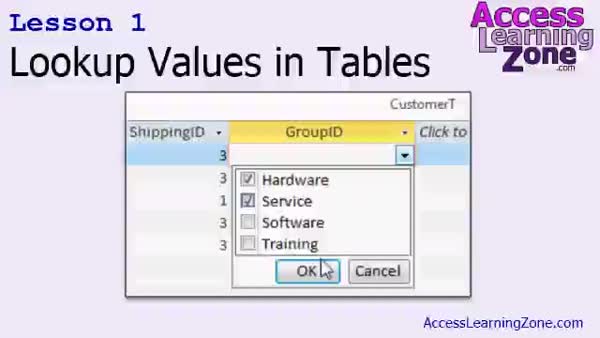
Lesson 1: Single & Multi-Value Lookup Fields - In Lesson 1, we will walk through how to set up lookup values directly in tables in Access, including both single-value and multiple-value lookups, and discuss why this approach is considered poor database design and violates normalization principles. I will show you different ways to create lookups in tables, explain some of the drawbacks, and address issues you may encounter if you inherit databases that use table lookups. We will also briefly talk about allowing multiple values and how that affects your data structure, with a preview of more advanced relationship techniques covered in later lessons.
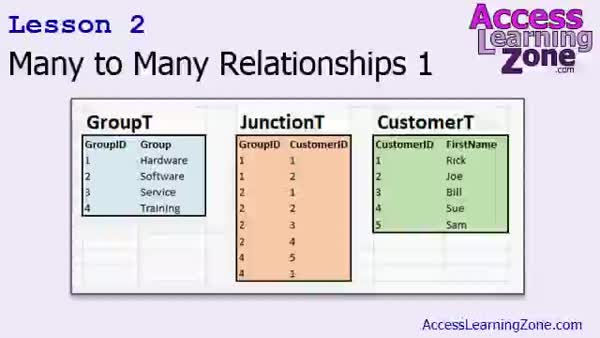
Lesson 2: Many-to-Many with Junction Tables - In Lesson 2, we will learn the proper way to set up a many-to-many relationship between customers and groups in Microsoft Access using a junction table. I will explain why you cannot simply use a lookup or a single foreign key in your tables for many-to-many setups, and we will walk through creating a junction table, adding sample data, and setting up forms with subforms to manage and display these relationships. We will also discuss best practices for naming tables and incorporating combo boxes for easier data entry. In the next lesson, we will set up a form to view customers by group.
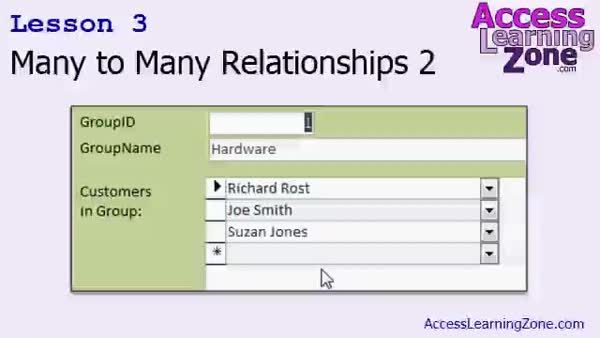
Lesson 3: Many-to-Many Groups & Customers - In Lesson 3, we continue working with many to many relationships by setting up a form to view which customers belong to each group. I will show you how to design a group form, create and modify a subform to display customers in each group, and use a combo box to add customers. We will walk through linking the forms, adding new groups and customers, and placing the new group form on the main menu. We will also briefly discuss how you could use programming or macros for advanced features like opening customer records from the group form.
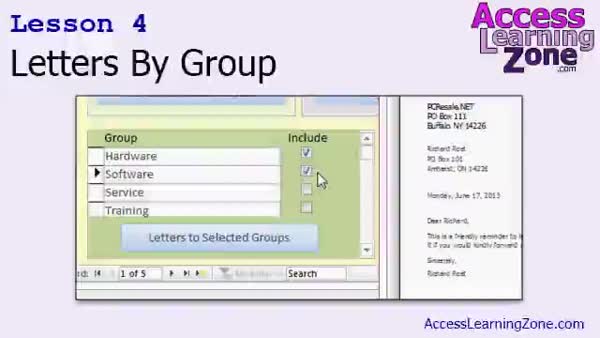
Lesson 4: Generate Letters with Queries - In Lesson 4, we will walk through how to create a subform on your letter form so you can generate letters by group. I will show you how to add a "mailing" yes/no field to your group table to select which groups to include, set up a query to pull customers from selected groups, and create a report that lists only those customers. We will also refine the setup to prevent sending duplicate letters to customers in multiple groups by using an aggregate query. Additionally, we will discuss how to add a button to refresh and open the report from the subform.
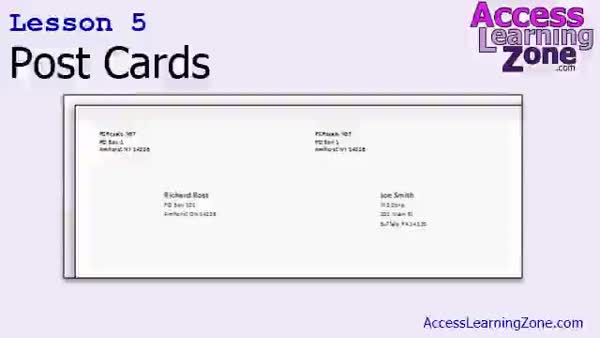
Lesson 5: Design & Print Custom Postcards - In Lesson 5, we will learn new manual report design techniques in Access by creating postcards from scratch. We will walk through setting up the page layout, adjusting margins, creating two columns, and formatting address fields for both the recipient and return address. We will also discuss how to properly size the detail section to fit four postcards on a page and cover useful formatting tricks like concatenating fields for names and addresses. Additionally, we will talk about adding buttons to easily preview your postcard report for active customers.
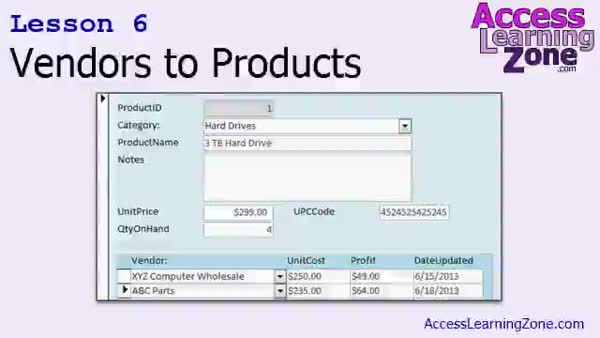
Lesson 6: Vendors & Products: Many-to-Many - In Lesson 6 we will look at another example of a many-to-many relationship by connecting vendors to products, where each vendor can supply multiple products and each product can be purchased from multiple vendors. We will walk through how to create the necessary tables, including a junction table to track the vendor-product relationship, unit costs, and update dates. I will show you how to build a product form with a subform listing vendors, set up combo boxes for selection, and calculate profit. We will also discuss setting up a similar form for vendors as homework to reinforce the vendors to products concept.
Lesson 7: Many-to-Many, Junctions & Reports - In this course we learned about many-to-many relationships in Microsoft Access, including common mistakes with the lookup wizard and the correct method of using junction tables. We set up customer groups, created reports for selected groups, and manually formatted reports to print postcards. We also saw a second many-to-many example with vendors and products. The review includes guidance on ordering additional lessons, accessing technical support, and submitting feedback, as well as suggestions for continuing to learn Access even if newer lessons or versions are not yet available.
NavigationKeywordsmany to many relationships, junction tables, lookup wizard, customer group relationships, subforms, combo boxes, aggregate query, mail merge, print postcards, vendors and products, unit costs, profit calculation, report columns, duplicate values
More InformationTranscriptWelcome to Microsoft Access Expert Level 7, brought to you by AccessLearningZone.com. I am your instructor, Richard Rost. Today's class focuses on learning many-to-many relationships. We have seen how one-to-one and one-to-many relationships work in previous classes. Today we will focus on many-to-many, which is a little bit more difficult. We will begin by learning about the wrong way to set up a many-to-many relationship using the lookup wizard that Access has directly in the tables. You are going to learn the wrong way first to get a better appreciation for how to set up many-to-many relationships the right way. We will learn the right way to set up many-to-many relationships with a couple of different examples. We will start by creating a relationship between groups and customers. Multiple customers can be in a group, and multiple groups can belong to a single customer. We will learn about something called a junction table, which bridges the gap between two other tables. We will build a series of forms so you can see each of your customers and what groups they belong to, and each of your groups and which customers are in that group. We will then make a letter that you can send out by selecting multiple groups so you can send the letter to everyone in your hardware, software, and training groups. We will also learn how to manage duplicate values. By popular request, we will see how to format a report to print postcards. We will learn some new manual report formatting techniques. Finally, we will go through a second example of a many-to-many relationship relating vendors to products, where each vendor can provide multiple products and each product can be purchased from multiple vendors. We will set up a unit cost for each vendor for each product so you can compare prices and purchase from the cheapest vendor. This class follows Access Expert Level 6. It is strongly recommended that you watch Level 6 and all the previous classes before proceeding with today's class. In Level 6, we design the letter writer form and tables that are used in today's class. Level 6 covers sending mass mail, collection letters, letters to customers by category, and lots more. To purchase a copy of Level 6, visit my website at accesslearningzone.com. This course was designed to be used with Access 2013. However, if you are using Access 2010 or 2007, you should not have any problems following along, as all three versions are pretty similar. If you do happen to come across something that does not work with 2007 or 2010, please send me an email or post in the forums and let me know. If you are using Access 2003 or earlier, you should still be able to follow along with this class. The material on relationships really has not changed since the earliest versions of Access. I have decided to include this material earlier in my course than I did the last time I recorded this Access Series back for Access 2003. Previously, I covered this material in my Advanced Class Access 309, so if you want to use the 2003 version, that is the course you will have to get. However, give this class a try first. You should be able to follow along with 2003 or earlier. Of course, if you have any problems or questions, please feel free to let me know. You are strongly encouraged to build the database that I build in class. This is the best way to learn. However, if you are lazy like me, go ahead and download it from my website at accesslearningzone.com/databases. My courses are broken up into four groups: Beginner, Expert, Advanced, and Developer. The Beginner lessons are designed to give you a basic overview of the simple features of Access. The Expert Series, the one you are in now, is designed for more experienced users who are already comfortable with Access. The Advanced Lessons cover working with macros, automation, and many more advanced features. The Developer Lessons get into programming with Visual Basic for Microsoft Access. Each of the series is broken down into different numbered levels, starting with Level 1. The Beginner Series, for example, has Levels 1 through 9. In addition to my normal Access classes, I also have seminars designed to teach specific topics. Some of my seminars include building web-based databases, creating forms and reports that look like calendars, securing your database, working with images and attachments, writing work orders, tracking accounts payable, learning the SQL programming language, and lots more. You can find complete details on all these seminars and more on my website at accesslearningzone.com. If you have questions about the topics covered in today's lessons, please feel free to post them in my student forums. If you are watching this course using my custom video player software or the online theater on my website, you should see the student forum for each lesson appear in a small window next to the class videos, as long as you have an active internet connection. Here you will see all of the questions that other students have asked, as well as my responses to them and comments that other students may have made. I encourage you to read through these questions and answers as you start each lesson, and feel free to post your own questions and comments as well. If you are not watching the lessons online, you can still visit the student forums later by visiting accesslearningzone.com/forums. To get the most out of this course, I recommend that you sit back, relax, and watch each lesson completely through once without trying to do anything on your computer. Then, replay the lesson from the beginning and follow along with my examples. Actually create the same database that I make in the video, step by step. Do not try to apply what you are learning right now to other projects until you have mastered the sample database from this class. If you get stuck or do not understand something, watch the video again from the beginning or tell me what is wrong in the student forum. Most importantly, keep an open mind. Access might seem intimidating at first, but once you get the hang of it, you will see that it is real easy to use. Now, let's take a closer look at exactly what is covered in today's class. In lesson one, we are going to see how to set up lookup values directly in tables, both single-value lookups and multiple-value lookups, and we are going to learn why you should not do this. In lesson two, we are going to learn the proper way to set up a many-to-many relationship between customers and groups using a junction table. In lesson two, we learn how to view what groups a customer was in. Now, in lesson three, we will learn how to open up a group and see which customers are in that group. Now that we have our groups set up and we have our customers assigned to groups, in lesson four, we are going to create a subform on a letter form so we can generate letters to the selected groups. In lesson five, we are going to learn some new manual report design techniques and generate postcards. In lesson six, we are going to see another example of a many-to-many relationship with vendors to products, where each vendor will sell you multiple products and each product can be purchased from multiple vendors. IntroIn lesson 7 of my Microsoft Access Expert Series, we will learn all about many-to-many relationships, including why the lookup wizard is not the right way to set them up and how to properly use a junction table. We'll go through step-by-step examples, such as assigning customers to groups and managing those relationships with forms and letters. You'll also learn how to format reports for postcards and see another example connecting vendors to products with unit prices to compare costs. This lesson builds on concepts from Access Expert 6 and is designed for experienced Microsoft Access users. QuizQ1. What is the primary focus of Microsoft Access Expert Level 7? A. Learning how to create macros B. Understanding database security C. Learning many-to-many relationships D. Designing web-based databases Q2. Why does the instructor start by teaching the "wrong way" to set up many-to-many relationships? A. To confuse students B. To appreciate the proper way later C. The wrong way is preferred in Access 2013 D. Because it is easier than the right way Q3. What is used to bridge the gap between two tables in a many-to-many relationship? A. Lookup wizard B. Relationship report C. Junction table D. Pivot table Q4. In the course, which two tables are first used to demonstrate a many-to-many relationship? A. Products and sales B. Groups and customers C. Orders and shipping D. Vendors and employees Q5. What does the course use to show which groups a customer belongs to and vice versa? A. Reports only B. Series of forms C. Queries without forms D. SQL programming alone Q6. What is the purpose of generating a letter by selecting multiple groups? A. To email only one customer B. To send the letter to everyone in selected groups C. To print invoices for all customers D. To export group data to Excel Q7. What new report formatting technique is included in the class? A. Automated chart creation B. Pivot table design C. Manual report formatting for postcards D. Creating barcode labels Q8. Which second many-to-many relationship example is covered in the course? A. Employees and projects B. Products and sales C. Vendors and products, including unit costs D. Customers and sales reps Q9. What prior course does the instructor recommend completing before starting Level 7? A. Access Beginner Level 1 B. Access 2003 Advanced C. Access Expert Level 6 D. Access Developer Level 1 Q10. If students have trouble with Access 2010 or 2007, what should they do? A. Abandon the course B. Contact Microsoft Support C. Email the instructor or post in the forums D. Downgrade to Access 2003 Q11. What series covers working with macros and automation? A. Beginner Series B. Expert Series C. Advanced Series D. Developer Series Q12. Which lesson teaches students to not set up lookups directly in tables? A. Lesson one B. Lesson two C. Lesson three D. Lesson six Q13. What is the recommended way for students to get the most out of the course? A. Memorize the examples without practice B. Watch and immediately apply concepts to unrelated projects C. Rebuild the sample database step by step with the instructor D. Skip to the developer lessons Q14. What should students do if they have questions about the lessons? A. Ask classmates in person B. Visit a local library C. Post questions in the student forums D. Wait for email updates Q15. What is the value of reading the student forums for each lesson? A. To bypass watching the videos B. To see what other students have asked and learn from responses C. To avoid using Access at all D. To download unrelated databases Answers: 1-C; 2-B; 3-C; 4-B; 5-B; 6-B; 7-C; 8-C; 9-C; 10-C; 11-C; 12-A; 13-C; 14-C; 15-B DISCLAIMER: Quiz questions are AI generated. If you find any that are wrong, don't make sense, or aren't related to the video topic at hand, then please post a comment and let me know. Thanks. SummaryToday's video from Access Learning Zone focuses on understanding many-to-many relationships in Microsoft Access, which is a more advanced database concept. In earlier classes, we have discussed one-to-one and one-to-many relationships. Today, I want to expand on that by teaching you how many-to-many relationships work, why they are important, and, most critically, how to design them properly. At the beginning of this class, I will demonstrate the wrong way to set up a many-to-many relationship using the lookup wizard that you find directly in Access tables. I think it is important to see why this approach causes problems, so you can better appreciate the benefits of creating many-to-many relationships the right way. After we cover the pitfalls, I will show you the correct way to establish these relationships by working through several concrete examples. One example revolves around groups and customers, where a single group can have many customers, and one customer can belong to multiple groups. To manage this, I will introduce the concept of the junction table, which is a special table that helps connect two other tables in a many-to-many relationship. With that foundation, we will build different forms so you can easily see, for each customer, which groups they belong to, and, for each group, which customers are members. We will go further and design a mail merge system where you can generate and send letters to people in multiple groups—such as hardware, software, or training groups—all at once. We will also talk about handling duplicate values effectively. Due to many student requests, I will show you how to format reports to print as postcards, and you will learn some new manual report formatting skills. In the second major example, I will cover how to set up a many-to-many relationship in a completely different context: matching vendors with products. Here, each vendor can supply many products, and each product may come from more than one vendor. We will also track the unit cost from each vendor for each product so you can make informed purchasing decisions and find the best prices. If you finished Access Expert Level 6, you will already have created the letter writer form and tables we will use in this class. If you have not done so, I strongly encourage you to go through Level 6 and the previous courses first. Level 6 covers sending mass mail, collection letters, category-specific letters, and a lot more foundational topics. This course was created with Access 2013 in mind, but you should not have trouble following along if you use Access 2010 or 2007, as they are very similar. If you come across something that does not work as described in those versions, please contact me either by email or in the forums. Even if you use Access 2003 or earlier, the information about relationships has barely changed from version to version, so you should still be able to participate. If you want the original 2003 version, check out my older Access 309 course, but try this updated version first. I always recommend building the sample database right alongside me in class. This is by far the best way to practice and learn. However, if you prefer not to, you can download the completed database from my website. My Access courses are organized into four series: Beginner, Expert, Advanced, and Developer. The Beginner Series provides the basics, the Expert Series (which this class is part of) assumes you are comfortable with the basics and want to move up. The Advanced Series explores macros, automation, and more complex features, while the Developer Series gets into programming Access using Visual Basic for Applications. Each level within a series builds on previous lessons and is numbered starting with Level 1. There are also several specialized seminars available on other topics, such as web databases, making calendar-style forms and reports, security, working with images, writing work orders, tracking accounts payable, learning SQL, and much more. You can find complete information about these on my site. If you have questions while taking this class, I invite you to ask them in the student forums. You will see questions from other students and my responses, which can be a valuable resource as you learn. If you are watching these lessons with my custom video player or online, you can access the student forum right next to the video. If you use the video files directly, you can visit the forums on my website at any time. To maximize your learning, I suggest watching each lesson in its entirety first, without doing anything on your computer. Then, play the lesson again and follow along with me step by step, duplicating the sample database yourself. Avoid using what you have learned in your own unrelated projects until you feel comfortable with the samples from this class. If you get lost, watch the video again from the start or post your question in the forum. Above all, approach this with an open mind. Access may seem challenging at first, but as you continue, you will find it becomes much easier. Now, let me give you a detailed overview of what is covered in each lesson for this class. In lesson one, we will explore how to set up single-value and multiple-value lookups directly within a table, and why this approach is problematic. Lesson two is all about correctly building a many-to-many relationship between customers and groups by creating a junction table, and learning how to view which groups a customer has been in. Lesson three focuses on being able to open a group and see all the customers associated with that group. Once this infrastructure is in place, lesson four demonstrates how to use a subform within the letter form, enabling you to generate letters for selected groups. In lesson five, we will dive into some new manual report design methods, specifically to produce custom postcards. Finally, lesson six presents another many-to-many scenario, this time with vendors and products, where you will learn how to track costs and source products from multiple vendors. You can find a complete video tutorial with step-by-step instructions on everything discussed here on my website at the link below. Live long and prosper, my friends. Topic ListWrong way to set up many-to-many relationships with lookup wizard Setting up lookup values directly in tables Single-value vs multiple-value lookups in Access Proper way to set up many-to-many relationships Using a junction table for many-to-many relationships Creating a many-to-many relationship between customers and groups Viewing groups a customer belongs to Viewing customers in a group Building forms to display many-to-many relationships Creating a subform on a letter form to select groups Generating letters to multiple groups Managing duplicate values in reports Manual report formatting techniques for postcards Formatting reports to print postcards Setting up many-to-many relationships between vendors and products Storing unit cost per vendor and product Comparing prices and purchasing from the cheapest vendor Primary Topicsmany-to-many relationships, junction tables, Access table design, group-customer relationships, vendor-product relationships, subforms, report formatting, multi-value lookups Secondary Topicsreport design, mass mail, unit pricing, Access interface versions |
||||||||||||||||||||||||||||||||||||||||||||||||||||||||||||||||||||||||||||||||||||||||||
|
| |||
| Keywords: many to many relationships, junction tables, lookup wizard, customer group relationships, subforms, combo boxes, aggregate query, mail merge, print postcards, vendors and products, unit costs, profit calculation, report columns, duplicate values PermaLink Microsoft Access Expert 7 |