|
||||||
Access Expert 12Order Lists, Work Logs, Grouped Reports, TotalsWelcome to Access Expert 12. In this course you will learn how to build an order list form to manage and view order summaries, create a work log entry form for tracking employee hours, and set up default values to improve data entry. We'll discuss working with report grouping and sorting, starting with grouping customers by state, building weekly work reports, and organizing sales reports by order total intervals. You will also see how to fix collection letters, use the report wizard, group by numbers or currency, and apply tips for working with these features. Lessons
Resources
Lesson SummaryWelcome! Order Lists, Work Logs, Reports - Welcome to Microsoft Access Expert Level 12. In this course we will build an order list form to view and manage order summaries, create a work log entry form that calculates employee hours, and discuss setting default values to speed up data entry. We will focus on report grouping and sorting levels, starting with grouping customers by state, then creating weekly work reports, and building a sales report by order total intervals. We will also address fixing collection letters, look at grouping by numbers or currency, explore the report wizard, and review miscellaneous tips related to these tasks.
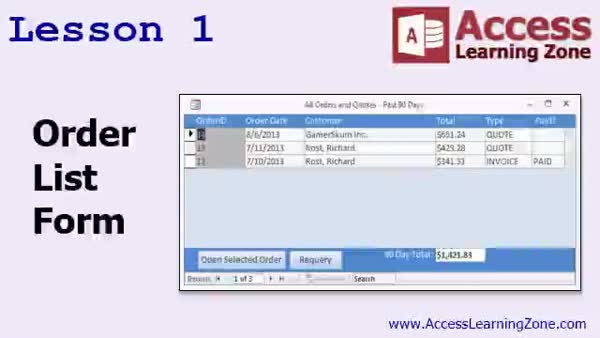
Lesson 1: Order List: Totals & Paid Status - In Lesson 1, we will walk through how to build an order list form in Access that displays all orders from the past 90 days, including customer information, order totals, order dates, payment status, and type (quote or invoice). We start by creating a summary query with aggregate functions, add useful fields and formatting, then build a continuous form based on this data. I will show you how to add buttons to open specific orders and to requery the list, as well as how to display a 90-day sales total. We will also discuss the difference between Refresh and Requery actions.
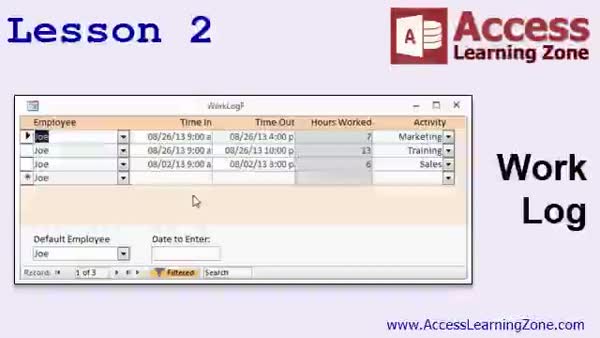
Lesson 2: Work Log & Employee Time Tracker - In Lesson 2, we are going to build a Work Log Entry Form to track employees' activities, including their time in, time out, hours worked, and the specific tasks they performed. I will show you how to create and modify buttons for navigation and queries, set up the work log form based on a query, and implement combo boxes for selecting employees and activities. We will also discuss ways to use unbound controls for default values and how to link the work log directly to the employee form for streamlined entry.
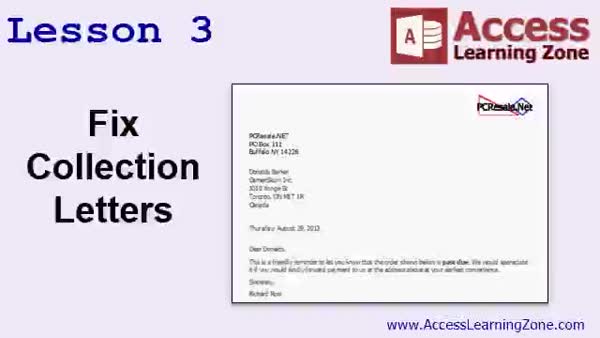
Lesson 3: Fix Broken Collection Letters - In Lesson 3, we will fix collection letters that stopped working after changes to the way the order entry system calculates the amount due. We will walk through identifying the source of the problem, which is a missing AmountDue field, and update the underlying query to correctly sum the order details using an aggregate query. I will show you how to adjust joins and field aliases so the collection letter report pulls the correct data, and discuss some common issues that can arise when modifying fields in related tables and queries.
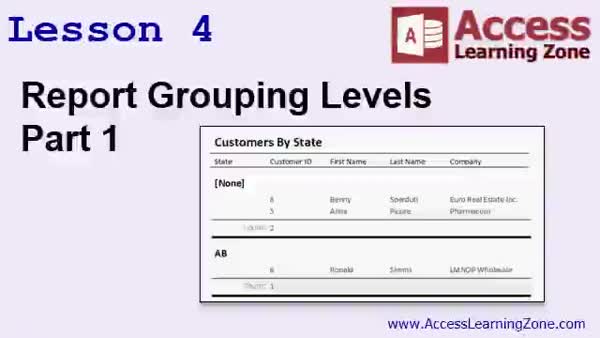
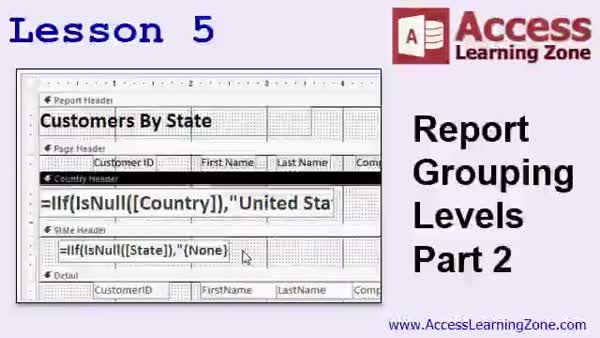
Lesson 4: Group, Total, and Format Reports - In Lesson 4, we will walk through creating report grouping in Microsoft Access, using a customer table as an example. I will show you how to group records by a specific field, such as state, add header and footer sections, include group totals like record counts, and format the report for clarity. We'll also discuss how to handle blank or missing values using functions, and explore options to adjust sorting, headers, footers, and totals within the report grouping levels.
Lesson 5: Grouping, Totals, Headers, Footers - In Lesson 5, we continue working with report grouping by adding a credit limit field to demonstrate how to sum values within groups and in the report footer. I will show you how grouping levels affect layout, how to use aggregate functions like sum, and the limitations of using aggregates in different sections of the report. We will discuss options such as keeping groups together on a page, grouping by different field types, forcing new pages after sections, hiding or showing detail sections, and adding multiple group levels like country and state to your report.
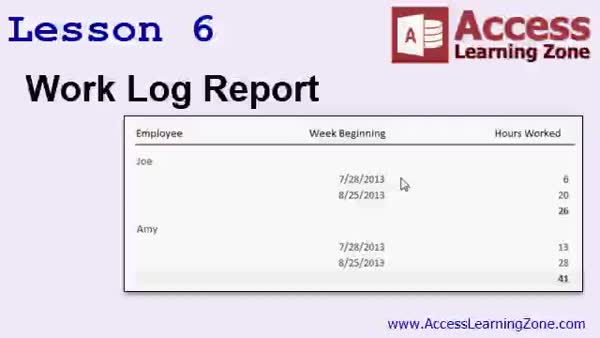
Lesson 6: Work Log by Employee & Week - In Lesson 6, we will walk through how to build an Employee Work Log Report grouped by employee and by week, displaying the week begin date and calculating the total hours worked for each week. I will show you how to set up multiple grouping levels, use Access functions like DatePart and Weekday to find week numbers and week start dates, and summarize hours worked in both group headers and footers. We will also discuss handling date formatting issues, hiding detail sections for summary-only reports, and ways to filter the report by date range.
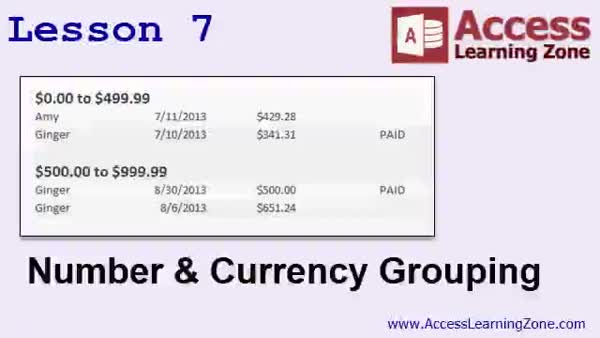
Lesson 7: Group by Number & Currency Ranges - In this lesson, we will walk through how to group by numbers or currency values in reports, building on previous examples of grouping by text and dates. I will show you how to create a new query to include sales rep information, set up the appropriate joins, and build a report that groups sales data by numeric or currency intervals, such as 500 dollar ranges. We will also discuss formatting group headers to display value ranges and demonstrate using integer division to dynamically label numeric ranges for number and currency grouping.
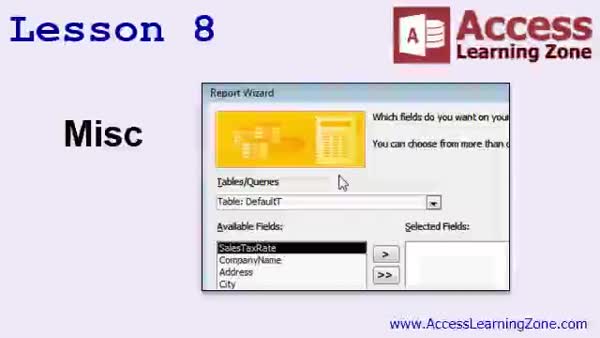
Lesson 8: Group By, Report Wizard, Assign Homework - In Lesson 8, we will cover several miscellaneous topics, including how to use the group by expression feature in reports, a demonstration of the simple report wizard and how it handles grouping levels, and I will outline your homework for the next class. We will discuss when to use group by expressions, the pros and cons of the report wizard, and how to update your main menu with new reports created during this lesson. Finally, I will explain how to modify the order report to use grouping levels instead of sub-reports for batch printing.
Lesson 9: Order Forms, IF, Logs & Groups - In this course we learned how to build the Order List and Work Log Entry forms, use the IF function to display paid or unpaid statuses, and add sales totals to form footers. We discussed the difference between Refresh and Requery, and how changes in data impact your forms. We assigned activities to entries using an Activity table and combo box, then explored report grouping and sorting, adding group headers and footers, and handling circular references. Reports included Customers by State with state and country grouping, Hours by Week, and sales grouped in 500 dollar increments. We also covered where to ask questions and get support.
NavigationKeywordsorder list form, work log entry, report grouping, group by number, sales totals, payment status, requery button, employee time tracking, group by week, currency intervals, collection letter fix, report wizard, default values, aggregate functions
More InformationTranscriptWelcome to Microsoft Access Expert Level 12, brought to you by AccessLearningZone.com. I am your instructor, Richard Rost. In today's class, we're going to build an order list form so we can see a summary of all the orders in our system with the customer and the order total. You'll be able to click on any one of those orders and quickly open up the order form. Then we're going to build a work log entry form so we can type in the employee, the time in, the time out, and the database will automatically calculate their hours worked. We'll learn how to populate values based on defaults in the form buffer. You can specify a default employee so you can pick the employee once and then just type in time in, time out, time in, time out for each day, or you can do it the other way. You can enter in a date and then type in each employee. This will cut down on a lot of repetitive data entry. We're going to spend a lot of time in today's class learning about report grouping and sorting levels. We'll start off simple with a report showing customers grouped by state. Then we'll create a report showing hours worked by week, grouped by the week of the year and showing hourly totals for each week for each employee. Then we'll make a sales report where all of our orders are broken down into $500 intervals: 0 to 500, $500 to $1000, and so on. Of course, in each of these lessons there are many tips and tricks along the way. This class was recorded with Access 2013. However, the lesson should work fine with 2007 and 2010. If you're using Access 2003 or earlier, sorting and grouping was handled much differently. Contact customer service and we'll tell you which lessons you need. This class follows Access Expert Level 11. I strongly recommend that you take Level 11 before watching this course. Level 11 covers aggregate queries, complex query criteria, sales totals by month, and the employee work log. A couple of these concepts will be built on more in today's class, so it's very important that you've taken Level 11 before today's class. My courses are broken up into beginner, expert, advanced, and developer level classes. Beginner level classes are for novices. You can understand all the topics covered in them by the time you get to the expert level classes, which you're in now. When you finish all of the expert level classes, the advanced classes will cover event programming and macros, and the developer classes will cover Visual Basic for Applications. Each group of classes is broken down into multiple levels: Level 1, 2, 3, and so on. In addition to my normal Access classes, I also have seminars designed to teach specific topics. Some of my seminars include building web-based databases, creating forms and reports that look like calendars, securing your database, working with images and attachments, writing work orders and running a service business, tracking accounts payable, learning the SQL programming language, creating loan amortization schedules, and lots more. You can find details on all of these seminars and more on my website at accesslearningzone.com. If you have questions about the topics covered in today's lessons, please feel free to post them in my student forums. If you're watching this course in the online theater on my website, you should see the student forum for each lesson appear in a small window next to the class video. Here you will see all of the questions that other students have asked as well as my responses to them and comments that other students have made. I encourage you to read through these questions and answers as you start each lesson and to join in the discussion. If you are not watching these lessons on my website, you can still visit the student forums later by visiting accesslearningzone.com/forums. To get the most out of this course, I recommend you sit back, relax, and watch each lesson completely through once without trying to do anything on your computer. Then, replay the lesson from the beginning and follow along with my examples. Actually create the same database that I make in the video step by step. Don't try to apply what you're learning right now to other projects until you've mastered the sample database from class. If you get stuck or don't understand something, watch the video again from the beginning or tell me what's wrong in the student forum and I'll do my best to help you. Most importantly, keep an open mind. Access may seem intimidating at first, but once you get the hang of it, you'll see that it's really easy to use. I strongly encourage you to build the database that I build in today's class by following along with the videos. However, if you would like to download a sample copy of my finished database file, you can find it on my website at accesslearningzone.com/databases. Sometimes if you get stuck, the easiest way to learn is to tear apart someone else's database. One of the ways that I taught myself Access years ago was by tearing apart the Northwind Traders database that comes with Microsoft Access. You'll find there's a sample database for each of my courses on my website. Now let's take a few minutes and go over exactly what we're going to cover in today's class. In lesson one, we're going to build an order list form to show a list of all of our orders, sorted by order date, with the customer information, the order total, whether it's a quote or an invoice, and whether or not it's paid. We'll make a button to open the selected order, another button to re-query the list of orders, and a 90-day sales total. In lesson two, we're going to build a work log form to track our employees' activities and their time in, time out, and hours worked. In lesson three, we're going to fix the collection letters that we broke when we changed the way the order entry system calculates the amount due. Initially, amount due was just a single field on my order table, and then we added the order details table to add more details to our orders. That unfortunately broke the collection letters, so in this lesson we're going to fix them. In lesson four, we're going to begin taking a look at report grouping levels where you can group records on a report based on one or more fields, such as "show me all the customers grouped by state." In lesson five, we're continuing our look at report grouping levels. In lesson six, we're going to build a work log report grouped by employee, grouped again by the week of the year, displaying the week begin date, and then calculating the total hours worked. We've seen so far how to group by text and by dates. Now we're going to see how to group by numbers or currency values. In lesson eight, I've got a few miscellaneous items to cover. I'm going to talk about group by expression. I'm going to show you the simple report wizard, which also handles grouping levels, and I'm going to give you your homework for the next class. IntroIn lesson 12 of my Microsoft Access Expert series, we will learn how to build an order list form that summarizes all orders, includes customer details and totals, and lets you open individual orders with a click. You'll also see how to create a work log entry form for tracking employee time and automatically calculating hours worked. We'll cover setting default values to speed up data entry and focus on building and customizing reports with different grouping and sorting levels, such as grouping customers by state or summarizing sales by dollar intervals. We'll also fix issues with collection letters and explore more reporting options. QuizQ1. What is the primary goal of building the order list form in this class? A. To summarize customer payments across multiple databases B. To show all orders with customer info and order total, and open specific orders C. To print invoices automatically for all customers D. To update customer profiles quickly Q2. The work log entry form in this lesson is designed to help you: A. Calculate tax rates for each order B. Track employee time in and time out, and auto-calculate hours worked C. Assign sales targets to employees D. Record customer complaints Q3. Using defaults in the form buffer allows you to: A. Lock the form fields after data entry B. Pre-fill values like employee or date to reduce repetitive typing C. Hide fields from users D. Print forms automatically Q4. What main concept will be learned regarding Access reports in this class? A. Formatting text colors B. Grouping and sorting records at different levels within reports C. Importing spreadsheets into reports D. Sending reports over email Q5. Which of the following is NOT a type of grouping demonstrated in this course? A. Grouping by state B. Grouping by month end date C. Grouping by week of the year D. Grouping by sales totals in $500 intervals Q6. Why is it important to have completed Expert Level 11 before starting this class? A. Because Level 11 introduces VBA programming B. Because Level 11 covers aggregate queries and employee work logs, which are built on in this class C. Because Level 11 explains how to install Access D. Because Level 11 includes hardware setup instructions Q7. What should a student do first to get the most out of this course? A. Only read the written transcript B. Watch each lesson all the way through before following along and practicing C. Try to modify their live database during the lesson D. Skip directly to the most advanced topics Q8. If you get stuck or do not understand something, what does the instructor suggest? A. Ignore it and move on B. Watch the video again or ask for help in the student forum C. Only use Google for answers D. Restart your computer Q9. Where can you find finished sample databases to download and study? A. At accesslearningzone.com databases B. On Microsoft's official website C. Only on the Access installation CD D. Through local computer stores Q10. What is an example of a report grouping covered in this class? A. Grouping orders by color B. Grouping customers by state C. Grouping forms by field length D. Grouping employees by access level Q11. What function does the "re-query" button on the order list form provide? A. Deletes the current selected order B. Refreshes the list of orders C. Sorts orders by highest total D. Exports orders to Excel Q12. The class reports that group orders into $500 intervals are demonstrating grouping by: A. Alphabetical order B. Date ranges C. Numeric or currency ranges D. Customer age Q13. In the lesson about fixing collection letters, what problem was addressed? A. Letters weren't being sent by email B. Collection letters were inaccurate due to changes in calculation of amount due C. The spelling of customer names was wrong D. Only sales invoices were printed Q14. What topic is mentioned as part of the miscellaneous items covered in lesson eight? A. Linking to external databases B. Group by expression and the report wizard C. Encrypting database files D. Synchronizing with Outlook Q15. Which best describes the sequence of course levels provided by AccessLearningZone.com? A. Beginner, Intermediate, Advanced, User B. Beginner, Expert, Advanced, Developer C. Novice, Skilled, Professional, Master D. Basic, Intermediate, Pro, Developer Answers: 1-B; 2-B; 3-B; 4-B; 5-B; 6-B; 7-B; 8-B; 9-A; 10-B; 11-B; 12-C; 13-B; 14-B; 15-B DISCLAIMER: Quiz questions are AI generated. If you find any that are wrong, don't make sense, or aren't related to the video topic at hand, then please post a comment and let me know. Thanks. SummaryToday's video from the Access Learning Zone focuses on Microsoft Access Expert Level 12. My aim in this session is to guide you through constructing an order list form, which will allow you to view a summary of all orders in your database, including the associated customer and total amount for each order. You will also have the ability to open any of these individual orders directly from the summary list. Next, I will show you how to develop a work log entry form. This will let you record the employee, their time in, and their time out. The database will automatically handle the calculation of total hours worked based on these entries. A significant part of the class also deals with efficiently entering repetitive data. For example, you can set default values in the form buffer, such as selecting an employee once and then entering time details for each day, or entering a specific date and then listing employees. This approach helps minimize the amount of redundant data entry you have to do. Today's lesson places a strong emphasis on report grouping and sorting options in Access. We will begin with a straightforward example by creating a report that organizes customers by state. From there, we will design a report to present hours worked by week, grouped by week of the year, and display weekly totals for each employee. Another report will focus on sales, breaking down orders into dollar intervals, such as 0 to 500, 500 to 1000, and so forth. Throughout these exercises, I will share various tips and useful techniques. This course was recorded using Access 2013, but everything should work well with Access 2007 and 2010. If you are still using Access 2003 or an earlier version, sorting and grouping functions work differently, so please contact customer service to get advice on which lessons will be appropriate for your version. I highly recommend you complete Access Expert Level 11 before tackling this course. Level 11 covered topics like aggregate queries, advanced query criteria, monthly sales totals, and the initial setup of the employee work log. Many of these concepts are expanded upon in the current lesson, so having this background will be essential. My curriculum is structured into beginner, expert, advanced, and developer levels. The beginner courses cover the basics and prepare you for these expert classes. Once all expert topics are completed, the advanced series will introduce event programming and macros, and developer courses will explore Visual Basic for Applications. Each course level has multiple parts to build up your knowledge in a gradual way. Beyond these standard Access classes, I also offer specialized seminars covering specific skills such as building web databases, designing calendar-style forms and reports, securing a database, handling images and attachments, organizing service business operations, tracking accounts payable, using SQL, creating loan amortization schedules, and much more. You can find more details about these seminars on my website. If any questions arise from today's lesson, I encourage you to post them in the student forums. If you are watching this course directly on my website, you will see the forum for each lesson beside the video playback. You can review questions, read answers, and participate in discussions with other students. If you are not watching on my website, you can still access the forums anytime by visiting accesslearningzone.com/forums. For the best experience, I suggest watching each lesson all the way through before trying to follow along. Once you have watched the lesson, return to the beginning and recreate the database step by step as demonstrated. It is best to focus on the sample database provided in class before applying these methods to your own projects. If you get stuck or find a topic unclear, rewatch the lesson or reach out to me in the student forum with a description of the problem. I am always here to help. Remember, working with Access can seem daunting at first, but with consistent practice, it becomes quite manageable. I strongly advise building the same database that I demonstrate in the lesson. However, if you'd like to download a copy of the completed database file, you can find it at accesslearningzone.com/databases. Sometimes, examining and experimenting with a finished example is a great way to learn. This same approach—dissecting the Northwind Traders database—was how I first learned Access years ago. Every course comes with a sample database available on my site. Here is a brief overview of what we will cover in this session: In the first lesson, I'll show you how to build an order list form. This form presents all orders sorted by date, includes customer details, the order total, whether it's a quote or invoice, its payment status, plus buttons for opening a specific order, re-querying the order list, and reviewing a 90-day sales summary. Lesson two presents the construction of a work log form that keeps track of employees' activities, including time in, time out, and total hours worked. Lesson three addresses a previous issue with collection letters that occurred when we adjusted the amount due calculation within the order system. The introduction of the order details table changed how amounts were managed, which disrupted the collection letter system. Here, we will correct that issue. In lesson four, I will introduce report grouping levels so you can organize records in a report based on specific fields. For example, you'll learn how to group all customers by their state. Lesson five continues the discussion on grouping levels within reports. Lesson six is devoted to creating a work log report grouped by employee and by week. The report will display the week's start date and calculate the total hours worked by each employee for that week. After covering groupings by text and dates, I will show you how to group by numerical or currency values. In lesson eight, I'll review some additional topics like grouping by expressions, introduce you to the simple report wizard (which also has group level functions), and provide some homework for the next class. You'll find a complete video tutorial with step-by-step instructions for everything discussed here on my website at the link below. Live long and prosper, my friends. Topic ListBuilding an order list form with customer and order total Adding clickable functionality to open order forms Implementing a button to re-query the orders list Calculating and displaying 90-day sales totals Creating a work log entry form for employees Automatic calculation of hours worked from time in and out Populating default values in the form buffer for easier entry Fixing collection letters after changes to order calculation Grouping records on reports by state Building reports grouped by employee and week of the year Displaying week begin dates and calculating weekly hours Grouping report data by numbers or currency values Using group by expressions in reports Using the simple report wizard to handle grouping levels Primary Topicsorder list form, work log entry form, report grouping, sorting levels, collection letters, work log report, form defaults, grouping reports by field Secondary Topicssimple report wizard, group by expression, homework assignment, handling re-query, fixing calculated fields |
||||||||||||||||||||||||||||||||||||||||||||||||||||||||||||||||||||||||||||||||||||||||||
|
| |||
| Keywords: order list form, work log entry, report grouping, group by number, sales totals, payment status, requery button, employee time tracking, group by week, currency intervals, collection letter fix, report wizard, default values, aggregate functions PermaLink Microsoft Access Expert 12 |