|
||||||
Access Expert 14Update Queries, Data Scrubbing, Split NamesWelcome to Access Expert 14. In this course you will learn advanced uses for update queries in Microsoft Access, including how to scrub and clean unformatted phone numbers, change email domains, and separate first and last names stored in a single field. We will also discuss how to restructure non-relational tables and use append queries to track daily student attendance. These lessons build on prior knowledge of action queries and focus on practical solutions for managing and improving your Access databases. Lessons
Learn More
Resources
Lesson SummaryWelcome! Scrub Data, Split Names, Update Email - Welcome to Microsoft Access Expert Level 14. In this course we will continue working with Action Queries, focusing on advanced Update Query examples such as scrubbing unformatted phone numbers, changing email domain names, separating first and last names stored in one field, and fixing non-relational tables for better database design. We will also discuss Append Queries for tasks like adding daily student attendance records. This class builds on concepts from Access Expert Level 13, so you should be familiar with the basics of Action Queries before proceeding. Additional seminars and resources are available on my website for further learning.
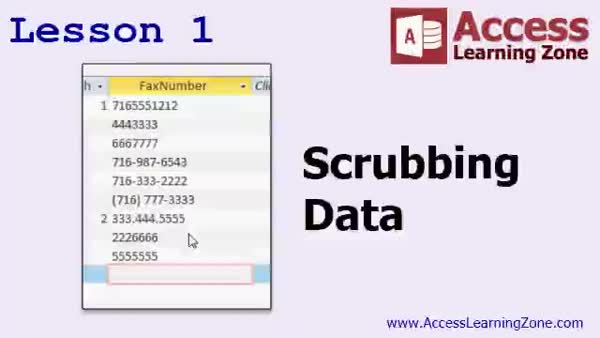
Lesson 1: Clean & Standardize Phone Data - In Lesson 1, we will learn how to scrub data in a database table by using update queries to clean up inconsistently formatted fax numbers. I will show you how to remove unwanted characters such as parentheses, dashes, periods, and spaces, and ensure all fax numbers are consistently 10 digits long. We will walk through the process step by step, highlight common issues like null values, and discuss ways to handle repeating this task if needed. We will also touch on using macros for automating the scrubbing process and mention additional methods for handling other cleaning scenarios.
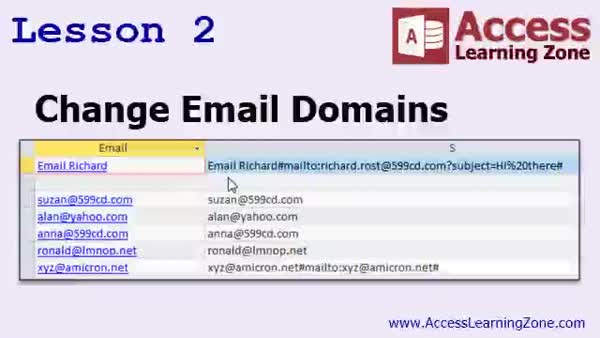
Lesson 2: Change Email Domains with Update Query - In Lesson 2, we will walk through how to change email domains in your database by using update queries to replace the domain part of email addresses, particularly when a client changes their web address. We will discuss how email fields as hyperlinks are structured, demonstrate using functions like CStr and Nz to handle their data, and show you how to use the Replace function in an update query to automate domain changes. We will also touch on organizing similar fields together and briefly discuss the Nz function for handling null values.
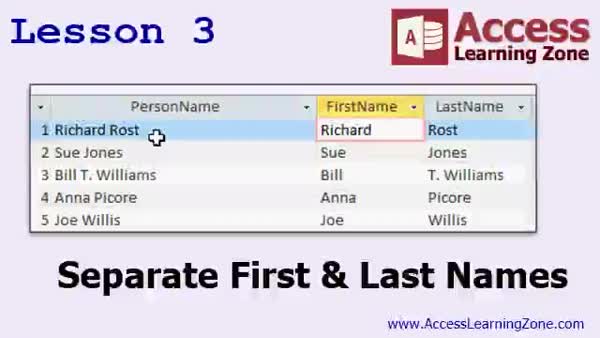
Lesson 3: Split First & Last Names - In Lesson 3, we will walk through how to separate first and last names in a single field using update queries and string manipulation functions in Access. I will show you how to identify the space character as the separator, use functions like InStr, Left, and Right to extract first and last names, and update your table with these new values. We will also discuss how to spot and handle records with extra spaces or anomalies such as middle names, prefixes, or suffixes that may need manual adjustment, and touch on related text functions for further cleanup.
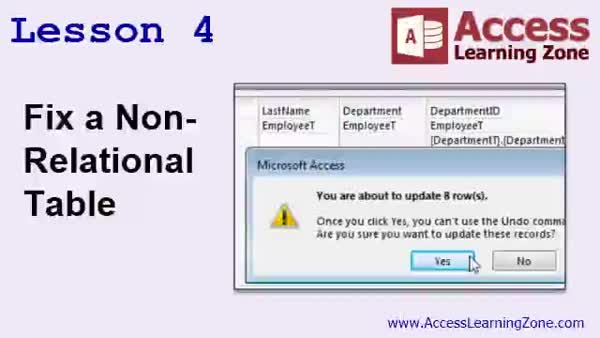
Lesson 4: Convert Non-Relational to Relational - In Lesson 4, we will walk through the process to fix a non-relational table by converting department names stored as text into proper relational data using department IDs. We will discuss how to clean and standardize department names, create a new department table, join the tables, and use an update query to link employees to their department IDs. This lesson demonstrates how to efficiently update large datasets and transform non-relational data into a relational structure, making your tables easier to manage and less prone to errors.
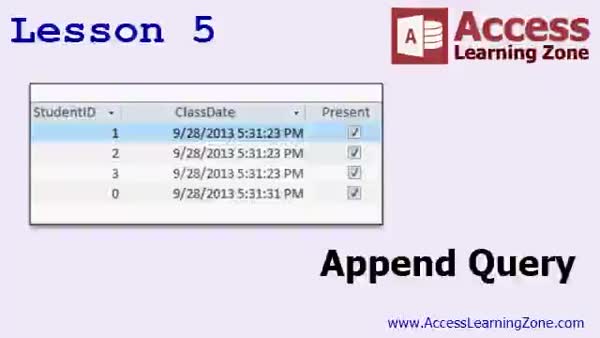
Lesson 5: Track Daily Student Attendance - In Lesson 5, we will learn how to set up an Append Query to track daily student attendance for a class. I will show you how to design the necessary tables, create the append query to copy student records into an attendance table, and explain how default values work for fields like date and present status. We will also discuss when and why you might use an append query for archiving or class-specific attendance, and your homework will be to set up a relational database structure and build forms to manage and record attendance efficiently.
Lesson 6: Update, Scrub, String, Append - In this course we learned how to work with update queries in Access, including scrubbing data by removing unwanted characters from phone and fax numbers, ensuring consistency in data length, and changing email domains. We covered the REPLACE, LEN, CSTR, NZ, HYPERLINKPART, INSTR, LEFT, RIGHT, and MID functions, as well as separating first and last names and normalizing non-relational tables. We also discussed building append queries to copy student data for attendance, preparing for automating this process, and touched on using delete queries and archiving old data. Additional resources and support options were also reviewed.
NavigationKeywordsupdate queries, data scrubbing, phone number cleaning, change email domain, replace function, split names, separate first and last names, string functions, clean department names, convert non-relational tables, append queries, student attendance
More InformationTranscriptWelcome to Microsoft Access Expert Level 14 brought to you by AccessLearningZone.com. I am your instructor, Richard Rost. Today's class continues our look at Action Queries. Action Queries change or manipulate the data in your tables. We'll start out by covering four more examples of Update Queries. First, we'll learn how to scrub the data in your tables. For example, let's say we were given a table where the users were able to type in phone numbers or fax numbers without any formatting in any particular way they wanted to. We want to take those fax numbers, remove any hyphens, parentheses, spaces, or dots, make sure they're all exactly ten characters long, and add area codes where needed. We'll learn how to do that with our Update Queries. Then, we'll learn how to change the domain name on an email address. Manipulating hyperlink fields can be a little tricky, so we'll learn how those work. We'll learn about the different parts of a hyperlink field and how to replace the domain name. For example, if all of the Yahoo.coms need to be changed to Microsoft.com, we can do that with one Update Query. One of the most popular questions I get asked is how to separate first and last name. You've got a database someone else gave you, or maybe you built it this way before you knew better, and instead of making two separate fields, one for first name and one for last name, you put them together in one field. In this class, I'll teach you how to separate them into first name and last name fields. Another popular question is, "I typed in data in my table and it's not relational." For example, with employees and departments, instead of putting a department ID in a separate department table, I typed in department names like sales, stock, counter, management, and so on. We'll fix that. Then, we'll learn about Append Queries. Update Queries change data in a table. Append Queries add rows onto a table. We'll make a student table with a list of students, then we'll make an attendance table. Each day, when I want to take attendance, instead of having to type in all of the students, I'll run an Append Query, which will append all of the students into my attendance table. Then, all I have to do is check the box for present. The next day, I run the Append Query again. It copies all the student names into the table, and again, I just check who is present and who is not. This class follows Access Expert Level 13. In Level 13, I taught you how Action Queries work, and specifically, we learned about Update Queries. We're going to spend a lot of time today covering additional Update Query lessons. However, you should have taken Expert Level 13 first, so you get the basics of how Update Queries work. I am not going to take time reviewing that. This class was recorded with Access 2013. However, if you're using 2007 or 2010, the examples should be almost identical. If you're using Access 2003 or earlier, the examples should still work; however, the interface is much different. I did cover most of this material, but not all of it, in my Access 222 class, which is the older version. Try following along if you've gotten this far already and you've already purchased the class. Try following along - you should be able to figure it out. If not, and you've purchased this class already, contact me. If you're using Access 2003, I'll give you a copy of 222. My courses are broken up into Beginner, Expert, Advanced, and Developer level classes. Beginner level classes are for novices. You should understand all the topics covered in them by the time you get to the Expert level classes, which you're in now. When you finish all of the Expert level classes, the Advanced classes will cover event programming and macros, and the Developer classes will cover Visual Basic for Applications. Each group of classes is broken down into multiple levels: level 1, 2, 3, and so on. In addition to my normal Access classes, I also have seminars designed to teach specific topics. Some of my seminars include building web-based databases, creating forms and reports that look like calendars, securing your database, working with images and attachments, writing work orders and running a service business, tracking accounts payable, learning the SQL programming language, creating loan amortization schedules, and lots more. You can find details on all of these seminars and more on my website at accesslearningzone.com. If you have questions about the topics covered in today's lessons, please feel free to post them in my student forums. If you're watching this course in the online theater on my website, you should see the student forum for each lesson appear in a small window next to the class video. Here you will see all of the questions that other students have asked, as well as my responses to them and comments that other students have made. I encourage you to read through these questions and answers as you start each lesson and feel free to join in the discussion. If you are not watching these lessons on my website, you can still visit the student forums later by visiting accesslearningzone.com/forums. To get the most out of this course, I recommend you sit back, relax, and watch each lesson completely through once without trying to do anything on your computer. Then, replay the lesson from the beginning and follow along with my examples. I actually create the same database that I make in the video, step by step. Don't try to apply what you're learning right now to other projects until you've mastered the sample database from class. If you get stuck or do not understand something, watch the video again from the beginning, or tell me what's wrong in the student forum, and I'll do my best to help you. Most importantly, keep an open mind. Access may seem intimidating at first, but once you get the hang of it, you'll see that it's really easy to use. I strongly encourage you to build the database that I build in today's class by following along with the videos. However, if you would like to download a sample copy of my finished database file, you can find it on my website at accesslearningzone.com/databases. Sometimes, if you get stuck, the easiest way to learn is to tear apart someone else's database. One of the ways that I taught myself Access years ago was by tearing apart the Northwind Traders database that comes with Microsoft Access. You'll find there's a sample database for each of my courses on my website. Now let's take a few minutes and go over exactly what we're going to cover in today's class. In lesson one, we're going to learn how to scrub the data in our tables using an update query. A popular request that I get all the time is from customers who say they've got a field like a fax number or a phone number field, and their users have been just typing in data in any particular format because there were no restrictions on the field like an input mask. We're going to take fax numbers out of all different kinds of formats and clean them up so they're all exactly ten digits long and have no special formatting characters in them. In lesson two, we're going to learn how to change the domains in our email addresses. One of our big clients, for example, just changed their internet domain address from, let's say, amacron.com to 599cd.com. I'm going to show you how to go through all of the email addresses and change the domain names over. This is going to involve understanding how hyperlink parts work. In lesson three, we're going to use an update query and some string manipulation functions to perform one of the most requested functions that I get asked about - separating first and last names if your user put them into the same field. In lesson four, we're going to mix together our skills with update queries and our skills with relational tables and we're going to fix a table that wasn't designed to be relational in the beginning. Now we're going to make it relational. For example, we have an employee table and whoever built the database was typing in department names as straight text. As we know, that's not good relational design. In this lesson, we'll fix that and turn department names into department IDs. In lesson five, we're going to learn how to set up an append query to track daily student attendance for students in a class. IntroIn lesson 14 you will learn advanced techniques for working with Action Queries in Microsoft Access. We will cover more examples of Update Queries, including cleaning up and reformatting phone and fax numbers, changing the domain name in email addresses, and separating first and last names stored in a single field. You will also learn how to take a table that is not relational and fix it by updating department names to department IDs. Finally, we will go over how to use Append Queries to create and manage daily student attendance records. QuizQ1. What is the main purpose of Action Queries in Microsoft Access, as discussed in this lesson? A. To format database forms and reports B. To change or manipulate data in tables C. To create new database tables D. To print database reports Q2. What is a key use of Update Queries covered in this class? A. Exporting data to Excel B. Changing the structure of tables C. Scrubbing unformatted data like phone and fax numbers D. Sending mass emails to customers Q3. When scrubbing phone or fax number data, what is the goal mentioned in this course? A. To adjust them to country code format B. To remove formatting characters and standardize to ten digits C. To add hyphens and parentheses D. To convert them to text with spaces Q4. How does the course suggest handling email addresses that have changed domains, such as from Yahoo.com to Microsoft.com? A. Manually editing each record B. Exporting data to Word and editing C. Using an Update Query with string manipulation functions D. Deleting all old email addresses Q5. If first and last names are stored together in one field, what does the class teach you to do? A. Ignore the issue B. Combine them into initials C. Separate first and last names into their own fields using an Update Query D. Delete the field and re-enter the data Q6. What is considered poor relational database design, according to this video? A. Using macros in forms B. Storing full department names in the employee table instead of department IDs C. Naming tables with spaces D. Using only one table in a database Q7. What is an Append Query used for, as demonstrated in the attendance tracking example? A. To change existing data in a table B. To add new tables to the database C. To add rows to an existing table, such as copying students into an attendance table each day D. To backup the database Q8. Why is it recommended to take Access Expert Level 13 before this class? A. Level 14 includes all of Level 13's material again B. Level 13 teaches the basics of Action and Update Queries needed for Level 14 C. Level 13 focuses solely on VBA programming D. Level 13 is optional for advanced users Q9. Which version(s) of Access was this class recorded with, and which older version might have a different interface? A. Access 2007 and 2010; Access 2013 has a different interface B. Access 2013; Access 2003 and earlier have a different interface C. Access 2003; Access 2016 is very different D. Access 2016; Access 2013 and earlier do not work with this class Q10. What is suggested as a learning strategy for building the class database? A. Memorize each step before trying it B. Watch the lesson fully first, then follow along step by step, using the provided sample database if needed C. Try all examples at once without watching the lesson D. Skip to advanced topics immediately Q11. Where can students discuss questions or problems related to today's lessons? A. Only by emailing the instructor directly B. In the student forums on accesslearningzone.com C. Only in the classroom D. Only through live chat support Q12. What topics will Advanced and Developer level Access classes cover? A. Event programming, macros, and Visual Basic for Applications B. Mail merge and PowerPoint integration C. Chart creation and Power Query D. Web browser compatibility Q13. What is the main goal of lesson four in this course? A. To create custom navigation menus B. To convert non-relational design into relational design, such as using department IDs C. To split large databases into smaller ones D. To print employee badges Q14. What is recommended if you get stuck during a lesson or do not understand something? A. Ignore the problem and keep going B. Watch the video again or ask for help in the student forums C. Restart your computer D. Wait until the next lesson Q15. What does the instructor recommend you do after watching each lesson through once? A. Immediately take a quiz on the material B. Email the instructor your questions C. Replay the lesson and follow along with the database creation steps D. Move on to the next class Answers: 1-B; 2-C; 3-B; 4-C; 5-C; 6-B; 7-C; 8-B; 9-B; 10-B; 11-B; 12-A; 13-B; 14-B; 15-C DISCLAIMER: Quiz questions are AI generated. If you find any that are wrong, don't make sense, or aren't related to the video topic at hand, then please post a comment and let me know. Thanks. SummaryToday's video from Access Learning Zone continues our deep dive into Action Queries in Microsoft Access. Action Queries are used to change or manipulate data directly in your tables. We'll begin today by looking at several Update Query examples. First, I'll demonstrate how to clean up or scrub your data. For instance, suppose you have a table where users have entered phone or fax numbers without any specific format. We want to standardize these numbers by stripping out any hyphens, parentheses, spaces, or dots, ensuring each number is exactly ten characters, and we'll see how to add area codes where they're missing. I will show you how Update Queries help automate and simplify this process. Next, I'll go over how to change the domain name in email addresses stored in your database. Modifying hyperlink fields can be a bit complex, so I'll explain their structure and show you how to update large numbers of records at once. For example, if every Yahoo.com address must be updated to Microsoft.com, you can accomplish this with a single Update Query. One of the most frequent questions I receive concerns how to separate first and last names that have been stored together in one field. Perhaps you inherited a poorly designed database, or you originally combined names before understanding best practices. In this class, I'll walk you through taking that single field and splitting it into separate first name and last name fields. Another common issue I see is tables that aren't relational. For example, instead of linking employees to departments using department IDs, the database just stores department names like "sales" or "management" directly in the employee table. We'll learn how to correct this by normalizing the data structure, converting those department names into proper relational IDs. After that, we'll discuss Append Queries. Unlike Update Queries, which modify existing records, Append Queries allow you to add new rows to a table. I'll provide a practical example: Say you have a student list and an attendance table. Each day, rather than manually retyping student names, you'll use an Append Query to quickly add every student to your attendance table. Then, you simply track presence by checking a box. The process can be repeated daily to facilitate quick and accurate attendance-taking. This video builds on the concepts taught in Access Expert Level 13, where we covered the basics of Action Queries, especially Update Queries. If you're not familiar with those foundational topics, I recommend watching Level 13 first. Today's class will expand your knowledge with more advanced lessons and practical examples. I recorded this session using Access 2013. If you're working with Access 2007 or 2010, the examples should look and behave nearly the same. Users of Access 2003 or earlier will find that while the interfaces look different, the principles mainly still apply. For those with Access 2003, if you run into trouble and you've already purchased this class, reach out to me and I can provide access to my earlier courses. My curriculum is structured into Beginner, Expert, Advanced, and Developer classes. The Expert classes (which this video is a part of) assume you have already mastered the Beginner material. Once these levels are complete, the Advanced classes focus on event programming and macros, while the Developer classes cover Visual Basic for Applications (VBA). Each group is subdivided into levels for more focused learning. In addition to standard courses, I offer seminars that focus on specific Access topics. These range from building web-based databases and designing forms and reports that resemble calendars to database security, working with images and attachments, setting up work order and service business systems, tracking accounts payable, writing SQL queries, building loan schedules, and more. You can find all these seminars listed on my website. If you have questions as you progress, I encourage you to post in the student forums. If you're watching this video in my online theater, the relevant forum for each lesson should appear next to the video, providing an opportunity to read discussions and ask your own questions. This resource is always available on my website, so you can join the conversation anytime, even if you're watching elsewhere. To get the most benefit from this material, I suggest first watching each lesson from start to finish without pausing to follow along. The second time through, bring up your own database and replicate each step as I demonstrate it. The best approach is to master the sample database during this course before trying to apply new techniques to your own projects. If something is unclear, watch the lesson again or reach out on the forum for assistance. It's important to remain open-minded. Microsoft Access can seem complex at first, but with practice, it becomes quite straightforward and user-friendly. A great way to learn is by building the database I demonstrate in the video. However, if you prefer to examine a finished example, downloadable copies of my completed databases are available on my website. Sometimes the most effective way to learn is by picking apart someone else's working database. This is how I originally learned much of Access myself, by exploring the Northwind Traders sample database included with Access. Here's a more detailed outline of what we'll cover in each lesson: Lesson one is about scrubbing or cleaning data using an Update Query. I'll address the scenario where users have input phone or fax numbers in various formats, and we need to standardize all entries so they contain only digits and are exactly ten characters long. Lesson two focuses on changing the domain names in email addresses. I'll demonstrate how to use an Update Query to transform email addresses company-wide, which is essential, for example, when an organization changes its domain. Lesson three uses Update Queries and string functions to separate first and last names that originally were stored together in a single field. This is a frequent fix needed in older or inherited databases. Lesson four brings together what you've learned about Update Queries and relational table design. We'll repair a non-relational table by moving from department names as free text to a proper relational structure using department IDs. Lesson five covers using Append Queries to track student attendance. We'll set up a system where, each day, you can quickly append all students to an attendance table and just mark off those who are present. You can find a complete video tutorial with step-by-step instructions on everything discussed here on my website at the link below. Live long and prosper, my friends. Topic ListScrubbing phone and fax numbers with update queries Standardizing phone number formatting Removing special characters from phone numbers Ensuring ten-digit phone numbers Adding missing area codes to phone numbers Changing domain names in email addresses Manipulating hyperlink fields in tables Replacing domains in hyperlink field values Separating first and last name fields with update queries String manipulation for splitting names Converting non-relational department names to relational IDs Normalizing department data in employee tables Using append queries to add student records Setting up attendance tracking with append queries Automating the addition of daily attendance records Primary Topicsupdate queries, data scrubbing, string manipulation, field separation, email domain changes, hyperlink fields, database normalization, append queries, attendance tracking Secondary Topicsinput masks, relational database design, Access version compatibility |
||||||||||||||||||||||||||||||||||||||||||||||||||||||||||||||||||||||||||||||||||||||||||
|
| |||
| Keywords: update queries, data scrubbing, phone number cleaning, change email domain, replace function, split names, separate first and last names, string functions, clean department names, convert non-relational tables, append queries, student attendance PermaLink Microsoft Access Expert 14 |