|
||||||
Access Expert 24Import RSS, Weather Data, Share OnlineWelcome to Access Expert 24. In this course you will learn how to read data from websites, including how to import RSS feeds and real-time weather data into your Microsoft Access database. You will see how to display weather details that automatically update and how to set up your Access tables on an online SQL server to share data between multiple users in remote locations. We will also reference some key topics from the previous level, such as remote data entry and XML import, and discuss version compatibility concerns. Lessons
Resources
Update: Weather SitesIf course this class is a little older, and some of the sites that I mention in class either no longer exist or have removed / changed their API policies. Here is a new one that I've verified works as of 2024-07-28: Just replace 33909 with your ZIP code. Also if you'd like to see a much more advanced method of doing this (that does involve a little bit of VBA coding) check out my Weather API TechHelp video. Don't panic. I walk you thru it all. Update: SQL Server HostingAlso, another update: I have left GoDaddy. They screwed me over royally. I hate them. I should remove this video from my site that recommends them, but I know a lot of people still use them, so I'm leaving it up there. I have since moved my site to WinHost who I highly recommend. They have actual, real, 24-hour support and they take care of their customers. If you are looking to set up an online SQL Server database, I have an entire Access SQL Server Online Seminar which teaches you all of the ins and outs regarding this. The first couple lessons are free and they show you how to get started setting up an account at WinHost and configuring your SQL Server. Lesson SummaryWelcome! Import RSS, Weather, & Share Data - Welcome to Microsoft Access Expert Level 24. In this course we will discuss how to read data from websites, including importing RSS news feeds and real-time weather data into your Access database. We will talk about displaying weather details with automatic updates, and I will show you how to set up your Access tables on an online SQL server to share data between multiple users in different locations. We will also reference topics from Access Expert Level 23, such as remote data entry and XML import, and discuss version compatibility with earlier Microsoft Access releases.
Lesson 1: Import & Manage RSS Feed XML Data - In Lesson 1, we are going to learn how to import RSS feed data into Microsoft Access. I will show you how to find RSS feed URLs on various websites, import the XML data into Access, review the imported tables, and troubleshoot common issues such as truncated fields and import errors. We will walk through adjusting table designs to handle longer text fields and set up unique identifiers to prevent duplicate records. Throughout the lesson, I will demonstrate these steps using example feeds from multiple news websites so you can see exactly how to import RSS feed data into your own databases.
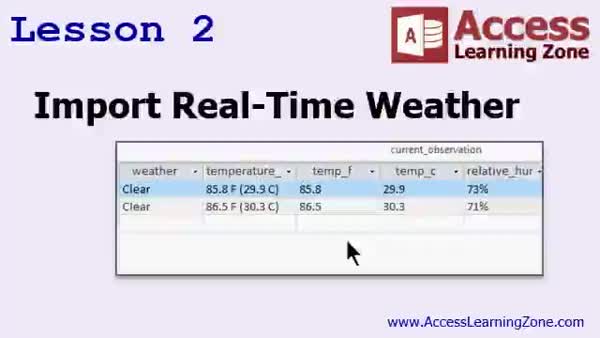
Lesson 2: Import Real-Time Weather Data - In Lesson 2, we will walk through how to import real-time weather data into your database. Starting with using RSS feeds from sites like weather.com, I will show you how to find and use an RSS feed for your local weather, and then move on to a more reliable method using the free API from weatherunderground.com. We will discuss how to sign up for an API key, how to construct the URL to get data for your location, and how to import the resulting XML data into Access, including how to manage and append new data.
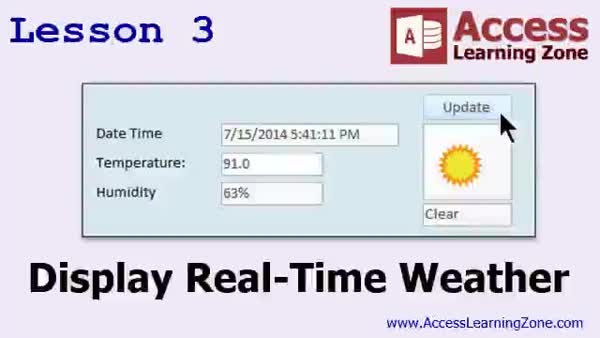
Lesson 3: Live Weather Display & Auto Update - In this lesson, we will walk through how to display real-time weather in your Access database. I will show you how to create a form that shows the current date and time, temperature, weather conditions, and a weather icon from the web. We will discuss how to sort weather records to display the most recent data, use queries to handle date fields, and add a button to manually update the information. We will also explore using the web browser control to display weather images and look at setting up an event timer to automatically refresh the weather data at set intervals.
Lesson 4: Share Your DB Online with SQL Server - In Lesson 4, I will show you how to take your table from your Access database, publish it online to an SQL Server database using Windows-based web hosting, and then link to those tables from Access so you can share data with multiple users in remote locations. We will walk through setting up an online SQL Server database, exporting and linking Access tables using ODBC data sources, and discuss important security considerations and user access. This is a practical solution for sharing your Access data online, and we will cover each step in detail.
Lesson 5: RSS, Weather Data & SQL Linking - In this course we learned how to import RSS feed data from websites into an Access database, including news feeds from sources like MSNBC.com and CNN.com. We covered importing real-time weather data using services such as Weather.com and Weather Underground, and displaying that data. I showed you how to create a macro for saved imports, use event timers for automatic updates, and set up an SQL Server database on Windows hosting so you can share Access databases online. We also discussed upcoming lessons, programming in Access, and how to get support and provide feedback.
NavigationKeywordsimport RSS feed XML, import weather data, real-time weather, Weather Underground API, display weather data, web browser control, auto update weather, link Access to SQL Server, online SQL database, publish Access online, ODBC data sources
More InformationTranscriptWelcome to Microsoft Access Expert Level 24, brought to you by AccessLearningZone.com. I am your instructor, Richard Rost. Today's class has two focuses: one, reading data from websites, and two, sharing your Access databases with an online SQL server. This will allow you to share your Access data information between multiple users in different locations. We are going to start by learning how to import RSS feeds from different websites. An RSS feed is another name for a news feed. We will see how to pull down the latest news information from MSNBC and from CNN.com. Next, we will learn how to pull down an RSS feed to display real-time weather data. We will be able to see the temperature, the humidity, and a little picture showing the sun, rain, or clouds. We will make a button to update in real time with one click, and I will show you how to use a timer interval to have the form update itself every five minutes, ten minutes, or whatever interval you specify. Finally, and this is one of the most requested topics that I have ever gotten, I am going to show you how to set up an online SQL server database. With an internet provider (I personally use GoDaddy, but you can use any internet provider you want, pretty much), we will take your Access tables, upload them to the SQL server on the website, then link back to them from your Access database. This way, once the tables are linked, you can give your Access database to whomever you want, preferably someone trusted. When they open up the database, it will connect right to the SQL server and you can share information back and forth. Whatever information you type in the tables will show up for them and vice versa. It is an easy way to share your Access data information with other people in remote locations, as long as they have a real-time connection to the web server. It is fairly easy to set up and it is pretty inexpensive. You can get online hosting for about $5 a month. For the thousands of you who have asked for this, this lesson will finally cover it. This class covers Microsoft Access Expert Level 23. I strongly recommend that you take 23 and all the previous classes before starting this class. The last couple of Access levels have focused on importing and exporting data. Level 23 started with remote data entry. That is where you have a database that a user can take on the road with them, perhaps on their laptop, where they do not have internet connectivity. They can then upload and synchronize their records when they get back to the office. Today's class is going to show you how to share data with people in remote locations if they do have live internet connectivity. Level 23 also covered importing transactions, checking for duplicates, composite keys, and importing and exporting multiple table XML files to share related information (customers with their contacts, for example). This class was recorded with Microsoft Access 2013. In all honesty, I am not sure if all of the topics covered in today's class will work with older versions of Access. 2007 and 2010 had less functional versions available of some of the things I am going to show you in today's class. I am pretty sure the lesson on connecting to an SQL server will work just fine with 2007 and 2010, but I am not positive about the XML import for the RSS feeds. I honestly do not have an older copy of Access 2007 or 2010 installed on any of my machines. I have upgraded them all to 2013. For any of you who have these older versions, if you want to try these lessons and let me know in the forums if this stuff works, please feel free to post it. I would be much obliged. But for the rest of you, you should upgrade to 2013. It is much better than the older version, and lots of bugs have been fixed. With Microsoft's new subscription options, there is no longer a huge cost involved in upgrading to Access 2013. If you are using Access 2003 or earlier, I am pretty sure none of this stuff will work. The ODBC stuff might work connecting to the SQL server, but again, I cannot guarantee it. Time to upgrade. My courses are broken up into Beginner, Expert, Advanced, and Developer Level classes. Beginner level classes are for novices. You should understand all the topics covered in them by the time you get to the Expert level classes, which you are in now. When you finish all the Expert level classes, the Advanced classes will cover event programming and macros, and the Developer classes will cover Visual Basic for Applications. Each group of classes is broken down into multiple levels: level 1, 2, 3, and so on. In addition to my normal Access classes, I also have seminars designed to teach specific topics. Some of my seminars include building web-based databases, creating forms and reports that look like calendars, securing your database, working with images and attachments, writing work orders and running a service business, tracking accounts payable, learning the SQL programming language, creating loan amortization schedules, and lots more. You can find details on all of these seminars and more on my website at accesslearningzone.com. If you have questions about the topics covered in today's lessons, please feel free to post them in my student forums. If you are watching this course in the online theater on my website, you should see the student forum for each lesson appear in a small window next to the class video. Here you will see all of the questions that other students have asked, as well as my responses to them and comments that other students have made. I encourage you to read through these questions and answers as you start each lesson, and feel free to join in the discussion. If you are not watching these lessons on my website, you can still visit the student forums later by visiting accesslearningzone.com/forums. To get the most out of this course, I recommend you sit back, relax, and watch each lesson completely through once without trying to do anything on your computer. Then, replay the lesson from the beginning and follow along with my examples. Actually create the same database that I make in the video, step by step. Do not try to apply what you are learning right now to other projects until you have mastered the sample database from class. If you get stuck or do not understand something, watch the video again from the beginning or tell me what is wrong in the student forum and I will do my best to help you. Most importantly, keep an open mind. Access may seem intimidating at first, but once you get the hang of it, you will see that it is really easy to use. Now I strongly encourage you to build the database that I build in today's class by following along with the videos. However, if you would like to download a sample copy of my finished database file, you can find it on my website at accesslearningzone.com/databases. Sometimes, if you get stuck, the easiest way to learn is to tear apart someone else's database. One of the ways that I taught myself Access years ago was by tearing apart the Northwind Traders database that comes with Microsoft Access. You will find there is a sample database for each of my courses on my website. Now, let's take a few minutes and go over exactly what we are going to cover in today's class. In lesson one, we are going to learn how to import data from RSS feeds. Those are news feeds on websites. In lesson two, we are going to learn how to import real-time weather data into our databases. In the previous lesson, we learned how to download the weather feed from Weather Underground. In this lesson, I am going to show you how to display a form to show the current daytime, the temperature readings, a picture from the web indicating the current weather conditions, make a button to update it, and make an event timer to automatically update the weather information every couple of minutes. In lesson four, I am going to show you how to take your tables from your Access database, publish them online to an SQL server database, and then link to them from your Access database. This way you can share your Access database with multiple people in remote locations and share data that is stored on your web server. Thank you. IntroIn this lesson, you will learn how to import data from RSS feeds in Microsoft Access, including pulling news from popular websites and bringing real-time weather data into your database, complete with updating images and automatic refresh options. I will also show you how to set up an online SQL Server database and link your Access tables, so you can easily share your database with users in different locations in real time. This lesson is taught using Microsoft Access 2013 and includes step-by-step instructions for all major topics. This is lesson 24. QuizQ1. What is the primary focus of Microsoft Access Expert Level 24? A. Building advanced Access forms B. Reading data from websites and sharing Access databases with an online SQL server C. Writing VBA code for automation D. Creating Access reports and charts Q2. What is an RSS feed as described in the lesson? A. A type of database table in Access B. A web-based news feed C. A security system for Access databases D. An SQL connection method Q3. Which websites are mentioned as sources for importing RSS feeds? A. Yahoo and Google B. MSNBC and CNN.com C. ESPN and Fox News D. Reddit and Instagram Q4. Which type of real-time data is mentioned as being imported into Access in this class? A. Sports scores B. Weather data C. Stock prices D. Flight information Q5. What feature is used to automatically update the weather information at specified intervals? A. ODBC connection B. An event timer or timer interval C. Macro scheduling D. Query automation Q6. What does publishing Access tables to an online SQL server allow users to do? A. Secure their databases from all external access B. Share Access data with multiple users in different locations C. Import contact lists from Outlook D. Backup their databases to a local drive Q7. What is required for users to share and update data via the linked SQL server tables? A. A Bluetooth connection B. A real-time internet connection to the web server C. A dedicated Access server on their LAN D. A VPN connection Q8. What prior level class does Richard strongly recommend taking before this one? A. Expert Level 10 B. Expert Level 23 C. Developer Level 1 D. Beginner Level 1 Q9. What was one of the main topics covered in Expert Level 23? A. Writing work orders B. Remote data entry C. Building calendar reports D. Creating web-based databases Q10. According to the video, which version of Access is the class recorded with? A. Access 2003 B. Access 2007 C. Access 2010 D. Access 2013 Q11. What is recommended if you are using Access 2003 or earlier? A. Switch to exporting CSV files B. Continue using your version for the lessons C. Upgrade to a newer version of Access D. Only use ODBC connections Q12. What additional resources does Richard recommend for learning specific topics? A. Forums only B. Developer classes only C. Seminars on his website D. Visiting local Access user groups Q13. What is the suggested method for getting the most out of the course? A. Read the transcript only B. Try applying the concepts to unrelated projects immediately C. Watch lessons through once, then replay and follow along step-by-step D. Work individually without asking questions Q14. What should you do if you get stuck or do not understand something in the lesson? A. Give up and skip to the next lesson B. Watch the video again, or ask in the student forum C. Contact Microsoft directly D. Uninstall Access and reinstall Q15. Where can you download a sample copy of the finished database file discussed in the lesson? A. From Microsoft's official site B. Only through special request via email C. At accesslearningzone.com databases D. Nowhere; sample files are not provided Answers: 1-B; 2-B; 3-B; 4-B; 5-B; 6-B; 7-B; 8-B; 9-B; 10-D; 11-C; 12-C; 13-C; 14-B; 15-C DISCLAIMER: Quiz questions are AI generated. If you find any that are wrong, don't make sense, or aren't related to the video topic at hand, then please post a comment and let me know. Thanks. SummaryToday's video from Access Learning Zone focuses on two main topics: reading data from websites and sharing your Access databases using an online SQL server. These skills will allow you to make your Access data accessible to multiple users in different places. We begin by exploring how to import RSS feeds from various websites. RSS feeds are essentially news feeds, and I will show you how to retrieve up-to-date news from sources like MSNBC and CNN. After that, we will cover how to bring real-time weather data into Access using an RSS feed. We will be able to access details such as temperature and humidity, along with corresponding weather icons like sun, rain, or clouds. I will walk you through creating a button that refreshes the weather information instantly and discuss using a timer interval to update the weather data automatically at set intervals, whether every five or ten minutes, or another time frame you prefer. Finally, I'll address one of the most frequent requests I receive: setting up an online SQL server database to share your Access tables. I use GoDaddy as my hosting provider, but most internet service providers will work. I'll demonstrate how to upload your Access tables to an online SQL server, then link them back to your Access database. Once linked, anyone you give the database to will be able to open it and connect to the SQL server, sharing information instantly. Updates made by one person will be visible to others in real time as long as everyone has a live internet connection. This is a simple and affordable way to share data, with hosting available for around five dollars a month—a solution many of you have been waiting for. This class builds on concepts from Microsoft Access Expert Level 23, so I recommend you complete that and all previous classes before starting here. The most recent lessons have centered around importing and exporting data. Level 23 covered remote data entry, a setup where a user works with a database offline (such as on a laptop while traveling) and then synchronizes new records once back online. Today's class focuses on sharing data with remote users who do have an active internet connection. Level 23 also touched on importing transactions, checking for duplicates, working with composite keys, and importing or exporting XML files that include multiple related tables, such as linking customers with their contacts. This series was recorded using Microsoft Access 2013. While most topics should work fine with Access 2007 and 2010, some features, especially XML RSS feed imports, may not function as well with those older versions. Connecting to SQL Server should still work. Unfortunately, I no longer have Access 2007 or 2010 installed, so I cannot test these functions myself. If you are using an older version, feel free to try these lessons and share your experience in the forums. For those still using Access 2003 or earlier, most of these techniques likely will not work. At best, the ODBC connection to SQL Server might function, but I cannot guarantee it. My advice is to upgrade, as Access 2013 is a significant improvement, and Microsoft now offers affordable subscriptions. My courses are structured into Beginner, Expert, Advanced, and Developer levels. If you are in the Expert classes, you should be comfortable with everything in the Beginner courses. Once you finish the Expert series, the Advanced courses will take you deeper into event programming and macros, and the Developer courses focus on Visual Basic for Applications. Each group is further broken down into multiple levels. In addition to my standard Access courses, I offer seminars that target specific objectives. Some seminar topics include building web-based databases, designing forms and reports that look like calendars, enhancing database security, working with images and attachments, creating systems for work orders or service businesses, accounts payable tracking, learning SQL, and building loan amortization schedules. You can find details about all these seminars on my website. If you have questions during this course, I invite you to use the student forums. If you're watching in the online theater, the class video will include a forum window displaying questions from other students, my answers, and student discussions. Browse these before starting each lesson and join the conversation. If you're watching elsewhere, you can always visit the Access Learning Zone forums on the website later. To get the most benefit from these lessons, I recommend you watch each video once without pausing, just to get the overall flow. Then, start it again and follow along on your computer, building the example database step by step. Avoid immediately applying new concepts to your own projects until you've mastered the sample database from the lesson. If you run into problems, rewatch the relevant parts or ask for help in the forum. It's important to keep an open mind. Access can seem complex at first, but after working with it for a while, you'll find it friendly and straightforward. While I encourage you to build the sample database along with me, you can also download my completed database file from my website. Sometimes, exploring a working example is the best way to understand how something functions. I learned a great deal myself by examining the Northwind Traders database that comes with Access. A sample database for each of my courses is available. Let's review what we will be covering in today's lessons: Lesson one introduces importing RSS feed data, covering news feeds from websites. Lesson two demonstrates how to import live weather data into Access. Following up on the previous class where we downloaded weather feeds from Weather Underground, today I will show you how to present the current time, temperature, a web image of the weather, how to update this data with a button, and how to set up automatic updates at set intervals. Lesson four explains how to publish your tables to an online SQL server and link them back to your Access database. This method allows you to share your data with users in various locations using your web server. You can find a complete video tutorial with step-by-step instructions on everything discussed here on my website at the link below. Live long and prosper, my friends. Topic ListImporting RSS feeds from websites Displaying latest news from MSNBC and CNN Importing real-time weather data using RSS feeds Showing temperature, humidity, and weather icons in forms Creating a button to manually update real-time data Setting a timer interval for automatic data updates Uploading Access tables to an online SQL server Linking Access databases to online SQL server tables Sharing Access databases with remote users via SQL server Primary Topicsimporting RSS feeds, weather data integration, Access to SQL Server linkage, remote database sharing, real-time data display Secondary Topicsform automation, Access 2013 compatibility, event timers, remote multi-user access, upgrading Access versions |
||||||||||||||||||||||||||||||||||||||||||||||||||||||||||||||||||||||||||||||||||||||||||
|
| |||
| Keywords: import RSS feed XML, import weather data, real-time weather, Weather Underground API, display weather data, web browser control, auto update weather, link Access to SQL Server, online SQL database, publish Access online, ODBC data sources PermaLink Microsoft Access Expert 24 |