|
||||||
Access Expert 29Aggregate Functions, DLookup, DSum, Running TotalsWelcome to Access Expert 29. In this course you will learn how to use aggregate functions such as sum, average, count, max, and min, along with domain aggregate functions like DLookup, DSum, and DCount in Microsoft Access queries. We will discuss how to build a custom counter variable, create running sums for reports and forms, and use lookup techniques similar to Excel's VLOOKUP. You will see how to apply these functions effectively, with references to related seminars and additional learning materials included. Lessons
Resources
Lesson SummaryWelcome! Aggregate & Domain Lookup Queries - Welcome to Microsoft Access Expert Level 29. In this course we will continue our comprehensive function guide by focusing on aggregate functions such as sum, average, count, max, and min, as well as domain aggregate functions like d-lookup, d-sum, and d-count. We will discuss how to build your own counter variable, create running sums in reports and forms, and use Access for tasks similar to Excel's v-lookup. This course is intended for students who have completed the previous Expert levels, and you will find references to related seminars and additional learning resources.
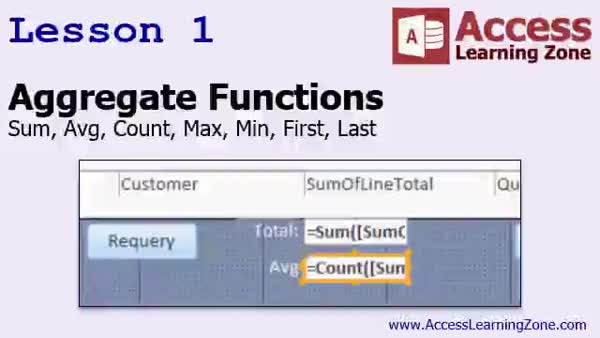
Lesson 1: Sum, Avg, Count, Max & Min Functions - In Lesson 1, we will cover the different aggregate functions in Access, such as Sum, Average, Count, Max, Min, First, and Last, and discuss domain aggregate functions like DSum and DLookup. We will review how to use aggregate functions in form footers, queries, and SQL statements, and I will show you how to calculate values like sums and averages directly on forms and within queries. We will also talk about when to use first and last values based on sorting, and mention that we will focus on non-statistical aggregate functions for now.
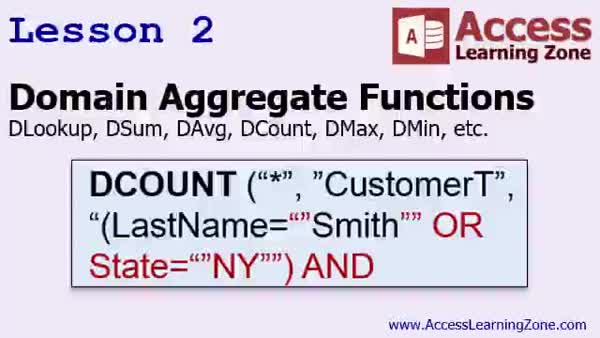
Lesson 2: DLookup, DSum, DCount, DMax, DMin, Criteria - In Lesson 2, we will cover the domain aggregate functions in Access, including DLookup, DSum, DCount, DAvg, DMax, DMin, DFirst, DLast, and others. We will review how these functions work for different data types such as numbers, text, and dates, discuss how to use criteria from form fields, and address important details about quotes and string concatenation in criteria. We will also talk about how to use these functions with or without criteria, handle Boolean values, and combine multiple conditions using AND, OR, and parentheses in your expressions.
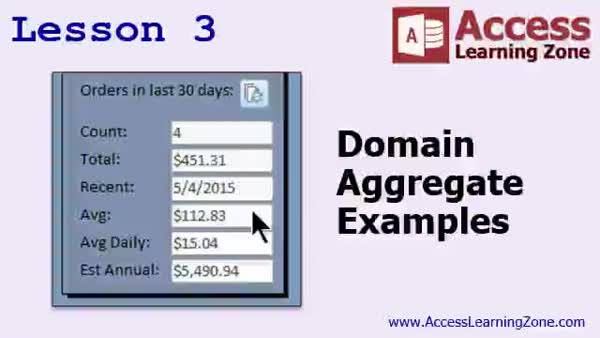
Lesson 3: DLookup, DSum, DCount & More Functions - In Lesson 3, we will walk through several practical domain aggregate examples, including how to use DLookup, DSum, DCount, DMax, and DAverage functions in Access. I will show you how to display related data like a sales rep's phone number using DLookup, calculate totals and counts for recent orders, and display summary statistics. We will also discuss performance considerations when using domain aggregate functions and walk through a basic sales forecasting example by projecting average daily sales to estimate annual totals.
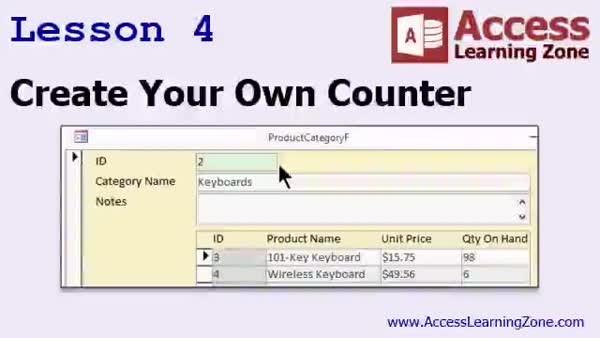
Lesson 4: Editable Auto-Increment Counter with DMax - In Lesson 4, I will show you how to create your own counter variable in Microsoft Access, allowing you to automatically increment an ID when adding new records but still have the flexibility to edit that ID as needed. We will walk through why you might use this approach instead of an autonumber, discuss potential issues with default values and aggregate functions, and then use a macro or VBA code with the BeforeInsert event and the DMax function to make the counter work properly. I will also demonstrate some important considerations with relationships and referential integrity.
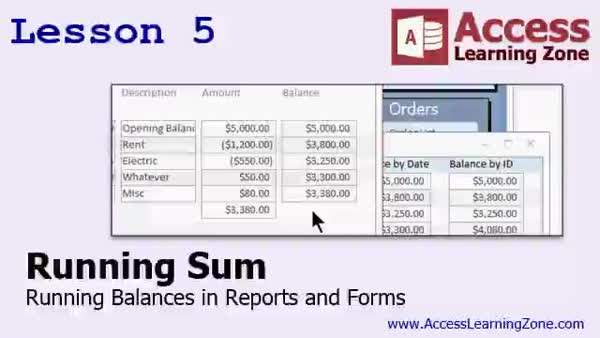
Lesson 5: Create a Running Balance with DSum - In Lesson 5, we will cover how to create a running balance, also known as a running sum, in Microsoft Access using both reports and forms. I will show you how to set up a simple check register table, enter transactions, and display a running balance next to each transaction. We will walk through using the Running Sum property in reports and then discuss how to accomplish running balances in forms using the DSum function, including considerations for sorting and handling null values. We will also briefly discuss some additional features for a more complete check register database.
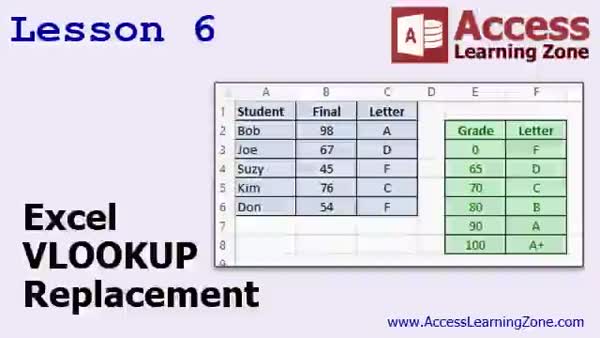
Lesson 6: DLookup & DMax as VLOOKUP Alternatives - In Lesson 6, I will show you how to use Microsoft Access to replace the VLOOKUP function from Excel by creating a lookup table to categorize data, such as assigning credit tiers to customers based on their credit limits. We will walk through building a lookup table, using DMax to find the correct bracket for a value, and then applying DLookup to retrieve the corresponding category. We will also discuss how this approach handles ranges rather than exact matches, for example, assigning a "silver" or "gold" status based on a customer's credit range, similar to how VLOOKUP works with gaps in Excel.
Lesson 7: Aggregate Functions & DLookup - In this course we learned about basic aggregate functions such as sum, average, count, max, min, first, and last, and how to use them in form footers, aggregate queries, and as query criteria. We also discussed domain aggregate functions like DLookup, DSum, and DAvg for working with data across different tables or queries. Examples of custom counters and running sums were provided, as well as using DMax and DLookup as an Excel VLOOKUP replacement. We will talk about financial, formatting, and miscellaneous functions in future lessons, and support and feedback options were also reviewed.
NavigationKeywordsaggregate functions, sum, average, count, max, min, dlookup, dsum, dcount, domain aggregate functions, running balance, running sum, editable counter, dmax, vlookup replacement, lookup tables, sales forecasting, check register, running balances
More InformationTranscriptWelcome to Microsoft Access Expert Level 29, brought to you by AccessLearningZone.com. I am your instructor, Richard Rost. Today's class is Part 5 of my Comprehensive Function Guide to Microsoft Access. Part 1, which was Access Expert 25, covered string and logical functions. Part 2 covered math and type conversion functions. Parts 3 and 4 covered date and time functions. There are a lot of those. Part 5, which is this class, covers aggregate functions, such as sum, average, count, max, min, where you can aggregate or sum up, for example, a bunch of records. We will also cover the domain aggregate functions, where you can use the same kinds of functions across any table or query in the database. These are also called the lookup functions. You can use the lookup to look up a value in a different table or query. Before taking this class, I strongly recommend you have taken Access Expert Level 28 and everything before it. Some of these functions, like the lookup and the sum, I have covered before. I am going to cover them again in today's class, but I am going to go over them a little faster if I have covered them already in previous classes. You will get all the information you need to know today, but it will be helpful if you have taken the previous lessons too. All my classes are designed to be taken in order, one after the other. This class was recorded using Access 2013. All of the functions covered today should work just fine in 2010 and 2007. I am pretty sure everything covered today also works in 2003 and earlier, but I cannot guarantee it. If you are using these earlier versions of Access and you find something that does not work, please let me know. My courses are broken up into Beginner, Expert, Advanced, and Developer Level classes. Beginner level classes are for novices. You should understand all the topics covered in them by the time you get to the Expert level classes, which you are in now. When you finish all the Expert level classes, the Advanced classes will cover event programming and macros, and the Developer classes will cover Visual Basic for Applications. Each group of classes is broken down into multiple levels, level 1, 2, 3, and so on. In addition to my normal Access classes, I also have seminars designed to teach specific topics. Some of my seminars include building web-based databases, creating forms and reports that look like calendars, securing your database, working with images and attachments, writing work orders and running a service business, tracking accounts payable, learning the SQL programming language, creating loan amortization schedules, and lots more. You can find details on all of these seminars and more on my website at AccessLearningZone.com. If you have questions about the topics covered in today's lessons, please feel free to post them in my student forums. If you are watching this course in the online theater on my website, you should see the student forum for each lesson appear in a small window next to the class video. Here you will see all of the questions that other students have asked, as well as my responses to them, and comments that other students have made. I encourage you to read through these questions and answers as you start each lesson and feel free to join in the discussion. If you are not watching these lessons on my website, you can still visit the student forums later by visiting accesslearningzone.com/forums. To get the most out of this course, I recommend you sit back, relax, and watch each lesson completely through once without trying to do anything on your computer. Then, replay the lesson from the beginning and follow along with my examples. Actually create the same database that I make in the video, step by step. Do not try to apply what you are learning right now to other projects until you have mastered the sample database from class. If you get stuck or do not understand something, watch the video again from the beginning, or tell me what is wrong in the student forum, and I will do my best to help you. Most importantly, keep an open mind. Access may seem intimidating at first, but once you get the hang of it, you will see that it is really easy to use. I strongly encourage you to build the database that I build in today's class by following along with the videos. However, if you would like to download a sample copy of my finished database file, you can find it on my website at accesslearningzone.com/databases. Sometimes, if you get stuck, the easiest way to learn is to tear apart someone else's database. One of the ways that I taught myself Access years ago was by tearing apart the Northwind Traders database that comes with Microsoft Access. You will find there is a sample database for each of my courses on my website. Now let's take a few minutes and go over exactly what we are going to cover in today's class. In lesson 1, we are going to cover the different aggregate functions: sum, average, count, max, min, first, and last. In lesson 2, we are going to cover the domain aggregate functions: DLookup, DSum, DCount, and so on. In lesson 3, we are going to go over some examples of some popular domain aggregate functions. We are going to see examples for DLookup, DSum, DCount, DMax, DAverage, and I will show you how to do some real basic sales forecasting. In lesson 4, I am going to teach you how to create your own counter variable. This is similar to an autonumber, in that when you type in a new record, it will automatically add one to the previous ID. However, with this technique, you will have the ability to edit that ID if you want to later. You can change it from 2 to 200, and the next one that you add will be 201, and so on. So you can create your own counter variable. In lesson 5, I am going to teach you how to create a running sum, also known as a running balance, in both a report and a form. In lesson 6, I am going to teach you how to use Access to replace the VLOOKUP statement from Excel. IntroIn lesson 29 of my Microsoft Access Expert series, we will learn about aggregate functions, including sum, average, count, max, min, first, and last, as well as the domain aggregate (lookup) functions like DLookup, DSum, and DCount. I will show you practical examples of these functions, basic sales forecasting, how to create your own editable counter variable, how to set up running sums or balances in reports and forms, and how to use Access as a replacement for Excel's VLOOKUP. This is part 5 of my comprehensive function guide. QuizQ1. What is the main focus of Access Expert Level 29? A. Advanced form design techniques B. Comprehensive function guide, focusing on aggregate and domain aggregate functions C. Security and user permissions in Access D. Integrating Access with Excel Q2. What are aggregate functions used for in Access? A. Creating new tables automatically B. Aggregating or summarizing multiple records, like sum, average, or count C. Formatting form layouts D. Linking Access to web applications Q3. Which functions are considered domain aggregate (lookup) functions in Access? A. VLOOKUP, HLOOKUP B. DLookup, DSum, DCount, DMax, DAverage C. SUMIF, AVERAGEIF D. COUNTIF, MAXIF Q4. Why does Richard recommend taking previous Expert Level classes before this one? A. To have the necessary background knowledge for understanding the discussed functions B. Because earlier classes are easier to pass C. To practice Excel skills D. As a requirement for forum access Q5. What versions of Access are most likely to support all the functions covered in this class? A. Only Access 2013 B. Access 2010, 2013, and 2007 (possibly earlier, but not guaranteed) C. Only Access 2003 and earlier D. Access for Mac only Q6. What is recommended for getting the most out of this course? A. Memorize every function from the manual B. Watch each lesson, then follow along by creating the sample database C. Skip to the sections you find interesting D. Only use downloaded solutions Q7. What is the advantage of creating your own counter variable as taught in Lesson 4? A. It acts exactly like the built-in AutoNumber with no differences B. It allows users to edit the counter value and set the next value manually C. It prevents data from being deleted D. It protects your database with encryption Q8. What task does Lesson 5 teach? A. Securing your database with passwords B. Importing external data from Excel C. Creating a running sum or running balance in forms and reports D. Designing web-based forms Q9. Which Excel function is specifically mentioned as being replaced in Access in Lesson 6? A. SUM B. VLOOKUP C. IF D. CONCATENATE Q10. How can students get help if they do not understand a topic in the lesson? A. Contact Microsoft support directly B. Post questions in the student forums available on the website C. Email other students D. Wait for the next class for answers Answers: 1-B; 2-B; 3-B; 4-A; 5-B; 6-B; 7-B; 8-C; 9-B; 10-B DISCLAIMER: Quiz questions are AI generated. If you find any that are wrong, don't make sense, or aren't related to the video topic at hand, then please post a comment and let me know. Thanks. SummaryToday's video from Access Learning Zone is Microsoft Access Expert Level 29. I'm your instructor, Richard Rost. This class is the fifth installment in my Comprehensive Function Guide for Microsoft Access. To give you some context, Part 1 of this guide (covered in Access Expert 25) focused on string and logical functions. The second part discussed mathematical functions and type conversion. Parts 3 and 4 addressed date and time functions, which are quite numerous in Access. In this fifth installment, I will focus on aggregate functions such as sum, average, count, max, and min. These functions allow you to summarize sets of records, for example, by adding up totals or finding averages. I'll also discuss domain aggregate functions, which let you carry out similar operations using data from any table or query in your database. These are often referred to as lookup functions, because they allow you to retrieve values from elsewhere in your data. Before proceeding with this class, I recommend you have completed Access Expert Level 28 and all prior lessons. I have introduced some of these functions, like lookup and sum, in earlier classes, but today I'll move through familiar ground quickly. Everything you need to know will be covered, but the earlier classes provide a solid foundation and context. My courses build on each other in sequence, so it is best to take them in order. This particular lesson was recorded in Access 2013. The functions I discuss today should also work in Access 2010 and 2007. I believe most of them work even in versions as far back as Access 2003, but I can't guarantee compatibility for all features. If you encounter issues when using an older version, I encourage you to reach out and let me know. My Access curriculum is organized into Beginner, Expert, Advanced, and Developer Levels. The Beginner courses target those new to Access. By the time you reach the Expert Level, you should have mastered the prior topics. The Advanced Level goes deeper into event programming and macros, while the Developer Level delves into Visual Basic for Applications. Each group is split into multiple, progressive levels: Level 1, 2, 3, and so on. Beyond my regular Access series, I also offer seminars on specialized topics. These workshops cover areas like building web-based databases, designing calendar-style forms and reports, database security, handling images and attachments, managing work orders for service businesses, tracking accounts payable, learning the SQL language, creating loan amortization schedules, and more. Details on all these seminars can be found on my website. If you have questions during the course, you're welcome to join my student forums. If you're watching this lesson in my online theater, the relevant forum for each lesson will appear alongside the video. Here, you'll see questions and comments from other students, along with my answers. I encourage you to read through these threads and take part in the discussions. Even if you're not watching on my website, you can visit the forums anytime by going to accesslearningzone.com/forums. To get the most from this class, I suggest watching each lesson through once without doing anything on your computer. After that, watch it a second time and work along with me step by step, creating the same database I demonstrate in the video. It is best to follow the sample database rather than trying to apply the lessons to another project right away. If you find yourself stuck or something doesn't make sense, replay the lesson, or ask for help in the forums. I will do my best to assist you. Remember, learning Access may seem challenging at first, but once you understand the basics, it becomes much easier. While I encourage you to build the sample database yourself as you follow along, you can also download a copy of my finished database file from my website if you need extra help. Sometimes, examining someone else's work—such as breaking apart the Northwind Traders sample database that comes with Access—is a great way to learn. You'll find a sample database for each of my courses available on my site. Here is an overview of the topics we'll cover in today's class: In Lesson 1, I will introduce the various aggregate functions you can use in Access, such as sum, average, count, max, min, first, and last. In Lesson 2, I'll explain the domain aggregate functions: DLookup, DSum, DCount, and others. Lesson 3 will walk you through examples of the most popular domain aggregate functions, including practical demonstrations using DLookup, DSum, DCount, DMax, and DAverage. I'll also share a basic example of sales forecasting using these functions. Lesson 4 will show you how to build a custom counter variable. This works like an autonumber, automatically increasing the ID for each new record. What's unique is that it lets you edit the ID if you want, and future records will follow the updated sequence. Lesson 5 will teach you how to create a running sum, also referred to as a running balance, within both reports and forms. In Lesson 6, I'll show you how to use Access to mimic the behavior of the VLOOKUP function from Excel. You can find a complete video tutorial with step-by-step instructions on everything discussed here on my website at the link below. Live long and prosper, my friends. Topic ListAggregate functions: sum, average, count, max, min, first, last Domain aggregate functions: DLookup, DSum, DCount, DMax, DAverage Examples of domain aggregate functions in practice Basic sales forecasting using domain aggregates Creating a custom counter variable for records Editable auto-increment ID fields Creating a running sum or running balance in reports Creating a running sum or running balance in forms Using Access to replace Excel's VLOOKUP function Primary Topicsaggregate functions, domain aggregate functions, DLookup, DSum, DCount, counter variables, running sums, VLOOKUP alternatives Secondary Topicssales forecasting, sample databases, Access version compatibility |
||||||||||||||||||||||||||||||||||||||||||||||||||||||||||||||||||||||||||||||||||||||
|
| |||
| Keywords: aggregate functions, sum, average, count, max, min, dlookup, dsum, dcount, domain aggregate functions, running balance, running sum, editable counter, dmax, vlookup replacement, lookup tables, sales forecasting, check register, running balances PermaLink Microsoft Access Expert 29 |