|
||||||
Access Advanced 4Macros, Password Forms, Customer Labels, EventsWelcome to Access Advanced 4. In this course you will learn how to use macros and events to automate tasks in Microsoft Access, including requiring a password to open forms, creating a full sheet of customer labels using various methods, and working with table data and form-based label printing. We will discuss introducing build events for customizing printed reports, organizing your automation with macro groups and submacros, and offer advice on software versions and using sample databases. Lessons
Resources
Lesson SummaryWelcome! Password Forms & Print Labels - Welcome to Microsoft Access Advanced Level 4. In this course we will focus on macros and events to automate tasks and add functionality to your database, building on skills from previous beginner, expert, and advanced levels. We will discuss requiring a password to open forms, creating a full sheet of customer labels using different methods, working with table data directly and form-based label printing, and introducing build events for customizing printed reports. We will also talk about macro groups and submacros, noting some changes in Access 2016, and I will offer suggestions on software versions and working with the sample database.
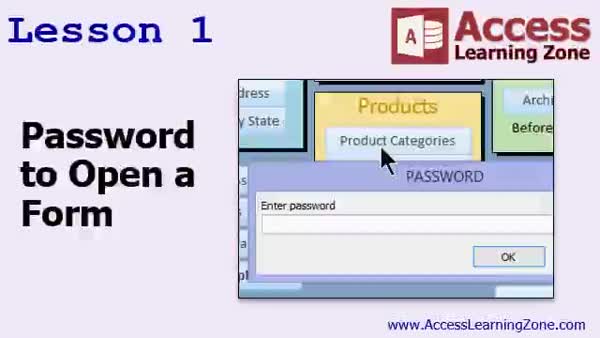
Lesson 1: Password Locks for Forms & Buttons - In Lesson 1, we will walk through how to require users to enter a password to open a form in Access. I will show you how to add a password prompt using macros, store the password in a settings table for easier management, and use DLookup to retrieve it. We will also discuss ways to reuse this password protection across different forms and briefly mention custom password forms and options for encrypting passwords in your database.
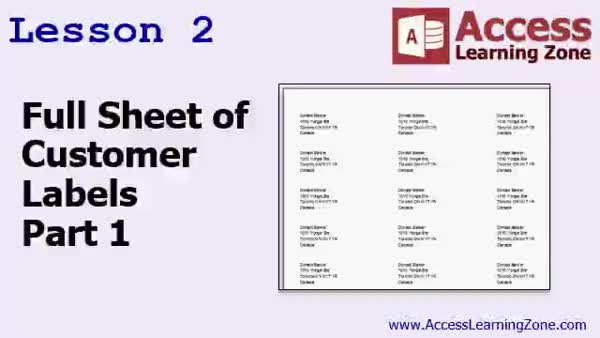
Lesson 2: Same Label Sheet, No Macros - In Lesson 2, we will walk through how to create a full sheet of same customer labels with a simple, non-programming method. I will show you how to use the label wizard, set up the fields to pull directly from your current form, and adjust the layout as needed. We will also cover how to use a temporary table to produce 30 identical labels for one customer per sheet. We will talk about another method using macros and a loop in the next lesson, and discuss the advantages of each approach.
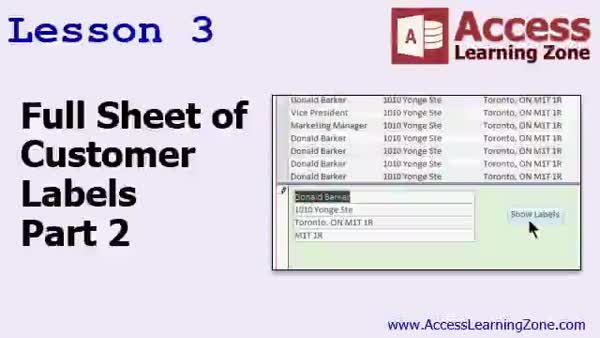
Lesson 3: Make a Full Sheet of Same Labels - In Lesson 3, we will explore two more techniques for creating a full sheet of same customer labels. First, I will show you how to open a table directly and use SendKeys to input label data, which is a quick but less reliable method. Next, we will walk through how to build a label form and use a macro loop to generate the desired number of labels for each customer. We will discuss how to let users specify the label quantity, modify label entries, and review the benefits of working with a label table for flexibility in preparing customer labels.
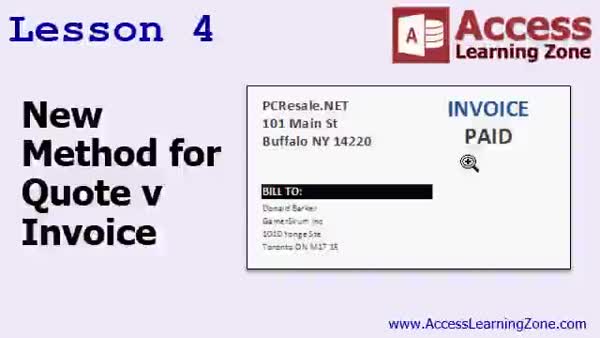
Lesson 4: Edit Quote or Invoice Text with Macros - In Lesson 4, we will walk through a new method for setting the "quote" or "invoice" text on a printable invoice by using build events and macros in report sections. I will show you how to use a label for the quote or invoice text and control its caption with a macro based on the "is quotation" field. We will discuss why the field must be present in the report, how to avoid visibility issues, and compare this method to the original query-based approach. This lesson introduces build events as a foundation for future techniques.
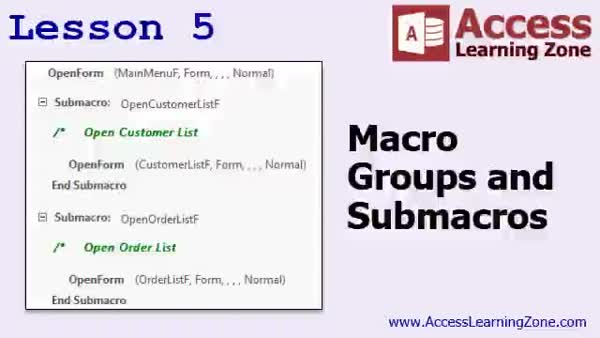
Lesson 5: Macro Groups & Submacros Guide - In Lesson 5, we are going to learn about macro groups and sub-macros in Access. I will explain the difference between a macro group and a sub-macro, show how to organize multiple macro commands using groups for better readability, and demonstrate how to create and use sub-macros to reduce clutter in your navigation pane. We will walk through creating macros that include both groups and sub-macros, how to call sub-macros using the run macro command, and when to use commands outside of sub-macros for default actions. We will also briefly discuss comments.
Lesson 6: Review & Next Steps: Level 4 - In this course we learned about advanced Microsoft Access techniques, including upcoming topics like adding billing and shipping addresses to orders and using macros to automate transferring information between customer and order forms. We discussed options for learning more through seminars on specific subjects and covered how upgrading to developer-level classes works. Additional resources such as forums, tech support, social media channels, and customer service options were covered, along with the importance of providing feedback through surveys. We also reviewed licensing terms for course materials and available multi-user licensing for organizations.
NavigationKeywordspassword protect form, print customer labels, macros, macro groups, submacros, report build events, label printing, DLookup password, sendkeys, label wizard, temporary table labels, form-based labels, quote vs invoice text, settings table
More InformationTranscriptWelcome to Microsoft Access Advanced Level 4, brought to you by AccessLearningZone.com. I am your instructor, Richard Rost. This is the Advanced Series of Classes, which follows my Beginner and Expert level classes. The series focuses on macros and events, which allow you to automate tasks and add functionality to your database. This class follows Access Advanced Level 3. I strongly recommend you take all the Beginner and Advanced Level 1 through 3 classes before starting this one. There are 9 beginner levels and 32 expert levels as of right now. There are 3 advanced levels; this is level 4, and soon we will start the Developer classes, which will focus on VBA programming. This class was recorded using Access 2016. Pretty much everything covered should work. Some things have changed; the macro groups and sub-macros, which will be covered in level 5, have changed. I believe 2016 was the first year they changed, for example, macro groups and what I call sub-macros. Most everything else should still work. However, if you are using one of these older versions, I do strongly recommend you upgrade to Access 2016. I personally suggest the Office subscription, which is relatively inexpensive, and you constantly have the most current, updated version of Access. It is automatically installed, you get updates, and it is much better than purchasing older versions of the software. So if you have not upgraded yet, now is the time to upgrade. Of course, I recommend you build the database that I build in class, but if you want to download the sample database, you can find it here at AccessLearningZone.com. Or there is a shorter URL for you. I still keep the 599CD name around. It is how the company started. Our pricing gimmick was $5.99 for a beginner lesson, and of course, the more advanced lessons cost more. But the URL is nice and short. It is a 5 letter domain name, so I have kept it. Let's talk about what is covered in today's class. In Lesson 1, we are going to learn something that people ask me all the time. We are going to talk about how to force the user to type in a password to open a form. We have buttons on our main menu, and we do not want the user to be able to use those buttons unless they know a password. That is what we will cover in this lesson. In Lessons 2 and 3, we are going to learn how to make a full sheet of customer labels. In other words, you click on one button and you get a full sheet of labels for just the current customer. I am going to show you two different methods. One that does not require macros and is relatively easy to set up. In Lesson 3, we will do the same thing again, but with a macro loop. In Lesson 3, I am going to show you two more techniques for creating a full sheet of customer labels. First, I am going to show you how to open the table directly and to send the keys, the keystrokes of the label text right into the table. It is not the best method, but it is a cool technique, and you might use it from time to time. The second method I am going to show you is how to create a form, a label form like you see on the screen right there. Then we will open it up and then run a macro loop to say, how many labels of this customer would you like? I want 7 of them. Boom, there go 7 of them. You can go in there and modify them, manipulate them, and play with them. In Lesson 4, we are going to see a new method for setting the "Quote" versus "Invoice" text on our printable invoice, our printable report. In an earlier class, I showed you how to do this by just simply using a query. There is nothing wrong with that method. However, in this lesson, I want to start introducing you to build events in the detail and different sections of printed reports. This will be kind of like an intro to that. In Lesson 5, we are going to learn about macro groups and sub-macros. IntroIn this lesson, you will learn advanced techniques in Microsoft Access, including how to require a password before opening a form, create a full sheet of customer labels using different methods (with and without macros), and explore new ways to set custom text like "Quote" or "Invoice" on reports using build events. We will also begin discussing macro groups and sub-macros to help automate your database tasks. This is Access Advanced Level 4. QuizQ1. What is the main focus of the Access Advanced Level 4 class? A. Working with tables and queries B. Automating tasks and adding functionality using macros and events C. Designing forms and reports only D. Configuring network settings in Access Q2. Which Access version was used to record the Advanced Level 4 class? A. Access 2010 B. Access 2013 C. Access 2016 D. Access 2019 Q3. Why does the instructor recommend upgrading to Office subscription for Access? A. It is more expensive than older versions B. It only works offline C. You always have the most updated version and get updates automatically D. You can only use it for 1 year Q4. In Lesson 1, what is covered regarding form access? A. Adding drop-down lists B. Forcing the user to type in a password to open a form C. Printing all records automatically D. Backing up the database Q5. What will you learn in Lessons 2 and 3 related to customer labels? A. How to import labels from Excel B. How to create a full sheet of labels for just the current customer using different methods C. How to email labels to all customers D. How to export labels as images Q6. What is unique about the second method for creating customer labels in Lesson 3? A. It exports a single label to Word B. It sends keystrokes of label text directly into a table and allows for macro loops to generate multiple labels C. It requires only SQL queries D. It prints labels directly from the report view Q7. What new topic is introduced in Lesson 4 regarding printable invoices? A. Changing invoice colors automatically B. Sending invoices through email C. Using build events in printed report sections to set "Quote" vs "Invoice" text D. Setting up invoice table relationships Q8. What is discussed for the first time in Lesson 5? A. Creating calculated fields B. Macro groups and sub-macros C. Importing data from external files D. Backup and restore procedures Answers: 1-B; 2-C; 3-C; 4-B; 5-B; 6-B; 7-C; 8-B DISCLAIMER: Quiz questions are AI generated. If you find any that are wrong, don't make sense, or aren't related to the video topic at hand, then please post a comment and let me know. Thanks. SummaryToday's video from Access Learning Zone is Microsoft Access Advanced Level 4. I am Richard Rost, your instructor. This course is a continuation of my Beginner and Expert classes and focuses especially on macros and events. These tools help you automate tasks and add extra features to your Access databases. Before starting with Level 4, I highly recommend you complete all of the Beginner and Expert courses, as well as Advanced Levels 1 through 3. Right now, there are 9 Beginner levels and 32 Expert levels available. This is the fourth class in the Advanced series, and coming up next will be the Developer course series, which will center on programming with VBA. This course was originally recorded using Microsoft Access 2016. Almost everything in this class should work fine with later versions of Access as well. Some changes, including the way macro groups and sub-macros are handled, will be discussed in Level 5. If you are still using an older version, I strongly advise upgrading to Access 2016 or later, as features continue to improve and compatibility is best with a current version. For most users, I suggest an Office subscription. It's affordable, keeps your software up to date automatically, and ensures you always have the latest features and security fixes. This approach is better than buying one old version of Access and sticking with it for years. As always, it is most beneficial if you build the database right along with me as you go through the lessons. If you prefer, you can download the sample database from my website. I also have a shorter URL for convenience, a nod to my company's original domain and pricing structure. Now, let me outline what you will learn in this course. In Lesson 1, I'll show you how to require a user to enter a password in order to open a form. This is a common question. Perhaps you have some buttons on your main menu that you do not want everyone to access. I'll teach you how to set up password protection to control access to specific features. Lessons 2 and 3 focus on generating a full sheet of labels for a specific customer. You'll learn how to set things up so that pressing one button gives you an entire page of labels for the current customer. I'll show you two different approaches. The first requires no macros and is straightforward to set up. Then, in the next lesson, you'll see how to achieve the same result using a macro loop for more automation. In Lesson 3, there are also two more methods for creating a page of customer labels. One involves opening the table directly and sending keystrokes to enter the label text. While this isn't necessarily the best solution, it can be a useful trick in certain situations. The other method involves creating a label form, where you can specify the number of labels you want for a customer, such as 7 labels, and the form will generate them immediately. You can then customize those labels as needed. Lesson 4 introduces a new way to set the text for "Quote" or "Invoice" on your printable reports. Previously, I showed you how to do this with a query, which is still valid. In this lesson, though, you'll start working with build events in the detail and other sections of printed reports. This serves as an introduction to handling events for custom report output. Finally, Lesson 5 is all about macro groups and sub-macros, building a strong foundation for even more advanced automation and custom processes. You can find a complete video tutorial with step-by-step instructions on everything discussed here on my website at the link below. Live long and prosper, my friends. Topic ListPassword protecting a form with a prompt Requiring a password to access menu buttons Creating a full sheet of customer labels without macros Generating a full sheet of customer labels using a macro loop Sending keystrokes directly to a table to create labels Building a label form and generating multiple labels per customer Using macro loops to automate label creation on forms Setting "Quote" versus "Invoice" text on reports Using report events to modify printed report sections Introduction to macro groups and sub-macros Primary TopicsAccess macros, events, automating tasks, password-protected forms, label sheet creation, macro loops, report customization, macro groups, sub-macros Secondary TopicsAccess version compatibility, building sample databases, Office 2016 features |
||||||||||||||||||||||||||||||||||||||
|
| |||
| Keywords: password protect form, print customer labels, macros, macro groups, submacros, report build events, label printing, DLookup password, sendkeys, label wizard, temporary table labels, form-based labels, quote vs invoice text, settings table PermaLink Microsoft Access Advanced 4 |