|
||||||
Access Developer 8Partial Payments, Overpayments, Search As You TypeWelcome to Access Developer 8. In this course you will learn how to enhance your order entry system by adding and managing partial payments, improving security with manager password checks, and handling overpayments. We'll discuss setting up default values, using public functions for password management, and searching your VBA code for specific functions. You will see how to create a search as you type form that lets users filter lists in real time, manage form permissions with code, and optimize your forms for better user experience and data integrity. Lessons
Resources
Space ProblemEvery couple of months, someone asks me about spaces being a problem in the Search As You Type lesson. Yes, this is a much more advanced issue. I cover how to deal with this in the Access Search Seminar. That is an excellent seminar and covers tons of topics. However, if you don't want to spend the money on the seminar, I have posted just lesson 33 which solves the "trailing space" problem below, for Gold Members of my website. The cost of Gold membership is very inexpensive. You'll get access to that video plus a whole bunch of other stuff including all of my TechHelp Extended Cut videos, and the Code Vault.
Lesson SummaryWelcome! Partial Payments & Search Form - Welcome to Microsoft Access Developer Level 8. In this course we will continue working on the order entry system partial payments feature, focusing on enhancements, security additions, and handling overpayments. We will discuss setting up default values, managing form permissions with code, and making the manager password a global public function. I will show you how to search your code for specific functions, and we will talk about building a search as you type form so users can filter lists of customers or companies in real time by entering text.
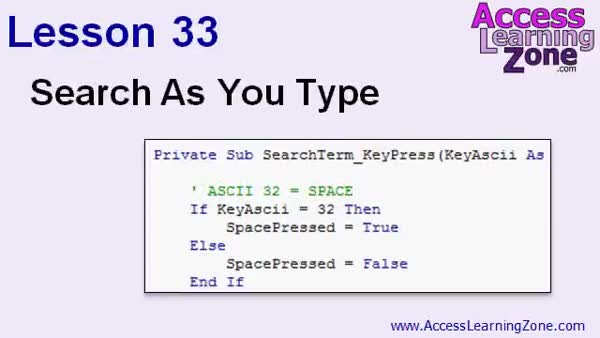
Welcome! Live Search Form with Results - In Lesson 33, we will walk through how to convert a natural language search form into a search-as-you-type form in Microsoft Access. As we discuss search-as-you-type functionality, you will see how to handle key events, the importance of ASCII codes, and the best event to trigger instant search updates with each keystroke. I will show you how to address quirks like handling the space character, keep the cursor position correct, and requery your search results in real time. We will also cover best practices such as indexing fields to ensure your search remains efficient.
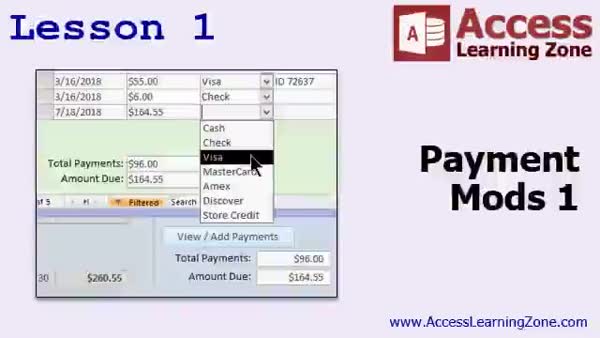
Lesson 1: Defaults, Overpay & Security - In Lesson 1, we will enhance the partial payment system by setting default values for payment amounts, updating totals automatically, and improving security to prevent unauthorized changes and overpayments. I will walk through setting the payment amount's default value, making the payment form more keyboard-friendly, and ensuring the order is marked paid when appropriate. We will also discuss handling and preventing overpayments, as well as some issues related to form events and best practices for working in design view. These modifications aim to make the payment mods system more secure and user-friendly.
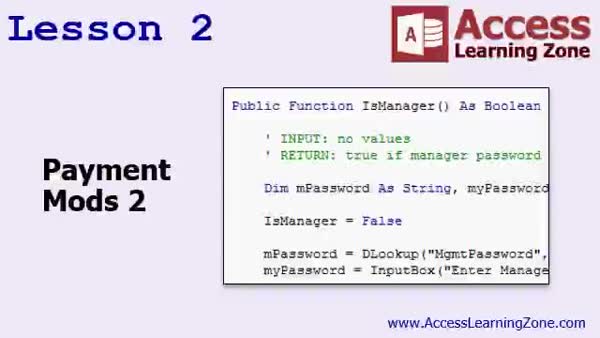
Lesson 2: Add, Edit, Delete Payments w/ Passwords - In Lesson 2, we will continue with our payment system modifications by setting up the payment form to control additions, edits, and deletions based on whether an order is marked paid. We will walk through making the manager password check a global public function, and I will show you how to search your entire project to ensure all password instances are managed consistently. We will also discuss adjusting form behaviors and prompts, updating button actions, and best practices for coding to prevent unexpected property changes within your forms as you enhance your payment mods.
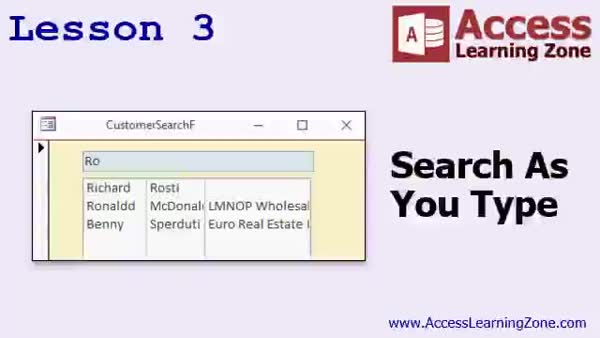
Lesson 3: Search As You Type Filter Fields - In Lesson 3, we will walk through how to build a basic search as you type function in Access. You will see how to filter a customer list instantly as you enter characters into a search box, including searching across multiple fields at once - such as first name, last name, or company name. We will cover combining these fields into a single search parameter, using key press and change events to handle real-time filtering, discuss the differences between those events, and look at handling issues like cursor placement and efficiently updating the results as you type.
Lesson 4: Review & Next Steps: Adv Order Entry - In this course we learned about the topics covered in Microsoft Access Developer Level 8, including updates on future lessons such as Access Developer Level 9, continued work with the order entry system, upcoming record set features, and inventory control. We also discussed where to find additional resources, seminars, and support on the instructor's website, as well as ways to provide feedback and stay updated through social media and the blog.
NavigationKeywordspartial payments, search as you type, live search form, real time filter, overpayment check, manager password, form permissions, order entry system, payment mods, default values, keyboard shortcuts, filter multiple fields, global public function
More InformationTranscriptWelcome to Microsoft Access Developer Level 8 brought to you by AccessLearningZone.com. I am your instructor, Richard Rost. Today's class is going to cover more with the partial payments that we've been working on in our order entry system in previous classes. We are also going to spend some time learning how to do a search as you type form. As you type in characters into a little search box, it filters a list of customers or companies or whatever you want to search for. This course follows Access Developer Level 7. I recommend that you complete all of my Beginner, Expert, and Advanced classes, and Developer 1 through 7, before taking this class. For those of you who have never taken any of my classes before, they are broken up into Beginner, Expert, Advanced, and Developer classes. The Beginner class covers the basics. When I say basics, I mean fundamentals. Expert is for people who want to learn a little bit more. Advanced focuses mostly on events and macro programming, which is a good precursor to development. Developer is what you are taking now. This focuses on VBA and taking your databases to the next level. Each category is broken down into multiple levels. This is Level 8. Each level is about an hour and a half long. You can find a copy of the database that I am working on in class at this webpage: 599CD.com/databases. I recommend that you build the database yourself, following along from scratch with me. You will get the most out of it. However, if you are lazy, like I can be sometimes, or if you have messed up somewhere along the way, you can always download mine right here. You will need your password that you got when you purchased this class in order to open up the database. This class is recorded using Microsoft Access 2016 from Office 365. Everything that I cover in today's class should work just fine in 2007, 2010, and 2013. Now let's take a closer look at what is covered in today's class. In today's class, we are going to focus a lot on adding some enhancements, modifications, and security additions to the partial payment system that we built in the last class. In lesson one, we are going to start by setting up some default values so our users do not have to keep typing in amounts too. We will deal with what happens when an order is paid and we will check for overpayments. In lesson two, we will continue with our payment system modifications. We are going to talk about how to set your form with code to allow additions, edits, and deletions. We are going to take that manager pass and make it a global public function. I will show you how to globally search all of your code to make sure that you have covered all instances of something. In lesson three, we are going to build something that I get a lot of emails about: how to make a search as you type function. We will have a list of customers and a text box we can search in, and as I enter characters, it filters that list down. We will also have it so we can search in multiple fields at the same time. If you are not sure whether it is the person's first name, last name, or their company name, just typing in a few characters will break the list down and you can see all of the people with those particular criteria. IntroIn lesson 8 of Microsoft Access Developer, we will continue enhancing the partial payment system in our order entry database, adding features like setting default payment values, handling paid orders, and checking for overpayments. You will learn how to control form permissions for adding, editing, and deleting records, make the manager pass feature a global public function, and perform a global search through your code. We will also build a search-as-you-type form that filters a customer list by multiple fields as you enter text. QuizQ1. What is one of the main features covered in Access Developer Level 8? A. Setting up basic tables B. Implementing a search as you type form C. Importing data from Excel D. Designing reports only Q2. What should students have completed before taking Access Developer Level 8? A. Just the Beginner classes B. All Beginner, Expert, Advanced, and Developer 1 through 7 classes C. Only the Developer Level 7 class D. Only Advanced classes Q3. What is a recommended way to follow along in the class? A. Only watch the video, no need to use Access B. Build the database yourself from scratch C. Use a prebuilt database from the internet D. Take notes while reading a book Q4. What programming language does the Developer series focus on? A. Python B. JavaScript C. VBA D. SQL Server T-SQL Q5. In the context of partial payments, what security addition is mentioned in this video? A. Setting up an automatic backup B. Adding a global public function for the manager password C. Encrypting the entire database D. Disabling form editing altogether Q6. What feature will be added to the search as you type form in Lesson Three? A. Filtering on just one field B. Printing filtered results automatically C. Searching across multiple fields simultaneously D. Exporting search results to PDF Q7. What does the code in Lesson Two allow you to control on a form? A. Web integration settings B. Allowing additions, edits, and deletions C. Changing font types automatically D. Managing database size Q8. What happens if students forget their password for the class database? A. They are locked out permanently B. They can reset it online C. They need the password from their class purchase confirmation D. They can ignore the password prompt Q9. Which Access versions will the techniques shown in the class work with? A. Only Access 2016 B. Access 2007, 2010, 2013, and 2016 C. Only Access 2010 and up D. Access 2003 and newer Q10. What should you do if you make a mistake while building the class database? A. Restart the class from scratch B. Download the class database provided by the instructor C. Call Microsoft support D. Skip the affected lesson Answers: 1-B; 2-B; 3-B; 4-C; 5-B; 6-C; 7-B; 8-C; 9-B; 10-B DISCLAIMER: Quiz questions are AI generated. If you find any that are wrong, don't make sense, or aren't related to the video topic at hand, then please post a comment and let me know. Thanks. SummaryToday's video from Access Learning Zone is Microsoft Access Developer Level 8. I'm Richard Rost, your instructor, and in this class we continue working on the order entry system, particularly focusing on improvements to the partial payments functionality that we've developed in previous lessons. In addition, we'll learn how to create a form that lets you search as you type, allowing users to quickly filter through lists of customers, companies, or any other records they might need to locate. This course picks up right where Developer Level 7 left off. If you're new to my classes, I recommend you go through the Beginner, Expert, and Advanced courses, as well as Developer Levels 1 through 7, before starting this class. My curriculum is structured in this way: the Beginner courses teach the fundamental basics, Expert adds more detail, Advanced spends a lot of time on events and macros, preparing you well for the development work we'll be doing in these Developer courses. The Developer series is focused on VBA and advanced techniques to help you build powerful, fully-featured Access databases. Each category is divided into multiple levels, and Level 8 runs about an hour and a half. If you want to use the same database that I demonstrate with during class, you can find it at 599CD.com/databases. I strongly encourage you to build your own database along with me to learn as much as possible, but if you prefer, or if you encounter issues along the way, you can download a copy of mine with the password you received after purchasing the course. I used Microsoft Access 2016 from Office 365 to record this series, but everything you'll learn here should also apply to Access 2007, 2010, and 2013. Here's a closer look at what we will cover in this class. We'll start by making enhancements, modifications, and some security improvements to our partial payments system from the previous lesson. In the first lesson, we work on establishing sensible default values so users don't have to type in the same amounts repeatedly. We'll also handle cases where an order is paid in full and include checks to prevent overpayments. In the second lesson, we'll build on these payment system updates. You'll learn how to control your form's ability to add, edit, and delete records using VBA. We'll also take the manager password logic and convert it into a public function, making it accessible across your application. I'll explain how to perform a global search through your database's code so you can make sure every instance of something important is handled properly. For lesson three, we tackle a topic that I get frequent requests for: creating a search-as-you-type feature. We'll design a form with a text box that filters a list of customers in real time as you enter characters. You'll also see how to search multiple fields at once, making it easy to find people even if you are unsure whether you're looking for their first name, last name, or company name. Typing just a few characters narrows the results, showing all records that match your criteria. You can find a complete video tutorial with step-by-step instructions on everything discussed here on my website at the link below. Live long and prosper, my friends. Topic ListSetting default payment values in forms Handling fully paid orders Checking for overpayments in orders Configuring form permissions with VBA Creating a global manager password function Performing global code searches in Access Building a search as you type form Filtering listboxes using input text Searching across multiple fields dynamically Primary Topicspartial payments, order entry system, search as you type, Access forms, VBA enhancements, security, user interface improvements, overpayment handling Secondary Topicsform properties, global public functions, code searching, multi-field search |
||||||||||||||||||||||||||||||||||||||||||||||||||||||||||||||
|
| |||
| Keywords: partial payments, search as you type, live search form, real time filter, overpayment check, manager password, form permissions, order entry system, payment mods, default values, keyboard shortcuts, filter multiple fields, global public function PermaLink Microsoft Access Developer 8 |