|
||||||
Access Developer 12Universal Dialogs, Form Positioning, String ManagerWelcome to Access Developer 12. In this course you will learn how to work with a Universal Dialog Box, set up custom form positioning including controlling size and location, and create an external string manager for supporting multiple languages in your Microsoft Access databases. We will also review requirements, where to find sample databases, and discuss supported Access versions, building on previous lessons to further develop your skills. Lessons
Resources
Lesson SummaryWelcome! Dialog Boxes, Form Position, String Mgmt - Welcome to Microsoft Access Developer Level 12. In this course we will continue working with the Universal Dialog Box, learn how to set custom form positioning including controlling the location and size of forms, and discuss building an external string manager to support multiple languages in your Access databases. You should have completed all previous Beginner, Expert, Advanced, and Developer 1-11 lessons. We will also review where to find the sample databases and which Microsoft Access versions are supported. Each lesson will build on these concepts to enhance your Access development skills.
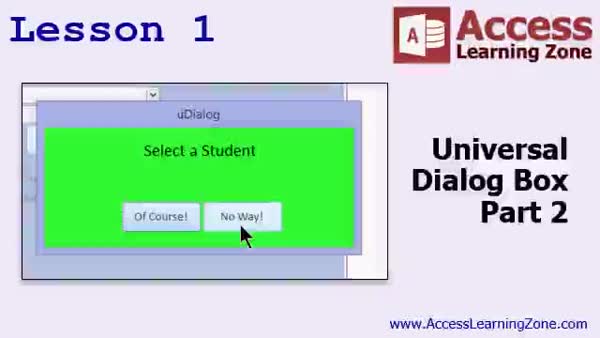
Lesson 1: Custom Dialog Box With Buttons - In Lesson 1, we continue building the Universal Dialog Box that was started in a previous course, working specifically on adding customizable OK, Cancel, Yes, and No buttons to allow flexible user responses. We will walk through modifying the form, setting up parameters for button visibility and captions, handling user selections, and returning values to the calling code using a global variable and function. We will also discuss While loops and the DoEvents command to manage user interaction, and briefly mention some updates in Access as well as future plans to cover additional topics like form positioning and chart features.
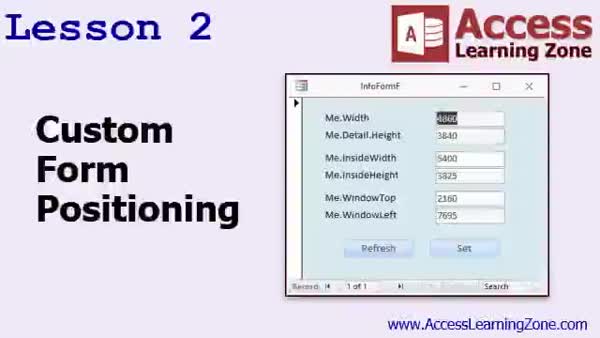
Lesson 2: Set Custom Form Size & Position - In Lesson 2, we will study custom form positioning in Microsoft Access, including how to set a form's height and width, understand their measurements at both design time and runtime, and how to use properties like width, inside width, inside height, window top, and window left. I will show you how to read and manually set these form properties using VBA, demonstrate the use of the me.move command, discuss limitations such as read-only window position properties, and explain options for centering forms and using timer events, as well as the significance of twips as measurement units.
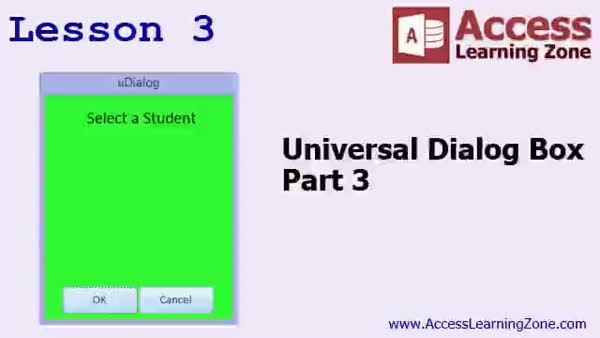
Lesson 3: Center, Resize, & Move Dialogs - In Lesson 3, we continue working on our Universal Dialog Box, focusing on how to center the form on the screen, control its exact position, and set its height and width. We will walk through updating the code to allow for precise positioning and resizing, and show how to program the form so that the label and buttons adjust automatically when the dialog box is resized. We will also discuss handling button positioning both vertically and horizontally, including edge cases if the dialog becomes too small, and touch on techniques for applying these resizing methods to other forms.
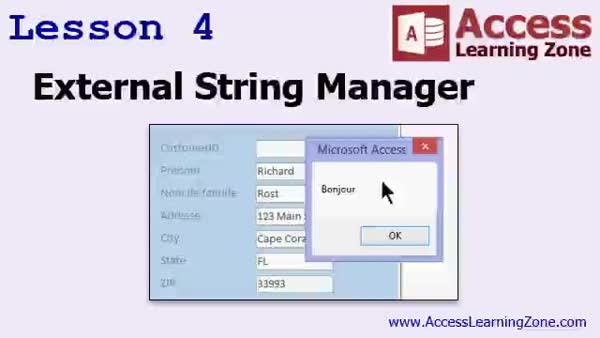
Lesson 4: Multilingual String Manager - In Lesson 4, we will build an external string manager to help manage multi-language support in a database without having to create multiple forms or front-end copies for different users. I will show you how to set up tables for user settings, languages, and string values, and then walk through updating form and report labels based on the current user's language using a central getString function. We will also discuss how to apply the external string manager to prompts and buttons throughout your database for a streamlined, multi-language user interface.
Lesson 5: Lessons, Updates & Forums - In this course we learned lessons from Access Learning Zone, including upcoming plans for Access Development 13, an update on recording schedules, information on where to continue learning with Access 2003 and VBA materials, and a mention of different seminars such as web databases and multi-user setup. We also discussed ways to contact for help, interact through forums and social media, and the importance of completing the survey to provide feedback.
NavigationKeywordsUniversal Dialog Box, custom form positioning, dynamic form sizing, customizable buttons, dialog box return values, me.move, twips, external string manager, multilingual database, form centering, button repositioning, getString function, multi-language su
More InformationTranscriptWelcome to Microsoft Access Developer Level 12 brought to you by AccessLearningZone.com. I am your instructor, Richard Rost. In Level 12, we are going to continue working with our Universal Dialog Box that we started a few lessons ago. We are going to learn about custom form positioning where we can control exactly where on the screen our form appears, at the position and size we want it to. We are going to learn how to build an external string manager, which is extremely useful if you have multiple copies of forms or even multiple databases that you have to support for different languages. This way you can simply change one variable and the different language strings will be pulled into the database. Before this class, you should have taken all of my Beginner, Expert, and Advanced classes and up to Access Developer 11. The Universal Dialog Box that we are working on was started, I believe, in Level 9, with the test-taker database. Make sure that you are up to speed with those before you start this class. If you are just looking for information on custom form positioning or the external string manager, you should be able to follow along OK with just those lessons. However, if you want to work on the Universal Dialog Box, then I suggest you get the lessons that started it. If you have never taken any of my classes before, they are broken down into different groups. There is Beginner, Expert, Advanced, and Developer. You are currently in Developer Level 12, which is the latest lesson. My lessons are really designed to be followed one after the other in order. If you feel a little bit lost about something that you are not sure about, I probably covered it in the previous lesson. Make sure you take these classes in order. There are sample databases for this class, a couple of them today. You can find them at this page: nncd.com/databases. You will need your class password in order to open that up. As far as versions used go, Microsoft has changed the way they do versioning now. If you have an Office 365 subscription like I do, then every couple of months Access pushes new features and new bug fixes directly to your computer. The version numbers now are basically for people who do not have a subscription. If you buy the software as a one-off purchase instead of getting a monthly subscription, then at whatever point the subscription users are at when Microsoft decides to say, "OK, this is now Access 2019," then that is how they do it. For 365 users like me and most of you that I have talked to, that is the version that is used. I am currently at the point where Microsoft has released Access 2019. Everything that I show in today's class should work all the way back to 2007, and probably even 2003 and earlier. I do not think anything was really different back then. This should all work in the older versions too, but I will guarantee it back to 2007. Let's take a closer look now at what we will cover in today's class. In lesson one, we are continuing work on the Universal Dialog Box that we started back in Access Developer 11. In lesson two, we are going to study custom form positioning, how to set the height and width of a window, how to determine what it is first, and then how to manually set it to whatever size we want. We will look at the coordinates, the positioning of the form on the screen, the top and left coordinates, so we can position the window exactly where we want it and size it exactly how we want it. In lesson three, we are going back to work on our Universal Dialog Box. We are going to learn about centering the form on the screen, how to control exactly where it appears on the screen, the upper left corner, the height, and the width. We are going to learn how to resize the controls on the form, like the label width and such, based on the width and height of the form. We will learn how to move the buttons around, so as the form gets smaller or wider, those buttons will resize and move accordingly. In lesson four, we are going to build something different. We are going to build an external string manager. This is handy if you have a database where you are supporting multiple language-speaking users and you do not want to have to maintain three or four different copies of your database or different forms for the different languages. You can just have one form or one database and pull in the different prompts and labels from a table. That is what this lesson will cover. Thank you. IntroIn lesson 12 of Microsoft Access Developer, we continue building the Universal Dialog Box, focusing on custom form positioning so you can control exactly where your forms appear and how they are sized on the screen. I will show you how to set form dimensions, move and resize controls dynamically, and position buttons based on your form layout. You will also learn how to create an external string manager, which is useful for supporting multiple languages in your databases by pulling in labels and prompts from a table. QuizQ1. What is one main topic covered in Developer Level 12? A. Building a Universal Dialog Box B. Creating an online survey C. Integrating Access with Excel D. Learning basic SQL queries Q2. What does the custom form positioning lesson teach? A. How to import external XML files B. How to set the exact size and location of a form on the screen C. How to link Access to web services D. How to print reports Q3. What is the external string manager useful for? A. Managing form locations B. Allowing support for multiple languages in forms and databases C. Backing up the database automatically D. Importing CSV data Q4. Which previous lesson started the Universal Dialog Box project? A. Beginner Level 1 B. Access Developer 9 C. Advanced Level 5 D. Access Expert 11 Q5. What should students do if they feel lost in the current lesson? A. Contact Microsoft support B. Skip to the final lesson C. Review previous lessons in order D. Only watch the summary video Q6. For what versions of Access are the lessons guaranteed to work? A. Only Access 2019 and newer B. Access 2007 and newer C. Only the latest Office 365 version D. Access 2013 and later only Q7. What is a benefit of using an external string manager in Access? A. Automatic query optimization B. Centralizing prompt and label strings for easier multi-language support C. Data encryption D. Syncing data with Excel Q8. What is included in the resources for this class? A. Free Office 365 subscription B. Sample databases available for download with a class password C. A printed textbook D. Access source code only Q9. How does Access versioning work for Office 365 subscribers? A. They must manually update B. Features and updates are pushed automatically every few months C. They only receive updates once a year D. Subscription users do not get updates Q10. What can you control about buttons on a resizable form, as described in lesson three? A. Their data source only B. Their color only C. Their size and position as the form is resized D. Their printer settings Answers: 1-A; 2-B; 3-B; 4-B; 5-C; 6-B; 7-B; 8-B; 9-B; 10-C DISCLAIMER: Quiz questions are AI generated. If you find any that are wrong, don't make sense, or aren't related to the video topic at hand, then please post a comment and let me know. Thanks. SummaryToday's video from Access Learning Zone is Microsoft Access Developer Level 12. I am your instructor, Richard Rost. In this lesson, we are moving forward with the Universal Dialog Box that we began developing a few sessions ago. One of the main topics we will be covering is custom form positioning, which allows you to control precisely where your form appears on the screen, along with its size and placement. We will also explore how to create an external string manager. This tool is incredibly helpful when you have multiple copies of forms or databases that need to support various languages. With this manager, you only need to update a single variable to have all your language-specific strings pulled into your database. Before taking this class, you should have completed all of my Beginner, Expert, and Advanced courses, as well as Access Developer levels up through 11. The Universal Dialog Box we are building on was first introduced in Level 9 with the test-taker database. Make sure you are familiar with those earlier lessons before tackling this material. If your goal is to specifically learn about custom form positioning or the external string manager, you can follow those parts of this course without the full background. However, for work on the Universal Dialog Box itself, it would be best to review the lessons where we originally started that project. For those who have not attended any of my classes before, I structure them into four series: Beginner, Expert, Advanced, and Developer. This lesson is part of the Developer series, specifically Level 12. My courses are designed to be followed sequentially, building on concepts from one to the next. If you find yourself confused by something, it was most likely covered in a previous lesson, so I recommend proceeding in order. Sample databases for this lesson are available, and there are a couple to use today. You can download them from nncd.com/databases. Just remember, you will need your class password to access the files. Regarding the software version, Microsoft now handles updates differently. If you have an Office 365 subscription, you receive automatic updates every few months, including new features and bug fixes. For those with perpetual versions, such as Access 2019, that version is essentially a snapshot of whatever feature set the subscription users had at the time of release. For most people using 365, and for myself, we are on the current version. Everything discussed in this class should work in versions as far back as 2007, and possibly even earlier, but I can guarantee compatibility from 2007 on. Here's what you can expect from each lesson today: In lesson one, we will continue our work with the Universal Dialog Box, expanding what we started back in Access Developer 11. Lesson two focuses on custom form positioning. We will go over how to determine and set the exact height and width of a window, how to retrieve its current size, and then set it to your preference. You will learn how to adjust the top and left coordinates so the form appears exactly where you want it on the screen. In lesson three, we return to enhancing the Universal Dialog Box. This time, we will learn how to center the form on the screen and control the appearance of the upper left corner. Additionally, you will see how to adjust the width and height dynamically, including resizing controls such as label widths. You will also learn to reposition images and buttons so that as the form changes size, those elements automatically resize and relocate as needed. Lesson four introduces the external string manager. This is especially useful if you need to support multiple languages within a single database. Rather than maintaining separate versions of each form or even the entire database for each language, you can maintain just one and have it pull all the necessary prompts and labels from a table depending on the user's preferences. For a complete video tutorial featuring step-by-step instructions on everything discussed here, visit my website at the link below. Live long and prosper, my friends. Topic ListUniversal Dialog Box enhancements Custom form positioning techniques Setting form height and width manually Determining form size and screen coordinates Positioning forms using top and left coordinates Centering forms on the screen Controlling form location on screen Resizing form controls dynamically Adjusting button positions based on form size Building an external string manager for multilingual support Pulling prompts and labels from a table for localization Primary TopicsUniversal Dialog Box, custom form positioning, form sizing, position coordinates, control resizing, external string manager, multi-language support Secondary TopicsAccess version compatibility, sample databases, lesson sequencing |
||||||||||||||||||||||
|
| |||
| Keywords: Universal Dialog Box, custom form positioning, dynamic form sizing, customizable buttons, dialog box return values, me.move, twips, external string manager, multilingual database, form centering, button repositioning, getString function, multi-language su PermaLink Microsoft Access Developer 12 |