|
|||||
Excel Beginner 3Sum, Average, Count, Styles, Layout, ImagesWelcome to Excel Beginner 3. In this course you will learn how to use basic functions like Sum, Average, Count, Max, and Min, apply and customize styles and themes for a professional look, adjust page layout options including margins and print settings, and work with illustrations such as pictures, clip art, and shapes to enhance your spreadsheets. Lessons
ResourcesLesson SummaryWelcome! Functions, Styles & Layout Tips - Welcome to Excel Beginner Level 3. In this course we will cover essential Excel skills, starting with using basic functions such as Sum, Average, Count, Max, and Min. We will discuss styles and themes to give your spreadsheets a professional appearance, explore page layout options including margins and print settings, and begin working with illustrations like pictures, clip art, and shapes. This course builds on skills learned in Levels 1 and 2, and is intended for users who want to expand their knowledge with practical Excel features and formatting techniques.
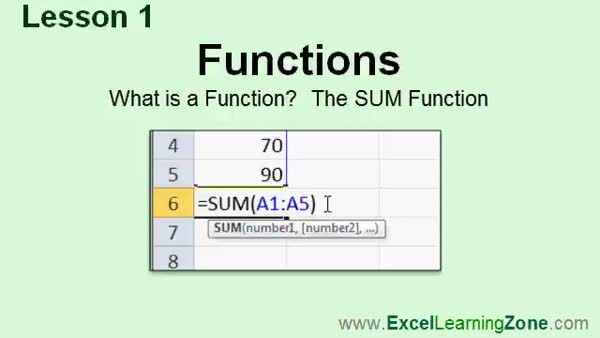
Lesson 1: SUM Function & Basic Calculations - In Lesson 1, we will learn about functions in Excel, focusing on what a function is, why functions are useful, and how to use the SUM function. I will show you the difference between manually adding individual cells and using functions for calculations. We will discuss other common functions like AVERAGE, MAX, MIN, and COUNT, but our main demonstration will be how to use the SUM function to add values in a range of cells, along with the benefits this provides when working with large data sets or making changes to your worksheet.
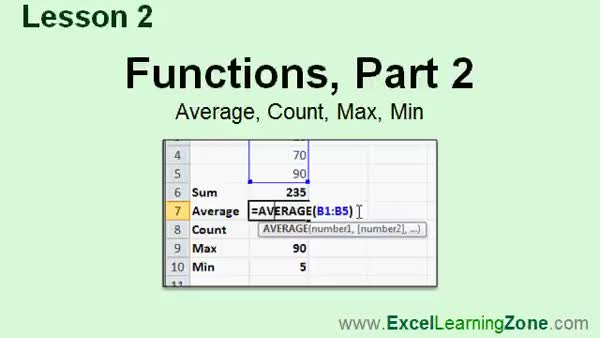
Lesson 2: Sum, Avg, Count, Max & Min Functions - In Lesson 2, we will continue learning about functions by exploring average, count, max, and min in addition to the sum function from the previous lesson. I will show you how to use these functions in your spreadsheet, including how to enter them manually and by using shortcut buttons on the ribbon. We will walk through replacing existing functions, selecting correct ranges, and using features like bolding and moving cells. We will also discuss what the count function includes, and demonstrate how ranges adjust when values change, all as part of your understanding of functions.
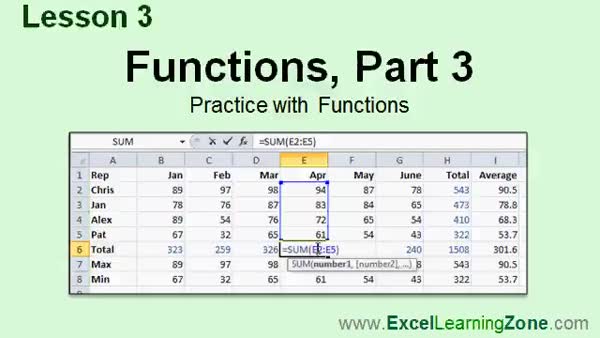
Lesson 3: Sum, Avg, Max, Min & Formatting - In Lesson 3, we will practice using the functions taught in the previous two lessons and learn some new tips for working with functions in Microsoft Excel. We will walk through setting up a simple sales sheet, using functions like SUM, AVERAGE, MAX, and MIN to calculate totals and summaries, and discuss how format changes such as decimal places and bolding are applied to cells. I will show you how to copy formulas, adjust formatting, and how functions automatically update when you insert new data. This lesson will help solidify your understanding of basic Excel functions.
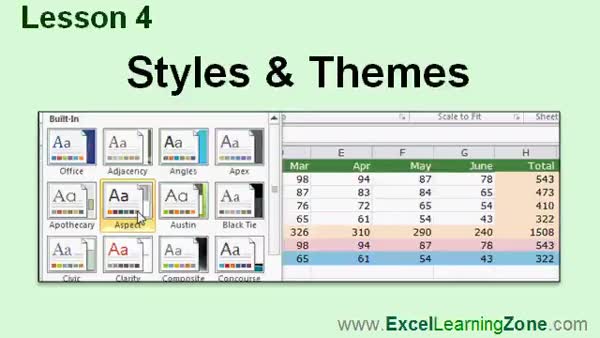
Lesson 4: Cell Styles & Themes Fast Formatting - In Lesson 4, we will walk through how to quickly change the look of your entire workbook in Excel using styles and themes. I will show you how to apply built-in cell styles to your headers and totals, explain how themes modify the appearance of all styles in your workbook, and demonstrate the difference between theme colors and standard colors. We will also discuss how formatting changes interact with themes, where to find cell styles and themes on the ribbon, and touch on customizing and saving themes for future use.
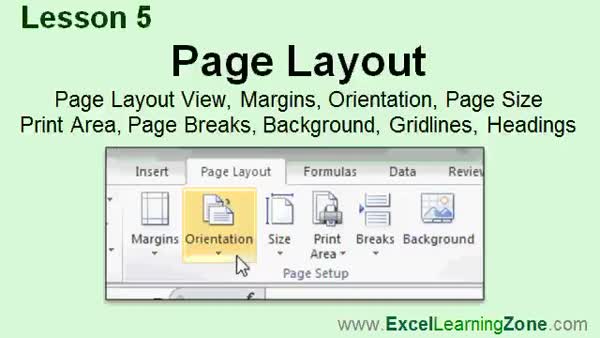
Lesson 5: Margins, Orientation & Print Area - In Lesson 5, we will explore the Page Layout tab in Excel. I will show you how to use Page Layout View and adjust settings such as margins, orientation, and page size for printing. We will walk through setting and clearing the print area, inserting and removing page breaks, and adding background images to your spreadsheet. I will also explain how to display or hide gridlines and headings for viewing or printing. Some advanced options like custom margins, print titles, and scaling will be mentioned, but we will discuss those in future lessons.
Lesson 6: Insert & Format Images & Art - In Lesson 6, we move to the Illustrations tab in Excel and learn how to insert pictures and clip art into spreadsheets. I will show you how to add, resize, move, rotate, and format images, as well as use the Picture Tools Format tab for styles and effects. We will also look at picture corrections, artistic effects, compressing images, changing or resetting pictures, and inserting clip art. Advanced features like charts and pivot tables will be discussed in future lessons, but this lesson focuses on the basics of working with illustrations in your spreadsheets.
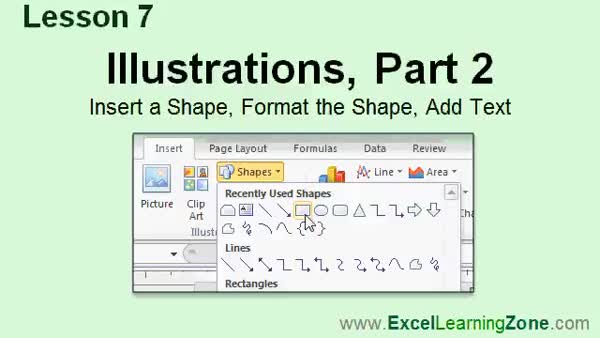
Lesson 7: Text & Shapes: Insert, Format, Draw - In Lesson 7, we continue working with illustrations by learning how to insert, format, and customize shapes in your spreadsheet. I will show you how to select and draw various shapes, apply different styles and effects, add and format text within a shape, and adjust shape properties such as fill and outline. We will also cover how to delete shapes properly and how to use shapes like arrows to draw attention to specific data. We will talk about Word Art styles for text within shapes and briefly discuss arranging and grouping shapes, which will be covered in more detail in later lessons.
Lesson 8: SmartArt, Screenshots & WordArt - In Lesson 8, we will explore the Illustrations group on the Insert tab by learning how to use SmartArt graphics, insert screenshots and screen clippings, and add WordArt to a worksheet. I will show you how to create and format SmartArt diagrams, adjust layouts, and modify individual shapes. We will walk through capturing windows or specific selections using the Screenshot feature. Finally, we will discuss how to insert and customize WordArt, including resizing, rotating, and changing styles. These illustration tools make your spreadsheets more visually engaging and help you communicate information more effectively.
Lesson 9: Functions, Styles, Themes & More - In this course we learned about functions in spreadsheets, including SUM, AVERAGE, COUNT, MAX, and MIN, and the advantages of using functions versus manually adding values. We covered styles and themes to enhance the appearance of your spreadsheet, and how to adjust page layout settings for printing. We explored inserting and formatting pictures, using clip art and shapes, applying WordArt styles, and adding SmartArt diagrams or screenshots. We discussed additional resources, support options, and how to provide feedback. This review provides an overview of these lessons and prepares you for the next level, which covers charts and tables.
NavigationKeywordsSUM function, Excel functions, AVERAGE, COUNT, MAX, MIN, cell styles, Excel themes, page layout, print area, insert pictures, clip art, shapes, SmartArt, WordArt, screenshots, gridlines, formatting cells, sales sheet
More InformationTranscriptWelcome to Excel 2010 Beginner Level 3, brought to you by ExcelLearningZone.com. I am your instructor, Richard Rost. In today's class, we will begin by learning about functions, what functions are, and how to use them. We will cover some basic functions like SUM, AVERAGE, COUNT, MAX, and MIN. We will learn about styles and themes, and how you can use them to quickly add a professional look and feel to your Excel spreadsheets. We will learn about page layout and how to change the way your spreadsheets look when printed. You will be able to adjust the margins, the orientation, the paper size, and much more. Finally, we will begin working with illustrations. You will learn how to insert pictures, clip art, screen captures, shapes, and WordArt into your spreadsheets. Before taking this course, I strongly recommend that you take my Excel Beginner Level 2 course first. That class covers cut, copy, and paste, autofill, cell formatting, working with rows and columns, working with sheets, sorting data, conditional formatting, and find and replace. If any of these concepts seem unfamiliar to you, please stop now and take Excel 2010 Beginner Level 2 first. This class is designed to be used with Microsoft Excel 2010, a part of Microsoft's Office 2010. If you are using an older version of Excel, you should visit my website at ExcelLearningZone.com and look for my old tutorials covering Excel 2000 through 2007. If you are using Excel 2007, you should have little difficulty following along, as most of the topics covered in this course are the same. If you are using Excel 2003 or earlier, you really should either upgrade to Excel 2010 or purchase a tutorial for your version of Excel, which again you can find on my website. This is the Beginner Level 3 course for Microsoft Excel 2010. This class is for the novice user who has little or no experience with Excel outside of my Level 1 and Level 2 classes. In today's course, we will cover additional topics building on the lessons from the first two courses. My courses are broken up into four groups: Beginner, Expert, Advanced, and Developer. My Beginner courses are for novice users who have little or no experience with Microsoft Excel. They are designed to give you an overview of the basic features of Excel and cover just what you need to know to be productive. When you finish the basics, it is time to move up to the Expert series, which is designed for users who are already comfortable with Excel. Expert classes are designed to teach you more about all the standard features of Excel that people use from day to day and will go into more depth about each topic than the Beginner classes. You will learn all about the options, alternatives, shortcuts, tips and tricks, and extra features that we might have skipped over in the Beginner lessons. When you have mastered the Expert classes, the Advanced lessons are for Excel Power Users. You will learn how to record macros, build user forms, create your own templates, and many more advanced features that not everyone will use, but they really add enhanced functionality and professionalism to your spreadsheets. Finally, my Developer Level courses are designed to teach you how to program in Visual Basic for Applications with Microsoft Excel. This will allow you to create Excel-based programs for your users, automate your spreadsheets, and integrate Excel tightly with other Microsoft Office applications. Each of my series is broken down into different levels. For example, the Beginner series started with Levels 1 and 2, which you should have taken previously, and is followed by Level 3 - that is this class - through Level 5. Each level teaches you new and different topics of Microsoft Excel, building on the lessons learned in the previous levels. When you have finished all the Beginner classes, move up to the Expert series, then Advanced, and finally Developer. Now let's take a more detailed look at what we are going to learn in today's class. In lesson 1, we are going to learn about functions. We are going to learn what a function is, what the benefits of using functions are, and we are going to learn how to use the SUM function. In lesson 2, we are going to learn a few additional functions: AVERAGE, COUNT, MAX, and MIN. In lesson 3, we are going to practice with the functions that we learned in the previous two lessons, and we are going to learn some new tips and tricks for working with functions. In lesson 4, we are going to learn how to quickly change the formatting of our entire workbook using styles and themes. In lesson 5, we are going to study the Page Layout tab. We are going to learn about Page Layout View, how to set margins, orientation, page size, specifying a print area, inserting page breaks, creating a background image, and viewing gridlines and headings. In lesson 6, we are going to move to the Illustrations tab. In part 1, we are going to learn how to insert a picture or piece of clip art into our spreadsheets, and we will learn about the Format Picture tab. In lesson 7, we are still working with illustrations. We are going to learn how to insert a shape, format the shape, and then add text to it. In lesson 8, we are going to learn about SmartArt, inserting screenshots, and WordArt. If you need help with the topics covered in today's lessons, please feel free to post your questions in the Excel Interactive Student forums. If you are watching this course using my custom video player software or online in my web theater, you should see the student forum for each lesson appear in a small window next to the class videos if you have an active internet connection. Here, you will see all of the questions that other students have asked, as well as my responses to them and any other comments that other students have made. I encourage you to read through these questions and answers as you start each lesson, and feel free to post your own questions and comments as well. If you are not watching your lessons online, you can still visit the student forums later by visiting excellearningzone.com/forums. To get the most out of this course, I recommend you sit back, relax, and watch each lesson completely through once without trying to do anything on your computer. Then replay the lesson from the beginning and follow along with my examples. Actually create the same spreadsheet that I make in the video. Build a spreadsheet with me step by step. Do not try to apply what you are learning right now to other projects until you have mastered the sample spreadsheet. If you get stuck or do not understand something, watch the video again from the beginning, or tell me what is wrong in the student forums. Most importantly, keep an open mind. Excel might seem intimidating at first, but once you get the hang of it, you will see that it is really easy to use. IntroIn lesson 3 of my Microsoft Excel 2010 Beginner series, you will learn about using basic functions like SUM, AVERAGE, COUNT, MAX, and MIN to perform calculations in your spreadsheets. We will also cover how to apply styles and themes for a professional look, adjust page layout settings for better printing, and get started with inserting illustrations such as pictures, shapes, SmartArt, and WordArt. This lesson builds on concepts from the first two beginner courses and is designed to help new users become more comfortable and productive with Microsoft Excel 2010. QuizQ1. What is one of the primary topics covered in Excel 2010 Beginner Level 3? A. Creating complex macros for automation B. Learning about functions and how to use them C. Programming in Visual Basic for Applications D. Advanced database management Q2. Which of the following is NOT one of the basic functions taught in this course? A. SUM B. MAX C. AVERAGE D. VLOOKUP Q3. What should a student do if they are not familiar with cut, copy, and paste, or conditional formatting? A. Proceed with Level 3 anyway B. Skip to the Expert courses C. Take Excel 2010 Beginner Level 2 first D. Ignore those topics Q4. What is the recommended process for learning from these video lessons according to the instructor? A. Watch the video once and immediately work on your own project B. Read a textbook before watching C. Watch each lesson once, then replay and follow along with the example spreadsheet D. Memorize all keyboard shortcuts before beginning Q5. Which feature allows you to quickly add a professional look and feel to your Excel spreadsheets? A. PivotTables B. Styles and themes C. Printing options D. Macros Q6. What is the main difference between the Beginner and Expert series of classes described in the video? A. Expert series only uses advanced features like VBA B. Beginner classes provide an overview of basic features, while Expert classes go into more depth and cover more options and tricks C. Beginner classes are for developers, Expert for beginners D. Expert series does not use spreadsheets Q7. If a student is using Excel 2003 or earlier, what does the instructor recommend? A. Follow along with the 2010 course anyway B. Upgrade to Excel 2010 or get a tutorial for their version C. Only use online Google Sheets D. Download free add-ins Q8. Which of these is NOT mentioned as a topic to be covered in the Page Layout lesson? A. Setting margins B. Changing page orientation C. Inserting page breaks D. Creating formulas for tax calculations Q9. What type of content will you learn to add to a spreadsheet in the Illustrations lessons? A. Data validation lists B. Pictures, shapes, SmartArt, WordArt, and screenshots C. Custom functions coded in VBA D. Hidden cell formulas Q10. Where can students get additional help or ask questions about the course material? A. By emailing Microsoft support B. In the Excel Interactive Student forums on ExcelLearningZone.com C. By contacting their local library D. By posting on social media Q11. What is the recommended attitude towards learning Excel according to the instructor? A. Be skeptical of new features B. Stay closed-minded to avoid mistakes C. Keep an open mind and do not be intimidated D. Focus only on memorization Answers: 1-B; 2-D; 3-C; 4-C; 5-B; 6-B; 7-B; 8-D; 9-B; 10-B; 11-C DISCLAIMER: Quiz questions are AI generated. If you find any that are wrong, don't make sense, or aren't related to the video topic at hand, then please post a comment and let me know. Thanks. SummaryToday's video from Excel Learning Zone focuses on the Beginner Level 3 course for Microsoft Excel 2010. I'm your instructor, Richard Rost, and in this class, we are going to expand on the basics you have learned in the first two levels and introduce some new topics to further develop your Excel skills. To start, we will talk about functions in Excel. You will learn what a function is, why functions are useful, and how they can help you perform calculations easily. We will work with some of the most commonly used functions, such as SUM, AVERAGE, COUNT, MAX, and MIN. Next, we will look at styles and themes. These features allow you to quickly give your spreadsheets a polished and professional appearance. You will see how to apply different styles to your cells and adjust the overall theme of your workbook to make your documents look more cohesive. We will then shift our focus to page layout options. You will discover how to fine-tune the way your spreadsheets look when they are printed. This includes adjusting margins, setting the page orientation, modifying the paper size, and handling additional print settings to suit your needs. You will also get started with illustrations in Excel. I will show you how to add visual elements to your spreadsheets, including pictures, clip art, screen captures, shapes, and WordArt. These illustrations can make your data more engaging and help illustrate your points more effectively. Before taking this course, make sure you are comfortable with the material in my Excel Beginner Level 2 course. That earlier class covers skills such as cut, copy, and paste, autofill, formatting cells, managing rows and columns, working with sheets, sorting data, using conditional formatting, and utilizing find and replace. If these topics are not familiar to you, I recommend going back to Level 2 before proceeding with Level 3. This course is designed for users of Microsoft Excel 2010, which is part of the Office 2010 suite. If you are using an older version of Excel, you will find tutorials for those versions on my website. Excel 2007 users should be able to follow along with little trouble since most features discussed here are similar in both versions. If you are working with Excel 2003 or earlier, upgrading to a newer version or finding a course matched to your software will probably make learning easier. Beginner Level 3 is made for those who are new to Excel or have only taken the first two Beginner courses. Everything we cover in this class builds on what you learned previously. My Excel curriculum is divided into four categories: Beginner, Expert, Advanced, and Developer. The Beginner series introduces users to the essential features and basic tools needed to be productive. After completing these initial courses, you should move on to the Expert series which covers more comprehensive features, deeper options, shortcuts, and additional tips and tricks. Advanced lessons are geared for experienced users who want to unlock powerful tools such as macros, user forms, and templates. If you want to automate your work or integrate Excel with other Office applications, the Developer Level is where you will learn to program with Visual Basic for Applications. Each group of lessons is divided into levels. The Beginner series starts with Levels 1 and 2 and continues through Level 5. Each course builds on the knowledge from prior levels, introducing new skills each time. Once you finish all Beginner levels, you can continue progressing to the Expert, Advanced, and Developer tracks. Let me briefly outline what we will cover in this course: Lesson 1 introduces you to the concept of functions and explains how the SUM function works. Lesson 2 expands on this by teaching the AVERAGE, COUNT, MAX, and MIN functions. Lesson 3 gives you a chance to practice these skills, along with some new function tips and tricks. Lesson 4 demonstrates how to use styles and themes to quickly restyle your entire workbook. Lesson 5 focuses on the Page Layout tab. Here, you will learn how to use the Page Layout view, set margins, change orientation, select paper size, specify print areas, insert page breaks, add background images, and manage gridlines and headings. Lesson 6 begins our look at illustrations. In this part, I will show you how to add pictures and clip art, as well as how to use the Format Picture tab. Lesson 7 continues with illustrations, showing you how to insert and format shapes, plus how to add text to your shapes. Lesson 8 wraps up illustrations by exploring SmartArt, screenshots, and WordArt. If you have questions about any of these topics, you can post them in the Excel Interactive Student forums. If you are using my custom video player or watching online via my web theater, the forum will appear next to the video with an active internet connection. You can read questions and answers from other students, as well as responses from me. I encourage you to make use of these forums if you need help or want to discuss any lesson. For students watching offline, you can still visit the forums on my website at excellearningzone.com whenever you want. To get the most out of this course, I suggest you first watch each lesson straight through so you understand the material. Afterwards, watch it a second time and follow along with the examples. Try building the worksheet exactly as I do. It is best not to try applying these skills to unrelated projects until you have mastered the sample spreadsheets. If you get confused or stuck, watch the lesson again or ask for help in the forums. Keep an open mind as you learn. Excel might seem a little intimidating if you are new to it, but once you grasp these basics, you will find that it is very user-friendly. You can find a complete video tutorial with step-by-step instructions on everything discussed here on my website at the link below. Live long and prosper, my friends. Topic ListIntroduction to functions in Excel Using the SUM function Using the AVERAGE function Using the COUNT function Using the MAX function Using the MIN function Practice with Excel functions Tips and tricks for working with functions Applying styles and themes in Excel Changing workbook formatting with styles Using the Page Layout tab Setting page margins Changing page orientation Adjusting page size Specifying print area Inserting page breaks Creating a background image Viewing gridlines and headings Inserting pictures into spreadsheets Adding clip art to Excel Using the Format Picture tab Inserting and formatting shapes Adding text to shapes Inserting SmartArt Inserting screenshots Using WordArt in Excel Primary TopicsExcel functions, SUM, AVERAGE, COUNT, MAX, MIN, styles, themes, page layout, margins, orientation, print area, illustrations, pictures, clip art, shapes, WordArt, SmartArt Secondary Topicsfunction benefits, formatting tips, inserting screenshots, formatting shapes |
||
|
| |||
| Keywords: SUM function, Excel functions, AVERAGE, COUNT, MAX, MIN, cell styles, Excel themes, page layout, print area, insert pictures, clip art, shapes, SmartArt, WordArt, screenshots, gridlines, formatting cells, sales sheet PermaLink How To Use Functions, Styles, Themes, Page Layout, and Illustrations in Microsoft Excel 2010 Beginner 3 |