|
||||||

|
|
||||||
|
Work DaysBy Richard Rost
 4 years ago
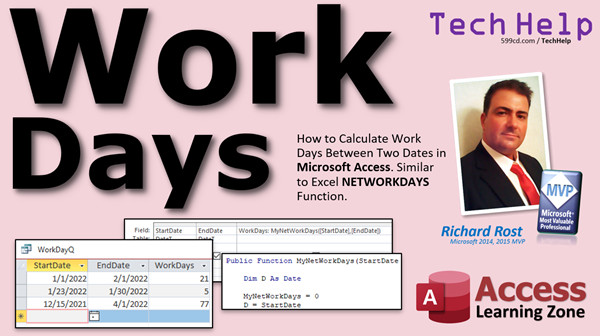
Calculate Work Days Between Two Dates In this video, I'm going to show you how to calculate the number of work days (business days) between two dates in Microsoft Access. Excel has a NETWORKDAYS function. Unfortunately, Access does not. So, using a little VBA we will see how to write our own function. Anton from Buena Park, California (a Platinum Member) asks: I am in the process of switching everything over from Excel to Access. One function that it seems like Access doesn't have is Excel's NETWORKDAYS function. I use that a lot for calculating the number of business days between two dates. How can I do this in Access? AddendumThere is a tiny bug in the code. Make sure you change the first line of the while loop to:
That's all. It just wasn't counting the last day, and I didn't test it fully in the video. The date I checked with ended on a Sunday, which is why I missed it. Thanks to Garry Smith for catching this, and to moderator Kevin Robertson for posting a quick fix. MembersMembers will learn how to exclude holidays and any company-specific days off as well. We will program static holidays (New Year's Eve, Christmas, dates that don't move) into our function, and we will make a table for "floating" holidays and company-specific days off.
Silver Members and up get access to view Extended Cut videos, when available. Gold Members can download the files from class plus get access to the Code Vault. If you're not a member, Join Today!
Links
Suggested Course
Source Code
Keywordsmicrosoft access, ms access, ms access tutorial, #msaccess, #microsoftaccess, #help, #howto, #tutorial, #learn, #lesson, #training, #database, workdays, work days, business days, exclude weekends, holidays, net work days, microsoft access networkdays, Convert Networkdays Formula to Access, NETWORKDAYS for Access, Networkdays formula in MS Access, Custom VBA Excel Access Networkdays, Calculate the number of work days
More InformationTranscriptWelcome to another TechHelp video brought to you by AccessLearningZone.com. I am your instructor, Richard Rost. In today's video, I'm going to show you how to calculate the number of work days, business days, between any two dates in Microsoft Access, very similar to Excel's networkdays function. Today's question comes from Anton in Boenner Park, California, one of my platinum members. Anton says, I'm in the process of switching everything over from Excel to Access. Good for you. One function that it seems like Access doesn't have is Excel's networkdays function. I used that a lot for calculating the number of business days between two dates. How can I do this in Access? Well Anton, it's not surprising that Access doesn't have a function that Excel does. Excel is the golden child of Microsoft and Access is the red-headed stepchild. Access doesn't get half the stuff that Excel does and it really should. Now there is a way if you have both Access and Excel on your computer to utilize Excel's functions with VBA. However, I don't like doing that. Number one reason why is because if you're planning on sharing your database at all in the future using the free runtime and someone who you're sharing your database with doesn't have Excel, then your functions won't work. So with a little bit of programming, we can mimic that networkdays function in Access with a little bit of VBA. That's right folks. Got to know some VBA for this one. Now, VBA isn't scary. Don't let it scare you. I have a 20 minute introductory video. It's absolutely free. It's on my YouTube channel. It's on my website. There's the link right there or you'll find it down below in the link section. Go click on it. If you haven't programmed VBA before, don't be worried. I'll show you everything you need to know. Go watch this first. Once you learn just a little bit of VBA programming, your Access databases can get a lot more powerful. So go watch this first. If you've never done programming before, don't be scared of it. We really only need about six lines of code to do this. So it's not hard. You just have to know where to put those six lines of code. And I'm going to show you in just a few minutes. But first, let's take a trip over to my good buddy Excel. This is my best friend. Excel is a good buddy. And let's say you've got a list of dates and you want to see how many work days, how many business days, there are between those two dates. Let's see how Excel does it. So here, let's say I got a start date and an end date. And I'll put in here 1/1/22 and then 2/1/22. And then let's do this week too. Today is January 27. Let's go 1/23/22 to 1/30/22, which is Sunday to Sunday. Now here, we want to put how many business days there are between those. So we use the networkdays function. Why is it networkdays? Well, it's net work days, not network days. That's what I first thought. I'm like, what are network days? So it's equals networkdays. And there's networkdays international, which allows you to change, like, because some countries, I guess they have different days of the week that are considered network days. I don't know. But networkdays is the one to use. There are three bits of information. Two of them are required: start date and end date. So start date is there, comma, and end date is there. Close parentheses up and hit enter. And there's the number of work days between those two dates. I'll fill it down. And there you go. So between January 1st and February 1st, there are 22 work days. That is, days between Monday and Friday. I'll take Excel's word for that one. Here's the 23rd to the 30th. That's a Sunday to Sunday. So there are five days - the Monday through Friday between those two dates. Now that third parameter is holidays. That's for things that you can't calculate as Monday through Friday. Let's say you have a list of company holidays. Holidays over here. Let's say that, you know, you can put December 25th in there for Christmas or 1/1 for New Year's Day just to show you. Let's put 1/26/22 in there and 1/27/22. Let's say those are company retreat days or whatever. If I came over here and using that third parameter, I went comma and then I picked my holidays range right there. I'm going to hit F4 so it's an absolute reference. That means that box doesn't change as I auto fill down. I cover that in my Excel classes, folks. Press enter. Now you can see that those two days are now taken out of that range because that's the Wednesday and Thursday between those two Sundays. Now there's only three work days. The holidays list is a little bit harder to approximate in Access. I will show how to do this in the extended cut for the members. But for the rest of us, let's see how we can do just this part with some VBA. So let's say goodbye to Excel for now. Bye bye, good friend. And now we'll go to my best friend, which is Access. Access is my love. So what we're going to do is we're going to create a table first with our dates in it. So let's go create table design because we don't get spreadsheet type stuff in here. So let's just make a table of dates. It can be anything you want. I'll just throw an ID in here. We'll call this a date, a stonisco start date as a date and end date as a date. Save this as mydateT. There we go. And let's just throw some dates in here. Again, I'll go 1/1/22 to 2/1/22. And then I did 1/23 to 1/30. Now we'll do the same dates here that we had over in Excel. So close this. Now we need our function. So how do we do our function? Now if you've watched Intro to VBA, you know how to create this. So we're going to go to Create Module. We're going to make our own module. Here's the VBA editor. Now in Intro to VBA, I didn't cover how to create your own functions. So we're going to make a function that's going to take some information in and return a value. So it's going to be public. That means anyone can use it. Function, different from a sub. A sub just does something. A function returns a value. We're going to call this myNetworkDays. I put the my in front of there so it doesn't conflict if you actually have a networkdays function. We're taking two bits of information, a start date as a date, and an end date as a date. So it's taking two bits of information in, and it's going to return a number. So it's as long. This is what it's going to be returning, a long integer, a number value. Now what we're going to do in here is we're going to start at the start date, and we're going to loop until we get to the end date. We're going to count up the number of days that are Monday through Friday in that loop. Now you might think that looping like this might be slow. It's not. I tried a test of this going from like 1/1/1900 to 1/1/2100, and it's a fraction of a second. But if you've got thousands of records using this, it might be a little slow. But generally, you're not running this on thousands of records. You only run it on a few dozen records at a time. If speed is an issue, talk to me. Maybe there's a better solution. But this works fine for me. I've been using this function for years. No problems whatsoever. So we're going to do a little looping here. So we're going to dim D as a date. That's a temporary date value that we're going to use just to count up. We're going to start at 1/1/2021 and just count up. Now we're going to start our count at 0. MyNetworkDays equals 0. I don't have any yet. We're going to start at 0 and then count up. We're going to say D equals start date. So start the loop at whatever the start date is. January 1, let's say. While loop, ready. While D is less than the end date, we're going to loop. While...Wend down there at the end. That's just while D is less than the end date, loop. Run the loop. And inside the loop, make sure you say D equals D plus 1. That's where it increments the D value. So it's going to go January 1, add 1: January 2nd. Add 1: January 3rd. And so every time it loops, it's going to say, are you less than the end date? Are you less than the end date? All right. It's going to keep going until it hits the end date. Now inside here, we're going to check to see if the day of the week is Monday through Friday. We're going to use the WeekDay function. The WeekDay function returns a value from 1 to 7. 1 is Sunday, and 7 is Saturday. So Monday through Friday is going to be 2 through 6. So all we have to say is if WeekDay of D, the temporary date, is greater than 1 and WeekDay of D is less than 7, then MyNetworkDays equals MyNetworkDays plus 1. That could be one line of code. I said we need six lines of code. This could just be one line of code if you don't use the End If, which we really don't need. So here, we'll do this. We'll go right out of that, go like that, and get rid of the End If. So that makes it fewer lines of code. I don't want to scare people with 18,000 lines of code. 1, 2, 3, 4, 5, 6. You technically don't need the "Dim D as Date" if you don't have Option Explicit up here, that's another class. I'll take care of that. Don't worry about it. So as you can see, not a very complicated function, that's it. That's all we need to just count the Monday through Fridays between two dates. Save it. I'm going to call this MyGlobalModule. If you only have one module in your database for all these little helper functions, I just call it MyGlobalMod. That's just what I call it. Hit Enter. So now I've got a function called MyNetworkDays that I can use in my database. Where can we use that? We can use it in a form. We could use it in a report. You could throw it in a query. Let's make a query for it. But first, a word from our sponsor. And that's me. I'm the sponsor. If you want to learn a lot more about this kind of stuff, Access Expert 27 and 28. I cover lots of different date time functions. And I have a date time seminar as well. Access Expert Level 27, we have all these different date functions in here, including date and time mathematics, the year 2030 problem, a list of upcoming birthdays, age accounts receivable, displaying times in different formats, time sheets that go over midnight, all kinds of stuff. And in 28, I cover all the different DateAdd, DatePart, DateSerial, all those functions, displaying ordinals, first, second, third, all that kind of stuff. And then of course, there's my DateTime Seminar, which goes over all kinds of--I can't even start with the DateTime Seminar, there's so much stuff in the seminar. And if you really like this VBA programming stuff, guess what? I have 35 plus levels of different developer classes for you. Lots to learn. All right, so back to our regularly scheduled program. Let's make a query to use the MyNetworkDays function. So we're going to go over here, Query Design. We're going to bring in that date table. We have start date and end date. Don't need the ID in here. Let's say X is going to be the number of days between those two dates, business days. So MyNetworkDays, open parentheses, start date. It's going to use the start date field right there, comma, end date. The fact that start date and end date are called that in here are meaningless. You could name these something different here if you want to. This could be like customer birth date or something like that. These field names don't have to be the same. Run the query. And there you go. 21 days there, five days there. And that is how you calculate the number of business days between two dates. Now again, like I said, this doesn't include holidays, which--there's static holidays and there's floating holidays. For static holidays, you can actually put them in this function. You can take out Independence Day. You can take out MLK Day. You can take out Christmas, all the dates that are the same date throughout the year. Then you have floating holidays, which might change. Labor Day, Memorial Day. Those kinds of things. Thanksgiving Day. So we can make a little table for that. And you can put those in each year what they fall in. We're going to cover that in the extended cut for the members. So if you want to learn more, in the extended cut for the members I will show you how to do two things. One, I'll show you how to exclude the static holidays. New Year's Day, Juneteenth Day, Independence Day, Veterans Day, Christmas here in the US. Those are all on the same day of the month. Christmas is always on December 25th. New Year's Day is always January 1st. Those never change. We could put those right in the code. Then we'll make a holiday table for all of the custom stuff or the floating holidays. Presidents Day, Memorial Day, Thanksgiving. Easter Sunday, those things. They float around. Or you could put your custom holidays in there. If you have a company retreat coming up or something like that, you want to give all your staff off this week in the summer. Whatever. Whatever days you don't want to have calculated as work days, we'll cover that in the extended cut for the members. Silver members and up get access to all of my extended cut videos. Gold members get access to the downloads that I make in these classes and the code vault, where you can find all the source code for everything I made in all the TechHelp videos, which is pretty cool. How do you become a member? Click on the Join button below the video. After you click the Join button, you'll see a list of all the different membership levels that are available, each with its own special perks. Silver members and up will get access to all of my extended cut TechHelp videos, one free beginner class each month, and more. Gold members get access to download all of the sample databases that I build in my TechHelp videos, plus my code vault, where I keep tons of different functions that I use. You'll also get a higher priority if you decide to submit any TechHelp questions to me, and you'll get one free expert class each month after you finish the beginner series. Platinum members get all the previous perks, plus even higher priority for TechHelp questions, access to all of my full beginner courses for every subject, and one free developer class each month after you finish the expert classes. These are the full length courses found on my website, not just for Access, too. I also teach Word, Excel, Visual Basic, and lots more. You can now become a Diamond sponsor and have your name or company name listed on a sponsors page that will be shown in each video as long as you're a sponsor. You'll get a shout out in the video, and a link to your website or product in the text below the video and on my website. But don't worry, these free TechHelp videos are going to keep coming. As long as you keep watching them, I'll keep making more, and they'll always be free. IntroIn this video, I will show you how to calculate the number of work days, also known as business days, between any two dates in Microsoft Access, similar to Excel's NETWORKDAYS function. We'll talk about why this feature isn't built into Access and walk through creating a custom VBA function to count only the Monday through Friday dates in your range. I'll demonstrate how to set up your table, write the VBA code, and use your new function in a query to get business day counts between dates. QuizQ1. What does the Excel NETWORKDAYS function calculate? A. The number of business days (Monday through Friday) between two dates, excluding holidays B. The number of weeks between two dates C. The number of weekends between two dates D. The number of network maintenance days Q2. Why is using Excel functions in Access via VBA not recommended for shared databases? A. It is slower than using Access-only functions B. It will only work if everyone using the database has Excel installed C. It is illegal to use Excel functions in Access D. It does not calculate dates correctly Q3. How many parameters does the basic NETWORKDAYS function in Excel require? A. One parameter B. Two parameters: start date and end date C. Three parameters: start date, end date, and holidays (all required) D. Four parameters: start date, end date, holidays, and weekends Q4. What is the main role of the MyNetworkDays VBA function created in the lesson? A. To count the number of days that are Mondays only between two dates B. To return the number of business days (Monday through Friday) between two dates C. To calculate the number of holidays in a year D. To return the number of work hours between two dates Q5. How does the WeekDay function in VBA help in calculating business days? A. It determines the month of a given date B. It counts the number of days from Sunday to Saturday C. It identifies whether the day falls between Monday (2) and Friday (6) D. It returns the number of holidays for a given year Q6. If start date is January 1 and end date is February 1, what does the MyNetworkDays function return? A. The number of weekends only B. The number of business days (excluding weekends) between the two dates C. All days including holidays and weekends D. Only holidays Q7. Why would looping through each date between start and end dates in VBA not be a performance issue in most cases? A. Because VBA automatically optimizes the loop B. Because most users run the function on just a few records at a time C. Because running on thousands of records is always instantaneous D. Because it only works for dates in the 21st century Q8. In the extended version of the lesson, what additional feature is covered for business day calculation? A. Calculating total number of weeks B. Calculating floating and static holidays to exclude from business days C. Calculating sales per business day D. Counting only weekend days Q9. What do you need to do before you can use the custom MyNetworkDays function in a query? A. Set up a macro B. Create and save the VBA function in a module C. Install an add-in D. Format your table as text only Q10. What does the MyNetworkDays function output, and how can it be used? A. Outputs a currency value for payroll, used in reports only B. Outputs the number of business days, which can be used in forms, reports, and queries C. Outputs the date difference, used for formatting titles D. Outputs a list of weekdays, used for conditional formatting Answers: 1-A; 2-B; 3-B; 4-B; 5-C; 6-B; 7-B; 8-B; 9-B; 10-B DISCLAIMER: Quiz questions are AI generated. If you find any that are wrong, don't make sense, or aren't related to the video topic at hand, then please post a comment and let me know. Thanks. SummaryToday's video from Access Learning Zone focuses on how to calculate the number of work days, also known as business days, between two dates in Microsoft Access. This is very similar to using the networkdays function in Excel. One of our viewers, Anton, is in the process of moving his work from Excel to Access. He noticed that Access doesn't have the networkdays function and asked how to replicate this calculation. It's true that Excel sometimes has features that Access does not. Even though it is possible to call Excel's functions from Access with VBA if both programs are installed, I do not recommend that approach. If you plan to share your Access database using the free runtime, this method won't work for users who don't have Excel installed. Instead, with just a bit of VBA coding, we can mimic the networkdays function entirely within Access. If you haven't used VBA before, don't worry. I have a 20-minute introductory video on my website and YouTube channel that explains the basics. You only need to know about six lines of code to solve this particular problem. Once you understand a little VBA, your Access databases will become much more flexible and powerful. Let's look at how this calculation works in Excel first. In Excel, the networkdays function takes a start date and an end date and counts the number of business days (Monday through Friday) between them. You can also provide a range of dates to specify holidays that should not be counted as business days. For example, between January 1st and February 1st, Excel tells us there are 22 work days. If you include holidays, those dates are subtracted from the total work days. Handling holidays is straightforward in Excel, but in Access, it requires some extra setup. Returning to Access, first, I create a table to hold the sample start and end dates. Since Access doesn't support spreadsheet-style entry, just make a simple table with fields for an ID, start date, and end date, and then enter a few sample dates like the ones I used in Excel. The main task is creating a custom VBA function to mimic networkdays. In the VBA editor, you set up a function, which accepts two parameters (the start and end dates). The function loops from the start date up to, but not including, the end date, and counts how many of those days are Monday through Friday. The WeekDay function in VBA returns a number for the day of the week; Monday through Friday are values two through six. For each date in the range, if the weekday number is between two and six, increment your counter by one. By the end of the loop, you have the count of business days between the two dates. Running this kind of loop is very fast in Access, even for date ranges covering a hundred years, unless you are working with thousands and thousands of records. In most cases, the performance is more than acceptable. Once the function is written and saved in a module, you can call it from anywhere in your database. For example, you can use it in queries, forms, or reports. I demonstrated how to use it in a query to calculate the business days between the start and end dates entered in the table. This setup covers basic business day calculations, but does not address holidays. If you need to exclude holidays, there are two categories to consider: static and floating holidays. Static holidays fall on the same date every year, like New Year's Day or Christmas. For these, you could hard-code their dates into your function. Floating holidays, like Memorial Day or Thanksgiving, vary each year and require a holiday table in your database, listing each holiday's date for each year. I cover these more advanced techniques in the Extended Cut for members. If you want to explore date and time logic more deeply, I teach many different date and time functions and calculations in my Access Expert 27 and 28 classes and in my DateTime seminar. These cover topics like date math, handling the year 2030 issue, handling times that go past midnight, formatting ordinals, and more. For anyone interested in VBA, I also have over 35 in-depth developer-level Access courses available. Members receive added benefits. Silver members and higher get access to my Extended Cut videos and one free beginner class every month. Gold members can download all sample databases, access the code vault containing source code from all my TechHelp videos, and receive additional perks. Platinum members enjoy even higher priority for questions and access to all my full beginner courses (not just for Access, but also for Word, Excel, and other Microsoft Office apps), plus one free developer class each month after completing expert classes. The business day calculator we built here works well for simple needs, and advanced options for handling holidays are available for those who become members. You can find a complete video tutorial with step-by-step instructions on everything discussed here on my website at the link below. Live long and prosper, my friends. Topic ListCalculating business days between two dates in Access Overview of Excel's networkdays function Differences between Excel networkdays and Access functions Creating a date table in Microsoft Access Using VBA to create a custom function in Access Writing the MyNetworkDays VBA function Looping through dates with VBA Using WeekDay to identify Monday through Friday Counting business days in a VBA loop Using custom VBA functions in Access queries Applying MyNetworkDays in a query with date fields Primary Topicsbusiness days calculation, VBA in Access, replicating NETWORKDAYS, date functions, query usage, Access vs Excel functionality Secondary Topicsholidays exclusion (teaser), custom holiday tables, performance considerations, basic VBA structure |
||||||||||||||||||||||||||||||||
|
| |||
| Keywords: TechHelp Access workdays, work days, business days, exclude weekends, holidays, net work days, microsoft access networkdays, Convert Networkdays Formula to Access, NETWORKDAYS for Access, Networkdays formula in MS Access, Custom VBA Excel Access Networkda PermaLink Work Days in Microsoft Access |