Access Security Seminar
Proper Security for your Microsoft Access Databases
Welcome
This seminar will teach you how to properly secure your Microsoft Access databases. But that's not all. You will also learn how to build proper security into the workflow of your database so that you can control every aspect of a user's experience, and monitor their work as well in a database log.
You will learn how to properly secure your Access databases to control who can log in, who can edit data, and who can make changes to the database itself. But that's only the beginning. You will learn how to build a database where you can control every step in the "work flow" process of data entry, and create a system log so you can see who is doing what.
 Resources Resources
Main Seminar Goals
- Create user and group security inside your database
- Manage the "work flow" of your database
- Control who has access to which database objects
- Send email notices from inside your database
- Create a detailed system log to track users
- Encrypt and secure your database files
Topics Covered
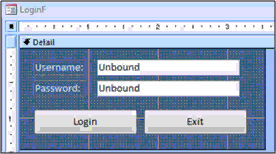
You will begin by creating a user information table (with username, password, and other data) and a secure logon form. This will allow us to control who can log on to the database.
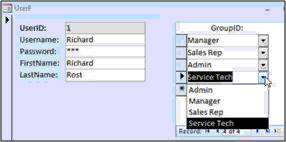
Next we'll set up a Group form so we can assign users to different groups, like SalesRep, ServiceTech, Manager, Admin, etc.
In the next lesson, we'll define a "work flow" for our database. This will control how information is entered by our users. For example, our database will be for service work orders. Our work flow will consist of a sales rep entering a work order, a service technician performing the work, a manager reviewing the details, the sales rep follows up with the customer, and then the manager closes the work order.

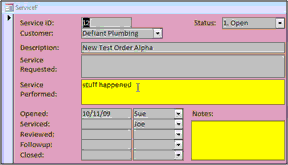
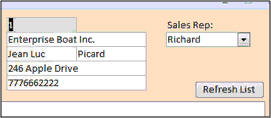
You will be able to control which users will be able to enter data into which fields. For example, only service technicians can enter data into the "service performed" field, but not the "service requested" field, which is the job of the sales rep.
We will control each step of the work flow process with buttons that signify that a user is done with his work, and the work order is ready for the next person. Here you can see a "service call completed" button that will then send this work order to the manager for review. This work order will then be locked out so the service tech can't edit it any further.
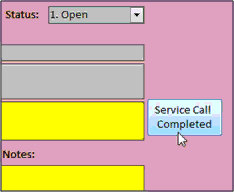
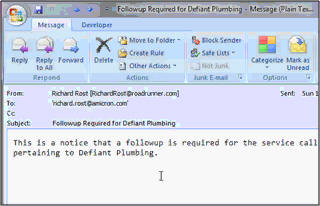
You will learn how to send Email notices from inside the database when needed. This is great if you have employees that don't check the database all the time, so as to say, "your assistance is required."
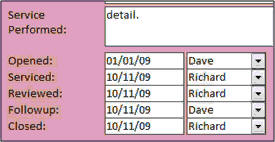
The database will log every step in the work flow procedure. You will be able to see who did what, and when.
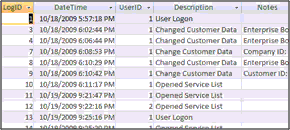
We will also create a system log table, so we can log everything that a user does: what time he logs on, what data he adds, what records he changes, etc. You name it, we can log it.
You will learn how to build your own internal database security. For example, do you want sales reps to be able to edit other sales reps' customers? Do you want service techs to be able to see customer data if they're not working on that customer's work order? Who can edit, delete, or add new customer records? What information should be required for new customers? Some of these are things you just can't do with standard Access User-Level Security.
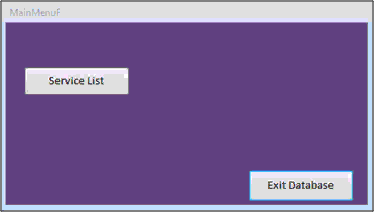
You will be able to hide or show buttons and forms based on a user's security level. For example, the menu that a system administrator might see...
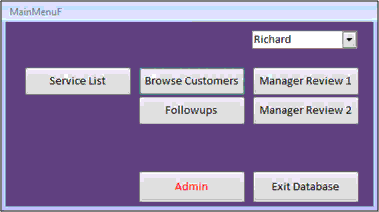
...will be completely different from what a simple service technician sees. This will help to control who can do what in your database.
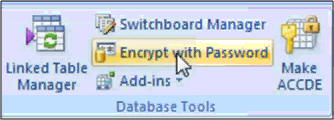
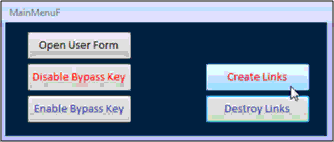
We will spend a lot of time learning how to lock down your database and secure it from intruders. We will split the database into front-end and back-end files, encrypt the database with a password, turn off the Navigation Pane (database window) to keep people from poking around in your objects, set a Startup Form, and disable the Bypass Key so people can't go to the Navigation Pane directly when the database starts up.
You will learn how to dynamically link to tables in your back-end database using VBA code to overcome some security problems.
We will encrypt the front-end database into an ACCDE file (MDE file for older versions of Access). This will effectively secure the form, report, and module design capabilities and prevent people from viewing your database in design mode.
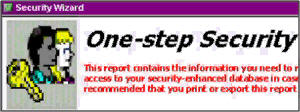
For our Access 2003 users (yes, there are still a bunch of them out there), we will spend some time going over the User Level Security Wizard. This wizard will secure an Access 2003 database and provide "OK" security if all you want is to keep Joe from Accounting from poking around in form design, and seeing data he's not supposed to. It's not hack-proof, however, but it does provide "quick and dirty" security in a pinch. We'll set up users, passwords, groups, and permissions.
This seminar is perfect for anyone who wants to learn how to secure an Access database, prevent someone else from accessing parts of the database they shouldn't, assign permissions so you can control who does what, and create a work flow strategy in your database.
This seminar is long (over seven hours) but it's broken up into easily managed lessons of about 10 minutes each. You can sit down, watch a lesson, review the material, test the code out yourself, and experiment. Do a little bit each day. It's long, but it's comprehensive - you won't miss a single step as I've recorded everything from start to finish.
Pre-Requisites
This is a Developer-Level Seminar. There will be a lot of VBA. It is strongly recommended that you have completed my entire Access Beginner and Expert series. My Developer 1 class is highly recommended so you understand the basics of programming in VBA. If not, at least watch my free Intro to VBA video.
Version
I am using Access 2007 in this seminar, however the lessons are perfectly valid for all versions of Access from 2003 and later. It's currently 2022 and I just recently verified that everything in this seminar still works with Access 2021 and Office 365.
Back-End Security
I want to be clear about the type of security this seminar offers before you purchase. This seminar is designed to teach you how to lock down your Access front-end database to prevent people from unauthorized use. You'll learn how to make user logons, set security permissions, and things like that. I show you how to best lock down your database, but keep in mind that if you need real security for your data then your back-end should be a real database server like SQL Server.
Access cannot store back-end data 100% securely. It's just a limitation with the way Access works. This seminar shows you the best way to get as secure as possible with only Access. A determined hacker can still get to your back-end table database and open the tables up directly. I do have another seminar called the Data Encryption seminar which shows you how to scramble the information in your tables to make certain fields unreadable. This way if someone does go directly into your tables, all they'll see is gibberish. There's nothing to prevent them from deleting or editing the data, however.
The only true way to have a 100% secure application using Microsoft Access is to use it for a front-end interface only and store your data in a database server like SQL Server. I don't currently have any lessons for on-premesis (in house) SQL Server installations. One is in the works. However, if you're considering allowing your users to work with your database online, over the Internet, then you may want to consider my SQL Server Online Seminar. I show you how to setup your SQL Server database on the web, and then connect to it via Access.
The lessons taught in this seminar are good enough for 99.9% of situations where you mostly trust your users and aren't worried about a determined hacker stealing your data. However, if you have sensitive financial data or other information that must be absolutely 100% secure, then you should use Access (and the lessons taught in this Seminar) in addition to SQL Server as your back-end.
Enroll Today
Enroll now so that you can watch these lessons, learn with us, post questions, and more.

Questions?
Please feel free to post your questions or comments below. If you are not sure as to whether or not this product will meet your needs, I'd rather help you before you buy it. Remember, all sales are final. Thank you.
Keywords
microsoft access security, user level security, group security, administration, work flow process, audit log, audit trail, user activity log, system log, show hide buttons, lock down, encrypt, accde, user level security wizard
More InformationTranscript Introducing the Microsoft Access Security Seminar brought to you by AccessLearningZone.com. This seminar is not only about Microsoft Access database security, although we will cover it in detail.
The main focus of this seminar is to teach you how to build a secure database from the ground up, including all the steps necessary to control every action your users can take inside the database itself and to monitor those actions.
This seminar will cover user security inside your database, controlling who can log on, managing database workflow, the step-by-step procedures in your database, controlling access to database objects (which users can see which forms and fields), sending email notices from your database, creating a detailed system log to see what users are doing, and finally encrypting and securing your database.
Microsoft removed user-level security from Access 2007, mostly because it was not that secure to begin with. So the first thing we are going to do is create our own user table and make our own log on form. This way, we can set up user names and passwords for our users and control who can log on to the database.
Then we will create a form where we can add users into different groups, such as manager, sales rep, admin, service tech, and so on. This will control what types of access rights they have in the database, and of course, you can make whatever user groups you want.
Next, we will come up with a workflow for our database. How do we want this database to function when the users are actually inputting data? Our example for this class will be a basic work order for service techs.
It will start off where a sales rep will enter a request for service. Then the service technician performs the service and enters the information into the database. Then a manager gets to review the details to make sure everything is okay. The manager then assigns this for a follow-up, and the sales rep calls the customer to make sure everything is good. The manager then gives it one final review and closes the work order.
You will learn how to control what users can enter data into which fields. For example, here you can see a service tech can only enter data into the service performed field and not the service requested field. That is the job of the sales rep.
You will be able to manage each step of the process. For example, when the service tech is done entering his information, he clicks on the service call completed button, which moves it along to the next step.
You will learn how to lock and unlock forms and fields to control who can enter data where. You will learn how to send the email notices at each step in the process to notify, for example, the sales rep that he has a follow-up to make. That is handy, especially if you do not have employees who use the database every day.
You will learn how to log everything. In addition to logging each step of the process, such as when a work order was opened, serviced, reviewed, and so on, and by which user, we will also create a secret system log where you can track everything a user does: what time they logged in, what fields they changed, what records they edited. This is great for tracking workers and making sure they are doing their jobs, and also keeping track of who changed what data in the database.
We will focus on internal database security, things that happen inside the database while your users are working in it.
For example, who can edit customers? Do you want sales reps to be able to change each other's customers? Who can see customer data? Do you want your service techs looking at all of your customer records? Who can edit, add, and delete data? Who has permission to delete customer records, for example? What information is required? Should you force your users to have to enter certain information? Who can see which buttons and forms? What the manager might see on the main menu might be completely different from what one of the service techs sees. This, of course, is based on their permissions.
Next, we will take a look at some of Access's built-in security measures. We will split the database into a front-end and back-end solution. Then we will encrypt the back-end database so it requires a password to see any of your table data.
We will turn off the navigation pane and specify our own login form, and we will learn how to disable the bypass key using some VBA code. For an extra security measure, next we will learn how to dynamically link to our tables in our back-end database and destroy those links when we are done.
We will also learn how to make an encrypted version of your front-end database that hides all of the report, form, and module design. It is called an ACCDE file in Access 2007 or an MDE file in older versions.
For our Access 2003 users, we will run through the user-level security wizard to secure a database. We will talk about users and passwords, groups, and permissions, and how to manage all of the above.
You can find out more about the Access Security Seminar at my website, AccessLearningZone.com. Intro In this video, we will discuss how to build a secure database in Microsoft Access, covering topics such as user logins, creating user groups, managing database workflow, and controlling access to forms, fields, and data. We will talk about tracking user actions, setting up system logs, sending email notifications, and using permissions to control what each user can see or edit. We'll also explore Access's built-in security features, encrypting your database, splitting it into front-end and back-end, and protecting your forms and code with ACCDE or MDE files. Quiz Q1. What is the primary focus of the Microsoft Access Security Seminar?
A. To teach network security practices
B. To build a secure database, control user actions, and monitor them inside the database
C. To design web-based databases
D. To troubleshoot Microsoft Access software installation
Q2. Why did Microsoft remove user-level security from Access 2007?
A. It was too complex for users
B. It was not very secure to begin with
C. It slowed down database performance
D. It was incompatible with macros
Q3. What is the first step the seminar recommends for securing access to a database?
A. Encrypt all table data
B. Create a user table and a custom log on form
C. Use Windows login authentication
D. Disable all reports by default
Q4. How are users grouped within the Access Security Seminar's approach?
A. By department only
B. According to system-generated roles
C. By custom groups like manager, sales rep, admin, and service tech
D. By random assignment
Q5. What example workflow is used in the seminar?
A. An inventory management system
B. A work order process for service techs
C. Payroll management
D. Customer relationship tracking
Q6. What does the seminar teach about controlling data entry in fields?
A. All users can edit all fields equally
B. Only managers can edit any field
C. Specific users can enter data only in designated fields
D. Fields are locked by default and cannot be edited
Q7. What is the purpose of logging user actions and changes in the database?
A. To make backups easier
B. To track worker activity and keep record of data changes
C. To generate financial reports
D. To facilitate mailing list creation
Q8. What is one internal security aspect covered in the seminar?
A. Preventing physical theft of computers
B. Controlling which users can see and edit certain data and database objects
C. Encrypting the entire hard drive
D. Scheduling automatic software updates
Q9. What Access security features are demonstrated in the seminar?
A. Use of external firewalls
B. Splitting the database and encrypting the back-end with a password
C. Connecting Access to online banking
D. Installing third-party plugins for security
Q10. How does the seminar handle disabling unnecessary access for users?
A. Deletes unwanted user accounts
B. Turns off the navigation pane, specifies a custom login form and disables the bypass key
C. Removes all VBA code
D. Changes the database file extension
Q11. What type of Access database file hides report, form, and module design?
A. ACCDB
B. MDB
C. ACCDE or MDE
D. XLSX
Q12. What will Access 2003 users learn in the seminar?
A. How to use the user-level security wizard for users, passwords, groups, and permissions
B. How to migrate to web applications
C. How to develop with SQL Server
D. How to enable automatic backups
Answers: 1-B; 2-B; 3-B; 4-C; 5-B; 6-C; 7-B; 8-B; 9-B; 10-B; 11-C; 12-A
DISCLAIMER: Quiz questions are AI generated. If you find any that are wrong, don't make sense, or aren't related to the video topic at hand, then please post a comment and let me know. Thanks. Summary Today's video from Access Learning Zone introduces the Microsoft Access Security Seminar. While the seminar covers Access database security in detail, the main purpose is to show you how to create a secure database from scratch. You will learn all the essential steps needed to control and monitor every action users can take within your database.
Throughout this seminar, I will explain how to set up user security, control database logon, manage the workflow of your database, determine which users can access different database objects like forms and fields, send email notifications through your database, make thorough system logs to monitor user activity, and finally encrypt and secure your database for optimal protection.
Since Microsoft removed user-level security from Access 2007 because it was never very secure in the first place, the first step we'll take is building our own user table and custom logon form. By doing this, you'll be able to establish user names and passwords, giving you full control over who is allowed to log on to your database.
After that, I'll show you how to create a form for adding users to different groups such as manager, sales rep, admin, service technician, and any other group you might need. These groups determine what kinds of access privileges each user will have inside the system, and you can set these up however you like to match your organization's needs.
Next, we will map out the workflow of our database. We need to consider how we want the database to function while users are working with it. In this seminar, our example will be a work order system for service technicians. In this workflow, a sales rep first enters a service request. Then, the service tech completes the work and records the details in the database. Afterwards, a manager reviews the work that was performed and can assign a follow-up if needed. The sales rep checks in with the customer, and finally, the manager does a final review before closing out the work order.
You'll see how to control which users are allowed to enter or edit data in individual fields. For example, a service tech would only be able to update the "service performed" field, while entering the service requested is the responsibility of the sales rep.
At every stage, you'll be able to manage precisely what users can do. After a service tech enters their information, for example, they can click a button to mark the service call as completed, advancing the work order to the next step in the workflow.
You will learn the tools to lock and unlock forms and fields so you have full authority over data entry locations. I'll also show you how to set up automated email notifications to alert someone like a sales rep that they have a follow-up to complete. This is especially handy if not everyone is in the database daily.
Logging is another important topic. Not only will you be able to log each step of the process - from the creation of a work order to its completion and who completed which task - but you will also be able to set up a hidden system log that tracks all user actions. This includes when someone logs in, which fields they modify, and what records they work with. This kind of detailed logging is very useful for accountability, verifying job completion, and identifying who has changed specific data.
We'll be concentrating on internal database security, focusing on activities that take place while users are interacting with the database. For example, you might want to set rules about who can edit customers, whether sales reps can modify each other's customers, what parts of customer data are visible, what permissions users have to add or delete records, and which information must be entered. You may want to make certain buttons or forms available only to some users. For instance, a manager might see a completely different menu than a service technician, with access tailored by their group permissions.
I'll also introduce some of the security measures built into Access. We will split the database into a front-end and back-end configuration and encrypt the back-end so that a password is required to see your tables. We will disable the navigation pane, set our own logon form, and learn how to use VBA to prevent users from bypassing startup routines. For additional protection, we will create code to link dynamically to our tables and remove those connections when the user is finished.
To keep your design and code secure, you'll learn how to distribute your database as an ACCDE (for Access 2007 and newer) or MDE (in older versions). This approach hides all design elements like reports, forms, and modules from your end users.
For those using Access 2003, I will show you how to configure user-level security, including setting up users, passwords, groups, and permissions using the security wizard.
You can find the complete video tutorial covering these topics in detail with step-by-step instructions on my website at the link below. Live long and prosper, my friends. Topic List Building your own user table for security
Creating a custom login form
Assigning users to custom security groups
Controlling access based on user groups
Designing database workflow steps
Restricting data entry to specific fields per role
Managing form and field locking and unlocking
Sending email notifications based on workflow steps
Creating a detailed user activity system log
Tracking field and record changes by user
Setting internal database object permissions
Requiring data entry in mandatory fields
Customizing forms and buttons visibility by user group
Using Access built-in security features
Splitting Access database into front-end and back-end
Encrypting the Access back-end database
Disabling the navigation pane and specifying the login form
Disabling the bypass key with VBA code
Dynamically linking and unlinking tables for security
Creating ACCDE or MDE files for front-end protection
Using the Access 2003 user-level security wizard
Managing users, groups, and permissions in Access 2003 Primary Topics Access database security, user authentication, group-based permissions, workflow management, form and field access control, logging and auditing, email notifications, encryption, database splitting, ACCDE/MDE deployment Secondary Topics disabling bypass key with VBA, dynamic table linking, Access 2003 security wizard, internal security best practices |





