Access Relationship Seminar
Learn All About Microsoft Access Relationships
Welcome
In this seminar, you will learn just about everything there is to know about relationships in Microsoft Access. Setting up proper relationships between your tables is absolutely crucial to building a successful database. Bad table design, and bad relationships between those tables, is disasterous, and will cause you nothing but trouble down the line.
This seminar covers just about all of the different possible relationship scenarios that you will ever come across. We will build eight (8) different database projects so you can see how to set up good relationships between your tables.
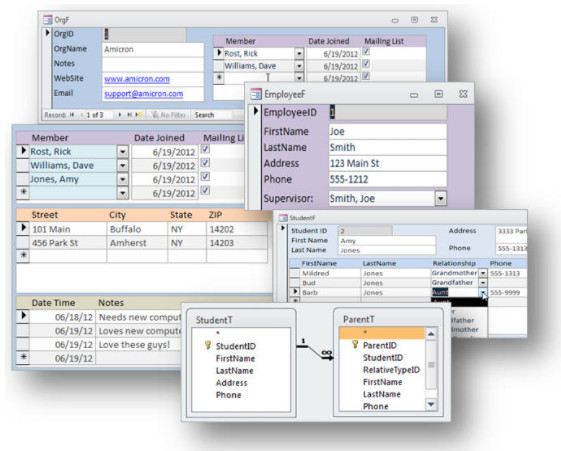 Resources Resources
Relationships Covered
- No relationships
- One-to-Many
- One-to-One
- Many-to-Many
- Self-Join One-to-Many
- Self-Join Many-to-Many
- Reverse Relationships
- Multiple Relationships
Databases Built
- Children to Parents with their relation (one-to-many)
- Which parents receive mail on their child's behalf
- Student data with a secondary optional detail table (one-to-one)
- Vendors to Products and vice versa (many-to-many)
- Employees to Supervisors (self-join, one-to-many)
- Complete family history with relationships (self-join, many-to-many)
- Organizations to Members (whether companies, families, charities, etc.)
Topics Covered
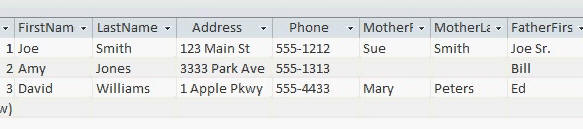
We will begin by looking at in table that has no relationships. You'll learn how NOT to build a database. This is basically one table with all kinds of information in it that shouldn't be there.
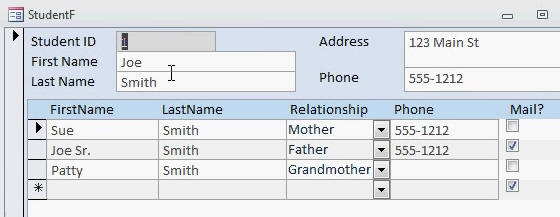
Next we'll build a database to track students and parents. This is a one-to-many relationship where one student can have many parents. We'll also keep track of which parents will receive mail for each student.
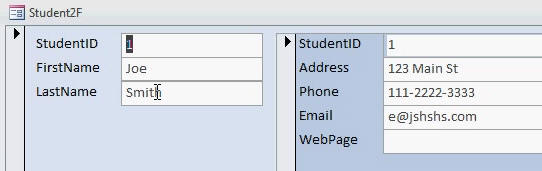
We will learn about one-to-one relationships. This is handy if you have a lot of data but you only have some information on most of your records. For example, if you have a student database but only have names for most of your students. You need to be able to track additional information such as address, phone number, and so on, however you only have that information for a small group of students. A 1-to-1 relationship saves a lot of space in your database in this instance. Plus you can also put sensitive information in a separate table, such as financial data.
Next we will learn how to create many-to-many relationships. These are quite popular but difficult to implement because they involve a third table. You need a junction table to link two other tables in a many-to-many relationship. For example ,we will learn how to track vendors and the products they sell, however each product may also be offered by multiple vendors. This is the basis for a many to many relationship.
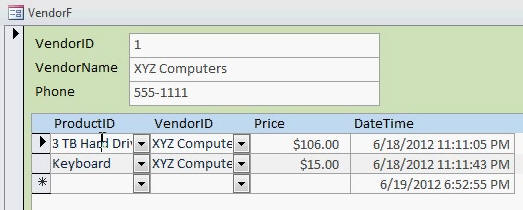
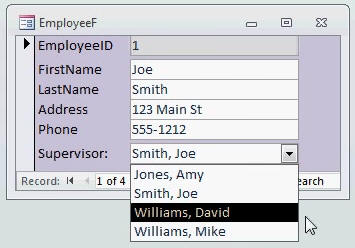
Next we'll create a self-join table. This is where a table relates to itself. We'll create an employee form that allows us to choose a supervisor for each employee. However, the supervisor is just an employee, so the table relates to itself.
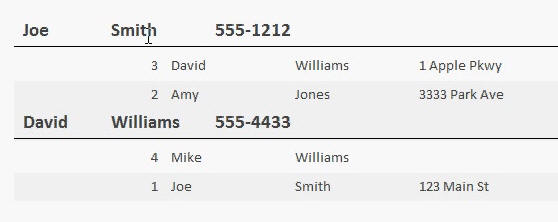
You'll also learn how to create a grouped report showing each supervisor in the employees he supervises. This requires building a query using the same table twice.
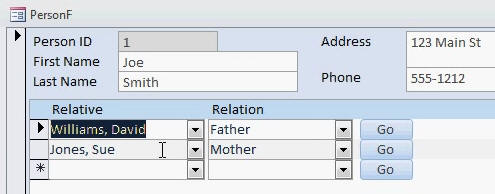
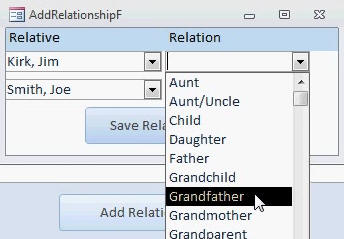
Next you'll create a another self-join table. We will track people and their relatives again, but this time we will set up a many-to-many relationship so each person can relate to each other person in the same table. This allows you to set up complete family trees (great for genealogy databases).
Next we will set up something that I like to call a reverse relationship. We'll specify two people, tell the database that one of them is (for example) the other person's uncle, and the database will figure out that the reverse relationship is niece or nephew.
This is one of the more advanced lessons in this seminar. It will use a little VBA programming and some SQL. I will show you everything you need to know to get the database working, but taking my SQL Seminar and advanced Access lessons first would be a great help. But don't worry, I'll show you how to get the database is working. Just follow along a step by step.
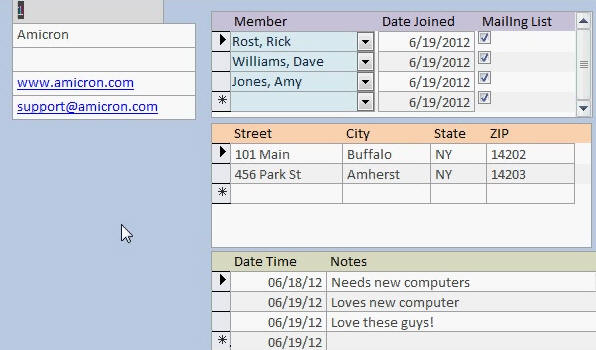
Finally will make a database to track organizations and members. Now in organization can be a family, company, charity, church, or anything else you want it to be. We'll track members of that organization in a many to many relationship. These can be family members, employees, donors, etc.
We will track multiple addresses for each organization and for each member. We will also build a contact management table to keep track of correspondence with each organization or member. We will build one big form so that we can see all of the information for each organization. We'll do the same thing for each member.
So as you can see we cover just about everything there is to know about relationships in Microsoft Access. From the very basic to the advanced, you will definitely know how to properly setup your tables and relationships after watching this seminar.. Of course, if you have any questions about whether or not this seminar is for you, please contact me.
NOTE: There is a NEW lesson on database table normalization found in Access Expert Level 2 that wasn't included in this seminar. It's not necessary for you to learn, but it covers a lot of theory that isn't discussed in this seminar. It was recorded after this seminar was finished.
Pre-Requisites
This is a Developer-Level Seminar. There will be a lot of VBA. It is strongly recommended that you have completed my entire Access Beginner and Expert series. My Developer 1 class is highly recommended so you understand the basics of programming in VBA. If not, at least watch my free Intro to VBA video. My SQL Seminar Part 1 is recommended, but not required.
Version
I am using Access 2010 in this seminar, however the lessons are perfectly valid for all versions of Access from 2003 and later. It's currently 2022 and I just recently verified that everything in this seminar still works with Access 2019 and Office 365.
Enroll Today
Enroll now so that you can watch these lessons, learn with us, post questions, and more.

Questions?
Please feel free to post your questions or comments below. If you are not sure as to whether or not this product will meet your needs, I'd rather help you before you buy it. Remember, all sales are final. Thank you.
Keywords
microsoft access relationships, One-To-Many, One-To-One, Many-To-Many, Self-Join, flat file, child, parents, mailing, students, parents, school, global relationships, inner join, cascade delete, referential integrity, security, products, vendors, junction table, cross-reference table, employees, supervisors, report grouping, genealogy, family, dlookup, vba, sql, insert into, append query, organization, members, membership, charity, charities, churches, church, fund raising, donors, multiple addresses
More InformationTranscript Introducing the Microsoft Access Relationship Seminar brought to you by AccessLearningZone.com. In this seminar, you will learn just about everything there is to know about relationships in Microsoft Access.
Setting up proper relationships between your tables is absolutely critical to building a successful database. Bad table design and bad relationships between those tables are disastrous and will cause you nothing but trouble down the line.
This seminar covers just about all the different possible relationship scenarios that you will ever come across while using Access. We will build eight different database projects so that you can see how to set up good relationships between your tables. You can download the sample databases from my website and use them as templates for your projects, or you can build them yourself by following along with me in the videos.
We will begin by examining a database that has no relationships and just has a bunch of data thrown into one table. You will learn how not to build a database.
Next, we will build a database to track students and parents. This is a one-to-many relationship where one student can have many parents. We will also keep track of which parents will receive mail for each student.
We will learn about one-to-one relationships. These are handy if you have a lot of data, but you only have some information on most of your records. For example, if you have a student database but only have names for most of your students, you need to be able to track additional information such as address, phone number, and so on. However, you only have that information for a small group of students.
A one-to-one relationship saves a lot of space in your database in this instance. Plus, you can also put sensitive information in a separate table, such as financial data, and secure that table separately.
Next, we will build a database with a many-to-many relationship. These are quite popular, but difficult to implement because they involve a third table. You need a junction table to link two other tables in a many-to-many relationship. For example, we will learn how to track vendors and the products they sell. However, each product may also be offered by multiple vendors. This is the basis for a many-to-many relationship.
Next, we will create a self-join table. This is where a table relates to itself. We will create an employee form that allows us to choose a supervisor for each employee. However, the supervisor is really just an employee, so the table relates to itself.
Next, we will create another self-joining table. We will track people and their relatives again, but this time we will set up a many-to-many relationship so that each person can relate to each other person in the same person table. This allows you to set up complete family trees, and this is great for genealogy databases.
Next, we will set up something that I like to call a reverse relationship. We will specify two people and tell the database that one of them is, for example, the other person's uncle. The database will then figure out that the reverse relationship is niece or nephew.
This is one of the more advanced lessons in the seminar. I will use a little bit of VBA programming and some SQL, but do not worry, I will show you everything you need to know to get the database working. All you have to do is follow along with me step by step.
Finally, we will make a database to track organizations and members. An organization can be a family, a company, a charity, a church, or anything else you want it to be. That is your organization. Then, we will track members of that organization in a many-to-many relationship. These can be family members, employees, donors for the charity, and so on.
With a many-to-many relationship, each charity can have multiple donors and each donor can donate to multiple charities. That is the benefit of a many-to-many relationship.
We will also place multiple subforms on the main form for the organization so we can have multiple addresses and a contact manager with multiple contacts. Then, we will do the same thing for the members so each member can have multiple addresses and multiple contacts. That is great for tracking, billing, and shipping addresses, for example.
As you can see, we cover just about everything there is to know about relationships in Microsoft Access. From the very basic to the advanced, you will definitely know how to properly set up your tables and relationships after watching this seminar.
Visit my website at AccessLearningZone.com if you have any questions, or, of course, feel free to contact me directly. Intro In this seminar, you will learn all about setting up and managing relationships in Microsoft Access. We will cover a variety of relationship types including one-to-many, one-to-one, many-to-many with junction tables, and self-joining tables, as well as more advanced topics like reverse relationships and tracking organizations with their members. The video walks through eight different database projects, showing step-by-step how to build each one and explaining the best practices for table design and relationship setup along the way. You will also see examples of using VBA and SQL for more advanced relationship scenarios. Quiz Q1. Why is setting up proper relationships between tables important in Microsoft Access?
A. It ensures your database operates efficiently and correctly
B. It makes your database look more appealing
C. It allows unlimited storage space
D. It improves printing quality
Q2. What is a one-to-many relationship in an Access database?
A. One record in a table can be related to only one record in another table
B. One record in a table can be related to many records in another table
C. Many records in a table can only belong to themselves
D. Every table must be related to every other table
Q3. What is the main purpose of a junction table in a many-to-many relationship?
A. To store user passwords
B. To combine unrelated tables
C. To link two tables together in a many-to-many relationship
D. To store only temporary data
Q4. Which scenario is best suited for a one-to-one relationship in Access?
A. When every record must have a related record in another table
B. When there is a lot of redundant data that only applies to a few records
C. When you want to store the same data twice
D. When tables have no fields in common
Q5. Why might sensitive information be placed in a separate table in a one-to-one relationship?
A. To make it harder to locate important data
B. For improved data entry speed
C. For security, so it can be protected separately
D. To reduce database size by deleting information
Q6. What is the concept of a self-join in Microsoft Access?
A. A table joined to a completely different table
B. A table joined to itself to represent relationships within the same entity
C. A table joined to a query only
D. A table joined without using keys
Q7. What is an example of a reverse relationship as described in the seminar?
A. One person being their own parent
B. The database automatically figuring out that if one person is an uncle, the other is a niece or nephew
C. Two unrelated people being forced into a relationship
D. Two tables with exactly the same data
Q8. Which relationship type allows a charity to have multiple donors and a donor to give to multiple charities?
A. One-to-one
B. One-to-many
C. Many-to-many
D. Self-join
Q9. Why might you use multiple subforms on a main form for organizations or members?
A. To print the data more easily
B. To track multiple addresses and contacts per organization or member
C. To create extra tables automatically
D. To enforce alphabetical order
Q10. After watching the Microsoft Access Relationship Seminar, what should you be able to do?
A. Design colors for forms
B. Set up tables and relationships properly in Access
C. Write advanced Excel macros
D. Build websites
Answers: 1-A; 2-B; 3-C; 4-B; 5-C; 6-B; 7-B; 8-C; 9-B; 10-B
DISCLAIMER: Quiz questions are AI generated. If you find any that are wrong, don't make sense, or aren't related to the video topic at hand, then please post a comment and let me know. Thanks. Summary Today's video from Access Learning Zone is all about Microsoft Access Relationships, and in this seminar I am going to teach you nearly everything you need to know about creating and working with relationships in Access.
It is absolutely essential to set up proper relationships between your tables if you want to build a database that is efficient and reliable. Poorly designed tables and bad relationships will only bring problems as your database grows.
Throughout this seminar, I will show you a wide variety of relationship scenarios you might encounter while using Access. We'll work together on building eight different database projects. You are welcome to download the sample databases from my website and use those as templates for your own work, or you can build them step-by-step along with me as you follow the lessons.
The seminar begins by looking at what happens when a database does not have any relationships at all and all the data is just placed into a single table. This is a perfect example of what not to do and helps you understand the importance of organizing your data with relationships.
Next, we start building a database to track students and parents. In this case, we deal with a one-to-many relationship, since a single student can be associated with multiple parents. We also explore how to keep track of which parents should receive mail for each student.
We will explore one-to-one relationships next. These are especially useful when you have a lot of records, but most only require basic data. For instance, maybe you have a list of students and you usually just store their names, but occasionally need to track more details, like address or phone number, for a few students. A one-to-one relationship allows you to store that extra information in another table, saving space and improving efficiency. It is also helpful for data security, since sensitive items such as financial data can be stored in a separate table with different security settings.
After that, we tackle the many-to-many relationship, which is quite common but also a bit more complex to design in Access. This requires using a junction table to connect two other tables. For example, you might want to track which products are sold by which vendors, and vice versa. Since each vendor could carry many products, and each product could be sold by multiple vendors, a third table is necessary to keep track of these links correctly.
We will also discuss self-join tables. This means a table that relates to itself. For example, building an employee database that needs to specify a supervisor for each employee. Since supervisors are also employees, the table will relate to itself to establish these relationships.
We look at another self-joining table scenario, this time for tracking people and their relatives, but in a way that supports a many-to-many relationship. This setup allows every person in a single table to relate to any other person, making it well-suited for things like family trees and genealogy databases.
A more advanced topic we cover is what I call a reverse relationship. Here, you can define a relationship between two people, for example, specifying that one person is an uncle to another. The database will then determine the reverse relationship, such as niece or nephew. For this lesson, I introduce some VBA programming and SQL, but I break down every step, so you do not have to worry about getting lost. Simply follow along as we build it together.
Lastly, I will show you how to create a database to manage organizations and their members. The organization could be a family, business, charity, or church. You'll see how to track members of each organization in a many-to-many relationship, so any donor, employee, or family member can belong to multiple groups, and each group can include multiple members.
We also cover how to add multiple subforms to the main form for organizations, allowing you to store lots of addresses or manage several contacts. You will learn how to do the same for members, giving each one the ability to have multiple addresses and contacts. This is perfect if you need to keep track of different billing or shipping addresses.
After going through this seminar, you will have a solid understanding of how to set up both basic and complex relationships in Microsoft Access. This knowledge will allow you to build robust databases and avoid common pitfalls from the start.
You can find a complete video tutorial with step-by-step instructions on everything discussed here on my website at the link below.
Live long and prosper, my friends. Topic List Identifying bad database design with no relationships
Building a one-to-many student and parent database
Setting up mailing recipients in a one-to-many relationship
Creating a one-to-one relationship for optional data
Storing sensitive information with one-to-one relationships
Building a many-to-many relationship using a junction table
Tracking vendors and products with a many-to-many relationship
Creating a self-join employee-supervisor table
Building a self-joined table for genealogy and family trees
Implementing many-to-many self-joins for person relationships
Setting up reverse relationships and automatic reciprocal links
Using basic VBA and SQL for advanced relationship features
Tracking organizations and members with many-to-many relationships
Adding subforms for organization addresses and contact management
Managing multiple addresses and contacts for members Primary Topics one-to-many relationships, one-to-one relationships, many-to-many relationships, self-joins, table design, junction tables, reverse relationships, subforms Secondary Topics sensitive data handling, use of VBA, use of SQL, contact management |





