Access Amortization Seminar
Calculate a Loan Payment Schedule in Access
Welcome
This seminar will teach you how to calculate a complete Loan Amortization Schedule in Microsoft Access. You will learn how to work with flexible loan terms, manage multiple loans per client and per loan provider, and generate reports such as an aged accounts receivable.
 Resources Resources
Main Goals
- Learn how to calculate loan payments
- Create a complete amortization schedule
- Work with flexible loan terms
- Manage multiple loans per client
- Manage multiple loans per loan provider
- Reports like aged accounts receivable
Update
- I recently updated the database template for this Seminar. See Loan Amortization Template 2.0.
- If you purchased a copy of this Seminar or version 1.0 of the original template, you get a 50% discount to upgrade to the new version. Contact me for details.
Topics Covered
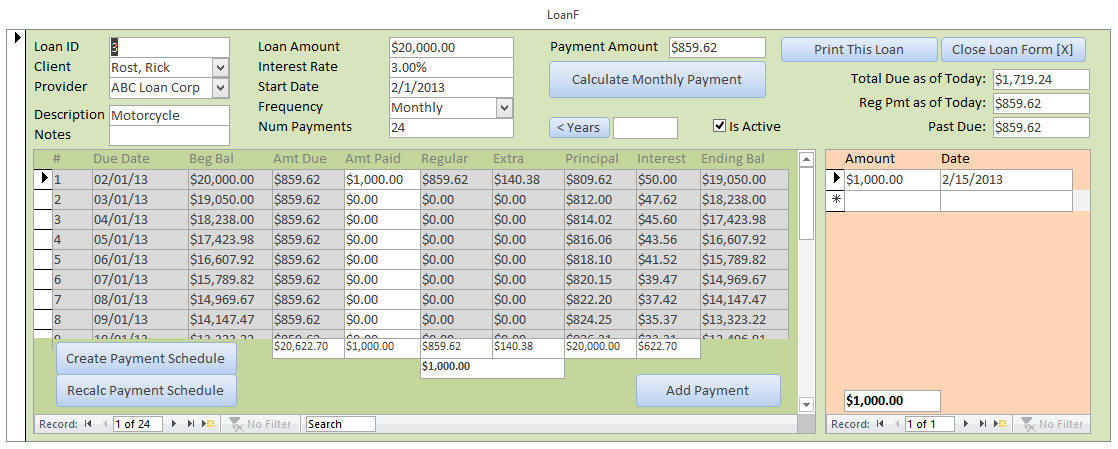
The Loan Form is the main feature of this database. Here you can select a client, a loan provider, enter the terms of the loan, calculate the payments, generate a complete amortization schedule, and track client payments. We'll spend most of our time building this complex form.
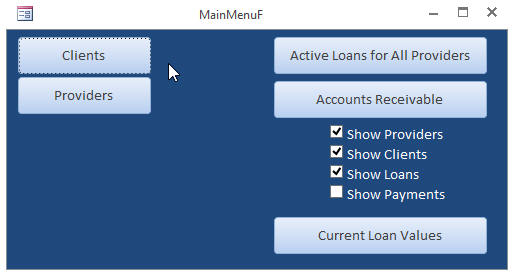
Exploring the other features of this database, we'll learn how to create a Main Menu form:
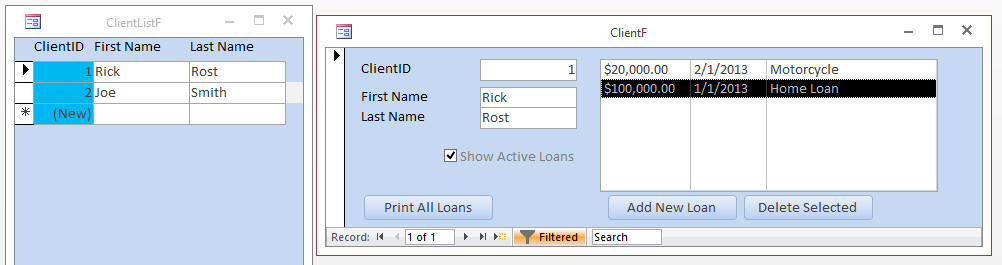
We will create a Client List and a Client Detail form. You'll see a list of Loans per Client.
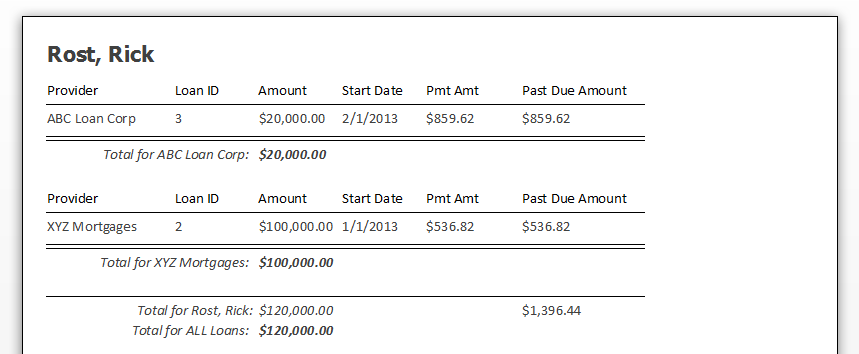
You can print a report showing the status of all loans per client.
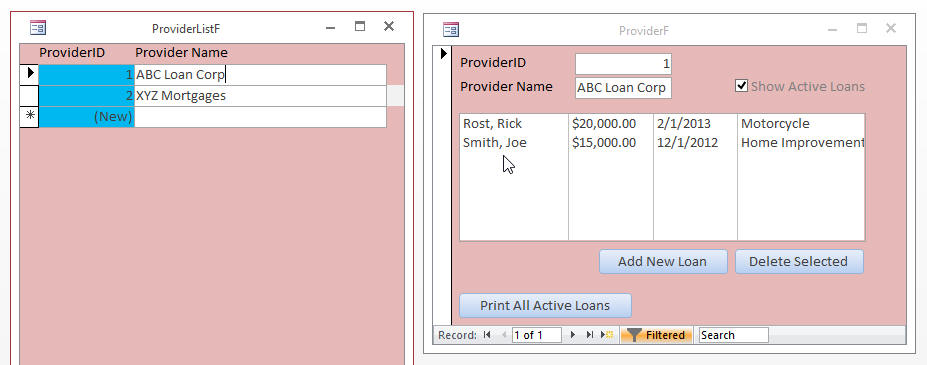
You can see all of the same items for Loan Providers as well (list form, details, report):
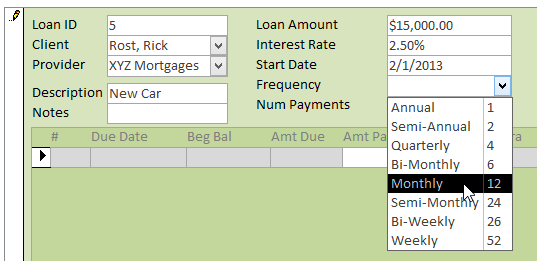
To create a new loan, just select a client and a provider. Enter a description, the loan amound, the interest rate, and the start date. Select a frequency (monthly, weekly, etc.)
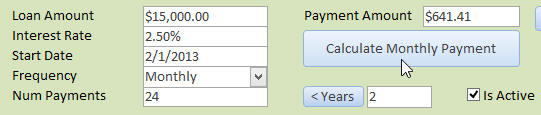
Enter in the number of payments (or type in the number of Years and the database will calculate the number of payments for you). The click on the Calculate Monthly Payment button and Access will tell you what the payment should be.
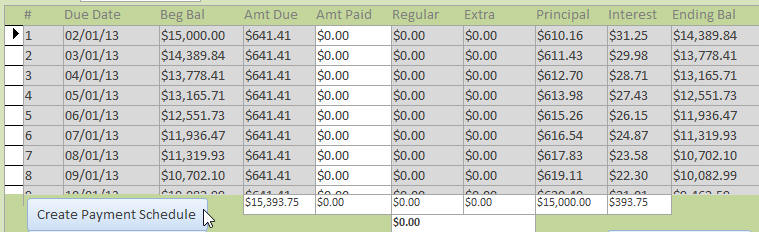
Now you're ready to generate the complete Amortization Schedule. Again, one click and Access does all the heavy lifting for you.
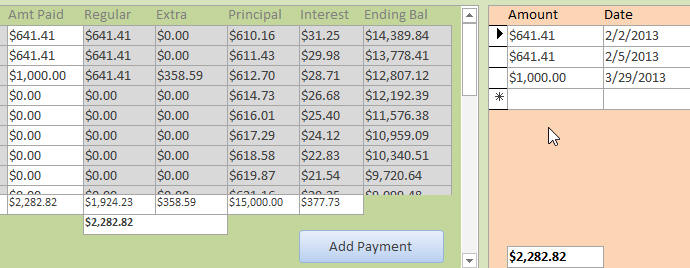
You can enter the client's payments as they come in. Access will assign them to "regular" payment amount and "extra" payment amount, if you wish to allow the client to pay down his balance early.
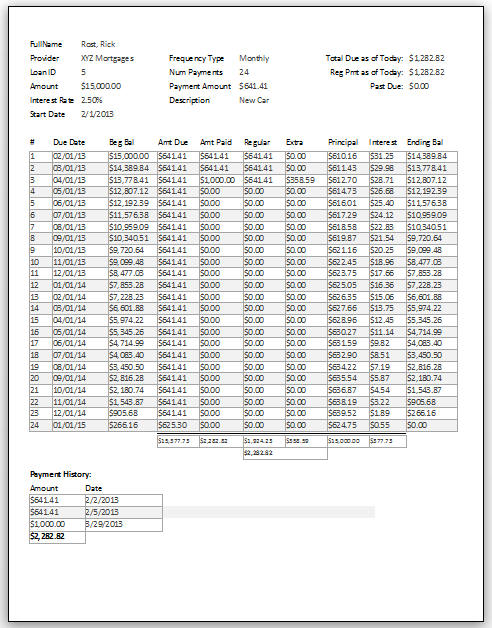
You can print this complete report out for the client.
There are a couple of additional reports as well. You can generate a list of all active loans for all providers, a list of all current loan values (payoff amounts), and you can generate an aged accounts receivable, showing as much or as little detail as you want.
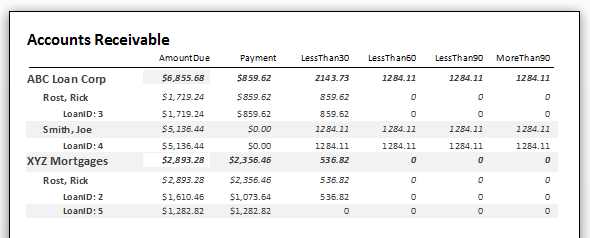
For example, this report shows the providers, clients, and loan info, but not all of the payment schedule details:
This is the perfect seminar for anyone who needs to learn how to calculate loan payments and track amortization schedules with payment histories in Microsoft Access. Of course, if you have any questions about whether or not this seminar is for you, please feel free to contact me. I'd be happy to answer any questions you might have.
NOTE: If you're looking for something less involved, there is a simpler database available that performs basic loan amortizations in the Templates section.
Pre-Requisites
This is a Developer-Level Seminar. There will be a lot of VBA. It is strongly recommended that you have completed my entire Access Beginner and Expert series. My Developer 1 class is highly recommended so you understand the basics of programming in VBA. If not, at least watch my free Intro to VBA video.
Version
I am using Access 2010 in this seminar, however the lessons are perfectly valid for all versions of Access from 2003 and later. It's currently 2022 and I just recently verified that everything in this seminar still works with Access 2019 and Office 365.
Enroll Today
Enroll now so that you can watch these lessons, learn with us, post questions, and more.

Questions?
Please feel free to post your questions or comments below. If you are not sure as to whether or not this product will meet your needs, I'd rather help you before you buy it. Remember, all sales are final. Thank you.
Keywords
microsoft access amortize, amortization, loan, payment, schedule, pmt, aged accounts receivable
More InformationTranscript Welcome to the Loan Amortization Seminar brought to you by AccessLearningZone.com.
My name is Richard Rost. A few months ago, I released a real simple Loan Amortization Database template on my website. Lots and lots of people downloaded that template and left suggestions. Many people left feedback saying they wanted to see a video of how I built the database, and of course, they made some suggestions for features to add.
This new and improved Loan Amortization Database lets you calculate loan payments and generate a complete amortization schedule with flexible loan terms. This is an upgrade from the last database. You can specify monthly, weekly, biweekly, or quarterly loan payments.
The new database lets you specify multiple loans per client. There is a client table and a provider table so you can track loans per provider, bank, lending agency, or whatever it is. I added a bunch of new reports. There is a main menu now where you have a list of clients. You can double-click to open up a client's record.
For the template, I only put first name and last name, but you can put all the fields you want in here, such as phone number, address, etc. To add a loan for a client, just click on the "Add New Loan." Pick a provider. Let's go with XYZ Mortgages. Add a description if you want, such as "home loan," and some notes if you want to put notes in. Enter the loan amount, let's say 100,000, and the interest rate, how about 5. Enter a start date, let's say 1-1.
Pick a frequency, this is new. Let's go with monthly. You can type in the number of payments if you want or come over here and type in the number of years, how about a 30-year mortgage. Click on the "Years" button and it will do the math for you. It is simple, but it is a nice little feature.
Calculate the monthly payment, and there it is. Then come down here and click on "Create Payment Schedule." You can see all of the payments are automatically generated and added to the subform here. The due date, the beginning balance, the amount due (which is the same for each payment), and the amount actually paid (which we will get to in a second).
There are columns for regular and extra, the regular amount toward the actual monthly payment, and then any extra they want to pay toward principal to pay the principal down. You can see how much of that payment is principal, how much is interest, and your ending balance. There are totals at the bottom.
Because of the new data, this is the amount that is due today because we started the loan two months ago and zero payments have been loaded in, so the past due is 1610. Let's put a payment in.
We can track the entire payment schedule over here and the payments that have been made on this loan. I'll click on "Add a Payment." What is the payment amount? Let's put in the default payment here, which is 536.82. What is the date of the payment? Let's say they made this on 1-2. Then I'll hit OK.
You can see the amount paid is added here to the schedule, and you'll see over to the right in the payment history their actual payment that they made. The past due amount up here is updated accordingly. Let's put a payment in for the second month. Add payment. This time they paid a little extra. Let's say they paid an even $600, and this was the 2-2 payment.
Now you can see the amount paid was 600. Another amount, which is the amount toward this month's payment, was 536.82, and an extra $63 went to pay off their principal. That will adjust their ending balance for this period and adjust the rest of the payments accordingly. People sometimes do that to pay off their balances early. If you do not want to allow that, you can simply change this yourself. Just change this to 536.82 and then move the 63.88 down to the next line.
After that, you'll see in their payment history the actual amount. You can track what payments came in on what dates and for which amounts. If you want to print this loan or send a copy to the customer, for example, just click here. This gives you a nice formatted report where you can see all the information about the loan as a whole plus the complete amortization schedule. This loan goes for several pages. At the bottom you can see all the totals and the payment history.
You can mark a loan active or inactive. An inactive loan will not show up in your reports. That is if you want to put something in, maybe to print out a quote for a customer or perhaps a loan that is paid off that you no longer want to see.
Back on the client form, you can print all the loans for this client. Here is the report. You can see each loan by provider, the loan ID, the amount of the loan, start date, payment amount, and the past due amount. I'll add another loan for this client. There is a second loan for a motorcycle, and now when I go to print all loans you can see the second loan shows up right here. ABC Loan Corp for his motorcycle.
Likewise, on the provider's menu, you can see each of your providers. Here is ABC Loan Corp. I have got two loans in here for them. You can print active loans by provider. There you can see the same information, just reorganized so the provider can see all the loans per client.
There is also an "All Active Loans for All Providers." This shows you everything in the system so you can print it out for your own records. Here is an accounts receivable option where you can show providers, clients, loans, and payments.
Here is a sample accounts receivable report showing each provider, each client and each loan, the amount due, the payments made, and of those payments what is less than 30 days old, less than 60 days old, less than 90 days old, or more than 90 days old. As you can see here, Joe Smith's not doing too well on that loan.
If you do not want this much detail, you can simply turn off specific bands of the report. For example, let's say I do not want to see the loan amounts. Here is the same data with just a breakdown by client. You can also get rid of the clients and just generate a provider report. There you go.
There is a "Current Loan Values" report. This shows you the current value of the loan, essentially the ending balance plus whatever is due. So if the customer comes into your office right now and wants to pay off their loan, that would be their pay off amount. The database is perfectly flexible. Through the techniques that I teach in the videos, you can add whatever kinds of reporting that you want based around all of this data.
In class I use Microsoft Access 2010, but I have also tested this with every version back to 2003 and it works fine in 2013 as well. So whether you are using 2003 all the way up to 2013, the techniques in this video should work just fine for you.
The sample database file for this class can be found at accesslearningzone.com/databases. On this page you will find the actual database file, the ACCDB file. I will also put it up there in 2003 format, in an MDB file.
If you are a paid customer and have purchased this seminar, you will have access to the full database file. If not, there will also be an encrypted version up there that you can download for free. To load up and play with the database, you will not be able to make any design changes or see the code, but you will be able to work with the database and see if you have any problems or questions with it.
One bit of warning that I will give you is this is an advanced seminar. I move along pretty quickly. If you have no background with Access, you definitely want to start with my Access Beginner lessons. Do not jump right into this seminar. I assume you know how to build tables, forms, reports, and all that good stuff.
There will be a good amount of VBA programming in this seminar. You may find it to your advantage to start with some of my expert classes, like my Access 301 or my Advanced 1 class, before taking the seminar.
This seminar also is informal in nature. This is not one of my polished productions like my standard Access classes or even some of my other seminars. This seminar is pretty much just me sitting down, hitting record, and building the database. I am going to walk you through everything that I did, including all my mistakes, so you can see what I did while I was designing the database.
This started out initially only being planned as a short 30 or 40 minute seminar and it grew into over 5 hours because I kept adding stuff. So you are forewarned. It is a little informal and there is a lot of advanced material. I move along pretty quickly. But I am pretty happy with the end result and I think you will be too.
If you have any questions, post them in the student forums. You will see the forums on my website, and if you are watching this online you will also see the forum for each class pop up right next to it.
If you do not understand something, you can post it in the forums. If you want more direct help from me, you can visit my TechHelp page. If you have any questions about the seminar whatsoever, please feel free to email me. You will find contact information on my website at accesslearningzone.com. Intro In this seminar, I will show you how to build an advanced loan amortization database using Microsoft Access. You will learn how to set up flexible loan terms with different payment frequencies, manage multiple loans per client and provider, track detailed payment histories including extra principal payments, and generate a variety of professional reports such as amortization schedules, current balances, and accounts receivable summaries. We will work through all of the database features step by step, with practical demonstrations and tips drawn from real user feedback. This seminar moves quickly and covers a lot of ground, so some experience with Access is recommended. Quiz Q1. What is one of the new features in the upgraded Loan Amortization Database compared to the original template?
A. The ability to specify payment frequency such as monthly, weekly, biweekly, or quarterly
B. Only allows single loan per client
C. Only supports annual loan payments
D. Does not generate an amortization schedule
Q2. Which tables in the database help you track loans by client and by provider?
A. Client and Provider tables
B. Client and Account tables
C. Provider and Payment tables
D. Client and Loan History tables
Q3. What payment-related information can you see in the amortization schedule generated by the database?
A. Due date, beginning balance, amount due, and amount paid
B. Only payment amount and date
C. Only total amount due at the end of the loan
D. Only interest charged
Q4. When entering an extra payment above the regular amount, what does the database do with the excess payment?
A. Applies it to the loan principal to pay down the balance
B. Ignores the excess payment
C. Adds it to the next month's interest
D. Deducts it as a service fee
Q5. What happens when you mark a loan as inactive in the database?
A. It will not show up in reports
B. It is deleted from the database
C. The payment history is erased
D. The provider is removed from the client's list
Q6. What kind of reports can you generate from the Loan Amortization Database?
A. Reports by client, by provider, all active loans, and accounts receivable
B. Only one report for all loans together
C. Only reports by provider
D. Only amortization schedule
Q7. In the accounts receivable report, what information can be analyzed?
A. Providers, clients, loans, due amounts, payments made, and payment aging brackets
B. Only the total loan amounts grouped by provider
C. Only unpaid loans
D. Only client addresses
Q8. What does the "Current Loan Values" report show?
A. The current value of the loan, including any dues, as the pay-off amount
B. Only the original loan amount
C. The total number of clients
D. Only overdue payments
Q9. Which versions of Microsoft Access does the seminar say the database will work with (as tested)?
A. Access 2003 through 2013
B. Only Access 2010
C. Only Access 2013
D. Access 2016 only
Q10. What is a recommendation made for students new to Access before taking this seminar?
A. Take Access Beginner lessons first
B. Start directly with this seminar
C. Begin with Excel classes instead
D. No prior knowledge is needed
Q11. What is a unique characteristic of this seminar compared to Richard Rost's other classes?
A. It is informal and includes his design process and mistakes
B. It only covers theory, not practical use
C. It is shorter than his other seminars
D. It is focused only on VBA programming
Q12. What does the free (encrypted) version of the database allow users to do?
A. Work with the database, but not change design or view code
B. Edit forms and tables freely
C. Modify all reports
D. Export the source code
Answers: 1-A; 2-A; 3-A; 4-A; 5-A; 6-A; 7-A; 8-A; 9-A; 10-A; 11-A; 12-A
DISCLAIMER: Quiz questions are AI generated. If you find any that are wrong, don't make sense, or aren't related to the video topic at hand, then please post a comment and let me know. Thanks. Summary Today's video from Access Learning Zone is the Loan Amortization Seminar. My name is Richard Rost. Not too long ago, I shared a basic Loan Amortization Database template on my website. It received a great deal of interest, and many users provided valuable feedback and feature suggestions. A lot of people also asked to see exactly how I put this database together. Other requests included the ability to add more features and increased flexibility.
This updated Loan Amortization Database allows you to easily calculate loan payments and create a detailed amortization schedule with a wide range of loan term options. It is a significant improvement over the previous version. Now, you can set up loans with different payment intervals, such as monthly, weekly, biweekly, or quarterly payments.
A new capability in this database is the option to create multiple loans for any given client. There are tables for both clients and providers, so you can track which bank, agency, or lending institution provided each loan. I have added several new reports, and there is a main menu that displays a list of your clients, letting you quickly open any client's record.
While the template started off with just a first and last name, you can add as many fields as you want, like phone number, address, and more. To add a loan for a client, you simply choose a provider, such as XYZ Mortgages, and add any relevant description or notes. Then, you enter the loan amount, the interest rate, and a start date. The new frequency option lets you select how often payments are made. For example, you might pick monthly. You can either enter the number of payments or just type in the loan's duration in years, such as for a 30-year mortgage. With a quick button click, the database calculates the payment term for you, which is a convenient feature.
After entering these details, you can calculate the monthly payment and generate the payment schedule. The system automatically creates all the upcoming payments, showing the due dates, starting balances, amount due for each payment, and space for the amount actually paid. For each line in the schedule, you can track both the regular payment and anything extra the client pays towards the principal. The schedule breaks down each payment, showing how much goes to principal, how much goes to interest, and what the new balance is after payment. All the totals are summarized at the bottom of the schedule.
If the loan began a while ago and no payments have yet been entered, the database will show the current past due amount. To record a payment, you just enter the amount and the date it was paid. The payment is added to the loan schedule, and the payment history is updated accordingly. The past due amount at the top is also recalculated.
You can add additional payments, even if the client pays more than the required amount. The system applies any extra payment towards reducing the principal, labels the difference, and then automatically updates the ending balance and adjusts future payments accordingly. This is helpful for clients who want to pay off loans more quickly. If you want to restrict payments to just the regular payment amount, you can adjust any extra funds accordingly. The payment history records the dates and amounts paid, making it easy to monitor each client's payment record.
If you need to provide a copy of the loan details to a client, the database can generate a clear, well-formatted report showing all the details of the loan and the whole amortization schedule. The report includes all the totals and the complete payment history.
Loans can be marked as either active or inactive. When a loan is inactive, it will not appear in your regular reports. This is useful for keeping records tidy, such as when loans have been paid off or if you're preparing sample quotes for clients.
On the client form, you can print all loans for a particular client, providing a report that lists each loan, its provider, loan ID, the amount, start date, payment amount, and the amount currently past due. If the client has more than one loan, such as both a mortgage and a vehicle loan, the report will show both.
Similarly, from the provider section, you can view and print a report of all active loans for each provider. This organizes loans by provider, making it straightforward for the lender to see all loans given to their clients.
There is also a report that shows all active loans for all providers at once, which is helpful for your complete records. Another report features accounts receivable data, including providers, clients, individual loans, and detailed payment information. This report shows, for each loan, how much is due, which payments have come in, and how old those payments are (less than 30 days old, 60 days, 90, or more than 90 days overdue). This makes it easy to see at a glance which accounts are current and which ones are overdue.
If you want less detail on your reports, you can remove certain details to simplify the output. For instance, you might hide the loan amounts or only produce summary reports by client or provider.
The Current Loan Values report shows the live payoff amount for each loan, which is useful if a client wants to settle their balance immediately. With the tools shown in the video, you can build out any additional reports you might need using all of the data available.
While I use Microsoft Access 2010 in this class, I have tested the database in every version from Access 2003 up through 2013, so these techniques should work on almost any recent version of Access.
You can download the sample database from my website. Both the Access 2007+ ACCDB and the Access 2003 MDB file formats are available. Paid seminar buyers get access to the full, unlocked database file. If you have not purchased the seminar, a free encrypted version is also available. With the encrypted version, you can use the database and see how it works, but you cannot change the design or access any of the underlying code.
Keep in mind that this seminar assumes prior Access knowledge. If you are entirely new to Access, I recommend starting with my beginner lessons before attempting this seminar. You should already know how to work with tables, forms, and reports. There will be a good deal of VBA in this seminar, so some experience with my expert or advanced classes (like Access 301 or Advanced 1) will be helpful.
This seminar is fairly informal. Unlike my more polished productions, this one is really just me sitting at my computer, recording as I build and explain the database. I share everything, including my mistakes and troubleshooting, so you get an honest look at the database design process.
Originally, I planned for a brief session, but as I added more features based on feedback, the seminar expanded to over five hours. So be prepared for a lot of detail and a brisk pace. Despite the informality, I believe the result is a comprehensive and effective resource for anyone managing loan amortization in Access.
If you have any questions, you are welcome to participate in my student forums or visit my TechHelp page for more direct support. My contact information is always available on my website.
You can find a complete video tutorial with step-by-step instructions on everything discussed here on my website at the link below. Live long and prosper, my friends. Topic List Calculating loan payments with flexible terms
Generating amortization schedules
Specifying payment frequency (monthly, weekly, biweekly, quarterly)
Managing multiple loans per client
Tracking loans by provider or bank
Adding and editing client details
Assigning loans to providers
Entering loan amounts, interest rates, and start dates
Calculating payments based on number of years or payments
Creating and displaying payment schedules
Tracking principal and interest components of payments
Recording extra payments toward principal
Managing and updating payment history
Calculating past due amounts
Adjusting payment amounts and reallocating extra payments
Printing individual loan amortization reports
Printing all loans for a client
Printing loans by provider
Generating all active loans reports
Viewing accounts receivable by provider and client
Generating accounts receivable aging reports
Customizing report details and fields displayed
Generating current loan values and payoff amounts
Marking loans active or inactive
Adding multiple loans to a single client
Printing all active loans across all providers
Working with loan and client lists in the main menu Primary Topics loan amortization, Microsoft Access database design, payment schedule generation, client and provider management, flexible loan terms, reporting features, accounts receivable, VBA usage, payment tracking
Secondary Topics loan payoff calculations, data entry tips, database file formats, Access version compatibility
|





