Access Email Seminar
Learn All About Sending & Receiving Email in Access
Welcome
This seminar will teach you just about everything there is to know about sending and receiving email using Microsoft Access - with or without Microsoft Outlook. This seminar is for the intermediate to advanced Access developer.
You will learn how to send email with and without using Microsoft Outlook. You will learn how to send bulk email batches to groups of customers on set mailing lists using plain text, rich text, or HTML formatted emails. You will build a separate email server database whose job is to handle the processing of email for all of the users on your network. You will learn how to extract data (including attachments) from incoming emails using Outlook, parse the data into your Access tables, and save attachments to your hard drive.
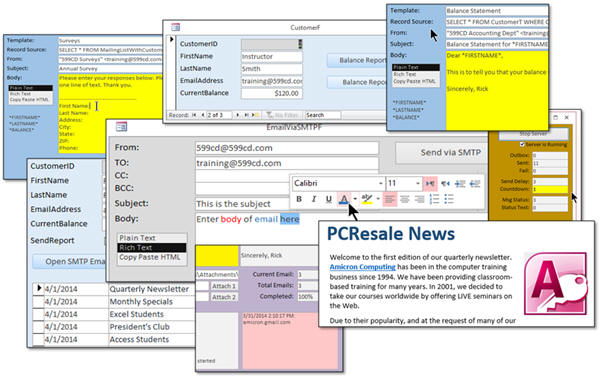 Resources Resources
Main Goals
- Send Email Using Outlook
- Export Access Reports as PDFs
- Attach Files to Outgoing Email
- Disable Outlook Security Warnings
- Mail Merge Using Access and Word
- Create Rich Text or HTML Email
- Include Images in Emails
- Broadcast Bulk Email Batches
- Send Email Without Outlook
- Connect Directly to a Mail Server
- Create an Email from a Web Page
- Embed Custom Mail Merge Fields
- Add a Send Delay to Large Batches
- Build Regular Email Templates
- Assign Customers to Mailing Lists
- Construct a Mail Server Database
- Acquire Data from Incoming Emails
- Build Web Form to Collect Survey Data
- Extract Files from Access Attachments
- Track Email Deliverability
- Email to SMS (Text Message) Gateways
- Extract Attachment from Incoming Mail
Sample Database
You can download the database that is built in this class so you can test it and make sure it's right for your needs. Note that in the preview database, only the forms that send email via Outlook will work. The SMTP (non-Outlook) code will NOT work because you need to edit the source code and specify your mail server settings, username, and password. These features are only available in the FULL database (which you get a copy of when you buy the seminar). Both 32-bit and 64-bit versions of the database are provided.
Topics Covered
You will start by learning how to send email from Access using Outlook by sending reports from your database directly to a single email.
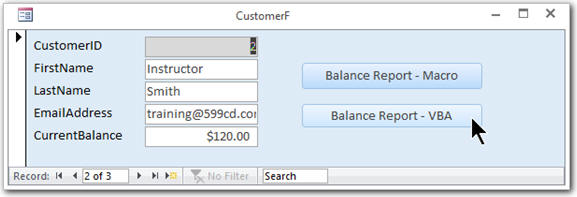
You will learn about the SendObject and EmailDatabaseObject macro and VBA commands. We'll talk about the Outlook Security Warning and what it means.

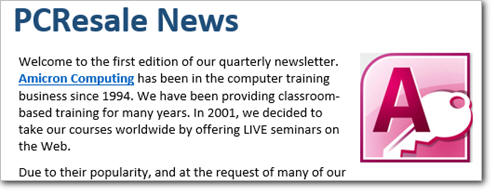
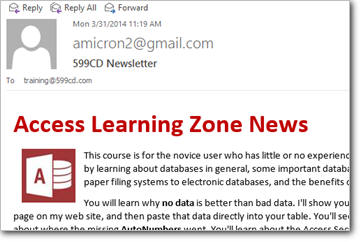
You will learn how to create nice, formatted emails using Microsoft Word. We will use our Access data in a Word Mail Merge to send multiple emails using Outlook. You will learn about inserting pictures, hyperlinks, and more.
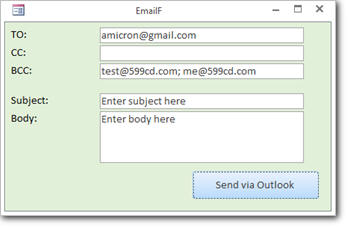
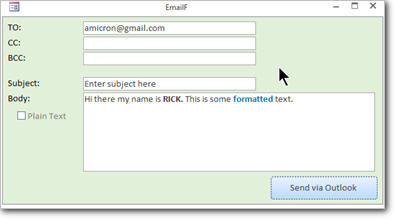
Next we'll build our own email form and send text email direct to Outlook without having to use a database report. You'll learn about the Outlook Application Library and how to add a reference to it in your VBA editor.
You'll learn how to send formatted, rich text and HTML messages direct to Outlook. We'll see how to upload images to a public folder on the Web so that your recipients don't have to download them in their email.
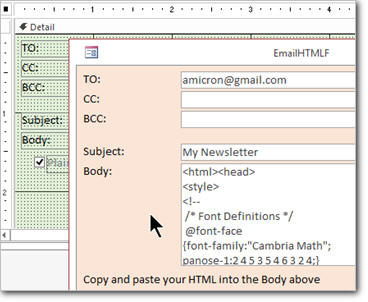
Next we'll create a separate form for sending HTML formatted emails. The concept is to create an HTML email in a web editor (or even Word, saved as HTML). Then we just copy and paste the HTML code directly into our email database and click send.
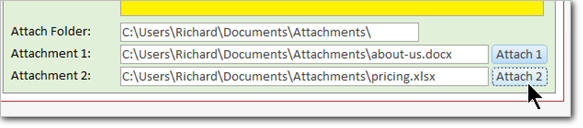
You will next learn how to send attachments as part of your emails via Outlook. We'll create ZIP files, check if a file exists, use the Common Dialog DLL to click on a "select file" button and browse for the files to attach.
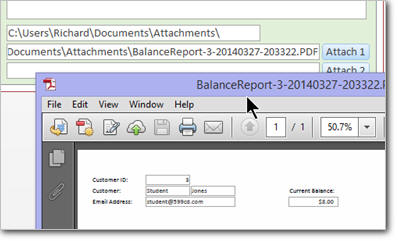
Next we will see how to automatically export an Access report as a PDF file using VB code. We'll save these PDF files to a folder on your hard drive, and then use them as attachments in outgoing emails. Great for sending customer statements or invoices.
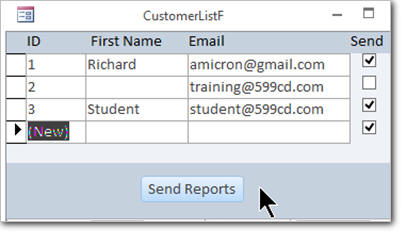
Now we'll start learning how to send bulk email using Outlook. We'll create a customer list form, select specific customers to mail to, generate a loop to cycle through each of the customers, and send email to the selected customers. I will also show you how to disable the Outlook Security Warning so you're not prompted each time you send an email. We'll send balance statements to all customers with a balance on their account over zero dollars.
Next we'll begin a series of lessons on sending email without using Outlook. We will learn how to connect directly to an SMTP mail server. You will still need an email account with an Internet provider, but this will allow you to send directly to their mail server using Access directly, without needing an intermediate program like Outlook between you. We'll learn about the Collaborative Data Object (CDO) programming library.
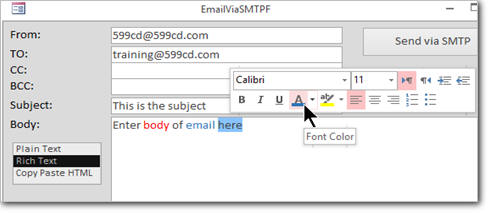
We will build a more robust form for sending email. You'll be able to select the format (plain, rich text, HTML), specify CC and BCC recipients, and more.
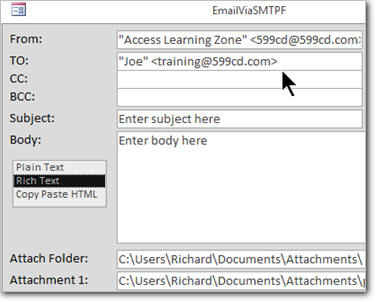
Next we will learn how to connect to Gmail to send mail using SSL (Secure Sockets Layer). We'll also learn how to send "friendly" names on our emails. You will learn how to send email attachments using this method. You will also lean how to handle errors during the transmission of the email to the server.
You will learn how to create an email based on a web page or HTML document. If you know a little bit about web editing, you'll be able to set up a web page, format it as an email (newsletter, for example) and then with a few lines of code send that out as an email, automatically.
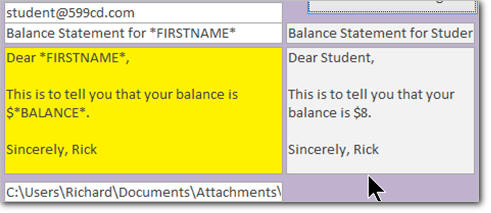
Next we'll learn how to use Recordsets to loop through the records of our database in VBA code. This will allow us to more easily send large batches of bulk email. We'll create our own Merge Codes in our emails so you can customize them with phrases like "Dear *FIRSTNAME*" turning into "Dear Joe" when the email goes out.
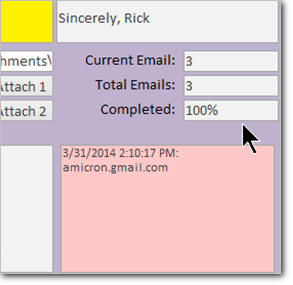
We'll monitor our email statistics, so when you're sending a large batch you can see how many emails there are total, how many are left, and what the percentage of completion is.
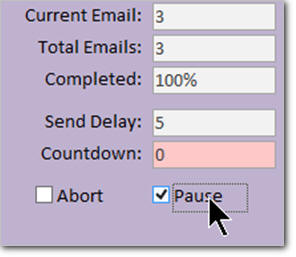
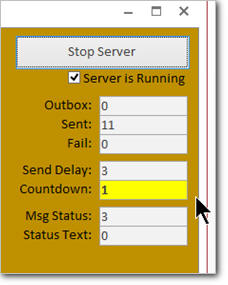
If you're sending a large volume of emails, you may want to space them out so you don't bog your mail server down. Some ISPs also will complain if you send a ton of emails at once. I'll show you how to program a countdown timer with a delay so you can space your emails out. This will also prevent a flood of traffic on your web server if everyone responds to your email at once.
You'll probably have certain emails that you'll send on a regular basis, such as monthly newsletters, weekly balance reports, and so on. Instead of having to re-invent the wheel every time, we'll make a table/form to save our Email Templates. That way you just pick the template, select the customers, customize it a bit if you want, and then click SEND.
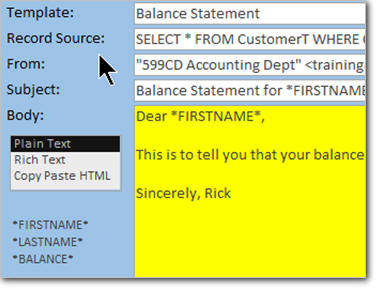
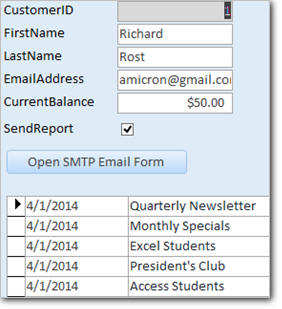
You'll also probably want to put customers into different mailing lists, such as your company newsletter, monthly specials, or in my case a group for my Excel students, another for my Access students, and so on. We'll set up a category system where each customer can be in one or more categories. Now all you have to do is pick the Template, pick the Category, and all of those customers get their emails, automatically.
Sending a large batch of email can take a long time. If you have 20,000 emails to send out, that can busy your system up for a few hours. It would be nice to queue up the emails and have another database send them out, right? This can even be a database sitting on another computer somewhere on your network... one that everyone on the network can use. In this lesson I'll show you how to set that up. To be clear, this "database server" will collect the emails from users and send them up to your Email account. You will still need an ISP and an email address. This database just handles all of the email transmission processing so you don't bog down your workstation PC.
Next we will learn how to read incoming emails and extract the data from them. We'll see how to loop through the emails in our Outlook inbox, collect the data from them, store that data in our Access tables, and put the data in the right fields. We'll see how to send out a User Survey via email and process the data when the users return the email with information filled in.
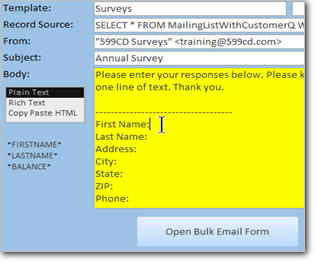
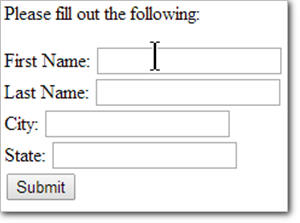
If you have your own web site with Microsoft (Windows) hosting, this lesson will allow you to set up a form on your web site using HTML and ASP (Active Server Pages) to collect user data. When they submit the data it will come to you via email and you can use the techniques from the previous lesson to read and parse the data.
Many people use the Attachment field type in Access databases to store files. I will show you how to extract those files to your hard drive using VBA code so that you can then use them as email attachments.
We will also discuss tracking email deliverability with delivery status notifications and read receipts. We'll talk about sending email as text messages using an SMS gateway, and we'll see how to extract attachments from incoming emails and save them to a file folder.
As you can see, if you want to be able to send and receive emails using Access, this is the perfect seminar for you. You will learn everything mentioned above. You will have access to the full database that we build in class with all of these features. If you have any question whether this seminar is right for you, please feel free to contact me.
Pre-Requisites
This is a Developer-Level Seminar. There will be a lot of VBA. It is strongly recommended that you have completed my entire Access Beginner and Expert series. My Developer 1 class is highly recommended so you understand the basics of programming in VBA. If not, at least watch my free Intro to VBA video.
This course stands alone, however it is very strongly recommended that you at least know everything in my Access Beginner series (1-9) and the first three (3) lessons of my Expert series. You will also need an email account and a working installation of Microsoft Outlook to use the lessons involving Outlook. If you wish to use the lessons on collecting data via a web page, you will need Microsoft web hosting with ASP. Again watch the intro video (above) for a complete listing of pre-requisites for this course.
Version Notes
I am using Access 2013 in this seminar, however the lessons are perfectly valid for all versions of Access from 2003 and later. It's currently 2022 and I just recently verified that everything in this seminar still works with Access 2019 and Office 365.
The common dialog box (used to select a file attachment) will not work with 64-bit Access. I provide an alternative. The lesson on disabling the Outlook security warnings may not work in older versions of Office. Everything else works just fine. Watch the intro video (above) for a complete list of version information.
Enroll Today
Enroll now so that you can watch these lessons, learn with us, post questions, and more.

Questions?
Please feel free to post your questions or comments below. If you are not sure as to whether or not this product will meet your needs, I'd rather help you before you buy it. Remember, all sales are final. Thank you.
Keywords
send email from access, export report as pdf, send email attachments, bulk email with access, ssl, access outlook inbox, read incoming mail, collect user data, surveys, email to text message, extract attachments, database, microsoft access, access tutorial, email without outlook
More InformationTranscript Learn just about everything there is to know about sending and receiving email using a Microsoft Access database.
Hi, my name is Richard Rost from AccessLearningZone.com, and I am proud to announce the release of my new Access Email Seminar.
This seminar will teach you just about everything there is to know about sending and receiving email using Microsoft Access, with and without using Microsoft Outlook.
We will start out by learning how to send email from Access using Outlook by sending reports from the database directly to a single email.
We will learn about the Send Object and Email Database Object, Macro, and VBA commands. We will talk about the Outlook Security Warning and what it means.
You will learn how to create a nice, formatted email using Microsoft Word. We will use our Access data and a Word Mail Merge to send multiple emails using Outlook.
We will learn about inserting pictures, hyperlinks, and much more.
Next, we will build our own email form and send text email directly to Outlook without having to use a database report. You will learn about the Outlook Application Library and how to add a reference to it in your VBA Editor.
You will learn how to send formatted, rich text, and HTML messages directly to Outlook.
We will see how to upload images to a public folder on the web so that your recipients do not have to download them in their email.
We will create a separate form for sending HTML formatted emails. The concept is to create an HTML email in a web editor or even Microsoft Word, then copy and paste the HTML code directly to our email database and click Send.
The end user gets a nicely formatted email.
Next, you will learn how to send attachments as part of your emails via Outlook. We will create zip files, check to see if a file exists, use the Common Dialog DLL to click on a Select File button, and then browse for files to attach.
We will see how to automatically export and access a report as a PDF file using VB code. We will save these PDF files to a folder on your hard drive and then use them as attachments in outgoing emails.
This is great for sending regular customer statements or invoices or any document you want to save for the future.
Next, we will learn how to start sending bulk email using Outlook.
We will create a customer list form, select specific customers to mail to, generate a loop to cycle through each of the customers, and then send an email to each selected customer.
I will show you how to disable the annoying Outlook security warning so you are not prompted each time you try to send an email.
We will send balance statements to all the customers with a balance on their account over $0.
Next, we will begin a series of lessons on sending email without using Outlook.
We will learn how to connect directly to an SMTP mail server. You will learn about the collaborative data object programming library.
We will build a more robust form for sending email. You will be able to select the format, either plain text, rich text, or HTML.
We will specify CC and BCC recipients and much more.
Next, we will learn how to connect to Gmail to send mail using SSL - that is Secure Sockets Layer.
We will also learn how to send friendly names in our emails so recipients see Access Learning Zone, for example, instead of your email address.
You will learn how to send email attachments using this method. You will also learn how to handle errors during the transmission of the email to the server.
You will learn how to create an email based on a web page or an HTML document. If you know a little bit about web editing, you will be able to set up a web page, format it as an email (a newsletter, for example), and then, with just a few lines of code, send that out as an email automatically.
Next, we will learn how to use recordsets to loop through the records of our database in VBA code. This will allow us to more easily send large batches of bulk email.
We will create our own mail merge codes in our emails so you can customize them, and phrases like Dear First Name are replaced with Dear Joe when the email goes out.
We will monitor email statistics, so when you are sending a large batch you can see how many emails there are total, how many are left to go out, and what the percentage of completion is.
If you are sending a large volume of emails, you may want to space them out so you do not bog down your mail server.
Some internet providers will also complain if you send a lot of emails at once.
I will show you how to program a countdown timer with a delay so you can space your emails out. This will also prevent a flood of traffic on your web server if you send out an advertisement and everyone responds at once.
You probably have certain emails that you send on a regular basis, such as a monthly newsletter or weekly balance report.
Instead of having to reinvent the wheel every time, we will make a table and a form to save email templates.
This way, you just pick the template, select the customers, customize it a bit if you want, and just click send.
You will probably also want to put customers into different mailing lists, such as your company newsletter, monthly specials, or, in my case, I have a special group for my Excel students, another for my Access students, and so on.
We will set up a category system where each customer can be in one or more categories. Now all you have to do is pick the template, pick the category, and all of those customers get their emails automatically.
Sending a large batch of emails can take a long time. If you have 20,000 emails to send out, that can keep your system busy for a few hours.
It would be nice to queue up those emails and have another database send them out, correct? This can even be a database sitting on another computer somewhere on your network, one that everyone on the network can use.
I will show you how to set this up. We will set up a database server to collect the emails from other users and send them to your email account. This way, you are not tying up any one user's computer by sending out emails.
Next, we will learn how to read incoming emails and extract the data from them. We will see how to loop through the emails in our Outlook inbox, collect the data from them, store that data in our Access tables, and put the data in the right fields.
We will see how to send out a user survey via email and process the data when the users return the email with the information filled in.
If you have your own website with Microsoft Windows Hosting, I will show you how to set up a web form on your site using HTML and Active Server Pages to collect user data.
When they submit the data, it will come to you via email, and you can use the techniques from the previous lessons to read in and parse that data.
Many people use the attachment field type in Access databases to store files related to customers. I will show you how to extract those files to your hard drive using VBA code automatically so you can use those as email attachments.
We will also talk about tracking email deliverability with delivery status notifications and read receipts.
We will talk about sending email as text messages using an SMS gateway, and we will see how to extract attachments from incoming emails and save those to a file folder.
As you can see, if you want to be able to send and receive emails using Microsoft Access, this is the perfect seminar for you.
You will learn everything mentioned in this video. You will have full access to the database that we build in class with all of the source code, and you will be able to download a full working copy of the email server database.
You can find more information about this seminar on my website, accesslearningzone.com, and of course, if you have any questions about whether or not this seminar is right for you, please feel free to contact me directly.
For Access Learning Zone, I am Richard Rost. Thanks for watching. Intro In this video, you'll learn how to send and receive email using Microsoft Access, both with and without Microsoft Outlook. I'll show you how to email reports, use VBA and macro commands, handle attachments, perform mail merges, and send formatted HTML messages. You'll see how to connect to an SMTP server, work with Gmail, customize emails with mail merge fields, track email status, manage mailing lists, queue outgoing emails, and extract information from incoming messages. You'll also learn how to automate attachments and create templates for regular correspondence, making bulk email handling seamless in Microsoft Access. Quiz Q1. What is one of the main objectives of the Access Email Seminar?
A. To teach how to send and receive emails using Microsoft Access
B. To design websites with HTML and CSS
C. To create movies with Microsoft PowerPoint
D. To build mobile apps with Access
Q2. What is the first method covered for sending email from Access?
A. Using Gmail SMTP server
B. Sending reports directly via Outlook
C. Sending messages with Yahoo Mail
D. Using Access web forms
Q3. What feature in Access allows sending reports as emails via Outlook?
A. Send Object and Email Database Object
B. Access Export Wizard
C. Table Relationships Tool
D. Linked Table Manager
Q4. Why is the Outlook Security Warning discussed in the seminar?
A. It alerts users of potential unsafe access to Outlook
B. It checks your internet speed before sending emails
C. It displays battery status for laptops
D. It flags all emails as junk
Q5. How does the seminar recommend creating formatted emails?
A. Use Word Mail Merge with Access data
B. Draw messages in Paint and attach them
C. Use PowerPoint slides as email content
D. Print documents and mail them physically
Q6. What coding technique will you learn for sending emails directly to Outlook?
A. Using the Outlook Application Library with VBA
B. Embedding HTML in Excel cells
C. Running macros in Word only
D. Using Python scripts in Notepad
Q7. How does the seminar address including images in emails?
A. By uploading them to a public folder on the web
B. By pasting them into a TextBox in Access
C. By embedding them as Excel charts
D. By attaching them as raw SQL code
Q8. What additional functionality is built for sending HTML-formatted emails?
A. Creating a separate form for HTML email in Access
B. Using PowerPoint to design HTML emails
C. By writing HTML code directly in Outlook settings
D. By saving HTML files in Excel
Q9. What is used for browsing and attaching files to emails?
A. The Common Dialog DLL
B. Windows Notepad
C. Access Table Wizard
D. Windows Photo Viewer
Q10. What is a benefit of automatically exporting reports as PDF and attaching them to emails?
A. You can regularly send customer statements and invoices
B. You avoid using any disk space
C. It encrypts all email traffic
D. It eliminates the need to use email
Q11. What bulk email feature does the seminar introduce?
A. Looping through a customer list and sending emails to each selected customer
B. Sending emails to one customer at a time only
C. Printing and mailing customer invoices
D. Posting messages on a website forum only
Q12. How can you avoid the repetitive Outlook security warning?
A. Programmatically disable it in the seminar lessons
B. Turn off the computer
C. Switch email providers to Gmail only
D. Only send emails after 5 PM
Q13. What alternative to Outlook does the seminar cover for sending emails?
A. Connecting to an SMTP mail server directly
B. Using Excel formulas
C. Mailing handwritten letters
D. Sending files via Dropbox
Q14. What programming library is taught for SMTP email automation?
A. Collaborative Data Object programming library
B. Access Table Relationships
C. PowerPoint VBA library
D. Windows Media Player library
Q15. Why would you use recordsets in VBA code when sending emails?
A. To loop through and process batches of records
B. To organize images in Access forms
C. To enter manual email addresses only
D. To sort tables alphabetically
Q16. How does the seminar propose customizing email content for each recipient?
A. Using mail merge codes to replace placeholders with actual data
B. Sending generic "Dear Customer" emails only
C. Printing envelopes with hand-written names
D. Only sending images, no text content
Q17. What is one way to monitor email batch sending progress?
A. Display and track email statistics such as quantity sent and remaining
B. Rely on manual counting
C. Use Excel charts for every email sent
D. Print out a report after sending
Q18. Why might you want to insert delays between sending bulk emails?
A. To prevent overwhelming your mail server or ISP
B. To save more disk space
C. To make each email longer
D. To format every message in XML
Q19. How can you reuse commonly sent emails like newsletters or reports?
A. By creating email templates stored in an Access table
B. By rewriting each email every time
C. By saving messages in Notepad
D. By copying text from printed documents
Q20. What does the category system for mailing lists help with?
A. Organizing customers into different groups for targeted emailing
B. Sorting emails by color
C. Drawing graphs for each customer
D. Assigning passwords to each customer
Q21. How can you offload the process of sending large email batches?
A. Using a database server to queue and dispatch emails from another computer
B. Sending emails only on holidays
C. Mailing USB drives
D. Outsourcing to a print shop
Q22. How does Access handle incoming emails according to the seminar?
A. By looping through the Outlook inbox and inserting data into Access tables
B. By saving all emails as PDFs
C. By automatically deleting old emails
D. By posting incoming messages to a website
Q23. What is one way to collect survey data from users by email?
A. Sending surveys out via email and parsing returned messages into Access
B. Only calling customers by phone
C. Mailing paper surveys for manual entry
D. Using only Excel for surveys
Q24. Why would you extract Access database attachment field files to disk with VBA?
A. To use those files as email attachments
B. To back up the Access database
C. To print documents on paper
D. To reduce database size
Q25. What additional advanced email features does the seminar cover?
A. Tracking delivery and read receipts, sending SMS via email, and extracting attachments
B. Watching streaming videos in emails
C. Enabling dark mode in Access
D. Printing reports directly from Outlook
Answers: 1-A; 2-B; 3-A; 4-A; 5-A; 6-A; 7-A; 8-A; 9-A; 10-A; 11-A; 12-A; 13-A; 14-A; 15-A; 16-A; 17-A; 18-A; 19-A; 20-A; 21-A; 22-A; 23-A; 24-A; 25-A
DISCLAIMER: Quiz questions are AI generated. If you find any that are wrong, don't make sense, or aren't related to the video topic at hand, then please post a comment and let me know. Thanks. Summary Today's video from Access Learning Zone covers almost every aspect of sending and receiving emails using a Microsoft Access database.
My name is Richard Rost, and I am pleased to introduce my new Access Email Seminar. This seminar is designed to give you a comprehensive understanding of how to manage email communication directly from your Access database, whether or not you choose to use Microsoft Outlook.
We begin the seminar by exploring how to send emails from Access using Outlook. I demonstrate how to send reports from your database as emails to individual recipients. You will get to know the Send Object and EmailDatabaseObject commands, covering their use both with macros and VBA. I also explain the Outlook Security Warning, what it means, and how to manage it.
You will learn how to create well-formatted emails using Microsoft Word by leveraging mail merge features. Using your data from Access, you can send multiple emails via Outlook, and I show how to incorporate pictures, hyperlinks, and similar enhancements in these messages.
Next, we move to building custom email forms. I demonstrate how to send text emails directly through Outlook without needing to attach a database report. I introduce you to the Outlook Application Library, including how to add its reference in your VBA Editor. You will find out how to send formatted messages using rich text and HTML directly to Outlook as well.
For sending visually appealing emails, I guide you through the process of uploading images to a public web folder so recipients do not need to download them with their message. We develop a dedicated form for sending HTML-formatted emails. The approach involves creating your HTML content in a web editor, or even Word, copying the source code into your Access database, and sending it as needed. This means your recipients receive neatly formatted messages.
If you regularly need to send attachments, I cover how to include files with your emails via Outlook. I demonstrate how to create zip files, check whether files exist, and allow users to browse for attachments they want to include. You will see how to export Access reports as PDF files using VBA, save them to your hard drive, and attach them to outgoing emails. This feature is ideal for regular statements, invoices, or other documents you want to preserve.
I also explain how to send bulk emails through Outlook. You will learn how to create forms for selecting customers, loop through those selected customers, and send individualized messages to each. To streamline your workflow, I show you how to disable the recurring Outlook security prompts so your emailing process is not interrupted. For instance, you can generate and send balance statements to all customers with outstanding accounts.
Following that, we cover how to send emails without Outlook by connecting directly to an SMTP mail server. You will learn about the Collaborative Data Object programming library and how it can help you create more robust email forms. With these tools, you can select between sending plain text, rich text, or HTML messages. You will also be able to specify CC and BCC recipients and configure other advanced options.
I demonstrate how to connect to Gmail using Secure Sockets Layer (SSL), which is essential for secure email transmission. I also explain how to send emails with friendly names, letting your recipients see your company or organization name instead of just your email address. Sending attachments and handling error situations during transmission are also covered.
If you have some experience with web editing, I show you how to send emails based on a web page or HTML file. This makes it possible to produce highly formatted newsletters or other mailings using your preferred web editor and then send them through Access with minimal effort.
To process large batches of emails efficiently, you will learn how to use recordsets in VBA to loop through records, making bulk emailing much easier. I cover customizing emails with mail merge codes so that placeholders like "Dear First Name" automatically become personalized messages.
Monitoring email statistics will also be discussed. You will be able to track the total number of emails, the number left to send, and the percentage completed during the batch send process. For those sending high volumes, I guide you through programming a countdown timer with delays. This helps prevent overloading your mail server and reduces the risk of running into provider restrictions. The delay also helps alleviate strain on your website if your emails generate significant user responses.
For recurring messages such as monthly newsletters or weekly updates, you will learn how to set up templates in a table and form. With this system, you can simply pick a template, select recipients, make any minor changes, and send your email quickly and consistently.
We explore categorizing customers for targeted mailing lists, so you can easily manage communication such as newsletters, promotions, or specific announcements to different groups. A category system allows each customer to belong to multiple groups, making mass mailings very efficient.
Since sending thousands of emails can be time-consuming, I will teach you how to queue up emails for sending by another database, even on a separate networked computer. This approach ensures that sending bulk email does not slow down anyone's workspace and makes use of dedicated resources.
Reading incoming emails and extracting data is another major topic. I show you how to loop through emails in an Outlook inbox, collect the incoming information, and store it appropriately in your Access tables. For example, you will learn how to send a user survey via email and process the results you receive.
If you have a website hosted on Windows, I explain how to build an HTML form with Active Server Pages to collect user data. When someone submits the form, you collect the information by email and use the Access tools from prior lessons to import and process this data automatically.
For users who store attachments in Access databases, I demonstrate how to extract these files to your hard drive using VBA, allowing you to easily attach them to outgoing messages.
Other topics include tracking deliverability through delivery status notifications and read receipts, as well as sending text messages through SMS gateways. You will also learn how to extract and save attachments from incoming emails.
With this seminar, you will gain access to everything discussed, including the complete Access database built during the course, all of the source code, and a fully functional email server database for download.
For more details about this seminar, visit my website at the link below. If you have any questions about whether this seminar is right for you, feel free to reach out to me directly.
You can find a complete video tutorial with step-by-step instructions on everything discussed here on my website at the link below. Live long and prosper, my friends. Topic List Sending emails from Access using Outlook
Sending Access reports via email
Using SendObject and EmailDatabaseObject commands
Configuring email macros and VBA commands
Understanding and handling Outlook security warnings
Creating formatted emails with Word mail merge
Inserting pictures and hyperlinks in emails
Building a custom email form in Access
Using the Outlook Application Library in VBA
Sending rich text and HTML emails via Outlook
Uploading and linking to web-hosted images in emails
Creating a form to send HTML formatted emails
Copying HTML code for use in Access email sending
Attaching files to Outlook emails
Creating and attaching zip files
Checking if attachment files exist before sending
Using Common Dialog DLL to select attachments
Exporting Access reports to PDF for email attachments
Automating PDF report saving for outgoing emails
Sending bulk emails to selected customers
Building a customer list form for email selection
Generating email loops for multiple recipients
Sending statements to customers with account balances
Disabling Outlook security warnings for email sending
Connecting to SMTP servers to send email without Outlook
Using the Collaboration Data Objects library
Building a robust email form for SMTP
Specifying CC and BCC recipients in emails
Connecting to Gmail SMTP with SSL
Sending emails with display names
Sending attachments via SMTP method
Handling errors during SMTP email transmission
Sending emails based on web page or HTML documents
Looping through database records with VBA recordsets for emails
Creating custom mail merge codes for personalized email
Monitoring and displaying bulk email send statistics
Programming delay timers for spaced-out bulk emails
Saving reusable email templates in Access
Setting up customer categories for targeted mailings
Implementing mailing lists for different customer groups
Setting up a networked database mail queue system
Reading incoming emails from Outlook using VBA
Extracting and storing email data in Access tables
Automating survey distribution and response processing via email
Setting up web forms with HTML and ASP for data collection
Parsing data from incoming email responses
Extracting and saving Access attachment field files using VBA
Tracking email delivery with delivery status and read receipts
Sending text messages via SMS gateway from Access
Extracting and saving attachments from incoming emails Primary Topics sending email from Access, integrating Outlook with Access, using VBA and macros for email, sending HTML and formatted emails, bulk emails, handling attachments, automation and scheduling, reading incoming emails, using SMTP and Gmail with Access
Secondary Topics mail merge, category/mailing lists, template management, delivery notifications, SMS via email, extracting attachments, Active Server Pages forms
|





