|
||||||

|
|
||||||
|
Form Footer TotalsBy Richard Rost
 4 years ago
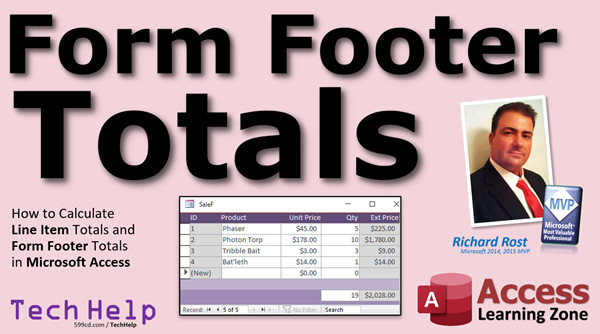
Calculate Line Item & Form Footer Totals In this video, I will show you how to calculate form footer totals. We will first calculate a total for each record (row) to get a line item total, and then we'll sum up all the line item totals to get a grand total for the entire set of data. Julian from Alpharetta, Georgia (a Platinum Member) asks: I have a table that contains products, how many of each were sold, and the sale price of each item. How can I total that information up on the bottom of the table? It's easy to do in Excel. How do I do it in Access? MembersMembers will see how to put the total for a subform's line items in the parent form. Then, we'll learn how to actually store the order total in the order table instead of just calculating it based on the sum of the line items. This is handy if you have to run a large query or report.
And yes, I posted my comment about needing an AfterDelete event on Microsoft's Access Feedback Portal. Silver Members and up get access to view Extended Cut videos, when available. Gold Members can download the files from class plus get access to the Code Vault. If you're not a member, Join Today!
Links
Suggested Courses
Keywordsmicrosoft access, ms access, ms access tutorial, #msaccess, #microsoftaccess, #help, #howto, #tutorial, #learn, #lesson, #training, #database, How do you calculate total in access form, How do you sum totals in access, Display column totals, How to Create Calculated Fields and Totals Rows, Displaying sum of totals on form, How to add Totals in Microsoft Access, Totals of Calculated Values, how to sum a calculated field in access form, sum function, microsoft access sum column, ms access query sum multiple columns, add the total row to the query
More InformationTranscriptWelcome to another TechHelp video brought to you by AccessLearningZone.com. I am your instructor, Richard Rost. In today's video, I'm going to show you how to calculate line item totals and form footer totals in your Microsoft Access Database. That's this guy over here - that's the line item total. And then these guys down here, those are the form footer totals. We're going to do both of those. Today's question comes from Julian in Alpharetta, Georgia, one of my platinum members. Julian says, I have a table that contains products, how many of each item were sold, and the sale price of each item. How can I total that information up at the bottom of the table? It's easy to do in Excel. How do I do it in Access? Well Julian, first of all, we're not going to do it in the table. Yes, you can do some kinds of calculations in tables. However, I strongly recommend against that. I've got a whole separate video on that coming out soon, but don't put calculated fields and calculations at all in your tables. We're going to either use forms or queries to do our calculations. I'm going to show you how in this video. But first, let's take a trip over to Excel and see how to do it there. Before we get started, before we take our trip over to Excel, I want you to go watch two videos. If you don't know how to do continuous forms or make calculated fields in queries, I want you to go watch these two videos first. There are the links. I'll put them in the link section down below. Just click on the description below the video. You can go watch these. They're on my website. They're on my YouTube channel. They're absolutely free. Go watch these so you know these things first. Let's go over to Excel for a minute. Here we are in my good friend Excel. Excel is one of my good friends. Access is my best friend, but Excel is one of my good friends. Excel has been kind of mad at me, though, since I published a book on Excel back in 2010, and I haven't done a whole lot with Excel since. But don't worry, more Excel stuff is coming up in the near future. Anyways, Julian sent me a picture of what he's dealing with, and it looks something like this. You've got a product, you've got the unit price, you've got the quantity sold, and you've got the total over here. So we got some products in here like a phaser, a photon torpedo, and tribble bait - he's not selling, I'm selling, and a bat'leth. We're going to just resize columns a little bit here. I like to put a little color in my columns, just like that, and in my rows and the totals over here, for example. That just visually tells the user what they can't type in. I always do that. So we got some stuff in here - 45, 178, 314 - and then how many is sold of each? We got five, two, three, one, let's say. And let's right align the stuff. I like to make my stuff pretty. Now getting a line total of each one of these is easy. Equals, always start off with =. It's unit price times (the star) then quantity sold, hit Enter. That's 2.25. We can autofill that down, double click right there. There's your line total. That's easy to do in Excel. Maybe format these as currency. Drop that down, currency, all right, round off, we got just whole dollars. Now let's say you want the sum of the quantity of items sold so you know how many total items you sold. We use the SUM function: =SUM(open parentheses), and then select the range that has our values in it. There we go. There's 11. I can actually autofill this to the right and then apply that formula to this. There we go. Also, we'll make that gray and apply the format painter on that so we get the same thing. That's pretty straightforward and very simple to do in Excel. It's not quite as easy to do in Access, but once you know how, and I'm going to show you how, you'll see that it's not that hard. The thing with Excel, and I've got a whole separate video on the differences between Excel and Access and why you should use each. I'll put a link to that video down in the link section below. But basically, Excel is easier to use because you can just freeform everything. You can type whatever you want, wherever you want, with very little limitations. Whereas with Access, you have to set up things in more of a proper database-type fashion. It's a lot more structured. You don't have that much structure with Excel. I always say Access has the learning curve, but once you get it set up properly, you'll find in the long run it will save you a lot of time, too. All right, so let's see how to do the same exact thing over in Access. Here I am in my TechHelp Free template. This is a free download up on my website. You can grab a copy if you want. If you've been watching my previous videos, like the video where I build this template, you'll know that on the customer form, you can click on orders, and right down here, you'll see something called a form footer total. I'll give you a link to this one as well. You can go watch this down below. This is my invoicing video. We'll talk more about that a little bit later, but for now, let's recreate what Julian had in his Excel sheet. So he's tracking sales. Let's make a sales table. Table design. We'll say we have a SaleID. Now, he didn't have this in his Excel spreadsheet, but if you're going to do it in Access, do it right. If he's tracking sales for the month, then he'll have a product name - that'll be short text. Yes, you'd have a ProductID and all that stuff if you really want to get technical, but we're just going to do it simple for now. Then we're going to have the unit price, and that's going to be currency. Then we're going to have the quantity sold, and that's going to be a number of type long integer. Of course, if you're selling fractional components, change this to a double down here. Now, would you put the total here? There is something called a calculated field. I don't like them. I don't ever use them. I teach my students to never use them. It's not good to put calculated values in your tables. Microsoft added this to Access to make it easy for beginners and people who don't really know databases to put calculations in their tables, but it's not the right way to do it. Trust me, it's not considered professional database design, proper database design to have any calculations in your tables. Your tables should just store raw data. There are a lot of reasons why, and again, I'm going to make a video on this in the future. But for now, just trust me. Don't put calculated values in your tables. So we're going to save this as my SaleT. My sale table. I like to keep all my names singular if I can. Let's throw some data in this table. Let's put the same data in there that we had over in our other sheet. We got the phaser, and that was $45, and we sold five. We've got the photon torpedo and that was $178, and we sold two of those. Then the tribble bait - it smells really bad, buy the double bait. There we go. And the bat'leth. Yes, I actually had to look up online on the official Star Trek site how to spell that with the apostrophe. So we've got our data. Now we're going to make a form. Save changes, yes. I've already got a template for a continuous form. I'm going to copy and paste that and call that my SaleF. Go watch my blank database video to see how I set this up to continuous forms. We're going to bind this guy to the record source of my sale table. I'm going to give you a little warning, by the way. I'm going to show you how to do this wrong first. I'm warning you ahead of time. I had one person a little while ago complain because I like to do this in my videos when I'm teaching. I like to sometimes show the wrong way to do it because a lot of people do it the wrong way first, and then they email me and they go, I can't figure this out. So I'm going to show you this way because you're going to make the same mistake, I guarantee it. By me showing you the wrong way first, you'll appreciate the right way better and understand why you do things a certain way. That's how I teach. I've been teaching the same way for almost 30 years now. If you don't like it, go find someone else to learn from. So record source SaleT. We're going to get the data from the table. We're going to add existing fields. I'm going to grab what we need and put them in here. So we're going to take - we're going to grab all those fields, click, drag, drop. I'm going to delete these labels. The SaleID can go there, which we really don't need the SaleID. The product name, the unit price, and the quantity sold. I keep these guys around just so I can do this - watch for my paint. And then I can delete these. Like that. I can slide these up. This is nothing new for you. You watched my continuous forms video so you know all this stuff. I like to cheat. I just do one big label across the top. I started doing this recently. Yeah, it's lazy, but it's OK. Product and just spaces. Price (or you'll put unit price) and then quantity. That's good enough for now. Save it. Close it. Let's open it back up, see what it looks like. Looks pretty good. We got to align these labels up. There, I'll line them up for you. Now let's put a total over here, which is the unit price times the quantity. Same thing we did in Excel. Design view. We can put calculated values in fields like this. Copy, paste, slide that over there. Turn this off. Let's open up the properties for this text box. I'll click on it. Let's call this my extended price, EXTPrice, and the control source is going to be =UnitPrice*QuantitySold, just like that. Let me zoom in so you can see that better. Shift F2. There you go. =UnitPrice*QuantitySold. Access puts the brackets around them. You don't have to because you're a good student and you've been learning with me since Beginner 1, and you know that we don't put spaces in our field names. That's the only reason that you would need those brackets. There's my extended price. Maybe format that gray so the user knows they can't type in it. We can extend out this. Extended price. Save it. Close it. Take a look. Whoops, wrong form. Right down here. Looks pretty good. The numbers look all right. We got to do a little formatting. Right click. Design view. Click on it. Format. Currency. Save it. Close it. Open it back up again. There we go. Looking pretty good. Let's put the form footer totals down on the bottom. Let's go to design view. The records go in the detail section. The form footer is where you put calculated values, like to sum these up and stuff. Count them up, sum them up, whatever you want to do. Any calculations you want based on all of these records go down here in the footer. If you don't see the form footer band, you might not. You might just have a detail section. Right click on it. You'll see down here there's page header/footer and form header/footer. You want the form header and footer. You're pretty much almost never going to use the page header/footer. That's if you print the form out - we don't print forms, we print reports. I almost never use this page header/footer. It's very rare that I format a form to be printed. I will make a report to be printed. So we want the form header and footer. Down here, underneath quantity sold, I want a text box right there. I'm just going to copy this one. Copy. Click on the form footer, paste. Now, if I leave it just as it is right now, it's still bound to the quantity sold field. See, it's Text9, that's its name, and the control source is still quantity sold. What happens then, if you don't change that, watch. You open this up, this is still bound to that field, and whatever record you're on, you'll see that value. See, that's another thing people always ask me: how come that's not giving me the total? Well, we didn't tell it to give the total yet. It's still bound to this field. Back to the design view. What we're going to do is we're going to change this to =Sum([QuantitySold]), just like that. I'll zoom in so you can see it. Shift F2. =Sum([QuantitySold]). The Sum function - not DSum, DSum is a different one, just Sum by itself. Hit OK. Let's give it a name, too. Let's call it SumQuantitySold, like that. That's the name of the field itself. This one up here is QuantitySold, so this one is SumQuantitySold. Save it. Close it. Open it. There we go. It's summed all those up. See that? Very nice. Nice and pretty. Now here comes the mistake that everyone makes. We're going to do the same thing with this guy, with extended price. What we're going to do is, same thing, let's copy that, paste it down here, put it over here. We're going to say this is going to be =Sum([ExtendedPrice]). Now it shows up there, because there is a field up top called ExtendedPrice. SumExtendedPrice, like that. Save it. Close it. Open it back up again, and errors. Why is that? Well, that's because you're trying to sum up a field that doesn't exist in the underlying table or query. In other words, the table or query that this guy is bound to doesn't have a field called ExtendedPrice in it. I'm going to show you how to fix that in just a second. Another thing people try to do is they try to do this: they take UnitPrice times QuantitySold and put that in here. Like this. =Sum([UnitPrice]*[QuantitySold]). Save it. Close it. And now when you open it, it looks right. And actually that calculation works. But you can't rely on that to always be right. Sometimes it's not, depending on your calculation. This is a very simple calculation, and in this particular case, yeah, it happens to work. If I come up here and change one of these, let's say I change this to 10, you see it updates and everything looks OK. But when you get into more complicated stuff, more complicated computations, this isn't always reliable. So what you want to do is you want to make the extended price a field in a query and then add all those up in the form. Let me show you how this works. Let's close this form and create a query. Create > Query Design. Bring in your SaleT. Bring in the star (all the fields). Right here, this is why I wanted to make you watch the calculated query fields video first. ExtendedPrice column is going to be =UnitPrice*QuantitySold. Let me zoom in so you can see that better. Shift F2. ExtendedPrice: UnitPrice*QuantitySold. Now this is a field in a query. We're going to save this as SaleQ (my sales query). If you run this now, there you go. There's that calculation for the line item. Same thing we did in the form, but now this is a calculated value in a query that's going to be underneath the form, so the form can look at it and say, oh, that's ExtendedPrice. Again, this works with very simple things by just doing it in the form, but if you get more complicated with some If stuff in here and sales tax and discounts, it will get messed up. Trust me. I used to have this happen all the time. People would send me their databases and this was the problem. So now let's go back into our sales form, design view. We're going to change where you're getting your data from. Instead of the sales table, we're going to get it from the sales query. We have breaking news. We interrupt this video for a quick advertisement from our sponsor. Who's the sponsor? Me, of course. If you want to learn more stuff like this, Access Expert 3 and Expert 8 is where I go into building the order entry system in my database for my regular classes. Expert 3: we go into some SQL basics, subforms, form footer totals, all these different functions: Sum, Average, Max, Min, Count, all that stuff. We build a product category form like hard drives. I show you how to add all that stuff up down there. Then in Expert Level 8, we start building the actual order entry system. Calculated query fields, the If function, all kinds of stuff, sales tax. This thing gets pretty cool by the end of class. Is it taxable, how much sales tax to charge, totals down here. This is where that starts getting messed up. You start putting just the calculations up in the form down here, it starts giving you wrong answers. So the method that I'm teaching you right now in this video is what you want to use for something like this. Of course, there's the free invoicing video. Go watch this too. This is a free video. It's on my website. It's on my YouTube channel. You can go watch this. That's where I show you how to set up this order entry system and a printable invoice and all kinds of cool stuff. Back to our video. We made this SaleQ now. So this guy no longer has to be a calculation. In fact, you can't do a calculation. Call that ExtendedPrice. It's not going to be yellow yet, but it's not a good thing to do. So just pick ExtendedPrice from the control source. That's a field underneath the form now in the query. Now here we can legally put in here Sum([ExtendedPrice]) and now it will work. Close that. Open it up. Boom. There you go. We've got the same thing, the math, and now the form actually has a field that it can add up. That's why you do it this way. When you start adding more complicated stuff like sales tax and discounts and If functions and this and that, it'll still work. If you want to learn more, in the extended cut, I will show you how to put the order total on the parent form, the order form out here instead of in a subform. Lots of people ask me, how do you do that? Well, here's your video. It's the extended cut. I'm a member and I'll show you. To actually display that value there is relatively easy. You just have to change the calculation a little bit. You can just hide the second one if you want to. You don't have to display that there. Then I will show you how to actually store that order total in the order table if you want to. That's handy if you're running lots of big reports where you've got thousands and thousands of records that you're pouring through, especially if you're running over a network. It might be running really slow. You have to calculate the total of each order as you're going through them. So if that's the case, you may want to store that order total. I'll show you how to make an event to recalculate the order total. We'll need an after update event, so when we add new records or we change them, it recalculates that total, and a custom delete button to handle if we delete a record. That's all coming up in the extended cut for members, 25 minutes long. Silver Members and up get access to all of my extended cut videos. There are lots of them - there's like 230 some of them now. Gold Members can actually download these databases. How do you become a member? Click on the Join button below the video. After you click the Join button, you'll see a list of all the different membership levels that are available, each with its own special perks. Silver Members and up will get access to all of my extended cut TechHelp videos, one free beginner class each month, and more. Gold Members get access to download all of the sample databases that I build in my TechHelp videos, plus my Code Vault where I keep tons of different functions that I use. You'll also get a higher priority if you decide to submit any TechHelp questions to me, and you'll get one free Expert class each month after you've finished the beginner series. Platinum Members get all the previous perks, plus even higher priority for TechHelp questions, access to all of my full beginner courses for every subject, and one free Developer class each month after you've finished the Expert classes. These are the full length courses found on my website, not just for Access either. I also teach Word, Excel, Visual Basic, and lots more. You can now become a Diamond sponsor and have your name or company name listed on a sponsors page that will be shown in each video as long as you're a sponsor. You'll get a shout out in the video and a link to your website or product in the text below the video and on my website. But don't worry, these free TechHelp videos are going to keep coming. As long as you keep watching them, I'll keep making more, and they'll always be free. IntroIn this video, I will show you how to calculate line item totals and display form footer totals in your Microsoft Access database. We'll look at how to set up calculations in forms, why you should avoid calculated fields in tables, and the best way to use queries for these totals. I'll also walk through common mistakes people make when creating form footer totals and demonstrate the correct approach, including how to sum calculated fields like extended prices. If you're used to doing these tasks in Excel, I'll explain the differences and show you how it's managed in Access. QuizQ1. Where should you perform calculations such as line item totals in an Access database? A. Directly in the tables as calculated fields B. In forms or queries C. In the property sheet of the database D. On the navigation pane Q2. Why is it not a good idea to store calculated fields in Access tables? A. Calculated fields make the database faster B. Storing calculations in tables is not considered professional database design C. It is impossible to create calculated fields in tables D. Users cannot see calculated fields in forms Q3. In the Excel example shown in the video, how is a line item total calculated? A. By dividing the unit price by the quantity B. By subtracting quantity sold from unit price C. By multiplying unit price by quantity sold with the formula =UnitPrice*QuantitySold D. By using the VLOOKUP function Q4. What Access form feature is used to display totals, such as a sum of all quantity sold? A. The detail section of the form B. The form header C. The form footer D. The page header Q5. What formula should you use in the form footer to calculate the sum of all quantities sold? A. =DSum([QuantitySold]) B. =Total([QuantitySold]) C. =Avg([QuantitySold]) D. =Sum([QuantitySold]) Q6. What is the error that occurs when you try to sum a calculated control, like ExtendedPrice, in the form footer if that field does NOT exist in the underlying table or query? A. The sum field displays 0 B. The sum field displays #Error C. The form will not open D. The calculation still works perfectly Q7. What is the correct way to make the field ExtendedPrice available for summing in the form footer? A. Create ExtendedPrice as a calculated control only in the form B. Add ExtendedPrice as a field in the underlying query with a formula like ExtendedPrice: UnitPrice*QuantitySold C. Add ExtendedPrice as a calculated field in the table D. Create a macro to calculate ExtendedPrice on form load Q8. Why should you create calculated fields like ExtendedPrice in queries rather than directly in forms? A. Queries can be printed out, forms cannot B. Calculations in forms are always slower C. Calculated fields in queries are more reliable, especially with complex formulas D. Forms cannot display calculated values Q9. What happens if you try to use =Sum([UnitPrice]*[QuantitySold]) directly in a form footer in simple cases? A. It always gives the wrong answer B. It usually works in simple cases, but can fail with more complex calculations C. Access will crash D. The report will be printed automatically Q10. What does the video recommend for adjusting the control source of the calculated total in the form footer after creating ExtendedPrice in the query? A. Leave it as [UnitPrice]*[QuantitySold] B. Set it to =Sum([UnitPrice]*[QuantitySold]) C. Set it to =Sum([ExtendedPrice]) D. Use the DSum function Q11. If you want the most robust and flexible system for calculating totals like sales tax, discounts, and more, which method should you use? A. Calculations only in the form B. Calculated fields in the table C. Calculated fields in the underlying query and sum them in the form footer D. Use Excel instead of Access Q12. Why are the form header and footer sections more commonly used than the page header and footer in Access forms? A. Page headers and footers are used only when printing forms, which is rare B. Page headers and footers are required for all forms C. Page headers and footers are used to sum data D. Page headers and footers display data inline Q13. What function do you use in a query to create a calculated field for ExtendedPrice? A. Sum([UnitPrice]*[QuantitySold]) B. ExtendedPrice: UnitPrice*QuantitySold C. Calculate([UnitPrice],[QuantitySold]) D. Total: [UnitPrice]+[QuantitySold] Q14. What additional features are mentioned as available in Richard's Expert classes? A. Programming only in SQL B. Building order entry systems, reports, sales tax, discounts, and more advanced Access features C. Only formatting tables D. VBA only training for Access Answers: 1-B; 2-B; 3-C; 4-C; 5-D; 6-B; 7-B; 8-C; 9-B; 10-C; 11-C; 12-A; 13-B; 14-B; DISCLAIMER: Quiz questions are AI generated. If you find any that are wrong, don't make sense, or aren't related to the video topic at hand, then please post a comment and let me know. Thanks. SummaryToday's video from Access Learning Zone focuses on calculating line item totals and form footer totals in a Microsoft Access database. This lesson addresses a common need: summing up product sales data, both for individual rows and in aggregate at the bottom of your forms. Julian, one of my viewers, wanted to know how to total data at the bottom of his table, much like he is accustomed to in Excel. While Excel makes these calculations easy right on the spreadsheet, the process in Access is different, and I'll explain why you should never put calculated fields directly in your Access tables. Storing only raw data in your tables is considered proper database design, and calculations should be handled either in queries or forms. If you are not familiar with continuous forms or how to create calculated fields in queries, I recommend watching my specific video tutorials on those topics first. Links are available on my website and YouTube channel. Understanding these concepts will help you get the most out of this lesson. To provide some context, let's first look at how Excel handles this task. In Excel, you simply type in your products, unit prices, quantities sold, and use formulas for both line totals and column sums. Applying some formatting and auto-filling formulas is quick and intuitive. This flexibility is appealing but comes with less structure. Access, by contrast, is more rigid, but this structure brings long-term benefits as you scale up your data management. Once an Access database is set up correctly, it can save you significant time and reduce errors. Moving over to Access, I start with a sample table designed to track sales. Here, each record contains a product name, a unit price, and a quantity sold. Notice that while it would be tempting to create a total or calculated field directly in the table, you should avoid this. Calculated values do not belong in your foundational data tables. Microsoft added calculated fields for beginners, but experienced developers agree it's best to perform these computations elsewhere, such as in queries or forms. Next, I input sample sales data into the table, matching the figures used in the Excel demonstration. To make the form that displays and calculates these totals, I use a continuous form layout. This form is bound to the sales table and includes fields for product name, unit price, and quantity sold. Initially, I demonstrate common mistakes. Many new users try to perform calculations directly in the form's controls, or they attempt to use aggregate functions like Sum on expressions that don't exist in the underlying table or query. For example, trying to use Sum on a calculated control (like an extended price directly in a form) often results in errors because Access cannot sum controls that are not fields in the original data source. The recommended solution is to create a query where you define your calculated fields, such as ExtendedPrice, which multiplies the unit price by the quantity sold. This calculated field then becomes available for use in your forms. By setting your form's Record Source to this new query instead of the table, you can now use the Sum function in your form footer to reliably total not only the quantities sold but also the sales amounts. This method ensures your totals are always accurate, even as calculations become more complex with tax, discounts, or additional logic. Attempting to directly sum calculated expressions in a form works only for the simplest circumstances and does not scale well. For those wanting to expand further, in today's Extended Cut, I will cover how to place the order total on the main order form, rather than just in a subform, which is a frequent request. In that segment, I demonstrate how to show the total on the parent form, store the value if necessary (helpful for large datasets or slow network environments), and how to trigger recalculations when records are updated or deleted. These more advanced techniques are available to members on my website. I also discuss membership options for viewers who want deeper access, including extended tutorials, downloadable sample databases, and ongoing support tailored to various experience levels. If you want to see every step in detail, including the entire walkthrough from start to finish, you can find the complete video tutorial with step-by-step instructions on everything discussed here on my website at the link below. Live long and prosper, my friends. Topic ListCalculating line item totals in Excel Formatting and autofilling totals in Excel Using the SUM function in Excel for totals Creating a sales table in Access Setting appropriate data types for fields in Access Avoiding calculated fields in Access tables Creating a continuous form in Access Binding a form to a table as a record source Adding and arranging fields on a continuous form Creating a calculated control for extended price on a form Formatting calculated controls as currency Adding a form footer to display totals Using the Sum function in a form footer Understanding limitations of summing calculated controls Creating calculated fields in a query Building a query to calculate ExtendedPrice Changing a form's record source to a query Summing calculated fields from a query in a form footer Primary TopicsAccess forms, calculated fields, line item totals, form footer totals, queries, database design best practices Secondary Topicsdifferences between Access and Excel, form design, data formatting, template usage |
||||||||||||||||||||||||||||||||||||
|
| |||
| Keywords: TechHelp Access How do you calculate total in access form, How do you sum totals in access, Display column totals, How to Create Calculated Fields and Totals Rows, Displaying sum of totals on form, How to add Totals in Microsoft Access, Totals of Calculat PermaLink Form Footer Totals in Microsoft Access |